How to Find Apps Draining Battery on Android
Your phone loses 30 percent overnight and you have no idea why. Somewhere in the battery usage list is an app quietly working in the background, and Android tells you exactly which one, once you know where to look and how to read it.
Quick answer: To see which apps are draining battery on Android, go to Settings > Battery > Battery usage (or Settings > Battery and Device Care > Battery on Samsung). Apps are ranked by their share of total drain in the selected time window, not by how much of the phone's full charge they used. Tap any app to see whether the drain came from screen-on use or background activity: a high background percentage on an app you rarely open is the real red flag worth acting on.
What you'll learn
- Exactly where the Battery usage screen lives on stock Android, Samsung, and OnePlus
- How to correctly read the percentages next to each app
- Which phone components actually use the most power, with real numbers
- Why Android restricts background apps and how that changes your battery stats
- The most common apps and settings responsible for unexplained background drain
- How to fix a specific app's background battery use, step by step
Where to Find the Battery Usage Screen on Android
Every major Android build has some version of this screen, though paths vary by manufacturer. On Pixel and stock Android 15, go to Settings > Battery > Battery usage. On Samsung Galaxy devices, it's under Settings > Battery and Device Care > Battery. On OnePlus, the battery menu breaks down app usage over the last 24 hours by default.
Most phones let you switch the view between the last 24 hours, since last full charge, and, on many models, a rolling 7-day trend chart. That last view is usually the most useful, since a single unusual day can make an otherwise normal app look like the culprit.
Before you open the screen, know this: apps are ranked by their percentage share of total battery drain during whichever time window you've selected, not by percentage of the phone's total capacity. That distinction changes how you should interpret everything below it.
How to Read the Battery Usage Percentages Correctly
This is where most people misread the screen. The number next to each app is that app's slice of the total drain in the selected period. All the app percentages add up to roughly 100 percent of what was used in that window, not to a fresh full charge. If your phone lost 15 percent today, an app showing "22%" used 22 percent of that 15-point drop, not 22 percent of your entire battery.
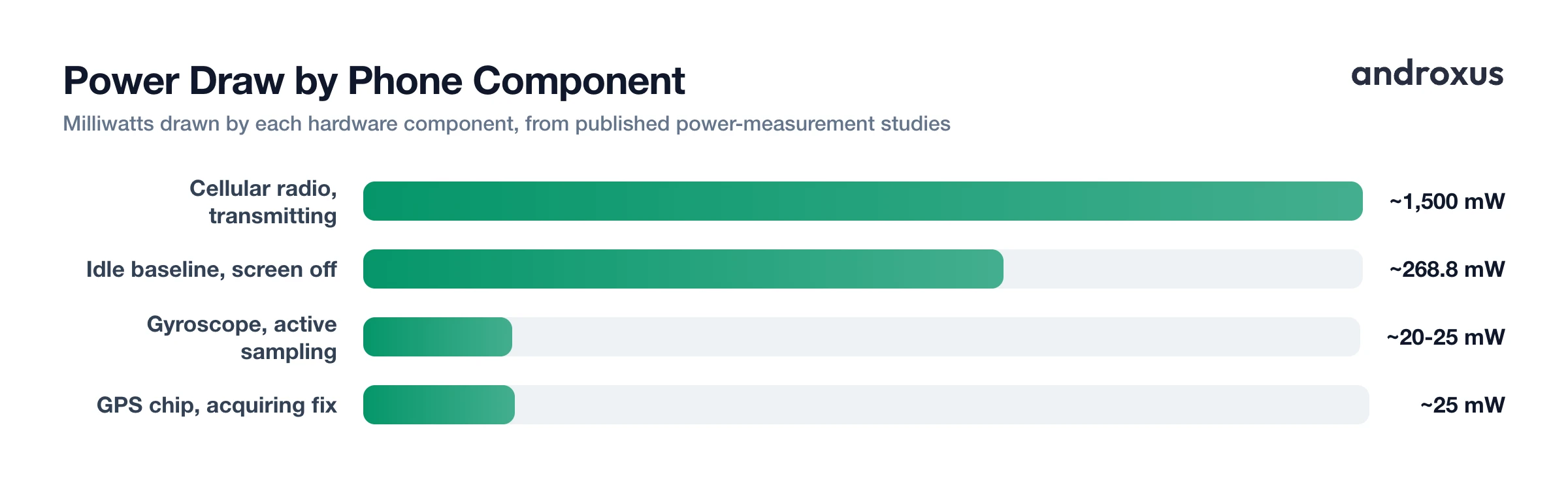
Tap into any app and Android splits its drain into two categories: screen usage, meaning power used while the app was open and the display was on, and background usage, meaning power used while the app ran behind the scenes.
A high screen-usage percentage is usually nothing to worry about. It just reflects how long you actively held the app open, which is expected for a browser, a game, or social media you scroll through. The number that actually deserves attention is a high background percentage paired with little or no screen time, meaning the app is working while you aren't using it.
Active Drain vs Standby Drain: What's Actually Using the Power
It helps to know what's actually consuming power on the hardware side. The display is the single largest power draw once the screen is on. Published smartphone power-measurement studies have found the backlight can account for as much as roughly 80 percent of total draw at peak brightness, which is why almost every app looks worse in the screen-usage column after a bright, long session.
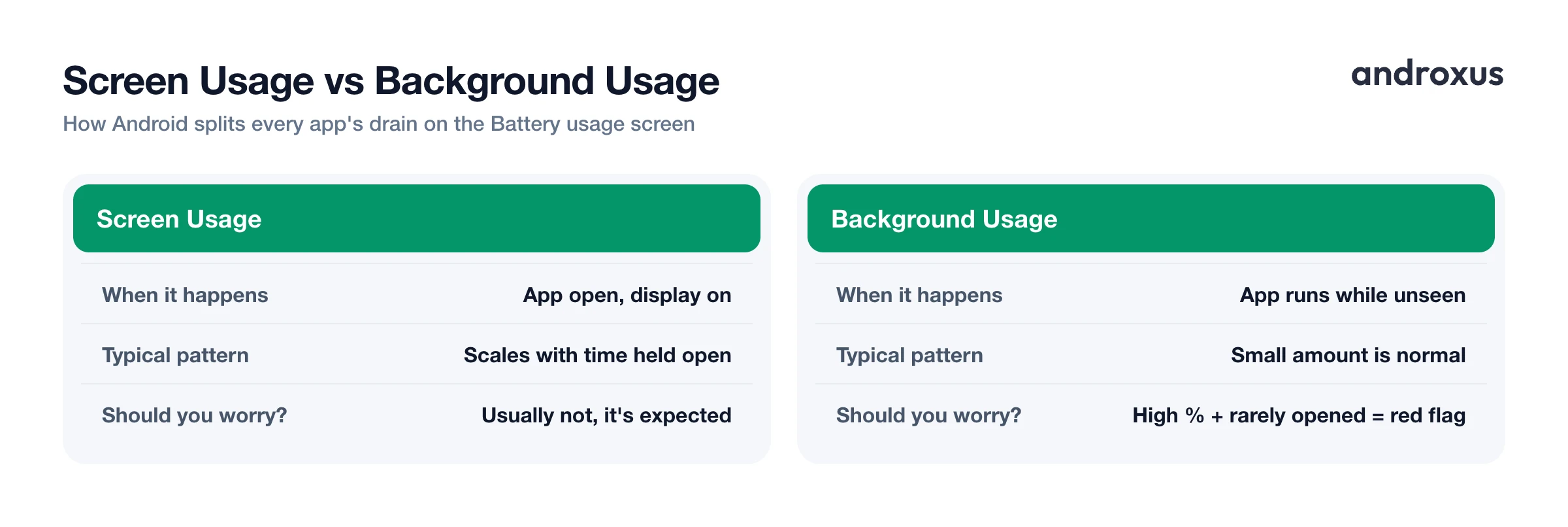
The cellular radio is the next big consumer. An LTE or 5G radio draws roughly 1,000 to 1,500 milliwatts while actively transmitting, and that figure can double or more in areas with weak signal, because the radio has to push more power to hold the connection. This is why an app can look like a battery hog in spotty coverage and normal on strong Wi-Fi.
Sensors matter less but add up with continuous use. GPS hardware draws around 25 milliwatts while acquiring a location fix, and the gyroscope draws a broadly comparable amount when actively sampled; the accelerometer draws far less on its own. That's why fitness and navigation apps that poll location constantly show up disproportionately in background stats.
With the screen off, a phone's baseline idle draw, meaning radios idling and routine housekeeping, measures around a few hundred milliwatts, far below any active-use state. Part of that baseline can come from 5G: independent battery tests generally show 5G devices losing standby charge somewhat faster than 4G/LTE ones, and the gap widens where the 5G signal is weak and the radio works harder to hold the connection.
Typical power draw by phone activity
| Component / State | Typical Power Draw | Active or Standby | Note |
|---|---|---|---|
| Display at peak brightness | up to ~80% of total power draw in that state | Active | Largest single drain source once the screen is on |
| Cellular radio (LTE/5G), transmitting | ~1,000-1,500 mW | Active | Can double or more with weak signal |
| GPS chip, acquiring a fix | ~25 mW | Active | Rises with continuous location polling |
| Gyroscope, active sampling | ~20-25 mW | Active | Accelerometer alone draws far less; used by fitness and motion-tracking apps |
| Idle state, screen off (aggregate baseline) | ~268.8 mW | Standby | Baseline system draw with backlight off |
| 5G vs 4G radio, standby | modestly higher on 5G | Standby | Gap widens with weak 5G signal; switching to 4G can reduce standby draw |
Why Android Restricts Background Apps: Doze and App Standby Buckets
Android doesn't just let apps run freely in the background. Doze mode kicks in when the phone is unplugged, stationary, and screen-off for a period. It defers network access, background jobs, syncs, and standard alarms, then wakes briefly at intervals to let pending work complete. This is why a phone left alone overnight loses far less battery than one carried all day.
Layered on top of Doze is App Standby Buckets, introduced in Android 9. Every installed app is sorted into one of five priority tiers based on how recently and how often you use it: Active, Working Set, Frequent, Rare, and Restricted. Lower buckets get less access to background jobs, alarms, and network time while on battery. Like Doze, standby buckets apply only on battery power, not while charging.
Google also runs Adaptive Battery, an on-device machine-learning feature since Android 9, which predicts which apps you're about to use and limits background activity for apps you rarely open. Google says this model runs on-device, without sending usage data off the phone.
Common Background Battery Drain Culprits
A handful of app categories and settings account for most background drain:
- Apps that poll GPS continuously, such as navigation, fitness, delivery, and dating apps, needing your location even with the screen off.
- Mail, messaging, and sync apps that keep a persistent network connection open so notifications arrive instantly.
- Apps running a legitimate foreground service, like music, podcast, or audiobook players, which keep the CPU and radio active by design. This drain is expected, not a bug.
- Apps manually set to Unrestricted background usage, which exempts them entirely from Doze and App Standby limits.
- Poor cellular signal strength, which forces the radio to transmit at higher power system-wide, inflating drain for every app on the network, not just one.
- Always-on display, if enabled, which keeps part of the screen drawing a small, continuous amount of power around the clock.
How to Find Apps Draining Battery on Android
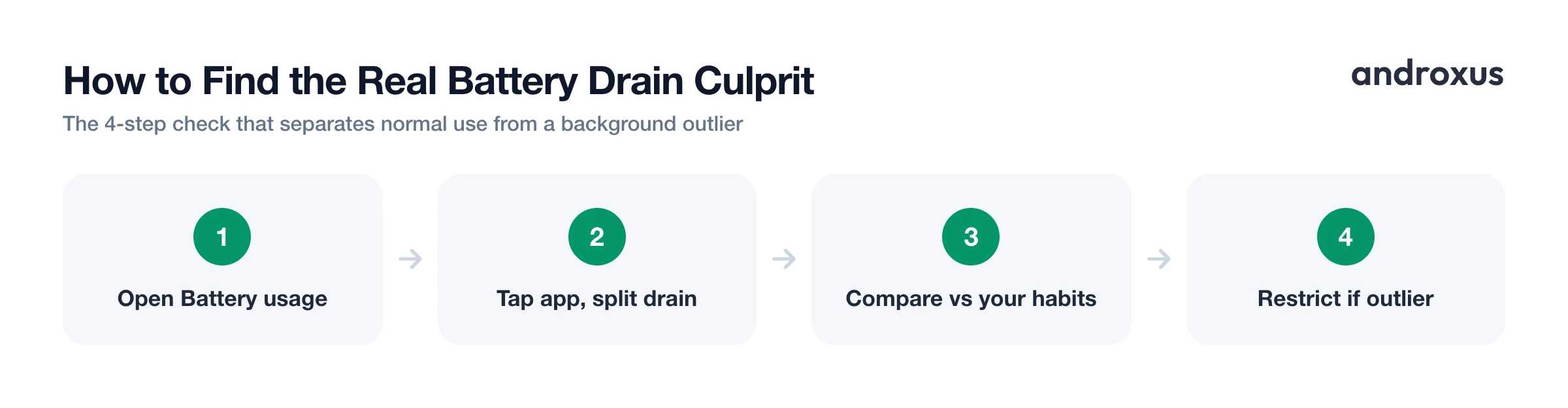
- Open the Battery usage screen. Go to Settings > Battery > Battery usage on Pixel or stock Android, or Settings > Battery and Device Care > Battery on Samsung. This lists every app ranked by its share of total drain.
- Switch the time range. Change the view from the default 24-hour window to since last full charge or a 7-day trend if your phone offers it, so a single unusual day doesn't skew what you're looking at.
- Tap an app to split screen vs background drain. Open any app in the list to see how much of its drain came from screen-on time versus background activity. A high background share with little or no screen time is the pattern worth investigating.
- Cross-check against how often you actually use the app. Compare the background percentage to your actual habits. An app you open daily using some battery in the background is expected; an app you rarely open doing the same is the real outlier.
- Adjust the app's background permission. Go to Settings > Apps > [app] > Battery and set it to Restricted for apps you don't need running in the background, or leave apps that must stay awake, like alarms or messaging, on Optimized or Unrestricted. On Pixel and stock Android, tap the words "Allow background usage" itself, not just the toggle, to reveal the Optimized versus Unrestricted choice.
- Recheck after a day or two. Return to the Battery usage screen after a full day or two, ideally over a 24-hour or 7-day cycle, to confirm the app's background share actually dropped. For a second data point on overall battery behavior, a charging meter app such as AmpereFlow can show charge history and charging power over the same stretch of time. It reports and measures this data; it doesn't change how the phone charges or manage battery life on its own.
Key takeaways
- App percentages on the Battery usage screen reflect share of drain in that time window, not share of a full charge, so read them relative to each other, not as absolute numbers.
- Screen usage drain is expected and scales with how long you hold an app open; background drain with little screen time is the pattern actually worth investigating.
- The display and the cellular radio account for the bulk of active power draw, and weak signal or an active 5G connection can inflate drain for every app, not just one.
- Android's Doze mode, App Standby Buckets, and Adaptive Battery already limit most background activity while on battery power, so unrestricted apps stand out most.
- Restricting a specific app's background usage in Settings > Apps > [app] > Battery is the direct fix once you've identified the real outlier, and it's worth a follow-up check later to confirm it worked.
Frequently asked questions
What does the percentage next to each app on the Battery usage screen mean?
It's that app's share of total battery drain during the selected time window (24 hours, 7 days, or since last full charge), not a percentage of the phone's total battery capacity. All the app percentages on the screen add up to roughly 100 percent of what was used in that window.
What's the difference between an app's screen usage and background usage in battery stats?
Screen usage is power drawn while the app was open with the display on. Background usage is power drawn while the app ran behind the scenes with the screen off or another app in front. A high background number for an app you rarely open is the pattern worth investigating.
Why does an app show battery drain even though I never open it?
Usually because it runs a background service: location tracking, push notifications, or background sync, or because it's been manually set to Unrestricted, which exempts it from Android's Doze and App Standby limits.
Does turning off 5G actually save standby battery?
Usually, yes, though the size of the effect varies. Independent battery tests generally show 5G devices losing standby charge somewhat faster than 4G/LTE ones, especially where the 5G signal is weak and the radio has to work harder to hold the connection. Switching to 4G when you don't need 5G speeds is a reasonable way to trim background drain.
What temperature range is safe for charging a phone?
Roughly 0C to 45C (32F to 113F) for charging, with 15C to 25C (59F to 77F) as the ideal storage range. Charging below 0C risks lithium plating that permanently reduces capacity, and charging above 45C accelerates long-term degradation.
Can a battery saver or meter app make my phone charge faster or add battery capacity?
No. Charging speed is set by the phone's hardware, its charging protocol (such as USB-PD or Quick Charge), and the charger and cable in use, not by any app. Meter apps like AmpereFlow measure and report live watts, amps, and charging power; they can't change how the phone actually charges.
