What Is Always-On Display and Does It Drain Battery?
You glance at your locked phone a dozen times a day just to check the time, and always-on display is what lets you do that without waking the whole screen. It sounds like a small convenience, but it is also a screen that never fully turns off, which naturally raises the question of what that costs you in battery life.
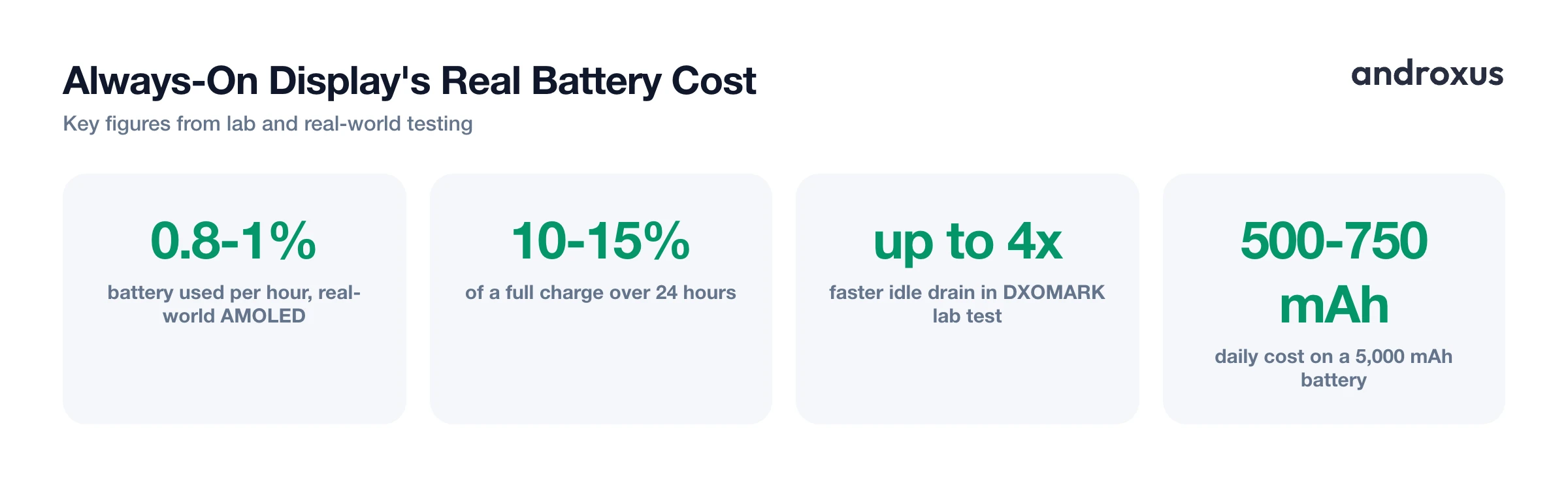
Quick answer: Always-on display (AOD) does drain battery, typically around 0.8 to 1 percent per hour on modern AMOLED phones, or roughly 10 to 15 percent of a full charge over 24 hours. Lab testing has found it can cut idle battery life by 2.5 to 4 times compared to leaving it off. The cost is modest on AMOLED screens because only the lit pixels (a clock, a few icons) draw power, but it is much higher on LCD screens, which need a full backlight just to show anything at all.
What you'll learn
- What always-on display actually is and why AMOLED screens make it cheap to run
- Real battery numbers from lab testing and real-world use, with a side-by-side table
- Why LCD screens handle AOD very differently from AMOLED
- Whether AOD is worth keeping on for your own charging habits
- How to reduce or eliminate AOD's battery cost without giving up the feature entirely
What Always-On Display Actually Is
Always-on display is a screen mode that keeps a minimal set of information, usually a clock, the date, notification icons, and battery percentage, visible on a locked phone without waking the full display. Instead of a black screen until you tap it, you get a glanceable readout at all times.
This only works cheaply because of OLED and AMOLED panel technology. Each pixel on an AMOLED screen emits its own light, so a pixel showing pure black draws close to zero power. AOD content is designed around that: a mostly black background with a small cluster of lit pixels for the clock and icons, so the phone is not lighting up the whole screen, just a fraction of it.
Samsung introduced AOD on the Galaxy S7 line in 2016 and rated its impact at under 1 percent of battery per hour at launch, a figure independent testing has largely held up over the years since. Many modern phones also use LTPO display hardware, which can drop the refresh rate as low as 1Hz specifically for AOD content, since a static clock does not need to redraw 60 or 120 times a second the way an active app does.
It is worth being clear that AOD is not the same as simply leaving the screen on. A fully lit screen draws power across every pixel. AOD lights only a small portion of the panel, which is exactly why its battery cost, while real, is far smaller than an active display.
How Much Battery Does AOD Really Use, With Numbers
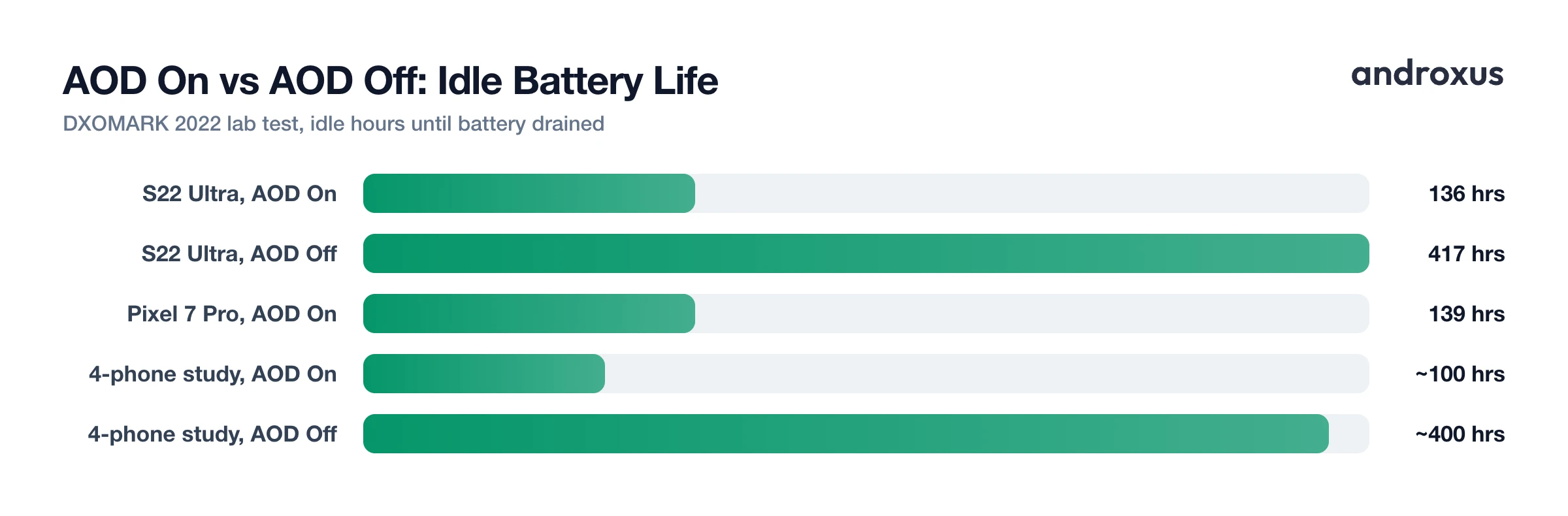
DXOMARK ran a controlled lab test in 2022 using a Faraday cage, fixed temperature, battery held between 20 and 80 percent, and airplane mode enabled, then measured idle battery life with AOD on versus off across several flagship phones. The results were stark.
| Device | AOD On (idle hours) | AOD Off (idle hours) | Approx. Drain Multiplier | Source |
|---|---|---|---|---|
| Google Pixel 7 Pro | ~139 hrs | Not published per device | N/A | DXOMARK 2022 lab test |
| Galaxy S22 Ultra (Exynos) | ~136 hrs | ~417 hrs | ~3.1x | DXOMARK 2022 lab test |
| Four tested phones, overall study finding | ~100 hrs | ~400 hrs | ~4x | DXOMARK 2022 lab test |
| Typical modern AMOLED phone (real-world) | N/A | N/A | ~1%/hour, ~10-15%/day | Aggregated: Samsung, SlashGear, HowToGeek |
| Average smartphone battery (Jan 2026) | 5,291 mAh / ~20.1 Wh at 3.8V | N/A | N/A | Android Authority battery capacity report |
Under those idealized lab conditions, AOD roughly quadrupled how fast the four tested phones drained while sitting untouched, cutting a typical idle life from around 400 hours down to about 100 across the study overall. Individual results varied: the Galaxy S22 Ultra held up for 136 hours with AOD on versus 417 hours with it off, about 3.1 times faster drain, the Pixel 7 Pro managed 139 hours with AOD on, and the iPhone 14 Pro Max posted the lowest discharge current of the group, roughly 36 mA with AOD on versus about 10 mA idle with it off, making it the best performer in the test. That is a worst-case, controlled scenario though. In normal daily use, where the proximity sensor suspends AOD when the phone is face-down or in a pocket, real-world estimates across Samsung, Google, and Apple devices settle closer to 0.8 to 1 percent per hour, which works out to roughly 10 to 15 percent of a full charge across 24 hours.
Put in concrete terms: on an average 5,000 mAh battery, about 19 Wh at 3.8V, a 10 to 15 percent daily AOD cost works out to roughly 500 to 750 mAh, or around 2 to 3 Wh, spent just to keep a clock and a few icons visible around the clock. That is not nothing, but it is also a small slice of a full day's power budget for most phones.
Impact does vary by device. Cheaper AMOLED panels and busier always-on content, photos or large graphics instead of a simple digital clock, draw more current than the minimal default layouts most phones ship with.
Why AMOLED Makes AOD Cheap and LCD Makes It Expensive
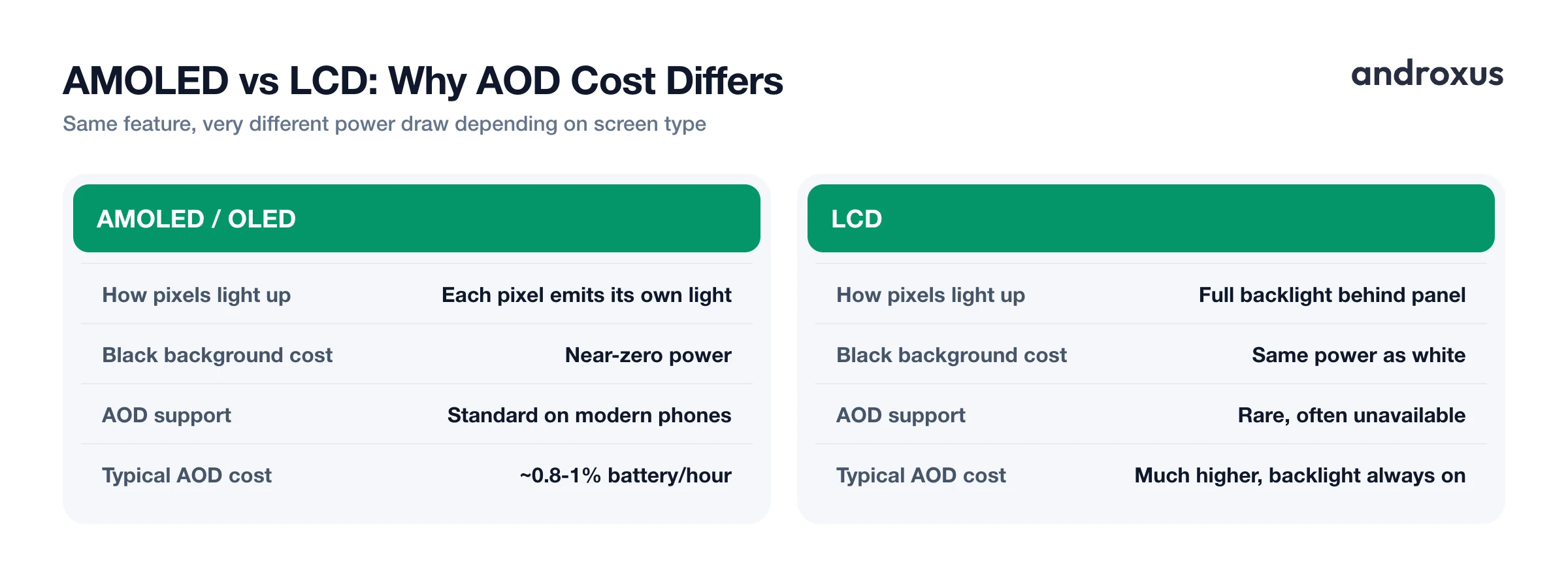
The reason AOD is even viable comes down to panel technology. AMOLED and OLED screens emit light per pixel with no backlight behind them, so an AOD screen that is mostly black is only spending power on the handful of pixels actually forming the clock and icons. Everything else is functionally off.
LCD screens work the opposite way. They rely on a backlight that illuminates the entire panel uniformly, and there is no way to selectively dim just the black areas. Showing even a simple clock on an LCD means running that full backlight continuously, which makes an always-on feature far costlier, and in practice, most LCD phones simply do not offer it.
This is also why dark-themed AOD layouts draw less power than lighter graphics or full-screen wallpaper-style always-on displays: more lit pixels and higher brightness both directly increase current draw on an AMOLED panel. It is the same underlying principle behind OLED dark mode, though the battery effect is smaller across a normal, mixed-content interface than it is on a mostly black AOD screen.
Is Always-On Display Worth Enabling?
The trade-off is straightforward: a measurable but modest daily battery cost, roughly 10 to 15 percent, against the convenience of a glanceable clock and notifications without waking the phone. Whether that trade is worth it depends on your own charging habits more than any general rule.
If you have a 5,000 mAh or larger battery, charge overnight, and comfortably make it through a full day already, AOD's cost is unlikely to be the thing standing between you and a charger. For most people in that position, keeping it on is a reasonable default.
If you already struggle to finish a day on one charge, own an older phone with reduced battery health or capacity, or regularly go long stretches away from a charger, AOD is one of the more effective single settings to adjust. It will not transform your battery life on its own, but 10 to 15 percent is a meaningful chunk when every percent matters.
Most phones also offer a middle ground: Battery Saver modes that automatically disable AOD once the battery drops below a set threshold, giving you the convenience for most of the day and the savings exactly when you need them.
How to Reduce Always-On Display's Battery Impact
You do not have to choose between turning AOD off entirely and paying its full cost all day. A few settings changes can capture most of the convenience while cutting most of the drain.
- Open Display settings. On most Android phones, go to Settings, then tap Display (on Samsung One UI, go to Settings > Lock Screen instead).
- Find Always-On Display or Lock Screen options. On Samsung, tap Always On Display directly under Lock Screen. On Pixel and other stock Android phones, tap Lock Screen, then look for "When to show" or a similar always-on toggle.
- Toggle Always-On Display on or off. Flip the switch to enable AOD, or turn it off entirely to eliminate its battery cost.
- Choose a display mode to limit battery impact. Instead of "Show always," pick "Tap to show" (lights up briefly after you tap the screen) or "Show as scheduled" (only active during set hours, such as your waking hours) to cut the always-on runtime.
- Lower AOD brightness and simplify the layout. Where available, reduce AOD brightness and choose a simple clock style with fewer lit pixels (avoid full-screen images or large graphics) since more lit area means more power draw.
- Let Battery Saver manage it automatically. Enable Battery Saver or a scheduled power-saving mode; on most phones this automatically disables AOD when battery is low, so you get the convenience most of the day without manual toggling.
If you want to see the real difference on your own phone rather than relying on general percentages, since AOD cost varies by panel, brightness, and content, an app like AmpereFlow can track screen-off battery drain and charge history over time, so you can compare a day with AOD on against a day with it off and see exactly what it costs on your specific device.
Key takeaways
- Always-on display typically costs about 0.8 to 1 percent of battery per hour on AMOLED phones, roughly 10 to 15 percent over a full 24-hour day.
- Lab testing under idealized conditions found AOD can cut idle battery life by 2.5 to 4 times, though real-world use is gentler thanks to proximity sensor suspension.
- AMOLED screens make AOD cheap because only lit pixels draw power; LCD screens need a full backlight running, making the feature far more costly or impractical there.
- Switching from "Show always" to "Tap to show" or a scheduled window, and simplifying the clock layout, cuts most of AOD's cost while keeping the feature usable.
- Battery Saver modes on most phones auto-disable AOD when battery runs low, offering a sensible default without manual toggling every day.
Frequently asked questions
Does Always-On Display drain battery on Android phones?
Yes, but modestly on AMOLED screens. Most Android phones with AOD enabled use roughly 1 percent of battery per hour in real-world use, or about 10 to 15 percent of a full charge over 24 hours, because only a small cluster of pixels lights up at 1Hz.
How much battery does AOD use per hour?
Independent lab testing (DXOMARK, 2022) found AOD cut idle battery life from about 400 hours to 100 hours on some devices, roughly 4 times faster drain than with AOD off. Real-world estimates across Samsung, Google, and Apple devices cluster around 0.8 to 1 percent per hour.
Does Always-On Display drain battery faster on LCD screens?
Yes, significantly more. LCD screens need a full backlight running continuously even to show a clock, so AOD on LCD-equipped phones costs far more battery than on AMOLED, which only powers the individual pixels that are lit.
Is it worth turning off Always-On Display to save battery?
If you are chasing every percent, turning off AOD is one of the more effective single toggles, worth roughly 10 to 15 percent of daily battery on many phones. If you rarely run low, the convenience of glanceable time and notifications is usually worth the modest cost.
Can Always-On Display cause screen burn-in?
The risk is low but not zero. Modern AOD implementations shift the clock and icon positions by a few pixels periodically and use low brightness to minimize wear, but manufacturers still warn that years of heavy AOD use can contribute to image retention on OLED panels.
How do I check exactly how much battery AOD is using on my phone?
Android's Battery settings show per-feature usage estimates, but they are often rough. An app like AmpereFlow can show live charging wattage, screen-off drain patterns, and charge history side by side, so you can compare a day with AOD on versus off and see the real difference on your own device.
