How to Customize Always-On Display Clock Settings
Staring at a lock screen that shows nothing but a plain white clock gets old fast, especially once you notice a friend's phone showing a slimmer font, a warmer color, or a battery percentage right there without unlocking anything. The good news is that customizing your Always-On Display clock is usually a few taps away, whether your phone already has the feature or needs a little help to get one at all.
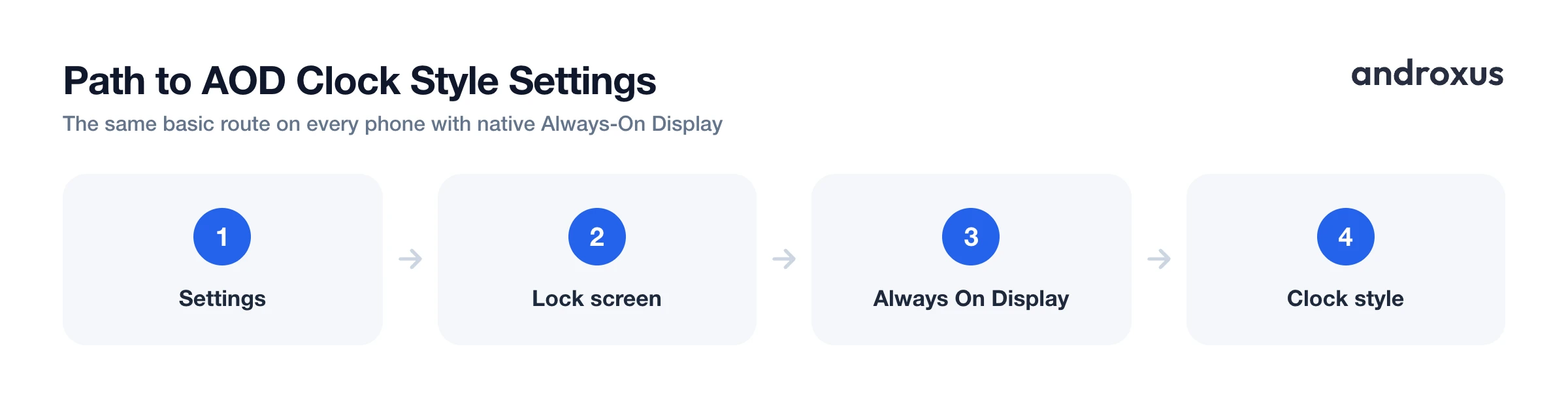
Quick answer: To customize always on display clock settings, go to Settings, then Lock screen (or Wallpaper and style), then Always On Display, then Clock style, and pick a font, color, and size, most Android phones with native AOD support this. If your phone has no native AOD feature, a dedicated AOD app can add customizable clock styles, watch faces, date, battery percentage, and notification icons of its own.
What you'll learn
- What customizing an AOD clock actually covers, style, color, size, and extra info
- Where to find clock style settings on Samsung, Pixel, and other phones
- How to choose between minimal and detailed clock styles
- What customization does and doesn't change about battery use and burn-in risk
- How to fine-tune timing, dimming, and pocket detection
What "Customizing Your AOD" Actually Covers
Always-On Display shows a dimmed version of the clock, and often the date, battery, and notifications, on an AMOLED or OLED screen while the phone is otherwise locked. It uses very little power because unlit black pixels draw almost no energy on an OLED panel.
On phones with native AOD, the customizable pieces are typically the clock style or font, the clock color and size, what other info displays alongside it, and the display schedule (Always, Tap to show, As scheduled, or For new notifications only). Not every phone offers all of these controls.
Many budget and mid-range Android phones ship without a native AOD feature at all, or with only one fixed clock style and no way to change it. A dedicated AOD app is the practical way to add that on those devices. AOD Flow, for example, adds an Always-On Display with several clock styles and watch faces, date, precise battery percentage, notifications, and music and video controls, along with pocket mode, adjustable timing and dimming, and burn-in protection, which is particularly useful on phones that lack a native AOD.
Where to Find Clock Style Settings by Phone Brand
The general path is the same everywhere: open Settings, find a Lock screen or Wallpaper-related menu, then look for a Clock or Clock style option. The exact wording differs by brand.
On a Samsung Galaxy phone, go to Settings, then Lock screen and AOD (or just Lock screen), then Always On Display, then Clock style, where you choose the clock's font, color, and size. You can also get there from Settings, then Wallpaper and style, by tapping the lock screen preview and then tapping the clock.
On a Google Pixel running recent Android versions, go to Settings, then Wallpaper and style, then Lock screen, then Clock, and swipe through the style options shown above the Clock color and size control.
Exact menu names and available styles vary by phone brand, Android version, and region, so if these paths don't match exactly, search your Settings app for "clock" or "Always On Display" instead. In a dedicated AOD app such as AOD Flow, the clock style or watch face gallery lives inside the app itself rather than in the system Settings menu, so it works the same way regardless of what the phone maker included.
Choosing a Clock Style: Digital vs. Analog, Minimal vs. Detailed
Minimal digital styles with thin numerals and a small lit area tend to be the most legible at a glance, and they generally use less display power than large, bold, or full-color styles, since OLED power draw scales with how many pixels are lit and how bright they are.
Analog watch-face-style clocks add visual variety but usually light more pixels than a slim digital readout, since hands, tick marks, and numerals all need to be drawn. It's a small tradeoff worth knowing if battery life matters more to you than looks.
Contrast also matters for readability. A clock color that stands out clearly against the AOD's usually black background is easier to read at low brightness and from across a room. Some styles include accent color options that can be matched to a wallpaper or personal taste without materially changing power draw.
Choosing What Else Shows on the AOD
Beyond the clock itself, common toggle options include the date, battery percentage, notification icons showing which app sent a notification, and media or music playback controls.
Notification icons let you see at a glance whether you have messages without waking the full screen. Showing a precise battery percentage rather than just a battery icon is a feature some phones don't offer natively, but that AOD apps can add. Media controls let you pause, skip, or play music or video without unlocking the phone, handy during workouts or while the phone is mounted in a car.
Battery Impact and Burn-In: What Customization Changes and What It Doesn't
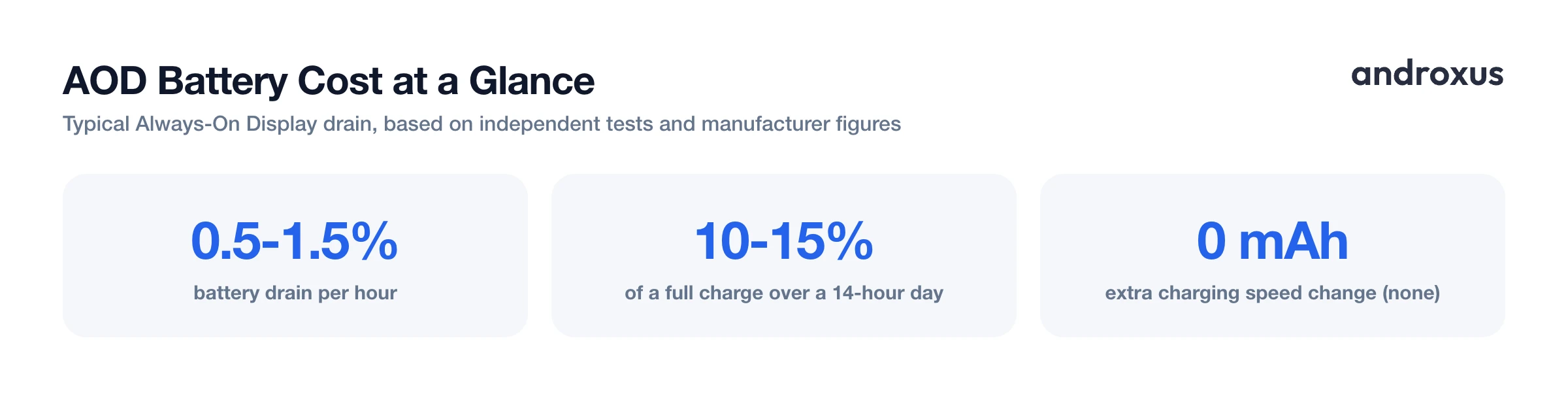
Always-On Display does use extra battery. Independent tests and manufacturer figures put typical AOD drain around 0.5 to 1.5 percent of battery per hour, which adds up to roughly 10 to 15 percent of a full charge over a 14-hour waking day, though this varies by device, display technology, brightness, and how much content is shown. This is worth being upfront about: an always-on clock is not free, even a well-optimized one.
On OLED and AMOLED screens, only the lit pixels, the clock digits, icons, and text, draw power. The rest of the screen stays black and draws effectively none, so a slimmer, smaller-area clock style generally costs less battery than a large, bright, colorful one. Choosing a minimal style and a shorter AOD schedule is the more effective lever than any single setting on its own.
It's also worth being clear about what an AOD app does not do: it does not change how fast your phone charges. It only displays information and controls. A fast-charging detection feature reports charging status, it does not alter the charging speed itself.
Screen burn-in, permanent ghosting of a static image, is a real long-term risk of showing the same static content for many hours a day on OLED and AMOLED panels. The main mitigations are keeping brightness low, minimizing lit area, and periodic pixel shifting, nudging the image position at intervals so no pixel stays lit in the same spot for long. These measures reduce, but cannot fully guarantee against, burn-in over a device's lifetime.
AOD Clock Settings by Phone Type
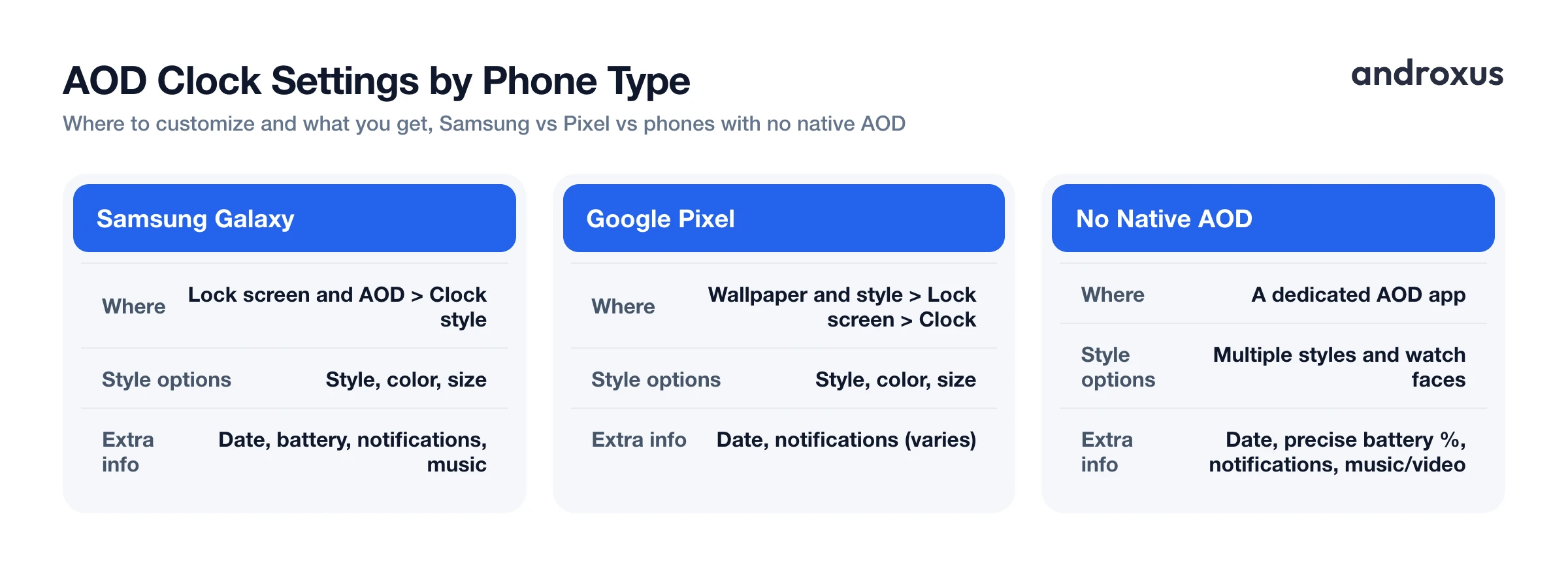
| Phone Type | Where to Customize | Clock Style Options | Extra Info Shown |
|---|---|---|---|
| Samsung Galaxy | Lock screen and AOD > Always On Display > Clock style | Style, color, size | Date, battery, notification icons, music controls |
| Google Pixel | Wallpaper and style > Lock screen > Clock | Style, color, size | Date, notifications (varies by version) |
| Other Android with native AOD | Settings > Lock screen or Display menu (path varies) | Usually style and color; size varies | Varies by manufacturer skin |
| Android without native AOD | A dedicated AOD app, such as AOD Flow | Multiple clock styles and watch faces set by the app | Date, precise battery percentage, notifications, music and video controls |
Fine-Tuning Timing, Dimming, and Edge Cases
AOD display modes commonly include Always on, Tap to show (which lights up briefly after you tap the screen), As scheduled (only during set hours, useful for saving battery overnight), and For new notifications only. A scheduled AOD, for example one that's only active during waking hours, is one of the simplest ways to cut the daily battery cost of an always-on clock without giving up the feature entirely.
Pocket or bag detection, using the phone's proximity sensor, can keep the AOD from lighting up and wasting battery when the phone isn't actually visible. Some AOD apps also offer a separate bedside or desk clock mode, a larger, brighter, always-active view for when the phone is docked or charging on a nightstand.
How to Customize Your Always-On Display Clock
- Check whether your phone has native AOD. Open Settings and search for "Always On Display" or look under Lock screen, Lock screen and AOD, or Wallpaper and style. If nothing shows up, your phone likely doesn't support native AOD, which is common on budget and mid-range Android devices, and a dedicated AOD app can add the feature.
- Turn on Always-On Display. Toggle Always On Display to on. Choose how it should appear: Always, Tap to show, As scheduled, or For new notifications, depending on how much battery you want to trade for visibility.
- Open the clock style picker. On Samsung, go to Lock screen and AOD > Always On Display > Clock style. On Pixel, go to Wallpaper and style > Lock screen > Clock. In a dedicated AOD app, look for a Clock Style or Watch Face gallery in the main screen.
- Browse and preview styles. Swipe or scroll through the available digital and analog clock styles. Tap a style to preview it live before committing, since AOD screens render differently at low brightness than the picker thumbnail suggests.
- Adjust color and size. Pick a clock color that has enough contrast against your wallpaper or background, and adjust size so the clock stays legible without adding unnecessary lit pixels. Muted or accent colors that match your wallpaper tend to look most polished.
- Choose what else appears and set timing. Turn on or off elements like date, battery percentage, notification icons, and music controls, then set a schedule, enable pocket detection, and adjust dimming so the display stays useful without draining extra battery overnight.
Key takeaways
- To customize always on display clock settings on Samsung or Pixel, look under Settings, Lock screen (or Wallpaper and style), then Always On Display or Clock.
- Minimal digital clock styles are generally more legible and use marginally less battery than large, colorful, or animated styles, since OLED power draw depends on lit pixels.
- Phones without native AOD can still get customizable clock styles and extra info like battery percentage through a dedicated AOD app.
- An always-on clock does use extra battery, typically a small daily percentage, and doesn't change how fast the phone charges.
- Burn-in protection features like pixel shifting and dimming reduce long-term screen wear but can't fully guarantee against it.
Frequently asked questions
Can I change my Always-On Display clock style on any Android phone?
It depends on the phone. Samsung, Pixel, and several other Android OEMs let you pick from multiple clock styles and colors in Settings under Lock screen (or Wallpaper and style). Many budget and mid-range phones ship with no native AOD at all, or with just one fixed clock style, which is where a dedicated AOD app fills the gap by adding customizable clock styles and watch faces of its own.
Where do I find Always-On Display clock settings on a Samsung phone?
Go to Settings, then Lock screen and AOD (or Lock screen), then Always On Display, then Clock style. From there you can choose the clock font, color, and size, and preview it before applying.
Where do I find Always-On Display clock settings on a Google Pixel?
On recent Pixel software, go to Settings, then Wallpaper and style, then Lock screen, then Clock, and swipe through the style options above Clock color and size.
Does customizing the AOD clock use more battery than the default?
Complex animated or full-color styles with more lit pixels typically use marginally more power than a simple, mostly black, minimal digital clock, since OLED and AMOLED screens only draw power for the pixels that are actually lit. The difference is usually small, but choosing a slimmer style and a shorter AOD schedule is the more effective way to save battery.
Can an Always-On Display cause screen burn-in?
It is possible over a long time, since the same static pixels can be lit for hours a day, but modern AMOLED and OLED screens and AOD implementations reduce the risk with dimmed brightness, minimal lit area, and periodic pixel shifting that nudges the image position so no single pixel stays lit in the exact same spot indefinitely. This reduces wear but cannot guarantee zero burn-in over the life of a device.
Can I control what information shows on my Always-On Display besides the clock?
On most modern implementations, yes. In addition to the clock style you can typically toggle date, battery percentage, notification icons, and music controls on or off independently, so the AOD only shows what is useful to you.
