How to Add Always-On Display to Any Phone
Not every phone shows the time, date, and notifications on a dark lock screen without waking it up. If yours doesn't, you're not stuck: you can add always on display functionality with a dedicated app in a few minutes, no root or hardware changes required.
Quick answer: To add always-on display to a phone that doesn't have it built in, install a dedicated AOD app, grant it "Display over other apps" (or "Appear on top") and notification access, then exempt it from battery optimization so Android doesn't kill it in the background. The app draws a low-power clock, battery, and notification overlay on the lock screen. It works best on OLED or AMOLED screens, since black pixels there use almost no power, and it will add a modest, honest amount of battery drain, roughly 2 to 3 percentage points a day with moderate use.
What you'll learn
- Why some phones ship without native Always-On Display in the first place
- How third-party AOD apps actually draw the overlay, and which permissions they need
- How much battery an add-on always-on display realistically costs
- How to reduce the risk of screen burn-in on OLED and AMOLED panels
- A step-by-step way to set one up and dial in the settings afterward
Why Some Phones Don't Have Always-On Display Built In
Always-On Display isn't a universal Android feature, it's something each manufacturer chooses to build and ship. Samsung has included it on nearly all its phones since the Galaxy S7 in 2016, and Google's Pixel phones have shipped a version of it in stock Android for years, though Pixel's built-in options are fairly limited compared to what a dedicated app offers.
Other brands have been slower. OnePlus didn't add Always-On Display until OxygenOS 11 arrived on the OnePlus 8 series in 2020, which means a large number of even older OnePlus phones, along with many Oppo and Realme models, still don't have it. Plenty of budget and mid-range Android phones across every brand never got it at all, since the feature needs both an OLED-type screen and manufacturer software support to be present together, and cheaper phones often skip one or the other.
The idea itself isn't new. Motorola's original Moto X had an "Active Display" feature back in 2013, and Nokia had glance-style always-visible screens even before that. It just didn't become a mainstream expectation until Samsung and LG put it front and center in their 2016 flagships.
How Third-Party Always-On Display Apps Work
A third-party AOD app doesn't unlock some hidden low-power hardware mode that Samsung or Pixel phones have and yours doesn't. Instead, it draws an overlay, showing a clock, date, battery percentage, and notification icons, on top of the lock screen while the phone would otherwise sit with the screen off.
To do that reliably, the app needs a handful of specific permissions. Without them, the overlay either won't appear at all or will stop working after a few minutes.
| Permission | Where to find it | What breaks without it |
|---|---|---|
| Display over other apps (Appear on top on Samsung) | Settings > Apps > [app] > Display over other apps, or Special app access | The overlay never appears on the lock screen |
| Notification access | Settings > Apps > Special app access > Notification access | Notification icons don't show on the display |
| Battery optimization exemption | Settings > Apps > [app] > Battery > Unrestricted | The background service gets killed, so the display stops after a short time |
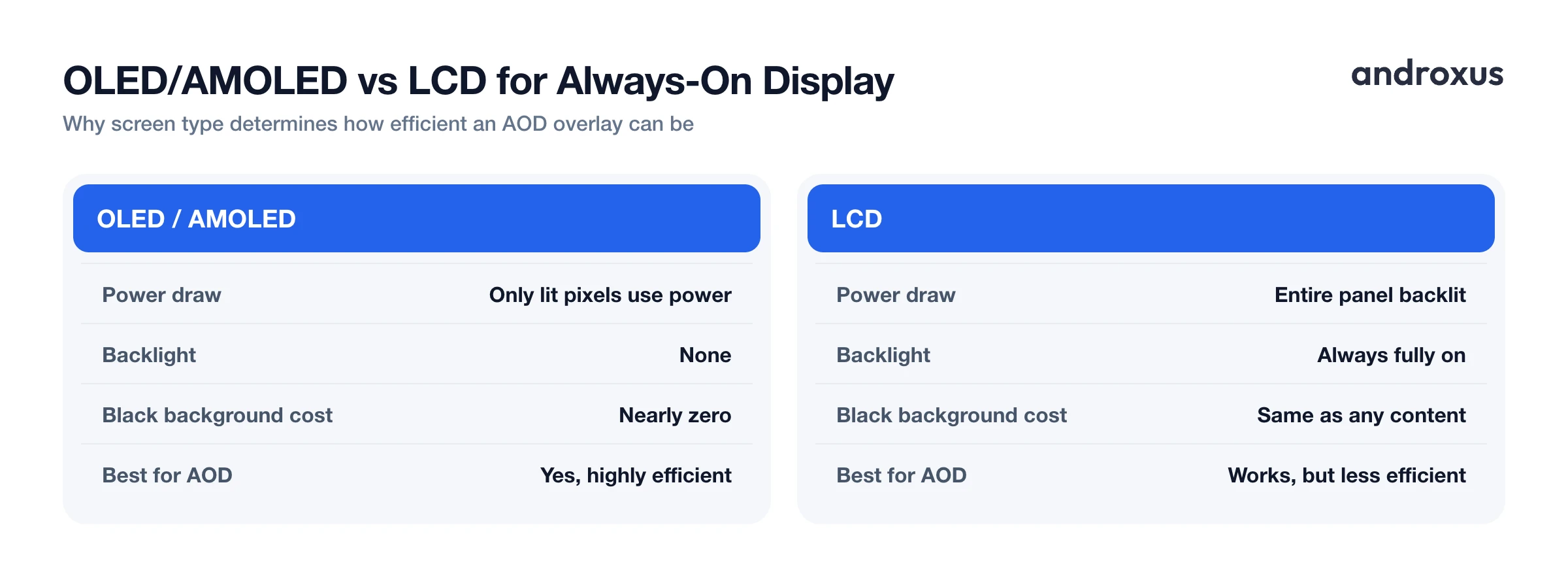
These apps work best on OLED and AMOLED screens for a simple hardware reason: those panels light individual pixels independently, so a mostly black layout with a small clock barely draws any power. LCD screens use a backlight that illuminates the entire panel no matter what's on it, so an always-on overlay on an LCD phone is technically possible but far less power-efficient.
How Much Battery Does an Add-On Always-On Display Use?
This is the part worth being honest about upfront: an always-on display, whether built in or added on, does use extra battery. It's not free.
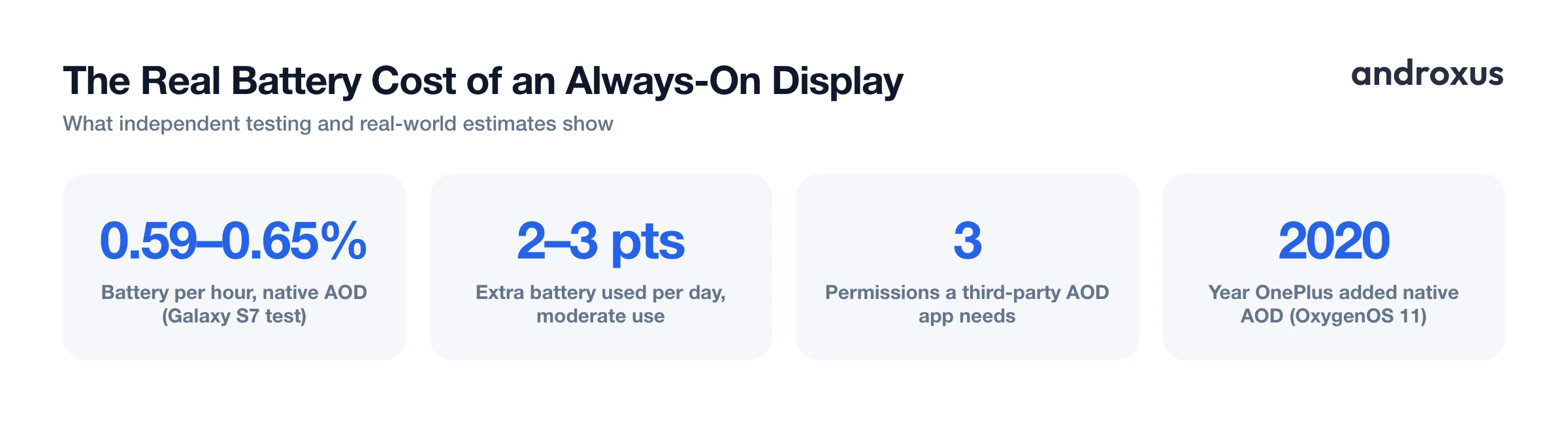
Independent testing on a Samsung Galaxy S7 measured native Always-On Display drawing roughly 0.59 to 0.65 percent of battery per hour. Scaled across a full day, a commonly cited real-world estimate for moderate AOD use is an extra 2 to 3 percentage points of battery drain compared with leaving it off. The effect can vary by device, screen technology, and how the test is run, so treat any specific figure as a ballpark rather than a guarantee for your exact phone.
Third-party AOD apps tend to land on the higher end of that range. They're drawing an overlay through Android's normal app layer rather than tapping into whatever low-power display path a manufacturer built directly into its own AOD feature, so expect somewhat more drain than a phone's native implementation, not less. If you'd rather not accept that trade-off around the clock, limiting the active hours or scheduling it to daytime only is the simplest lever to pull.
Avoiding Screen Burn-In When You Add an Always-On Display
Burn-in, sometimes called image retention, happens on OLED and AMOLED screens when the same static content stays in exactly the same spot long enough that some pixels age and dim faster than the ones around them. An always-on clock is exactly the kind of static content that can cause it over months or years of daily use.
A few settings meaningfully cut the risk:
- Periodic pixel shifting, which nudges the displayed content by a pixel or two at intervals so no single pixel stays lit in the identical position all day
- Lower AOD brightness, since dimmer pixels wear more slowly than bright ones
- Limiting AOD to certain hours instead of running it 24/7
- Mostly black backgrounds with minimal static elements, since unlit OLED pixels don't wear at all
These measures reduce the risk substantially, but it's worth being clear-eyed that no app can fully guarantee zero wear from any static content shown for extended periods. Burn-in protection lowers the odds, it doesn't eliminate them.
Customizing Your Always-On Display
Once the always-on display is up and running, the useful part is tailoring what it actually shows. Look for a few things when picking or configuring an app:
- Multiple clock and watch-face styles, rather than one fixed layout
- Precise battery percentage rather than just a vague icon
- Notification icons and media or music controls, so you can glance at what's playing without waking the phone
- Adjustable timing and dimming schedules, so the display isn't at full visibility (and full battery cost) around the clock
- A proximity-based pocket mode, so the display turns off automatically when the phone goes into a pocket or bag
AOD Flow is one example of an app built around this kind of customizable layer. Along with clock styles and the toggles above, it includes fast-charging detection, which displays your charging status and percentage on the lock screen without changing the actual charging speed, and AMOLED burn-in protection settings, which is particularly useful on phones that never shipped with a native AOD feature.
How to Add an Always-On Display to Any Phone
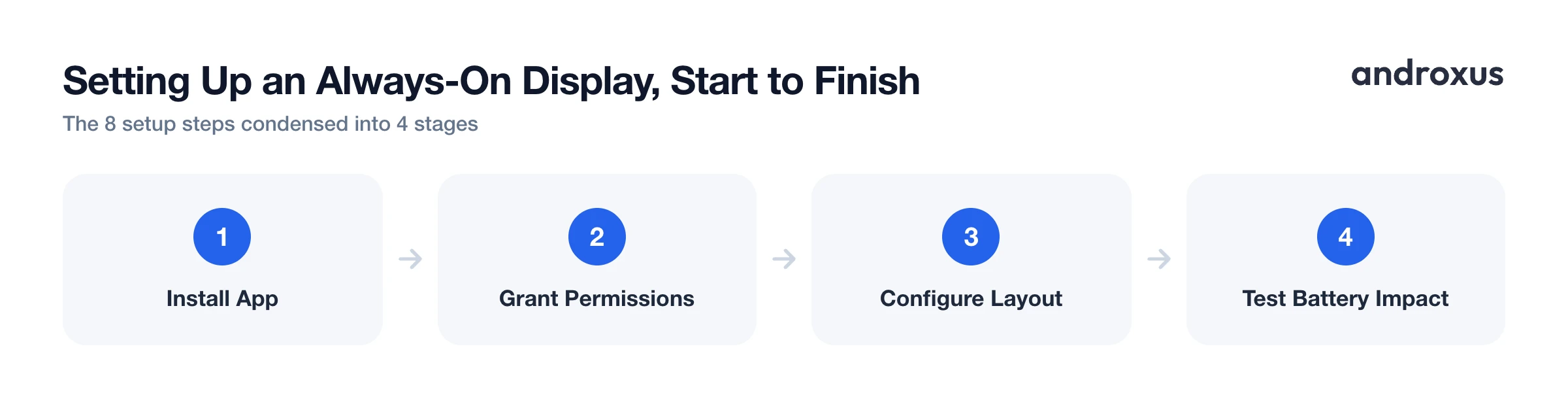
- Confirm your screen type. Check whether your phone has an OLED or AMOLED display (look up the model spec sheet or check Settings > About phone). Always-on display apps work best on these screens because black pixels use almost no power; on LCD screens the feature still works but costs more battery.
- Install a dedicated always-on display app. Download an always-on display app such as AOD Flow from the Play Store. Look for one that supports clock customization, notification icons, and burn-in protection settings rather than a bare clock widget.
- Grant the display-over-other-apps permission. Go to Settings > Apps > [your app] > Display over other apps (on Samsung, this is labeled Appear on top; on Android 9/10 it's under Apps & notifications > Advanced > Special app access) and turn it on. Without this, the overlay can't appear on the lock screen.
- Grant notification access. If you want notification icons to show on the always-on display, enable the app's notification access permission, usually under Settings > Apps > Special app access > Notification access.
- Exempt the app from battery optimization. Go to Settings > Apps > [your app] > Battery and set it to Unrestricted, or find the app under Settings > Battery > Battery optimization and choose Don't optimize. Otherwise Android may kill the background service and the display will stop after a few minutes.
- Configure the always-on layout. Inside the app, pick a clock or watch face style, decide whether to show notification icons and media controls, and turn on any pocket-mode option so the display turns off automatically when the phone is put away.
- Set timing, dimming, and burn-in protection. Set a schedule or timeout for when the always-on display is active, lower its brightness if the app allows it, and enable any burn-in protection or pixel-shift setting to reduce long-term screen wear.
- Test and adjust for battery impact. Use the phone normally for a day, then check battery usage by app in Settings > Battery. If the drain feels too high, shorten the active hours, lower brightness, or reduce how many elements are shown.
Key takeaways
- Plenty of phones, including many OnePlus, Oppo, Realme, and budget or mid-range Android models, never shipped with native Always-On Display, and a third-party app is a legitimate way to add the feature.
- Three permissions matter most: display over other apps, notification access, and a battery optimization exemption. Skip any one and the display either won't appear or will stop working in the background.
- Expect a real, modest battery cost, commonly cited around 2 to 3 percentage points a day, and know that it does not affect your actual charging speed, only what's shown on screen.
- OLED and AMOLED screens are what make an always-on display efficient in the first place; the same feature on an LCD phone works but drains more.
- Pixel shifting, lower brightness, and limited active hours meaningfully reduce burn-in risk on OLED and AMOLED panels, though they can't fully guarantee against it over years of use.
Frequently asked questions
Do I need an OLED or AMOLED screen for an always-on display app to work well?
Yes, for the best results. OLED and AMOLED panels only power the individual pixels that are lit, so a mostly black always-on layout costs very little battery. On LCD screens the backlight lights the entire panel regardless of content, so running an always-on overlay is far less efficient and drains noticeably more battery.
How much battery does adding an always-on display use?
Expect a real but modest hit. Independent testing on a Galaxy S7 measured native AOD at roughly 0.59 to 0.65 percent of battery per hour, and a common real-world estimate is an extra 2 to 3 percentage points of battery per day with moderate use. Third-party AOD apps typically use somewhat more than a phone's built-in AOD since they can't tap the same low-power display hardware path.
Will an always-on display app change how fast my phone charges?
No. Apps like AOD Flow can detect and display charging status and battery percentage on the lock screen, but they do not control or change the phone's actual charging speed. Charging speed is determined by the charger, cable, and phone hardware.
Can an always-on display cause screen burn-in on my phone?
It's a real but manageable risk on OLED and AMOLED screens, since burn-in happens when static content stays in the same place for long periods. Features like periodic pixel shifting, lower AOD brightness, and limiting AOD to certain hours reduce the risk, but no app can fully guarantee zero long-term wear.
What permissions does a third-party always-on display app need?
Typically three: Display over other apps (called Appear on top on Samsung's One UI) so it can draw over the lock screen, notification access if you want notification icons shown, and an exemption from battery optimization so Android doesn't stop the background service after the screen locks.
My OnePlus, Xiaomi, or budget Android phone doesn't have AOD. Can I still get one?
Yes. Many phones ship without native AOD, either because the manufacturer never added it (OnePlus only introduced it with OxygenOS 11 on the OnePlus 8 series in 2020) or because the phone uses an LCD screen. A third-party always-on display app can add the feature as long as you grant it the permissions it asks for.
