What Is Picture in Picture Android Mode?
You are watching a video and need to check a message or look something up, but you don't want the video to stop. That small floating window that keeps playing on top of everything else has a name: picture-in-picture. This guide covers exactly what picture in picture Android mode does, since it is a built-in system feature, not a trick.
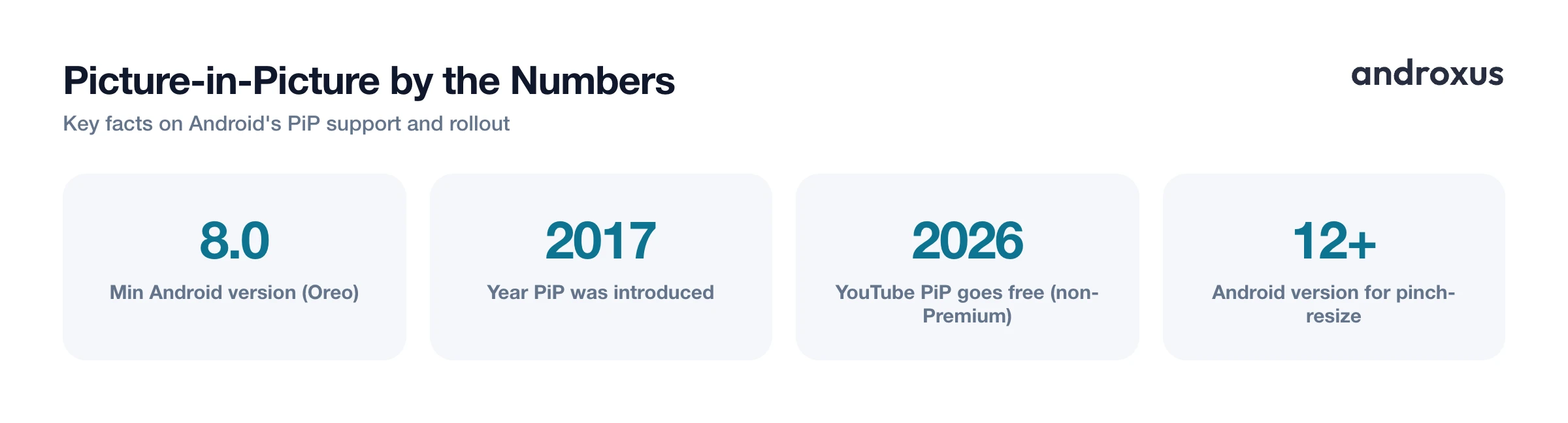
Quick answer: Picture-in-picture (PiP) on Android is a small, resizable, movable video window that keeps playing on top of whatever else you're doing on your phone. It was introduced in Android 8.0 Oreo in 2017 and requires an app to be specifically built to support it, meaning it works in apps like YouTube, Google Maps, and Chrome, but not in every app. You turn it on per app in Settings, Apps, and the window can be dragged, resized, tapped for controls, or dismissed once you no longer need it.
What you'll learn
- What picture-in-picture mode actually is and how it differs from split-screen
- Which Android apps currently support picture-in-picture
- How to turn on picture-in-picture in your Android settings
- How to move, resize, and control the floating window
- What PiP does not do, including how it compares to background audio play
What Picture-in-Picture Mode Actually Is
Picture-in-picture is a small, resizable, movable video window that floats on top of whatever else is on your screen. It lets a video, a video call, or a navigation map keep running while you check email, reply to a text, or browse another app underneath it. Android added native support for this in Android 8.0 Oreo (API level 26), released in 2017, so it does not exist as a system feature on any older version of Android.
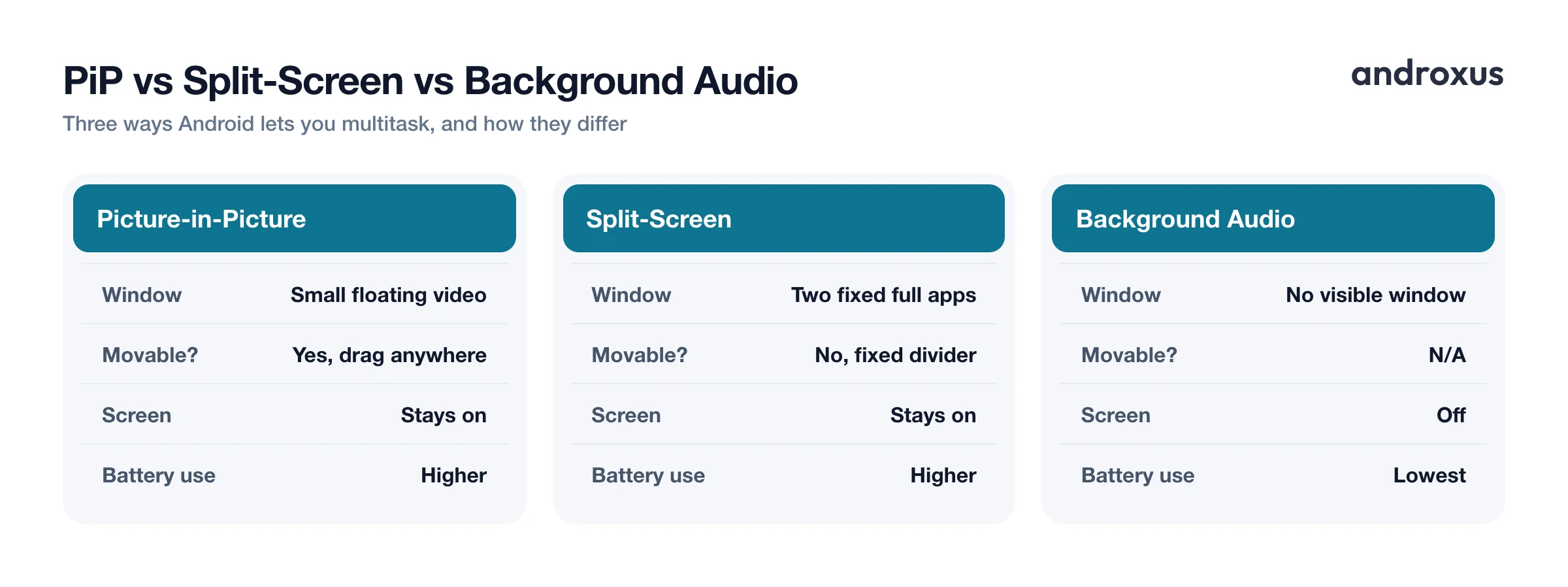
It's easy to confuse picture-in-picture with two other multitasking features, but they behave differently:
- Split-screen (multi-window) mode fixes two full apps side by side or stacked on the screen with a draggable divider. Neither app floats, and neither can be repositioned freely.
- Background audio play with the screen off keeps the display off entirely and plays sound only, with no visible window at all. This is what dedicated background media players use, and it draws far less battery than a floating video window because the screen itself stays off.
One more thing worth knowing: PiP is opt-in for developers, not a system-wide switch. An app has to be specifically coded to declare PiP support and call the API that enters the floating mode. If a developer never built that in, there is no hidden setting that will add it, no matter how new your phone is.
Which Apps Support Picture-in-Picture on Android
Support varies a lot from app to app. Some common apps with picture-in-picture support include YouTube, Google Maps during turn-by-turn navigation, Google Meet during video calls, Chrome for video played inside a web page, VLC, Netflix on most plans, Hulu, and video-podcast apps like Pocket Casts.
A few details are worth knowing before you assume an app will work the way you expect:
- Starting in April 2026, Google began rolling out free picture-in-picture on YouTube globally for non-Premium users, for regular longform video. That was previously a Premium-only perk outside the US, and the rollout is gradual, so it may not have reached every account yet.
- YouTube Premium is still required to use PiP specifically for music videos and for background, audio-style listening on YouTube.
- Netflix's Standard with Ads plan does not support PiP, even though the app supports it on other Netflix plans, and this restriction isn't clearly explained inside the app itself.
- Chrome for Android has supported PiP for web video since 2017: play a fullscreen HTML5 video, press Home, and it shrinks into a floating window.
Not every video or streaming app supports PiP, even on a fully updated phone. Many simply haven't built it in, and a few disable it deliberately for licensing or business reasons.
How to Turn On Picture-in-Picture in Android Settings
Picture-in-picture is controlled per app, in your phone's Settings, not from inside each individual app. There are two common paths, and either one gets you to the same underlying permission:
| Path | Where it is | Why it's useful |
|---|---|---|
| Settings, Apps, [app name], Advanced, Picture-in-picture | Inside a specific app's settings page | Good when you already know which app you want to enable |
| Settings, Apps, Special app access, Picture-in-picture | A dedicated list (wording varies by phone maker) | Lists only the apps on your device that actually support PiP, so you don't have to guess |
Once you find the app, switch on "Allow picture-in-picture." Turning that toggle off later revokes just that one permission, without touching the app's other permissions like camera or storage access. Exact menu wording and location differ a bit by phone brand, since manufacturers like Samsung, Google, and Xiaomi skin the Settings app differently, but the underlying Android permission behind it is the same on every device.
Triggering and Controlling the Floating Window
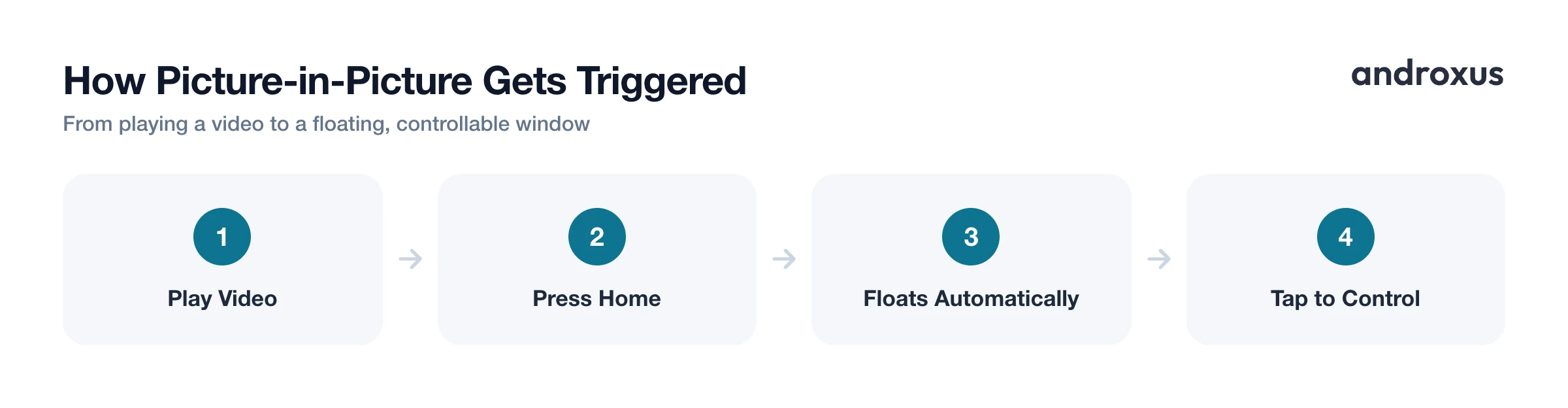
Once PiP is allowed for an app, using it is mostly automatic. Start playing video as normal, then press Home, swipe up to the home screen, or switch to another app from Recents. The video shrinks into a small floating window on its own. A few apps, VLC among them, use their own in-app minimize button instead of relying on the Home gesture, so it's worth checking an app's player menu if the window doesn't appear the way you expect.
Once the window is floating:
- Drag it anywhere on screen with your finger.
- On Android 12 and later, pinch with two fingers to resize it, or double-tap the window to toggle between its largest and smallest size. The window keeps whatever aspect ratio the app set, so it won't stretch or distort.
- Tap the window once to reveal playback controls, including play, pause, a close button, and a full-screen icon.
- Tap that full-screen icon to expand the window back to the full app.
- Drag it down to the bottom edge of the screen, or tap the close button, to dismiss it and stop playback.
Limits of Picture-in-Picture (and What It Doesn't Do)
PiP is genuinely useful, but it has real limits worth knowing before you count on it. It only works in apps built to support it, and there is no way to force it on for an app that lacks the feature. It also requires the screen to stay on the whole time, so it is not a battery-saving feature by itself: the display and video decoding keep running, just inside a smaller window.
For actual battery savings, playing audio only in the background with the screen off, a separate capability from PiP, uses meaningfully less power than any floating video window, since the display itself is off rather than just smaller. Some subscription tiers also block PiP entirely regardless of your Android settings, such as Netflix's ad-supported Standard plan. And PiP windows are typically suspended or closed during phone calls, when the device is locked, or when battery saver and restricted background settings interfere, depending on the phone.
This is also where the distinction between a floating video window and a floating browser and player matters. Playback, for example, provides its own floating window for streaming web audio and video, plus true screen-off background play for audio, and it streams content you already have access to. It doesn't download media, remove ads, or unlock paid content; it's a player and browser, not a way to add PiP support to apps that don't already have it.
How to Turn On and Use Picture-in-Picture on Android
- Confirm your Android version. Check Settings, About phone, Android version. You need Android 8.0 (Oreo) or later; PiP does not exist on earlier releases.
- Check whether the app supports PiP. Open Settings, Apps, Special app access, Picture-in-picture (the exact path may vary by phone maker). This screen lists every installed app capable of PiP, since it only shows apps that were built with support for it.
- Turn the toggle on for that app. Tap the app in that list, or go to Settings, Apps, the app name, Advanced, Picture-in-picture, and switch on Allow picture-in-picture.
- Start playing video, a call, or navigation in the app. Begin playback as normal inside the app.
- Trigger the floating window. Press the Home button, swipe up to the home screen, or switch to another app from Recents. Many apps also have their own in-player minimize icon. The video shrinks into a small floating window automatically.
- Move, resize, or close the window. Drag it to any corner, pinch with two fingers to resize on Android 12 and later, tap it once to reveal playback controls and a close button, or drag it to the bottom of the screen to dismiss it.
Key takeaways
- Picture-in-picture on Android is a small, movable floating video window, available since Android 8.0 Oreo, and it only works in apps built to support it.
- You turn it on per app under Settings, Apps, Special app access, Picture-in-picture, or inside an individual app's Advanced settings.
- Support varies: YouTube, Google Maps, Chrome, and most Netflix plans support it, but some plans and apps deliberately don't.
- PiP keeps the screen on and uses more battery than screen-off background audio play, so it's a multitasking tool, not a battery saver.
- Once floating, the window can be dragged, resized with a pinch gesture on Android 12 and later, and dismissed with a tap or a drag to the bottom of the screen.
Frequently asked questions
What Android version do I need for picture-in-picture?
Android 8.0 Oreo (API level 26) or later. PiP was introduced in Oreo in 2017; it is not available on older versions.
Why doesn't picture-in-picture work in some apps even though my phone supports it?
PiP is opt-in for developers, not a system-wide switch. An app has to be specifically built to support it. If it wasn't coded in, no settings toggle will add it. Some apps also disable it deliberately, for example Netflix's Standard with Ads plan does not support PiP even though other Netflix plans do.
How do I turn on picture-in-picture for an app?
Go to Settings, Apps, the app name, Advanced, Picture-in-picture, and switch on Allow picture-in-picture. On some phones the same list is under Settings, Apps, Special app access, Picture-in-picture, which conveniently shows every app that supports it.
Can I resize or move the floating PiP window?
Yes. Drag it anywhere on screen with your finger. On Android 12 and later you can pinch with two fingers to resize it, or double-tap to toggle between its largest and smallest size; the window keeps the aspect ratio the app set. Tap it once to reveal play, pause, and close controls, plus a full-screen icon that expands it back to the app.
Does picture-in-picture use more battery than a background audio player?
Generally yes, because PiP keeps the screen on and continues decoding and rendering video, even in a small window. Playing audio only with the screen off, which is what background media players do, uses noticeably less battery since the display itself is off.
What's the difference between picture-in-picture and split-screen mode?
PiP is a small, movable, floating window that stays on top of whatever else you're doing. Split-screen (multi-window) mode instead locks two full apps side by side or stacked on the screen, with a fixed divider you drag, and neither app floats or can be repositioned freely.
