Floating Video Player: Watch and Multitask at Once
You're halfway through a video when a message comes in, and pausing feels like losing your place. A floating video player solves that specific annoyance: it shrinks the video into a small window you can drag out of the way while everything else on your phone keeps working underneath it.
Quick answer: A floating video player is a small, movable, resizable window that keeps video playing on top of whatever else you're doing on your phone. It can come from Android's built-in Picture-in-Picture (PiP) feature, available since Android 8.0, which only works in apps built to support it, or from a floating browser that overlays any web page's video using the draw over other apps permission. Either way, you drag it around, resize it, and switch freely between other apps while it keeps playing.
What you'll learn
- The difference between native Picture-in-Picture and an app-level floating window or floating browser
- Which permission floating windows need and where to find it in Settings
- How floating video compares to split-screen for multitasking
- Whether a smaller or screen-off video window actually saves battery
- The exact steps to get a floating video window running on your phone
Floating Player vs. PiP vs. Floating Browser: What's the Difference
These three terms get used loosely, but they work in different ways under the hood.
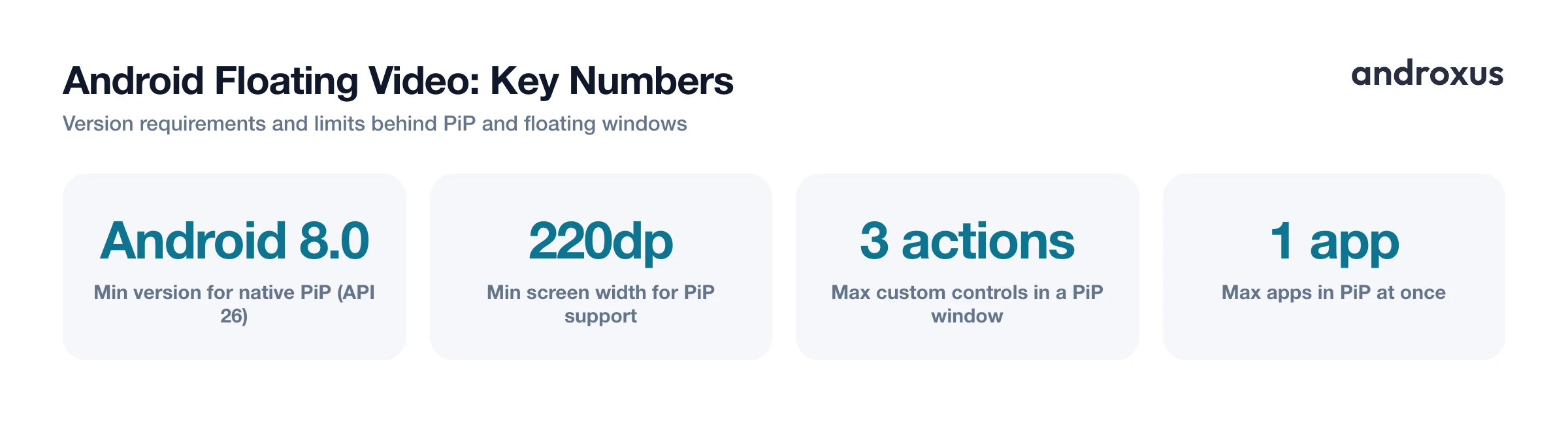
Native Picture-in-Picture (PiP) is a system-level Android feature, available since Android 8.0 (API level 26), that shrinks a supporting app's video into a small, system-managed window while the underlying activity is paused but still rendering. The catch is that PiP requires the app to explicitly opt in and register support for it; not every app, and not every video inside a given app, does this, so PiP does not work universally.
A floating video player or floating browser is a different mechanism entirely. It's an app-drawn overlay window that sits on top of other apps regardless of whether the underlying content has native PiP support. Floating overlay windows rely on the SYSTEM_ALERT_WINDOW capability, commonly called the draw over other apps permission, not on the PiP API. That's why they can float web pages and video that PiP alone can't touch. A floating browser specifically keeps a resizable, movable browser window, including any video or audio playing on the page, visible on top of whatever else you're doing.
How Android's Built-In PiP Actually Works
PiP was introduced for handheld phones in Android 8.0 (API level 26); before that it only existed on Android TV. Devices need a screen larger than 220dp at its smallest width to support it. In PiP mode, an app can offer up to three custom actions, such as play, pause, or skip, so you can control playback without expanding the window back to full screen.
A couple of practical limits are worth knowing. PiP windows can be dragged to different corners of the screen through System UI, but you generally can't resize them as freely as a true floating overlay window. And only one app's task can be in PiP at a time on a given device, so you can't stack two PiP windows at once.
The Overlay Permission That Makes Floating Windows Possible
Floating windows and floating browsers use the SYSTEM_ALERT_WINDOW permission, which Android exposes to users as Display over other apps, found under Settings, Apps, then Special app access. On some devices this setting carries a different label, for example Appear on top on Samsung phones or Display pop-up windows while running in the background on some Xiaomi devices.
Since Android 6.0 (API 23), apps have had to request this as a runtime permission rather than getting it automatically at install, so you have to explicitly flip it on per app. Because this same permission has historically been misused by overlay malware, Android surfaces it as an explicit, revocable toggle so you stay in control of exactly which apps are allowed to float over everything else.
Floating Windows vs. Split-Screen Multitasking
Android's split-screen, or multi-window, mode has been available system-wide since Android 7.0 Nougat in 2016, letting two apps share the screen side by side or top and bottom with a movable divider. It solves a different problem than a floating window does.
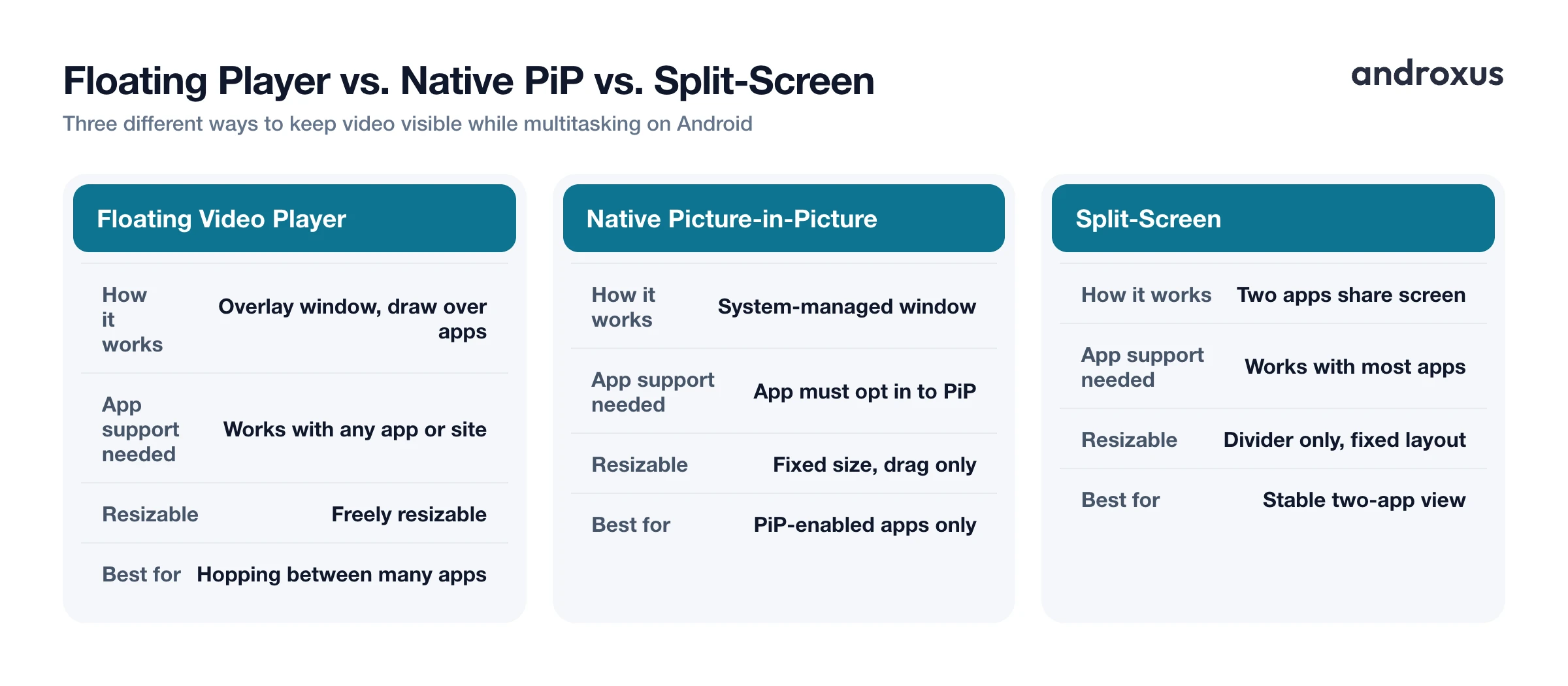
| Feature | How it works | Best for |
|---|---|---|
| Floating video player / floating browser | Small, movable overlay window using the draw over other apps permission; works with any app or site it's pointed at | Watching video while freely switching through several other apps in sequence |
| Native Picture-in-Picture | System-managed small window; app must opt in and register PiP support | Video, calls, or maps in apps that specifically built PiP support |
| Split-screen (multi-window) | Two full apps share the screen in a fixed layout with a draggable divider | A large, stable side-by-side view, like taking notes next to a document |
Split-screen permanently allocates a fixed portion of the screen to each app, while a floating window or PiP is a small, movable panel that overlaps whatever is underneath it. If you want to keep an eye on a video while dipping in and out of several different apps, a floating window tends to work better because you aren't locked into a fixed two-app layout.
Why a Smaller or Screen-Off Window Tends to Save Battery
The display is consistently one of the largest single drains on a smartphone's battery, especially at higher brightness. A floating or PiP window renders far fewer lit pixels than a full-screen video, so keeping the video small while multitasking can reduce display power draw compared to full-screen playback at the same brightness. Playing audio only, or video where you just need the sound, with the screen off entirely avoids that display power draw, which is the biggest saving available for that kind of listening.
None of this changes how much network data or processor power the stream itself uses. The savings come specifically from how much screen is lit, and for how long, not from anything about the video file or the connection.
Where an App Like Playback Fits In
Playback is a floating browser and player: it streams web audio and video in the background with the screen off or locked, and it can also shrink playback into a floating picture-in-picture window so a video stays visible while you use other apps. It is not a downloader. It does not save or download tracks or videos, remove ads, or unlock paid content; it streams content you already have access to through the source site. For someone who wants a video to keep floating while they reply to messages, or wants music to keep playing with the screen off to save battery, this is the specific gap a floating browser and player is built to fill.
How to Watch Video in a Floating Window While Multitasking
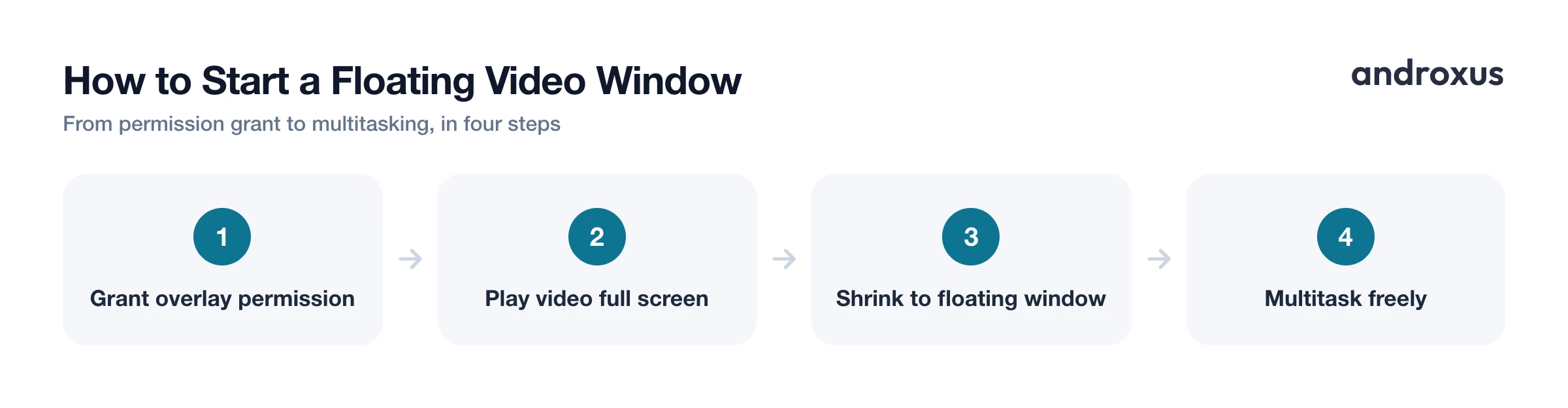
- Grant the floating-window permission. Open Settings, then Apps, then Special app access, then Display over other apps (labeled Appear on top or similar on some devices), and turn the toggle on for the player or browser you want to float.
- Start playback normally. Open the video or web page inside the app or floating browser and begin playing it full screen as usual.
- Shrink it into a floating or PiP window. Trigger the floating mode, either by tapping the app's minimize or float icon, pressing Home while a PiP-enabled video plays, or using the app's floating browser toggle.
- Reposition and resize the window. Drag the small window to any corner or edge of the screen and pinch or drag its handle to resize it so it doesn't block what you're doing.
- Switch freely between apps. Open messaging, email, or any other app; the floating window stays on top and keeps playing so you can multitask without pausing the video.
- Return to full screen or close it. Tap the floating window to expand it back to full screen, or use its close control to stop playback when you're done.
Key takeaways
- A floating video player is a movable overlay window, distinct from native PiP, that works even with apps and sites that don't have built-in PiP support.
- Floating windows and floating browsers need the Display over other apps permission, found under Settings, Apps, Special app access.
- Floating windows beat split-screen for watching video while hopping between several apps, since they aren't locked into a fixed two-app layout.
- A smaller floating window, or screen-off audio playback, generally uses less battery than a full-brightness, full-screen video.
- Native PiP requires Android 8.0 or later and app-level opt-in, while overlay permissions for floating windows have worked since Android 6.0.
Frequently asked questions
What is the difference between Picture-in-Picture and a floating video player?
Picture-in-Picture (PiP) is a built-in Android feature (Android 8.0, API 26, and up) that shrinks a supporting app's video into a small system-managed window. A floating video player or floating browser is an app-level overlay that uses the draw over other apps permission to keep a resizable, movable window on top of everything, which works even with sites or players that don't have native PiP support.
Do I need to grant a special permission for a floating video window?
Yes. Floating windows rely on the SYSTEM_ALERT_WINDOW permission, which Android exposes to users as Display over other apps (sometimes labeled Appear on top on Samsung phones, or Display pop-up windows while running in the background on some Xiaomi devices). It's found under Settings, Apps, then Special app access.
Does every video app or website support native PiP?
No. Native PiP requires the app to opt in and register support for it in its code, so only apps built to support it will minimize into that system window. Apps that don't support PiP directly can still be watched in a floating window through a floating browser or floating player that overlays the content.
Can a floating browser play video while I use another app?
Yes. A floating browser keeps a small movable window streaming a web page, including its video or audio, on top of whatever else is on screen, so you can reply to a message or check another app without losing your place.
Does watching video in a floating or PiP window use more battery than full screen?
Generally no. The display is typically the single biggest drain on a phone's battery, so a small floating window that lights up far fewer pixels than a full screen, or playing audio only with the screen off, tends to use less power than a full-brightness full-screen video.
What Android version is required for floating video or PiP features?
Native Picture-in-Picture requires Android 8.0 (API level 26) or later on a device with a screen wider than 220dp. Floating overlay apps that use the draw over other apps permission have worked since Android 6.0, with the runtime permission prompt required from that version onward.
