How to Keep Audio Playing Switching Apps on Android
You hit play, switch to check a message, and the sound just stops. It is one of the more annoying quirks of Android, and it is almost never random: a specific setting or habit is usually behind it. Here is how to keep audio playing switching apps, and why it stops in the first place.
Quick answer: To keep audio playing when switching apps on Android, set the media app's background permission to Unrestricted at Settings > Apps > [app] > Battery, check for a manufacturer-specific battery manager on brands like Samsung or Xiaomi, and avoid swiping the app away in the Recents screen, which force-stops it. Switching apps normally or locking the screen should never interrupt a properly backgrounded audio app; only closing its card in the app switcher or a strict battery setting will.
What you'll learn
- Why Android pauses or stops audio when you leave an app
- How background media apps are built to keep playing at all
- The exact battery settings to check, including brand-specific ones
- The difference between Picture-in-Picture and background audio
- A step-by-step fix you can run through in under two minutes
Why Android Stops Audio When You Switch Apps
Android manages background apps through two systems working together: Doze mode and App Standby. Both exist to save battery by limiting what apps can do once you are not actively looking at them, and both can end up suspending a media app's background process if it is not exempted.
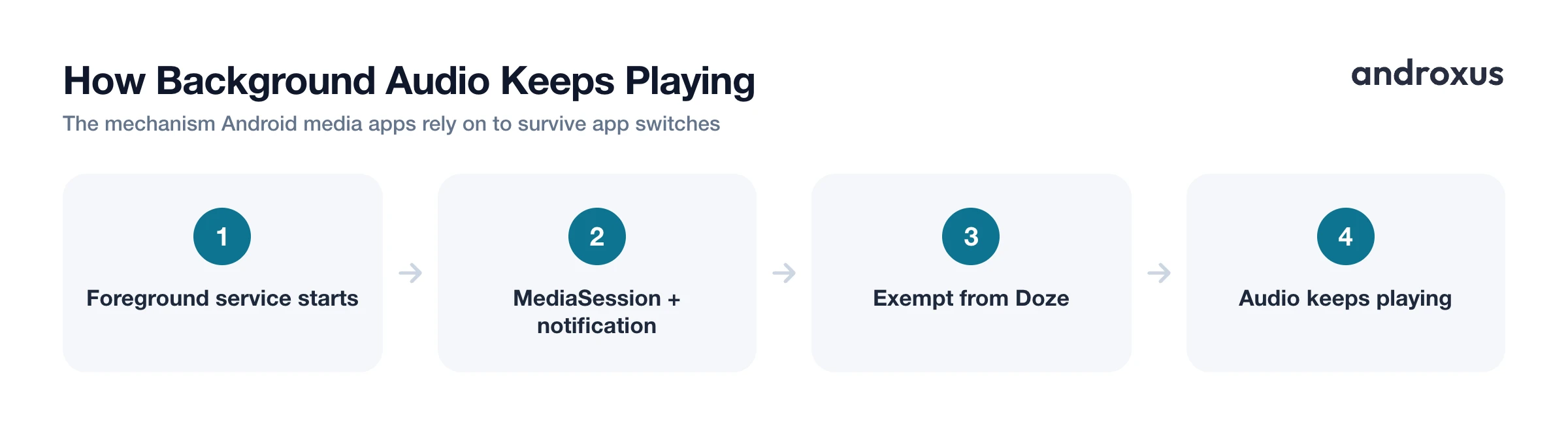
Every app has a per-app battery setting with three levels, found at Settings > Apps > [app] > Battery: Unrestricted, Optimized (the default for most apps), and Restricted. The default Optimized setting, and especially Restricted, can cause a media app's background process to be paused shortly after you leave it, which is the single most common reason playback cuts out.
Many manufacturers layer their own battery managers on top of stock Android, and those are often stricter than Android's built-in settings. Samsung, Xiaomi, OnePlus, and Huawei all ship extra app-killing behavior by default, a pattern well documented by the developer resource dontkillmyapp.com. Changing the standard toggle is a good first step, but on these brands it is often not the only step.
There is also a habit that trips people up: swiping an app's card away in the Recents or App Switcher screen. That is different from simply switching to another app or pressing home. A swipe-away force-stops the app entirely, which ends any audio it was playing, no matter how the battery settings are configured.
How Apps Are Built to Keep Playing in the Background
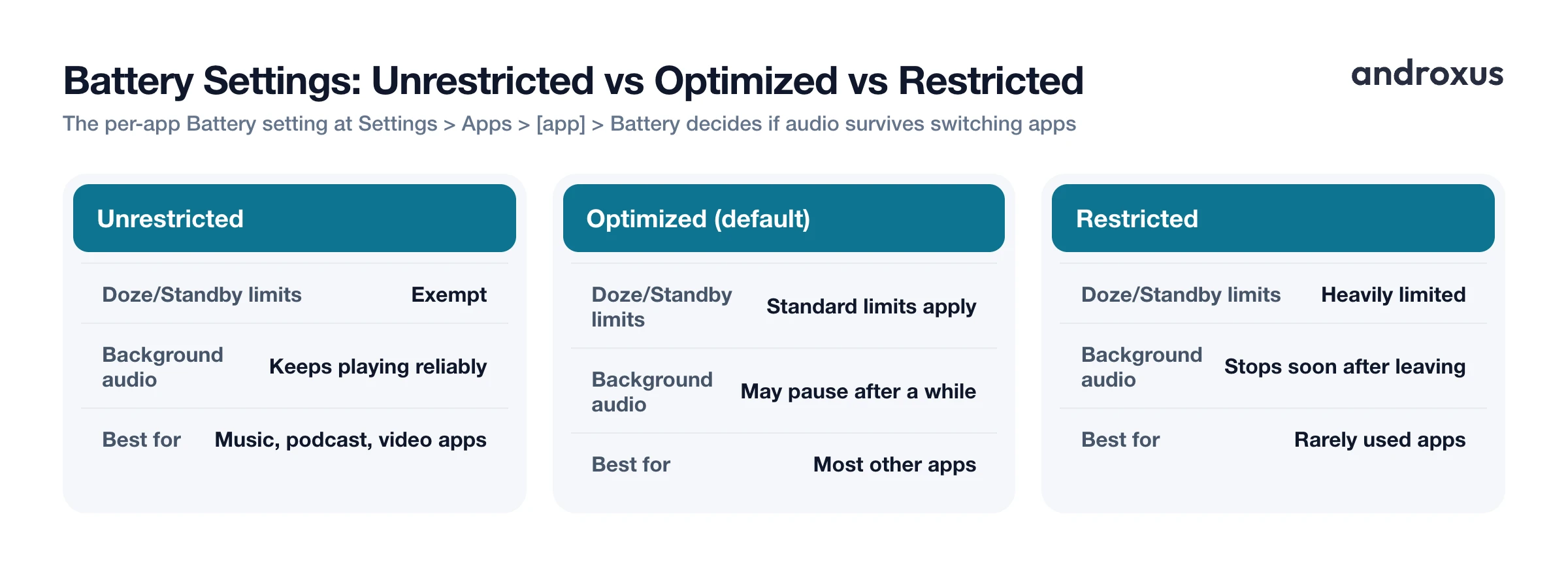
Background playback is not automatic, it has to be built into the app. Android media apps use something called a foreground service, paired with a MediaSession, to keep playing after you leave the app. A foreground service is a process type the system treats as actively in use, rather than as background clutter it can suspend at will.
This requires the app to declare the FOREGROUND_SERVICE and FOREGROUND_SERVICE_MEDIA_PLAYBACK permissions, per Android's official media developer documentation. Apps running a foreground service with an active notification are exempt from Doze mode restrictions for as long as that service runs, which is why a correctly built media app can keep playing with the screen off or another app open.
That exemption is not permanent, though. Google's guidance for media apps is to stop the foreground service once playback has been paused for an extended stretch with no further interaction, and most well-built apps follow that pattern. This is why playback controls that have been idle for a while eventually vanish from the notification shade, and why you sometimes have to reopen an app and press play again after a long pause.
The persistent notification with playback controls is actually a useful diagnostic. If you see it in your notification shade or lock screen while another app is open, the media app is correctly running as a background service. If it disappears while you still expect audio to be playing, the service was stopped.
Fixing It: Battery and Background Settings to Check
The fix almost always comes down to one of a small number of settings, though where they live depends on your phone's brand.
On most phones, start at Settings > Apps > [app name] > Battery, and choose Unrestricted instead of Optimized or Restricted. On Samsung devices, also check Settings > Battery and device care > Background usage limits, and remove the app from any "sleeping apps" or "deep sleeping apps" list, since Samsung will otherwise put rarely opened apps to sleep on its own schedule. On Xiaomi phones running MIUI or the newer HyperOS, open the Security app, go to Battery > App battery saver, and set the app to "No restrictions." On OnePlus, Oppo, and Vivo devices, look for a separate battery optimization or app auto-launch manager outside the main Settings app, since these brands often keep that control in their own utility app rather than in stock Android settings.
These extra, brand-specific steps exist precisely because OEM battery managers can override or duplicate Android's standard background-activity setting. Fixing the setting in one place and assuming you are done is the most common reason people think they have "tried everything" and audio still cuts out.
Android Background Battery Settings at a Glance
| Setting | What It Means | Effect on Background Audio | Recommended For |
|---|---|---|---|
| Unrestricted | App is exempt from Doze and App Standby limits | Audio keeps playing reliably in the background and with the screen off | Music, podcast, and video apps you use regularly for background playback |
| Optimized (default) | Android applies standard Doze and App Standby limits | May pause or stop playback after a period in the background, especially on strict OEM builds | Most other apps that do not need to run continuously in the background |
| Restricted | App's background activity is heavily limited | Playback is very likely to stop soon after you leave the app | Apps you rarely use and do not want running in the background at all |
Picture-in-Picture and Floating Windows for Video
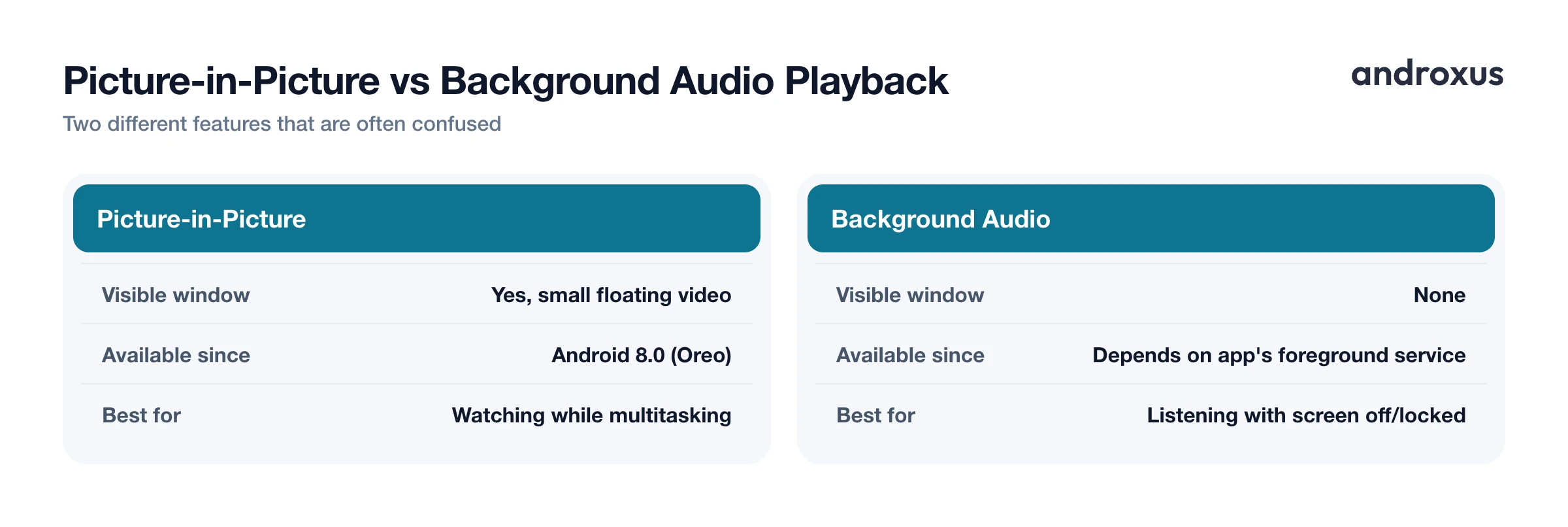
If you are watching video rather than just listening to audio, the relevant feature is Picture-in-Picture, usually shortened to PiP. It has been part of Android since Android 8.0 (Oreo, API level 26), and it shrinks a supported app's video into a small, movable, resizable window that stays on top while you use other apps.
Since Android 12, tapping the PiP window reveals a full-screen toggle, a close button, and, in apps that support it, custom playback controls right inside the small window. Not every app supports PiP, or a floating window at all, it depends entirely on whether the developer built the feature in.
It is worth being clear that PiP and background audio playback are two different things. PiP keeps a visible video window on screen. Background audio playback keeps sound going with no window at all, which is what you want when the screen is off or locked and you just want to listen. An app can support one, both, or neither.
Where an App Like Playback Fits In
Playback is a floating browser and media player built specifically around this problem: keeping music and video playing in the background, with the screen off or locked, or in a floating picture-in-picture window while you use other apps. It also plays media shared to it from other apps, and supports playlists, podcasts, search, bookmarks, and sharing.
It is worth being clear about what Playback is and is not. It streams web audio and video that you already have access to. It does not download tracks or videos, it does not remove ads, and it does not unlock paid content, it is a player and floating browser for streaming, not a downloader. Where it genuinely helps with the problem in this post is the background and floating playback piece: keeping the screen off while listening, instead of leaving a video app open with the display on, is generally lighter on battery than continuous screen-on playback.
How to Keep Audio Playing When Switching Apps
- Open the app's battery settings. Go to Settings > Apps, tap the audio or video app you want to keep playing, then tap Battery (sometimes labeled "Battery usage" or "Allow background usage").
- Set background activity to Unrestricted. Choose "Unrestricted" instead of the default "Optimized." This tells Android's Doze and App Standby systems not to suspend the app's background process.
- Check for a manufacturer-specific battery manager. On Samsung, Xiaomi, OnePlus, Huawei, and similar brands, look for a separate battery or security app, such as Samsung's "Sleeping apps" list or the Battery Saver app list in MIUI/HyperOS, and make sure the audio app is not set to be put to sleep or auto-closed.
- Avoid swiping the app away in Recents. Switch away using the home button or gesture, not by closing the app's card in the Recents or App Switcher screen. Swiping it away force-stops the process and ends playback.
- Use picture-in-picture or a floating window for video. If you want to keep watching while multitasking rather than just listening, use an app that supports Picture-in-Picture, available since Android 8.0, or a floating player window, then leave the app normally to shrink the video into a small movable window.
- Confirm playback controls stay in the notification shade. A properly backgrounded media app shows persistent playback controls in the notification shade and lock screen. If those controls disappear, the app's background service was likely stopped and you'll need to reopen it and press play again.
Key takeaways
- Most cases of audio stopping when you switch apps trace back to the per-app battery setting at Settings > Apps > [app] > Battery, where Unrestricted keeps a media app's background service alive.
- Swiping an app away in the Recents screen force-stops it and ends playback, that is a different action from simply switching apps or locking the screen, which should not interrupt properly backgrounded audio.
- Brands like Samsung, Xiaomi, OnePlus, and Huawei layer their own battery managers on top of Android, so the standard Unrestricted toggle is not always the only setting you need to change.
- Picture-in-Picture, available since Android 8.0, and background audio playback are related but different features, one keeps a visible video window, the other keeps sound going with no window at all.
- A persistent notification with playback controls is the visible sign that a media app is correctly running in the background; if it disappears, the service was stopped and playback will need to be restarted.
Frequently asked questions
Why does my music stop playing when I switch to another app?
Usually Android's battery management is pausing the audio app's background process. Most phones set apps to "Optimized" battery use by default, and on some brands (Samsung, Xiaomi, OnePlus, Huawei) that setting is stricter and can suspend audio apps within seconds of leaving them. Swiping the app away in the Recents screen has the same effect: it force-stops the process instead of letting it keep playing.
Does closing an app from the recent apps list stop its audio?
Yes. Switching to another app or going to the home screen is fine, the app keeps its foreground service alive. But swiping the app's card away in the Recents or App Switcher screen force-stops the app, which ends any audio it was playing.
What's the difference between Picture-in-Picture and background audio playback?
Picture-in-Picture (PiP) keeps a small floating video window visible while you use other apps, and has been part of Android since Android 8.0 (Oreo). Background audio playback keeps sound playing with no window at all, useful when the screen is off or locked. An app can support one, both, or neither, it depends on how the developer built it.
Will letting an app run unrestricted in the background drain my battery?
Audio playback itself uses relatively little power, especially compared to keeping the screen on. Letting one media app run "Unrestricted" in the background has a small, predictable battery cost. It's a different situation from letting many apps refresh unrestricted, which is what actually drains batteries fastest.
Why does my phone keep pausing audio even after I changed the battery setting?
Many Android manufacturers add their own battery managers on top of Android's built-in settings. Changing the standard "Battery > Unrestricted" toggle isn't always enough on brands like Xiaomi, Samsung, or OnePlus, you may also need to disable a separate manufacturer-specific app killer or add the app to a protected or whitelist app list.
Can I keep a video playing in a floating window while I browse or text?
Yes, if the app supports Picture-in-Picture or offers its own floating player window. Playback, for example, can keep media playing in a small floating window, or with the screen off, while you use other apps.
