What Is Assistive Touch Android and How to Enable It
If you have ever seen a small floating circle sitting on top of someone's phone screen and wondered what it does, you have run into the idea behind assistive touch. It is one of the simplest quality-of-life upgrades Android offers, and it takes only a couple of minutes to turn on.
Quick answer: Assistive touch on Android is a floating on-screen button that opens a menu of shortcuts, things like Back, Home, screenshot, or a favorite app, so you can trigger them with a single tap instead of hunting through menus or reaching for a physical button. Android's native version is called the Accessibility Menu, available since Android 9. Third-party apps expand on this with more shortcuts, custom sizing, and positioning. You can enable either without root access, using the standard Accessibility Service and display-over-other-apps permissions.
What you'll learn
- What assistive touch means on Android and where the name actually comes from
- How the floating button works technically, and which permissions it needs
- How to turn on Android's built-in Accessibility Menu
- How a dedicated assistive touch app compares and what extra shortcuts it can add
- What the app can and cannot access on your phone
- The exact steps to enable a floating assistive button today
What Assistive Touch Means on Android
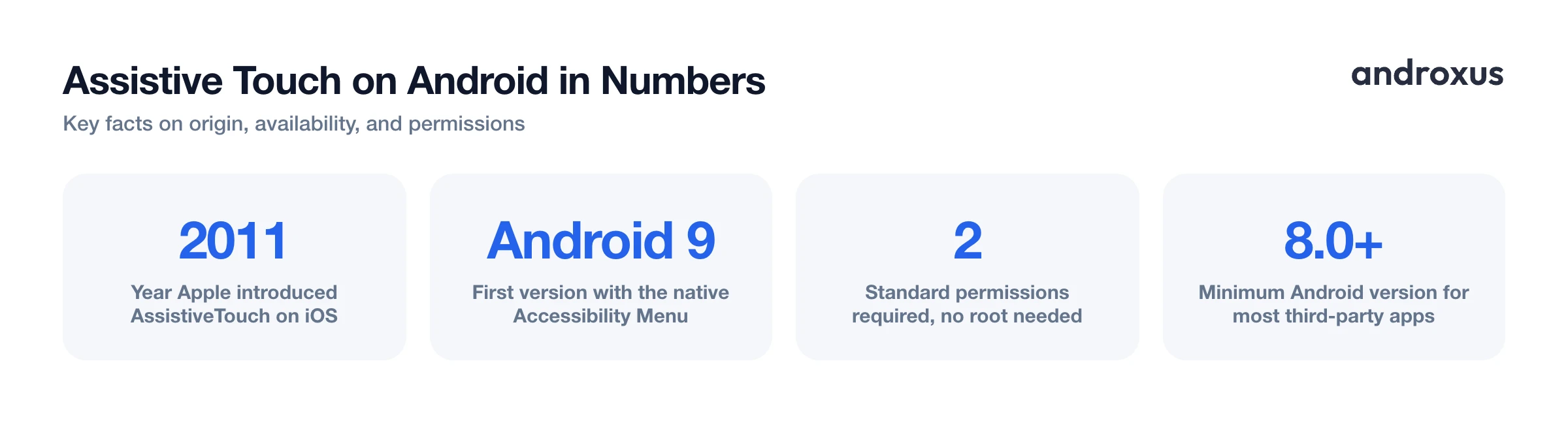
AssistiveTouch was introduced by Apple on iOS in 2011 as an on-screen menu that performs hardware actions, like Home button presses and gestures, through touch. Android does not have a built-in feature with that exact name, but the underlying idea, a floating shortcut button that sits on top of whatever app you are using, exists on Android too.
Android's native equivalent is called the Accessibility Menu, available since Android 9 (Pie, released in 2018), reached via Settings > Accessibility > Accessibility Menu. Some manufacturers ship their own version; Samsung, for example, has a similar built-in Assistant Menu. Third-party apps that use the term assistive touch for Android, such as Action Dot: Assistive Touch, recreate and extend this floating-button concept with more shortcuts and more customization than the stock menu offers.
In every case the core idea is the same: a small on-screen dot or icon you tap to bring up quick actions. That is useful for one-handed use on larger phones, for reaching functions that are otherwise buried in menus, or for anyone who finds physical buttons or multi-finger gestures difficult.
How a Floating Assistive Button Works Under the Hood
Floating assistive touch buttons rely on two standard Android permissions, and understanding them makes it easier to know what you are actually agreeing to.
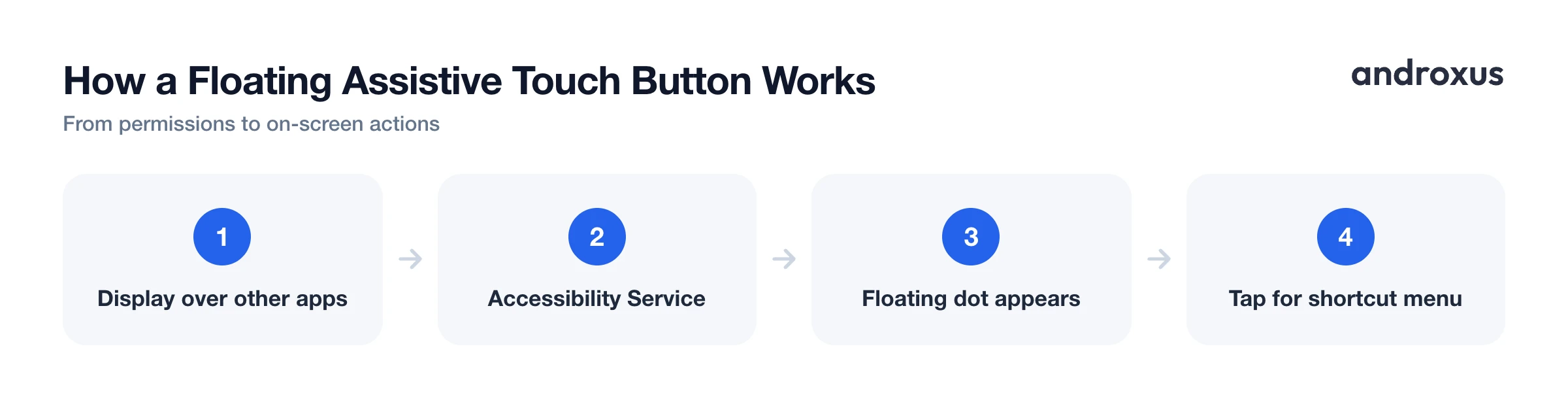
The first is "Display over other apps" (technically SYSTEM_ALERT_WINDOW), which lets the button's overlay window render on top of whatever app is currently open. You can find and manage it under Settings > Apps > Special app access > Display over other apps.
The second is the Accessibility Service, which lets the app draw a special overlay type that stays visible even over system screens, and lets it trigger actions like Back or Home on your behalf when you tap a shortcut.
Neither permission requires root access. Both are long-standing, documented Android APIs, and most current assistive touch apps set Android 8.0 as their minimum supported version for broad device compatibility, not because the permissions themselves are new. Because the Accessibility Service is a powerful permission, Android shows a dialog explaining what it lets an app do before you turn it on, and it is worth only granting it to apps whose stated purpose you understand and trust.
How to Turn On Android's Built-in Accessibility Menu
Android's native option costs nothing extra to use since it ships with the operating system. Go to Settings > Accessibility > Accessibility Menu, then turn on the "Accessibility Menu shortcut." The exact wording and menu depth can vary slightly by phone brand and Android version.
Once turned on, a floating icon appears on screen. Tapping it opens a menu with options like Home, Back, recent apps, notifications, screenshot, and power controls. The icon can be dragged to reposition it, and on some phones you can choose whether it floats over other apps or sits docked in the navigation bar.
This built-in menu is free and requires no extra install, but it offers a fixed, smaller set of actions compared to dedicated third-party floating-button apps.
How to Set Up a Third-Party Floating Assistive Touch App
If you want more shortcuts than the native menu provides, a dedicated app fills the gap. Search the Google Play Store for a floating assistive touch app, such as Assistive Touch, and install it.
After installing, the app will typically ask for the "Display over other apps" permission first, then prompt you to enable its Accessibility Service in system settings. Once both are granted, a floating dot appears on screen. Tapping it opens a customizable shortcut panel that can include soft Home and Back, recent apps, scroll to top or bottom, notification and quick settings shortcuts, a rotation toggle, power menu, screenshot, screen recording, camera, audio recording, flashlight, screen off, favorite apps, calculator, speed dial, QR scan, and quick toggles for Wi-Fi, Bluetooth, brightness, and ringer mode, plus music controls.
You can usually resize the dot, change its opacity, and drag it to any edge or corner of the screen so it stays out of the way of whatever you are doing.
Native Menu vs. Third-Party App at a Glance
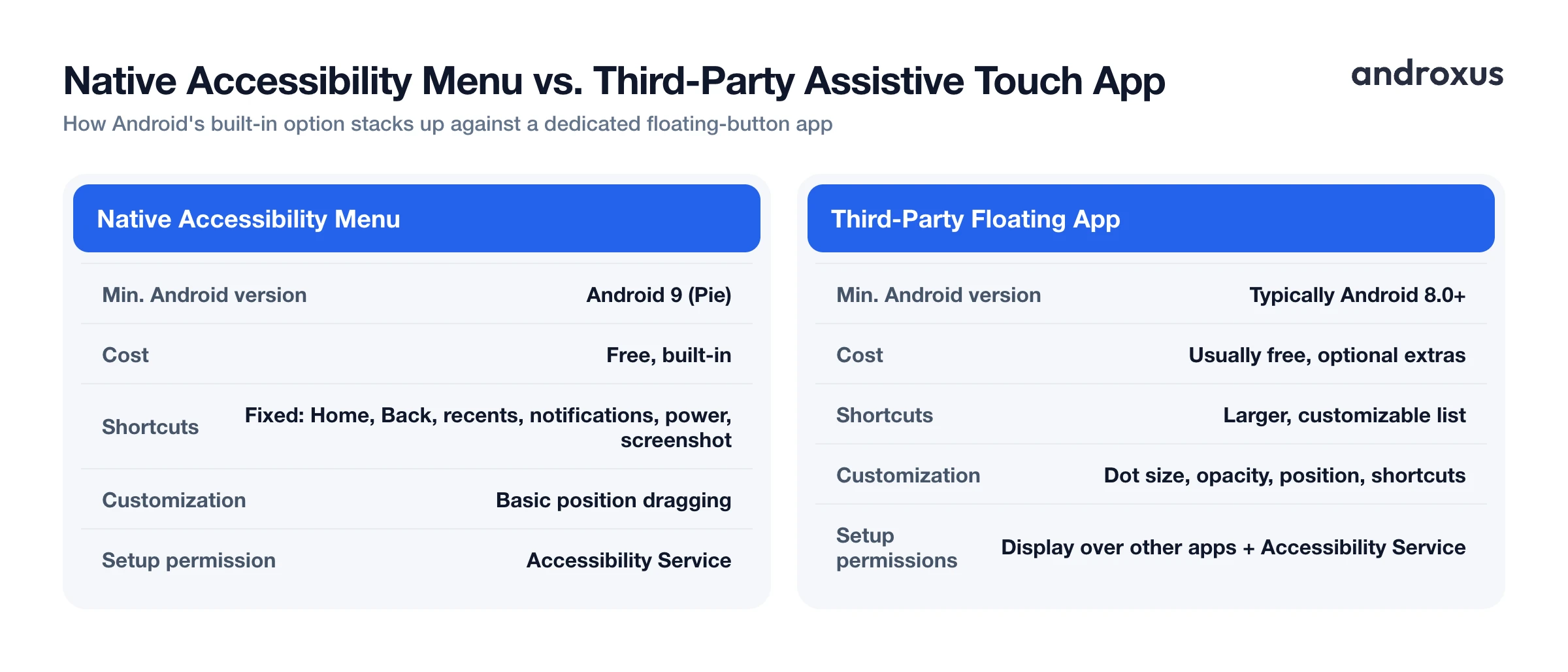
| Feature | Native Accessibility Menu | Third-party floating assistive touch app |
|---|---|---|
| Where to find it | Settings > Accessibility > Accessibility Menu | Installed from the Play Store |
| Minimum Android version | Android 9 (Pie) | Typically Android 8.0 and up |
| Cost | Free, built into the OS | Usually free, may offer optional extras |
| Number of shortcuts | Fixed set (Home, Back, recents, notifications, power, screenshot) | Larger and customizable list |
| Customization | Basic position dragging | Dot size, opacity, position, and which shortcuts appear |
| Extra shortcuts | Not available | Flashlight, favorite apps, QR scan, Wi-Fi/Bluetooth toggles, speed dial, and more |
| Setup permissions needed | Accessibility Service (built-in dialog) | Display over other apps, Accessibility Service |
Assistive Touch Permissions: What It Can and Cannot Do
The Accessibility Service permission used by a legitimate floating-button app is scoped to drawing the overlay and performing the on-screen actions you tap, such as simulating a Back or Home press. A properly built assistive touch app like Action Dot does not read keystrokes, passwords, messages, or other personal data. Its accessibility use is limited to rendering the floating overlay and executing the shortcut actions in its menu, nothing more.
That said, it is still worth being selective about which apps you grant this permission to, since the Accessibility Service API is broad enough that a poorly behaved app could misuse it. Sticking to apps that clearly state their accessibility use and have a track record of reviews is a reasonable safeguard. Turning off the permission is straightforward at any point: go to Settings > Accessibility, find the app, and toggle it off, which immediately removes the floating button.
How to Enable an Assistive Touch Style Floating Button on Android
- Open Android's built-in Accessibility settings. Go to Settings, then tap Accessibility (on some phones this is under Settings > Additional settings > Accessibility, or Settings > Accessibility > General).
- Turn on the native Accessibility Menu. Tap Accessibility Menu, then turn on the Accessibility Menu shortcut. A floating accessibility icon will appear on screen, giving you quick access to Back, Home, recent apps, notifications, and power controls.
- Install a dedicated floating assistive touch app for more shortcuts. If you want more shortcuts than the native menu offers, such as flashlight, favorite apps, calculator, or quick toggles, install a floating assistive touch app like Action Dot: Assistive Touch from the Play Store.
- Grant the display over other apps permission. When prompted, allow the app to display over other apps. This lets the floating dot or button appear on top of whatever screen you are using.
- Turn on the app's Accessibility Service. In Settings > Accessibility, find the app in the Downloaded apps or installed services list and turn its accessibility service on. This is what lets the button perform actions like Back, Home, or screenshot on your behalf.
- Customize the dot and pick your shortcuts. Open the app's settings to adjust the dot's size, opacity, and screen position, and choose which shortcuts appear in its popup menu, such as screen recording, camera, Wi-Fi and Bluetooth toggles, or speed dial.
Key takeaways
- Assistive touch android is not a native feature name borrowed from iOS, but Android does have real equivalents: the built-in Accessibility Menu and third-party floating-button apps.
- The Accessibility Menu has been available since Android 9, needs no install, and covers the basics: Home, Back, recents, notifications, power, and screenshot.
- Third-party apps like Action Dot: Assistive Touch add more shortcuts and customization but rely on the same two standard permissions: Display over other apps and the Accessibility Service.
- Neither option requires root access, and a well-scoped app only uses these permissions to draw its overlay and run the shortcuts you tap, not to read personal data.
- You can turn the permission off at any time from Settings > Accessibility, which immediately removes the floating button.
Frequently asked questions
Is Assistive Touch a built-in Android feature?
Not under that exact name. Apple introduced AssistiveTouch on iOS in 2011. Android's closest native equivalent is the Accessibility Menu, available since Android 9 (Pie), found under Settings > Accessibility > Accessibility Menu. Samsung phones also have a similar built-in Assistant Menu. The floating-dot apps called assistive touch for Android are third-party apps that recreate the same on-screen shortcut concept.
What Android version do I need for a floating assistive button?
Android's built-in Accessibility Menu has been available since Android 9 (Pie), released in 2018. Third-party assistive touch apps typically support Android 8.0 and up, since they rely on the standard Accessibility Service and display over other apps permission, both long-standing Android APIs.
Do I need root access to use assistive touch on Android?
No. Both the native Accessibility Menu and third-party floating-button apps work on stock, non-rooted Android. They rely on two standard permissions: the Accessibility Service and Display over other apps, neither of which requires root.
Is it safe to grant an app the Accessibility Service permission for a floating button?
The Accessibility Service permission is powerful because it lets an app draw overlays and perform actions on your behalf, so it is worth choosing an established app and reading what it says it does. A legitimate floating-shortcut app like Action Dot: Assistive Touch uses this permission only to draw its overlay button and trigger the shortcuts you tap, such as Back, Home, or a screenshot. It does not need or use this permission to read keystrokes, passwords, messages, or other personal data.
Can I change the size and position of the floating assistive button?
Yes. Both Android's native Accessibility Menu icon and third-party floating dots let you drag the button to a different spot on the screen, and dedicated assistive touch apps typically add further options such as dot size, opacity, and which shortcuts appear in the popup menu.
What can a floating assistive touch button actually do?
It typically gives you one-tap access to actions you would otherwise reach through hardware buttons or swipes: Back, Home, recent apps, notification and quick settings panels, screenshot, screen recording, rotation lock, volume and brightness, and shortcuts to favorite apps. It is a convenience overlay, not a tool for reading or transmitting your data.
