One Handed Phone Control on Big Screens: What Works
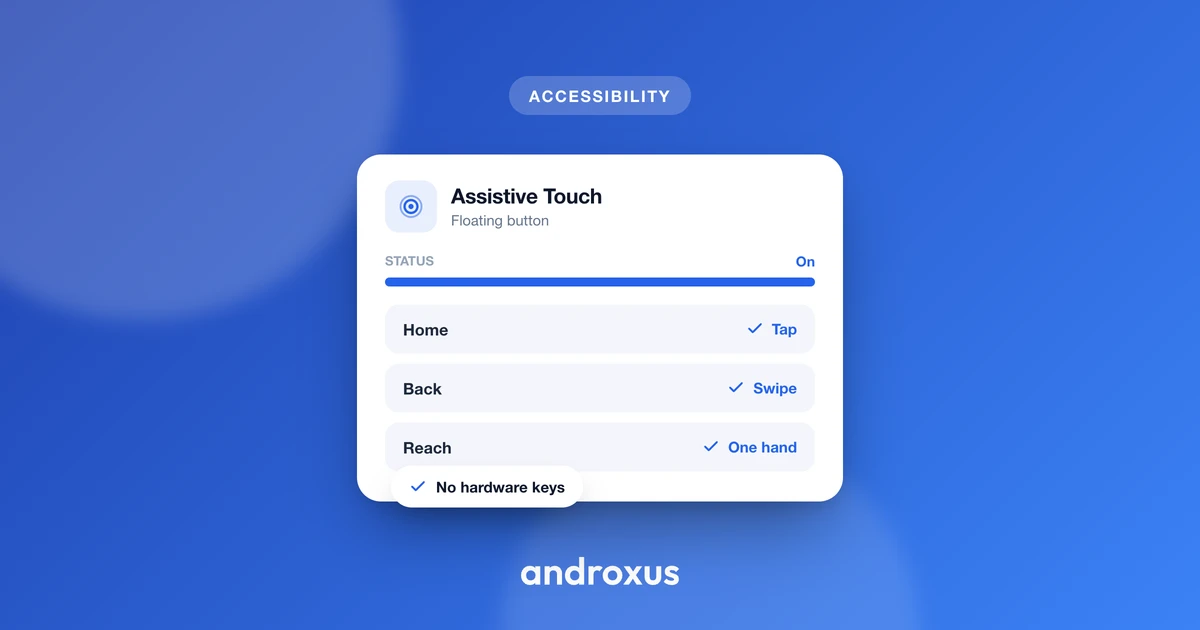
Phones keep getting bigger, and thumbs have not. If you have ever shuffled your grip or brought in a second hand just to close a notification or tap something at the top of the screen, you already know the tradeoff a big display makes. Getting real one handed phone control back is less about buying a smaller phone and more about knowing which tools actually solve reach.
Quick answer: One handed phone control on a big screen comes from two different mechanisms working together. Android's built-in one-handed mode (or Samsung's separate version) temporarily shrinks or slides existing content toward the bottom of the screen so the top becomes reachable. A floating shortcut button, sitting on top of apps via Android's Accessibility Service, adds its own fixed set of shortcuts, like back, home, or screenshot, right where a thumb naturally rests. Most people get the best result using both, rather than picking one over the other.
What you'll learn
- Why big screens broke one-handed reach in the first place
- How Android's native one-handed mode works, and where it falls short
- How Samsung's one-handed mode differs from stock Android's version
- What a movable floating shortcut button adds that neither built-in mode does
- How to combine these approaches for a big phone you can actually run one-handed
Why big screens break one-handed reach
Phone screens have grown steadily for years, and the growth has not slowed down. In 2026, 6.7 inches is the single most popular phone screen size, up from an average of around 6.0 inches back in 2020. What used to get labeled a "phablet" and treated as a niche choice is now just a normal phone.
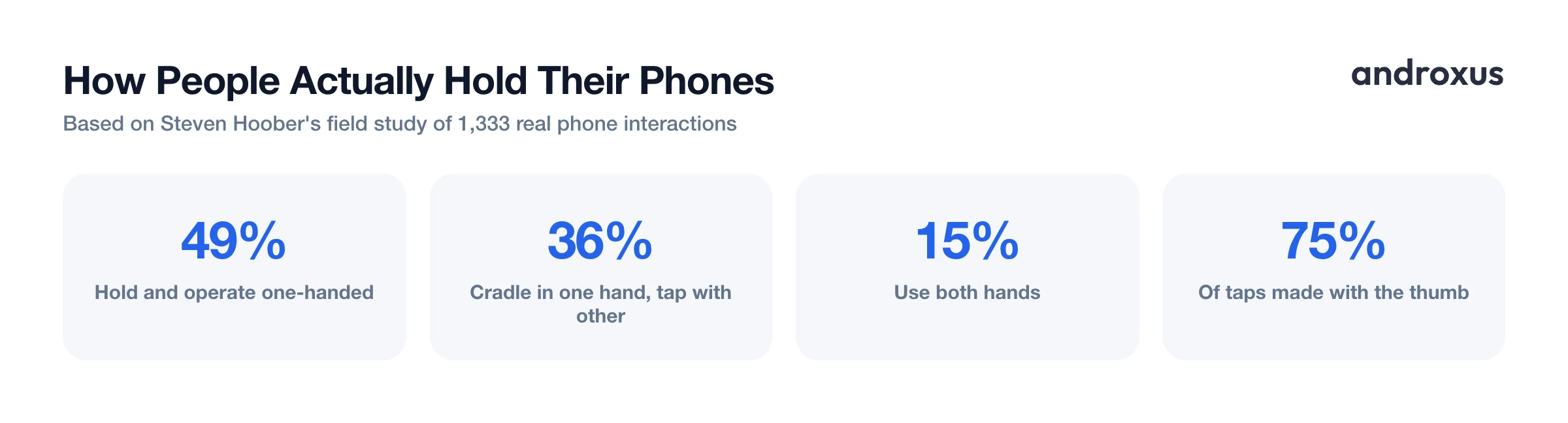
That extra size runs straight into how people actually hold their phones. Field research by mobile UX researcher Steven Hoober, based on 1,333 real-world phone interactions, found that 49 percent of people hold and operate their phone one-handed, 36 percent cradle it in one hand while tapping with the other, and only 15 percent use both hands. Across all of those grips, thumbs account for roughly 75 percent of on-screen taps, which makes thumb reach, not finger reach, the real constraint.
On a display above 6.5 inches, the far top corner and the edges of a pulled-down notification shade sit outside a natural one-handed thumb arc. That is exactly why people end up shifting their grip, using a second hand, or just giving up and tapping around the edge of the screen with an awkward stretch.
Android's native one-handed mode, and its limits
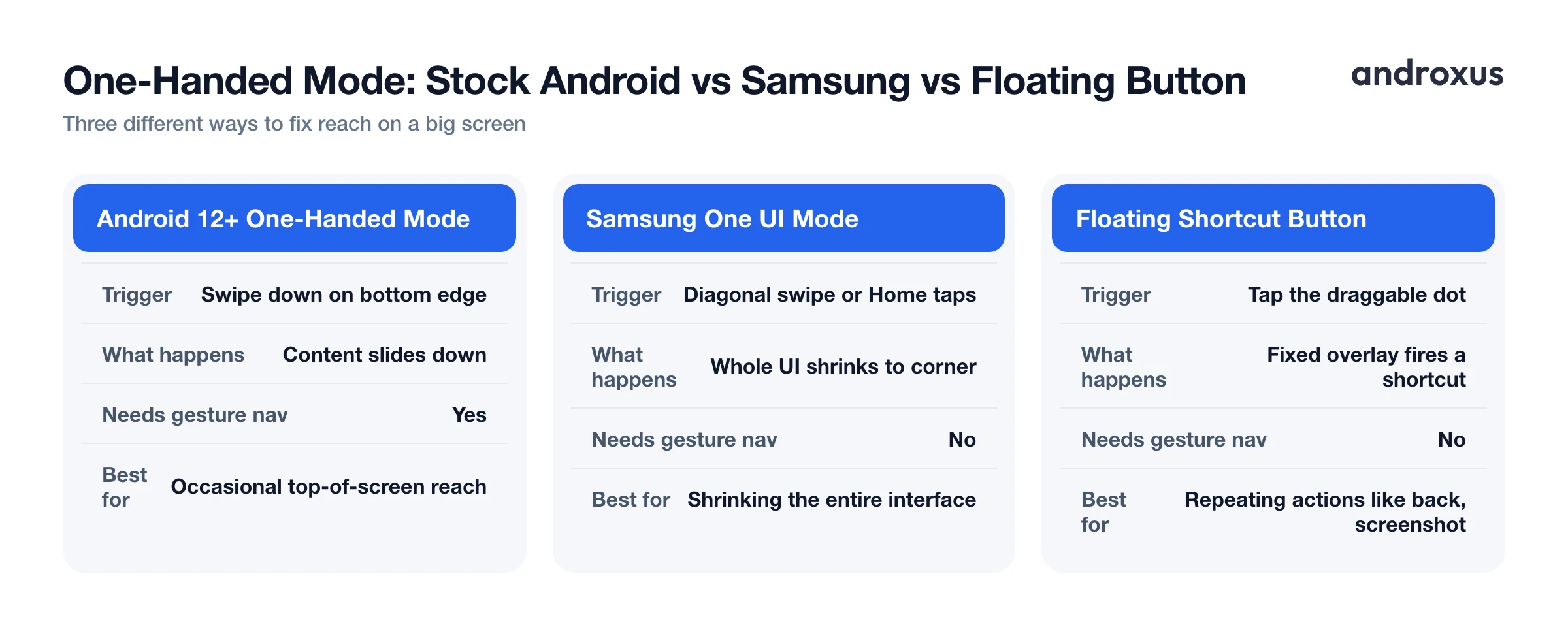
Android 12 and later ship with a built-in one-handed mode, found at Settings > System > Gestures > One-handed mode. Turning it on lets you swipe down on the middle of the bottom edge of the screen, which slides the current screen's content down into the lower half of the display so the top becomes reachable. Swiping up, or tapping the empty space above the shrunken content, exits the mode.
There are two real limits worth knowing before you go looking for this setting. First, it only works when the phone is set to gesture navigation; it is not available at all if you are using the classic 3-button navigation bar. Second, it pulls content down rather than shrinking the interface sideways, so the width of the screen never changes, only how far down the content sits.
Samsung's one-handed mode works differently
If you're on a Samsung phone running One UI, the one-handed mode is a completely separate feature from stock Android's, found at Settings > Advanced features > One-handed mode, with Gesture and Button trigger types to pick from. With gesture navigation, the Gesture option triggers it via a diagonal swipe from a bottom corner. With the classic 3-button navigation bar, the Button option triggers it with rapid taps on the Home button; the exact tap count has varied by One UI version, so check your own phone's setting screen.
Rather than sliding content down like stock Android does, Samsung's version shrinks the entire interface into a smaller floating window pinned to a bottom corner, and that mini screen can then be dragged to either the left or right side. Because it shrinks the whole interface instead of just repositioning it, it changes both width and height reach at the same time, which is a genuinely different tradeoff than the stock Android approach.
What a movable floating shortcut button adds
Both built-in modes solve the same basic problem: getting existing on-screen content within thumb range. A floating shortcut button, sometimes called a quick ball or assistive-touch button, takes a different approach entirely. Instead of moving or resizing the screen, it sits as a small overlay on top of whatever app is open, and it stays in the same spot no matter what you're using.
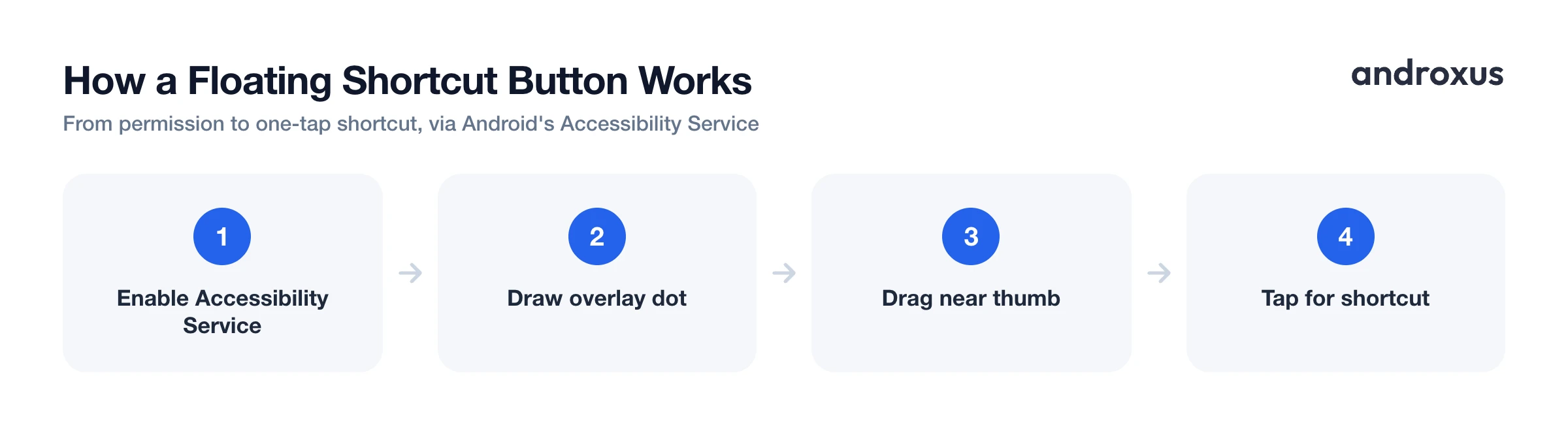
This kind of overlay relies on Android's Accessibility Service, which a user enables in Settings > Accessibility. That service is permitted to draw a special overlay window above other apps, the status bar, and the navigation bar, and to dispatch actions like back, home, or recents on the user's behalf. Because the dot itself is draggable, it can be parked once at the exact spot where a thumb naturally rests during a one-handed grip, and every shortcut then fires from that single fixed point instead of requiring a reach to wherever the system happens to put a button.
Action Dot: Assistive Touch is one example of this approach. It offers shortcuts such as soft Home/Back, recent apps, scroll to top or bottom, notification shade or quick settings, screenshot, screen recording, flashlight, camera, and toggles for Wi-Fi, Bluetooth, brightness, and ringer, along with an adjustable dot size and position. It's worth being precise about what it does and does not do: it draws the overlay button and performs only the specific action tapped. It does not read keystrokes, passwords, messages, or other on-screen personal data.
This is a genuine complement to, not a replacement for, the OS-level modes. Built-in one-handed modes help you reach content that's already on screen. A floating button brings its own always-reachable shortcuts to wherever your thumb already sits, which is a different part of the same problem.
Comparing your one-handed control options
| Method | How it's triggered | What moves or appears | Requires gesture nav | Best for |
|---|---|---|---|---|
| Android 12+ one-handed mode | Swipe down on bottom edge | Screen content slides down | Yes | Occasionally reaching the top of a tall screen |
| Samsung One UI one-handed mode | Diagonal swipe from bottom corner (gesture nav), or rapid taps on Home button (3-button nav) | Whole UI shrinks into a corner window | No | Samsung users who want the whole interface, not just content, brought closer |
| iOS Reachability (for context) | Swipe down along bottom edge | Whole screen slides down | N/A (iOS gesture nav) | iPhone users, same basic idea as Android's version |
| Floating shortcut button (e.g. Action Dot) | Tap a draggable on-screen dot | A fixed overlay button and its shortcut menu | No | Repeating the same actions, like back, screenshot, or flashlight, without a special mode |
Choosing, or combining, the right approach
The OS-level one-handed modes are free, already installed, and best suited to the occasional moment when you need to tap something at the very top of a tall screen. If that's the only friction you run into, turning on Android's or Samsung's version and using it a few times a day is enough.
A floating shortcut button suits a different pattern: people who repeat the same handful of actions often, such as going back, taking a screenshot, toggling the flashlight, or adjusting brightness. Putting those on a fixed, one-tap dot near your thumb skips the step of triggering a special mode first.
These approaches are not mutually exclusive, and most people who care about one handed phone control end up using both. Gesture-nav one-handed mode, or Samsung's version, can stay available for the rare reach-to-the-top moment, while a floating dot covers the actions you repeat all day. Neither approach requires rooting the phone; both rely on permissions Android exposes specifically for accessibility services and system overlays.
How to set up one-handed control on a big Android phone
- Install a floating shortcut app. Get an assistive-touch style app such as Action Dot: Assistive Touch from the Play Store. It adds a small movable dot that sits on top of other apps.
- Turn on the Accessibility Service permission. When prompted, enable the app's service under Settings > Accessibility. This is what allows the dot to draw over other apps and perform actions like back or home; without it the overlay cannot function.
- Drag the dot to your natural thumb position. On a large screen, place the floating dot near the bottom corner or edge closest to where your thumb rests when holding the phone one-handed, rather than leaving it at a default spot you have to stretch for.
- Pick which shortcuts appear. Open the dot's menu and choose the actions you use most, such as back/home, recent apps, scroll to top or bottom, notification shade, screenshot, flashlight, or Wi-Fi and Bluetooth toggles, so the ones you need are one tap away.
- Adjust size and position to fit your grip. Use the app's settings to resize the dot or change its opacity so it stays out of the way of content but is still easy to hit with a thumb tip on a big display.
- Pair it with the phone's built-in one-handed mode when needed. For the rare moments you need to reach content at the very top of the screen rather than trigger a shortcut, still use Android's or Samsung's native one-handed mode alongside the floating button; the two cover different parts of the problem.
Key takeaways
- Big screens broke one-handed reach because phones grew (6.7 inches is now the most common size) while thumb reach did not, and thumbs account for about 75 percent of on-screen taps.
- Android 12's native one-handed mode only works with gesture navigation and slides content down; Samsung's One UI version is triggered differently and shrinks the whole interface into a corner window instead.
- A floating shortcut button solves a different part of the problem: it stays in a fixed, draggable spot near your thumb and fires shortcuts directly, rather than moving or resizing the screen.
- Floating overlays run on Android's Accessibility Service and only perform the specific action tapped, they do not read keystrokes, passwords, or other on-screen data.
- Combining a built-in one-handed mode with a floating shortcut button covers both the occasional top-of-screen reach and the everyday repeated actions.
Frequently asked questions
Does every Android phone have a built-in one-handed mode?
Not identically. Android 12 and newer include a native one-handed mode, but it only works with gesture navigation and is not available if the phone uses the classic 3-button navigation bar. Samsung phones running One UI have a separate one-handed mode under Advanced features that is triggered differently and is not tied to that same gesture-nav requirement.
What screen size actually counts as a big phone today?
Anything above roughly 6.5 inches is now considered large. In 2026, 6.7 inches is the single most popular phone screen size, up from an average of around 6.0 inches back in 2020, so what used to be called a phablet is now a mainstream size.
How does a floating shortcut button get permission to appear over every app?
It runs through Android's Accessibility Service, which a user turns on in Settings > Accessibility. That service is allowed to draw a special overlay window above other apps, the status bar, and the navigation bar, and to trigger actions like back or home on the user's behalf once enabled.
Does a floating assistive-touch button read what's on my screen or my keystrokes?
A shortcut-focused overlay like Action Dot: Assistive Touch only draws its own button and carries out the specific action tapped, such as back, screenshot, or a brightness toggle. It does not capture keystrokes, passwords, messages, or other on-screen personal data.
Can I move the floating button to wherever my thumb naturally rests?
Yes. The dot is draggable, so it can be parked in a bottom corner or along an edge near the thumb, and its size can usually be adjusted too. That repositioning is the main practical difference from a fixed reachability gesture.
Do I have to choose between Android's one-handed mode and a floating shortcut button?
No, they solve different problems. One-handed mode temporarily pulls existing on-screen content down or shrinks it toward a corner, while a floating button adds its own always-available shortcuts at a fixed spot. Many people use both together.
