How to Add a Floating Home Button to Android
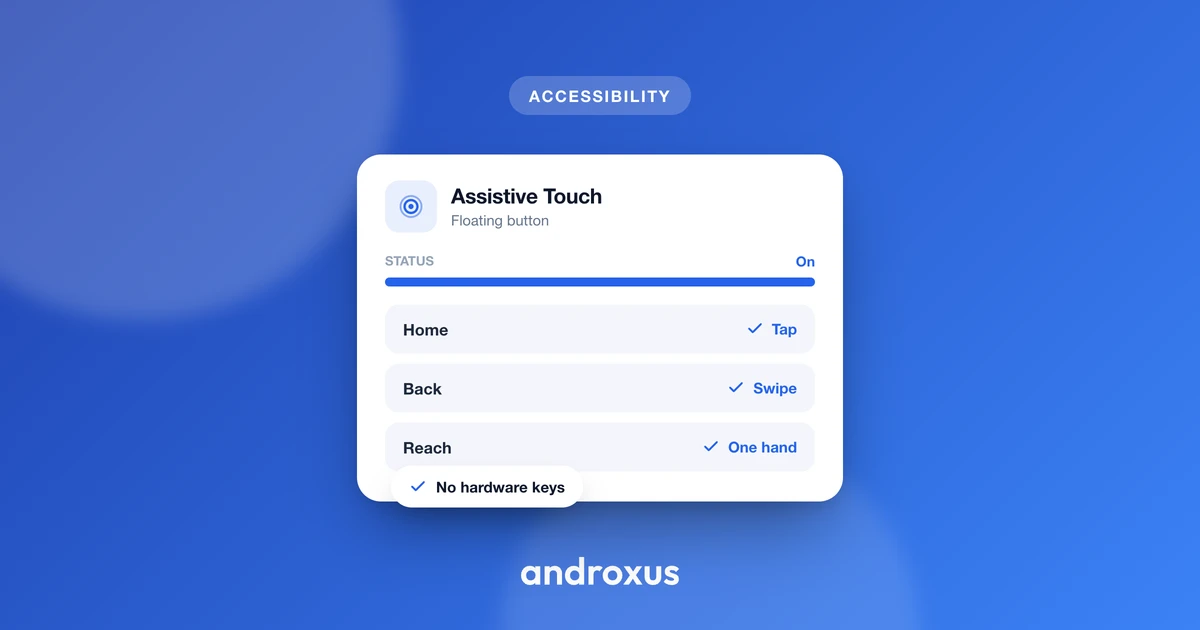
If your phone has switched to gesture navigation, or a cracked hardware button has left you without a reliable way home, you don't have to live with it. Android has more than one built-in way to add a floating home button to the screen, and if you want more shortcuts than just Home and Back, a dedicated app can extend the same idea.
Quick answer: To add a floating home button to Android, go to Settings, Accessibility, and turn on the Accessibility Menu (stock Android) or Assistant Menu (Samsung One UI), then set its location to "Floating over other apps." This puts a movable on-screen icon on your screen that opens a panel with Home, Back, and other actions. No root access is required, and it works alongside any navigation mode, gesture, 2-button, or 3-button.
What you'll learn
- Why people add a floating home button in the first place
- How Android's built-in Accessibility Menu works and where to turn it on
- How Samsung's Assistant Menu compares, and why it's more customizable
- How third-party floating-button apps work under the hood
- The native alternative: switching your system navigation mode entirely
- What to check before granting any app Accessibility Service access
Why people add a floating home button on Android
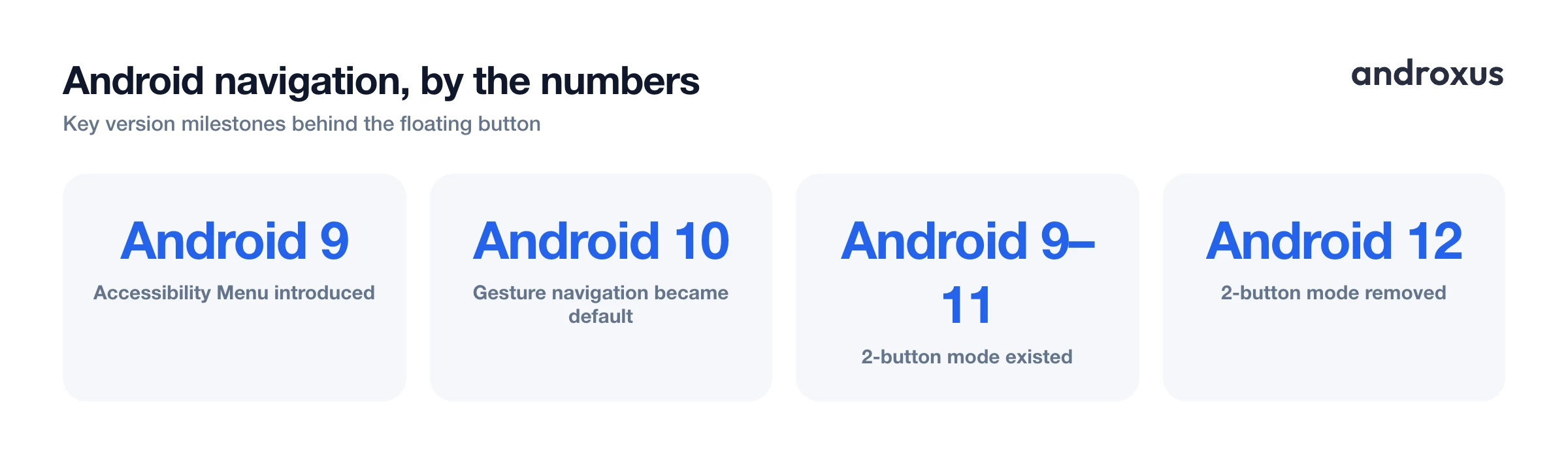
Gesture navigation has been the default on Android since Android 10, released in 2019. It replaced the classic Home, Back, and Recents buttons with a single thin bar at the bottom of the screen that you swipe rather than tap. That's convenient for a lot of people, but it also means there's no persistent Home button to press when you just want a fast, physical-feeling way back to the launcher.
People land on a floating home button for a handful of honest reasons:
- A cracked or unresponsive hardware button that no longer registers presses reliably.
- One-handed reach on larger phones, where a fixed on-screen target is easier to hit than a full-width swipe gesture.
- Tablets mounted in a kiosk, dashboard, or car dock, where a tappable button is more forgiving than a precise swipe.
- Simply preferring a button you can see and tap over a gesture you have to remember and execute correctly.
A floating button works independently of whichever system navigation mode is active. That's the key idea: it's a way to add a Home shortcut on top of whatever setup you already have, not a replacement for it.
Android's built-in Accessibility Menu
Since Android 9 (Pie), stock Android has shipped a feature called the Accessibility Menu: a large-icon panel designed for anyone who finds gestures or small buttons hard to use precisely.
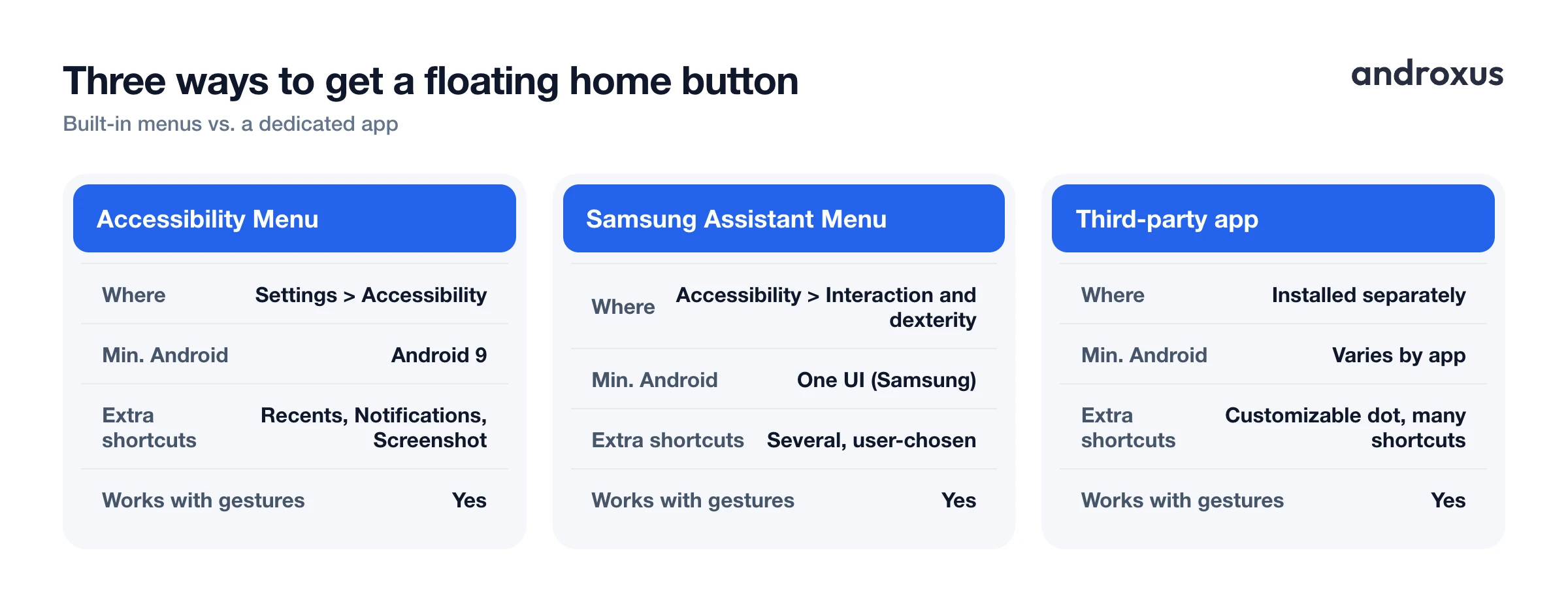
It's turned on at Settings, Accessibility, Accessibility Menu. Once enabled, the "Accessibility button" shortcut can be set under Location to "Floating over other apps," which makes it appear as a movable circular icon rather than docking inside the navigation bar.
Tapping the floating icon opens a panel that includes Home and Back among its actions, alongside things like Recent apps, Notifications, and Screenshot, depending on your Android version and phone manufacturer. The icon's size can also be adjusted from the same settings screen, which is worth doing if you find the default a little small to tap accurately.
Samsung's Assistant Menu (One UI)
Samsung's One UI ships a separate, more customizable tool called Assistant Menu, found at Settings, Accessibility, Interaction and dexterity, Assistant Menu.
It shows a floating icon that expands into a panel of shortcut buttons, including Home, Back, and Recent apps. You can choose which buttons appear on that panel from a longer list of available actions, which gives you meaningfully more control than the stock Accessibility Menu offers.
The floating icon itself can be dragged anywhere on screen, docked to the edge as a small icon when you're not using it, and made semi-transparent so it doesn't sit on top of content you're trying to read.
How third-party floating home button apps work
Third-party floating-button apps, sometimes called assistive touch apps, are built on Android's Accessibility Service API rather than requiring root access.
An Accessibility Service can call a system function that simulates a Home button press, and Android also lets an active Accessibility Service draw an overlay window without a separate "display over other apps" prompt, since that window type is tied to the accessibility grant itself. In practice, many floating-button apps still request the "display over other apps" permission too, alongside Accessibility Service, since it can offer more flexibility over how the bubble is drawn.
Action Dot: Assistive Touch is one example of this category. It adds a small, draggable dot, sized and positioned to taste, that offers a soft Home and Back button plus other shortcuts, such as recent apps, screenshot, and the notification shade, from the same floating menu. It uses the Accessibility Service purely to draw the overlay and trigger the action you tap. It does not read keystrokes, passwords, messages, or other personal data.
The alternative fix: switching system navigation mode
If the real annoyance is gesture navigation itself rather than a missing button, Android has a native alternative that doesn't involve adding anything floating at all. Go to Settings, System, Gestures, System navigation, though the exact path varies slightly by phone maker and Android version, and switch to 3-button navigation. That restores a permanent on-screen Home, Back, and Recents bar at the bottom of the screen.
A middle-ground 2-button mode, a pill-shaped Home button plus a separate Back button, existed from Android 9 through Android 11, but it was removed starting with Android 12.
The tradeoff is scope: switching navigation modes changes how you navigate everywhere on the device, while a floating button simply adds a Home shortcut on top of whatever mode you're already using.
Comparing the four ways to add a floating home button
| Method | Where to enable it | Minimum Android version | Extra shortcuts beyond Home/Back | Works alongside gesture navigation |
|---|---|---|---|---|
| Android's Accessibility Menu | Settings, Accessibility, Accessibility Menu | Android 9 | Recent apps, Notifications, Screenshot (varies by version/OEM) | Yes |
| Samsung's Assistant Menu | Settings, Accessibility, Interaction and dexterity, Assistant Menu | One UI (Samsung devices) | Several chosen shortcut buttons | Yes |
| Third-party app (e.g. Action Dot) | Installed separately, Accessibility Service granted in-app | Varies by app | Customizable dot with many shortcuts | Yes |
| Switching to 3-button navigation | Settings, System, Gestures, System navigation | Any Android version with gesture nav | None, replaces the whole nav bar | N/A, this changes the mode itself |
What to check before granting Accessibility access
The Accessibility Service is a broad permission: it can observe on-screen content and simulate input, which is exactly why security researchers flag it as a common vector when malicious apps trick users into enabling it.
Before turning on any floating-button app, confirm it comes from a known developer, check what its store listing and privacy policy actually say it does and does not do, and be wary of any app that asks for accessibility access without a clear reason tied to its stated purpose.
A legitimate floating shortcut tool should only use the permission to draw its overlay and carry out the specific action you tap, and it should say so plainly rather than staying vague about how it handles your data.
How to add a floating home button to Android
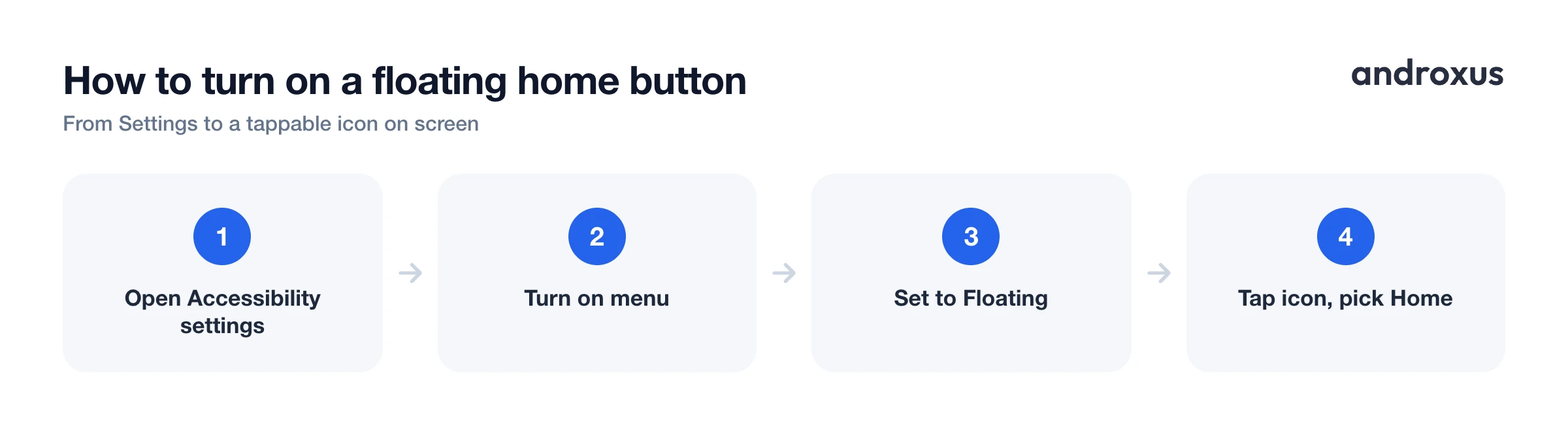
- Open Accessibility settings. Go to Settings, Accessibility, on your phone. On Samsung, this also contains Interaction and dexterity, where Assistant Menu lives.
- Choose a floating-menu option. Select Accessibility Menu on stock Android, or Assistant Menu on Samsung's One UI, and turn it on.
- Set the icon to float, not dock. In the shortcut's Location setting, choose "Floating over other apps," rather than "Navigation bar," so you get a movable on-screen icon instead of a docked one.
- Adjust size and position. Drag the new floating icon to a comfortable spot, and use the size or transparency controls in the same settings screen to make it easy to tap without blocking content.
- Tap the icon and pick Home. Tap the floating icon from any app, then choose Home, or Back, from the panel that opens to jump straight to your home screen.
- Optional: add more shortcuts with a dedicated app. If you want more than Home and Back on the same floating control, install a dedicated assistive-touch app such as Action Dot, grant its Accessibility Service permission, and add the specific shortcuts you use most to its floating dot.
Key takeaways
- You don't need root access to add a floating home button: Android's built-in Accessibility Menu, Samsung's Assistant Menu, and third-party apps all use the standard Accessibility Service API.
- Stock Android's Accessibility Menu is the fastest built-in option; Samsung's Assistant Menu offers more shortcut customization, letting you choose which buttons appear on its panel.
- A floating button works on top of any navigation mode, gesture, 2-button, or 3-button, while switching navigation modes entirely changes how the whole device is controlled.
- Third-party apps like Action Dot: Assistive Touch can add extra shortcuts beyond Home and Back, using the Accessibility Service only to draw the overlay and perform the action you tap.
- Since Accessibility Service access is a broad permission, only grant it to apps from developers whose stated purpose matches what they're asking for.
Frequently asked questions
Does every Android phone already have a floating home button built in?
Most Android phones running Android 9 or later have the built-in Accessibility Menu, which can be set to float over apps and includes a Home action. Samsung phones additionally have the more customizable Assistant Menu under Accessibility, Interaction and dexterity.
What's the difference between the Accessibility button and the Accessibility Menu?
The Accessibility button is a small shortcut icon that toggles one chosen accessibility feature. The Accessibility Menu is the actual large-icon panel, with Home, Back, and more, that opens when you tap that shortcut, once you've set it as the assigned feature.
Will a floating home button work with gesture navigation turned on?
Yes. Floating buttons draw an overlay on top of the screen and aren't tied to a navigation mode, so they work the same whether your phone is set to gesture navigation, 2-button, or 3-button navigation.
Do I need root access to get a floating home button?
No. Both Android's built-in options and third-party floating-button apps use the standard Accessibility Service API, which lets an app simulate a Home button press and draw a floating overlay without root.
Is it safe to grant an app Accessibility Service access just for a floating button?
It's a meaningful permission, so only grant it to apps from developers you trust and whose stated purpose matches what they're asking for. A well-behaved floating-button app uses the permission only to draw its overlay and perform the action you tap, not to read your screen content, keystrokes, or messages.
Can I move, resize, or hide the floating button once it's on?
Yes, on nearly every implementation. Android's Accessibility Menu lets you resize the icon, Samsung's Assistant Menu lets you drag it anywhere and dock it to the edge, and dedicated apps like Action Dot: Assistive Touch let you adjust both the dot's size and its position on screen.
