What Is AMOLED Burn-In and How to Prevent It
If you have ever noticed a faint outline of your status bar or navigation buttons ghosting through a photo, you have seen the early stages of AMOLED burn-in. It is one of the most-searched screen problems on Android, and also one of the most misunderstood, since a few small habits make an outsized difference in whether it ever shows up.
Quick answer: AMOLED burn-in is permanent, faint discoloration left on an AMOLED/OLED screen after the same static image has been displayed for very long cumulative periods, caused by the organic sub-pixels in that spot aging faster than the pixels around them. It is triggered most often by high brightness, static navigation bars or icons, and long daily exposure to unchanging content. Dark theme, moderate brightness, a short screen timeout, and avoiding static content left on screen for hours all substantially reduce the risk, and a well-built always-on display is much lower risk than repeatedly lighting the full screen at normal brightness.
What you'll learn
- What AMOLED burn-in actually is, and how it differs from temporary image retention
- What causes it at the pixel level, and why some colors wear faster than others
- The habits and settings that measurably reduce your risk
- Whether an always-on display makes burn-in more or less likely
- What to do, and what not to expect, if burn-in has already appeared
What Is AMOLED Burn-In (and What It Isn't)
AMOLED stands for Active-Matrix OLED, an organic light-emitting diode display variant most associated with Samsung's panels and used across most modern Android flagships. AMOLED is simply a type of OLED, so "AMOLED burn-in" and "OLED burn-in" describe the same phenomenon.
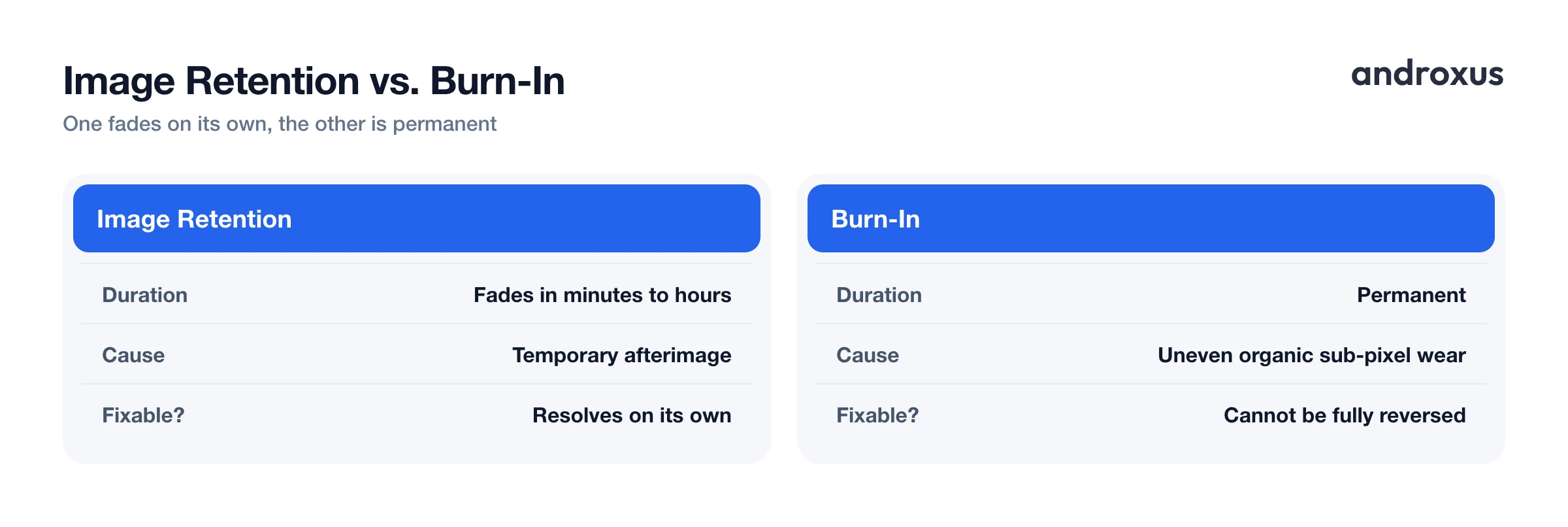
Burn-in itself is a permanent, faint discoloration or ghost image left behind after the same static content, such as a status bar, navigation bar, app logo, or a paused video's HUD, has been displayed for very long cumulative periods. It is worth distinguishing this from image retention, sometimes called image persistence, a temporary afterimage that fades within minutes to hours on its own. Retention is normal and harmless. Burn-in is not.
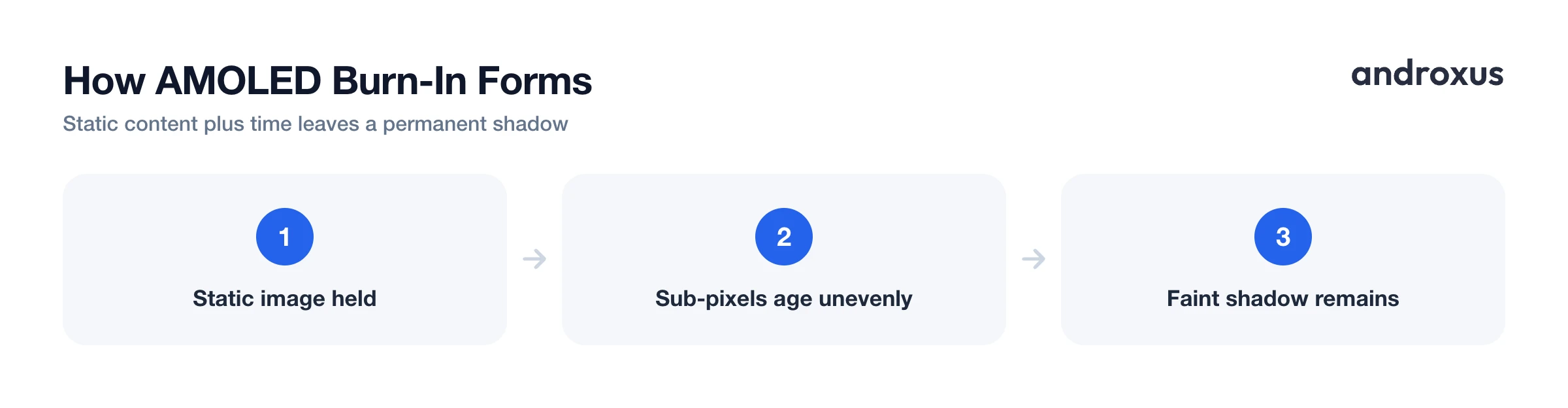
The mechanism comes down to how these screens are built. Each pixel is made of individually lit organic sub-pixels, and sub-pixels driven harder or longer age faster and dim relative to their neighbors. Over time, that uneven aging leaves a visible shadow of the old content, even when the screen shows something completely different.
What Actually Causes It
Burn-in risk comes down to a small set of factors that compound with each other.
Static images and UI elements held on-screen for long periods are the primary cause: navigation bars, status bar icons, app logos, and paused video or game HUDs that sit in the same place for hours at a time, day after day.
Sub-pixels also do not degrade evenly by color. Blue organic material tends to degrade fastest, while red and green last considerably longer, which is why color-heavy static graphics can wear unevenly and sometimes leave a slight color cast rather than a uniform shadow.
High brightness accelerates organic material degradation, since sub-pixels driven at higher output current age faster than the same content shown dim. This is the single biggest lever most people have direct control over.
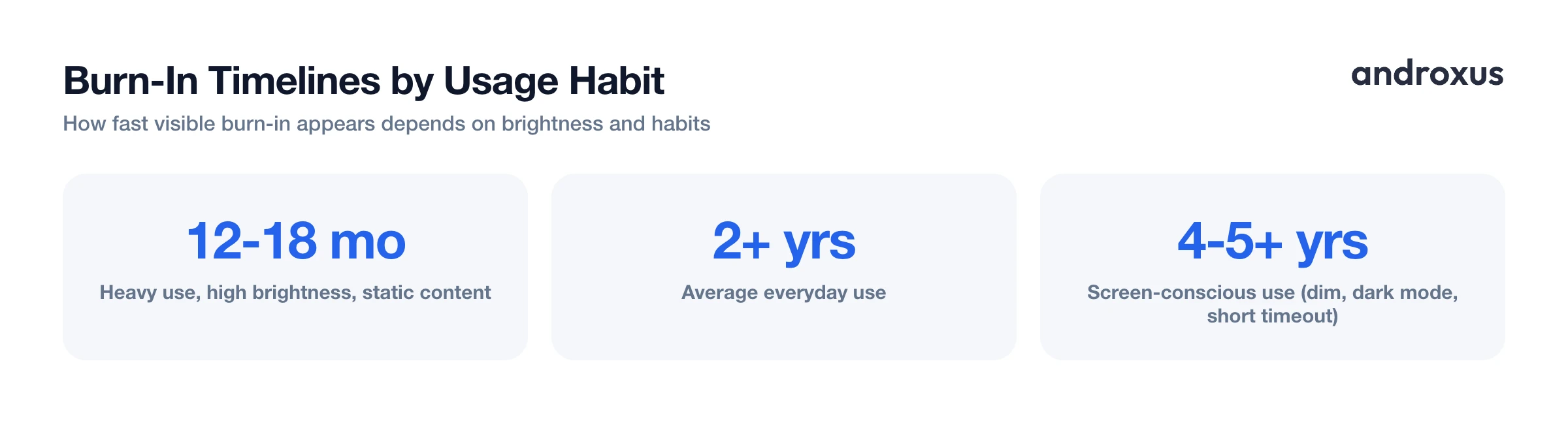
Cumulative usage matters more than any single session. Risk builds from repeated exposure, such as the same static element for one to two hours daily over many months, not a few minutes on screen once. That is why timelines vary so much: heavy use at high brightness with static content can show visible burn-in in roughly 12 to 18 months, while moderate, screen-conscious use can push it out to four or five years, or avoid it entirely for most everyday users.
Core Prevention Habits That Work
None of these require special hardware, just a few settings changes.
| Habit or setting | Burn-in risk if ignored | Recommended fix |
|---|---|---|
| Brightness level | High, sustained brightness accelerates pixel wear | Moderate brightness, Adaptive/auto-brightness enabled |
| Screen timeout | Long timeout leaves static screens lit at full brightness | 30 seconds to 1 minute |
| Dark mode | Off means far more pixels are lit at high output constantly | On, system-wide and in frequently used apps |
| Navigation style | 3-button bar keeps fixed icons lit for years | Gesture navigation |
| Static content exposure | Paused video, game HUDs, or maps left on-screen for hours | Let the display sleep or switch away when not actively watched |
| Always-on display usage | Some pixels lit continuously, though usually dim | Use a dim, pixel-shifting AOD rather than waking the full screen repeatedly |
Dark theme deserves particular emphasis. Because AMOLED pixels are individually lit, black pixels draw effectively no power and see almost no wear, so enabling dark theme system-wide is one of the biggest single reductions in cumulative pixel stress you can make, alongside a meaningful battery benefit. Keeping brightness moderate with adaptive brightness, instead of manually pinning it to maximum, is the second-biggest factor.
A shorter screen timeout limits how long any static screen can sit lit if you forget the phone is unlocked, and gesture navigation removes a fixed 3-button bar, a classic source of localized burn-in over years of use. A screen protector or case has zero effect on burn-in, since the wear happens inside the display panel itself, not on the surface you can touch.
Always-On Display: Risk vs. Reality
An always-on display sounds like it should be one of the riskiest things you can do to an AMOLED screen, since it keeps some content lit for very long periods by design. In practice, well-built AOD implementations mitigate most of that risk: they keep brightness low and dim, use mostly black background pixels, which is where AMOLED's power and wear advantage comes from in the first place, and often shift the displayed content by small amounts over time so no single group of sub-pixels absorbs all the wear.
This is not a new or unproven idea. Google's Pixel line has used a subtle pixel-shifting always-on clock since the Pixel 2 in 2017 specifically to guard against burn-in, and Samsung's AOD shifts position periodically for the same reason. It is worth being upfront about the tradeoff, too: an always-on display uses some extra battery compared to a screen that is fully off, a real cost worth weighing against the convenience of glanceable time, notifications, and controls.
On Android phones without a native always-on display, an app like AOD Flow can add that experience, showing time, date, precise battery percentage, notifications, and media controls, with adjustable dimming and timing plus built-in AMOLED/OLED burn-in protection. AOD Flow displays information and controls, it does not itself change your charging speed, and its burn-in protection reduces risk rather than guaranteeing zero wear over years of use. A dim, well-designed AOD is generally a safer habit than repeatedly waking the full screen at normal brightness just to check the time.
If You Already See Burn-In
If you suspect burn-in, first confirm it is real and not temporary retention by checking whether the shadow persists across different apps and colors over hours, not just right after one static screen was displayed. If it disappears on its own, it was retention, not burn-in.
Some devices include a built-in pixel-refresher or screen-refresh cycle that can slightly even out sub-pixel wear and reduce the visibility of mild retention, but it cannot reverse or fully fix established burn-in.
Burn-in is permanent damage to the physical organic layer of the display, so the practical path forward is prevention, not a cure: dark mode, moderate brightness, a shorter timeout, and avoiding static content. In more advanced cases, a screen replacement is the only true remedy.
How to Reduce the Risk of AMOLED Burn-In on Your Phone
- Turn on dark theme system-wide. Go to Settings > Display > Dark theme (naming varies slightly by phone maker) and enable it. Dark theme keeps most pixels off or nearly off in normal use, which is one of the single biggest reductions in pixel stress on an AMOLED screen.
- Lower and automate brightness. In Settings > Display, keep brightness in a moderate range rather than maxing it out, and enable Adaptive brightness so the screen only gets as bright as the environment requires. Sustained high brightness is one of the strongest accelerators of burn-in.
- Shorten screen timeout. Go to Settings > Display > Screen timeout and set it to 30 seconds or 1 minute. A shorter timeout limits how long any static screen, including a paused app or a home screen, can sit lit at full brightness.
- Switch to gesture navigation over the 3-button navigation bar. In Settings > System > Gestures (naming varies by phone maker), choose gesture navigation. This removes the permanently lit navigation bar icons that are a classic source of localized burn-in over time.
- Use or enable a burn-in-aware always-on display. If your phone has a native AOD, check Settings > Display > Lock screen for an always-on display option and make sure any pixel-shift or dimming feature is turned on. On phones without a native AOD, an app like AOD Flow can add the feature with adjustable dimming and timing plus built-in burn-in protection, so the always-on content stays low-risk.
- Avoid leaving static, high-contrast content on screen. Do not leave paused videos, static game screens, or navigation apps with fixed HUDs on screen for hours at a time. Let the display sleep or switch away when it is not actively in use.
Key takeaways
- AMOLED burn-in is permanent, uneven wear of organic sub-pixels caused by long cumulative exposure to static, high-brightness content, and it is the same phenomenon as OLED burn-in.
- Brightness and static content are the two factors that matter most, so dark theme, moderate adaptive brightness, and a short screen timeout are the highest-leverage habits.
- A well-designed always-on display, dim and often pixel-shifting, is much lower risk than repeatedly waking the full screen, though it does use some extra battery.
- Burn-in cannot be fully reversed once it appears, so prevention through everyday settings is far more effective than any after-the-fact fix.
- On phones without a native AOD, AOD Flow can add glanceable time, battery, and notification info with adjustable dimming and built-in burn-in protection, without claiming to control charging speed or eliminate wear entirely.
Frequently asked questions
What exactly is AMOLED burn-in?
Burn-in is permanent, faint discoloration or ghosting left on an AMOLED/OLED screen after the same image, like a status bar, navigation bar, or app logo, has been displayed for very long periods. It happens because the organic sub-pixels that produced that static image degrade faster than the sub-pixels around them, so the old image becomes visible as a shadow even when the screen shows something else.
Is AMOLED burn-in the same as OLED burn-in?
Yes. AMOLED, or Active-Matrix OLED, is a variant of OLED technology, most commonly associated with Samsung's panels, but the underlying organic light-emitting pixels and the way they wear out are the same. Any burn-in prevention advice for OLED applies equally to AMOLED.
How long does it take for burn-in to show up on a phone?
It varies widely with usage. Heavy use at high brightness with static on-screen elements for 6 to 8 hours a day can produce visible burn-in in as little as 12 to 18 months. Average users typically see no noticeable retention for 2 years or more, and moderate, screen-conscious use, such as lower brightness, dark mode, and a short timeout, can push it out to 4 to 5 years or beyond.
Does using an always-on display cause burn-in?
A well-designed always-on display is built to minimize the risk: it keeps content dim, uses mostly black pixels, and often shifts the clock position slightly over time. It is not risk-free since it does keep some pixels lit for long stretches, but it is much lower risk than leaving the full screen on at normal brightness. Using a dim AOD is generally safer than repeatedly waking the phone at full brightness to check the time.
Can screen burn-in be fixed once it happens?
True burn-in is permanent because it comes from physically uneven wear of the organic pixels. Some devices offer a pixel-refresher or screen-refresh tool that can slightly even out wear and reduce the appearance of mild retention, but it cannot fully reverse established burn-in. Prevention is far more effective than any after-the-fact fix.
Does a screen protector or case help prevent burn-in?
No. Burn-in happens at the pixel level inside the display itself, so a physical screen protector or case has no effect on it. What matters is brightness, static content, and how long the same image stays on screen.
