What Is Always-On Display and How Does It Work?
Glance at almost any phone on a table today and you'll likely see a clock glowing quietly on an otherwise dark screen. That's Always-On Display at work, a small but genuinely useful piece of screen technology that most people use daily without knowing exactly how it works. Here's a plain explanation of what it is, why it only exists on certain screens, and what it costs you in battery life.
Quick answer: Always-On Display, or AOD, is a screen mode that keeps limited information, usually the time and date, visible on the lock screen after the phone would normally go dark. It works by lighting only the pixels needed for that information on an AMOLED or OLED display, since those screens can turn individual pixels on and off, unlike LCD screens which need a constant full backlight. AOD typically uses a modest amount of extra battery, often under 1 percent per hour at low brightness, and modern displays reduce long-term burn-in risk with a technique called pixel shifting.
What you'll learn
- What Always-On Display actually is and where the feature came from
- Why AOD only works well on AMOLED and OLED screens, not LCD
- What information an always-on display typically shows
- How much battery AOD really uses, based on independent measurements
- Whether AOD can cause screen burn-in, and how that risk is managed
- How to turn Always-On Display on for your Android phone
What Always-On Display Means
AOD is short for Always-On Display: a screen mode that keeps showing limited content, like the time, after the phone would normally lock and go fully dark. It shows information without fully waking the device or unlocking it. The screen isn't "on" in the usual sense, only a small portion of its pixels are lit at any given moment.
The idea isn't new. Nokia's N9 showed an early version of it with a clock display on its AMOLED screen back in 2011, and Nokia later built a fuller version, called Glance Screen, into its Lumia Windows Phones starting in 2013. Android picked it up in earnest when Samsung branded the feature "Always On Display" on the Galaxy Note 7 in 2016, and it's been a staple on Samsung and most other Android flagships since. Apple added the feature to iPhone with the iPhone 14 Pro in 2022, and extended it to non-Pro models starting with the iPhone 17. Today, AOD is common on most mid-range and flagship Android phones that use OLED or AMOLED screens.
How AOD Works on AMOLED and OLED Screens
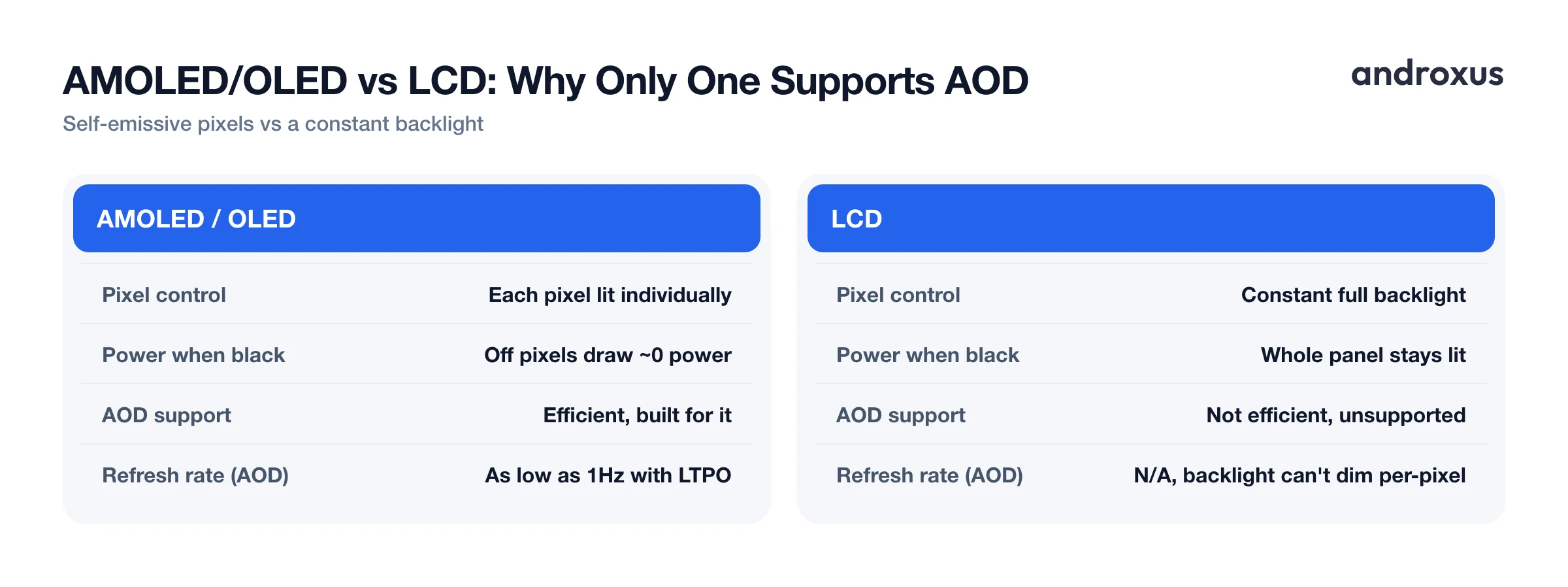
The reason AOD exists at all comes down to display hardware. AMOLED and OLED panels are self-emissive, meaning each pixel produces its own light and can be switched on or off individually. A pixel that should be black is simply turned off and draws essentially no power.
That's fundamentally different from LCD screens, which rely on a constant backlight sitting behind the entire panel. On an LCD, showing even a tiny clock in the corner means lighting up the whole screen continuously, since the backlight can't be selectively dimmed pixel by pixel. That's why Always-On Display is built specifically around AMOLED and OLED technology, and why you won't find true AOD on phones with LCD screens.
Because AOD content is almost always placed on a black background, only a small percentage of the total pixels are ever lit at once, which is what keeps power draw relatively low. Many newer OLED panels also use LTPO (low-temperature polycrystalline oxide) technology, which can drop the screen's refresh rate as low as 1Hz while AOD is active. Refreshing the image far less often than the display's normal rate cuts power use even further.
What Information Always-On Display Typically Shows
Different phones and apps offer different levels of detail, but most always-on displays share a common core set of elements.
| Element | What It Shows | Typically Customizable? |
|---|---|---|
| Time & Date | Current time and day, usually in a large clock style | Yes, multiple clock and watch face styles |
| Battery Percentage | Charge level, sometimes as an exact number rather than just an icon | Yes, on phones and apps that support precise readouts |
| Notification Icons | Small icons for new messages, calls, and app alerts | Yes, can often be turned on or off per app |
| Music/Media Controls | Play, pause, and skip controls for active audio or video | Yes, appears automatically during playback on supporting devices |
| Clock Style/Watch Face | Visual layout and design of the displayed time | Yes, wide range of styles on most modern implementations |
| Calendar/Weather | Upcoming events or current conditions, where supported | Varies by phone or app |
Time and date are the baseline on virtually every AOD implementation. Battery status goes a step further on many phones and apps, showing a precise percentage instead of a generic icon, which is handy for checking charge level at a glance. Notification icons let you see who's messaging or calling without unlocking the phone, and media controls make it easy to skip a track without picking the phone up at all. Phones and apps with deeper customization also add calendar events, weather, or a wider library of clock styles and watch faces.
Battery Impact: How Much Power AOD Actually Uses
It's worth being upfront about this: Always-On Display does use extra battery. There's no way around some added drain, since the screen is lighting pixels for more hours of the day than it otherwise would.
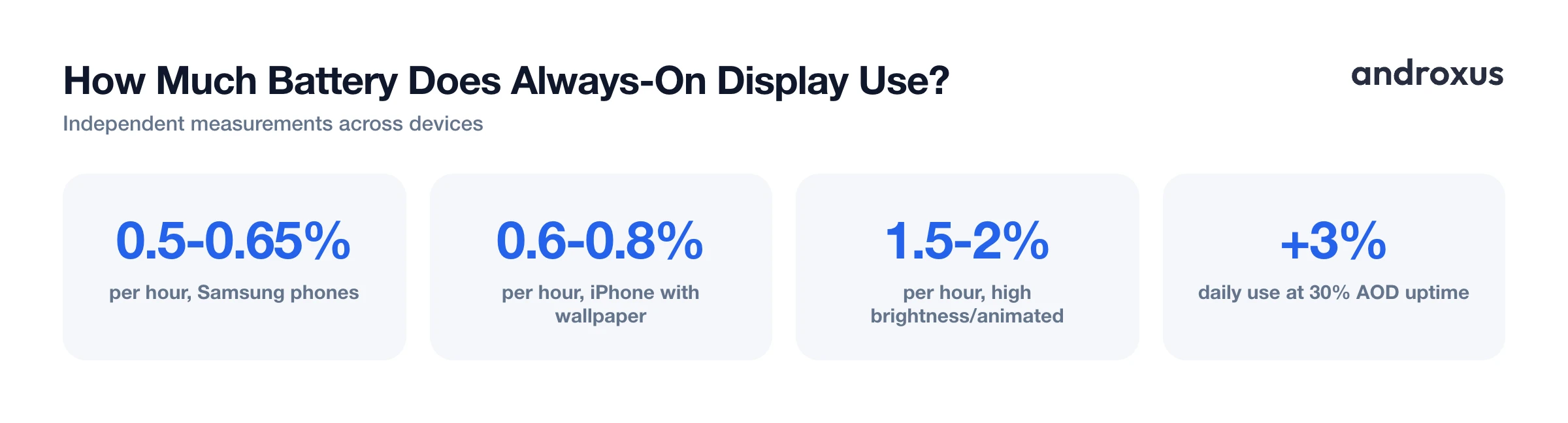
Independent tests show a fairly wide range depending on the device and settings. Measurements on Samsung phones have found AOD drain around 0.5 to 0.65 percent of battery per hour. iPhones with AOD and an active wallpaper have measured closer to 0.6 to 0.8 percent per hour. Other Android devices generally fall in a similar band, though phones running AOD at higher brightness, with animated wallpapers, or with less efficient software can push closer to 1.5 to 2 percent per hour. One commonly cited estimate suggests that if AOD is active for about 30 percent of the day, it adds roughly 3 percent to total daily battery use.
The biggest levers for reducing that cost are brightness, schedule, and content. Dimming the AOD brightness, limiting it to certain hours instead of running it 24/7, and keeping the displayed content simple all meaningfully cut the drain. If battery life is a priority, scheduling AOD to switch off overnight or during work hours, when you're less likely to be glancing at the lock screen, is a practical middle ground between convenience and power savings.
Burn-in Risk and How It's Managed
OLED and AMOLED pixels are organic, and they dim gradually with use. Showing the same bright element in the exact same spot on the screen for very long stretches of time can, over years, cause uneven wear known as burn-in, where a faint ghost of that element remains visible even when it's not supposed to be there.
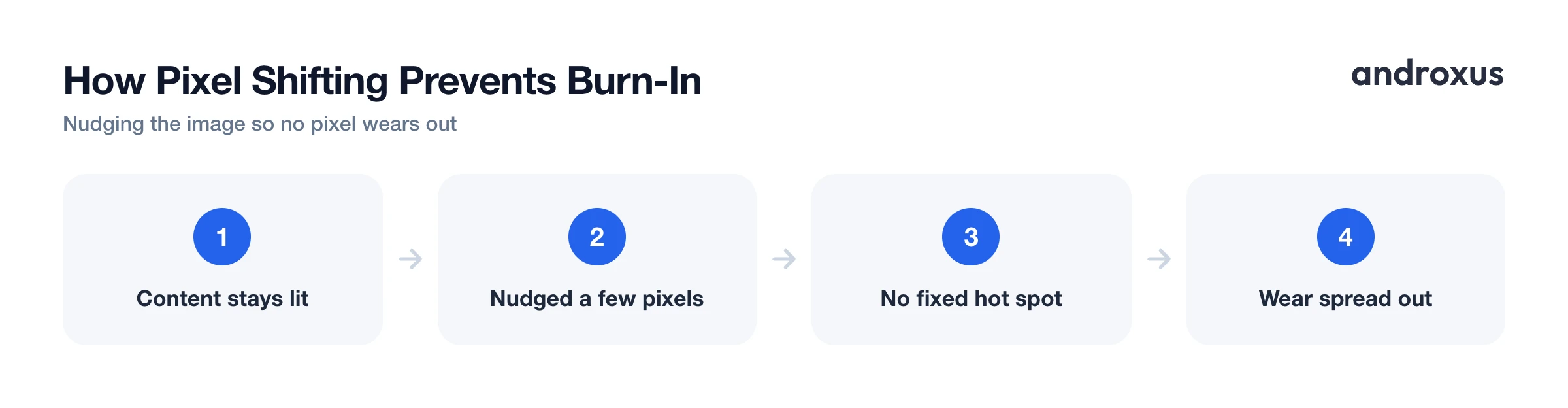
Modern always-on displays reduce this risk mainly through a technique called pixel shifting. The displayed content is nudged a few pixels at set intervals, so no single physical pixel stays lit in exactly the same position indefinitely. Keeping AOD content mostly black, using lower brightness, and avoiding static bright logos fixed in one spot all help reduce wear further. AOD Flow, for example, applies pixel-shifting-based burn-in protection to the always-on content it displays.
That said, it's honest to say burn-in protection reduces risk rather than eliminating it. Some pixel wear over years of heavy OLED use is a normal characteristic of the technology, and no software feature can fully guarantee it will never happen. For most people using AOD at reasonable brightness, the practical risk is low, but it isn't zero.
How to Turn On Always-On Display on Android
- Open your phone's Settings app. On most Android phones this is the gear icon in the app drawer or quick settings panel.
- Go to Display, or Lock Screen. Depending on the manufacturer, the option lives under Settings > Lock Screen > Always On Display (Samsung) or Settings > Display > Lock Screen (Pixel and several other brands).
- Turn on the Always On Display toggle. Enable the feature; some phones offer a preview so you can see the default clock style before confirming.
- Choose a style and schedule. Pick a clock or watch face layout, and set whether AOD stays on all day, follows a schedule, or only shows for a set number of hours after the screen locks.
- Adjust what shows on the display. Turn on options for notification icons, battery percentage, or music controls if the phone offers them, and set tap-to-show if you'd rather the screen stay fully black until touched.
- If the option isn't there at all. On phones with an AMOLED or OLED screen but no built-in AOD toggle, an app like AOD Flow can add a similar always-on lock screen with a clock, battery percentage, and notifications, along with its own timing and dimming controls. It's worth noting that such an app displays charging status and battery percentage; it doesn't change how fast the phone actually charges.
Key takeaways
- Always-On Display keeps limited information, usually the time, visible on the lock screen without fully waking the phone.
- It only works efficiently on AMOLED and OLED screens, since those panels light individual pixels rather than relying on a constant backlight like LCD.
- AOD typically adds modest battery drain, often under 1 percent per hour at low brightness, though it can run higher depending on settings.
- Pixel shifting reduces burn-in risk by preventing the same content from staying fixed in one spot, though it can't guarantee zero wear over years of use.
- On AMOLED or OLED phones without a built-in AOD toggle, an app such as AOD Flow can add a similar always-on lock screen experience.
Frequently asked questions
What does AOD stand for?
AOD stands for Always-On Display, the screen mode that keeps showing limited information, like the time, after the phone would normally go dark.
Does Always-On Display drain the battery?
Yes, but modestly. Independent tests put typical AOD drain around 0.5 to 1 percent of battery per hour on OLED phones, sometimes up to 1.5 to 2 percent per hour on phones running it at higher brightness or with animated content. Lowering AOD brightness or scheduling it to turn off overnight reduces the impact.
Can Always-On Display cause screen burn-in?
It's possible over a long time since OLED pixels dim gradually as they're used, but the risk is low on modern screens. Manufacturers and apps reduce it with pixel-shifting, which nudges the image a few pixels at intervals so no single pixel stays lit in the exact same spot for too long.
Why doesn't Always-On Display work on LCD screens?
LCD screens use a constant backlight behind every pixel, so showing even a small clock means lighting the whole panel continuously, which uses far more power than an OLED display where only the lit pixels draw power. That's why AOD is built around AMOLED and OLED technology.
Why doesn't my Android phone have an Always-On Display option?
Either the screen isn't AMOLED or OLED, so true per-pixel AOD isn't efficient on it, or the manufacturer simply didn't include the software toggle even though the hardware supports it. On AMOLED and OLED phones missing the built-in feature, an app such as AOD Flow can add an always-on style lock screen.
How do I turn off Always-On Display on Android?
Go back to the same settings screen where you enabled it (commonly Settings, then Display or Lock Screen, then Always On Display) and switch the toggle off, or set it to show only when tapped.
