Does Always-On Display Drain Battery? The Real Numbers
You glance at your phone on the nightstand and the clock is just there, no tap needed, no black screen to wake first. It's a small convenience, but it comes with a question worth asking honestly: does Always-On Display drain battery you'd otherwise keep? The short answer is yes, and the numbers below show exactly how much.
Quick answer: Yes, Always-On Display does drain battery, typically about 0.5% to 1.5% per hour on AMOLED and OLED screens, which works out to roughly 10-15% of a full charge over a 14-hour waking day. That's real but modest drain, since AOD only lights the pixels needed for the clock and icons rather than the whole panel. It is always more battery cost than a fully off screen, and turning it off is the most direct way to recover that slice of daily battery life.
What you'll learn
- How much battery Always-On Display actually uses, with real test numbers
- Why AMOLED and OLED panels make AOD cheap in the first place, compared to LCD
- What makes AOD drain more or less on your specific phone
- Whether AOD raises the risk of screen burn-in, and what mitigates it
- Practical steps to cut AOD's battery cost without giving up the feature
What Always-On Display Actually Does (and Why It Costs Anything)
AOD keeps a minimal version of the lock screen, usually a clock, date, battery percentage, and notification icons, visible while the phone is otherwise idle and locked. Unlike a fully active screen, it doesn't turn on the whole panel or run at full brightness. It lights only the pixels needed for that content.
The catch is duration, not intensity. A screen you actively use is on for a few minutes here and there throughout the day. AOD runs for hours between uses, including through the night, which is where the extra battery use accumulates even though the per-minute cost is tiny. It's worth noting this is treated as a real, measurable power draw at the OS level too: Android's system Battery Saver mode typically disables AOD automatically when turned on, right alongside other background and visual features.
How Much Battery Does AOD Really Use? The Numbers
This is the part most guides gloss over, so here are the actual figures from manufacturer claims and independent testing.
| Source / test | Device(s) tested | AOD battery cost |
|---|---|---|
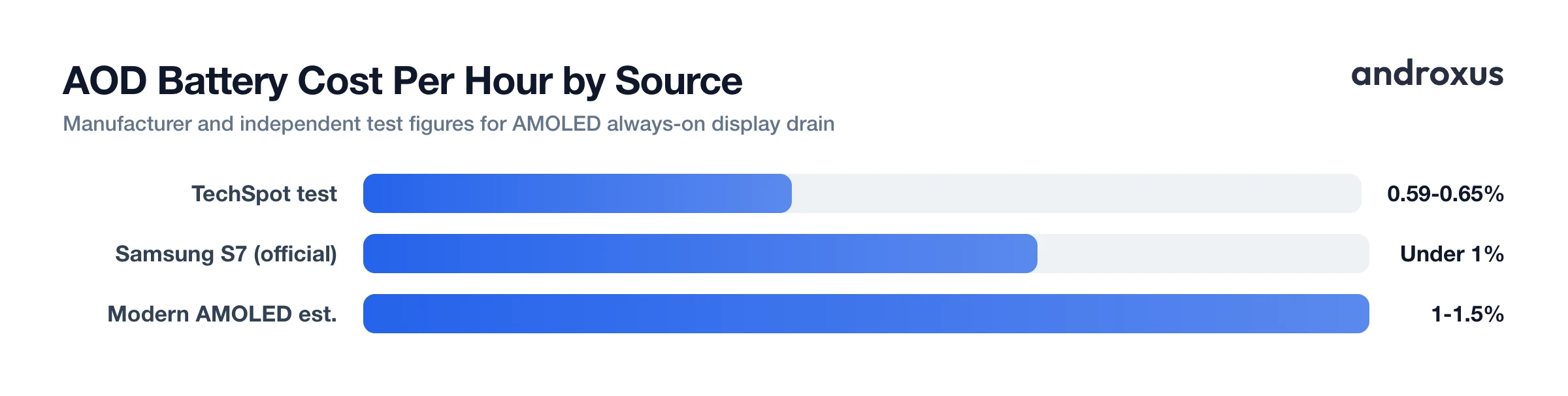
| Samsung (official, Galaxy S7 launch) | Galaxy S7 | Under 1% per hour |
| TechSpot (independent test) | AMOLED phone, same generation | 0.59% to 0.65% per hour |
| General modern-device estimate | Various current AMOLED phones | Roughly 1% to 1.5% per hour (about 10-15% over a 14-hour day) |
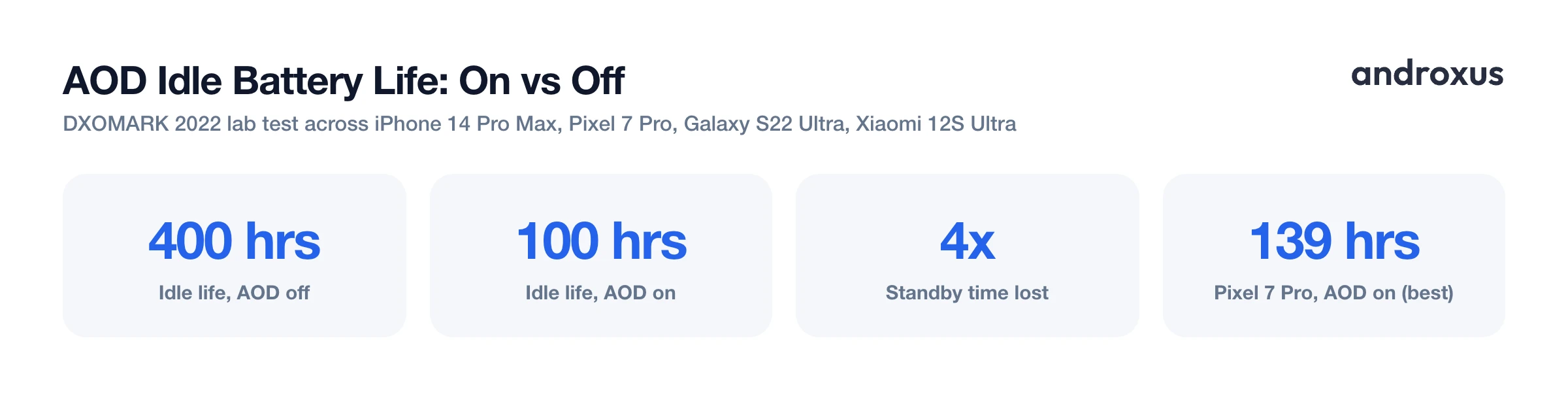
| DXOMARK (2022 lab test) | iPhone 14 Pro Max, Pixel 7 Pro, Galaxy S22 Ultra, Xiaomi 12S Ultra | Idle battery life drops from about 400 hours (AOD off) to about 100 hours (AOD on), a 4x difference; Pixel 7 Pro held up best at 139 hours with AOD on |
The spread, from about 0.6% to 1.5% per hour, reflects real differences between phones and AOD content, not one universal number. A dim, mostly-black clock on an efficient panel sits at the low end. A bright, colorful, or animated AOD style pushes toward the high end. Either way, the DXOMARK result is the most useful framing: leaving AOD on isn't a rounding error, it roughly quarters your idle standby time compared to a screen that's simply off.
Why AMOLED and OLED Panels Make AOD Cheap in the First Place
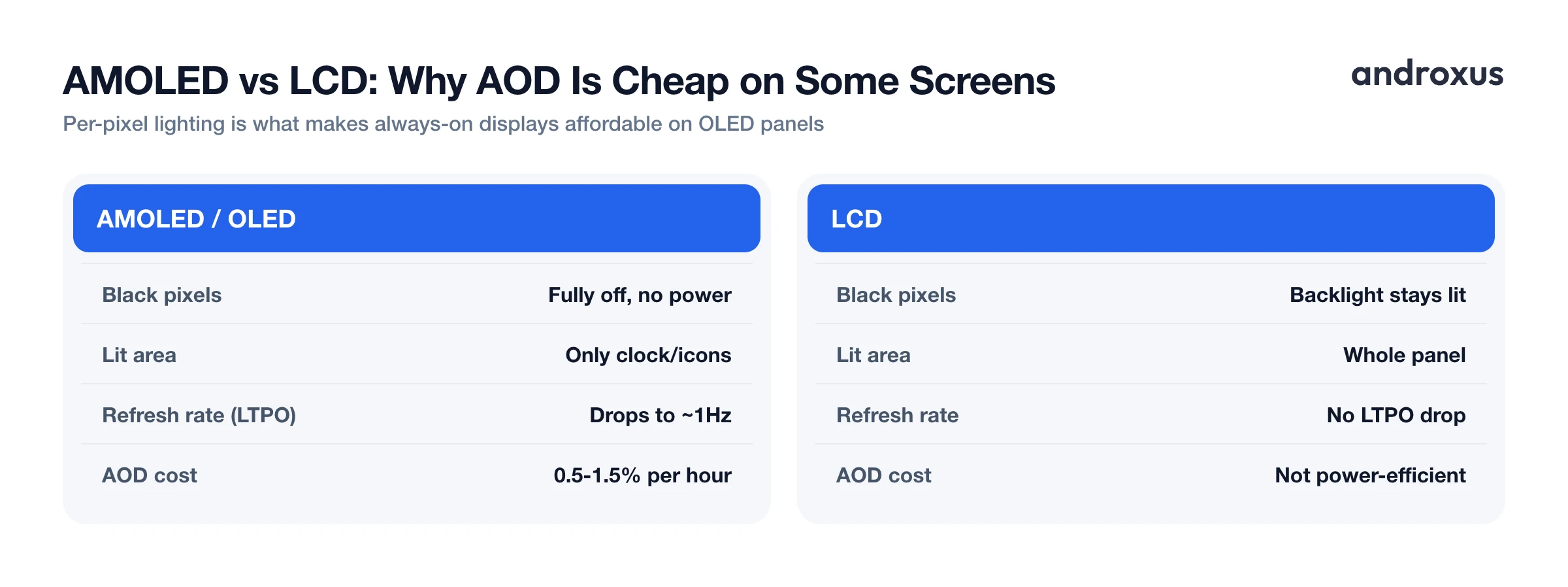
AOD is only viable at these low costs because of how AMOLED and OLED displays work. Each pixel emits its own light individually, so a pixel showing pure black is fully off and draws no power. That's fundamentally different from an LCD, where a backlight stays lit across the entire panel no matter what's on screen.
That's exactly why nearly every AOD clock face uses a black background: the display driver only powers the pixels forming the digits, date, or icons, and the rest of the panel stays dark and power-free. Many higher-end phones go further with LTPO OLED panels that can drop their refresh rate to around 1Hz in AOD mode, cutting power further since the screen isn't refreshing at a normal rate just to hold a static clock in place.
Put together, this per-pixel efficiency is why AOD's cost lands in fractions of a percent per hour rather than the several percent per hour a fully active, brightly lit screen would burn.
What Makes AOD Drain More, or Less, Battery
Not every AOD setup costs the same. A few factors move the number meaningfully:
- Brightness and lit area. A bright AOD setting, a large clock face, colorful widgets, or a photo background all light more pixels at higher intensity than a small, dim, black-background clock.
- Wake-up frequency. Frequent notification-triggered wake-ups, or a "tap to show" mode that lights the full display often, add up across a day.
- Schedule vs. always-on. Running AOD 24/7 costs more than scheduling it to your waking hours only, an option Samsung offers natively.
- Ambient dimming. An ambient light sensor that auto-dims AOD in a dark room lowers average brightness, and therefore average power draw, compared to a fixed brightness level.
- How much control your phone gives you. Samsung offers tap-to-show, scheduled, and notification-only AOD modes. Stock Pixel settings offer fewer built-in customization options, such as no native brightness slider or schedule for AOD, which limits how much you can tune the cost yourself.
AOD and Burn-In: The Other Long-Term Tradeoff
Battery isn't the only cost worth weighing. Because AOD keeps static elements like clock digits in roughly the same screen position for extended periods, it raises the theoretical risk of OLED burn-in, meaning uneven pixel wear, compared to a screen that's fully off between uses.
Manufacturers and AOD apps commonly build in mitigation for this, most often pixel-shifting: nudging the displayed content by a small amount at set intervals to spread wear across more pixels instead of concentrating it in one spot. These measures genuinely reduce the risk. They do not fully guarantee zero long-term wear, so it's honest to think of burn-in protection as risk reduction rather than immunity.
This matters even on phones that don't have a native Always-On Display. An app like AOD Flow can add a customizable AOD-style clock, battery percentage, and notification view to those phones, along with AMOLED burn-in protection and adjustable dimming and timing. It's worth being clear-eyed about the tradeoff either way: adding an AOD-style experience through an app still uses some extra battery, the same way built-in AOD does, and it doesn't change how fast your phone charges. It displays information and controls, nothing more.
How to Reduce the Battery Cost of Always-On Display
- Check how much AOD is actually costing you. Go to Settings > Battery > Battery usage (naming varies by brand) and look for Screen or Always On Display in the breakdown to see its real share of your daily drain before changing anything.
- Switch to a darker, simpler AOD style. Choose a mostly-black background with thin, minimal digits or icons instead of bright colors or photo-based clock faces. On AMOLED, black pixels stay off, so a dark, simple layout is the single biggest lever for cutting AOD's power draw.
- Lower AOD brightness or enable auto-dim. In Display > Lock screen (or Always On Display) settings, reduce the dedicated AOD brightness level, or turn on any auto-dim/ambient-light option so it dims further in dark rooms and at night.
- Use scheduled or tap-to-show instead of 24/7. Set AOD to a schedule that matches your waking hours, or switch to tap-to-show/new-notification-only mode so the display isn't lit while you're asleep or the phone is in a pocket or bag.
- Trim what's displayed. Turn off extra elements like notification icons, widgets, or always-visible app shortcuts you don't actually use, since each active element is more lit pixels over more hours.
- Let Battery Saver manage it automatically. Keep Battery Saver (or its scheduled/low-battery trigger) enabled so AOD is automatically disabled when your battery gets low, restoring full standby efficiency without manual toggling.
Key takeaways
- Does Always-On Display drain battery? Yes, typically 0.5% to 1.5% per hour on AMOLED and OLED screens, or roughly 10-15% of a full charge over a 14-hour day.
- AOD is always more costly than a fully off screen. DXOMARK's testing found idle battery life fell from about 400 hours to about 100 hours with AOD on across several 2022 flagships.
- AMOLED and OLED panels keep the cost low because black pixels draw no power, unlike an LCD backlight that stays lit regardless of content.
- A dark, simple, dimmed, and scheduled AOD setup costs meaningfully less than a bright, always-on, feature-heavy one.
- Burn-in protection like pixel-shifting reduces the risk from static AOD content but doesn't fully guarantee against long-term wear.
Frequently asked questions
Does Always-On Display actually drain your phone's battery?
Yes, but modestly on AMOLED/OLED screens. Independent tests and manufacturer figures put AOD's cost at roughly 0.5% to 1.5% of battery per hour, which adds up to about 10-15% of a full charge over a 14-hour waking day. It is real drain, just far smaller than an active, fully-lit screen.
How much battery does AOD use per hour?
Most measurements land between 0.59% and 1% per hour on modern AMOLED phones. Samsung's own S7-era figure was under 1% per hour, and TechSpot's independent tests measured 0.59-0.65% per hour. Bright, colorful, or animated AOD styles can push that higher.
Is AOD worse for battery than just turning the screen off?
Yes, always. A screen that is fully off draws effectively no power, while any AOD, even a dim clock, keeps some pixels lit continuously. DXOMARK's lab testing found idle battery life dropped from about 400 hours with AOD off to roughly 100 hours with it on across several 2022-era phones.
Can Always-On Display cause OLED screen burn-in?
It raises the risk since static clock digits and icons sit in the same spot for hours, but manufacturers mitigate this with pixel-shifting and burn-in protection that nudges the image slightly at intervals. These reduce, but do not fully guarantee against, long-term wear.
Does Battery Saver mode turn off Always-On Display automatically?
On most Android phones, yes. Enabling Battery Saver typically disables AOD along with other background and visual features until you turn Battery Saver off again.
Do phones without a built-in Always-On Display use less battery overall?
Not automatically, since their screens simply lock to black when idle. An app like AOD Flow can add an AOD-style clock, battery percentage, and notification view to those phones, but doing so uses some extra battery just as native AOD does. It displays information and controls; it does not change how fast the phone charges.
