What Is a 3D Virtualizer (Surround Effect)?
You put on a pair of headphones, flip on a "3D" or "surround" toggle in a sound app, and suddenly a stereo track feels like it is coming from all around you instead of just two points near your ears. That effect has a name, a 3D virtualizer, and it works on a principle that is simpler, and more limited, than it sounds.
Quick answer: A 3D virtualizer is a real-time audio effect that reshapes the timing, phase, and level relationship between the left and right channels of existing stereo audio to make it sound wider or more spatial, often described as a surround sound effect. It does not add new channels or instruments; it processes what is already in the mix, and it works best on headphones, earbuds, or Bluetooth output where each ear receives a distinct signal. It is different from Dolby Atmos or DTS, which are multichannel formats that require specially authored content and a compatible decoder.
What you'll learn
- What a 3D virtualizer actually does to an audio signal
- How the sense of space is created using cues similar to how ears naturally localize sound
- How a virtualizer differs from real multichannel surround formats like Atmos and DTS
- Where to find and turn on a virtualizer on an Android phone
- When the effect helps, and when it is better left off
- How to set it up safely alongside EQ and volume settings
What a 3D virtualizer actually does
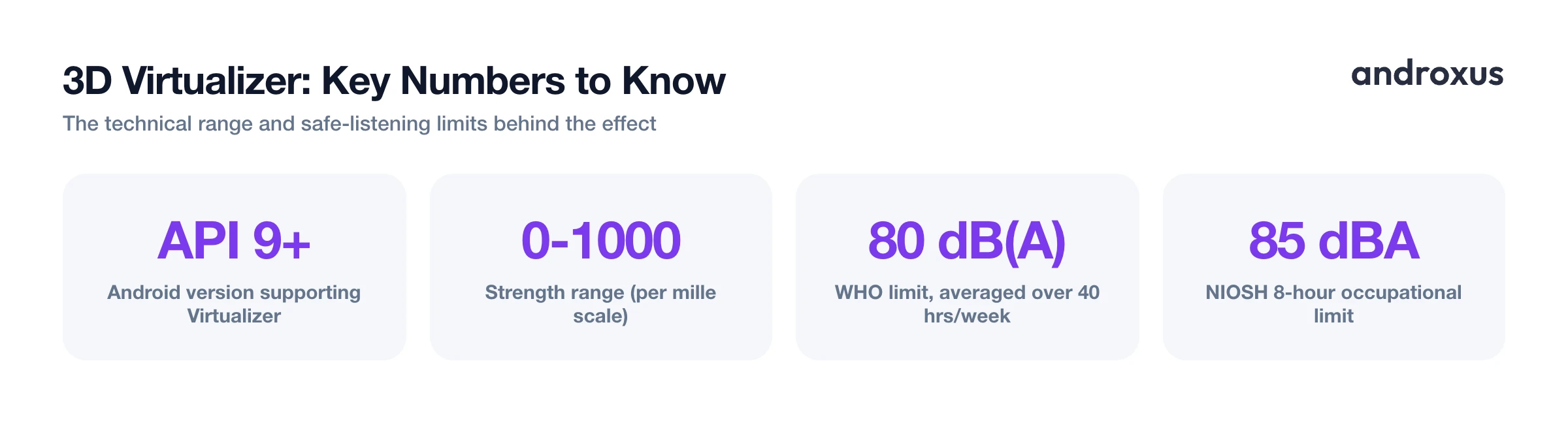
A virtualizer, sometimes called an audio virtualizer or surround sound effect, is a real-time signal-processing effect that spatializes existing audio channels rather than adding new ones. Android has shipped a system-level Virtualizer effect in its audio framework since API level 9, exposed to developers through the android.media.audiofx.Virtualizer class, which apps can use to control a virtualizer engine running on the device.
What it actually does depends on the input channel count and the output device type, but for the common case, stereo input played over stereo headphones, the classic result is a stereo-widening effect: sounds that were panned near center start to feel like they extend beyond the physical position of the ear cups. The Android Virtualizer API's methods and parameters map directly to the OpenSL ES 1.0.1 SLVirtualizerItf interface, and strength is expressed on a 0 to 1000 per mille scale, where 0 is the mildest setting and 1000 is the strongest.
The important thing to understand is that the effect works on audio that is already there. It reshapes timing, phase, and level differences between the existing channels rather than synthesizing missing instruments, adding a channel that was never recorded, or exceeding whatever the source material contains.
How the illusion of space is created
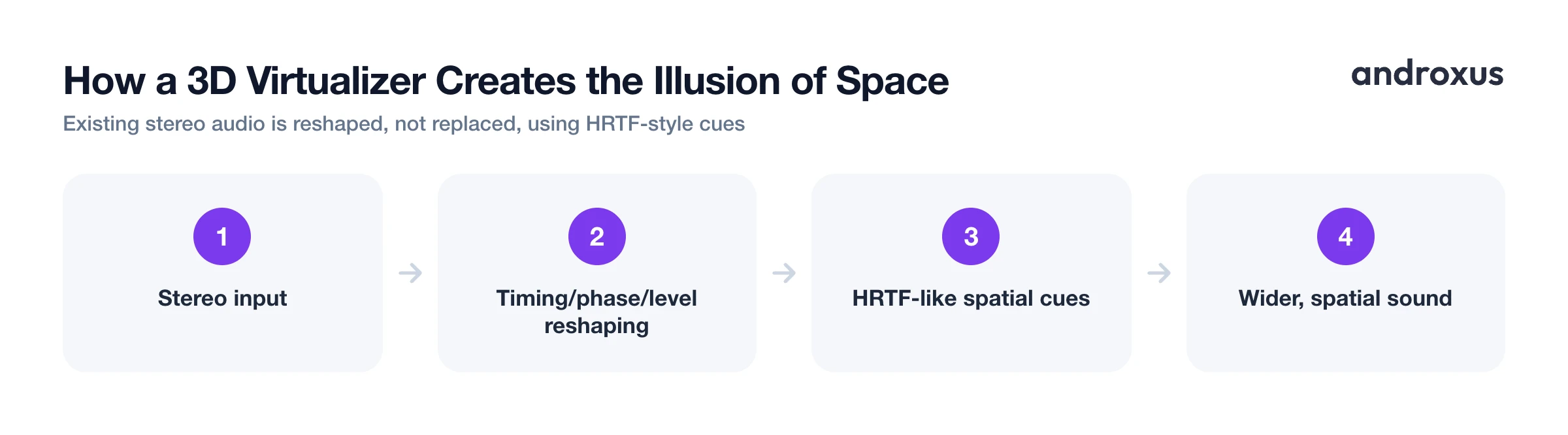
The perceptual trick behind most virtualizers borrows from head-related transfer function (HRTF) principles. The size and shape of a listener's head, outer ears, and ear canal naturally boost some frequencies and attenuate others depending on where a sound is coming from in physical space. That is part of how humans judge whether a sound is in front, behind, above, or off to one side, even with just two ears.
By applying HRTF-like or phase and delay-based processing to a stereo signal, a virtualizer can make sound seem to originate from beyond the left and right ear cups, creating a sense of width or space that plain stereo playback does not have.
This only works when each ear can receive a distinct signal, which is why headphones, earbuds, and stereo Bluetooth output are the settings where the effect is most audible. On a phone's single mono speaker, there is no true separate left and right output to spatialize, so the effect ends up minimal or effectively absent.
Virtualizer vs. real surround sound (Atmos, DTS, 5.1/7.1)
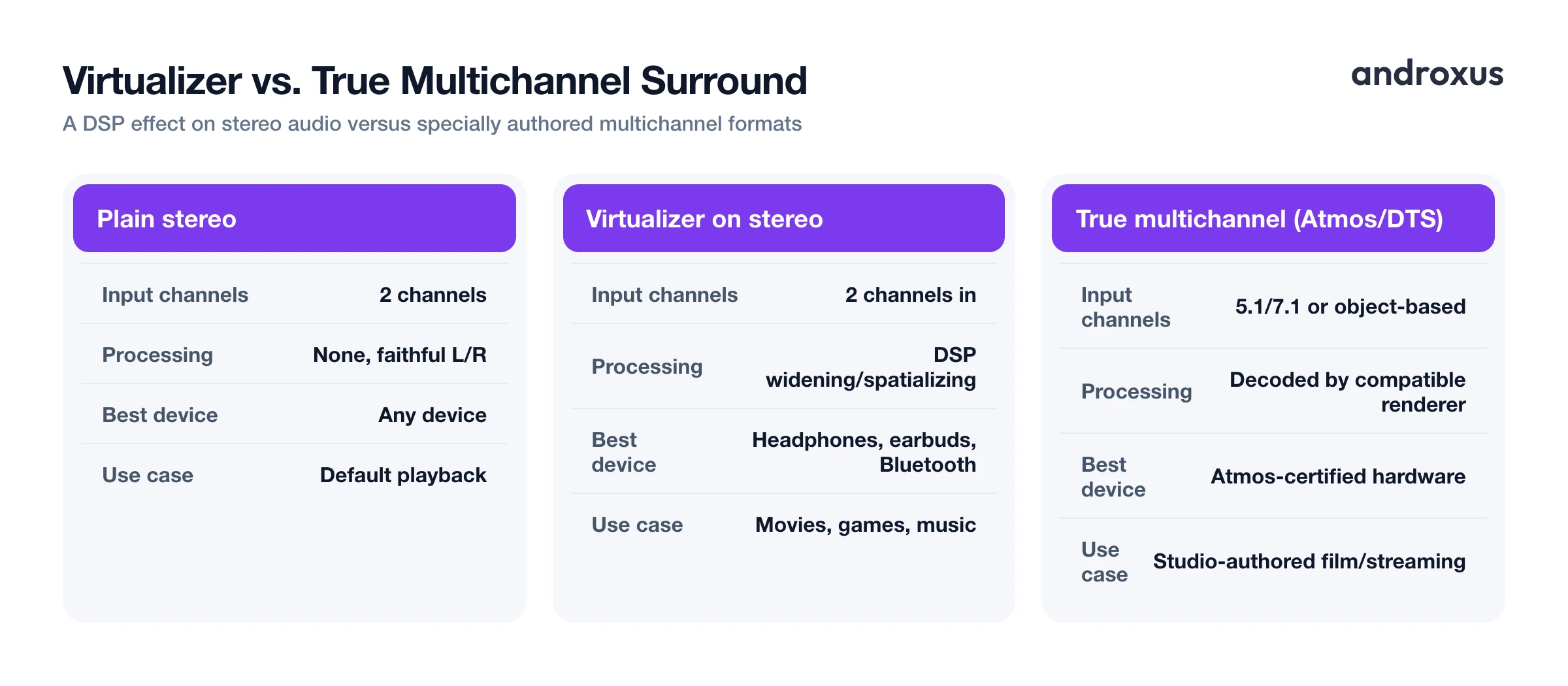
It is easy to lump a virtualizer in with "real" surround sound formats, but they solve different problems. Dolby Atmos and DTS are multichannel or object-based audio formats: the source content is authored with multiple discrete channels or spatial objects, and a compatible decoder or renderer places those sounds in a 3D field around the listener. A virtualizer is a DSP effect, not a format. It takes whatever stereo, or downmixed, output is already playing and processes it to sound wider or more spatial, without requiring specially encoded content.
| Source / method | Input channels | What actually happens to the audio | Best playback device | Typical use case |
|---|---|---|---|---|
| Plain stereo | 2 channels | No processing; faithful left/right reproduction | Any device | Default playback |
| Virtualizer on stereo | 2 channels in | DSP widening and spatializing applied to existing channels | Headphones, earbuds, Bluetooth | Movies, games, music that benefits from extra width |
| True multichannel (Atmos/DTS) | 5.1/7.1 or object-based content | Decoded and rendered by a compatible format and renderer | Atmos-certified soundbar/headphones or app-level renderer | Studio-mixed film and streaming content authored for it |
Because of this difference, a virtualizer works with any audio source, music apps, games, videos, calls, while true multichannel surround requires content and hardware or software specifically built to support it. Both approaches aim to improve the sense of space, but a virtualizer is a lighter-weight, broadly compatible enhancement rather than a full surround decode.
Where to find and turn on a virtualizer on Android
Stock Android does not expose a system-wide "surround" or "virtualizer" toggle in the main Settings app on most devices. This functionality typically lives in a dedicated sound-enhancement app instead. Some phone makers bundle their own spatial audio or Dolby-branded features into device Sound settings, but availability and depth vary a lot by manufacturer and model.
An audio-effects app such as Flow Equalizer offers a 3D Virtualizer as an independent on/off toggle alongside its EQ bands, Bass Booster, and Volume Booster. These apps typically attach the effect to whichever supported music or video app is currently playing, music services like Spotify or YouTube Music are common examples, and for players that do not expose an effects session, they can fall back to processing the phone's broader audio mix, though that system-wide fallback is not guaranteed to work on every device. The virtualizer toggle is independent of bass or volume boosting, so you can enable or disable spatial widening without touching loudness or tone.
When it helps and when to leave it off
Widening effects tend to help content mixed for a big soundstage. Movies, games, and some music genres benefit from the extra sense of space, especially on headphones. But tracks already mixed very wide, or ones that rely on precise mono-compatible bass and centered vocals, can develop phase artifacts or a hollowed-out center image when a strong widening effect is layered on top. This is a known tradeoff with stereo-widening techniques generally, not a flaw unique to any one app.
Phones and many playback situations, calls, some Bluetooth speakers, are effectively mono at some point in the chain, so ultra-wide processing can lose value there or introduce comb-filtering artifacts. A quick on/off comparison on familiar tracks is the simplest way to judge whether the effect is genuinely helping a given piece of content.
How to turn on and use a 3D virtualizer on Android
- Connect the right output device. Put on headphones, earbuds, or connect a Bluetooth speaker or headset. The spatial effect depends on separate left/right delivery, so it's much more noticeable here than on a phone's single built-in speaker.
- Open your sound-enhancement app's Virtualizer toggle. Android does not expose a system-wide surround toggle in stock Settings, so this lives inside a system audio effects app. In Flow Equalizer, for example, the 3D Virtualizer is its own independent switch, separate from Bass Booster, Volume Booster, and the EQ bands.
- Turn the effect on and start with a moderate strength. Enable the toggle, then use the strength or intensity control, Android's underlying Virtualizer API supports a 0 to 1000 range, at a low-to-moderate setting first rather than maxing it out immediately.
- Play familiar content and compare on/off. Test with a movie, a game, and a few songs you know well, switching the effect on and off to judge whether the added width helps or introduces phase artifacts on that particular material.
- Pair it with EQ and save a profile. Combine the virtualizer with an EQ preset or custom bands and keep the limiter active to control loudness. Save the combination as a custom profile so it's ready the next time you connect the same headphones.
Because the effect only reshapes existing output, any loudness increase from a paired Volume Booster or Bass Booster is still bounded by the phone's hardware and should be managed by an anti-distortion limiter to avoid clipping. The World Health Organization recommends keeping headphone listening around 80 dB(A) averaged over 40 hours a week to reduce the risk of noise-induced hearing loss, and NIOSH separately sets an 8-hour occupational limit of 85 dBA, a guideline worth following regardless of which audio effects are active.
Key takeaways
- A 3D virtualizer is a real-time effect that reshapes existing stereo channels to sound wider and more spatial; it does not add audio that was not already there.
- The illusion depends on separate left and right delivery, so it is strongest on headphones, earbuds, or Bluetooth, and minimal on a phone's mono speaker.
- A virtualizer is not the same as Dolby Atmos or DTS: those are multichannel formats requiring specially authored content, while a virtualizer is a DSP effect that works on any stereo audio.
- Not every track benefits, wide mixes or mono-sensitive content can sound worse, so it is worth comparing on and off before settling on a strength.
- Virtualizer, EQ, Bass Booster, and Volume Booster are typically independent controls, so you can combine them and save the result as a profile, while keeping a limiter on and volume at a safe level.
Frequently asked questions
Does a 3D virtualizer add sound that wasn't in the original recording?
No. It reshapes the stereo image of the existing left and right channels using timing, phase, and level cues, similar in spirit to head-related transfer function (HRTF) processing. It widens or spatializes what's already in the mix; it does not synthesize missing instruments or channels, and any loudness change is still bounded by the hardware and a limiter.
Do I need headphones for a 3D virtualizer to work?
You get the most benefit from headphones, earbuds, or a Bluetooth pair, because the spatial illusion depends on delivering slightly different cues to each ear. On a phone's built-in mono speaker, the effect is limited or barely noticeable since there's no true separate left/right output to spatialize.
Is a 3D virtualizer the same as Dolby Atmos or DTS?
No. Dolby Atmos and DTS are multichannel, object-based audio formats that require specially encoded or mixed content and a compatible decoder/renderer. A virtualizer is a real-time DSP effect, the Android platform has shipped one since API level 9, that processes ordinary stereo output to simulate width and space; it works with any audio, not just specially authored surround tracks.
Can a virtualizer effect damage my speakers or my hearing?
The effect itself reshapes stereo imaging rather than adding raw power, but any boost feature paired with it should stay within safe limits. A well-behaved app uses a limiter to reduce distortion at high output. The WHO recommends keeping headphone listening at or below about 80 dB(A) averaged over 40 hours a week, and NIOSH's separate 8-hour occupational standard is 85 dBA, a useful daily rule of thumb regardless of which effects are on.
Why does some music sound worse with a 3D virtualizer turned on?
Tracks that are already mixed wide, or that rely on precise mono-compatible bass and vocals, can develop phase artifacts or a hollowed-out center image when an aggressive widening effect is layered on top. This is a known tradeoff with stereo-widening techniques in general, not a defect; lowering the strength or turning the effect off for those tracks usually fixes it.
Can I use a 3D virtualizer and an equalizer at the same time?
Yes. They address different things: the equalizer shapes frequency balance (bass, mids, treble) while the virtualizer shapes stereo width and spatial perception. In an app like Flow Equalizer these are independent toggles, so you can run EQ, Bass Booster, Volume Booster, and the Virtualizer together, or turn any one of them off separately.
