What Does an Equalizer Do? An Android Guide
You turn a slider labeled "Bass" or "Treble" up a notch and the song suddenly sounds fuller, or tinnier, and it is not always obvious why. An equalizer is one of the oldest tools in audio, but most people have only a rough sense of what it is actually doing to the sound. Here is a clear answer to what does an equalizer do, plus how to set one up on an Android phone.
Quick answer: An equalizer divides audio into frequency bands, roughly bass, midrange, and treble, and lets you boost or cut each one independently. It reshapes the balance of sound that is already in the recording, making certain frequencies louder or quieter relative to the rest, rather than adding anything new. On Android, some phones (notably Samsung) have a built-in equalizer under Sound settings, while many others, including stock Android and Pixel devices, rely on a third-party app to get one at all.
What you'll learn
- What an equalizer actually does to an audio signal
- How EQ bands map to bass, mids, and treble, in Hz
- Where to find (or add) an equalizer on Android
- How bass boost, volume boost, and 3D virtualizer differ from basic EQ
- Steps to set up EQ without risking your hearing or your speaker
What an Equalizer Actually Does
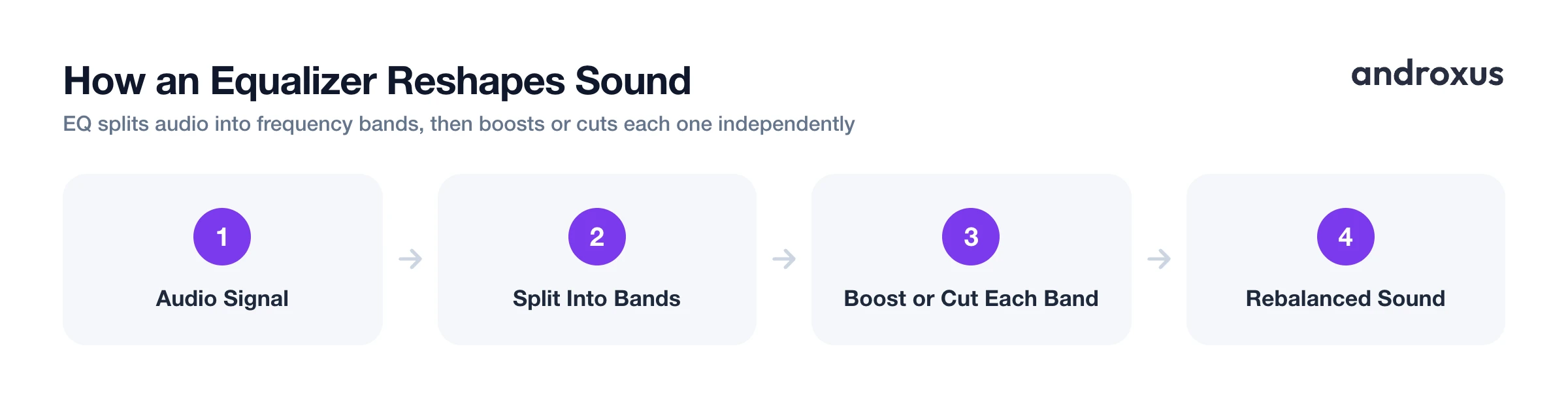
At its core, an equalizer takes an audio signal and splits it into frequency ranges called bands, then lets you turn each band up or down independently. Think of it as several separate volume knobs, each one controlling a different slice of the sound spectrum instead of the whole track at once.
Boosting a band raises the volume of that frequency range relative to everything else in the mix; cutting a band lowers it. That's the entire mechanism: an EQ reshapes the balance of frequencies already present in the signal, it does not synthesize or add new sound. Boost the bass on a track with almost no low end and you will not hear much, because there is little bass content to amplify.
This matters for setting honest expectations. An equalizer can make an existing bassline hit harder, smooth out a harsh vocal, or restore some clarity to muddy audio, but it cannot recover detail that was never recorded, and any boost is still limited by what your phone's hardware and any built-in limiter allow before the sound distorts.
How EQ Bands Map to What You Hear
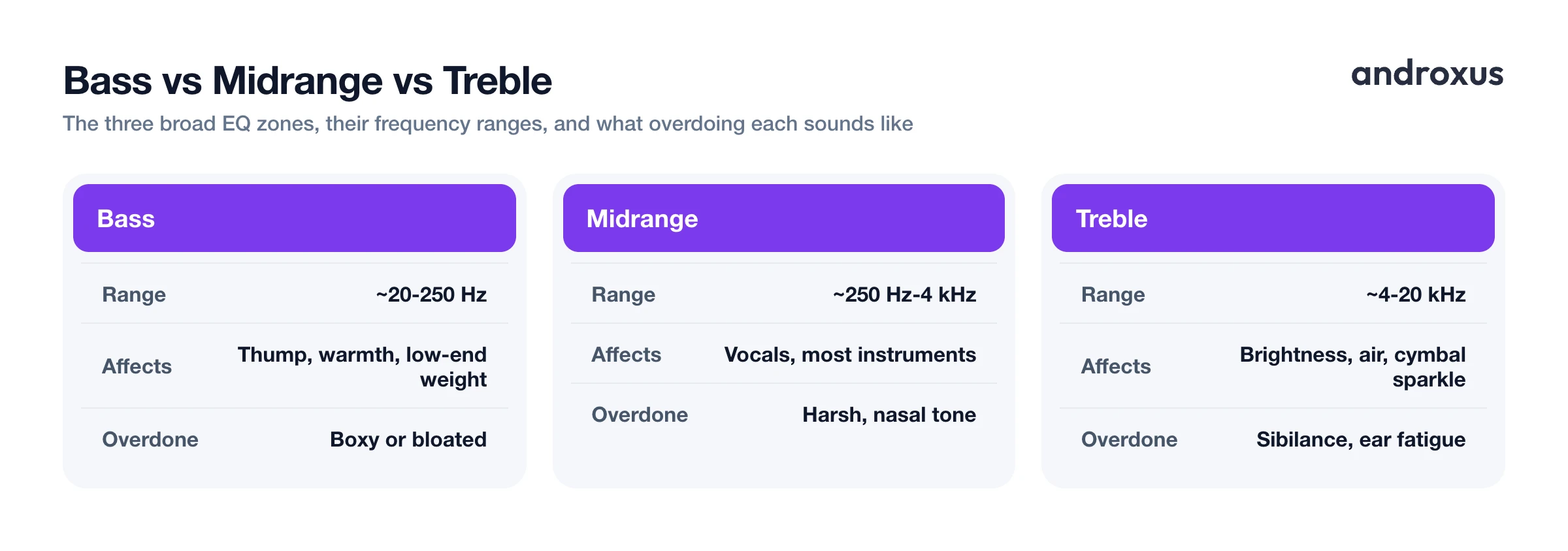
The audible spectrum is usually described in three broad zones, though where exactly they blend into each other is more of a rule of thumb than a hard boundary.
- Bass (roughly 20 Hz to 250 Hz): the low end, responsible for warmth, thump, and the felt weight of a kick drum or bassline.
- Midrange (roughly 250 Hz to 4 kHz): carries most vocals and instruments, the range your ear is naturally most sensitive to.
- Treble (roughly 4 kHz to 20 kHz): brightness, air, and fine detail, cymbals and the "sparkle" on top of a mix.
Consumer equalizers commonly offer anywhere from 5 bands up to 10 or more. A 5-band EQ gives you broad, easy-to-use control over each general zone. A 10-band or higher EQ splits those same zones more finely, which means more surgical adjustments but also more sliders to think about.
| Zone | Approximate range | What it affects | Overdoing it sounds like |
|---|---|---|---|
| Sub-bass | ~20-60 Hz | Felt more than heard, low rumble | Muddy, boomy, hard to hear anything else |
| Bass | ~60-250 Hz | Thump, warmth, low-end weight | Boxy or bloated low end |
| Low-mids | ~250-500 Hz | Body and fullness of instruments | Muddiness, loss of clarity |
| Mids | ~500 Hz-2 kHz | Vocals and most instruments | Harsh, "honky," or nasal tone |
| High-mids | ~2-4 kHz | Presence and clarity | Fatiguing, overly forward vocals |
| Treble | ~4-20 kHz | Brightness, air, cymbal sparkle | Sibilance, harsh "s" sounds, ear fatigue |
The practical upshot: more bands give you finer control over a given range, while fewer bands let you make quick, broad-stroke adjustments without overthinking it. Neither is objectively better, it depends on whether you want quick presets or precise shaping.
Equalizers on Android: System-Wide vs. Per-App
Whether your phone even has an equalizer built in depends entirely on the manufacturer. Samsung devices typically include one at Settings > Sounds and vibration > Sound quality and effects > Equalizer. Many other Android phones, including stock Android and most Pixel devices, ship with no system equalizer at all.
That gap is the reason third-party EQ apps exist. Some Bluetooth headphone brands also provide their own companion apps with EQ controls, but those adjust processing inside the headphones' own firmware, separate from anything happening on the phone itself, and they only apply to that one pair of headphones.
A system-wide Android EQ app works differently: instead of living inside one player's own settings, it attaches to the audio session of the app you're playing from, so the same EQ settings apply across supported music and podcast apps rather than one app's internal EQ. This depends on the source app sharing its audio session; most major music apps do, but some, notably YouTube, do not, and the EQ app then falls back to processing the phone's overall audio mix, which is not guaranteed on every device. Once attached, it can work with wired headphones, Bluetooth audio, or the phone's own speaker.
Bass Boost, Volume Boost, and 3D Virtualizer: What They Add Beyond Basic EQ
Beyond a standard multi-band equalizer, many Android audio apps, Flow Equalizer included, offer a few related but distinct effects:
- Bass boost is a focused low-frequency lift, essentially a shortcut for what you could otherwise do by raising several bass-range EQ bands at once.
- Volume boost (sound amplifier) raises overall output level, but any gain it applies is still bounded by what your phone's hardware can physically produce. It cannot push sound past the speaker or headphone's actual output ceiling.
- A limiter, when present, holds back the loudest peaks so a boosted signal is less likely to clip or distort. It is a safeguard against overdriving the output, not a way to squeeze out more volume than the hardware allows.
- A 3D virtualizer processes the existing stereo signal to create a wider, more spacious perceived soundstage on headphones. It reshapes how the existing channels are presented, it does not add new audio content or channels that were not already in the source.
Each of these is a different lever on the same underlying signal. Used together but kept modest, they can noticeably improve how a track sounds on phone speakers or basic earbuds without meaningfully changing what the recording contains.
How to Turn On and Use an Equalizer on Android
- Check for a built-in equalizer first. Open Settings > Sound (on Samsung: Settings > Sounds and vibration > Sound quality and effects) and look for an Equalizer entry. Availability varies by manufacturer, many stock Android and Pixel phones do not ship with one.
- Install a system-wide EQ app if your phone lacks one. Search Google Play for an equalizer app such as Flow Equalizer that attaches to the audio session of the app you're playing from, so the same EQ settings can apply across most music and podcast apps rather than being limited to one player's own settings menu. A few apps, notably YouTube, don't share their audio session and may not be supported.
- Grant the permissions the app requests. System-wide EQ apps typically need an audio-settings permission to attach the effect to the output stream, and many also request notification access so they can detect which player is currently active and connect automatically. Neither permission gives the app access to your files or microphone.
- Start from a genre preset, then fine-tune. Pick a preset close to your music style (for example Bass, Pop, or Rock) as a starting point, then nudge individual bands a few dB at a time while playing a familiar track, rather than pushing every slider up.
- Turn on bass boost, volume boost, or virtualizer selectively. If the app offers these as separate toggles from the core EQ, enable only the ones you want. Keep bass boost and volume boost modest since both draw on the same hardware headroom and can distort if pushed too far together.
- Save a profile and set it to auto-apply. Save your adjusted settings as a custom profile. If the app supports auto-apply on headphone connect, enable it so the right profile loads automatically when you plug in wired headphones or connect Bluetooth audio.
Using EQ Without Risking Your Hearing or Speakers
Boosting bass or overall volume with an equalizer increases how loud the output can get at a given system volume level, which is worth keeping in mind for both your hearing and your speaker's lifespan.
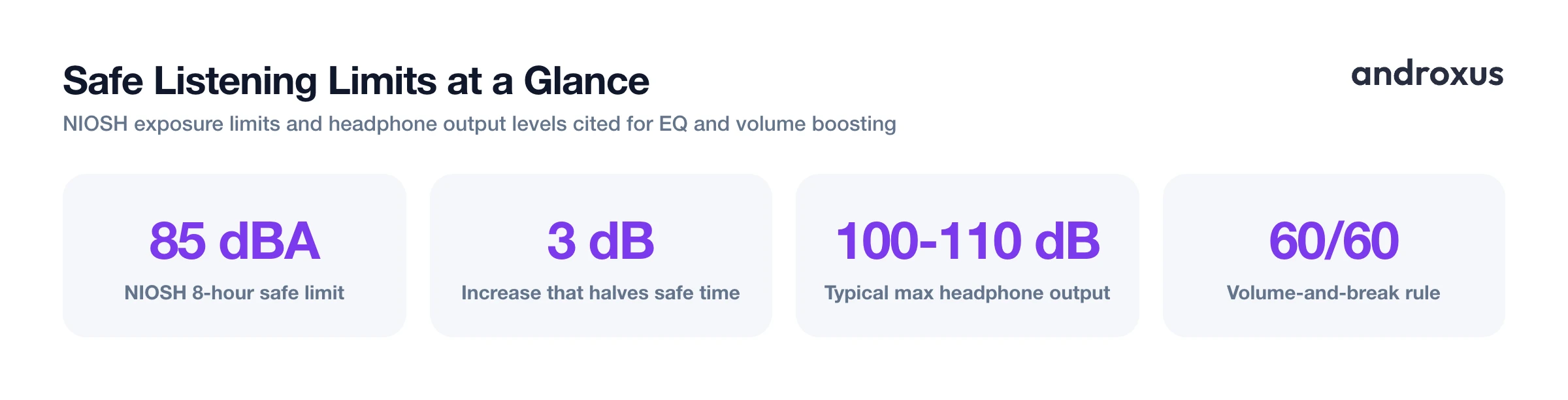
NIOSH recommends a safe 8-hour exposure limit of 85 dBA, and every 3 dB increase roughly cuts the safe listening time in half: about 4 hours at 88 dB, and roughly 2 hours at 91 dB. Most headphones and earbuds can reach 100 to 110 dB at full volume, loud enough to hit NIOSH's 15-minute limit at 100 dB and its roughly 2-minute limit at 110 dB.
A simple heuristic widely recommended by audiologists and hearing-health organizations, and consistent with the World Health Organization's safe-listening guidance, is the "60/60 rule": listen at no more than 60% of maximum volume for stretches of up to 60 minutes, then take a break. If you have added bass or volume boost through an EQ app, it is worth backing off your phone's volume slider slightly to compensate, and treating a limiter as protection against distortion rather than a substitute for keeping overall levels reasonable.
Key takeaways
- An equalizer boosts or cuts frequency bands already present in a recording, it does not add sound that was not there.
- Bass, midrange, and treble roughly correspond to 20-250 Hz, 250 Hz-4 kHz, and 4-20 kHz, and more EQ bands mean finer control over those ranges.
- Whether your Android phone has a built-in equalizer depends on the manufacturer, Samsung includes one, many stock Android and Pixel phones do not.
- Bass boost, volume boost, and 3D virtualizer are related but distinct effects layered on top of standard EQ, and any gain is still capped by your hardware.
- Keep boosts moderate and follow the 60/60 rule, since louder output from EQ or bass boost can accelerate hearing fatigue and put more strain on speaker drivers.
Frequently asked questions
Does an equalizer add sound that isn't in the original recording?
No. An equalizer boosts or cuts frequencies that are already present in the audio signal, it does not generate new sound. A boosted bass line was always in the track, the EQ just makes that frequency range louder relative to the rest.
Does EQ work with Bluetooth headphones and speakers?
It depends on where the EQ is applied. A system-level Android equalizer processes audio before it reaches the Bluetooth codec, so it generally works across wired, Bluetooth, and phone-speaker output, though headphone-brand companion apps that apply their own EQ inside the earbuds' firmware can sometimes conflict or override it.
What's the difference between a bass booster and an equalizer?
A standard equalizer lets you adjust multiple frequency bands individually (lows, mids, highs), while a bass booster is a simpler, single-purpose control that only raises low-frequency output, often as a preset or one slider layered on top of a full EQ.
Can boosting bass or volume damage my phone speaker?
Pushing frequencies or volume too far can cause clipping and distortion, and very high volume over long periods is genuinely hard on hearing and speaker drivers. Any gain an app applies is still bounded by what the hardware can output, and a limiter is normally used to reduce distortion rather than let the signal clip freely.
Where do I find the equalizer setting on my Android phone?
It varies by manufacturer. Samsung devices typically have one under Settings > Sounds and vibration > Sound quality and effects > Equalizer. Many other phones, including stock Android and Pixel devices, have no built-in system equalizer at all, which is why third-party EQ apps exist.
Will using an equalizer app drain my battery or lower audio quality?
Real-time audio processing uses a small amount of additional CPU, similar to any background audio effect, but it is not resource-intensive enough to meaningfully affect battery life on modern phones. Audio quality is preserved as long as boosts are kept moderate, pushing bands to their extreme can introduce distortion, which is what an anti-distortion limiter is meant to reduce.
