How to Set Up Your UPI Sound Alert Language on Android
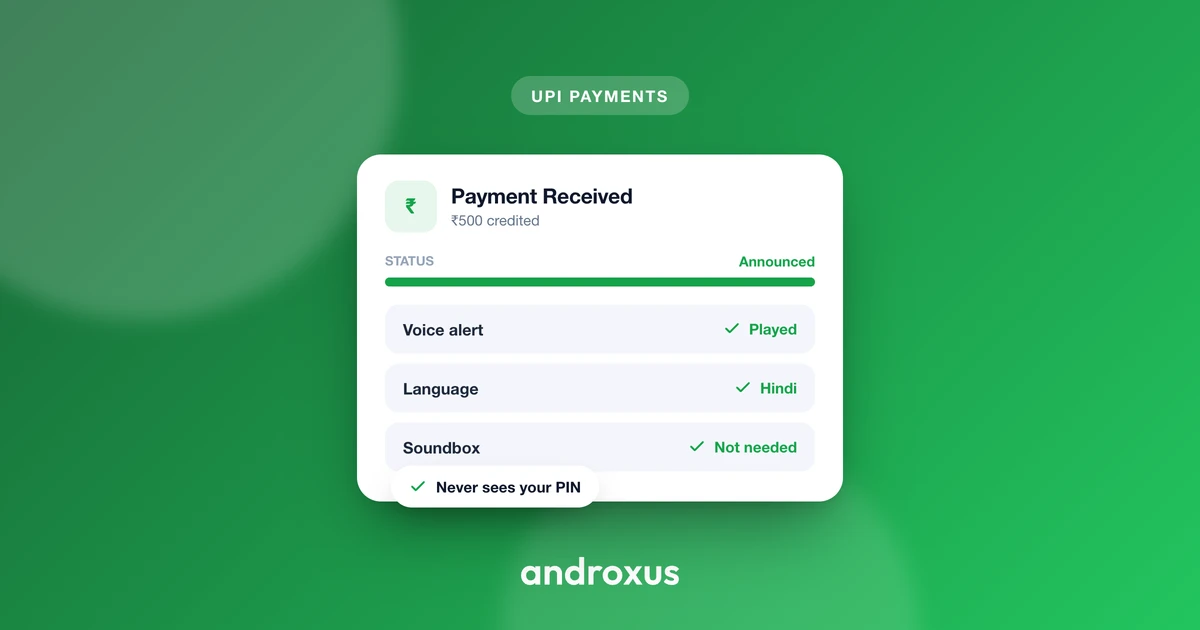
Running a shop counter in Hindi, Tamil, or Marathi all day and then hearing a payment confirmation only in English is a small but constant friction. Getting your UPI sound alert language set correctly means every "payment received" announcement is instantly understood, not just heard.
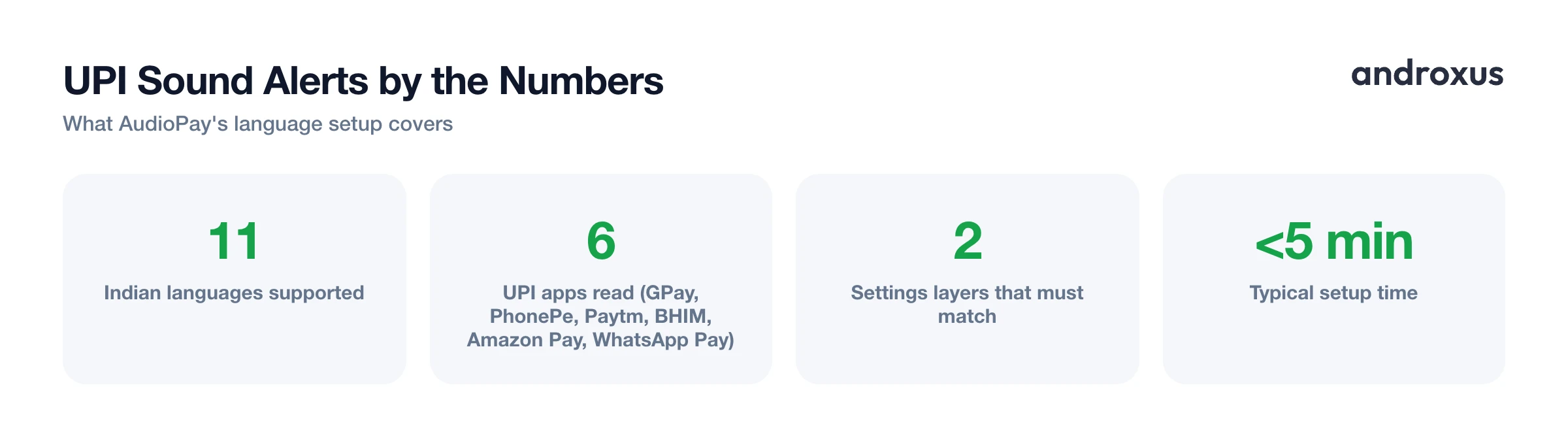
Quick answer: To set a UPI sound alert language on Android, install the language's voice pack under Settings > Accessibility > Text-to-speech output, grant Notification Access to your payment alert app so it can read incoming payment notifications, then pick the same language inside the app's own settings. Apps like AudioPay read the notification text from GPay, PhonePe, Paytm, BHIM, Amazon Pay, and WhatsApp Pay locally on the device and speak the amount aloud in one of 11 Indian languages, without ever touching your bank account or UPI PIN.
What you'll learn
- Why a regional-language alert matters more than it seems for a busy counter
- How spoken payment alerts actually work under the hood on Android
- Where to install language voice packs and pick your alert language
- How to keep the alert reliable so it does not silently stop overnight
- A step-by-step setup you can follow in under five minutes
Why Language Matters for Payment Alerts
Most shopkeepers in India run their day-to-day business, staff conversations, and mental math in a regional language, not English. An English-only "Payment received" beep is easy to miss in a noisy shop, and worse, it is easy to misjudge for the wrong amount when you are only half listening.
This is not a new problem. Physical UPI soundbox devices from providers like Paytm and PhonePe already popularized multilingual voice alerts for merchants, especially across semi-urban and rural markets, precisely because a spoken amount in the shopkeeper's own language cuts down on confusion and disputes at the counter. A phone running a payment-alert app can do the same job as a dedicated soundbox device, minus the extra hardware: it uses Android's built-in text-to-speech engine along with an app that reads the payment notification text out loud.
Getting the language right solves two very concrete problems at a busy counter: mishearing the amount, and mishearing whether a payment even went through at all.
How Spoken Payment Alerts Actually Work on Android
It helps to understand what is actually happening behind a spoken payment alert, because it explains most of the setup steps later.
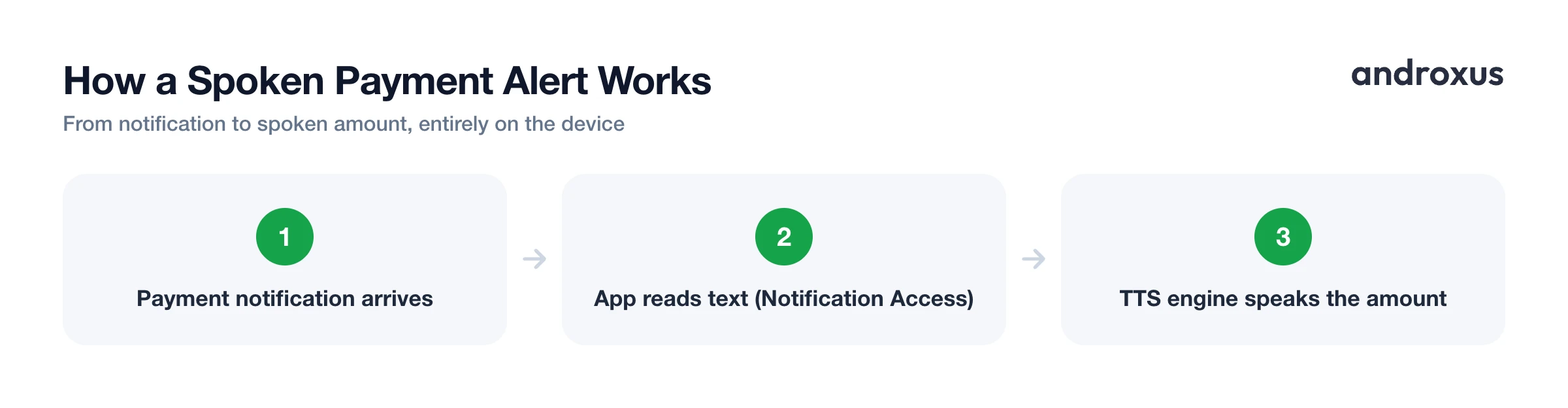
Apps that speak payment amounts aloud rely on Android's Notification Access permission (technically a NotificationListenerService) to read the text of incoming notifications. This is not bank access and not UPI account access, it is simply permission to read what is already displayed in your notification shade. You can find this system-level toggle at Settings > Apps > Special app access > Notification access, and it has to be granted per app.
Once the app reads a payment notification's text, it hands the amount over to Android's text-to-speech engine, which converts it into spoken audio using the voice and language you have selected. That is the entire chain: notification arrives, app reads the text locally, TTS engine speaks it.
AudioPay: UPI Mobile Soundbox follows this exact model. It reads payment notifications from GPay, PhonePe, Paytm, BHIM, Amazon Pay, and WhatsApp Pay locally on the device and speaks the amount aloud, even when the phone is locked. It does not access your bank account or UPI PIN, and transaction history stays on the device rather than being sent anywhere. Because the whole system depends on reading notification text, reliability also depends on each UPI app's own notification format, which can shift slightly with app updates.
Setting Up Android's Text-to-Speech Language
The language and voice that get spoken come from Android's system-wide text-to-speech settings, and this is the first place to configure before touching any app.
The menu is typically found at Settings > Accessibility > Text-to-speech output, though on some phones it lives under Settings > System > Languages & input > Text-to-speech output instead. Once inside, tap your preferred engine, commonly the Google Text-to-Speech Engine, then choose "Install voice data" to browse and download additional language packs.
Google's text-to-speech stack covers most major Indian languages, including Hindi, Tamil, Telugu, Kannada, Malayalam, Marathi, Bengali, Gujarati, Punjabi, and Urdu, alongside English. Once a voice pack is downloaded, speaking text aloud generally works offline; you only need an internet connection for the original payment notification to arrive in the first place.
Exact menu wording and location vary a fair amount by Android version and phone brand, since Samsung, Xiaomi, Vivo, and Oppo all customize their Settings app layout differently. If you cannot find the exact path, searching "text-to-speech" inside your phone's Settings search bar is usually the fastest route.
Choosing Your Alert Language Inside a Payment Alert App
Separate from the phone's overall system language, a payment alert app usually has its own language setting so you can pick the language spoken for amounts specifically, without changing your phone's entire interface language.
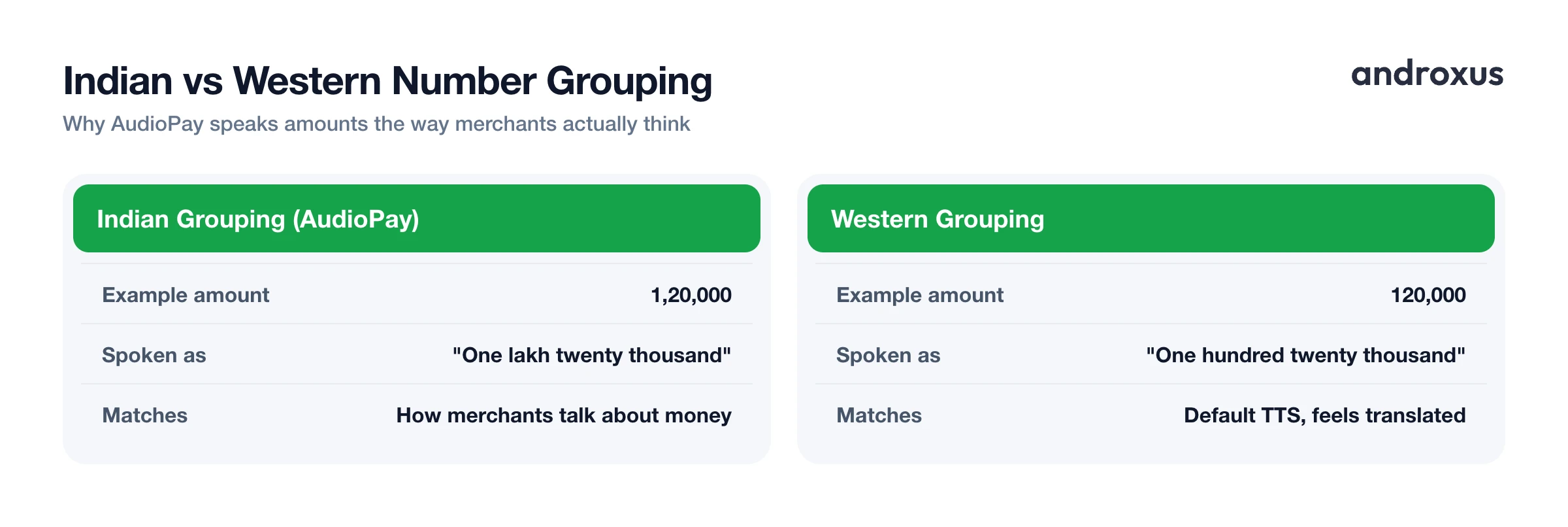
AudioPay supports 11 Indian languages with a choice of male or female voice, and it reads amounts using the Indian lakh and crore number grouping, for example "one lakh twenty thousand," rather than the Western thousand and million grouping. That distinction matters more than it might sound: it matches how Indian merchants actually think and talk about money, so the spoken amount feels natural rather than translated.
If you run a shop with staff phones that also announce payments (sometimes called Team Mode in apps that support it), it is worth keeping each phone's language setting consistent so there is no confusion when several devices in the same shop are announcing at once.
| Setting | Where to find it | What it controls |
|---|---|---|
| Text-to-speech output | Settings > Accessibility (or System > Languages & input) | Installs the language voice pack Android uses to speak text |
| Notification access | Settings > Apps > Special app access | Lets the alert app read incoming payment notifications |
| App's own alert language | Inside the payment alert app's settings | Sets which language and voice announces the amount |
| Battery optimization | Settings > Battery, or the phone brand's autostart screen | Keeps the background listener running so alerts don't silently stop |
If the language you pick inside the app does not have a matching voice pack installed at the system level, some apps will fall back to a default voice, so it is worth double-checking both settings match.
Keeping Voice Alerts Reliable: Permissions and Battery Settings
Getting the language right is only half the job. The other half is making sure the alert keeps working hours later, which mostly comes down to background reliability.
Beyond Notification Access, background reliability depends heavily on battery optimization settings. Manufacturers like Xiaomi, Vivo, Oppo, Honor, Huawei, and Samsung layer additional background-app restrictions on top of stock Android, and these can silently stop a notification listener service without any obvious error message. Marking the alert app as "unrestricted" in Settings > Battery > Battery optimization, or exempting it through the manufacturer's own autostart or protected apps screen, is the standard fix for keeping background listeners alive.
It is also worth confirming that notifications from your UPI app itself, GPay, PhonePe, or Paytm, are not silenced or hidden, since a spoken alert can only work if the original notification actually arrives intact. Once everything is configured, a quick real transaction test, or even a small self-payment, confirms permission and language settings are both working end-to-end before you rely on it at the counter for real customers.
How to Set Up a UPI Sound Alert in Your Language on Android
- Install your language's voice pack in Android. Go to Settings > Accessibility > Text-to-speech output (or Settings > System > Languages & input > Text-to-speech output on some phones), select your TTS engine, tap Install voice data, and download the language you want, such as Hindi, Tamil, or Telugu.
- Grant Notification Access to the alert app. Open Settings > Apps > Special app access > Notification access, find your payment alert app, and turn the toggle on. This lets the app read incoming payment notification text so it can announce the amount.
- Set the alert language and voice inside the app. Open the app's own language setting (in AudioPay, look inside Settings for the alert language option) and choose your preferred Indian language and a male or female voice, separate from the phone's overall system language.
- Exempt the app from battery optimization. Go to Settings > Battery > Battery optimization (or the phone brand's autostart/protected apps screen on Xiaomi, Vivo, Oppo, and similar), find the app, and set it to unrestricted so it keeps listening for notifications in the background.
- Test with a real or small transaction. Send yourself or ask someone to send a small UPI payment and confirm the phone speaks the correct amount in the language and voice you selected before relying on it at the counter.
Key takeaways
- A UPI sound alert language setting has two layers: Android's system-wide text-to-speech voice pack, and the alert app's own language selection, and both need to match.
- Spoken alerts work by reading payment notification text through Notification Access, not by accessing your bank account or UPI PIN.
- Language packs generally work offline once downloaded, but receiving the original payment notification still requires an internet connection.
- Battery optimization on brands like Xiaomi, Vivo, Oppo, and Samsung is the most common reason a working alert setup stops announcing payments after a while.
- Always confirm your setup with a real or small test transaction in the language and voice you chose before depending on it at the counter.
Frequently asked questions
Which Indian languages can I get spoken UPI payment alerts in?
It depends on the app and on Android's text-to-speech engine. Android's TTS stack widely supports Hindi, Tamil, Telugu, Kannada, Malayalam, Marathi, Bengali, Gujarati, Punjabi, and Urdu. AudioPay, for example, offers 11 Indian languages with a choice of male or female voice.
Do I need an internet connection for the voice alert to play?
Once a language voice pack is downloaded in Android's text-to-speech settings, speaking the amount generally works offline. You do need connectivity for the UPI app itself to receive the payment notification in the first place.
Why is my alert still reading amounts in English even after I picked another language?
Usually one of two things: the matching voice pack was never downloaded in Settings > Text-to-speech output > Install voice data, or the app's own alert-language setting wasn't changed to match the system voice. Check both.
Does a payment alert app access my bank account or UPI PIN to read the amount?
No, for apps like AudioPay. It reads the text of the payment notification already shown by GPay, PhonePe, Paytm, and similar apps via Android's Notification Access permission. It does not access bank accounts, UPI PINs, or move money.
Will voice alerts work with every UPI app, like GPay, PhonePe, Paytm, and WhatsApp Pay?
AudioPay supports GPay, PhonePe, Paytm, BHIM, Amazon Pay, and WhatsApp Pay, but support depends on each app's own notification format, which can change with updates and occasionally needs an alert app update to keep matching.
Why did my payment alerts stop working after a few hours or overnight?
This is commonly caused by manufacturer battery optimization: Xiaomi, Vivo, Oppo, Samsung, Honor, and others add restrictions beyond stock Android that can kill the background notification listener. Exempting the app from battery optimization or enabling autostart/protected app status usually resolves it.
