How to Get UPI Payment Voice Alerts Without a Soundbox
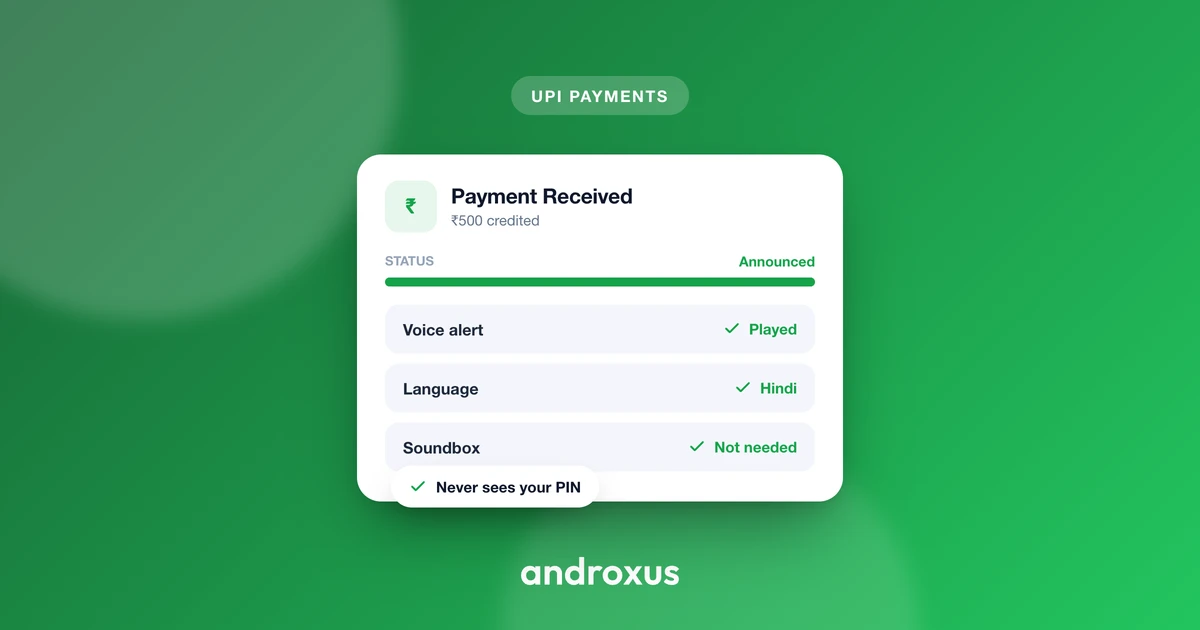
Every shopkeeper who has ever glanced up mid-sale to check whether a payment actually landed knows the small daily stress of silent UPI transactions. A rented soundbox solves that with a spoken confirmation, but it also comes with a monthly rental, a SIM or Wi-Fi link, and one more gadget to charge. A upi payment voice alert set up directly on the phone already sitting on the counter can do the same job for free.
Quick answer: You can get spoken UPI payment confirmations on your own Android phone by installing a notification-reading voice alert app and granting it Notification Access, no rented soundbox required. The app listens for the payment notification your UPI app (GPay, PhonePe, Paytm, and others) already posts and reads the amount aloud, even when the phone is locked. It needs an internet connection to receive that notification in the first place, and reliability depends on keeping the app excluded from battery optimization on phones that aggressively kill background apps.
What you'll learn
- Why merchants look for an alternative to a rented physical soundbox
- How phone-based voice alerts technically work using Android's notification system
- A step-by-step setup you can follow on your own phone in a few minutes
- How to keep alerts reliable across volume, Do Not Disturb, and battery settings
- What these apps can and cannot do, including honest limits around scams and accuracy
Why merchants look for an alternative to a rented soundbox
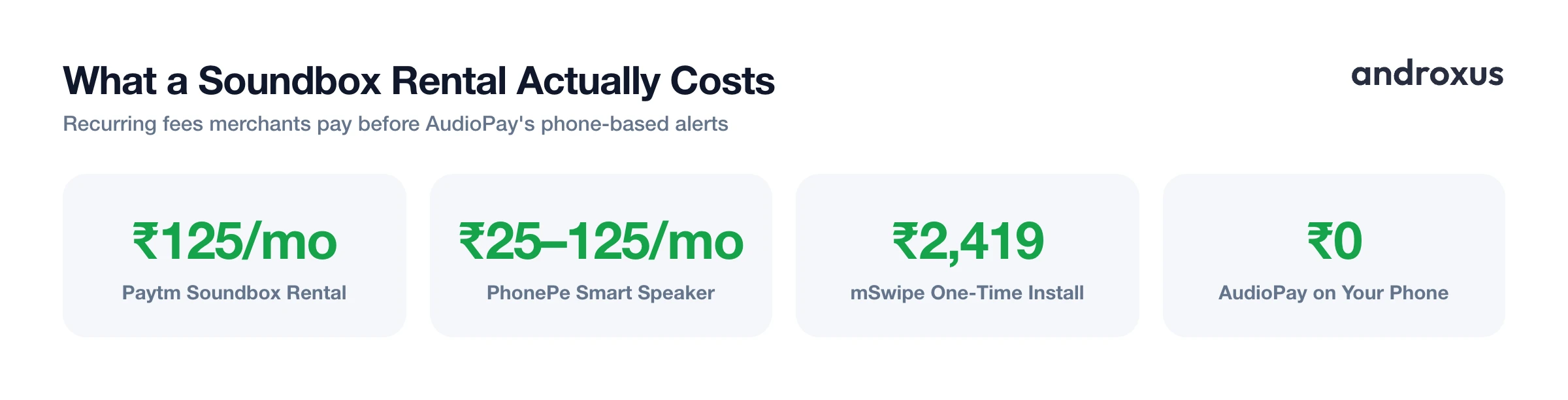
Physical UPI soundboxes solved a real problem: a shopkeeper juggling customers cannot always watch a screen for payment confirmation. But that convenience comes with an ongoing cost. Paytm's soundbox rental runs around Rs 125 per month, PhonePe's Smart Speaker charges a one-time setup fee plus a monthly fee that has ranged from roughly Rs 25 to Rs 125 depending on the plan and city, and other providers stack on their own charges, from mSwipe's one-time installation fee of around Rs 2,419 plus a monthly rental, to Google Pay's SoundPod, which combines a one-time fee with a small daily deduction.
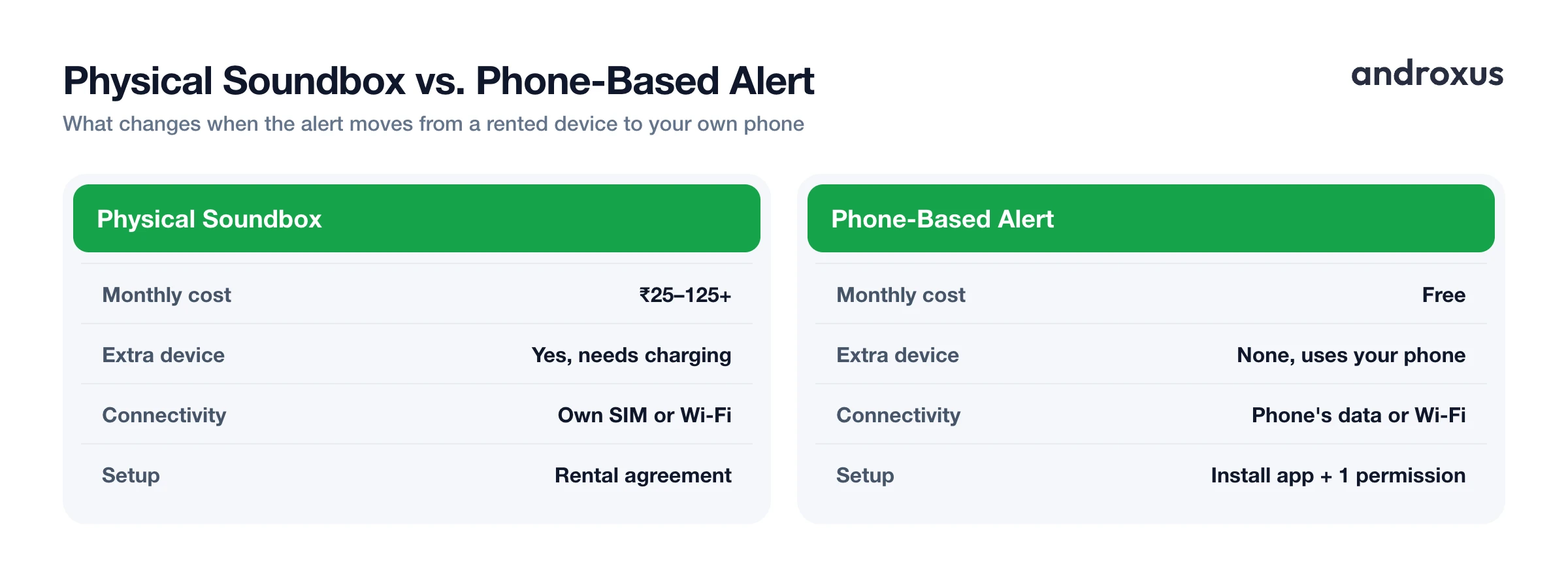
Beyond the rental, a physical soundbox needs its own charging routine, a SIM or Wi-Fi connection separate from the merchant's phone, and counter space that's often already crowded. A phone the shopkeeper already carries can deliver the same core function, a spoken confirmation of a received payment, without the rented device or its recurring fee.
How phone-based voice alerts actually work
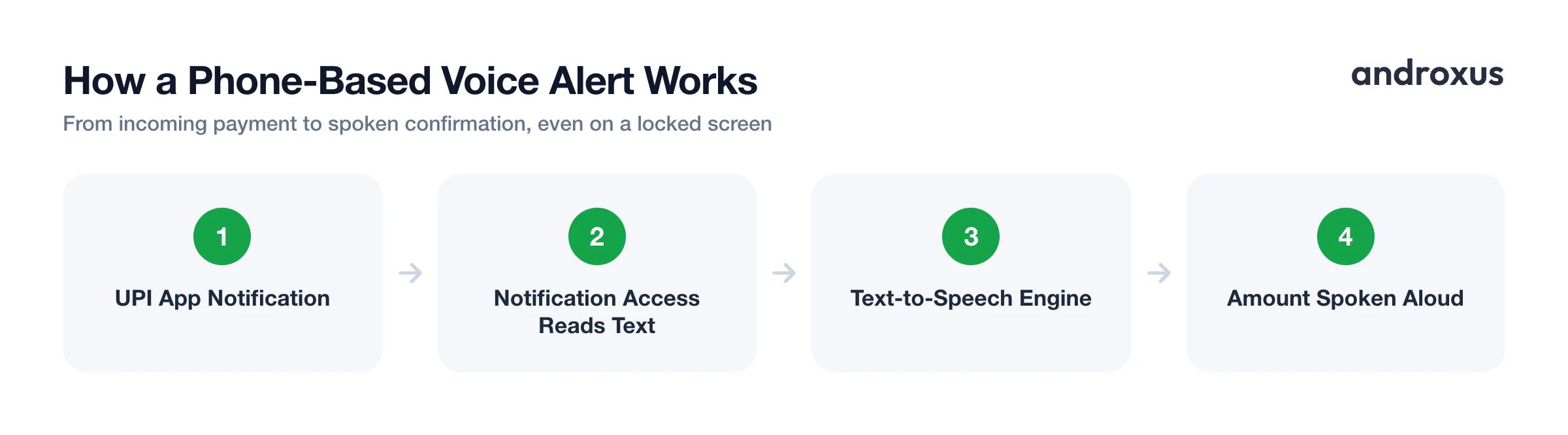
Android has a built-in capability called Notification Access, technically a NotificationListenerService, that lets an app the user explicitly approves read the notifications posted by other apps, including their package name, title, and text. It's the same system permission that lets a smartwatch or a notification-mirroring app show your GPay or PhonePe alert on a different screen.
Once an app has this permission, it can detect when GPay, PhonePe, Paytm, BHIM, Amazon Pay, or WhatsApp Pay posts a payment notification, pull the amount out of that notification's text, and use Android's built-in text-to-speech engine to speak it aloud, including while the phone is locked. AudioPay works this way: it reads payment notifications locally on the device rather than connecting to your bank, and it speaks the exact amount even when the screen is off.
Because this method reads notification text rather than tapping into a bank's server-side data, alert accuracy depends on the UPI app continuing to post notifications in a recognizable format. If a UPI app changes its notification wording in an update, detection for that specific app could be affected until the voice alert app adjusts.
Setting it up on your phone step by step
Getting a voice alert app running takes about the same effort as installing any other app, with one extra permission step: install it from the Play Store, grant Notification Access, and on Android 13 or newer, allow restricted settings if needed. Pick a language and voice, then test it with a small real payment before relying on it at the counter. The full walkthrough is below.
Keeping alerts reliable: volume, Do Not Disturb, and battery settings
Two settings quietly break more voice alert setups than anything else: the volume stream and background battery restrictions.
Spoken alerts typically play through the media volume stream rather than the ringtone or notification volume, so a muted media slider is a common and easy-to-miss reason alerts go silent. Do Not Disturb adds another wrinkle: on older Android versions it does not mute media playback, but newer Android releases and some manufacturer skins, including Samsung's One UI, let you specifically mute media inside Do Not Disturb, which can silence spoken alerts too even though notifications are technically still allowed.
The bigger culprit for most merchants is background app management. Xiaomi (MIUI/HyperOS), Oppo (ColorOS), Vivo, and some Samsung and OnePlus phones aggressively close background services to save battery, and can quietly reset autostart or battery permissions after a system update or restart, the most common reason an alert app that worked yesterday suddenly stops announcing payments today. Excluding the app from battery optimization and turning on autostart or background activity usually resolves this.
| Setting | What it affects | Where to check |
|---|---|---|
| Media volume | Whether spoken alerts are audible at all | Volume rocker while media is playing, or Settings > Sound |
| Do Not Disturb | Can mute media on newer Android and some skins | Settings > Sound > Do Not Disturb |
| Battery optimization | Whether the app keeps running in the background | Settings > Apps > [app] > Battery |
| Autostart / background activity | Whether the app restarts itself after a reboot | Phone's dedicated battery or app-management screen |
| Notification Access | Whether the app can read payment notifications at all | Settings > Apps > Special app access > Notification access |
What phone-based alerts can and cannot do
It's worth being clear-eyed about what this approach does and does not touch. AudioPay and similar apps do not access your bank account or your UPI PIN. They read payment notifications as they arrive on the device, and any transaction history built from that stays on the device rather than being sent anywhere else. These apps are also independent tools, not affiliated with GPay, PhonePe, Paytm, BHIM, Amazon Pay, or WhatsApp Pay, so how well alerts work for each one depends on that app's own notification format.
A spoken alert only ever fires from a real notification generated by your own UPI app. That means it will not be triggered by a fake screenshot or a spoofed "payment successful" screen shown on a customer's phone, a scam pattern that shopkeepers deal with regularly. Still, because detection depends on notification formatting rather than a direct bank feed, it remains good practice to occasionally check your UPI app's own transaction list to confirm nothing was missed, the same habit worth keeping even with a physical soundbox.
Choosing a voice alert app for your shop
A few practical things matter more than others when picking one of these apps. Make sure it actually supports the UPI apps your customers pay you with, whether that's GPay, PhonePe, Paytm, BHIM, Amazon Pay, or WhatsApp Pay. If you run a shop with staff, look for a team or staff mode that lets more than one phone announce the same incoming payment, so everyone doesn't need to huddle around a single device. AudioPay's Team Mode is built for this.
Language matters too, especially at a busy counter where you want to hear a number, not read one. Apps that read amounts using the lakh and crore system, the way AudioPay does across its 11 supported Indian languages, match how merchants actually think about money instead of translating awkwardly from a Western thousands-based format. Setup only takes installing an app and granting one Android permission, so there is little cost to trying it, whether as a full replacement for a rented soundbox or as a backup for when the soundbox loses signal or its battery runs out.
How to set up UPI payment voice alerts on your phone
- Install a UPI voice alert app. Download a notification-reading voice alert app (such as AudioPay) from the Google Play Store. Avoid sideloaded APKs from outside the Play Store, since Android 13 and later restrict permissions for apps installed that way.
- Grant Notification Access. Open the app and follow its prompt to Settings, or go to Settings > Apps > Special app access > Notification access (on some phones: Settings > Privacy > Notification access), find the app, and toggle it on. Confirm the warning dialog, since this permission does let the app read notification text.
- Allow restricted settings if the toggle is greyed out (Android 13+). If the notification access switch appears disabled, long-press the app icon, open App info, tap the three-dot menu, and choose Allow restricted settings. This is a standard Android 13+ safeguard, not specific to any one app.
- Exclude the app from battery optimization. Go to Settings > Apps > [app name] > Battery and set it to Unrestricted, or Don't optimize. On Xiaomi, Oppo, Vivo, and similar phones, also enable Autostart and Allow background activity so the listener keeps running after a restart.
- Set your preferred language and voice. Open the app's settings and choose the spoken language and male or female voice you want announcements read in, then set alert volume.
- Turn up the right volume and test with a real payment. Spoken alerts usually play over the media volume, so make sure that slider is up, and check whether Do Not Disturb is set to mute media before testing. Send yourself or have someone send a small real UPI payment to confirm you hear the amount spoken aloud, including with the screen locked.
Key takeaways
- A upi payment voice alert can run on the phone a merchant already carries, replacing the recurring rental cost of a physical soundbox for many everyday needs.
- The mechanism relies on Android's Notification Access permission, which reads notification text locally rather than connecting to any bank account, UPI PIN, or banking credential.
- Reliability comes down to a few settings: media volume turned up, Do Not Disturb not muting media, and the app excluded from battery optimization, especially on Xiaomi, Oppo, Vivo, Samsung, and OnePlus phones.
- Alerts only fire from real notifications from your own UPI app, which helps against fake screenshot scams, but it's still good practice to glance at your transaction list periodically.
- Coverage and phrasing depend on how each UPI app formats its notifications, since these apps are independent tools, not affiliated with GPay, PhonePe, Paytm, BHIM, Amazon Pay, or WhatsApp Pay.
Frequently asked questions
Does a phone-based voice alert app need my UPI PIN or bank login?
No. Apps like AudioPay use Android's Notification Access permission to read the text of payment notifications your UPI app already posts. They do not ask for your UPI PIN, bank password, or any banking credentials, and they cannot move money.
Will voice alerts still announce payments when my phone is locked?
Yes, if Notification Access has been granted. The notification listener is a background system service, so it can read an incoming payment notification and trigger a spoken alert even while the screen is off or locked, the same way the notification banner itself appears on a locked screen.
Do I need mobile data or Wi-Fi for this to work?
Yes. Your phone still needs an active internet connection to receive the payment notification from GPay, PhonePe, Paytm, or whichever UPI app you use, exactly as a physical soundbox needs connectivity to get its alert. The voice app itself just converts a notification that has already arrived into speech, it doesn't add or remove the need for data.
Why did my alerts stop working after I restarted my phone?
On phones from Xiaomi, Oppo, Vivo, and some Samsung and OnePlus models, aggressive battery-saving settings can stop background apps, including notification listeners, especially after a restart or system update. Excluding the app from battery optimization and enabling autostart or background activity for it usually fixes this.
Can I get alerts in Hindi or another regional language instead of English?
Many voice alert apps support this. AudioPay, for example, offers 11 Indian languages with a choice of male or female voice and reads amounts using the Indian lakh and crore numbering convention rather than Western thousands and millions.
Does a spoken alert protect me from fake payment screenshot scams?
It helps, but you should still form the habit of listening for the alert on your own device, not trusting a screenshot or a sound played from the customer's phone. Since the alert is only triggered by a real notification from your own UPI app, no notification means no payment, but always confirm the amount and let the goods go only after you hear or see it credited on your own phone.
