How to Get a Payment Received Voice Alert on Your Phone
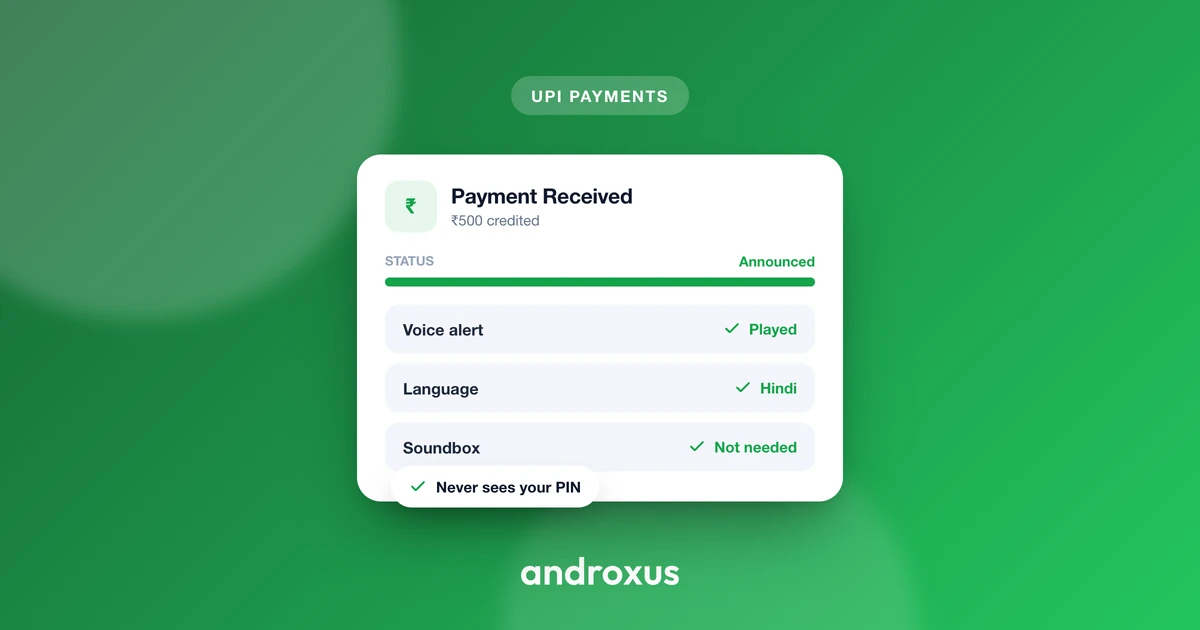
Every shopkeeper who takes UPI payments knows the moment: a customer says "paid," shows a screen, and walks out while you're mid-sale with three other people waiting. Setting up a payment received voice alert on your phone removes that guesswork entirely, letting you hear the exact amount the instant money lands instead of trusting a glance.
Quick answer: A payment received voice alert works by giving an Android app Notification Access, a permission that lets it read the text of incoming UPI notifications and speak the amount aloud through text-to-speech, even when the phone is locked. Apps like AudioPay use this to announce payments from GPay, PhonePe, Paytm, BHIM, Amazon Pay, and WhatsApp Pay without connecting to your bank account or UPI PIN. To keep it reliable, grant Notification Access, set the app's battery usage to Unrestricted, and turn up media volume rather than ringtone volume.
What you'll learn
- Why missed or faked payment confirmations are a real problem for shopkeepers
- How voice payment announcements actually work under the hood
- The exact steps to turn on Notification Access on Android
- How to stop announcements from silently dying after a few hours
- What to look for in a payment announcement app for a busy counter
Why you might miss a payment confirmation, and why that matters
At a busy counter, a UPI notification banner appears for a second or two and disappears. If you're bagging an order or handling cash from another customer, you simply don't see it. That gap between "customer says paid" and "you actually confirmed it" is where problems creep in.
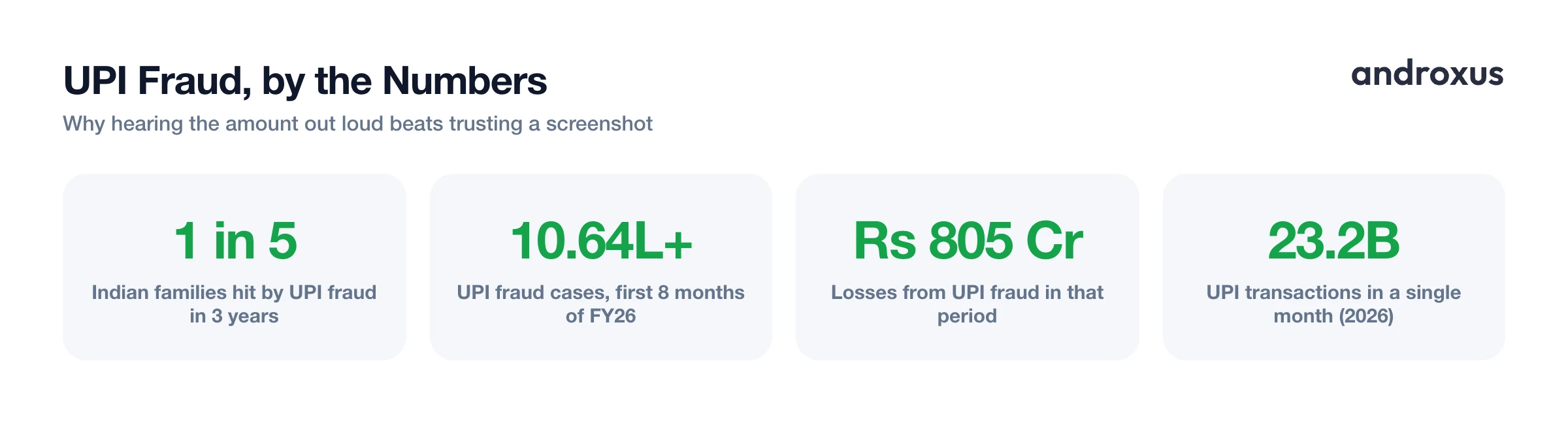
It's not just inconvenience. Fake UPI payment screenshots specifically target small shopkeepers, street vendors, and restaurant owners. A LocalCircles survey found that 1 in 5 Indian families using UPI had faced fraud at least once over three years, and figures cited in Parliament put UPI fraud cases in just the first eight months of FY26 at over 10.64 lakh incidents, with losses around Rs 805 crore. A common trick is a doctored or app-generated screenshot shown to the seller while no money actually moves, or an inflated real payment followed by a request for a cash refund and a later chargeback.
Scale makes the problem worse. NPCI recorded roughly 23.2 billion UPI transactions worth Rs 29.9 trillion in a single month in 2026, so any phone tied to an active shop handles a constant stream of notifications. It's easy for one payment alert to get buried. Hearing the exact amount spoken aloud, independent of whatever the customer's screen shows, is a simple way to confirm money actually landed before you hand over goods.
How voice payment announcements actually work on Android
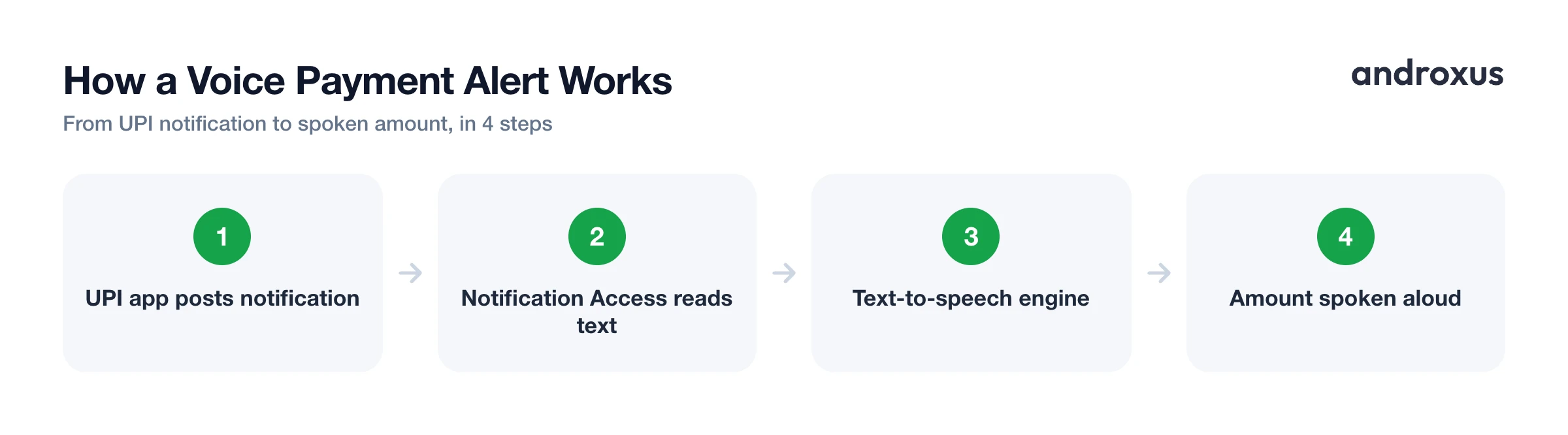
A payment received voice alert isn't magic and it isn't a bank integration. It relies on a specific Android system permission called Notification Access, sometimes labeled Notification Listener in settings menus.
Once you grant this permission to an app, that app can read the text of notifications as soon as any other app, like GPay or PhonePe, posts one, including while your phone is locked. The announcement app then converts that notification text into speech using Android's built-in text-to-speech engine and plays it through the speaker.
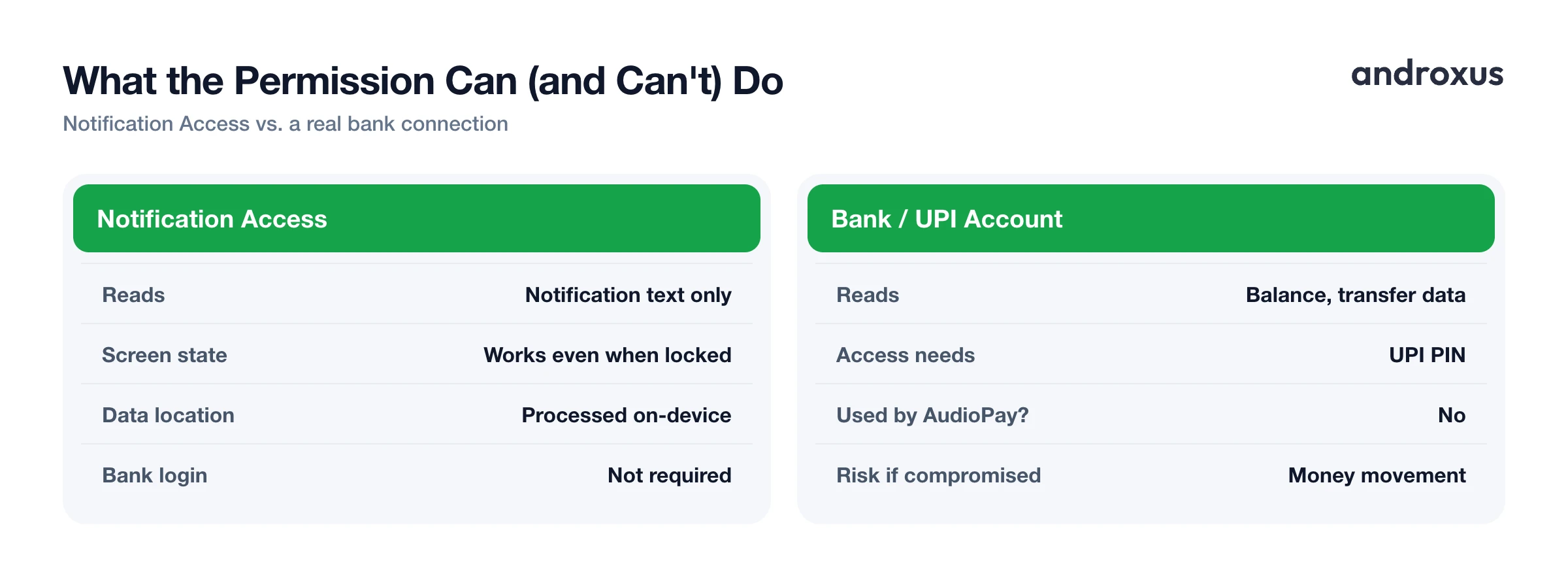
Because this method depends on reading the exact wording a UPI app uses in its notification, it only works as well as that wording stays consistent. If a payment app changes its notification format in an update, detection can temporarily break until the announcement app is updated to match. This is also worth knowing about what the permission does not do. Apps that use this method, including AudioPay, read the notification locally on the device. They do not connect to your bank account, ask for your UPI PIN, or hold any official partnership with GPay, PhonePe, Paytm, BHIM, Amazon Pay, or WhatsApp Pay. They simply read what those apps already display on your screen.
Turning on Notification Access, step by step
The setting lives in a slightly different place depending on your Android version and phone brand, but the general path is:
- Android 12/13 and newer: Settings > Apps > Special app access > Notification access
- Android 9 and older: Settings > Apps & notifications > Advanced > Special app access > Notification access
- Samsung and some other brands: also check Settings > Privacy > Permission manager, or Settings > Notifications > Advanced settings
Find your payment announcement app in the list and toggle it on. Android will show a warning that the app can read all notification content. That's expected, it's exactly the access the app needs to catch a UPI notification the moment it appears.
Notification Access is granted per app and can be revoked at any time from the same screen. If announcements suddenly stop working one day, this toggle is the first thing to check, since a phone restart or manufacturer update can occasionally reset it.
Some phone brands add an extra layer. Xiaomi, Vivo, Oppo, and Samsung in aggressive power-saving modes may also require enabling "Autostart" or removing the app from a "sleeping apps" list for background reading to keep working reliably.
Keeping announcements reliable: battery, volume, and Do Not Disturb
Getting the setup working once isn't the hard part. Keeping it working through a full trading day is. Android's background app restrictions and battery optimization are the most common reasons an announcement app that worked in the morning goes silent by afternoon: the operating system freezes or kills background processes it judges inactive.
The fix is to open Settings > Apps > [App name] > Battery and set it to Unrestricted, or disable battery optimization for that specific app. This tells Android not to pause the app in the background.
Two other settings trip people up just as often. Spoken announcements are usually controlled by media volume, not ringtone volume, so a phone can be at full ring volume and still stay silent if media volume is turned down. And Do Not Disturb's Total Silence mode mutes ringtones, notification sounds, and often media playback too, so whether an announcement gets through depends on the app and Android version. Rather than assuming it will bypass Do Not Disturb, add the app to your DND allow list directly.
| Symptom | Likely cause | Fix |
|---|---|---|
| No announcement ever plays | Notification Access not granted | Enable it in Settings > Apps > Special app access |
| Worked at first, then stopped after a few hours | Battery optimization killed the background process | Set the app to Unrestricted battery usage |
| Announcement is silent or very quiet | Media volume turned down, not ringtone volume | Raise media volume |
| No sound during Do Not Disturb | App not allow-listed for DND | Add the app to DND exceptions |
| Works for one UPI app but not another | That app's notification format isn't recognized | Update the announcement app, check for a compatibility update |
| Announcement missing for one specific transaction | Customer used an app or format not yet supported | Manually verify the payment in your own UPI app or bank statement |
It's also worth rechecking Notification Access and battery permissions after a phone restart or system update, since either can quietly reset settings you configured earlier.
Choosing a setup that fits a busy counter
For a shop counter, the core requirement is simple: the exact amount, read clearly, even when the phone is locked, and support for the UPI apps your customers actually use. Beyond that, a regional language and voice option matters more than it might seem, since staff who don't read English fluently can still understand a spoken confirmation instantly.
AudioPay adds a few counter-specific touches on top of the core notification-reading approach: 11 Indian languages with male and female voice choices, amounts read using the lakh and crore numbering system, transaction history and earnings reports, manual entry for cash sales, and a Team Mode that lets staff phones also announce payments. None of this changes the underlying mechanism. It's still reading local notifications through Notification Access, not connecting to a bank account, and its accuracy for any given UPI app still depends on that app keeping its notification format consistent.
For a single-phone shop, a basic setup that just reads the notification aloud may be all you need. Multi-counter operations tend to get more value from features like Team Mode or exportable reports. Whatever app you choose, test it with a small real payment before relying on it for a full day of trade, just to confirm the announcement, language, and volume are all working together.
How to set up a payment received voice alert on Android
- Install a notification-reading payment announcement app. Download an Android app built to read UPI payment notifications aloud, such as AudioPay, from the Play Store.
- Grant Notification Access. Open Settings > Apps > Special app access > Notification access (path varies by Android version and manufacturer), find the app, and toggle it on. This lets the app read incoming payment notifications, including when the phone is locked.
- Set the app to Unrestricted battery usage. Go to Settings > Apps > [App name] > Battery and choose Unrestricted, or disable battery optimization for the app, so Android doesn't freeze it in the background.
- Check media volume and Do Not Disturb settings. Turn up media volume rather than just ringtone volume, and add the app to any Do Not Disturb allow list so announcements aren't muted during busy hours.
- Pick a language and voice. In the app's settings, choose the language and voice, male or female, you want announcements read in, if multiple options are available.
- Test with a small real payment. Have someone send a small UPI payment and confirm the phone announces the correct amount clearly before relying on it for a full day at the counter.
Key takeaways
- A payment received voice alert works through Android's Notification Access permission, which reads existing notification text rather than connecting to your bank.
- Fake payment screenshots are a documented risk for Indian shopkeepers, and hearing the actual amount spoken aloud is a straightforward way to verify a sale before handing over goods.
- Battery optimization, not a broken setup, is the most common reason announcements stop working partway through the day. Set the app to Unrestricted.
- Media volume, not ringtone volume, controls whether you hear the announcement, and Do Not Disturb should have the app allow-listed.
- Apps like AudioPay read notifications locally and never access your bank account or UPI PIN, but accuracy always depends on the UPI app's own notification format staying consistent.
Frequently asked questions
Will payment announcements work when my phone screen is locked?
Yes. Android's Notification Access permission lets an approved app read incoming notifications regardless of screen lock state, so a properly configured announcement app can speak the amount even before you unlock the phone.
Does Do Not Disturb or silent mode block the voice announcement?
It can, depending on the app and Android version. Total Silence DND mutes ringtones, notification sounds, and often media playback, so it is safest to add the announcement app to your DND allow list and keep media volume turned up rather than assume the announcement will always break through.
Why did my phone stop announcing payments after a few hours?
This is almost always Android's battery optimization pausing the app's background process. Set the app to Unrestricted, or turn off battery optimization for it, under Settings > Apps > [App name] > Battery so it can keep reading notifications continuously.
Can an app read my bank balance or move money through this permission?
No. Notification Access only lets an app read the text of notifications already shown on your phone, such as a UPI payment alert. It cannot see your bank balance, initiate transfers, or access your UPI PIN.
Which payment apps can trigger a spoken announcement?
Any UPI app that posts a standard payment notification can generally be read this way, including GPay, PhonePe, Paytm, BHIM, Amazon Pay, and WhatsApp Pay. Support depends on each app's exact notification wording, so an update on their end can occasionally affect detection.
Can I hear announcements in a regional Indian language instead of English?
Yes, if the app you choose supports it. AudioPay, for instance, offers 11 Indian languages with male and female voice options and reads amounts using the Indian lakh and crore numbering system.
