How to Turn Your Phone Into a Scrolling LED Scroller
You do not need a workshop full of wiring or a warehouse-sized budget to get a scrolling LED look for a market stall, a reception desk, or a wedding welcome sign. A phone propped up on a stand can do a convincing job, and the setup takes only a few minutes.
Quick answer: to turn your phone into a scrolling LED scroller, use an app that displays a simulated LED banner on the screen, such as LED Flow. Type your message, pick a font, color, and LED dot pattern, choose a scroll direction and speed, then lock the screen to landscape and prop the phone in a stand. This creates a realistic scrolling sign effect entirely on the phone's own display; it does not connect to or control any physical LED hardware.
What you'll learn
- What a phone-based scrolling LED banner actually is, and how it differs from a real LED sign
- How to set up the text, style, and scroll behavior for the best sign-like effect
- How to prepare your phone's orientation, notifications, and power settings
- Whether long scrolling sessions are actually safe for your screen
- Where this kind of display works well, and where it does not
What a "scrolling LED banner" on a phone actually is
Real physical LED signs are built from individual LEDs wired into a dot-matrix grid. Common character patterns are 5x7 (35 LEDs), 5x8 (40 LEDs), or 8x8 (64 LEDs), each lit directly by a hardware controller. That is the classic blocky, glowing-dot look you see on storefronts, buses, and stadium scoreboards.
A phone-based LED scroller app recreates that visual style on the device's existing screen. It draws a dot pattern plus scrolling or marquee text rather than lighting physical LEDs. This is a software simulation of the LED look, including dot size, gaps, glow, and blink, not a way to drive an actual external LED matrix or signboard. A display app like this does not connect to or control physical LED hardware.
Screen refresh rate, whether 60Hz, 90Hz, or 120Hz depending on the phone, affects how smooth the scrolling motion looks. Higher refresh rates render smoother movement, which matters more the faster you set the scroll speed.
Setting up the scroll: text, style, speed, and direction
The core building blocks of a scrolling banner are the message text, the font, size, and color, the background, and an LED dot pattern (dot size and gap) that gives it the sign-like texture. Getting these right is most of the work.
Scroll behavior is typically configurable as left-to-right, right-to-left, or a stationary marquee, where the text blinks or holds in place rather than moving. Left-to-right or right-to-left work well for longer messages that need to keep circulating; a stationary marquee suits a short, punchy line like "Welcome" or "50% Off Today."
Optional effects like blink and glow (neon) add emphasis for things like sale banners or event signage. A High-Quality Mode style setting, found in apps like LED Flow, exists specifically to more realistically simulate an LED matrix's look, as opposed to a flatter scrolling-text style, which is worth turning on if you want the display to read as closer to a "real" sign at a glance.
Getting your phone ready: orientation, interruptions, and staying awake
A few phone-level settings matter as much as the app settings for a clean result.
Auto-rotate can be locked to landscape from Quick Settings, usually by swiping down twice to find the Auto-rotate tile, so the banner does not flip when the phone shifts. Landscape also gives text more room to travel across the screen before looping, which reads as smoother and more sign-like.
Do Not Disturb can be turned on from Quick Settings or from Settings > Notifications > Do Not Disturb, which prevents incoming notifications from overlaying the banner mid-scroll.
By default, Android turns the screen off after a timeout. For a banner that needs to run continuously while plugged in, Developer Options has a "Stay awake" setting that keeps the screen on while charging. Developer Options must first be enabled via Settings > About phone, then tapping Build number seven times.
Continuous scrolling animation and full brightness draw more battery than normal use, so plugging in is recommended for anything longer than a quick demo.
Screen health: is scrolling text safe for OLED displays?
This is one of the most common worries, and the short answer is that it is a low risk in this specific case.
OLED and AMOLED burn-in happens when organic pixels degrade unevenly, most often from a static, unmoving image shown for long stretches at high brightness. Common real-world culprits are TV channel logos, menus, and news tickers that never move. Even under extreme lab conditions, it generally takes thousands of continuous hours of projecting a single unchanging image before a panel shows visible burn-in; casual or intermittent use is far lower risk than that.
Because scrolling banner text is constantly moving rather than sitting in one fixed position, it behaves more like a moving image than a static logo, which is inherently gentler on OLED pixels. Modern OLED devices also include their own mitigation, such as periodic pixel shifting, and an app can add its own OLED burn-in protection setting as an extra safeguard for long display sessions.
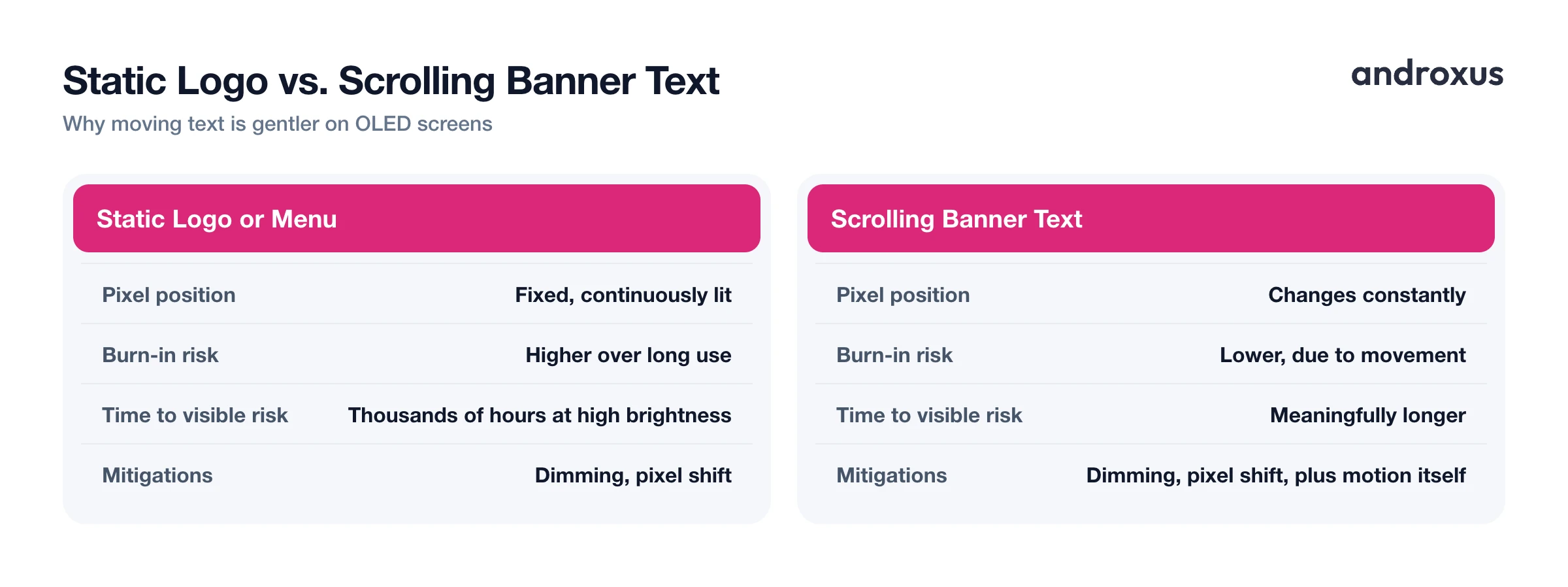
| Factor | Static logo or menu | Scrolling banner text |
|---|---|---|
| Pixels lit in one exact position | Yes, continuously | No, position changes constantly |
| Typical burn-in risk | Higher over long use | Lower, due to movement |
| Time to visible risk (lab extreme) | Can appear within thousands of hours at high brightness | Meaningfully longer, given constant movement |
| Mitigations available | Dimming, pixel shift | Dimming, pixel shift, plus motion itself |
Where a phone-based scrolling banner is genuinely useful
Good fits are places where a small, close-range readable sign is enough: a market stall or pop-up shop table, a store window facing pedestrians, a reception or event check-in desk, a wedding or party welcome sign, or a personal message for someone.
It is not a replacement for large-format or outdoor LED signage meant to be read from a distance or in direct sunlight, since it is limited to one phone screen's brightness and size.
Phone-based scroller vs. traditional physical LED sign
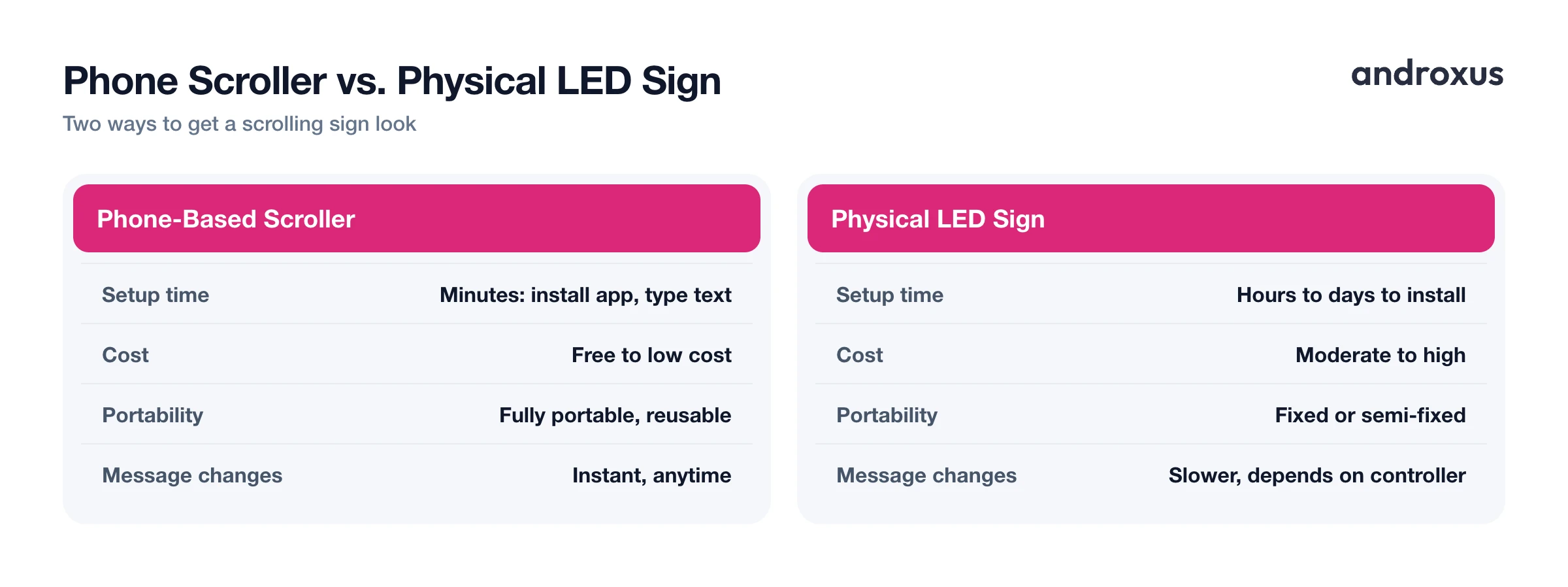
| Aspect | Phone-based scroller | Physical LED sign |
|---|---|---|
| Setup time | Minutes, install an app and type text | Hours to days, purchase and install hardware |
| Cost | Free to low cost | Moderate to high, hardware plus install |
| Portability and reuse | Fully portable, reuse the same phone anywhere | Fixed or semi-fixed once mounted |
| Message flexibility | Change text instantly, anytime | Depends on controller software, often slower to update |
| Size and viewing distance | Small, best for close-range reading | Can be built large for distance viewing |
| Power needs | Phone battery or a charger cable | Dedicated power supply, often wired in |
| What's actually controlled | The phone's own screen only | External physical LED hardware |
Practical setup tips: use a stand or phone holder at eye level, angle the screen to reduce glare, and check any local rules about business window signage before using it commercially.
How to turn your phone into a scrolling LED banner
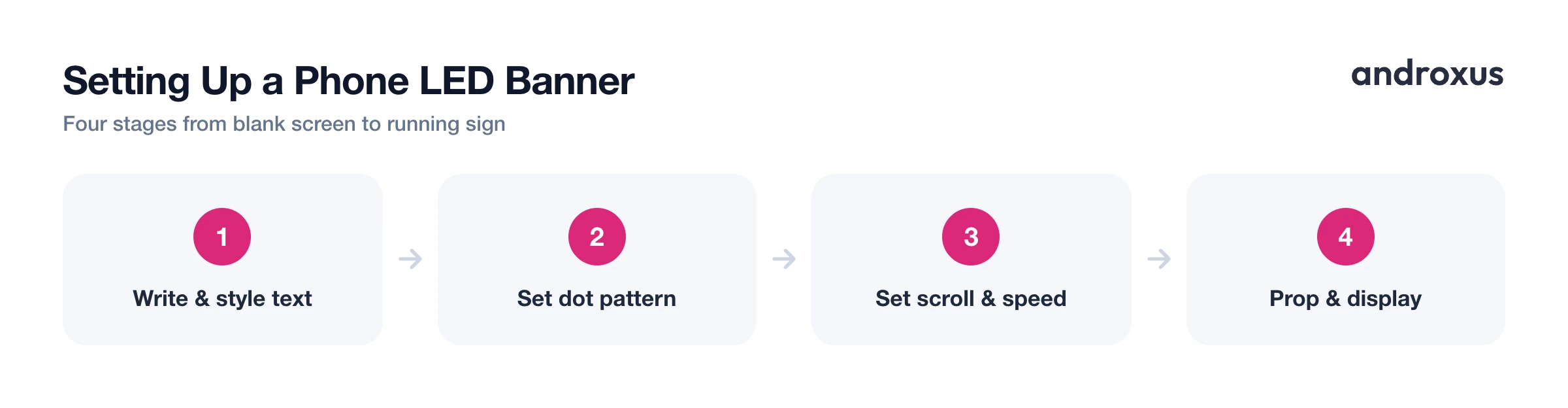
- Write your message. Open the app and type the text you want scrolling across the screen, whether it's a store promotion, an event welcome message, or a personal note.
- Style the text. Pick a font, size, and color for the text so it stays readable at a distance.
- Choose a background and dot pattern. Set the background color and the LED dot size and gap to control how strongly the display resembles a real dot-matrix sign versus plain scrolling text.
- Set scroll direction and speed. Choose left-to-right, right-to-left, or a stationary marquee, and adjust the speed so the text is easy to read as it moves.
- Add effects if you want them. Turn on blink or glow (neon) for extra attention, and switch on High-Quality Mode if you want a more realistic simulated LED matrix look.
- Lock your phone's orientation and silence interruptions. Lock auto-rotate to landscape via Quick Settings, and turn on Do Not Disturb so notifications don't pop up over the banner.
- Prop the phone and start the banner. Place the phone in a stand or holder at eye level, plug it in if it will run for a while, and start the scroll. Double-tap the screen when you're ready to exit.
Key takeaways
- A phone-based LED scroller draws a simulated dot-matrix banner on the phone's own screen; it does not control external or physical LED hardware.
- Font, color, dot pattern, scroll direction, and speed are the settings that determine how sign-like and readable the result looks.
- Locking landscape orientation, enabling Do Not Disturb, and keeping the phone plugged in are the practical steps that make a long display session run smoothly.
- Moving scroll text is inherently lower burn-in risk than a static image, and features like OLED burn-in protection add further peace of mind.
- This setup suits close-range signage such as stalls, storefront windows, and event desks, not large outdoor displays meant to be read from a distance.
Frequently asked questions
Can LED Flow or a similar app control a real, physical LED sign?
No. Apps like this display a simulated LED banner on the phone's own screen; they are not controllers for external or physical LED hardware, so they can't send a signal to a storefront LED sign or an outdoor matrix display.
Will running a scrolling banner for hours damage my phone's screen?
The risk is low. OLED burn-in typically requires a static, non-moving image displayed at high brightness for hundreds or thousands of hours; even extreme lab torture tests generally need thousands of continuous hours of a single unchanging image before visible burn-in appears. Because banner text is constantly moving across the screen rather than sitting in one spot, it's inherently lower-risk than a static logo, and features like OLED burn-in protection add an extra safety margin.
What screen orientation should I use for a scrolling banner?
Landscape is usually best. It gives the text more horizontal travel distance before it has to loop, which reads as smoother and more sign-like, especially on a phone propped up in a stand.
Will a scrolling banner drain my battery fast?
Yes, faster than normal use, since the screen stays on continuously and animates. For long displays, such as a storefront window or an event desk, keep the phone plugged in and, if you want the screen to stay awake indefinitely while charging, enable the 'Stay awake' option in Developer Options.
How is a phone's simulated LED banner different from a real LED matrix sign?
A real LED sign is physical hardware: individual LEDs wired into a grid, with common patterns of 5x7, 5x8, or 8x8 dots per character, that a controller lights up directly. A phone app instead draws a dot pattern and scrolling text on the existing screen to visually resemble that look; no physical dots or external hardware are involved.
How do I stop notifications from popping up over my banner?
Turn on Do Not Disturb before you start. Swipe down from the top of the screen, twice on most phones, to open Quick Settings and tap Do Not Disturb, or go to Settings > Notifications > Do Not Disturb and turn it on.
