How to Make a Digital Signboard Phone Display
Got a message to display, a store hours sign, a table number, a "Ring Bell for Service" note, and no budget or time for an actual LED sign? The phone already in your pocket can handle it. With the right settings and a free-standing app, you can have a working digital signboard phone display up and running in a few minutes.
Quick answer: To make a digital signboard on your phone, install an app designed to render a scrolling or static LED-style message (such as LED Flow), turn off screen timeout so the display stays on, type your text, and choose a scroll direction, color, and effect. Prop the phone on a stand or mount facing your audience, plug it into power, and use Android's screen pinning to lock it to that one app so it can't be swiped away. This gives you a close-range, indoor sign, not a replacement for a commercial outdoor LED cabinet.
What you'll learn
- What a phone-screen digital signboard actually is, and how it differs from apps that control physical LED hardware
- Which Android settings keep the screen on and locked to your message
- How to design text that reads clearly in an LED-style format
- How scrolling messages affect screen wear, and what actually helps
- Practical mounting and placement tips for near-range signage
- The honest limits of this setup compared to a real LED sign board
What a Phone-Screen Digital Signboard Actually Is
A phone-screen signboard uses the phone's own display to show a scrolling or static message. It does not send commands to an external LED panel or strip; the phone itself is the sign.
That's an important distinction from apps that control physical programmable LED matrix boards over Bluetooth or Wi-Fi, the kind used for RGB marquee signs you might see at a market stall or a shop counter. Those apps talk to separate hardware. A phone-screen app like LED Flow instead renders the effect directly on the glass in front of you, simulating the look of an LED matrix without any wiring involved.
Because the phone is the display, no soldering, wiring, or hardware purchase is required, just the device you already own plus something to prop it up. That makes it a genuinely fast way to get a sign in front of people.
Good fits for this kind of setup include a reception desk, a store counter, a car dashboard or rear window, a table at a market stall, a check-in table at an event, or a home office door. It's not a fit for anything that needs to be readable from far away outdoors or exposed to weather, since phone screens are small and not weatherproof compared to true LED sign cabinets.
Phone Settings That Keep a Signboard Running
The single most common failure with a phone signboard is the screen going dark mid-message. A few settings prevent that.
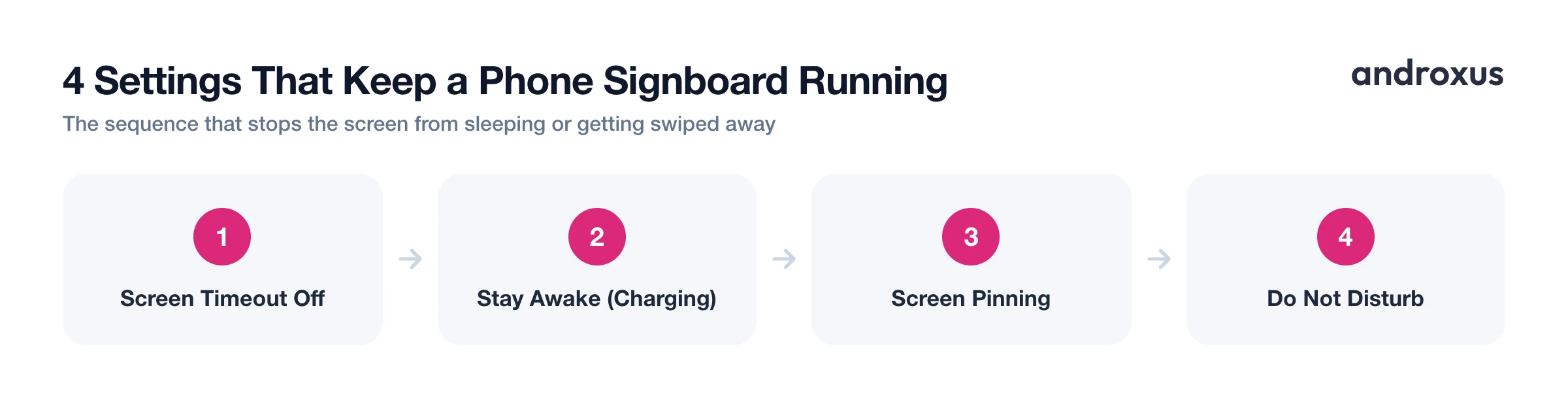
Screen timeout lives under Settings > Display > Screen timeout on most Android phones. Picking the longest option (or "Never" if offered) stops the screen from sleeping while your message is on display.
If there's no "Never" option, enabling Developer options unlocks another route: go to Settings > About phone and tap the build number seven times, then open Settings > System > Developer options > Stay awake. This keeps the screen on continuously while the phone is charging, which is exactly the condition a signboard session runs under anyway.
Screen pinning, also called app pinning, has been part of Android since Android 5.0. On most Android phones it locks the display to a single app via Settings > Security > Advanced > App pinning, though the exact menu location shifts a little by manufacturer and Android version, so a phone left running in public can't be swiped into someone's photos or settings by a curious passerby.
Turning on Do Not Disturb prevents incoming call and notification banners from popping up over the message while it's on display. And because the screen stays on, often at higher brightness, the phone should stay plugged into power for any signboard session longer than an hour or two.
Designing Text That Reads Like an LED Sign
Real LED signs are built from a grid of individual light points. The distance between those points, called pixel pitch, determines how sharp or blocky the image looks from a given distance, which is why classic LED signage has that recognizable dot-matrix look.
Apps like LED Flow let you mimic that look on a phone screen by adjusting dot size and gap, plus background color, so the message reads as an LED-style display rather than plain text on a screen.
A few design habits carry over directly from real sign design:
- Short, high-contrast phrases in a bold sans-serif font are most legible at a glance, the same principle sign designers rely on for roadside and storefront signage.
- Scroll direction options (left-to-right, right-to-left) recreate the classic moving marquee. A stationary mode works better for a short phrase like "Ring Bell for Service" that doesn't need motion to be read.
- Blink and glow (neon-style) effects draw the eye but read as clutter if overused. They work best on a single word or phrase, like OPEN or SALE, rather than a full sentence.
Protecting the Screen During Long Display Runs
Anyone running a phone screen for hours at a time reasonably asks about burn-in, and it's worth understanding what actually causes it.
OLED burn-in happens when the exact same bright pixels stay lit in the exact same spot for very long, uninterrupted stretches, gradually causing uneven wear and a faint ghost image. A scrolling marquee is inherently lower-risk than a frozen static image because the text, and therefore which pixels are lit, keeps changing position across the panel rather than sitting still in one place.
General precautions apply here too: keep brightness no higher than the room actually needs, and avoid leaving any single static screen, not just a signage app, untouched for many hours a day, every day. LED Flow includes an OLED burn-in protection setting intended for exactly this kind of continuous-display use case, and it's worth enabling if the phone will run as a signboard for extended stretches.
None of this makes a phone risk-free for indefinite 24/7 static use. If a message needs to sit unchanged on screen for very long periods, keeping it in motion or dimming the display are the practical mitigations, not a guarantee that wear can't happen at all.
Mounting and Positioning the Phone
A simple desk stand, tripod, or car dashboard or vent mount is enough since the phone doesn't need to be wired to anything else. Rotating to landscape orientation gives more horizontal room for scrolling text, which is how most marquee-style messages read best.
Because a phone screen is small and its brightness is nowhere near a commercial outdoor LED cabinet, this setup is best for close-range viewing: a few feet away on a counter, dashboard, or window, not readable from across a parking lot. If the goal is to catch the attention of people outside, position the phone so the screen faces outward through glass, a storefront window or a car window works well for that.
Digital Signboard Phone vs. a Physical LED Sign Board
It helps to see the two options side by side before deciding which one fits your situation.
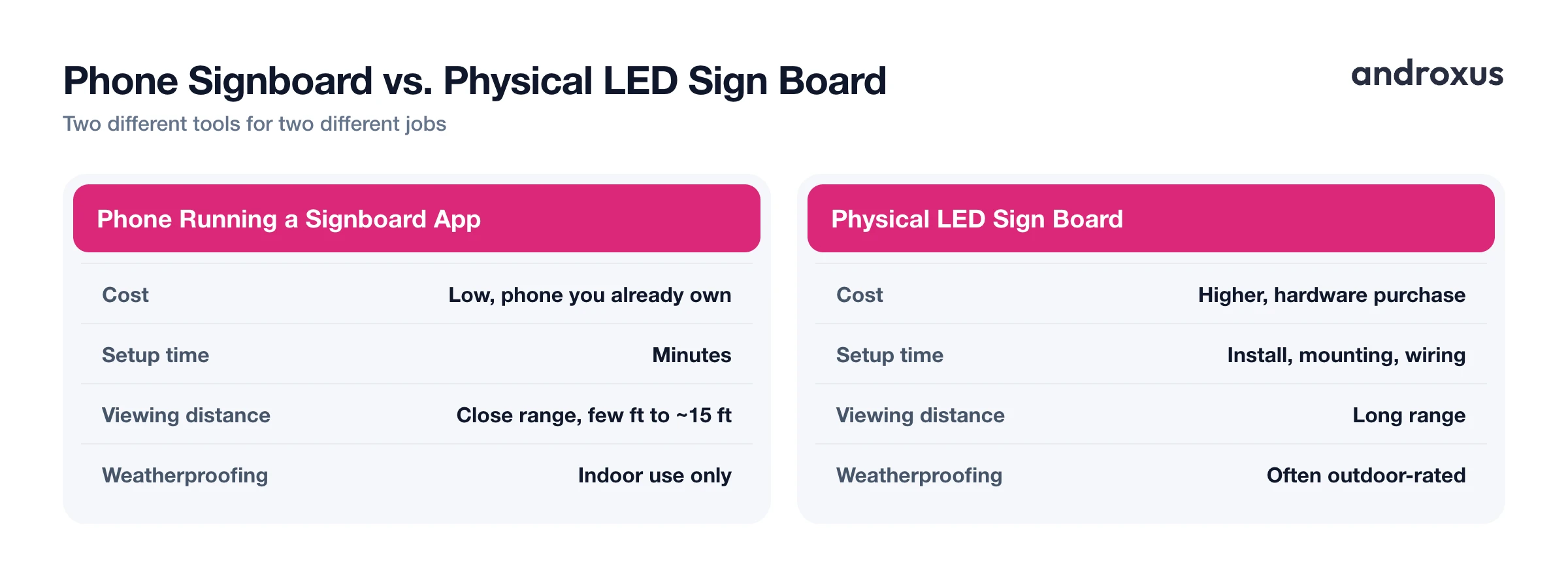
| Factor | Phone Running a Signboard App | Physical LED Sign Board |
|---|---|---|
| Cost | Low, uses a phone you already own | Higher, hardware purchase required |
| Setup time | Minutes | Hardware install, mounting, wiring |
| Portability | Highly portable, move it anywhere | Fixed or semi-portable at best |
| Viewing distance | Close range, a few feet to ~15 feet | Long range, readable from a distance |
| What controls it | Self-contained on the phone | Separate app or controller over Bluetooth/Wi-Fi |
| Weatherproofing | Indoor use only | Often outdoor-rated |
| Best use case | Counters, windows, car dashboards, desks | Storefronts, roadside, venues |
Neither option is universally better; they're built for different jobs. A phone signboard wins on cost, speed, and portability for near-range use. A physical LED board wins when the message truly needs to be seen from a distance or outdoors.
How to Make a Digital Signboard on Your Phone
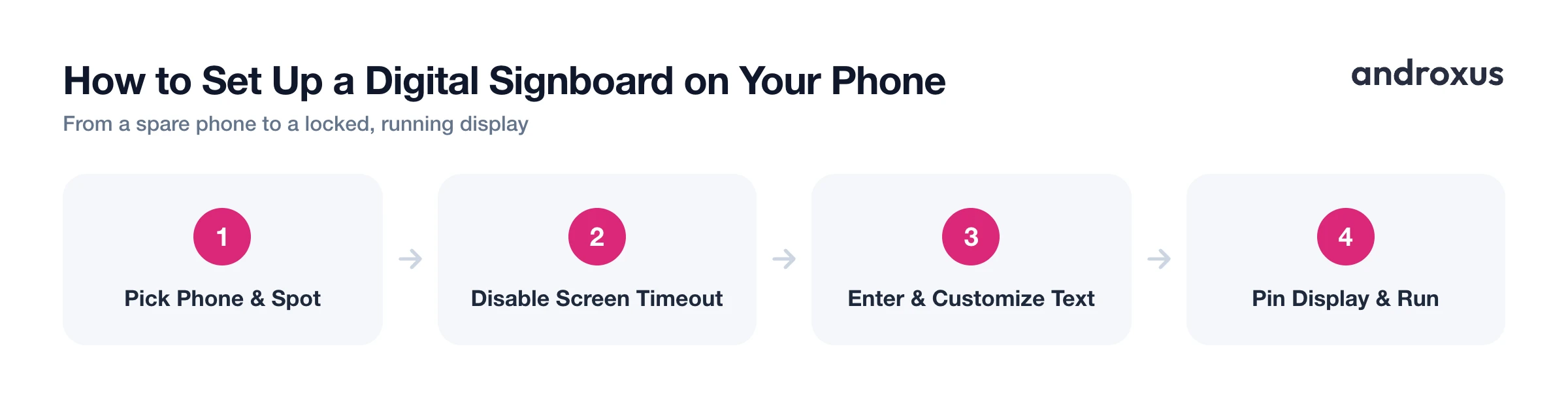
- Pick a phone and a spot. Choose a phone you can dedicate to the display, a spare phone works well, and decide where it will sit: a counter stand, a window mount, or a car dashboard mount.
- Disable screen timeout and keep it powered. Go to Settings > Display > Screen timeout and set the longest option available, or enable Developer options > Stay awake so the screen stays on while charging. Leave the phone plugged into power for any long session.
- Open a signboard app and enter your message. Open an app built for this, such as LED Flow, and type the text you want displayed, for example OPEN or Table Ready at Counter 3.
- Customize the look. Set the font, text size, text color, background color, and LED dot size and gap so the message reads clearly and matches the LED-sign style you want.
- Choose scroll speed and direction. Pick a left-to-right or right-to-left scrolling marquee for longer messages, or switch to stationary for short phrases that don't need motion.
- Lock the display and let it run. Turn on Android's screen pinning so the app can't be swiped away, set brightness for the room, position the phone in landscape, and leave it running on power.
Key takeaways
- A digital signboard phone display uses the phone's own screen, it doesn't control external LED hardware, so setup is just software plus a stand and a power source.
- Disabling screen timeout, enabling stay-awake while charging, and using screen pinning are the three settings that keep a public-facing signboard reliable.
- Scrolling text is lower-risk for burn-in than a static image, but keeping brightness reasonable and using a burn-in protection setting, where available, still matters for long sessions.
- This setup is built for close-range viewing, a counter, window, or dashboard, not for long-distance visibility like a commercial LED sign.
- Short, bold, high-contrast text with sparing use of blink or glow effects reads best, whether the sign is scrolling or stationary.
Frequently asked questions
Can I really turn an old phone into a digital signboard?
Yes. Any spare Android phone can work since the app only needs the screen and a power source. Keep it plugged in, disable screen timeout, and prop it where you want the message seen.
Will a scrolling LED-style message cause screen burn-in?
The risk is lower than with a static image because scrolling text keeps changing which pixels are lit, but no screen is entirely immune to wear from very long, continuous, high-brightness use. Keeping brightness reasonable and using an app's burn-in protection setting, where offered, helps further.
Does an app like this control a physical LED sign board I bought online?
No. Apps that display a simulated LED banner on the phone's own screen are a separate category from apps that pair with physical programmable LED matrix hardware over Bluetooth or Wi-Fi. LED Flow is the former: it turns the phone screen itself into the display, not a remote control for external hardware.
How do I stop people from swiping out of the signboard app when it's on public display?
Use Android's built-in screen pinning (on most phones, Settings > Security > Advanced > App pinning, though the exact path varies by manufacturer) to lock the device to that one app. Some signboard apps also add their own extra safeguard, such as a passcode or gesture required to exit, so check the specific app's settings for that option.
What's the difference between marquee and stationary text modes?
Marquee mode scrolls the message left to right or right to left continuously, recreating the classic moving sign look. Stationary mode keeps the text fixed in place, which works better for short phrases meant to be read instantly, like a table number or 'Back in 10 Minutes.'
How far away can people read a phone screen used as a sign?
It depends on phone size, brightness, and font size, but realistically this suits near-range viewing, a few feet to maybe 10 to 15 feet, such as a counter, window, or car dashboard. It is not a substitute for a commercial outdoor LED sign meant to be read from a distance.
