How to Hold Up a Phone Light Message Concertgoers Can Read
Raising a phone light message concertgoers can actually read is a small crowd ritual with a surprisingly practical downside: most phones aren't set up to display anything for more than a minute or two before the screen dims or locks. A few settings changes and a bit of planning are the difference between a message nobody can read and one that actually lands.
Quick answer: To hold up a phone light message at a concert so it reads clearly, turn off auto-brightness and max out brightness manually, extend your screen timeout to its longest setting (Settings > Display), and use a black background with bold white or yellow-green text for the highest contrast in a dark venue. Keep the message short so it can be read at a glance, and choose a stationary layout for a quick phrase or a scrolling banner for a longer one.
What you'll learn
- Where the phone light tradition at concerts actually came from
- Which display and brightness settings to change before the show starts
- What makes a glowing message actually readable from a distance
- How to write and time a message people can read at a glance
- How to protect your battery and screen during a long show
Why Phones Took Over From Lighters
The tradition of raising a light at a show goes back further than most people assume. It's often traced to 1969, with Melanie's rain-soaked Woodstock set and the Toronto Rock and Roll Revival festival, where the crowd was asked to light matches and lighters. The image became iconic largely through Bob Dylan and The Band, whose live album "Before the Flood" features a cover shot of a stadium full of lit lighters.
As lighters fell out of everyday carry through the late 1990s and 2000s, cell phones, and eventually their built-in flashlights and bright screens, took their place as the go-to light source. The digital version is generally considered safer and more stable than an open flame, though it trades the warm orange and red glow of a flame for cooler white light. Today, holding up a phone light message at a concert is the default version of that same gesture, whether it's a plain flashlight, a bright lock screen, or a custom message built for the moment.
Get Your Screen Concert-Ready Before You Hold It Up
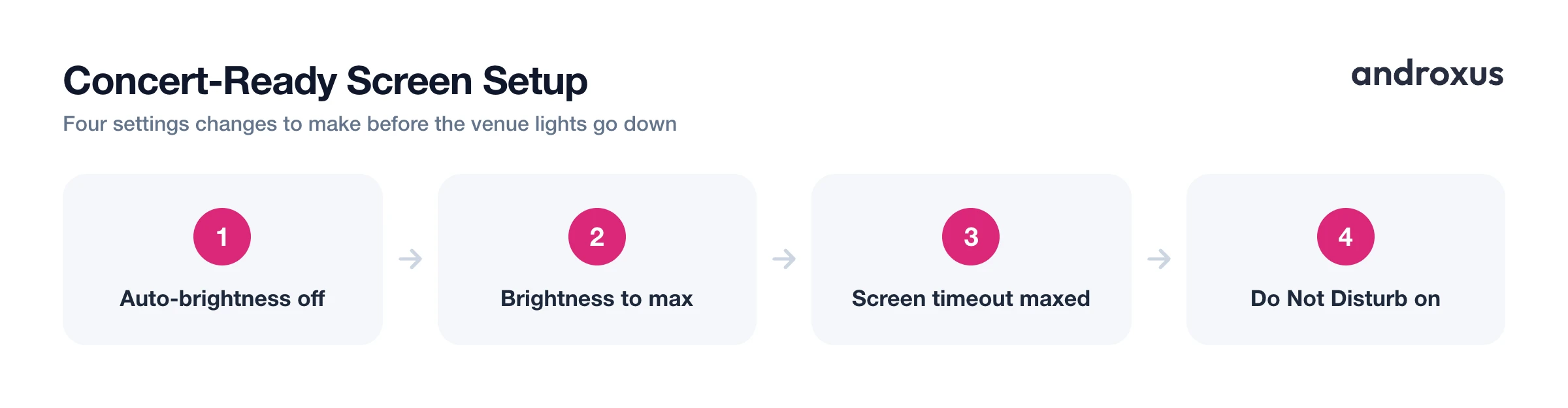
Most phones are tuned for everyday battery savings, not for staying bright and awake for an extended period in a dark room. Before the show, it's worth adjusting a few settings so the screen doesn't work against you at the exact moment you want it visible.
Adaptive or auto-brightness uses the phone's light sensor to guess the right brightness level, and that guess can misfire in a dark venue with bright, shifting stage lighting nearby. Turning it off and manually dragging the brightness slider to maximum, found at Settings > Display > Brightness, keeps the output steady and predictable instead of leaving it up to the sensor.
Screen timeout settings live under Settings > Display > Screen timeout, sometimes labeled Sleep. Stock Android commonly offers options up to 30 minutes, though some brands, including Samsung, cap the built-in option lower, around 10 minutes. Whatever your phone allows, choose the longest setting so the screen doesn't lock mid-song. It's also worth turning on Do Not Disturb, either through Settings > Notifications > Do Not Disturb (grouped under Settings > Modes on some newer Android versions) or the quick-settings swipe-down toggle, so an incoming call or text notification doesn't interrupt the display right when you're holding it up.
Some phones also offer a boosted brightness mode beyond the normal maximum, meant for outdoor or sunlight visibility, such as Samsung's Extra Brightness toggle or Xiaomi's Sunlight Mode. It's not essential for an indoor venue, but it's worth knowing it exists if your phone has trouble standing out in a very bright room.
What Actually Makes a Message Read as "Glowing"
Contrast, more than any single color choice, is what makes a phone screen actually read as a glowing sign from a distance. A true black background paired with bright text mimics how a real LED sign looks: dark gaps between lit segments, with the lit parts standing out sharply.
On an OLED or AMOLED phone screen, black pixels are essentially switched off rather than lit and darkened, so a black background costs little extra power compared to a bright white one, which is a small but genuine side benefit.
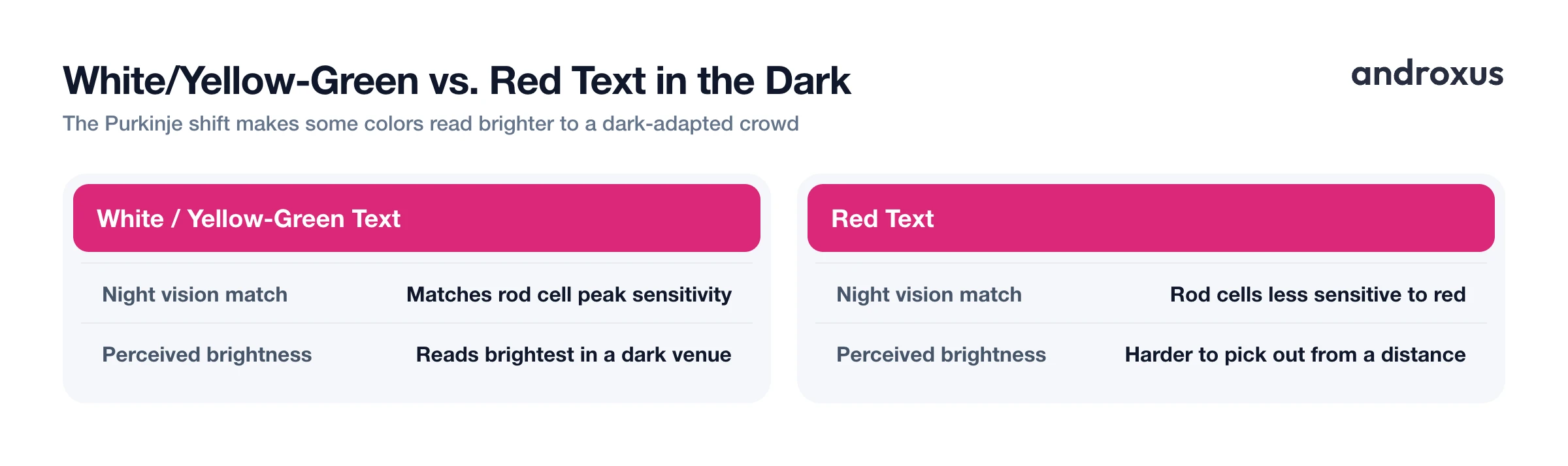
Color also matters. Human night vision shifts sensitivity toward blue-green wavelengths in the dark, an effect called the Purkinje shift, which is part of why white, green, and yellow-green content tends to read as brightest to a crowd in a dark room, while red is comparatively harder to pick out. Bold, simple lettering in a clean sans-serif style holds up better than a decorative font, for the same reason road signs and stadium scoreboards use plain, thick lettering: it stays legible at a glance and from a distance.
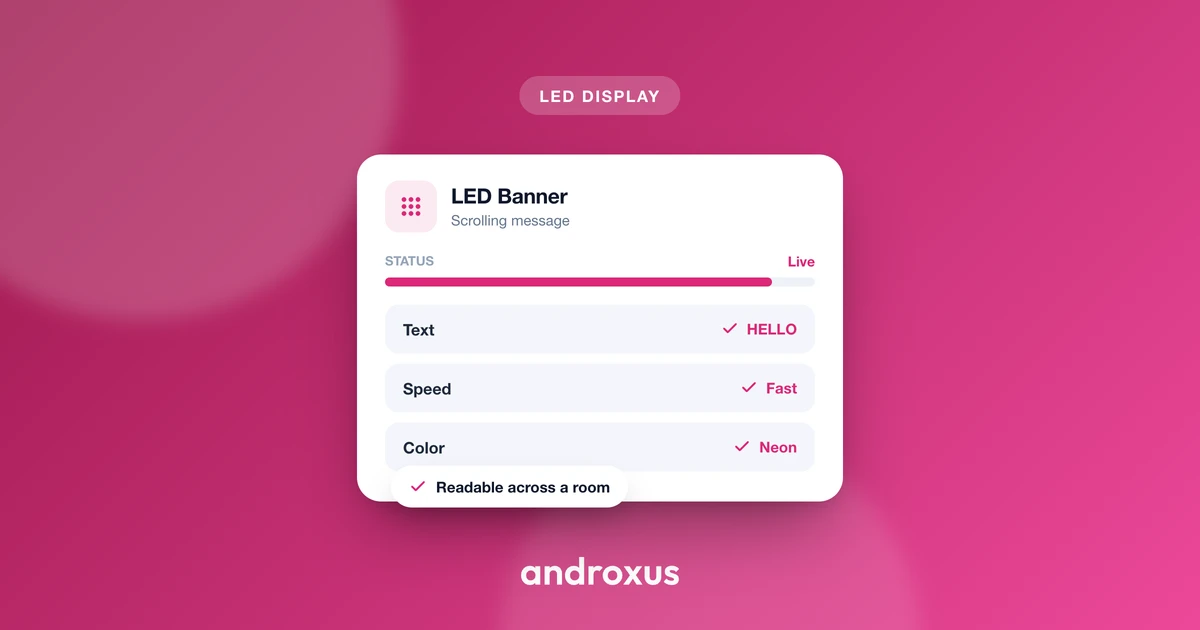
This is the exact problem an app like LED Flow is built around. It renders a scrolling or stationary banner styled to look like a real LED matrix, with adjustable font, size, and color, background and dot pattern, scroll speed and direction, and blink or glow effects, so you can preview how the message will actually look before the venue lights go down.
Writing (and Timing) a Message People Can Read
Short text reads faster at a glance than a full sentence. A handful of words is about as much as someone nearby can register in the couple of seconds their eyes land on your screen, so trimming a message down usually helps more than making it clever.
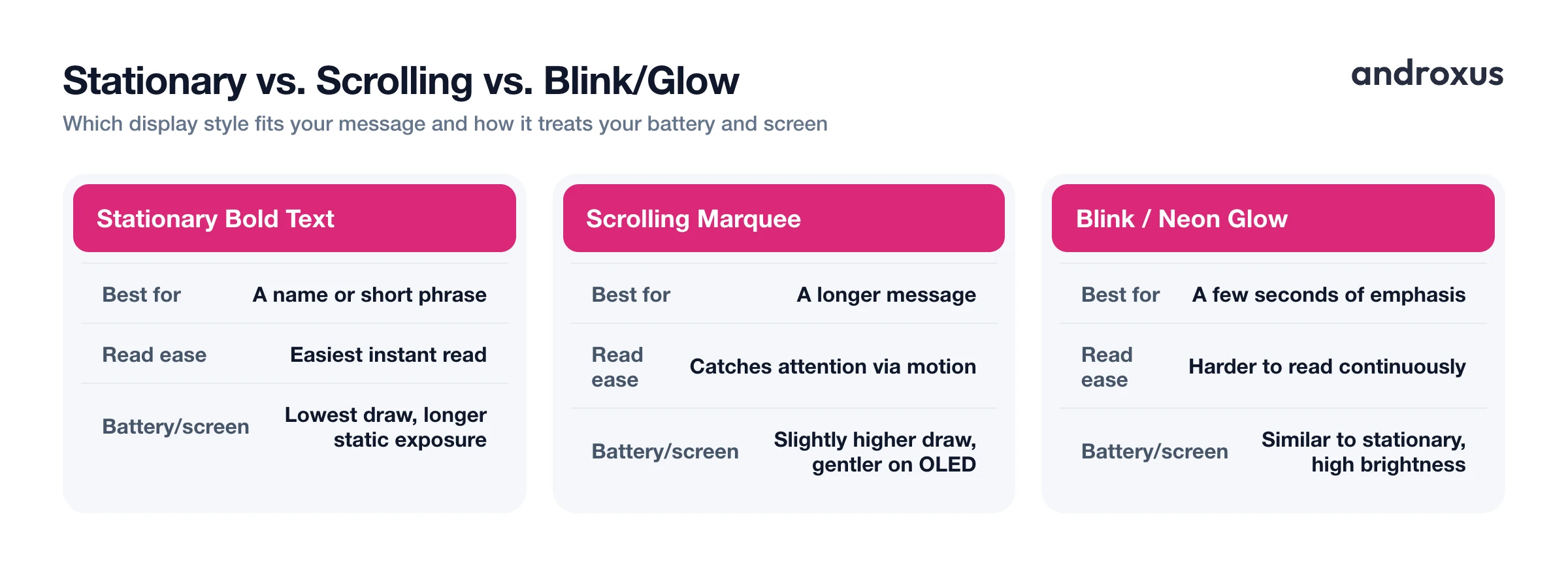
Stationary, non-scrolling text is the easiest to read the instant someone looks over, which suits a name, a short phrase, or a proposal-style message where the whole point is an immediate, unmistakable read. A scrolling marquee, on the other hand, mimics a real LED ticker and works better for a longer message or for catching attention from farther away, since motion draws the eye even in peripheral vision.
A brief blink or flash effect can help grab attention first, useful for a few seconds before someone settles in to actually read the text, but continuous blinking makes longer messages harder to follow. It's better used as a short attention-getter than as the display mode for the whole message.
Static Text vs. Scrolling Banner vs. Blink/Glow: Which to Use When
| Display Style | Best For | Read Distance/Ease | Battery & Screen Note |
|---|---|---|---|
| Stationary bold text | A name or short phrase | Easiest instant read | Lowest battery draw, but longer exposure to one static image |
| Scrolling marquee | A longer message | Catches attention via motion | Slightly higher battery draw, gentler on OLED since content keeps shifting |
| Blink / neon glow | A few seconds of attention-grabbing emphasis | Harder to read continuously | Similar battery draw to stationary, since it's still one screen lit at high brightness |
Protecting Your Phone and Battery During the Show
Running near-maximum brightness continuously is one of the fastest ways to drain a phone battery. A few hours of concert use is normal and won't cause any lasting harm, but it's still worth fully charging beforehand or bringing a portable battery pack for a long night.
OLED and AMOLED panels can, in theory, be susceptible to burn-in from a bright, static image held unchanged for very long, continuous stretches, though modern panels resist this far better than older ones did. Content that moves or shifts, like a scrolling banner, is gentler on the panel over time than a frozen static image at full brightness.
A quick exit gesture matters more than people expect in a crowd. A feature like double-tap to exit gets you back to your home screen fast, without fumbling for the status bar or accidentally getting stuck in the app while people are moving around you.
How to Hold Up a Phone Light Message Concertgoers Can Read
- Charge up and silence interruptions. Top off your battery, or bring a portable charger, and turn on Do Not Disturb via Settings > Notifications > Do Not Disturb, or the quick-settings toggle, so an incoming call or text doesn't interrupt your display mid-song.
- Max out brightness manually. Turn off adaptive or auto-brightness and drag the brightness slider all the way up yourself in Settings > Display > Brightness. Manual control keeps the screen at full brightness instead of letting the light sensor dim it based on the dark venue or nearby stage lighting.
- Extend the screen timeout. In Settings > Display > Screen timeout, called Sleep on some phones, choose the longest option available, commonly up to 30 minutes on stock Android, so the screen won't lock while you're holding it up.
- Write a short, high-contrast message. Keep the text to just a few words so it can be read at a glance from a distance. Use a black background with bold white or yellow-green text for the strongest contrast in a dark room.
- Pick a display style and preview it. Decide between a stationary message for something short like a name, or a scrolling banner for a longer line. An app like LED Flow lets you set the font, size, background, dot pattern, scroll speed and direction, and blink or glow effects, and preview it as a simulated LED sign before the show starts.
- Hold it up and exit cleanly when you're done. Hold the phone steady with the screen facing outward, angled toward where you want it seen. When the moment passes, use a double-tap or your phone's lock button to get back to your home screen quickly.
Key takeaways
- Manually maxing out brightness and extending screen timeout in Settings > Display matters more than any app choice for keeping your message visible.
- A black background with white or yellow-green text gives the strongest contrast in a dark venue, since night vision is less sensitive to red wavelengths.
- Short, bold text reads fastest; use a stationary layout for a quick phrase and a scrolling banner for a longer message.
- A few hours at max brightness won't damage your phone, but it will drain the battery faster, so charge up or bring a portable charger.
- Apps that simulate an LED banner, like LED Flow, only display on your own screen and do not connect to or control any venue's actual LED walls or stage lighting.
Frequently asked questions
Will running my phone at max brightness for a few hours damage it?
No lasting damage from a few hours at max brightness. It increases heat and drains the battery faster than normal, but that is a temporary, everyday tradeoff, not permanent harm. Only years of daily max-brightness use meaningfully shortens battery lifespan.
What background and text color show up best in a dark venue?
A black background with white or yellow-green text gives the strongest contrast and reads as brightest in a dark crowd. Red is harder to pick out in low light because the eye's night vision (rod cells) is less sensitive to long red wavelengths, an effect known as the Purkinje shift.
Can an app like LED Flow control the venue's actual LED wall or stage lighting?
No. LED Flow only renders a simulated LED banner on your own phone's screen. It does not connect to, sync with, or control external LED screens, stage lighting, or any physical hardware.
Why does my screen keep turning off while I'm holding it up?
Your screen timeout is set too short for how long you're displaying the message. Go to Settings > Display > Screen timeout (sometimes called Sleep) and pick the longest option available, and turn off adaptive/auto-brightness so the screen doesn't dim on its own in the dark.
Is it okay to hold up a phone light at a concert?
Generally yes, phone lights have replaced lighters as the standard crowd gesture at most shows and are widely tolerated. Some artists or venues restrict phone use for specific songs, encores, or entire sets, so it's worth checking the venue's phone policy or the artist's stated preferences beforehand.
Should I use a scrolling message or a still one?
It depends on the message. A stationary, bold message is easier to read at a glance and works well for a short phrase or name. A scrolling banner mimics a real LED ticker and suits longer text or moments meant to catch attention from farther away.
