How Does an LED Scroller App Work? Best Settings
Point a phone at a crowd or prop it in a shop window and it can look uncannily like a real LED sign, dots and all, without any actual LEDs involved. That effect comes entirely from an LED scroller app rendering a simulated matrix on the screen you already own, and getting it to look and read well comes down to a handful of settings.
Quick answer: An LED scroller app renders a scrolling text banner directly on the phone's own screen, simulating the dot-matrix look of a real LED sign with rendered dots rather than physical diodes. It does not connect to or control any external LED hardware. For the most legible result, use bright text on a solid black background, match scroll speed to message length, and adjust dot size and gap to balance an authentic matrix look against readability.
What you'll learn
- What an LED scroller app actually does on your screen, and what it doesn't do
- How the dot-matrix look is simulated with rendered dots instead of real LEDs
- The best scroll speed, direction, font, and color choices for legibility
- Which screen and battery settings matter for a long display session
- Where a phone-based LED sign is a good fit, and where it isn't
What an LED Scroller App Actually Does
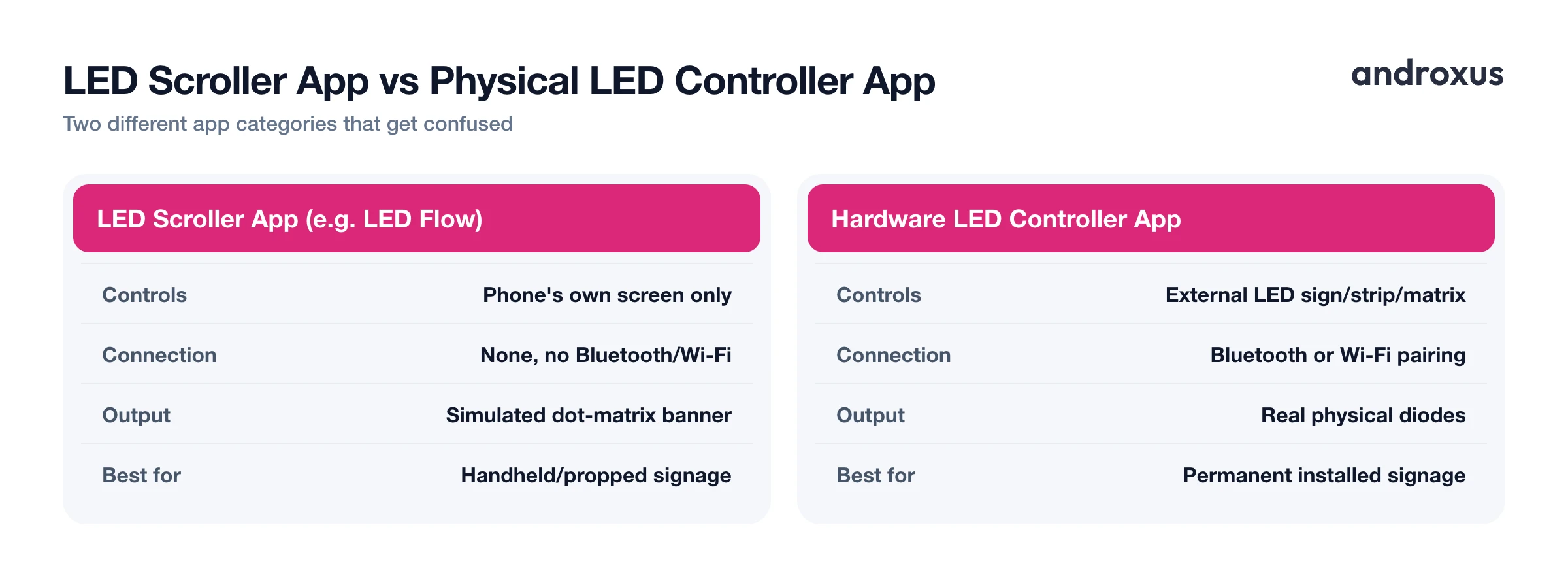
An LED scroller app renders a scrolling text banner on the phone's own screen. It does not send data to, pair with, or control any external LED sign, strip, or hardware matrix. That distinction matters because a separate category of app exists specifically to control physical LED matrix boards or addressable LED strips over Bluetooth or Wi-Fi, and a scroller app is not that.
The "matrix" look these apps produce is a software simulation of commercial dot-matrix LED signage, the kind built from modules like P10 or P6 panels, named for their millimeter pixel pitch. The app recreates that grid visually using rendered dots instead of physical diodes.
Common, honest use cases include handheld or propped signs for events, retail counter or window promotions, personal messages, name signs for pickups, and party or wedding welcome displays. LED Flow is one example of this app category: it turns the screen into a simulated scrolling banner with adjustable text, colors, dot pattern, and effects. It is a display app, not a hardware controller.
How These Apps Simulate the Dot-Matrix Look
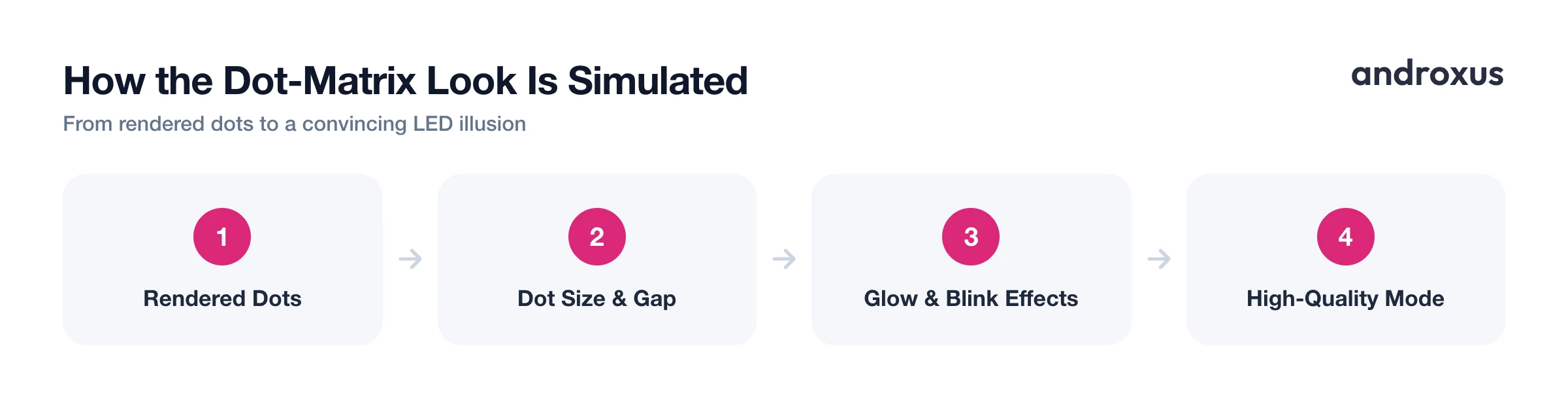
Real LED signs are built from a grid of individually lit bulbs spaced at a fixed pitch. A P10 module, for example, is a 32x16 grid of LEDs on 10mm centers. Scroller apps recreate that grid visually with rendered dots rather than physical diodes, and a few settings control how convincing the illusion is.
Dot size and dot gap settings control how "authentic" the matrix look reads. Smaller dots with wider gaps mimic a coarse physical sign, while larger dots with tighter gaps look more like solid, easy-to-read text. Glow or neon effects simulate the light bloom real LEDs produce, and blink effects mimic the pulsing, attention-grabbing style used on physical signs.
A higher-fidelity rendering mode, called High-Quality Mode in LED Flow, adds more rendering detail so the simulated matrix looks closer to a genuine physical LED panel. Because this is still a screen simulation, brightness and contrast are limited to what the phone's own display can produce. It will not match the brightness or outdoor daylight visibility of a commercial LED sign built from real emissive diodes.
Best Scroll Speed and Direction Settings
Scrolling direction is typically left-to-right, right-to-left, or a stationary marquee that doesn't move. Left-to-right and right-to-left suit different reading habits and sign placements, for example a sign facing oncoming foot traffic versus one facing a queue.
Scroll speed should be matched to message length. Short phrases, like a name or a table number, can move faster since the whole message becomes visible quickly in a loop. Longer sentences need a slower, steady pace so a viewer can read the start before it scrolls past. A phone screen is also viewed much closer than a large commercial sign, so slower, steadier scrolling generally reads better than the fast pace used on big outdoor displays meant to be read from a distance.
For static or near-static use, such as a name held up in a crowd or a table marker, a stationary, non-scrolling setting is often more legible than scrolling text. Very fast scroll speeds paired with a wide dot gap, a sparse matrix look, can hurt legibility because the eye has less time to fill in the gaps between rendered dots.
Font, Color, and Background Choices for Legibility
High-contrast combinations, bright text on a solid black background, are the most legible choice and also most closely match the classic look of a physical LED sign. Sign-industry guidance favors simple, sans-serif letterforms for distance legibility, and the same logic applies to a scrolling banner meant to be read while walking past or from across a room.
A busy or light-colored background reduces contrast against colored LED-style text and works against the matrix illusion, since real LED signs are almost always dark panels with lit dots. Text size should scale with expected viewing distance: closer or handheld use at arm's length can use a smaller font, while a phone propped on a counter or in a window for passersby needs a noticeably larger font to stay readable. Blink and glow effects are best used sparingly, on a short word or phrase, since applying them to long scrolling text can make it harder to read continuously.
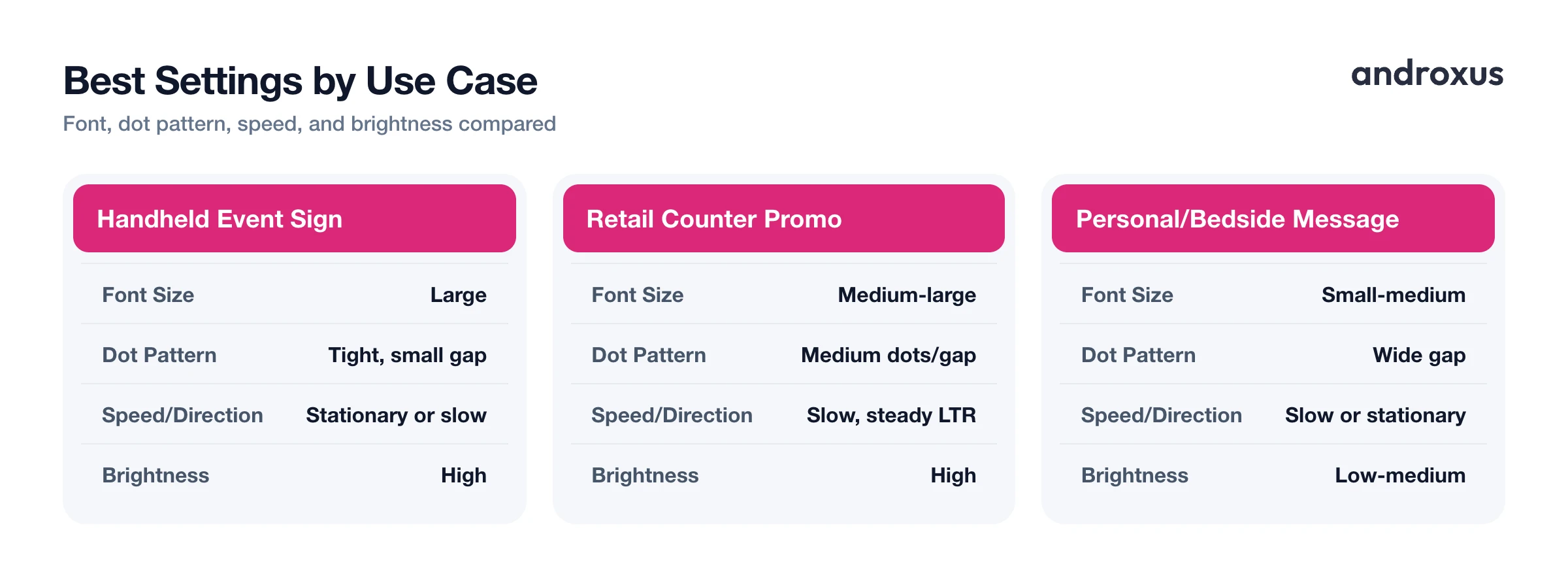
Here is a quick starting point for common scenarios:
| Use Case | Font Size | Dot Pattern | Scroll Speed/Direction | Brightness |
|---|---|---|---|---|
| Handheld event sign (name/greeting) | Large | Tight dots, small gap | Stationary or slow | High |
| Retail counter or window promo | Medium-large | Medium dots, medium gap | Slow, steady LTR | High |
| Wedding/party welcome display | Large | Tight dots for readability | Slow LTR or stationary | Medium-high |
| Personal/bedside message | Small-medium | Wide gap for authentic look | Slow or stationary | Low-medium |
| Table or pickup number sign | Large | Tight dots | Stationary | Medium |
Screen and Battery Settings for Long Display Sessions
Android's screen timeout, found under Settings > Display > Screen timeout, will turn the display off mid-run unless it's extended or the app keeps the screen awake, so this is worth checking before propping up a phone for a long session. Auto-rotate, under Settings > Display > Auto-rotate, should be set to match how the phone will be positioned, propped in landscape versus handheld in portrait, so the banner doesn't flip orientation unexpectedly.
OLED and AMOLED screens, used in most modern Android phones, carry a real, if generally slow-building, risk of burn-in from static high-contrast content shown for extended periods. LCD screens don't share this specific failure mode. Running a scroller at full brightness for hours also adds both battery drain and display heat, so a moderate brightness is a reasonable tradeoff for long sessions unless the sign needs to be read in bright ambient light.
LED Flow includes an OLED burn-in protection feature intended to reduce that static-image risk during long scrolling sessions on AMOLED and OLED phones, along with a double-tap-to-exit gesture so a propped or handheld phone displaying the sign isn't accidentally closed by a stray touch.
Where a Phone-Based LED Scroller Fits (and Where It Doesn't)
A phone-based LED scroller is a good fit for temporary or portable signage: personal and small-business use, events, pickup or name signs, table or counter promos, and anywhere a real LED sign would be overkill or impractical to install.
It is not a fit for official, safety-critical, or regulated signage, permanent outdoor commercial signage viewable from a real distance, or controlling an actual physical LED matrix, strip, or sign, since a scroller app has no connection to external hardware. Phone screen brightness and size are also the limiting factor outdoors: direct sunlight will wash out even a well-configured scroller the same way it would wash out any small backlit screen, so this is best treated as an indoor or shaded, low-light signage solution. The same practical logic that applies to physical signage, bigger and simpler text reads from farther away, still applies even on a much smaller screen.
How to Set Up an LED Scroller App for a Legible Display
- Write and format your message. Enter your text, then choose a font and size. Favor simple, high-contrast, sans-serif styles, and size the text larger if the phone will be viewed from farther away versus handheld at arm's length.
- Set the LED matrix look. Pick a background, solid black is closest to a real LED panel, and adjust the dot size and gap. Tighter dots read more like solid text, while wider gaps look more like an authentic sparse LED sign but can be slightly harder to read up close.
- Choose scroll direction and speed. Select left-to-right, right-to-left, or a stationary display. Match speed to message length: slower for longer sentences, a bit faster for short phrases, and consider stationary text for very short messages like a name or table number.
- Add blink or glow effects sparingly, and enable a high-quality mode. Apply blink or glow effects to short phrases or key words rather than an entire long scrolling sentence. If the app has a higher-fidelity rendering mode, turn it on for a more realistic matrix simulation.
- Adjust screen and battery settings for long sessions. Extend the phone's screen timeout, set auto-rotate to match how the phone is positioned, use moderate rather than maximum brightness, and enable any built-in burn-in protection before running the sign for an extended period.
- Lock the display in place. Use a double-tap-to-exit or similar safeguard if the app offers one, so a propped or handheld phone isn't accidentally closed out of the display by a stray touch.
Key takeaways
- An LED scroller app simulates a scrolling dot-matrix banner on the phone's own screen and does not control external LED hardware.
- Dot size, dot gap, and a high-quality rendering mode determine how closely the simulation resembles a real LED sign.
- Match scroll speed and direction to message length and viewing distance, and consider a stationary display for very short messages.
- High-contrast text on a solid black background is the most legible and most authentic-looking combination.
- For long sessions, extend screen timeout, use moderate brightness, and use burn-in protection if the app offers it, since OLED and AMOLED screens can suffer slow burn-in from static high-contrast content.
Frequently asked questions
Does an LED scroller app control real LED lights, strips, or a physical sign?
No. Apps in this category, including LED Flow, display a simulated scrolling banner on the phone's own screen. They don't connect to, send data to, or control external LED hardware, that is a different type of app entirely.
What's the difference between an LED matrix app and a plain scrolling-text app?
A plain marquee app just moves text across the screen. An LED matrix app additionally renders the text as a grid of dots, with adjustable dot size and gap, plus effects like glow and blink, to visually mimic a real dot-matrix LED sign rather than just scrolling flat text.
Will leaving an LED scroller running for hours damage my phone's screen?
On OLED/AMOLED phones, showing the same bright, high-contrast content for very long unbroken stretches carries a real, if generally slow, burn-in risk. LCD screens don't share this specific risk. Keeping brightness moderate, taking breaks, and using a burn-in protection feature if the app offers one all reduce that risk.
What scroll speed and direction should I use?
Match speed to message length: short text can move faster, longer sentences need a slower, steady pace so a viewer can finish reading before it scrolls away. Direction should match how people will approach or view the sign; for a very short message like a name, a stationary display often reads better than scrolling.
Can I use a phone LED scroller as an outdoor sign in daylight?
It will work, but a phone screen's brightness and size can't match a real outdoor LED sign, and direct sunlight will wash it out. It's best treated as an indoor, shaded, or low-light signage solution rather than a bright-daylight outdoor replacement.
Do I need to grant special permissions for an LED scroller app?
Since the app only displays content on the phone's own screen and doesn't control external hardware, it doesn't need hardware-connection permissions like Bluetooth pairing to a physical LED sign. Check the specific app's listing for its actual permission requirements before installing.
