How to Set Up a Notch Shortcut Bar on Android
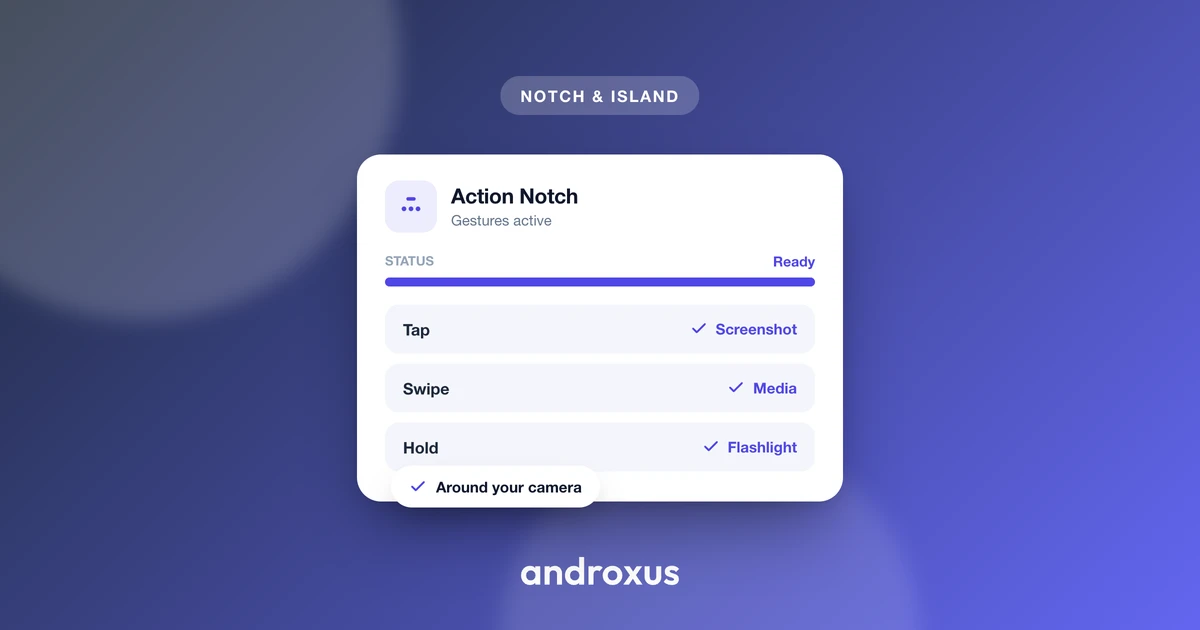
The area around your phone's notch or punch-hole camera is usually just dead space, part of the status bar that shows icons but ignores every tap. A notch shortcut turns that unused zone into a small, always-reachable button instead of leaving it idle.
Quick answer: A notch shortcut is a software overlay, placed around your phone's camera cutout using Android's Accessibility Service, that turns tap, double-tap, long-press, and swipe gestures on that spot into instant actions like flashlight, screenshot, or camera launch. It does not modify the display hardware or create a real Dynamic Island, it just adds a tappable zone around the existing cutout. Apps such as Action Notch set this up without requiring root access, since the overlay uses the same permission category as Android's built-in accessibility tools.
What you'll learn
- Why the notch and punch-hole area became worth reclaiming in the first place
- How Android technically lets an app draw a button around your cutout
- Which gestures and actions make sense for a notch shortcut bar
- What this approach can and can't honestly do, compared to Apple's Dynamic Island
- Step-by-step setup, from checking compatibility to mapping your first gestures
Why the notch and punch-hole became worth reclaiming
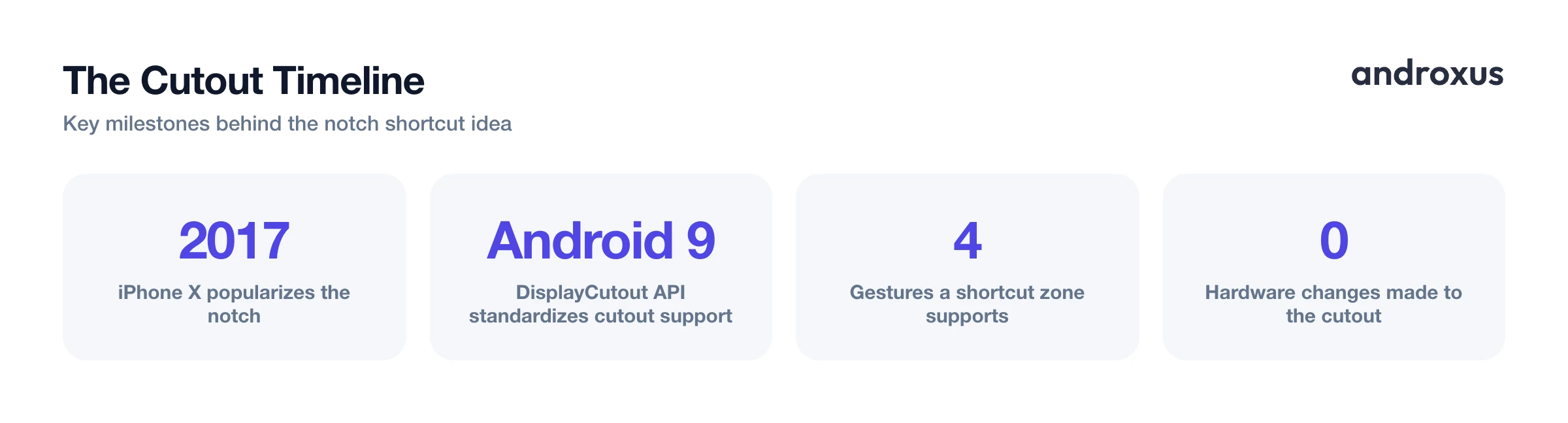
The display cutout, whether it's a wide notch, a teardrop, or a punch-hole, exists to house the front camera and sensors while keeping as much of the screen visible as possible. Apple's iPhone X popularized the notch in 2017, and Android manufacturers followed with their own versions shortly after.
Android formalized platform-level support for this in Android 9 (Pie) through the DisplayCutout API and the layoutInDisplayCutoutMode window attribute. That gave apps a reliable way to query the exact location and shape of the cutout instead of guessing where it sat on each device.
By the early 2020s, the industry had mostly moved from wide notches to smaller teardrop notches and then to punch-hole cameras, which is now the standard front-camera design on most Android flagships and mid-range phones. Through all of these shapes, the space immediately around the cutout stayed functionally empty: part of the status bar, visible but untouchable. That made it a natural candidate for a shortcut zone once the tooling caught up.
How Android actually lets an app use that space
It helps to be precise about what's actually happening under the hood, since "notch shortcut" can sound like it implies more than it does. Apps cannot physically alter the notch or punch-hole; it's a cutout in the display panel itself, so any shortcut functionality is software drawn around it, not a change to the screen.
The common technique is an Accessibility Service overlay using the TYPE_ACCESSIBILITY_OVERLAY window type. This lets a service draw a view above other apps without requiring the separate "draw over other apps" (SYSTEM_ALERT_WINDOW) permission that many other overlay-based apps rely on.
Because Accessibility Service is a sensitive permission category, Google Play requires apps that use it for non-disability purposes to clearly disclose why, in-app, before the user ever reaches the system's accessibility toggle. That disclosure requirement exists because the API is powerful and has historically been abused by malware, so it's worth reading what an app actually says it does with the permission before granting it.
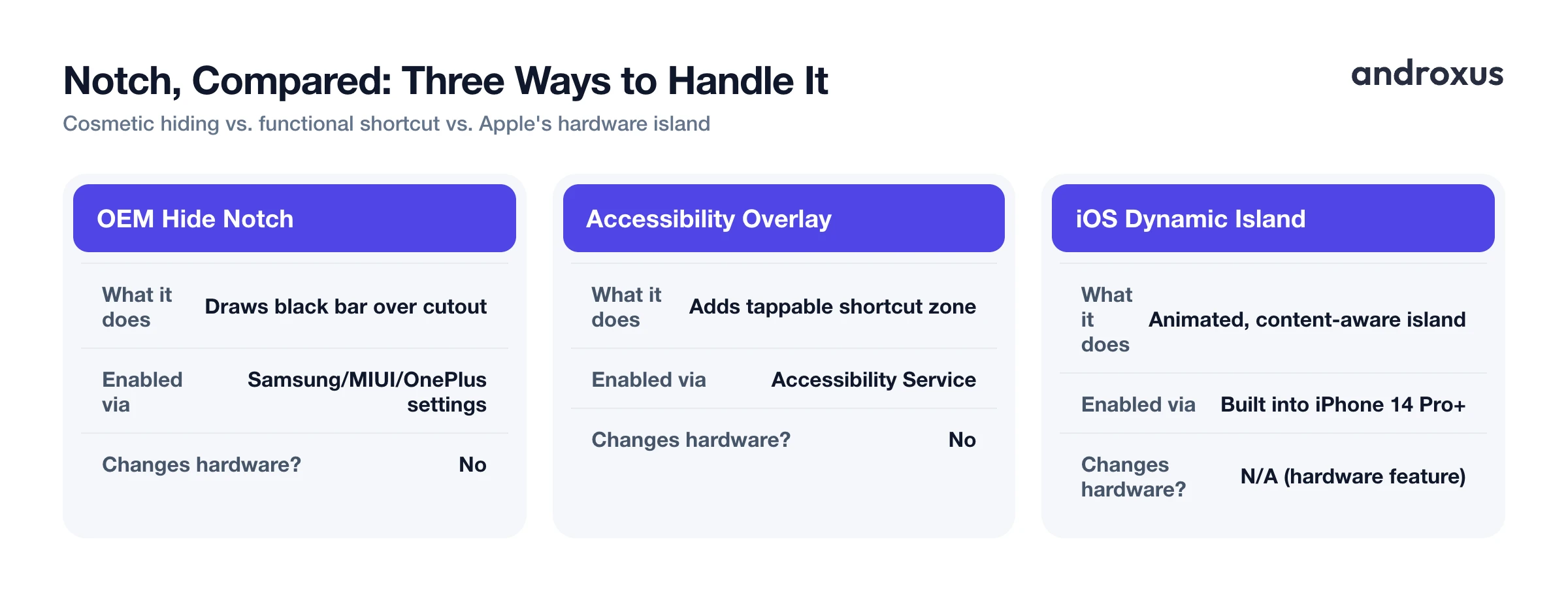
Separately, some manufacturers, including Samsung, Xiaomi (MIUI), and OnePlus, offer a native "hide notch" or display cutout setting that draws a black bar over the cutout so it blends into the status bar on AMOLED screens. That's a cosmetic feature, distinct from a shortcut overlay, and the two aren't mutually exclusive: one hides the cutout visually, the other adds a tap zone around it.
Turning the cutout into a shortcut bar: gestures and actions
A shortcut overlay typically recognizes a small set of distinct gestures on the cutout zone: tap, double-tap, long-press, and swipe, each mappable to a different action. Because the zone sits at the very top of the screen, it's reachable one-handed on most phone sizes without pulling down the notification shade or hunting for a physical button.
Useful actions for a zone like this tend to be things you want with zero navigation:
- Flashlight toggle
- Screenshot
- Screen off
- Scroll to top
- Launching the camera (front or back recording)
- Opening a favorite app or your speed dial
- Recent apps
- DND toggle
- Rotation lock
- Brightness or ringer mode
- Music playback controls
- QR or barcode scan
This is conceptually similar in spirit to iOS's Dynamic Island, the interactive cutout area on iPhone 14 Pro and later, or to Android's own AssistiveTouch-style floating buttons. The difference is that a notch shortcut is a fixed shortcut zone tied to preset actions, rather than an animated, content-aware island that changes shape based on what's running.
What this approach honestly can and can't do
It's worth being direct about the boundaries here, since it's easy to conflate "shortcut around the notch" with "the notch itself changed."
A notch shortcut does not modify the physical screen, notch, or punch-hole hardware in any way. The cutout stays exactly as manufactured. It also does not create a real Dynamic Island that visually morphs or expands the way Apple's implementation does; it's a fixed, invisible touch zone that triggers preset actions when you interact with it.
A well-built shortcut app should state plainly what data, if any, its accessibility service collects. A service confined to positioning an overlay and reading gestures on that overlay has no inherent need to log unrelated content, and apps that are transparent about this are generally the safer choice. Action Notch, for example, uses the Accessibility Service only to place and operate its overlay button around the cutout and does not collect data through that service.
Ways to handle the notch or punch-hole on Android
Not every approach to the cutout is the same thing. Here's how the main options compare:
| Approach | What it does | How it's enabled | Changes the hardware? |
|---|---|---|---|
| Native "hide notch" OEM setting | Draws a black bar over the cutout so it blends into the status bar | Found in Samsung, MIUI, OnePlus display settings | No |
| Developer options "Simulate display cutout" | A testing tool for developers to preview cutout behavior in apps | Settings > Developer Options > Display cutout | No |
| Accessibility-based shortcut overlay (e.g. Action Notch) | Adds a tappable shortcut zone around the cutout responding to tap, double-tap, long-press, swipe | Enabled via Accessibility Service | No |
| iOS Dynamic Island | Animated, content-aware interactive cutout area | Built into iPhone 14 Pro and later hardware and iOS | Not applicable to Android, this is a hardware and software design difference |
How to turn your notch into a notch shortcut bar
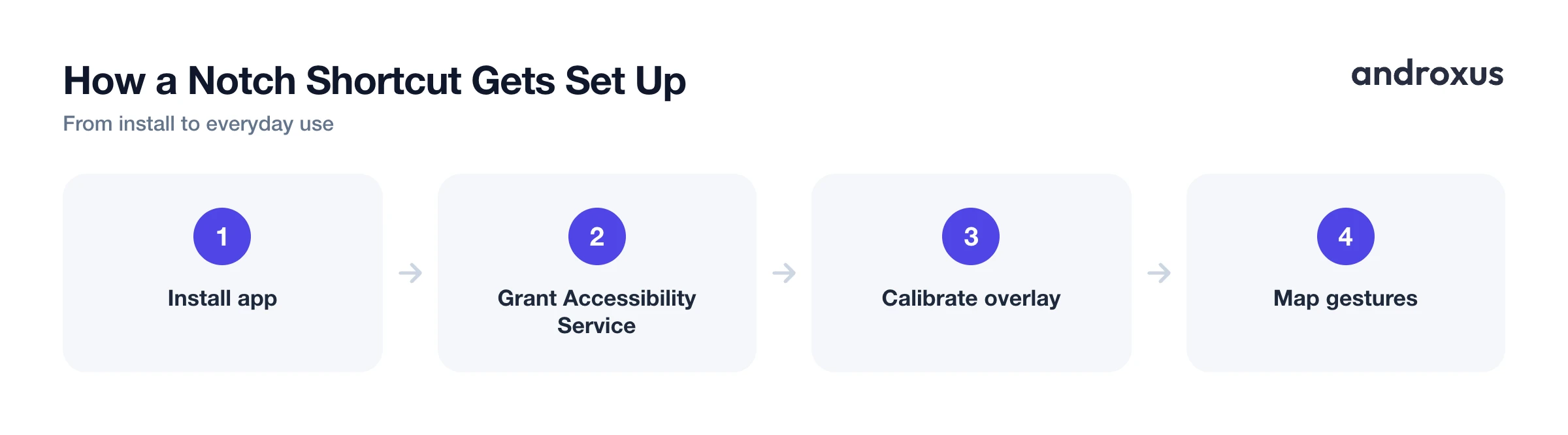
- Confirm your phone qualifies. Check that your phone has a notch, teardrop cutout, or punch-hole camera and is running a reasonably current version of Android. Display cutout support has been a standard Android platform feature since Android 9 (Pie), so almost any phone from the last several years qualifies.
- Install a notch-shortcut app. Install an app built for this purpose, such as Action Notch, from the Play Store. These apps place an invisible, tappable overlay zone around the cutout instead of trying to modify the display itself.
- Grant the Accessibility Service permission. Open Settings, then Accessibility, find the app, and turn its service on. This is the permission that lets the app draw the overlay button precisely around the cutout and detect taps there, without needing root access.
- Calibrate the overlay to your cutout. Select your device model or fine-tune the size and position of the overlay so it lines up with your specific notch or punch-hole shape. Getting this right avoids accidental taps and makes the zone easy to hit by feel.
- Map gestures to actions. Assign a distinct action to each gesture the app supports, typically tap, double-tap, long-press, and swipe. Common choices are flashlight or screenshot on tap, camera or DND on double-tap, and app shortcuts or scroll-to-top on swipe.
- Test in real use and adjust. Use your phone normally for a day and adjust any gesture that feels awkward or triggers by accident, for example moving less-used actions to long-press and reserving tap for whatever you reach for most.
Key takeaways
- A notch shortcut is a software overlay drawn around the cutout with Android's Accessibility Service, not a hardware or display change.
- It does not create a real Dynamic Island, Apple's version is a hardware and software feature exclusive to iPhone 14 Pro and later.
- Display cutout support has been standard since Android 9 (Pie), so most phones from the last several years can use this kind of shortcut zone.
- Calibrating the overlay to your exact cutout shape and choosing distinct gestures for tap, double-tap, long-press, and swipe makes the button reliable rather than accidental.
- Hiding the notch with an OEM setting and adding a shortcut overlay are separate features that can coexist, since one is cosmetic and the other is functional.
Frequently asked questions
Do I need to root my phone to turn the notch or punch-hole into a shortcut area?
No. Apps that do this use Android's Accessibility Service to draw an overlay button, which works on stock, unrooted phones. You just grant the accessibility permission in Settings, the same permission category used by screen readers and other assistive tools.
Will this turn my notch into a real Dynamic Island like the iPhone?
No. Apple's Dynamic Island is a hardware and software feature built into iOS on iPhone 14 Pro and later, where the cutout itself visually expands. On Android, a shortcut overlay places a tappable button around the existing cutout, it does not resize, animate, or physically alter the cutout, it just gives you a fast-access zone there.
Does turning the cutout into a shortcut area require the SYSTEM_ALERT_WINDOW draw over other apps permission?
Not necessarily. Accessibility services can create overlays using the TYPE_ACCESSIBILITY_OVERLAY window type, which is granted through the accessibility permission itself rather than a separate draw over other apps toggle. Always check what an app actually requests before granting it.
Is it safe to grant Accessibility Service permission to a notch-shortcut app?
Accessibility Service is a powerful permission, so it's worth being selective. Google Play requires apps using it for non-disability purposes to clearly disclose why, and reputable shortcut apps limit themselves to placing the overlay button and reading your tap gestures, nothing more. Look for an app that states plainly it does not collect the data the service can technically access.
Does this work on any Android phone with a notch or punch-hole camera?
It works on the vast majority of modern Android phones, since the display cutout has been a standard, documented part of Android since Android 9 (Pie). The exact overlay position is calibrated to your specific cutout shape and size, so setup usually involves picking your device or adjusting the button manually.
Can I hide the notch entirely instead of using it as a shortcut?
Yes, that's a separate, native option on many phones. Samsung, Xiaomi (MIUI), OnePlus, and others include a display cutout setting that draws a black bar over the cutout so it blends into the status bar on AMOLED screens. That's a different feature from a shortcut overlay, and the two can technically coexist since one hides the cutout visually and the other adds a tap zone around it.
