How to Customize Camera Cutout on Android
That little punch hole or notch at the top of your screen is easy to stop noticing, until you want your phone to look a bit more polished, or you start wondering if that dead space could actually do something. The good news is there are several real ways to customize camera cutout style on Android, and none of them require root access.
Quick answer: You can't remove the physical camera cutout on Android, since it's a hole cut into the display for the front camera sensor, but you can change how it looks and behaves. Samsung and Xiaomi phones have a built-in setting to draw a black bar over it, any phone can use a wallpaper designed to blend into it, Developer options lets you preview alternate cutout shapes, and shortcut apps like Action Notch can turn the area around it into a tappable button instead of hiding it.
What you'll learn
- Why the cutout is physically permanent and what "hiding" it actually means
- How to use the built-in hide-notch settings on Samsung and Xiaomi phones
- How to preview different cutout styles using Developer options
- How a matched wallpaper can make the cutout blend in on any phone
- How to turn the cutout into a shortcut button instead of hiding it
Why You Can't Actually Remove the Camera Cutout
The cutout, whether it's a wider notch or a small punch hole, houses the physical front camera sensor that's embedded directly in the display panel. No software setting can move it, shrink it, or eliminate it, because it's a hole in the hardware, not a graphic drawn on top of the screen.
Punch hole cutouts became the dominant front camera design on Android flagships starting around 2019, largely replacing the wider notch that Android phones had adopted in 2017 and 2018. Every method described in this guide as "hiding" or "customizing" the cutout works by changing how software renders content around it: drawing a black bar, adding matched artwork, or adding a touch shortcut. None of them touch the screen itself.
A small number of niche devices use under-display camera technology that hides the sensor beneath the panel entirely. That's a hardware approach built into the phone at the factory, not something any app or setting can add after the fact.
Hide the Cutout with Manufacturer Settings (Samsung, Xiaomi, and Others)
If your phone runs a manufacturer skin rather than near-stock Android, there's a decent chance it has a built-in option to visually mask the cutout.
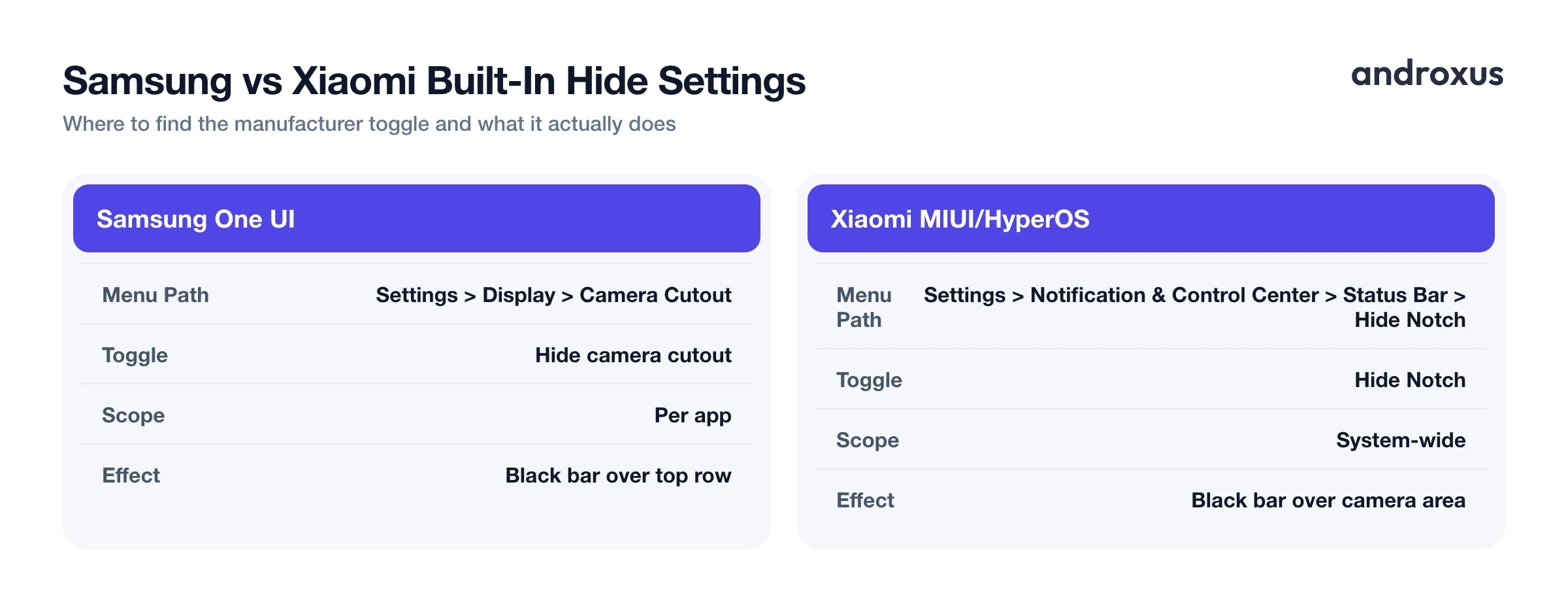
On Samsung One UI, go to Settings > Display > Camera Cutout. On older One UI versions, the same control lives under Settings > Display > Full screen apps > Aspect ratio tab instead. Either way, you can choose, per app, whether to show or hide the cutout, and Hide draws a black bar across the top row so the punch hole blends into the bezel for that specific app.
On Xiaomi MIUI or HyperOS, go to Settings > Notification & Control Center > Status Bar > Hide Notch. On older MIUI versions, the same toggle lives under Settings > Display > Notch & status bar. Turning it on overlays a black bar over the camera area.
Other skins, including ColorOS on OPPO phones and some OnePlus builds, offer similar hide notch toggles, but the exact menu path and availability vary by device model and software version. It's worth searching your phone's settings for "notch" or "cutout" if you don't see these exact paths.
These settings only visually mask the cutout with a matching black strip; they don't shrink, move, or cover the physical camera hole. This kind of built-in hide toggle is generally not available on stock Android or Pixel phones through normal Settings.
Preview Cutout Styles with Developer Options (Any Android Device)
Every Android phone has a hidden Developer options menu that includes a tool for simulating different cutout treatments, though it's built for testing rather than everyday styling.
To enable it, go to Settings > About phone and tap Build number seven times, then open Settings > System > Developer options. Under the Drawing section, look for Simulate a display with a cutout. It lets you preview several treatments: Hide, Corner cutout, Double cutout, and Tall cutout.
This is primarily a tool meant to help developers see how apps render around different cutout shapes, not a polished cosmetic feature, and it can cause layout glitches in some apps. Availability and exact wording vary by Android version and manufacturer. Treat it as a way to experiment and preview, not as a setting you leave changed permanently.
Dress It Up: Wallpapers Designed Around the Cutout
Punch hole wallpapers are images created so a design element, a dark shape, an eye, a planet, a logo, lines up precisely with the cutout's position, making it look intentional rather than incidental.
Because these are just standard wallpapers, they work on any Android phone regardless of manufacturer or Android version, with no special permission or setting required. The one thing that matters is alignment: the wallpaper needs to be sized and positioned for your specific phone model and cutout location, whether it's centered or in a corner, or the design element won't land over the camera correctly.
As of 2026, some phones make this easier with on-device AI editing tools, Xiaomi's HyperOS Gallery, for example, can combine a screenshot of your home screen with an AI image generator to produce a wallpaper aligned to your exact cutout, in addition to the long-standing libraries of pre-made punch hole wallpapers available online.
Turn the Cutout Into a Shortcut Instead of Hiding It
Rather than masking the cutout, some Android utilities repurpose the space around it as a touch target for quick actions, conceptually similar to the iPhone's Dynamic Island or Assistive Touch but implemented entirely in software.
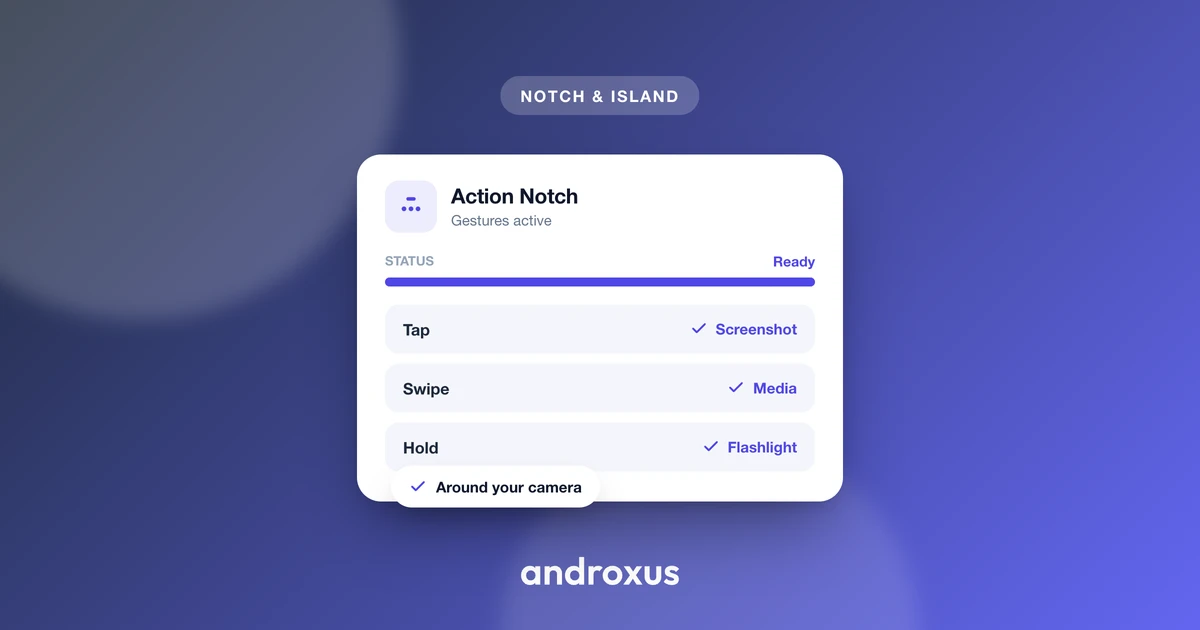
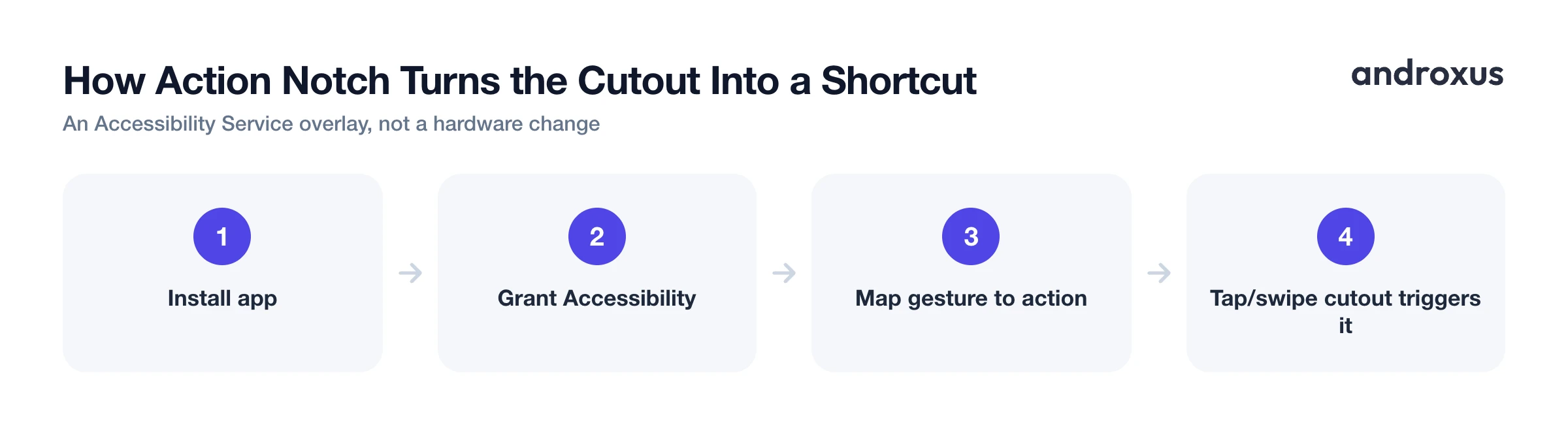
Action Notch is one such app. It uses Android's Accessibility Service to place an invisible overlay button around the camera cutout that responds to tap, double-tap, long-press, and swipe. Actions that can be mapped include things like flashlight toggle, screenshot, screen off, recording the front or back camera, launching the camera or a favorite app, rotation lock, DND, QR and barcode scanning, and music controls.
This approach doesn't modify the physical screen, doesn't add a real Dynamic Island, and doesn't change the hardware in any way. It only adds a software touch shortcut zone layered over the existing cutout, and the accessibility service doesn't collect data.
Camera Cutout Customization Methods at a Glance
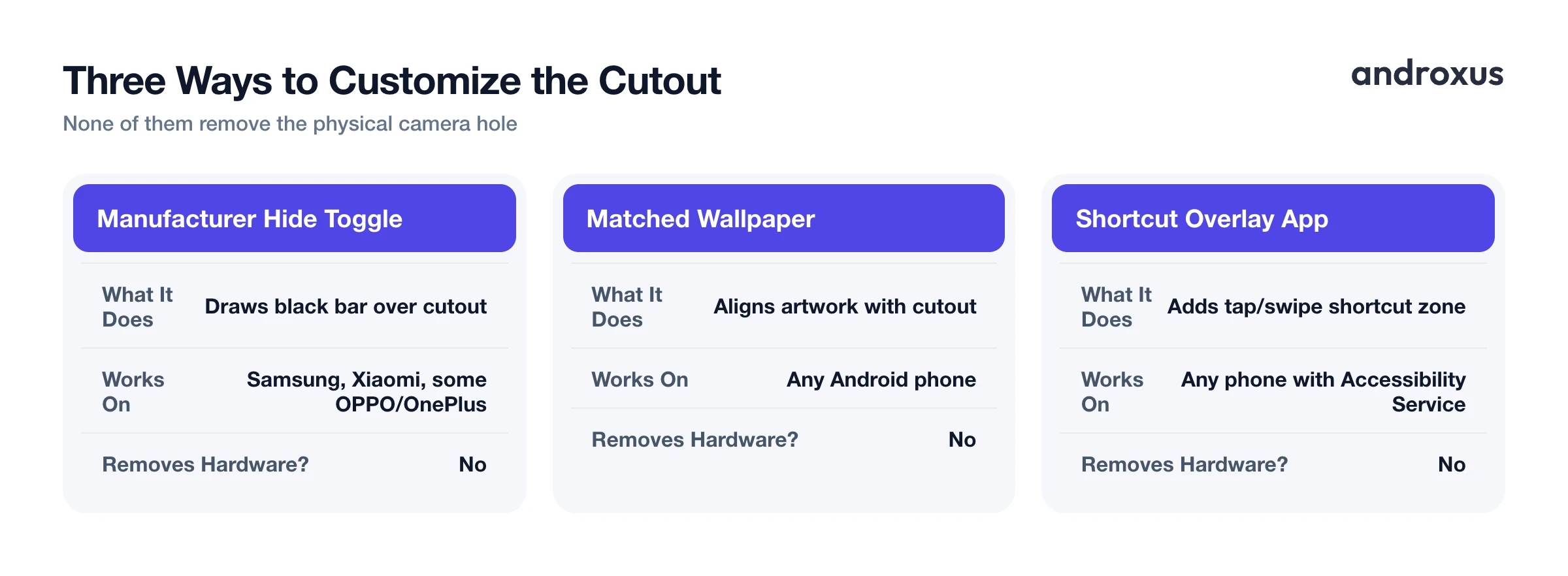
| Method | Where to Find It | What It Actually Does | Works On | Removes the Hardware Cutout? |
|---|---|---|---|---|
| Manufacturer hide toggle | Settings > Display (path varies) | Draws a black bar over the cutout row | Samsung, Xiaomi, some OPPO/OnePlus | No |
| Developer options cutout simulator | Settings > System > Developer options > Drawing | Simulates alternate cutout shapes for testing | Most Android devices | No |
| Matched wallpaper | Wallpaper or gallery app | Aligns artwork with the cutout position | Any Android phone | No |
| Shortcut overlay app (e.g., Action Notch) | Play Store install + Accessibility Service | Adds an invisible tap/swipe shortcut zone around the cutout | Any Android phone with Accessibility Service support | No |
Choosing the Right Approach for You
If the goal is simply making the cutout less visually distracting, the manufacturer's built-in hide toggle, where available, is the most integrated option since it requires no extra app.
If your phone doesn't offer a hide toggle, such as a Pixel or other near-stock Android phone, a wallpaper matched to your model is the most universally compatible cosmetic fix.
If you're curious how your phone would look or behave with a different cutout shape, the Developer options Display cutout simulator is the tool built for that kind of testing, not for permanent daily styling.
If you'd rather make the cutout useful than invisible, a shortcut overlay utility like Action Notch turns that dead space into a functional button without touching display or developer settings at all.
How to Customize the Camera Cutout on Your Android Phone
- Check your phone's software skin. Identify whether you're on Samsung One UI, Xiaomi MIUI/HyperOS, another manufacturer skin, or near-stock Android, since built-in hide options only appear on select skins and the menu path differs between them.
- Try the built-in hide option on Samsung. Go to Settings > Display > Camera Cutout (on older One UI versions, this lives under Full screen apps > Aspect ratio tab instead), select an app, and choose Hide camera cutout to draw a black bar across the top for that app.
- Try the built-in hide option on Xiaomi MIUI/HyperOS. Go to Settings > Notification & Control Center > Status Bar > Hide Notch (or Settings > Display > Notch & status bar on older MIUI) and toggle it on to overlay a black bar across the camera area.
- Preview cutout styles in Developer options. Enable Developer options by tapping Build number seven times under Settings > About phone, then go to Settings > System > Developer options > Drawing > Simulate a display with a cutout and select Hide, Corner cutout, Double cutout, or Tall cutout to test how it looks, keeping in mind this is a testing tool, not a permanent setting.
- Dress it up with a matched wallpaper. Search for a punch hole wallpaper made for your exact phone model so a design element lines up with the cutout, then apply it through Settings > Wallpaper (or your gallery app's wallpaper option).
- Put the cutout to use instead of hiding it. Install a cutout shortcut utility such as Action Notch, grant the Accessibility Service permission it requests, and map actions like flashlight, screenshot, or camera recording to tap, double-tap, long-press, and swipe gestures around the cutout.
Key takeaways
- The camera cutout is a physical hole in the display for the front camera sensor, so no setting or app can truly remove it, only change what's rendered around it.
- Samsung and Xiaomi phones offer built-in settings to draw a black bar over the cutout, but stock Android and Pixel phones generally don't have this option.
- Developer options includes a Display cutout simulator for previewing alternate shapes, but it's a testing tool, not a permanent everyday setting.
- A wallpaper matched to your exact phone model works on any Android device and needs no special permission.
- Shortcut apps like Action Notch skip hiding the cutout entirely and instead turn the area around it into a tappable, swipeable button for quick actions.
Frequently asked questions
Can I permanently remove the camera cutout on my Android phone?
No. The cutout is a physical opening in the display for the front camera sensor, so no app or setting can eliminate it. Every method covered here only changes how the screen renders around it, by masking it with a black bar, aligning artwork over it, or adding a touch shortcut.
Does hiding the camera cutout turn off the front camera?
No. Hiding the cutout only affects how the top strip of the display is drawn in the background; it doesn't disable or cover the camera lens itself, so the front camera still works normally in camera apps, video calls, and Face Unlock.
Will hiding the cutout reduce my usable screen space?
Slightly. Manufacturer hide options work by darkening the entire top row across the cutout, which effectively shortens that app's visible display area by a thin strip, similar to a slightly thicker top bezel.
Does every Android phone have a setting to hide the cutout?
No. It depends on the manufacturer's software skin. Samsung One UI and Xiaomi MIUI/HyperOS include built-in hide options, but stock Android and Pixel phones generally do not offer a consumer-facing hide toggle outside of the experimental Developer options simulator.
What's the difference between the manufacturer's hide setting and the Developer options cutout simulator?
The manufacturer hide setting is a polished, everyday feature meant to visually mask the cutout during normal use. The Developer options 'Simulate a display with a cutout' menu is a testing tool that simulates different cutout shapes so developers can check how apps render around them, and it can cause layout issues in some apps.
Can I turn the camera cutout into a useful shortcut instead of hiding it?
Yes. Apps like Action Notch use Android's Accessibility Service to place an invisible overlay button around the cutout that responds to tap, double-tap, long-press, and swipe for actions like flashlight, screenshot, or camera recording. This adds a software shortcut zone only; it does not change the physical screen or the cutout itself.
