How to Add Media Controls Notch Shortcuts on Android
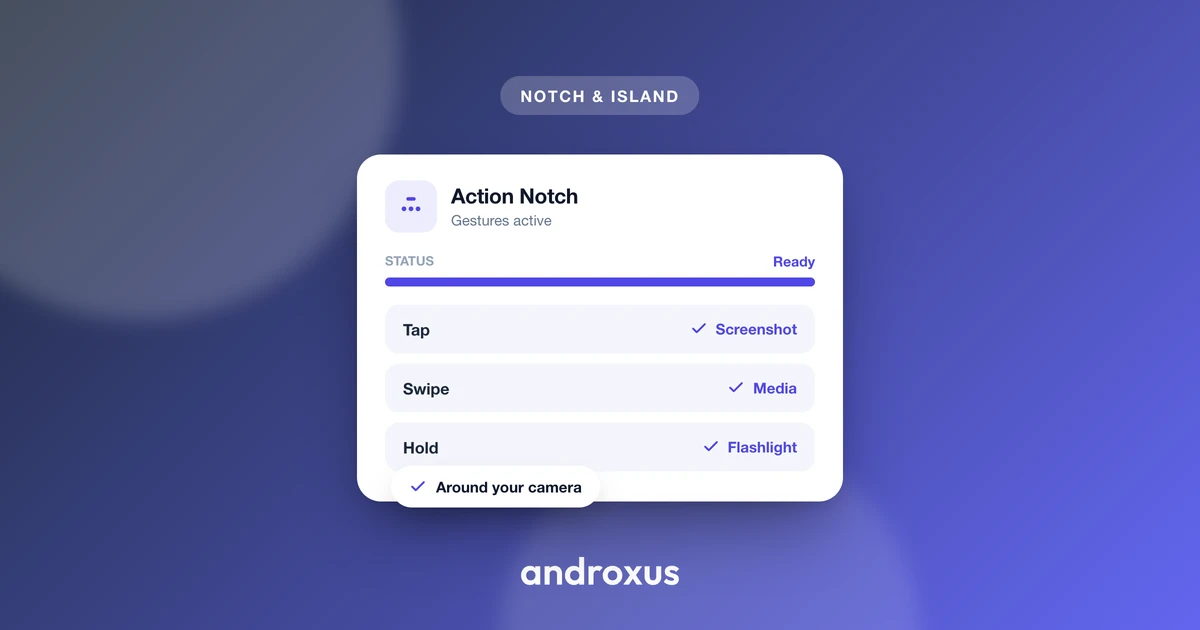
Reaching for music controls on Android usually means swiping down the notification shade, hunting for the media widget, or unlocking the phone just to hit pause. It is a small tax you pay dozens of times a day, and it adds up while you are reading, browsing, or gaming with headphones in.
Quick answer: You can add media controls notch shortcuts on Android with an accessibility-based overlay tool like Action Notch, which turns the camera cutout into a touch zone that responds to tap, double-tap, long-press, and swipe. After granting the Accessibility Service permission, assign play/pause and skip actions to your preferred gestures, and playback responds from inside any app without opening the notification shade, as long as the screen is already on and unlocked. It works with any app using Android's standard media session framework.
What you'll learn
- What music controls Android already gives you natively, and their limits
- Why reaching those controls still takes extra steps most of the time
- How a notch overlay shortcut adds a faster path to play, pause, and skip
- What permissions this kind of shortcut actually needs, and what it does not do
- How to set up and troubleshoot music controls on your notch
Why reaching for music controls is more friction than it should be
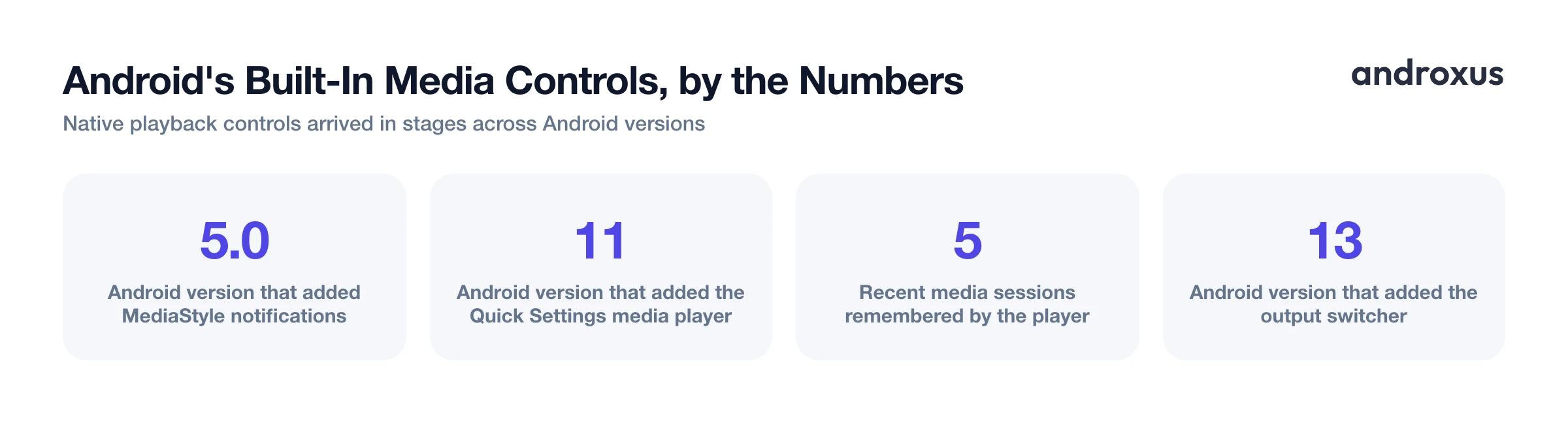
Android has offered on-screen media controls for a long time, but getting to them is rarely a single motion. From inside another app, playing or pausing usually means one of a few things: swiping down once or twice to reach the notification shade, unlocking the phone if the lock screen is hiding notification content, or switching to the music app directly. Android 11 consolidated playback into a dedicated Quick Settings and notification shade widget that remembers up to five recent sessions, which helps, but it still requires opening the shade first.
The friction shows up most when you are already doing something else, reading an article, scrolling social media, or playing a game, and just want to skip a track without breaking stride. That is the specific gap a notch shortcut is built to close.
The music controls Android already gives you
Android's native media controls are more capable than many people realize, they are just spread across a few different surfaces.
Since Android 5.0, there is no separate lock-screen transport widget baked into the OS. Instead, apps post a MediaStyle notification, and that notification is what shows play, pause, and skip buttons on the lock screen. Android 11 added a persistent media player section that sits between Quick Settings and your notifications, reachable with one swipe down for the mini view or two for an expanded view with a scrubber. Android 13 enlarged that widget further and added an output switcher for casting to other devices.
Two settings control what you actually see. On Pixel phones, Settings > Sound & vibration > Media has a toggle for showing the media player on the lock screen. Separately, the lock screen privacy setting (Settings > Display > Lock screen > Privacy, wording varies by manufacturer) decides whether notification content, including that media player, is visible before you unlock. If privacy is set to hide sensitive content, the media player will not show at all until you enter your PIN or pattern.
Wired headsets and Bluetooth devices add another native path. Bluetooth accessories send button presses as AVRCP commands, while wired headsets send them as electrical signals through the headphone jack; either way, Android translates the signal into a standard media-button key event without any app installed, which is why headphone buttons already control playback today.
Where built-in controls fall short
The native tools work, but they were not designed for speed. A few practical gaps show up in daily use:
- Reaching Quick Settings or the lock screen still takes a swipe, sometimes two, plus a moment of visually locating the right button.
- If lock screen privacy is set to hide content, the media player will not appear until the phone is unlocked, adding a step.
- None of the native surfaces offer a single, fixed, always-in-the-same-place gesture you can trigger from inside another app without looking away from what you are doing.
How a notch shortcut adds a faster path
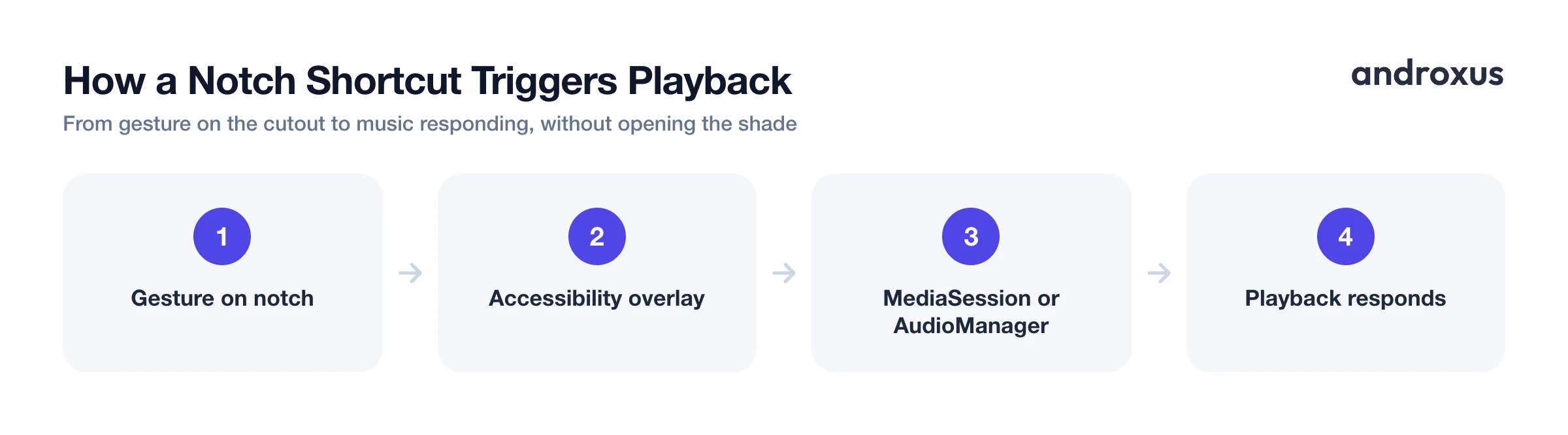
This is where a dedicated notch shortcut tool changes the equation. Action Notch uses Android's Accessibility Service to draw an invisible, touch-responsive overlay around the camera cutout. Because that overlay sits above whatever app is currently open, a tap, double-tap, long-press, or swipe directly on the notch can trigger play/pause or skip without leaving the app you are in or pulling down the shade at all.
It is worth being precise about what this is and is not. This is a shortcut and overlay layer, not a hardware or display change. It does not add a persistent visual capsule like Apple's Dynamic Island, and it does not modify the physical notch or camera cutout in any way. The accessibility service that powers the overlay does not collect data.
Under the hood, apps that add this kind of control generally take one of two approaches: reading and issuing commands to the phone's active MediaSession (which needs Notification Access, granted at Settings > Apps > Special app access > Notification access), or simulating a hardware media-button press through AudioManager, the same signal wired and Bluetooth buttons already send. Either way, because it targets the standard MediaSession and PlaybackState framework, it works with essentially any mainstream music, podcast, or video app, the same framework that already powers lock-screen and Bluetooth controls.
Ways to control music on Android compared
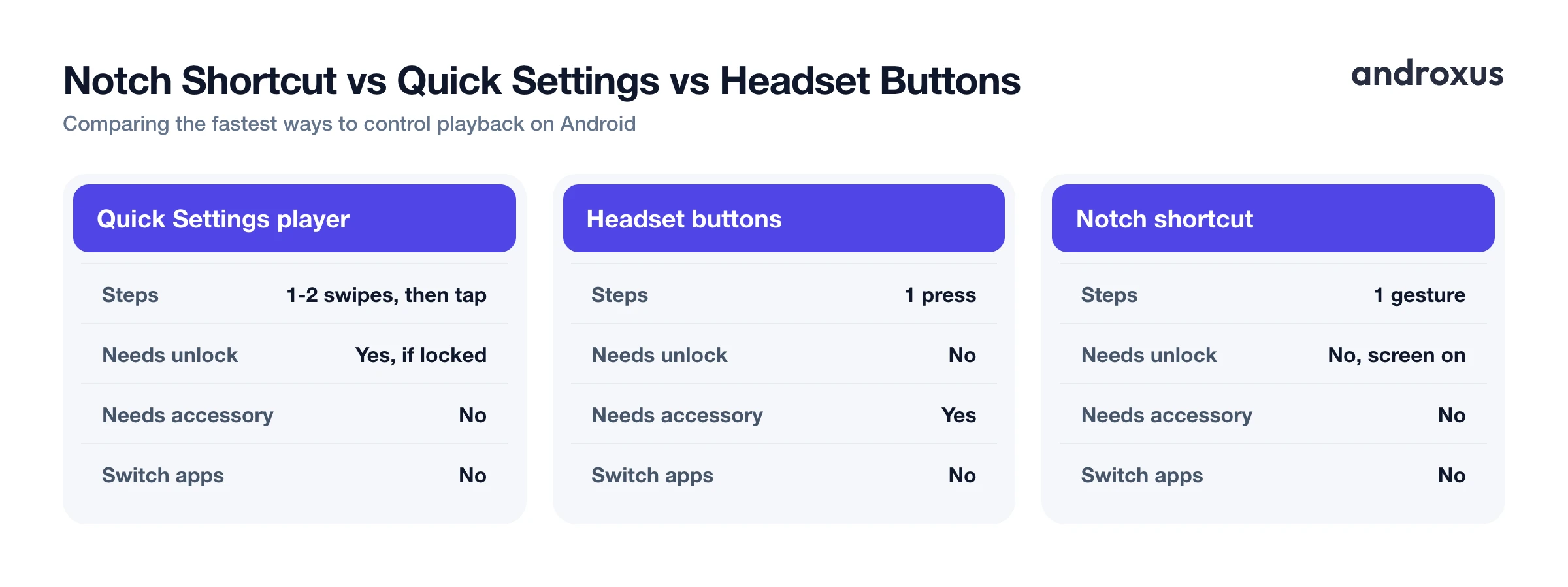
The table below lines up the common ways to control playback on Android, so you can see where a notch shortcut actually saves steps and where it does not change anything.
| Method | Where it lives | Steps to trigger play/pause | Requires unlocking? | Requires switching apps? |
|---|---|---|---|---|
| Lock screen media notification | Lock screen | 1 tap, if visible | Depends on privacy setting | No |
| Quick Settings media player | Notification shade | 1 to 2 swipes, then tap | Yes, if locked | No |
| Wired or Bluetooth headset buttons | Physical device | 1 press | No | No |
| Voice assistant | Anywhere, via wake word | 1 voice command | No | No |
| Notch shortcut (Action Notch) | Overlay on cutout | 1 gesture (tap, double-tap, long-press, or swipe) | No, screen must be on and unlocked | No |
The notch shortcut and headset buttons both avoid switching apps, but the notch shortcut has the advantage of not needing an accessory plugged in or paired. It still requires the screen to be on and unlocked, the same baseline as headset buttons mid-session, since the overlay lives above the app layer, not the lock screen.
How to add music controls to your phone's notch
- Enable the accessibility permission. Open Action Notch and grant the Accessibility Service permission when prompted (Settings > Accessibility > Action Notch > On). This is what lets the app draw the invisible shortcut zone around the camera cutout; without it the overlay button cannot appear.
- Open gesture assignment settings. In the app, go to the gesture mapping screen where tap, double-tap, long-press, and swipe can each be set to a different action.
- Assign a music control action to a gesture. Pick the gesture you want dedicated to playback, for example a single tap for play/pause, and set it to the music controls option. If separate skip actions are available, assign swipe left or right, or long-press, to previous and next track.
- Test playback with music running. Start any music or podcast app so a media session is actually active, then use the assigned gesture on the notch to confirm play/pause and skip respond correctly.
- Adjust sensitivity if needed. If taps are not registering reliably, revisit the overlay size or touch sensitivity settings so the shortcut zone matches the cutout on your specific device.
Key takeaways
- Android already supports media controls through lock screen notifications and the Quick Settings player, but both require swiping or unlocking first.
- A notch overlay shortcut adds a faster path by placing a touch zone directly on the camera cutout, so gestures work from inside any open app.
- This kind of shortcut is an accessibility overlay, not a hardware change. It does not add a real Dynamic Island or alter the physical notch.
- It works with any app using Android's standard MediaSession framework, covering nearly all mainstream music, podcast, and video apps.
- The screen still needs to be on and unlocked for the gesture to register, the same requirement as using headset buttons mid-session.
Frequently asked questions
Can Android already control music from the lock screen without a third-party app?
Yes. Since Android 5.0, media apps show play/pause/skip buttons on a MediaStyle notification that can appear on the lock screen, and Android 11 added a dedicated media player in the notification shade and Quick Settings. Whether it shows without unlocking depends on two settings: the lock screen privacy option (Settings > Display > Lock screen > Privacy, or similar OEM path) and, on Pixel, Settings > Sound & vibration > Media > "Show media player on lock screen."
Does a notch shortcut for music controls require unlocking the phone first?
A notch overlay button like Action Notch's is an Accessibility Service overlay that draws on top of apps while the screen is on and unlocked, so it works from inside any app without switching to the music app or pulling down the notification shade. It is not a lock-screen replacement for the phone's own secure lock screen; Android's native lock-screen media notification is still what appears when the phone is locked.
What permission does an app need to control music playback system-wide?
There are two common approaches. One is reading and issuing commands to the active MediaSession, which requires the user to grant Notification Access (Settings > Apps > Special app access > Notification access). The other is simulating a hardware media-button press (play/pause/next/previous) through AudioManager, the same mechanism wired and Bluetooth headset buttons use, which the currently active media app receives.
Will a notch music-control shortcut work with any music app?
It works with any app that publishes a standard Android media session, which covers essentially every mainstream music, podcast, and video app, including Spotify, YouTube Music, and Apple Music on Android, since they all rely on the same MediaSession/PlaybackState framework used for lock-screen and Bluetooth controls.
Does adding music controls to the notch drain the battery?
The overlay button itself is a lightweight, static touch zone, not a background media scanner. Accessibility Services do run continuously by design, but the button is only listening for gestures over the cutout, not doing continuous audio processing, so the added battery impact is minor and comparable to other always-on accessibility overlays.
Does this turn my phone's notch into a real Dynamic Island?
No. It adds a touch-responsive overlay zone around the existing camera cutout for shortcuts. It does not modify the display hardware, does not add a persistent visual capsule like Apple's Dynamic Island, and does not collect data through the accessibility service.
