Assistive Touch Android: How Gesture Shortcuts Work
Search for assistive touch android and you'll find a mix of Apple terminology and genuine Android features, which makes the topic more confusing than it needs to be. Android does not ship a feature literally called AssistiveTouch, but it has several native tools, plus a growing category of third-party apps, that do the same basic job: put a floating shortcut on screen so you can trigger common actions without hunting through menus.
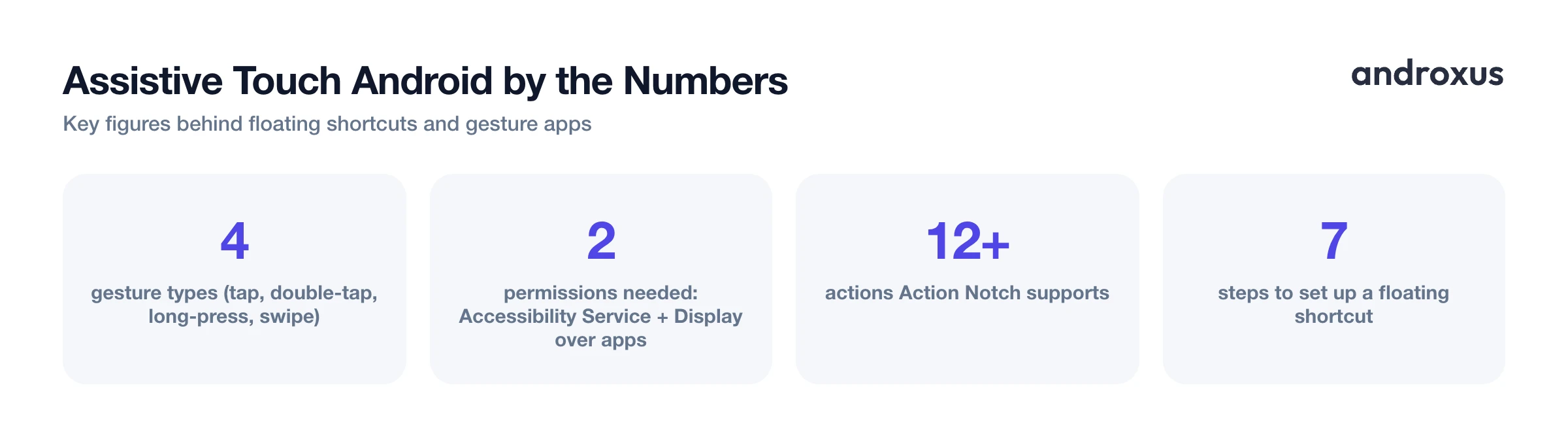
Quick answer: Assistive touch android is not a native Android feature name, it comes from Apple's iOS AssistiveTouch. Android's built-in equivalents are the Accessibility Button, the Accessibility Menu, and, on Samsung phones, the Assistant Menu, all found under Settings, Accessibility. These are mostly tap-driven with a fixed action list. Third-party apps, including notch-based shortcut tools, go further by letting you assign separate actions to tap, double-tap, long-press, and swipe.
What you'll learn
- Why the term assistive touch android shows up in searches even though Android doesn't use that name internally
- How the native Accessibility Button and Accessibility Menu work, and where to find them
- How Samsung's Assistant Menu compares to stock Android's options
- Other built-in gesture shortcuts you can combine with a floating button
- When a dedicated gesture app makes more sense than the native tools
- The exact steps to set up a floating shortcut and assign actions to it
What "assistive touch" means on Android (and why the name is borrowed)
AssistiveTouch is Apple's iOS name for a floating on-screen button that opens a menu of shortcuts, first introduced as an accessibility feature and later adopted broadly by iPhone users for quick actions. Android does not use that exact name in its own settings menus. Instead, its closest native equivalents are the Accessibility Button and the Accessibility Menu, both found under Settings, Accessibility. Samsung's version is called Assistant Menu, tucked under Settings, Accessibility, Interaction and Dexterity.
Because the underlying concept, a floating shortcut button, matches what iPhone users already know as AssistiveTouch, many third-party Play Store apps market themselves using that term or the similar phrase "floating touch," even though Android implements the mechanism differently under the hood. So when someone searches assistive touch android, they usually just want a floating shortcut button, regardless of what Android calls it internally.
Android's built-in floating touch options
Stock Android, including Pixel phones, offers two native tools worth knowing about.
The Accessibility Button can be set to float over other apps, with adjustable size and a transparency slider for when it's not in active use. You'll find it at Settings, Accessibility, Accessibility Button.
The Accessibility Menu is an on-screen panel triggered by a floating button that offers large icons for power options like lock, restart, and power off, plus volume and brightness controls, screenshots, recent apps, the notification shade, quick settings, and Google Assistant. A "Large buttons" setting inside the Accessibility Menu increases icon size and shows four actions per page, which makes it easier to tap accurately.
Both of these native tools are primarily tap-driven. They were built as accessibility aids first, so they are not designed around multi-gesture input like double-tap or swipe the way some third-party shortcut apps are.
Samsung's Assistant Menu, the closest stock equivalent to iOS AssistiveTouch
If you're on a Samsung Galaxy phone, the Assistant Menu is the built-in feature that behaves most like iOS AssistiveTouch. Enable it at Settings, Accessibility, Interaction and Dexterity, Assistant Menu.
Once turned on, the button appears as a circular icon with small squares. Tapping it opens a menu with actions like recent apps, home, lock screen, screenshot, and the notification panel. You can customize which shortcuts show up using the plus and minus icons in Menu Settings, or through Settings, Accessibility, Interaction and Dexterity, Assistant Menu, Select Assistant Menu Items. Button size can be set to small, medium, or large, transparency is adjustable, and there's a "Show as edge icon" option that docks the button as a half-circle at the edge of the screen instead of floating freely in the middle.
Gesture shortcuts beyond the floating button
A floating button isn't the only gesture-based shortcut Android supports. A few others are worth combining with whatever floating option you choose:
- Holding both volume keys together is a standard Android accessibility shortcut trigger on many devices and versions.
- Triple-tapping the screen can toggle magnification if that accessibility shortcut is assigned.
- A two-finger swipe up from the bottom of the screen is another built-in accessibility gesture shortcut on some Android versions.
- Quick Settings tiles can be customized to add one-tap toggles, such as flashlight, rotation lock, or Do Not Disturb, alongside any floating-button setup, giving you a second layer of shortcuts without installing extra apps.
When a dedicated floating touch app makes more sense
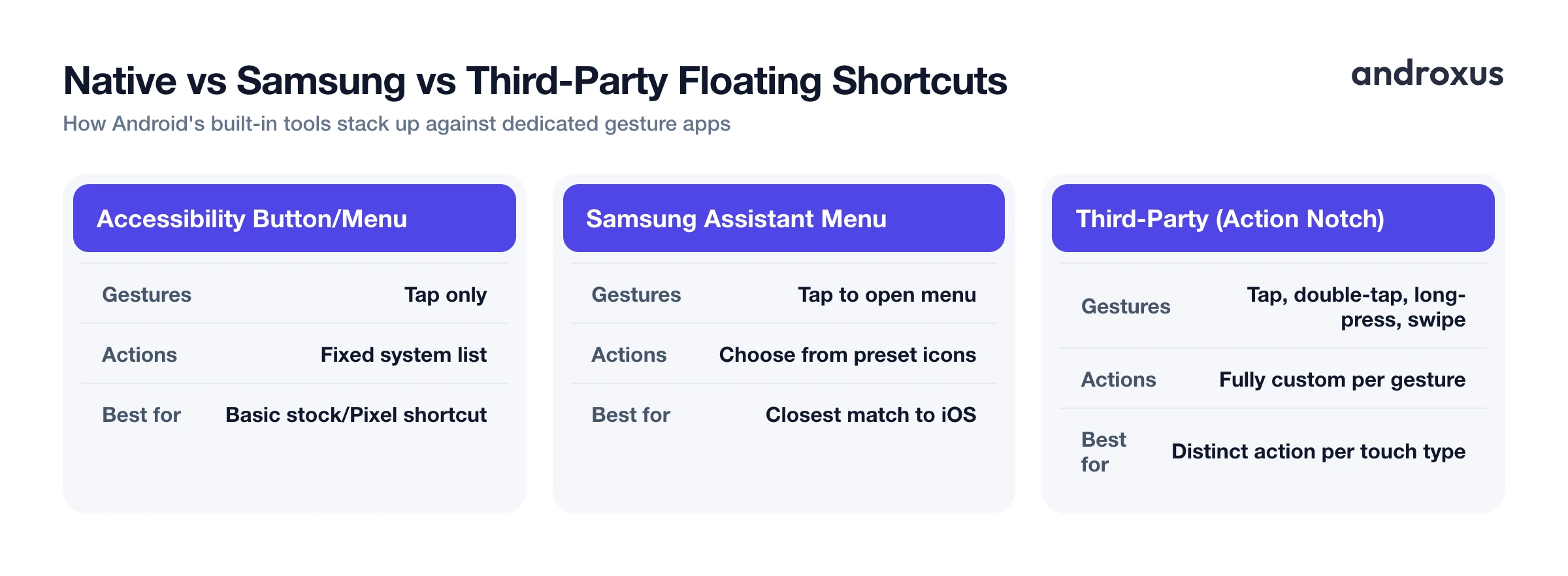
Native tools are tap-first and offer a fixed, pre-set list of actions. Dedicated third-party apps go further by letting you map distinct actions to tap, double-tap, long-press, and swipe individually, so a single shortcut area can do four or more different things depending on how you touch it.
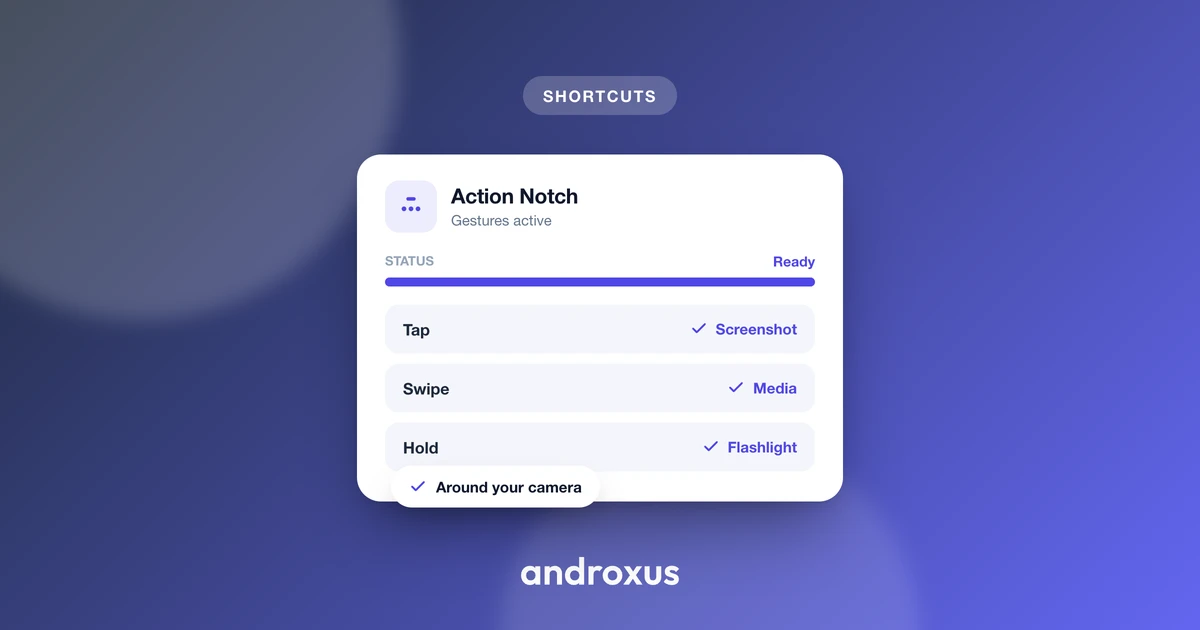
Action Notch is one example of this approach. Rather than adding a new floating circle to your screen, it repurposes the area around the phone's camera cutout as an invisible, touch-sensitive shortcut zone, drawing on both Dynamic Island's cutout-anchored design and AssistiveTouch-style gesture interactions. It supports actions such as screenshot, flashlight, screen off, power menu, scroll to top, camera launch, favorite apps, recent apps, rotation lock, Do Not Disturb, QR and barcode scanning, and music controls, each of which can be triggered by tap, double-tap, long-press, or swipe. It's worth being clear about what this kind of tool actually does: it is a shortcut and overlay tool that uses Android's Accessibility Service to detect touches around the existing cutout. It does not modify the display hardware or add a real Dynamic Island to the phone, it only creates a touch shortcut zone around the cutout that's already there, and the service does not collect data.
Android floating touch options at a glance
| Option | Where to enable it | Gesture types supported | Customizable actions | Best for |
|---|---|---|---|---|
| Accessibility Button | Settings, Accessibility, Accessibility Button | Tap only | Limited, tied to system shortcut list | Stock/Pixel-style Android users who want a basic floating shortcut |
| Accessibility Menu | Settings, Accessibility, Accessibility Menu | Tap only | Fixed panel of icons (power, volume, screenshot, recents, etc.) | Larger, easier-to-tap targets for accessibility needs |
| Samsung Assistant Menu | Settings, Accessibility, Interaction and Dexterity, Assistant Menu | Tap to open menu | Choose which shortcut icons appear from a preset list | Samsung Galaxy users who want the closest match to iOS AssistiveTouch |
| Third-party overlay apps (e.g. Action Notch) | Installed separately, permissions granted in-app | Tap, double-tap, long-press, swipe | Fully custom per-gesture action mapping | Users who want distinct actions per gesture, not just a single menu |
Permissions and reliability tips for any floating touch setup
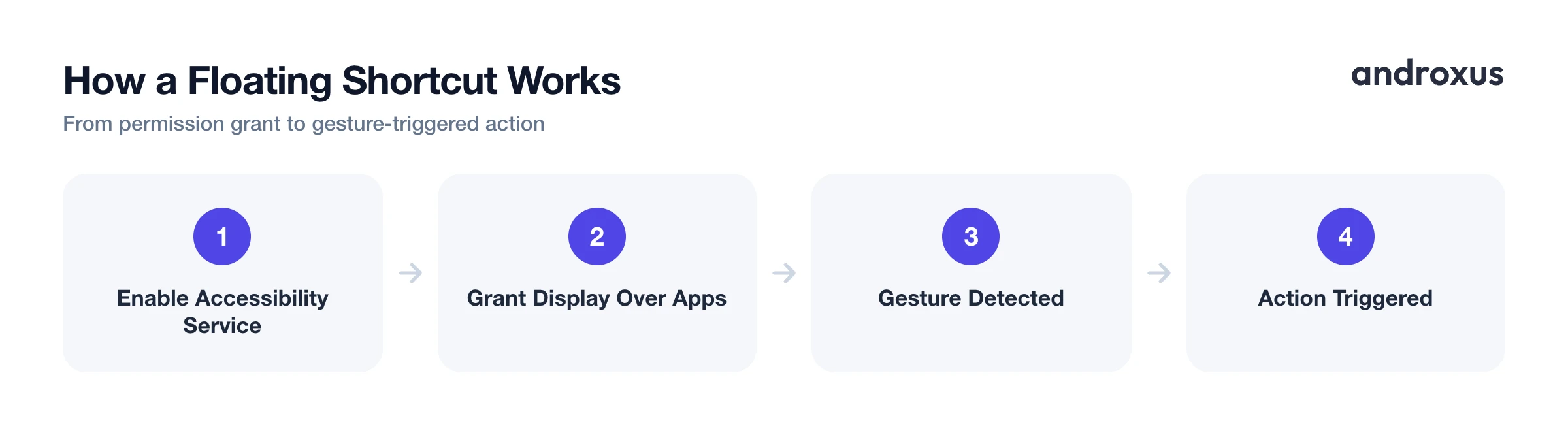
Overlay-style shortcut tools generally need two permissions to work: Accessibility Service access, so they can detect gestures, and Display over other apps, so the floating button or shortcut zone can render above whatever screen is currently open. Native tools request Accessibility Service permission through the same in-system dialog; third-party apps typically walk you through both permissions during setup.
Some manufacturers' aggressive battery managers can suspend background services after long idle periods, which can make a floating shortcut stop responding. Adding the app to your battery optimization exception list usually resolves that. It's also worth testing gestures both on the home screen and inside a couple of other apps, since some gestures can overlap with system-level navigation gestures depending on whether your phone uses 3-button or full gesture navigation.
How to set up an assistive touch style shortcut on Android
- Open Accessibility settings. Open the Settings app and tap Accessibility. This is where every native floating-control option lives, and it's also where you'll grant permission to any third-party gesture app.
- Pick a floating control to enable. On stock/Pixel-style Android, look under Interaction controls for Accessibility Button or Accessibility Menu. On Samsung, go to Interaction and Dexterity and turn on Assistant Menu.
- Turn on the toggle and grant Accessibility Service permission. Switch the feature on. Android will show a permission dialog explaining that the service can observe your actions; confirm it to let the button appear and respond to touches.
- For a dedicated app such as Action Notch, install it and grant both required permissions. Open the app, enable its Accessibility Service permission, then grant Display over other apps so the shortcut overlay can sit above whatever screen you're using.
- Assign actions to each gesture. In the app or menu's settings, map what tap, double-tap, long-press, and swipe should do, for example screenshot, flashlight, recent apps, or launching a favorite app.
- Adjust placement, size, and transparency. Reposition the button or overlay zone so it doesn't cover content you need, and tune its size and opacity so it's easy to hit without being distracting.
- Test the gestures and exclude the app from battery optimization if needed. Try each gesture from the home screen and from inside a couple of apps to confirm nothing conflicts with system gestures. If the shortcut stops responding after the screen has been off for a while, add the app to your battery optimization exceptions list.
Key takeaways
- Assistive touch android searches usually point to Android's Accessibility Button, Accessibility Menu, or, on Samsung phones, the Assistant Menu, since Android doesn't use Apple's exact feature name.
- Native tools are mostly tap-only with a fixed action list, while dedicated gesture apps let you map separate actions to tap, double-tap, long-press, and swipe.
- All of these tools rely on Android's Accessibility Service, plus the Display over other apps permission for anything that floats above other screens.
- Notch-based shortcut tools like Action Notch turn the area around the camera cutout into a touch shortcut zone without modifying the display hardware or adding a real Dynamic Island.
- If a shortcut stops responding after idle periods, excluding the app from battery optimization is usually the fix, rather than a genuine battery drain problem.
Frequently asked questions
Is AssistiveTouch actually a built-in Android feature?
No. AssistiveTouch is Apple's name for the iOS floating-button feature. Android does not use that name natively, but it has equivalents: the Accessibility Button, the Accessibility Menu, and, on Samsung Galaxy phones, the Assistant Menu. Third-party apps sometimes borrow the term assistive touch because the concept, a floating shortcut button, is the same.
Where do I find the Accessibility Button on a stock Android phone?
Go to Settings, tap Accessibility, then Accessibility Button (this can also be listed under Accessibility Menu depending on the Android version and manufacturer). From there you can turn it on, set it to float over other apps, and adjust its size and transparency.
How do I get an AssistiveTouch-style button on a Samsung Galaxy phone?
Open Settings, tap Accessibility, then Interaction and Dexterity, then turn on Assistant Menu. You can add or remove shortcut icons with the plus and minus buttons, resize the button, adjust transparency, and enable Show as edge icon so it sits as a half-circle at the screen edge.
What permissions do third-party floating touch or gesture apps need?
Almost all of them need Accessibility Service access to detect taps and draw the overlay, plus the Display over other apps permission so the button can float above whatever app is open. Some device makers also require you to exempt the app from battery optimization to keep the shortcut responsive.
Can I assign different actions to tap, double-tap, long-press, and swipe?
It depends on the tool. The stock Android Accessibility Menu is largely single-tap based. Samsung's Assistant Menu offers a curated icon list rather than per-gesture actions. Dedicated apps, including notch-based tools like Action Notch, let you map separate actions to tap, double-tap, long-press, and swipe individually.
Will a floating touch button noticeably drain my battery?
A well-built overlay using the Accessibility Service framework has minimal background overhead since it's just listening for touch input, not running continuous background processes. If a manufacturer's aggressive battery optimization kills the service, the more common symptom is the button stopping rather than a battery drop, so excluding the app from battery optimization is usually the better fix.
