Text to Handwriting Converter: Document to Handwritten Page
You have a typed document, a note, an essay, a letter, and you want it to look like it was actually written by hand. Doing that convincingly by hand takes time and steady handwriting most people don't have on tap, which is exactly the gap a text to handwriting converter is built to close.
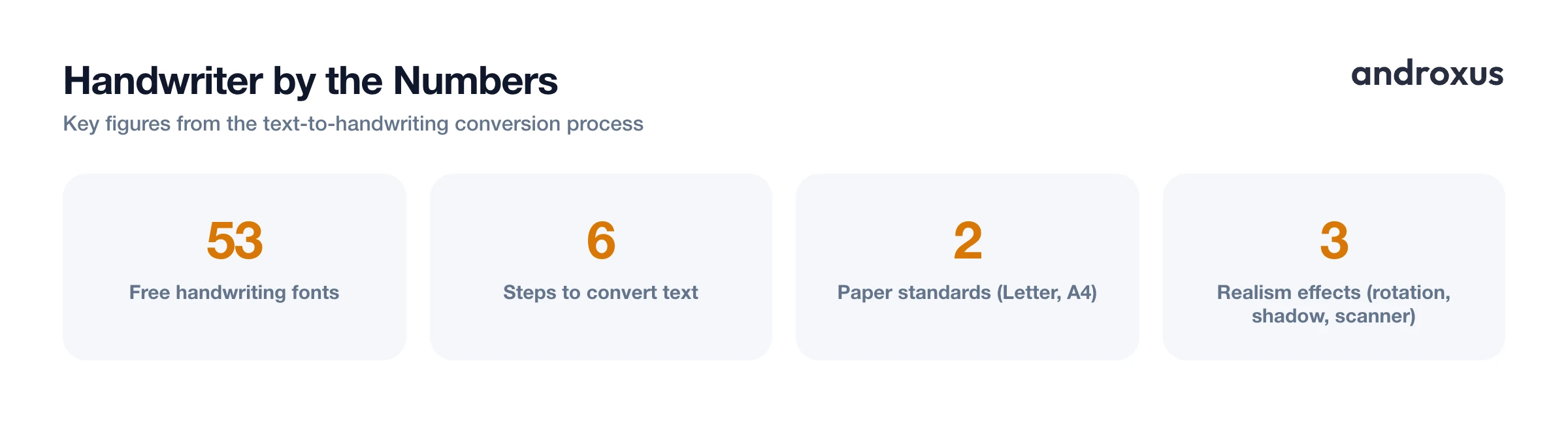
Quick answer: A text to handwriting converter takes text you already have, typed or pasted in, and renders it in a handwriting-style font on a page that mimics ruled or plain paper, then exports the result as a PDF. It does not write or generate content for you, it only restyles existing text. Handwriter, for example, offers 53 free handwriting fonts, adjustable spacing and margins, ink and paper choices, and realism effects like page rotation and a scanner look, all exported as a shareable PDF.
What you'll learn
- Why people convert typed documents into handwritten-looking pages
- How to get usable text out of a PDF or a photo of a page before converting it
- The step-by-step process for turning text into a realistic handwritten page
- What actually makes a converted page look authentic instead of robotic
- The formatting choices, paper size, margins, ink, that affect the final result
Why turn a typed document into a handwritten-looking page
People reach for a handwriting converter for a handful of common reasons: handwritten-style notes for studying, personal letters and greeting cards, journaling entries, teacher-requested handwritten assignments, and creative or nostalgic projects like scrapbooks or invitations. In every case, the tool is doing a styling and export job, not a writing job. You supply the words; the converter changes how those words look on the page.
That distinction matters because the output is a finished PDF page styled to look handwritten. It's useful anywhere a handwritten page would normally be shared, printed, or submitted as a file, but it starts from content you already have. If the words aren't written yet, a handwriting converter isn't the tool for that part.
Starting point: do you have text, or do you have a PDF or scan?
Before you can convert anything, the text needs to be in a form you can copy and paste. This is the step people most often get stuck on, so it's worth sorting out first.
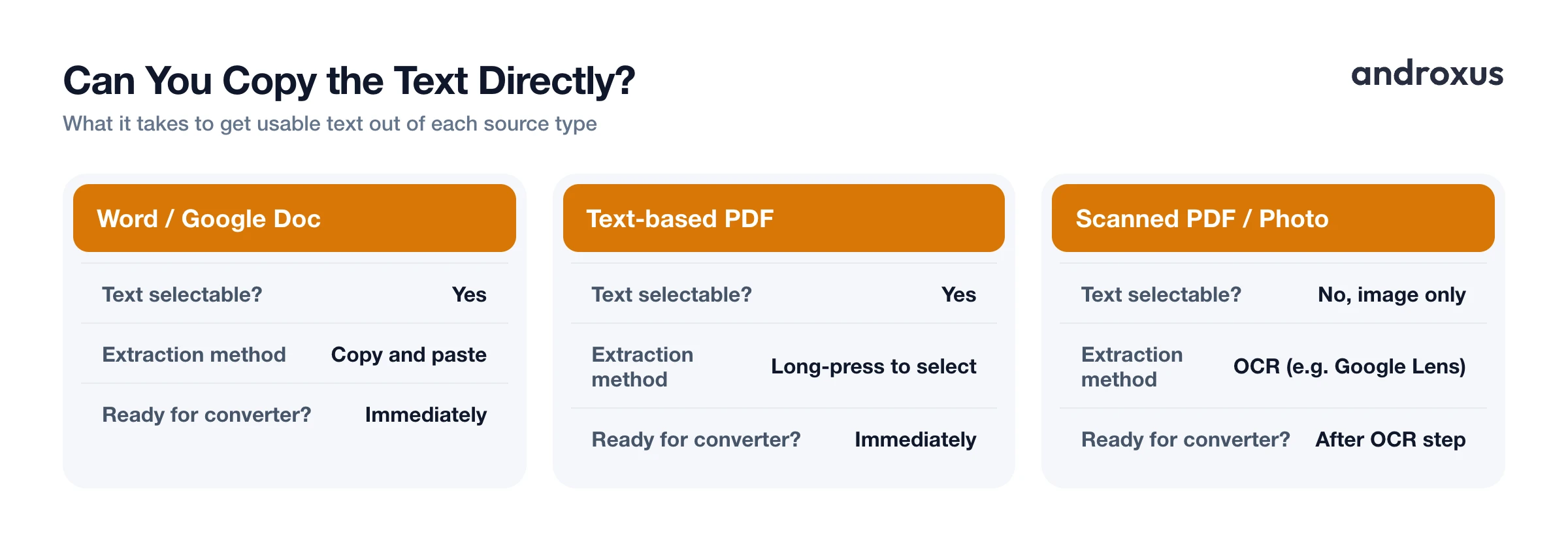
- Text-based PDFs, the kind created from Word, Google Docs, or similar tools, usually have selectable text. Open the file in a PDF viewer and long-press (or click-drag on desktop) to select and copy it.
- Scanned or photographed PDFs are just images of a page. There's no underlying text to select until you run the page through OCR (optical character recognition).
- Google Lens, built into the Google app and Google Photos on Android, can extract text from an image or screenshot with its "Select text" function, then you copy that text to your clipboard like normal.
- A handwriting converter like Handwriter works from typed or pasted text; it does not open or parse PDF files directly, so extraction is a manual step you do before conversion, not something the app handles for you.
Here's a quick reference for common source types:
| Document type | Can you copy text directly? | How to extract the text |
|---|---|---|
| Word or Google Doc | Yes | Copy and paste as usual |
| Text-based PDF | Yes | Long-press or click-drag to select in a PDF viewer |
| Scanned PDF or photographed page | No, image only | Run OCR, e.g. Google Lens's "Select text" |
| Email or webpage | Yes | Copy and paste as usual |
| Existing handwritten note you photograph | No | Needs OCR before it can be reformatted in a different handwriting style |
What a handwriting converter does and doesn't do
It's worth being precise about this, since it shapes what results you should expect. A converter takes text you already have and applies a handwriting-style appearance to it, then exports that as a PDF. It does not write, research, summarize, or generate the underlying content for you.
Because it doesn't produce content, the writing itself, the ideas, the accuracy, the wording, stays entirely your responsibility. And because the appearance can resemble a handwritten submission, whether a converted document is appropriate for a given use depends on the rules set by whoever is requesting it. A teacher, employer, or institution asking for handwritten work may specifically mean work done by hand, so check before assuming a converted page satisfies that requirement.
Making the page look authentic
A handwriting-style font alone doesn't automatically read as authentic. What tends to give a converted page away is uniformity: the exact same spacing and the exact same font applied identically to every single line, which no real hand ever produces.
A few things help close that gap:
- AI smart page rotation applies a slight tilt to the page, avoiding the perfectly straight, obviously digital look of a flat render.
- Shadow and scanner effects mimic the texture and lighting of a page that was actually photographed or scanned rather than exported straight from software.
- Small variation between sections or pages, slightly different margins or spacing rather than identical settings run start to finish, makes a multi-page document look like it was written over time instead of stamped out in one pass.
None of this changes the words on the page. It changes how convincingly the page reads as something written by hand.
Formatting choices: paper, margins, and ink
Paper size and layout choices affect both how much text fits per page and how natural the result looks. In the US, Letter paper measures 8.5 x 11 inches (216 x 279 mm). Internationally, A4 is the standard at 210 x 297 mm (8.27 x 11.69 in), used across most of the world outside the US and Canada.
Margins and spacing settings control how text breaks across lines and pages, similar to how you'd naturally leave space when writing a letter or filling a notebook page by hand. Ink and line color should match the context you're going for: blue or black ballpoint and ruled paper for notes, a plain (no-line) sheet and a pencil-gray tone for something more like a personal letter or draft.
How to turn a document into a handwritten page
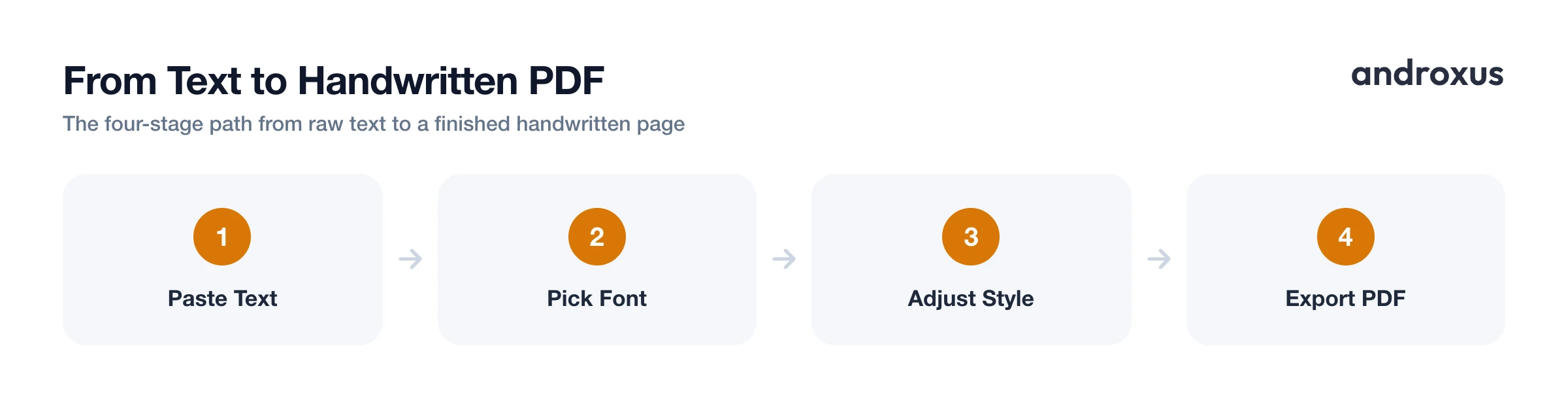
- Prepare your text. Draft or gather the text you want handwritten, whether typed fresh or copied from a Word document, Google Doc, email, or webpage.
- Extract text from a PDF if that's your source. Try long-pressing to select text in a PDF viewer first. If the file is a scan or photo and the text can't be selected, use an OCR tool such as Google Lens's "Select text" feature to pull it out.
- Paste or type the text into Handwriter so it's ready to be styled into a handwritten page.
- Pick a handwriting font, choosing from the 53 free built-in options or uploading a custom font file for a specific look.
- Adjust spacing, margins, paper, and ink: set letter, word, and line spacing and page margins, choose a ruled or plain sheet, and pick ink and line colors that fit the occasion.
- Turn on realism effects, preview, and export. Enable AI smart page rotation and the shadow or scanner effect, check the live preview, then save or share the finished page as a PDF.
Key takeaways
- A text to handwriting converter restyles text you already have into a handwriting appearance and exports it as a PDF; it doesn't write or generate content for you.
- If your source is a PDF, check whether the text is selectable first; scanned or photographed pages need an OCR step, like Google Lens's "Select text," before they can be pasted in.
- Small variations in spacing, margins, and ink, plus effects like page rotation and a scanner look, are what make a converted page read as authentic rather than robotic.
- Paper size (Letter vs. A4), margins, and ink color are worth matching to the occasion, notes, a letter, or a journal entry each read differently.
- Whether a handwritten-style document is acceptable for a specific purpose, like a class assignment, depends on the rules of whoever is requesting it, not on the tool itself.
Frequently asked questions
Can I import a PDF directly and have it turned into handwriting?
Handwriter converts typed or pasted text, it does not open or parse PDF files directly. If your content is in a PDF, copy the selectable text (or run OCR on a scanned PDF) and paste it in. Native, text-based PDFs let you long-press and select text with a normal PDF reader; scanned PDFs are just images of a page, so they need an OCR step like Google Lens's 'Select text' feature first.
Will the output look like my own handwriting or someone else's?
It uses handwriting-style fonts, either from a built-in set of 53 free options or a font you upload yourself, so it won't reproduce your personal handwriting unless you supply a font built from it. It's a realistic handwriting look, not a forgery of a specific person's script.
What file format do I get when I'm done?
The finished page exports as a PDF, which you can save to your device or share directly from the app, the same as any other document.
Can I make a multi-page document look natural instead of robotic?
Yes. Varying margins, line spacing, and ink color slightly between sections, plus turning on effects like the shadow or scanner look and AI page rotation, helps avoid the too-perfect, copy-pasted appearance that gives away a converted document.
Is it okay to use a handwriting converter for schoolwork?
Handwriter formats text you've already written into a handwriting appearance, it does not write, research, or compose the content for you. Whether a handwritten-style submission is acceptable is up to your teacher's or institution's rules, since some specifically require handwriting done by hand.
Do I need a scanner to get a realistic paper effect?
No. The app includes a scanner effect and shadow effect that simulate the look of a photographed or scanned paper page without needing an actual scanner or camera setup.
