How to Turn Video to Background Audio on Android
You hit play on a video, lock your phone to save the screen, and the audio cuts out mid-sentence. It is one of the most common Android annoyances, and it is not a bug: it is a default your phone follows unless the app tells it otherwise. Here is what is actually happening and how to turn video to background audio reliably.
Quick answer: To turn a video to background audio on Android, you need an app that specifically supports background playback, since Android does not keep video audio running once the screen locks or you switch apps. Options include an app's built-in background play feature (often paywalled, as with YouTube Premium), Picture-in-Picture mode for a small floating window, or a media player or floating browser, such as Playback, built to keep web audio and video streaming with the screen off. Turning the screen off, not just shrinking the video, is what actually saves battery.
What you'll learn
- Why videos pause the moment you lock your phone or switch apps
- The real difference between screen-off background audio and Picture-in-Picture mode
- Three practical ways to keep a video's audio playing in the background
- What background playback does and does not do for your battery and data usage
- A step-by-step way to set up background audio for any video you already have access to
Why Turn a Video to Background Audio
The screen is one of the most power-hungry components on a phone, so switching to audio-only listening while the display is off is one of the more straightforward ways to save battery during a long video, a lecture, or a livestream. If you are not actually watching, you are paying a battery cost for nothing.
A lot of video content is really audio content in disguise. Interviews, lectures, tutorials, and recorded music sets are usually consumed the same way a podcast is: you are listening for information or company, not watching. Keeping that content full-screen also blocks you from doing anything else with your phone, so audio-only or floating playback lets you message, browse, or use other apps at the same time.
Why Videos Pause When You Lock the Screen or Switch Apps
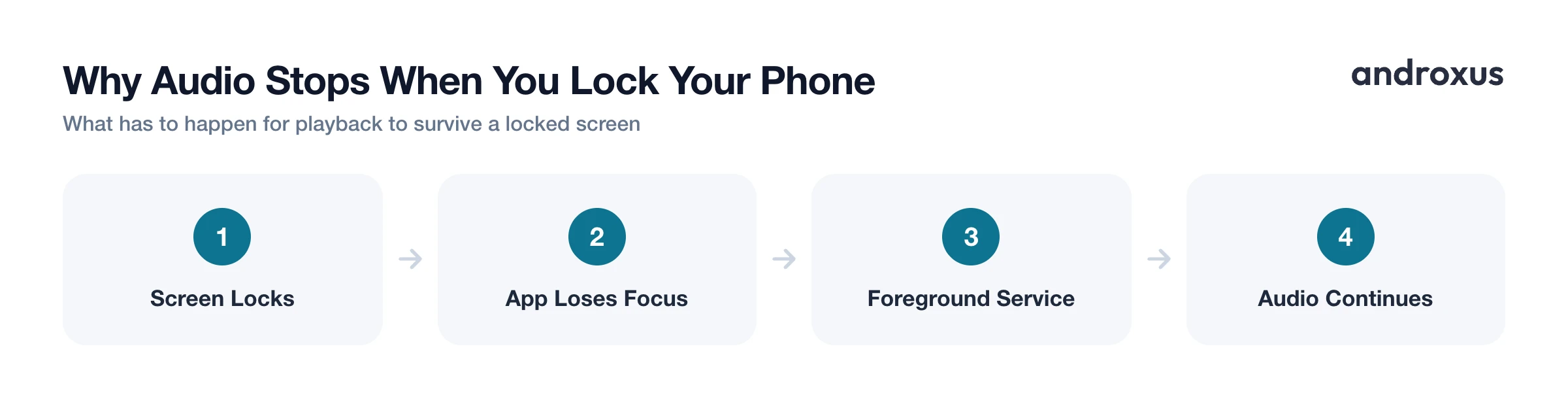
This is the part most people never quite understand: Android does not make background playback automatic for every app. By default, a video's playback is tied to its on-screen activity, so the moment that activity loses focus, whether because you locked the screen or switched to another app, playback stops.
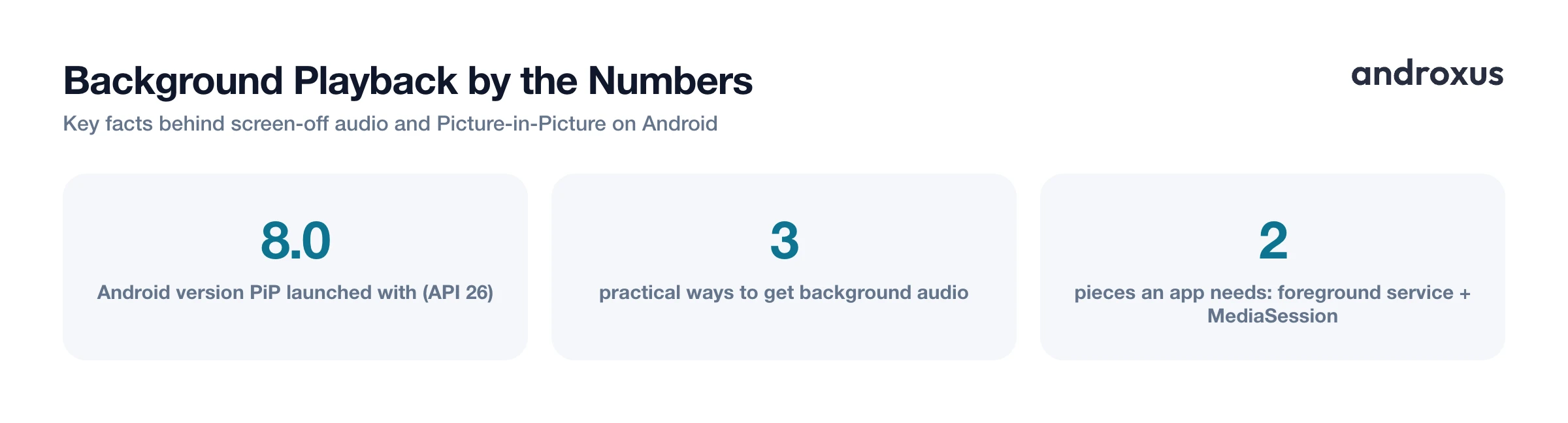
For playback to survive a locked screen or an app switch, the app has to specifically implement it. That means running a foreground service, which tells Android "keep this process alive and audible," paired with Android's MediaSession framework, which is also what puts playback controls on your lock screen and in the notification shade. Without both pieces, the system treats a backgrounded video app the same as any other app you are not looking at, and eventually suspends it.
This is why the exact same video can behave completely differently depending on which app or browser you open it in. Background support is a feature the app has to build. It is not something Android grants to every video player by default.
Option 1: An App's Own Background Play Feature
Some apps are built around background audio from the start. Dedicated music and podcast apps almost always keep playing with the screen off, because that is the entire point of the app.
Video apps are a different story. YouTube's native app, for example, requires a YouTube Premium subscription (or the newer, cheaper Premium Lite tier) to unlock background play. Without a subscription, the video simply stops the moment you lock the screen or leave the app. Where background play settings are offered, they are usually configurable: always on, off, or only when headphones or an external speaker is connected.
Option 2: Picture-in-Picture (PiP) Mode
Picture-in-Picture has been a standard part of Android since Android 8.0 (API level 26). It shrinks a video into a small, movable, resizable window that floats over whatever else you are doing, so you can keep half an eye on it while replying to messages or browsing.
The catch is that PiP still keeps the screen on and rendering video. It is genuinely useful for staying connected to something visual while multitasking, but it does not deliver the battery savings of a true screen-off, audio-only session, since the display, the single biggest drain on the battery, never actually turns off. Not every app supports PiP either; the app has to specifically opt in and trigger the system's enter-PiP behavior.
Option 3: A Floating Browser or Player Built for Background Streaming
The third option is a player or floating browser designed around background streaming from the ground up. Playback, for instance, is built to keep web audio and video playing whether the screen is off, the phone is locked, or you have switched to another app entirely. It also offers a floating PiP window as an alternative to full screen-off audio, along with playlists, bookmarks, search, and the ability to play media shared to it from other apps.
It is worth being precise about what this kind of app actually does. Playback is a player and floating browser: it streams content you already have access to, in the background or in a floating window. It does not download videos or tracks, does not remove ads, and does not unlock paid or restricted content. If a video requires a subscription or login to watch, that requirement does not change just because you are streaming it through a different player.
Ways to Get Audio-Only or Background Playback on Android
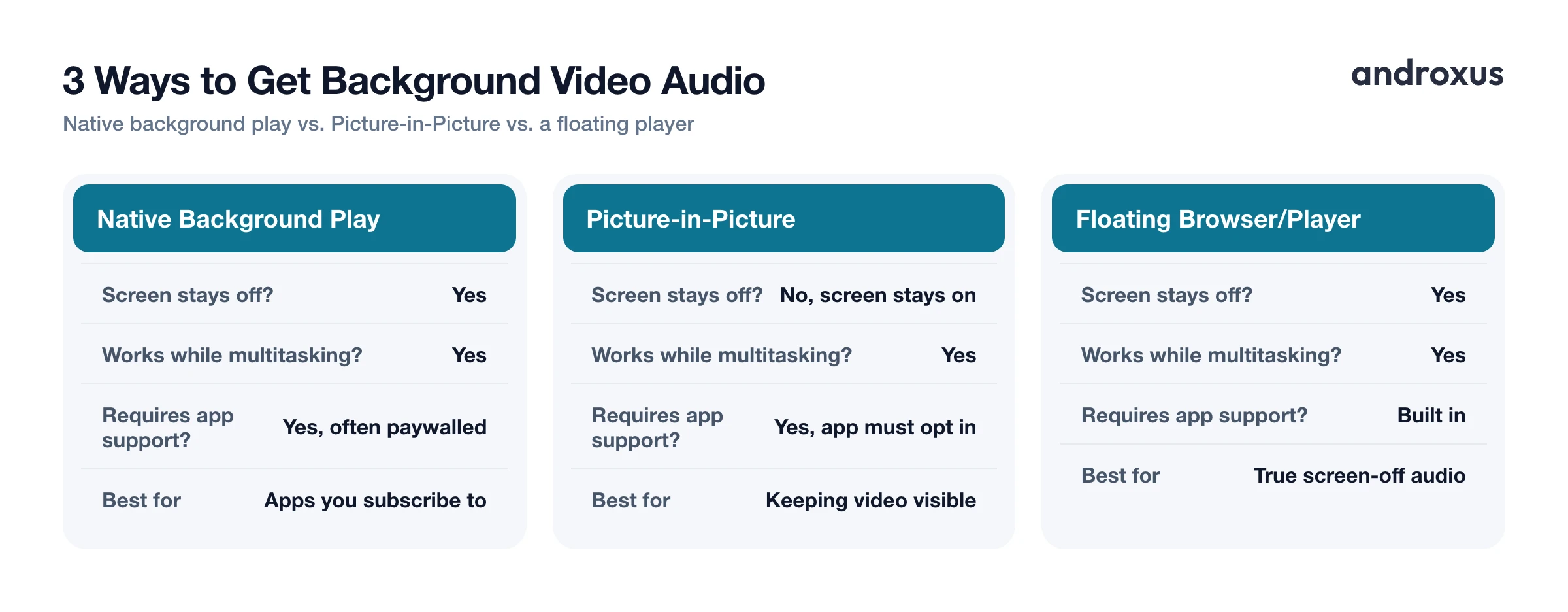
| Method | Screen stays off? | Works while using other apps? | Requires app support? | Best for |
|---|---|---|---|---|
| Native app background play (e.g., YouTube Premium) | Yes | Yes | Yes, often paywalled | Apps you already subscribe to |
| Picture-in-Picture (PiP) | No, screen stays on | Yes | Yes, app must opt in | Keeping a small video visible while multitasking |
| Floating browser or player with background support (e.g., Playback) | Yes | Yes | Built into the app | Turning web video into true screen-off audio |
Battery and Data Habits for Long Background Listening
Turning the screen off is the main battery-saving lever here. Shrinking a video into a PiP window still leaves the display active, so it is not an equivalent power saver, it is a multitasking convenience.
Data usage works differently than most people assume. Unless a player specifically switches to an audio-only stream, background playback of a video does not necessarily reduce mobile data use. The video data may still be arriving in the background even though you cannot see it, so a long listening session can use roughly the same data as watching normally would. If you are watching your data allowance, downloading or buffering over Wi-Fi before switching to mobile data, and choosing a lower playback quality when only the audio matters, are both reasonable ways to cut usage during long sessions.
How to Turn a Video to Background Audio
- Open the video in a player that supports background audio. Load the video inside an app built for background or floating playback, such as a podcast app, a music app, or a floating browser like Playback that streams web video you already have access to.
- Start playback and confirm audio is running. Tap play and let the video start normally with the screen on, so you can confirm the stream is loading correctly before you stop watching it.
- Lock the screen or switch to another app. Turn off the screen or open a different app. In a player with background play support, the audio keeps running instead of pausing, since it is being kept alive by a foreground service rather than the visible screen.
- Use the lock screen or notification controls. Control play, pause, and skip from the media notification or lock-screen widget without unlocking the phone, the same way you would with a music app.
- Switch to a floating PiP window if you want to glance at the video. If you want a small video window instead of full screen while using other apps, use Picture-in-Picture mode to keep a resizable thumbnail on top of whatever else you are doing.
Key takeaways
- Android does not keep video playing in the background by default: the app has to specifically build support for it using a foreground service and MediaSession.
- PiP keeps a video visible while multitasking, but the screen stays on, so it is not a battery-saving substitute for true screen-off audio.
- Native background play is often locked behind a subscription, like YouTube Premium, while a dedicated player or floating browser such as Playback is built to stream background audio for web content you already have access to.
- Background playback usually does not reduce mobile data use on its own, since video data can still be received even when you cannot see it.
- Any legitimate background-audio method only streams content you already have access to, it never downloads, unlocks, or removes ads from paid content.
Frequently asked questions
Can I listen to YouTube audio only with my screen off for free?
Not by default. YouTube pauses when you lock the screen unless you have YouTube Premium (or the newer Premium Lite tier), which unlocks background play. Without a subscription, most people instead use a media player or floating browser app that keeps the stream running when the screen locks or when you switch apps, as long as the content is something you already have access to.
Does Picture-in-Picture mode save battery like turning the screen off does?
Not really. PiP mode shrinks the video into a small floating window, but the screen itself is still on and rendering, which is usually the biggest single drain on a phone's battery. True screen-off audio playback saves more power than PiP because the display is fully off.
Why does a video pause automatically when I lock my phone or switch apps?
Android does not make background playback automatic. By default, an app's video stops when its activity loses focus. Playback continues only if the app specifically builds support for it, using a foreground service and a MediaSession so Android knows to keep the audio engine running and show lock-screen controls.
Will playing a video for its audio only use less mobile data?
Not automatically. Unless a player specifically switches to an audio-only stream, the video data is often still being received in the background even though you can't see it, so data usage will typically be similar to watching normally. Turning the screen off saves battery, not necessarily data.
Is it okay to play only the audio track of a video I'm watching?
Yes, as long as it's content you already have legitimate access to and you're playing it for personal listening. This is just a different way of consuming the same stream, it does not involve downloading, ripping, or redistributing the video.
What Android version do I need for background or floating video playback?
Picture-in-Picture mode has been part of Android since Android 8.0 (API level 26). Background audio playback itself is not tied to a specific Android version, it depends on whether the individual app or player has built background play support.
