Background Play vs Download: Data and Battery
You want to listen to a podcast on a long commute or watch a video while you cook, and a question pops up: is it better to let it stream in the background, or download it first? The honest answer depends on whether you are trying to save data, save battery, or both, and those two goals do not always point the same direction.
Quick answer: Background play vs download comes down to two separate costs. Data usage is identical whether the screen is on or off, since background play keeps streaming the exact same bytes once the screen locks rather than reducing them; only a download avoids repeat data use on replays. Battery is different: the screen is typically a phone's single biggest power draw, so playing in the background with the screen off saves meaningfully more battery than watching with the display on, even though the network radio keeps working either way. Downloaded playback saves the most battery of all, since it skips the radio entirely.
What you'll learn
- Why background play does not change how much data a stream uses
- Real numbers for how much data audio and video streaming costs per hour
- Where battery drain actually comes from, and why the screen matters more than people think
- The Android settings that control background data and battery use
- When downloading actually makes sense versus when it's unnecessary
What "background play" actually means on Android
Background play means audio or video keeps playing after the screen locks or the app is minimized, without the file being downloaded first. It is still a live stream, just running while something else is in front of you or nothing is in front of you at all.
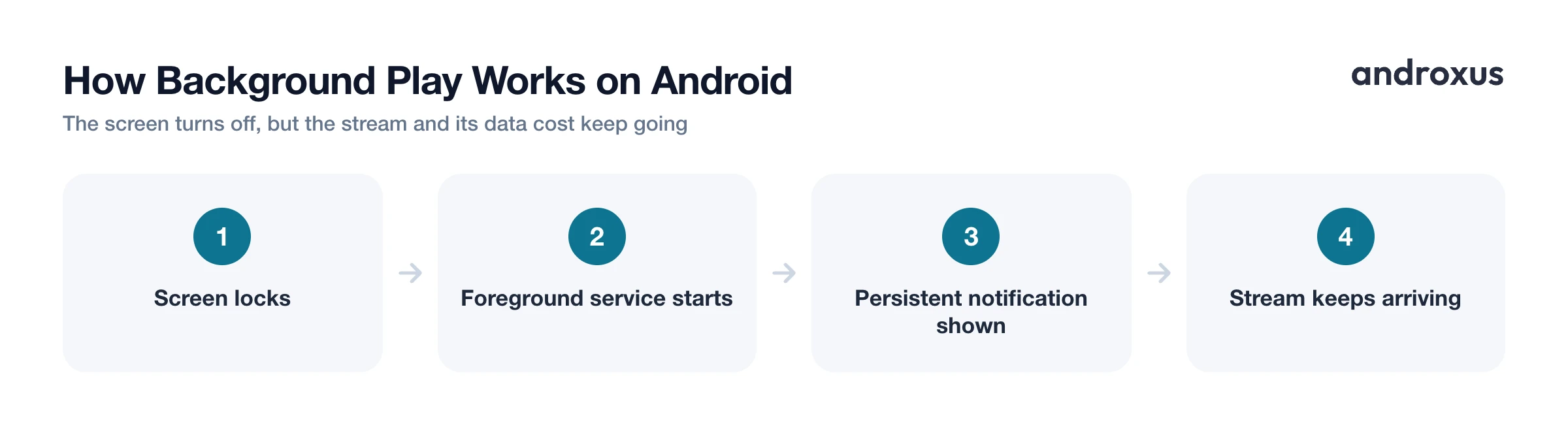
On Android, continuous background media playback runs as a foreground service. Since Android 8.0 (Oreo), apps in the background cannot freely start new services, so a media app has to use startForegroundService() and show a persistent, ongoing notification for as long as audio or video is playing. That notification is the tradeoff Android makes: continuous background access in exchange for the user always being able to see, and stop, what is running.
Picture-in-picture (PiP), also introduced in Android 8.0, lets a video keep playing in a small floating window over other apps, so you can text a friend or check email without losing your place. An app has to explicitly build support for PiP; it does not happen automatically for every video.
The important point for this comparison: background play does not reduce how much data gets transferred. It only stops the display from staying lit while the stream keeps arriving over Wi-Fi or cellular. The bytes moving over the network are the same whether your screen is on or off.
Data usage: streaming vs downloading, by the numbers
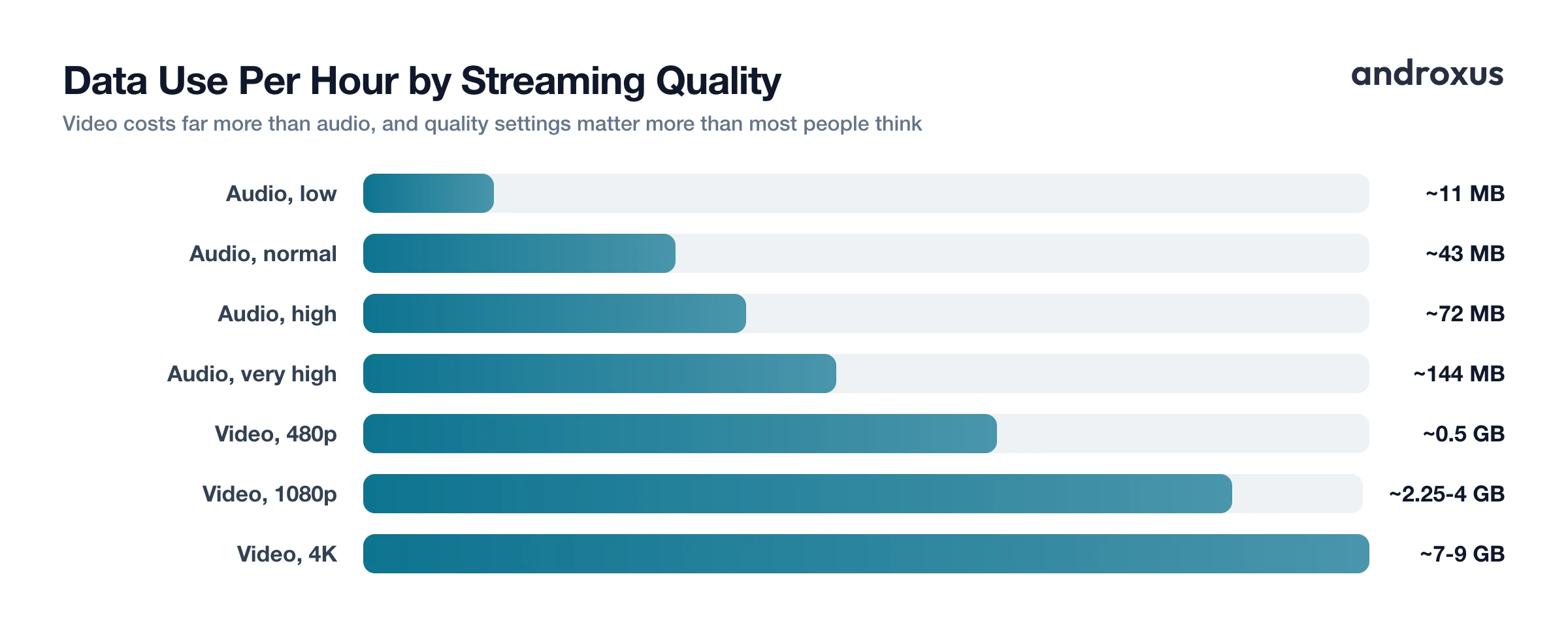
Streaming data use scales directly with quality or bitrate, and video uses dramatically more than audio. Here is a rough reference for planning around a data cap.
| Type / quality | Approximate data per hour |
|---|---|
| Audio, low (~24 kbps) | ~11 MB |
| Audio, normal (~96 kbps) | ~43 MB |
| Audio, high (~160 kbps) | ~72 MB |
| Audio, very high (~320 kbps) | ~144 MB |
| Audio, lossless (CD quality) | ~600 to 650 MB |
| Video, 480p | ~0.3 to 0.7 GB |
| Video, 720p | ~1 to 2 GB |
| Video, 1080p | ~2.25 to 4 GB |
| Video, 4K | ~7 to 9 GB |
A few things worth knowing beyond the table. Hi-res lossless audio tiers can climb to multiple gigabytes per hour, well above standard lossless. On the video side, newer codecs like HEVC and AV1 can deliver comparable visual quality at roughly 30 to 50 percent lower bitrate than older H.264 encodes, so the streaming service and codec used affects the per-hour number nearly as much as resolution does.
The core difference between streaming and downloading is about repetition, not the initial transfer. A download moves the file once; after that, you can replay it as many times as you want with zero additional data. Streaming, whether in the foreground or the background, re-transfers the data every single time you play the content, unless the app is caching it locally.
Battery: where the drain actually comes from
This is where background play earns its keep, and it is worth separating from the data question entirely.
The display is typically the single largest battery consumer on a smartphone, commonly cited around 20 to 30 percent of total battery use, more than any other individual component. That is a bigger factor than most people assume when they think about what drains a phone.
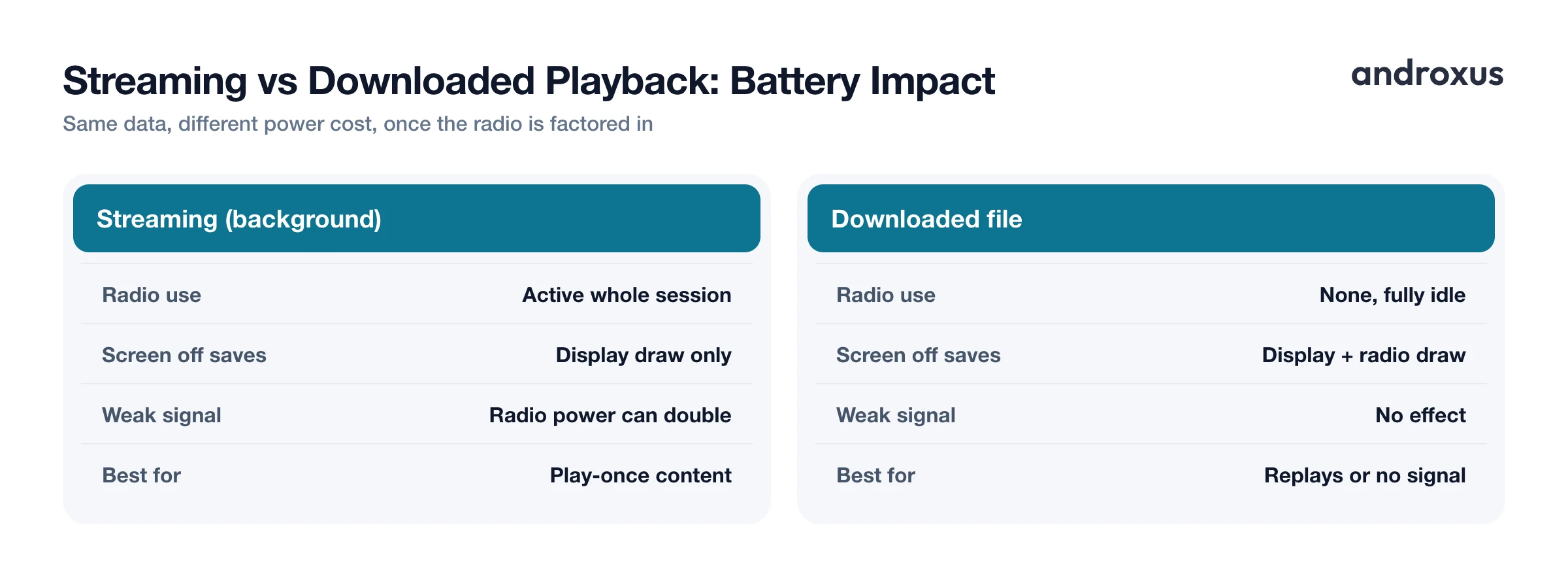
Streaming requires the Wi-Fi or cellular radio to stay actively receiving data for the entire duration of playback, which draws more power than a device sitting with an already-downloaded file and an idle radio. Cellular radios in particular draw more power than Wi-Fi to move the same amount of data, and the gap widens sharply on a weak signal: an LTE or 5G radio's active power draw can double or more when the signal is weak, because the phone has to work harder to hold the connection. 5G use has also been shown to drain battery noticeably faster than 4G or Wi-Fi for comparable activity.
Playing a downloaded file, by contrast, only needs local storage access plus the audio or video decoder, with no radio activity at all. That is why offline playback with the screen off tends to be the lowest power way to consume media on a phone.
Here is the part that makes background play genuinely useful even though it does not touch data usage: moving a stream to the background, screen off or locked, or shrunk into a small PiP window, removes the display's power draw, the largest single factor, even though the network radio keeps working exactly as before. That is why background play saves meaningfully more battery than watching or listening with the screen fully on, even though the underlying data and radio cost of the stream has not changed one bit.
Practical controls for managing data and battery
Android gives you a few direct levers, at both the system level and the per-app level.
System-wide: Settings > Network & internet > Data Saver blocks background data for every app except the ones you add to the Unrestricted data allowlist. This is the broadest, fastest way to cut background data use across your whole phone.
Per-app: Settings > Apps > [app] > Mobile data & Wi-Fi has a Background data toggle, letting you restrict just one app without touching everything else.
To see who is actually using the data in the first place, check Settings > Network & internet > Data usage > App data usage, which shows totals per app and makes it easy to spot which streaming apps are the heaviest.
Beyond the settings menu, lowering an app's in-app streaming quality, where that option exists, is the single biggest lever for cutting data use, and it helps battery too, since less data to transfer and decode means less work for the radio and processor. Preferring Wi-Fi over cellular when it is available also reduces both data usage and typically battery draw, especially if your cellular signal tends to be weak.
Background streaming vs downloading: which fits your situation
Neither option is universally better, they solve different problems.
For content you will play once, a podcast episode heard a single time, background music while you work near Wi-Fi, a live stream, background play is simpler and uses no extra device storage.
For content you will replay many times, or for listening or watching somewhere with no signal at all, a flight, a subway, a rural drive, a one-time download avoids paying the data and battery cost of re-streaming on every replay. The tradeoff is storage: downloads use device storage until you delete them, while streaming, background or otherwise, uses none.
Playback fits the background-listening case specifically. It is a floating browser and player that streams content you already have access to, in the background with the screen off or locked, or in a floating picture-in-picture window. It is not a downloader: it does not download or save tracks or videos, remove ads, or unlock paid content, so it does not remove the recurring per-session data cost that any streaming setup has. What it does is avoid the biggest battery cost, the screen, by letting playback continue without keeping the display active.
How to manage data and battery use for background streaming on Android
- Check which apps use the most background data. Open Settings > Network & internet > Data usage > App data usage to see per-app totals and spot which apps are streaming heavily in the background.
- Turn on Data Saver system-wide. Go to Settings > Network & internet > Data Saver and toggle it on, then add any apps you want to keep working in the background to the Unrestricted data allowlist.
- Restrict background data for a single app. Open Settings > Apps > [app name] > Mobile data & Wi-Fi and turn off Background data if you only want that app to use data while it's actively open.
- Lower the streaming quality setting. In apps that offer a quality or bitrate option, drop from high or very high to normal or low, which reduces both data use and the work the radio and decoder have to do.
- Let the screen lock during playback instead of leaving it on. Use background play or a floating picture-in-picture window so the display, the largest single battery draw on the phone, is not active while the stream keeps going.
Key takeaways
- Background play vs downloading affects battery and data differently: background play saves battery by turning off the screen, but it does not reduce data usage at all.
- Streaming data use scales with quality: audio ranges from about 11 MB to over 600 MB per hour, video from a few hundred MB at 480p to 7 to 9 GB per hour at 4K.
- The screen is typically the single largest battery drain on a phone, often 20 to 30 percent of total use, which is why background play saves noticeably more battery than screen-on playback.
- Downloaded playback uses the least battery of all, since it skips the network radio entirely, but it only pays off in data terms if you replay the content or have no signal.
- Android's Data Saver and per-app Background data toggles, under Settings > Network & internet and Settings > Apps, are the fastest ways to control how much background data any app can use.
Frequently asked questions
Does playing audio or video in the background use more data than watching with the screen on?
No. Background playback streams the same file at the same quality or bitrate setting as it would with the screen on. Screen state doesn't change how many bytes are transferred, it only changes how much power the display itself draws.
Is streaming worse for battery than playing a downloaded file?
Generally yes. Streaming keeps the Wi-Fi or cellular radio actively receiving data for as long as playback lasts, while a downloaded file only needs local storage access and the decoder, with no radio activity required.
Does turning the screen off while listening actually save battery?
Yes, meaningfully. The display is typically the single biggest power draw on a smartphone, often cited around 20 to 30 percent of total battery use, so playing in the background with the screen off or locked removes that draw entirely.
Is Wi-Fi better than cellular for battery life while streaming?
Usually. Cellular radios draw more power than Wi-Fi to move the same amount of data, and the gap widens sharply on a weak signal or over 5G, since the phone works harder to hold the connection.
How do I stop an app from using background data on Android?
Go to Settings, then Apps, select the app, open Mobile data & Wi-Fi, and turn off Background data. For a system-wide option, turn on Data Saver under Settings > Network & internet > Data Saver.
Does downloading always save battery in the long run?
It can, if you replay the same content many times, since each offline playback skips the network radio entirely. For content you'll only play once, background streaming is roughly a wash and simpler: no download step, no storage used.
