How to Show Notch Notifications on Your Punch-Hole
Most phones stopped shipping a dedicated notification LED years ago, which means a silenced phone gives you almost no visual signal that something arrived. The camera cutout sitting at the top of your screen, whether it's a notch or a punch-hole, is unused space for most of the day. A growing category of apps repurposes that exact spot to bring notch notifications back in a form that's arguably more useful than the old blinking LED ever was.
Quick answer: You can show notifications on a notch or punch-hole by installing an overlay app that draws a pill, glow, or icon around the cutout using Android's DisplayCutout API, then grants it Notification access so it knows which app sent each alert. The app needs two permissions: Display over other apps (SYSTEM_ALERT_WINDOW) to render the overlay, and Notification access, a NotificationListenerService, to read incoming notification metadata. It shows only what the system notification already contains, it can't unlock hidden content, override Do Not Disturb, or require root. Setup takes a few minutes: install, grant both permissions, match the shape to your device, then choose which apps are allowed to trigger it.
What you'll learn
- Why phones lost their notification LED and how the cutout became the replacement
- How a notch or punch-hole notification overlay technically works
- What this kind of overlay can and cannot show you
- How it compares to a status bar icon and OEM edge lighting features
- The privacy tradeoffs of granting Notification access, and how to set one up
Why phones lost their notification LED, and why the cutout became the workaround
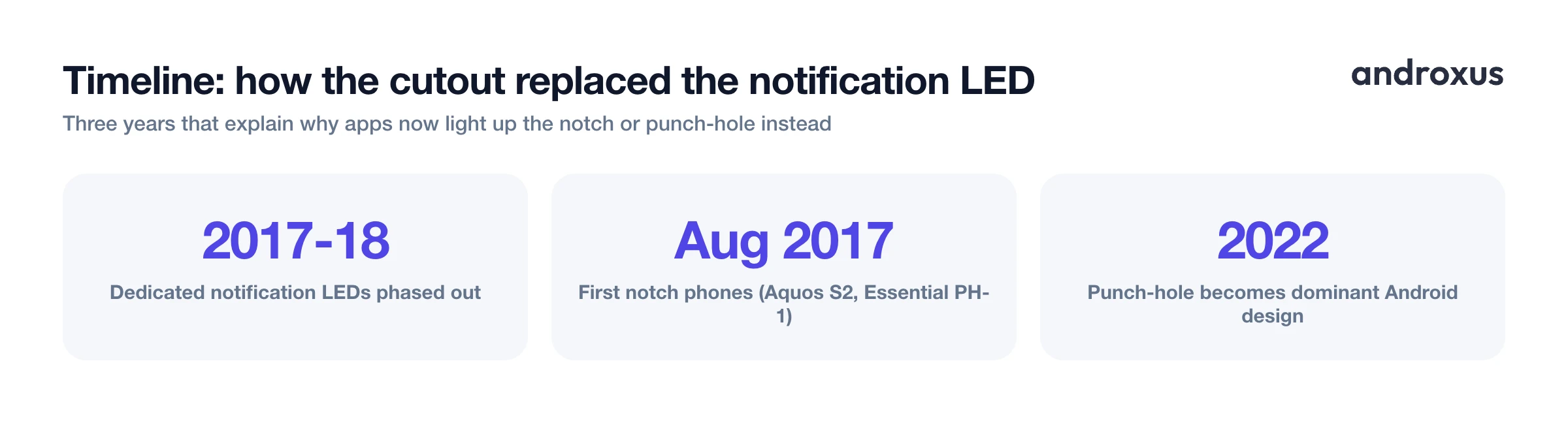
Plenty of Android phones released before roughly 2017 to 2018 had a small dedicated LED near the earpiece that could blink a color without waking the screen at all. As manufacturers chased slimmer bezels and higher screen-to-body ratios, that LED was one of the first components to get cut from new designs, since it took up space and added cost for a feature few phones advertised anymore.
At almost the same time, phones started carving space out of the display itself for the front camera. The Sharp Aquos S2 and the Essential Phone PH-1, both released in August 2017, were among the first with a display notch. That shape shrank into a smaller water-drop notch on phones like the OnePlus 6, and by around 2022 the punch-hole cutout had become the dominant design across Android.
With the LED gone and a permanent hole already sitting at the top of the screen, developers started treating the cutout itself as the new notification indicator. Community tools such as Holey Light, Energy Ring, and aodNotify emerged specifically to animate a glow or ring around the punch-hole on Samsung and Pixel phones, essentially recreating LED behavior using the pixels immediately surrounding the camera. That's the lineage every modern notch notification bar and punch-hole overlay app descends from.
How a notch or punch-hole notification overlay actually works
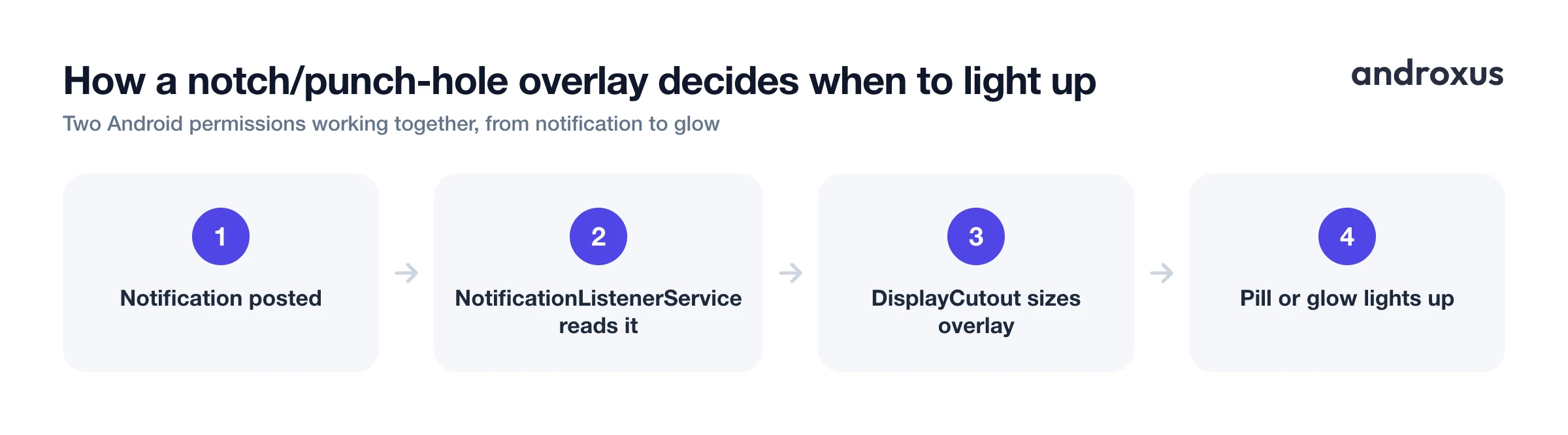
There are really two separate pieces working together, and it helps to know which does what. The first is purely visual. Android exposes a cutout's exact shape and safe-area boundaries through the DisplayCutout API, accessible via WindowInsetsCompat.getDisplayCutout(), available since Android 9 (API level 28). An overlay app reads this to size a shape that fits precisely around the notch or punch-hole on your specific phone. That pill, glow, or icon isn't a system feature at all, it's a window the app draws on top of everything else using the Display over other apps permission, technically SYSTEM_ALERT_WINDOW.
The second piece is what tells the overlay when to react and to what. Without more information, an overlay could animate on a timer or a guess, but it wouldn't know a message actually arrived. That's where Notification access comes in, granted manually under Settings > Apps & notifications > Special app access > Notification access. Turning it on runs a NotificationListenerService, an Android component introduced in API level 18 (Android 4.3), whose onNotificationPosted and onNotificationRemoved callbacks fire for every notification posted anywhere on the phone. That's the mechanism behind any working notch notification bar: it listens for the event, reads which app posted it, and lights up the overlay accordingly.
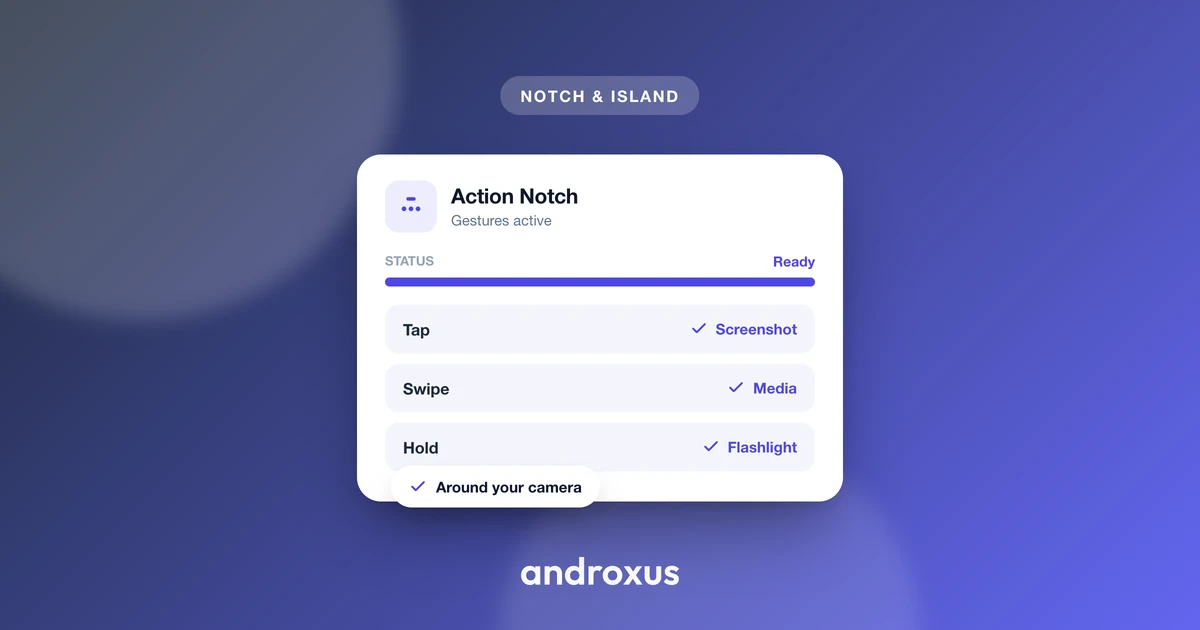
Taps, swipes, and long-presses on the overlay are usually captured directly by the overlay's own window, since it's a real view capable of receiving touch input. Some apps add an Accessibility service on top when they need to detect gestures that extend beyond the overlay's own drawn bounds. None of this changes the phone's hardware or the physical cutout in any way, it's software drawn on top of a screen area that already exists. Action Notch is one app in this category. It's a software overlay with over 1 million downloads and a 4.57 star rating from more than 20,000 ratings, and it explicitly does not require root.
What a notch or punch-hole overlay can and cannot show
It's worth being precise about the limits here, since it's easy to assume an overlay can do more than it actually can.
What it can show: which app sent a notification, typically via that app's icon rendered on the pill or glow; media playback controls, pulled from the same notification listener that exposes active media sessions; and quick toggles or shortcuts mapped to gestures like flashlight or screenshot.
What it cannot show: anything beyond what's already present in the system notification. If an app or the OS withholds message previews from the notification shade, for example because the sending app has its own privacy setting enabled, that same content stays hidden from the overlay too. Without Notification access granted at all, the app can still draw a generic overlay shape, but it has no idea what triggered it or which app it came from. It also can't override Do Not Disturb, per-app notification channel settings, or Android's own notification permission, since those still gate what reaches the app before the overlay ever sees it. And the glow or ring effect you see is just ordinary OLED pixels lit next to the cutout, not a dedicated hardware LED, since the punch-hole camera area itself can't be independently illuminated.
Notch overlay vs. status bar icon vs. OEM edge lighting
A notch or punch-hole overlay isn't the only way to get a glanceable notification signal. It's worth comparing it against the options that are already built into your phone.
| Method | How it's built | Permission(s) required | What it can show | Works across phones |
|---|---|---|---|---|
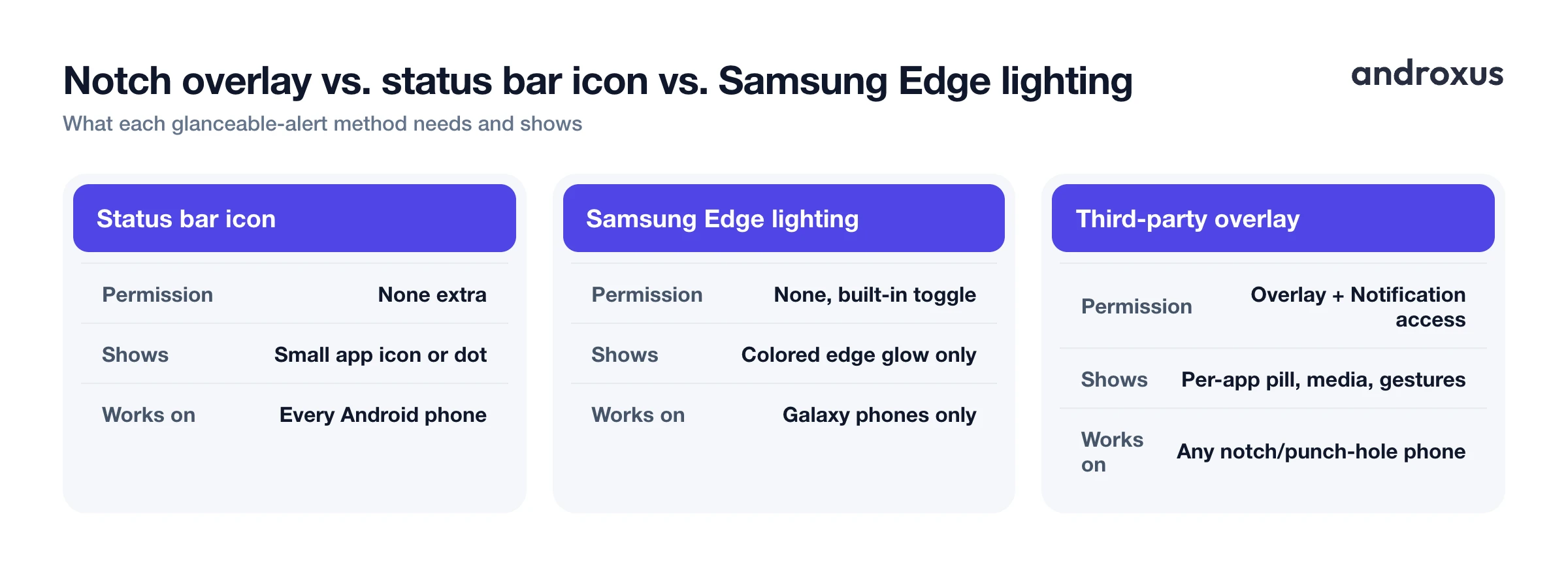
| Status bar icon | Native to Android's system UI | None beyond the app's normal notification permission | Small app icon, sometimes collapsed into a dot when there are several | Yes, on every Android phone, though OEM skins limit how many icons show at once |
| Samsung Edge lighting | Built into Samsung's One UI | None, toggled in Settings > Notifications | Colored light animation along the screen edge, no sender or content detail | Only on Samsung Galaxy phones with edge lighting support |
| realme Mini Capsule | Built into realme's UI (from the Realme C55 onward) | None, built-in toggle | Battery level, charging status, and a limited set of native notifications shown as a compact strip around the punch-hole | Only on supported realme and Narzo models |
| Third-party notch/punch-hole overlay app | App-level overlay window sized to the device's DisplayCutout | Display over other apps (SYSTEM_ALERT_WINDOW) to draw the overlay; Notification access (NotificationListenerService) to read which app sent a notification | Per-app pill or glow, tap-to-open, media controls, and gesture-mapped quick actions such as flashlight or screenshot | Any Android phone with a notch or punch-hole, regardless of manufacturer |
Status bar icons are the default and need no extra permission, but many OEM skins cap how many show at once, One UI 7 on recent Samsung phones limits it to three icons plus a dot, while stock Android has historically shown around four before collapsing the rest into dots. Samsung's Edge lighting, configured at Settings > Notifications > Notification pop-up style > Edge lighting style, animates colored light along the screen edge without needing an extra permission, but it only communicates color and animation, not sender or message content.
realme's Mini Capsule, introduced with the Realme C55 in March 2023 and later available on the Narzo N55 and other UI 5 devices, is a manufacturer feature that displays battery level, charging status, and select notifications directly around the punch-hole. It's comparable in spirit to Apple's Dynamic Island but built into that one OEM's software only. Third-party overlay apps generalize this idea to any phone with a notch or punch-hole regardless of manufacturer, at the cost of needing both Display over other apps and Notification access.
Privacy considerations of granting notification access
Notification access deserves a moment of caution before you grant it to anything. It's one of Android's most sensitive special app access permissions because it lets an app read the text and metadata of every notification posted by every app on the phone, not just its own. That's a meaningfully broader scope than most permissions you grant casually.
Because of that scope, Android requires it to be granted manually through Settings rather than through a normal runtime permission prompt, and Google Play's developer policies require apps to justify their use of this permission before publishing. It's reasonable to only grant it to apps whose purpose clearly requires it, like a notch notification overlay, and to avoid granting it to anything whose need for it isn't obvious.
Display over other apps (SYSTEM_ALERT_WINDOW) is a separate, lower-risk permission by comparison. On its own it only lets an app draw visuals on the screen and does not grant access to notification content at all. You can review or revoke Notification access at any time via Settings > Apps & notifications > Special app access > Notification access, and it's worth doing so for any listener app you've uninstalled or stopped using.
How to show notifications on your notch or punch-hole
- Install a notch or punch-hole overlay app. Download an overlay app such as Action Notch from Google Play. No root access is required for setup.
- Grant Display over other apps. When prompted, allow the Display over other apps permission (SYSTEM_ALERT_WINDOW) so the app can draw its pill, glow, or icon overlay on top of other screens.
- Grant Notification access. Turn on Notification access for the app under Settings > Apps & notifications > Special app access > Notification access. This lets its NotificationListenerService see which app sent a notification so the overlay knows when and how to react.
- Match the overlay to your cutout shape. Select the notch or punch-hole shape and size that matches your specific phone model, using the device's reported DisplayCutout dimensions, so the overlay lines up precisely with the real cutout instead of floating around it.
- Choose which apps can trigger the overlay. Set per-app notification preferences inside the overlay app so only the apps you care about, such as messaging, calls, or media, light up the cutout area instead of every notification on the phone.
- Set up gestures and quick actions. Map taps, swipes, or long-presses on the overlay to actions like flashlight, screenshot, or media playback control, then test each gesture once to confirm it responds as expected.
Key takeaways
- Notch notifications exist because phones dropped their dedicated LED around 2017 to 2018 just as the notch and later the punch-hole became standard, leaving the cutout as the natural replacement spot for a glanceable alert.
- The overlay itself is drawn using Display over other apps and sized with Android's DisplayCutout API, while Notification access, a NotificationListenerService, is what actually tells it which app sent a notification.
- The overlay can only show what's already in the system notification, it can't reveal hidden content, bypass Do Not Disturb, or require root access.
- Compared to a status bar icon or OEM edge lighting, a third-party overlay works across any manufacturer's notch or punch-hole phone and adds tap, swipe, and long-press gestures on top.
- Notification access is a sensitive, broad permission, so it's worth granting only to apps whose purpose clearly needs it and revisiting Settings > Apps & notifications > Special app access periodically.
Frequently asked questions
Does a notch or punch-hole notification app like Action Notch require root access?
No. It works through standard Android permissions: Display over other apps (SYSTEM_ALERT_WINDOW) to draw the overlay, and Notification access to read incoming notifications. No root access or system modification is involved.
What is the difference between Display over other apps and Notification access?
Display over other apps (SYSTEM_ALERT_WINDOW) only lets an app draw a visual window on top of the screen; on its own it can't see what's in your notifications. Notification access is the separate, more sensitive permission that runs a NotificationListenerService, letting the app read the sender, icon, and text of every notification posted on the phone, which is what tells the overlay when and what to display.
Can a punch-hole notification overlay drain my battery or slow down my phone?
It runs a background service and a persistent overlay window, similar to any app that keeps a chat-head or floating widget active, so it uses some memory and a small amount of battery. It does not modify system performance, firmware, or hardware, the effect is comparable to any other app maintaining a background listener.
Is a notch overlay app the same as Apple's Dynamic Island?
No. Dynamic Island is Apple's own hardware-and-software feature built into specific iPhone models. Notch and punch-hole overlay apps on Android are software emulations that visually mimic the same idea, a pill or glow drawn around the existing camera cutout, not a special hardware capability.
Do I need a notch or punch-hole camera cutout to use these apps?
Effectively, yes. The overlay fits itself to the cutout your phone reports through Android's DisplayCutout API, so it works on phones with a notch or a punch-hole camera. On phones without a cutout, there's no shape to draw around, though many of these apps offer a status-bar-style capsule as a fallback.
How is a built-in feature like realme's Mini Capsule different from a third-party overlay app?
Mini Capsule is built directly into realme's own software, introduced with the Realme C55 and later the Narzo N55, and shows a fixed set of system information such as battery and charging status only on those specific phones. A third-party overlay app works across notch and punch-hole phones from any manufacturer and, with Notification access granted, can surface any app's notifications rather than only a manufacturer's preselected set.
