How to Show Notifications Always on Display
Glancing at your phone to check what just buzzed should not require unlocking it. Getting notifications always on display working the way you expect takes a couple of settings in the right order, plus a little know-how about what AOD does and does not show.
Quick answer: To show notifications on an always-on display, turn on lock screen notifications in Settings, enable Always On Display under Display settings, and, on Samsung phones, separately toggle Show on Always On Display inside Lock Screen notification settings. Most phones then show notification icons, not full message text, unless you also allow content to display. If your phone has no native AOD option, a third-party app like AOD Flow can add a similar notification-and-clock display on supported AMOLED/OLED screens.
What you'll learn
- What actually appears on an always-on display versus a full lock screen
- The exact settings path on stock Android, Pixel, and Samsung Galaxy phones
- How to control privacy so sensitive content stays hidden
- The honest battery cost of keeping notifications visible around the clock
- What to do if your phone has no built-in always-on display feature
What actually shows up on an always-on display
An always-on display is designed to be glanceable, not readable in full. On most Android phones, that means notification icons, small app glyphs, rather than the full text of a message. Some manufacturers add a brief one-line preview next to the icon, but that behavior depends on both the phone maker and your privacy settings.
Whether content counts as sensitive is decided per app. A messaging app might treat the sender name and message body as sensitive, while a calendar app might be comfortable showing an event title. This is why two apps can behave differently on the same AOD even with identical phone settings.
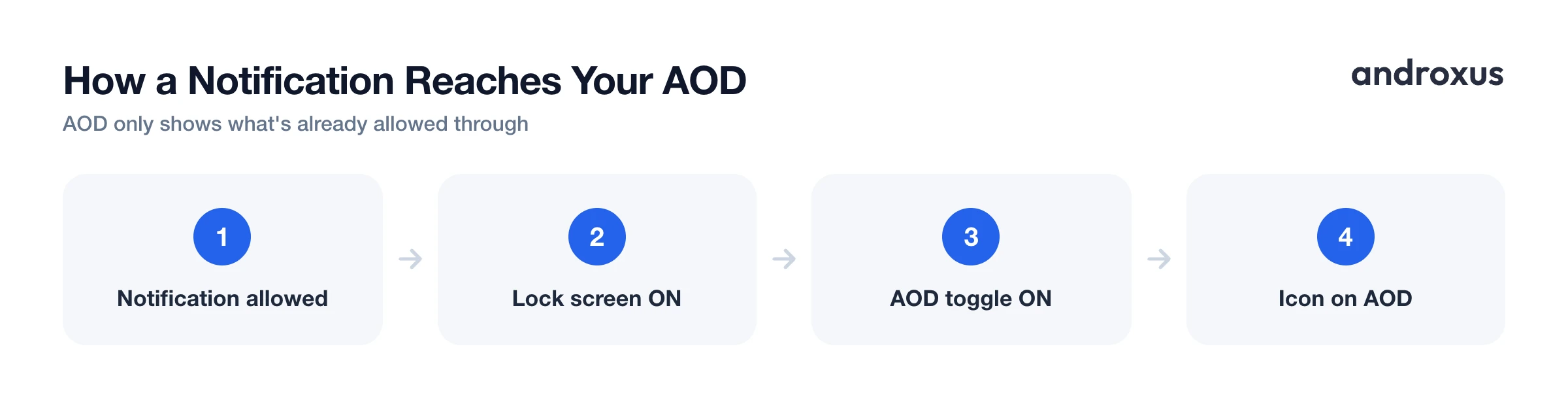
One important rule applies across the board: AOD only reflects notifications that are already allowed to reach your lock screen. It does not add anything extra. If a notification is suppressed by Do Not Disturb, a Focus mode, or the app's own settings, it simply will not appear as an icon on AOD either.
Turning on lock screen and AOD notifications on stock Android and Pixel
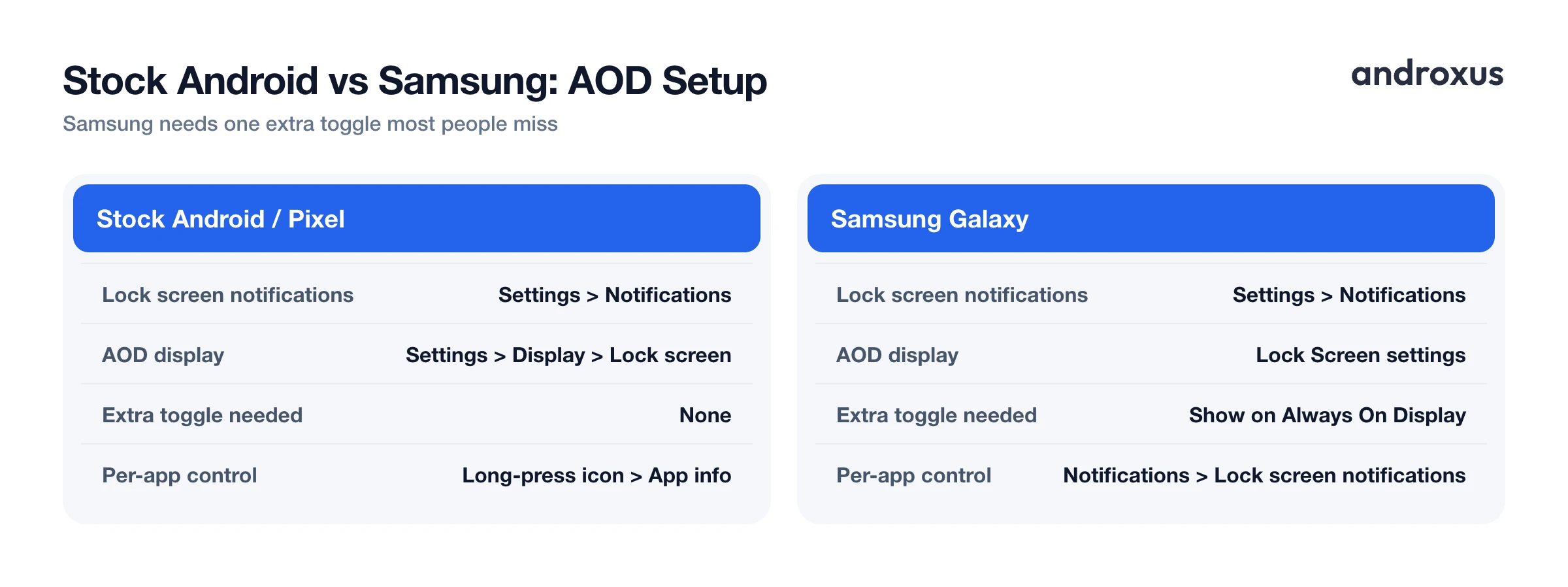
On stock Android and Pixel phones, the notification and display settings are separate but connected.
- Go to Settings > Notifications > Notifications on lock screen and choose to show notifications, rather than hide them.
- In the same screen, there is usually a distinct toggle to show or hide sensitive content specifically, separate from the toggle that hides all content.
- Turn on Always On Display itself under Settings > Display > Lock screen.
- For finer control, long-press any app icon, tap App info, then Notifications, to set that specific app's lock screen behavior.
Because these are separate toggles, it is possible to have lock screen notifications on but Always On Display off, or the reverse. Both need to be enabled for icons to actually appear on AOD.
Turning on AOD notifications on Samsung Galaxy phones
Samsung splits this into two distinct steps, and missing the second one is the most common reason Galaxy owners think AOD notifications are not working.
- Enable Always On Display first, under Lock Screen settings.
- Go back into Lock Screen settings, open Notifications, and turn on Show on Always On Display.
By default, Samsung's AOD shows notifications as icons only, there is no way to preview full text directly on the AOD itself. Double-tapping a notification icon is the standard gesture to wake the screen so you can view it, but the phone still needs to be unlocked to actually open the notification. Per-app lock screen notification settings on Samsung live under Settings > Notifications > Lock screen notifications, or under each app's individual info page.
Managing privacy: hiding sensitive content on the lock screen and AOD
Because AOD is essentially a low-power extension of the lock screen, the same privacy controls govern both.
Stock Android and Samsung both offer a setting to hide sensitive content, meaning the notification icon still appears to confirm something came in, but the sender, message text, or other details stay hidden until you unlock. You can also set individual apps to not show notifications on the lock screen at all, which removes them from AOD as well.
This matters more than it might seem. In shared spaces, on a desk at work, or anywhere a screen might be glanced at by someone else, hiding sensitive content keeps messages, verification codes, and caller names from being visible to anyone but you.
Battery impact: what it honestly costs to keep notifications visible
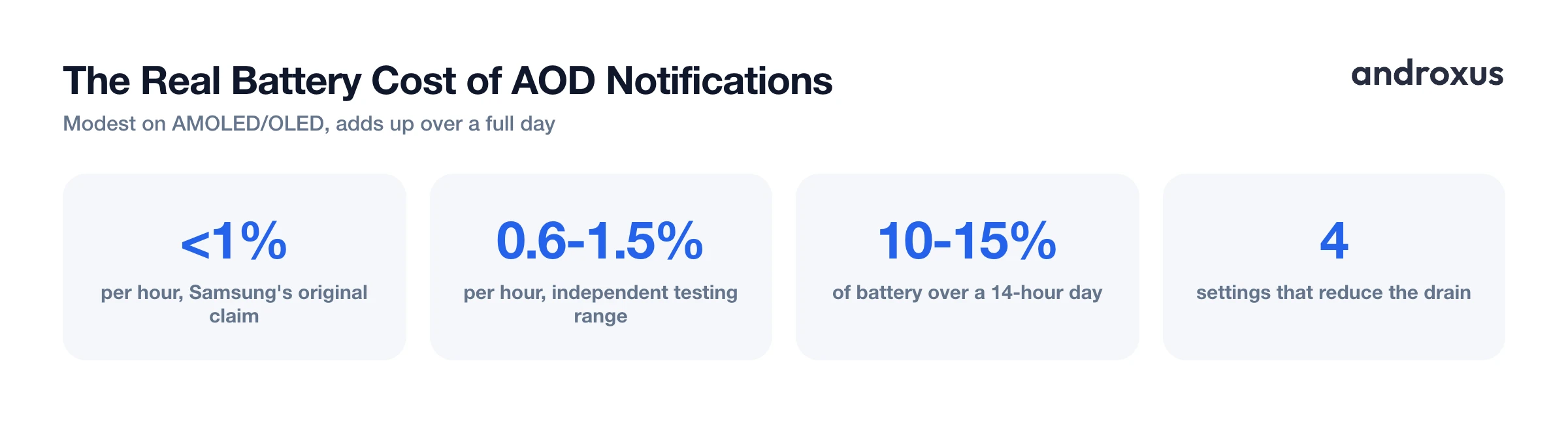
An always-on display does use extra battery compared to a screen that is fully off. That is a real tradeoff, not something to gloss over, though on AMOLED and OLED panels it tends to be modest because only the specific pixels needed for icons, text, and time are lit, unlike a fully backlit screen.
When Samsung first introduced AOD, the company cited figures under 1% battery drain per hour of active use, and independent testing has generally landed in a similar range, roughly 0.6% to 1.5% per hour depending on the phone and AOD style. Left active for most of a 14-hour day, that can add up to somewhere around 10 to 15% of total battery, though scheduling AOD for only part of the day brings the total well below that.
A few settings reduce that cost further:
| Setting | Effect on battery |
|---|---|
| Scheduled AOD hours instead of all day | Cuts total active time |
| Tap-to-show instead of continuous display | Screen lights only on demand |
| Lower AOD brightness/dimming | Fewer electrons needed per lit pixel |
| Fewer apps allowed to show icons | Fewer refresh events |
None of these settings eliminate the cost entirely, but together they can meaningfully reduce it if battery life is a concern.
Phones without native AOD, and adding the capability
Not every Android phone offers a built-in always-on display option. Budget models, LCD-screen phones, and some manufacturer software skins leave the feature out entirely, and LCD panels cannot render an efficient always-on effect the way OLED can, since LCD backlights illuminate the whole panel rather than individual pixels.
On supported AMOLED and OLED phones that lack the native feature, a third-party app can add an AOD-style display showing time, date, battery percentage, and notification icons on the lock screen. AOD Flow is one option here: it displays notification icons and media controls on the lock screen, with adjustable timing and dimming to help manage the added battery draw, plus burn-in protection measures for OLED panels. That protection reduces the risk of long-term pixel wear but cannot fully guarantee against it, the same honest limitation that applies to any AOD implementation, built-in or added. It is also worth noting that an app like this displays information and detects things like fast-charging status; it does not itself change your phone's charging speed.
How to show notifications on your always-on display
- Turn on notifications on the lock screen. Open Settings, go to Notifications, and find the lock screen notifications option (on stock Android and Pixel it's under Notifications > Notifications on lock screen). Choose to show notifications rather than hide them.
- Enable always-on display and its notification icons. Go to Settings > Display > Lock screen (wording varies by brand) and turn on Always On Display. On Samsung phones, after enabling AOD, return to Lock Screen settings, open Notifications, and turn on Show on Always On Display so app icons appear.
- Set your privacy level for sensitive content. In the same lock screen notifications settings, choose whether to show full content, show content only when unlocked, or hide sensitive content.
- Adjust per-app notification visibility. Long-press an app icon, or go to Settings > Apps > [app] > Notifications, and set whether that app's alerts show on the lock screen and how much detail they reveal.
- View and act on a notification from AOD. Tap or double-tap the icon shown on the always-on display to wake the screen to the lock screen, then unlock to see the full content and open the app.
- If your phone lacks native AOD, add it with an app. On devices without a built-in always-on display option, an app such as AOD Flow can display time, battery percentage, and notification icons on the lock screen on supported AMOLED/OLED panels.
Key takeaways
- Getting notifications always on display working correctly usually means enabling two separate settings: lock screen notifications and Always On Display itself, plus a third Samsung-specific toggle on Galaxy phones.
- AOD shows notification icons, not full message text, by default. Use the sensitive content privacy setting to control what shows before unlocking.
- Do Not Disturb, Focus modes, and per-app settings all apply to AOD the same way they apply to the regular lock screen.
- Keeping notifications visible on AOD does use extra battery, generally modest on OLED screens, and timing or dimming settings can reduce that further.
- If your phone has no native always-on display, an app like AOD Flow can add a similar notification and clock display on supported AMOLED/OLED screens, though it displays information rather than changing hardware behavior like charging speed.
Frequently asked questions
Do notifications on the always-on display show full message text?
Usually not by default. Most Android phones show notification icons, and sometimes a one-line preview, on the always-on display, not the full message body. Full content typically requires unlocking the phone, and you can further restrict this with the lock screen privacy setting that hides sensitive content.
Can I reply to a message directly from the always-on display?
No. AOD is a low-power, glance-only surface. Tapping or double-tapping a notification icon on AOD wakes the screen or opens the lock screen so you can view more, but replying, dismissing, or taking app actions still requires unlocking the device.
Will Do Not Disturb hide notifications from my always-on display?
Yes. If a notification is silenced or blocked by Do Not Disturb, Focus modes, or per-app notification settings, it will not appear as an icon on the always-on display either, since AOD simply reflects your active notifications.
Does showing notifications on AOD use noticeably more battery?
It adds some drain, but independent testing has generally found it modest, often cited in the range of under 1% per hour of active AOD time on AMOLED panels, since only the needed pixels light up. Actual impact depends on how often notifications refresh the screen and your brightness and timing settings.
My phone doesn't have an always-on display option in settings. What can I do?
Not every Android phone ships with a native AOD feature, especially budget devices or phones with an LCD screen, which isn't well suited to an efficient always-on effect in the first place. Some budget OLED and AMOLED phones have the right hardware but the manufacturer's software simply leaves the option out. Third-party apps like AOD Flow can add an always-on style display that shows notifications, time, and battery percentage on phones lacking the built-in feature, though results depend on your screen type and work best on OLED/AMOLED panels.
Why don't some app notifications ever show up on my always-on display?
Check three places: the app's own notification permission, its per-app lock screen visibility setting, and whether it's set to show only silently. An app that's muted, has notifications disabled, or is marked to show minimal detail on the lock screen won't produce an AOD icon.
