How to Take a Screenshot Without Buttons on Android
Reaching for the power and volume buttons at the same time is the default way to capture a screen on Android, but it is not the only one. Whether one of your buttons is worn out, your hands are full, or you just prefer a cleaner method, there are several built-in and third-party ways to take a screenshot without buttons at all.
Quick answer: You can take a screenshot without buttons on Android through Settings > Accessibility > Accessibility Menu, which adds a floating panel with a dedicated Screenshot icon on nearly any Android 9 or later device. You can also say "Hey Google, take a screenshot," use a brand-specific gesture like Pixel's Quick Tap or Samsung's palm swipe, or tap the Screenshot button that appears on the Overview (Recents) screen since Android 11. Each method captures the screen through Android's normal capture process, just without pressing the power and volume keys together.
What you'll learn
- Why skipping the button combo matters, beyond just convenience
- The one Android feature that works as a button-free screenshot method on almost every phone
- How the Google Assistant voice command captures screenshots and what setting it depends on
- Which gestures work on Pixel, Samsung, Xiaomi, and other brands
- A comparison of every method so you can pick the one that fits your phone
Why skip the power and volume button combo
The default Android screenshot gesture, holding power and volume down together, is a mechanical action that stresses two physical switches every time you use it. On a phone you screenshot several times a day, that adds up.
Button-free methods help in a few specific situations:
- A worn-out or partially broken power or volume button
- One-handed use, when reaching both buttons at once is awkward
- Wet or gloved hands, where physical buttons are harder to press accurately
- A phone mounted in a car dock or tripod, where the buttons are hard to reach
- Limited hand mobility or dexterity, where a precise two-button press is difficult
Android has offered multiple non-button capture paths since Android 9, spanning stock Android, Pixel-specific features, and OEM skins like One UI and MIUI. None of these alternatives require root access or a third-party app to work at a basic level, though a few brand gestures need to be turned on manually before they'll respond.
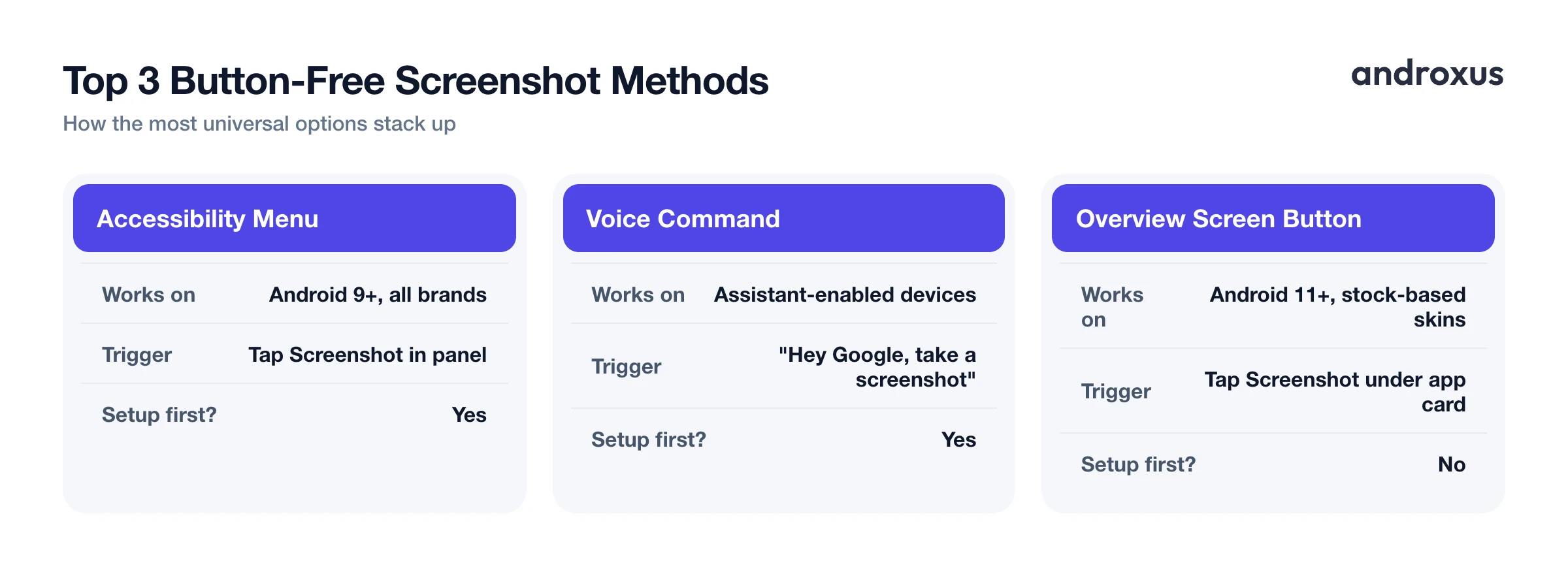
The universal method: Android's Accessibility Menu
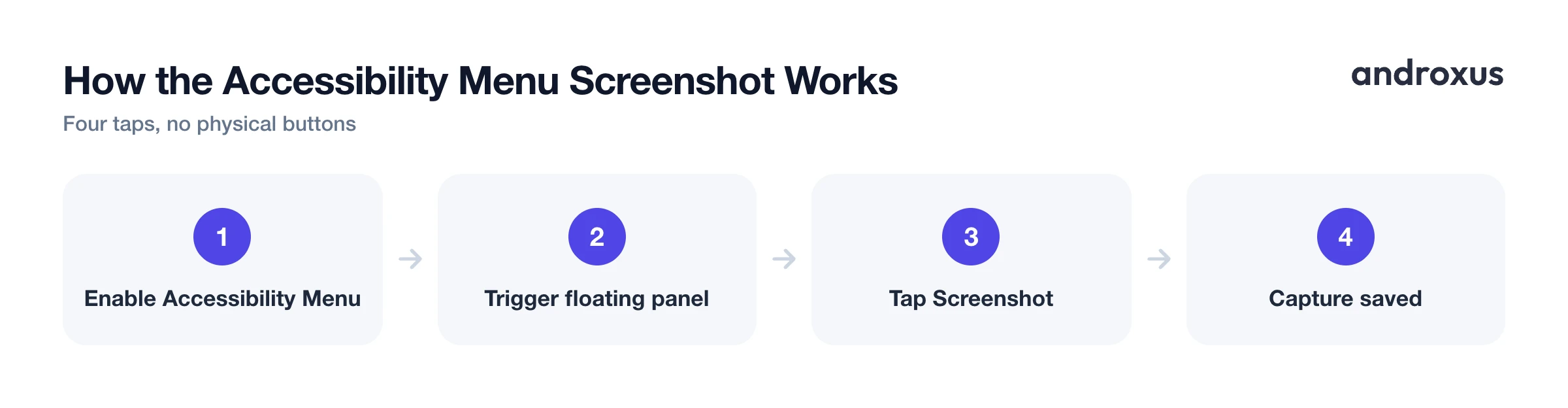
The most broadly available option is a first-party Google feature, not tied to any one phone brand. Go to Settings > Accessibility > Accessibility Menu and turn it on.
Once enabled, a floating panel appears on screen with large tap targets, including Screenshot, alongside options like Power, Lock screen, Notifications, and Quick Settings. It was originally designed for people with limited dexterity, but it works as a general-purpose, button-free screenshot method for anyone.
The way you open the panel varies a little by Android version and manufacturer: some phones show a persistent floating icon, others let you trigger it with a gesture or an accessibility shortcut you set up during setup. Either way, once it's open, tapping Screenshot captures the screen instantly.
Voice command: "Hey Google, take a screenshot"
If your hands are full or you'd rather not touch the screen at all, saying "Hey Google, take a screenshot" (or "OK Google, take a screenshot") captures the current screen and opens the share sheet automatically.
This depends on Google Assistant being active, and on one setting in particular: in the Google app, go to Assistant settings and make sure "Use screen context" is turned on. Assistant needs permission to read what's currently on screen before it can capture it, so without that toggle enabled, the command won't work.
One thing to expect: Assistant-captured screenshots commonly exclude the navigation bar, unlike a manual button-combo screenshot. That's because the image is generated through Assistant's screen-context feature rather than the system's native capture path, so the crop can look slightly different.
Built-in brand gestures: Pixel, Samsung, Xiaomi, and others
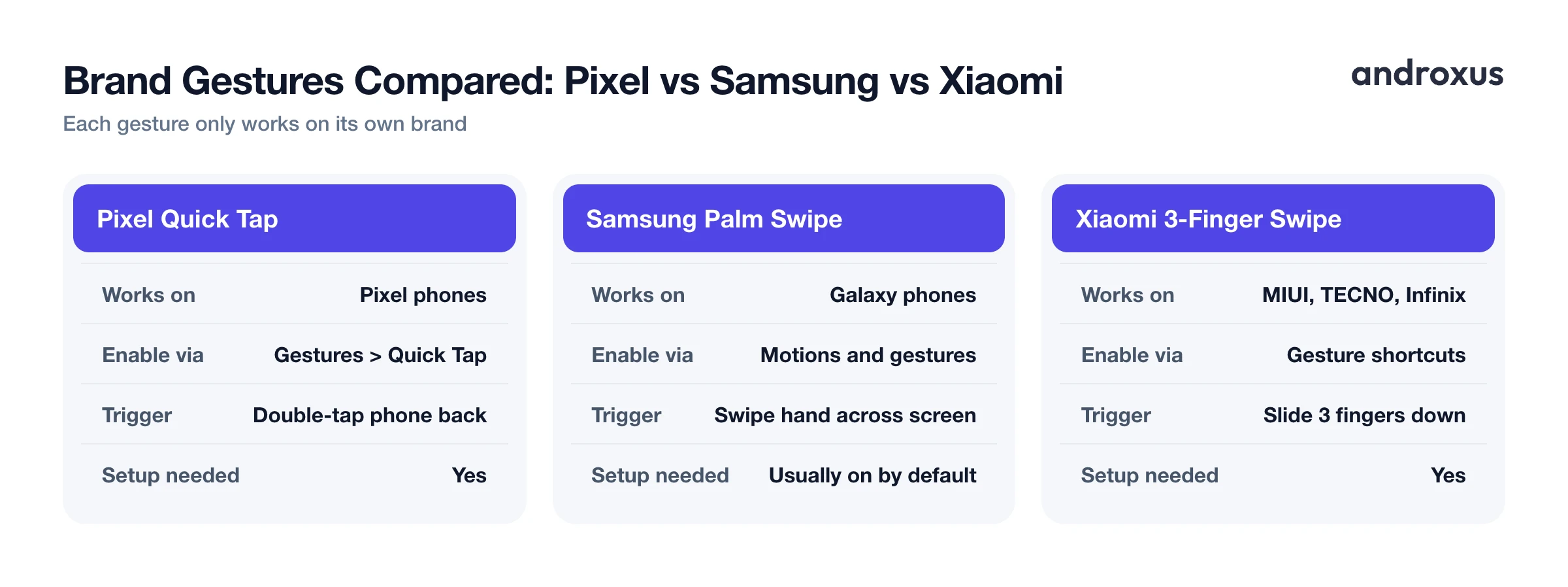
Several manufacturers build their own screenshot gesture directly into the phone's software. These are extensions on top of stock Android, so availability depends entirely on your phone's brand and skin.
Pixel Quick Tap. Go to Settings > System > Gestures > Quick Tap, turn on "Use Quick Tap," then assign Screenshot as the action. Double-tapping the back of the phone triggers it. Google has continued refining Quick Tap's reliability in recent Android updates, including reported improvements around Android 16 QPR2.
Samsung Palm Swipe to Capture. Go to Settings > Advanced features > Motions and gestures, then turn on "Palm swipe to capture." Swipe the edge of your hand across the screen from one side to the other to capture it. This is on by default on most Galaxy phones and tablets that support it, though a few hardware-limited models don't include it.
Xiaomi and MIUI three-finger swipe. Go to Settings > Additional settings > Gesture shortcuts > Take a screenshot, then enable "Slide 3 fingers down." The same gesture is also supported natively on TECNO and Infinix phones.
The Overview (Recents) screen Screenshot button
Since Android 11, opening the app switcher (swipe up and hold with gesture navigation, or tap the square button with 3-button navigation) shows a Screenshot button directly under the current app's card. Tapping it captures that app's screen without touching the power or volume buttons at all.
This works on stock Android and most OEM skins that kept the standard Overview layout, which makes it one of the more broadly available button-free options across different phones. A Share button typically sits right next to Screenshot in the same row, so you can send the capture immediately.
Comparing your options
| Method | Works on | How to enable | Trigger action | Requires setup first? |
|---|---|---|---|---|
| Accessibility Menu | Android 9+, all brands | Settings > Accessibility > Accessibility Menu | Tap Screenshot in floating panel | Yes |
| Google Assistant voice command | Assistant-enabled devices | Turn on "Use screen context" in Assistant settings | Say "Hey Google, take a screenshot" | Yes |
| Pixel Quick Tap | Pixel phones | Settings > System > Gestures > Quick Tap | Double-tap phone back | Yes |
| Samsung Palm Swipe | Galaxy phones | Settings > Advanced features > Motions and gestures | Swipe hand edge across screen | Usually on by default |
| Xiaomi/MIUI 3-finger swipe | MIUI, TECNO, Infinix | Settings > Additional settings > Gesture shortcuts | Slide 3 fingers down | Yes |
| Overview screen button | Android 11+, stock-based skins | None, built in | Tap Screenshot under app card in Recents | No |
| On-screen shortcut button (e.g. Action Notch) | Any Android with Accessibility Service support | Install app and grant Accessibility Service | Tap, double-tap, or long-press the cutout button | Yes |
A dedicated on-screen shortcut button
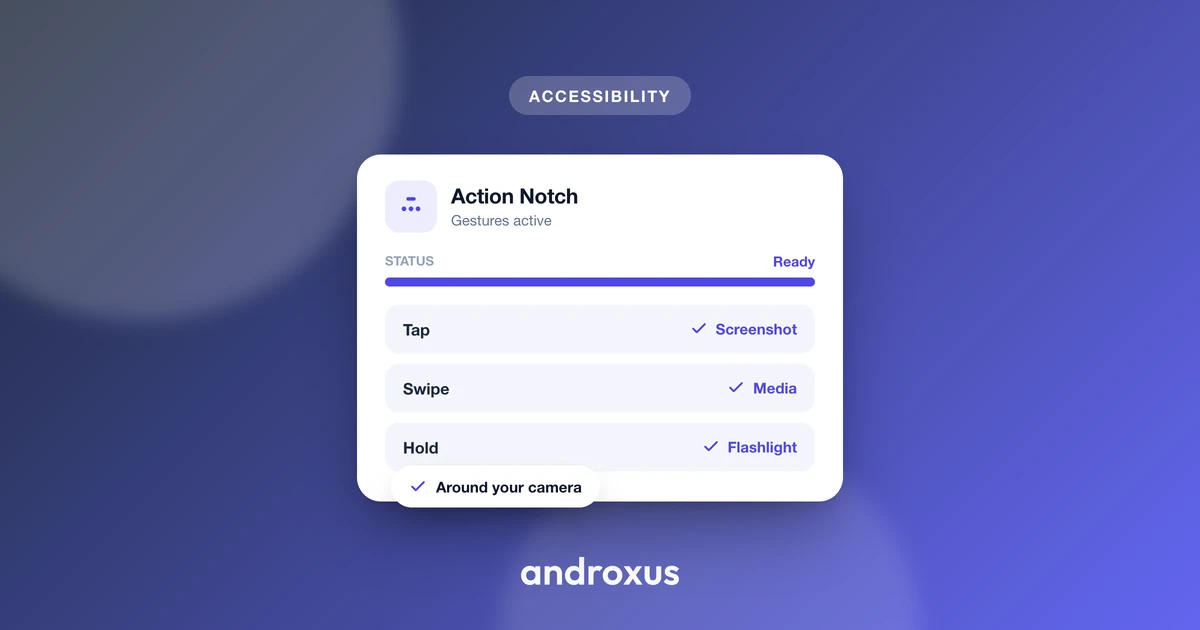
Beyond system settings, some apps add a small tappable zone you can trigger from anywhere on the screen. Action Notch, for example, turns the area around the phone's camera cutout into an interactive shortcut button using Android's Accessibility Service. It draws an invisible overlay around the cutout that responds to tap, double-tap, long-press, or swipe, and the service does not collect data; it's used only to place and operate that touch shortcut zone.
Screenshot is one of the actions you can assign to that button, alongside things like flashlight, screen off, or launching the camera. This is useful for consolidating several button-free actions in one consistent spot instead of memorizing different brand-specific gestures. It's worth being clear about what this is and isn't: it's a shortcut layer sitting on top of Android's existing capture mechanism, not a replacement for it. The actual screenshot is still taken through the standard Android system capture path; the overlay button is just a different way to trigger it.
How to take a screenshot without buttons using the Accessibility Menu
The Accessibility Menu is the most universal button-free method, so here's the full setup:
- Open Accessibility settings. On your Android phone, open Settings and tap Accessibility (on Samsung, this may be under Settings > Accessibility as well).
- Turn on the Accessibility Menu shortcut. Tap Accessibility Menu, then enable it and choose how you want to trigger it, such as a button on screen or a gesture, depending on your Android version.
- Open the floating menu. Trigger the shortcut you just set. A floating on-screen panel with large icons appears.
- Tap Screenshot. Select the Screenshot icon in the panel. The system captures the current screen immediately, no physical buttons involved.
- Find your screenshot. Swipe down from the top for the notification with a preview, or open your Photos app or the Screenshots folder in your gallery.
Key takeaways
- The Accessibility Menu (Settings > Accessibility > Accessibility Menu) is the most reliable button-free screenshot method since it works on nearly any Android 9 or later device, regardless of brand.
- "Hey Google, take a screenshot" is fully hands-free, but it requires "Use screen context" turned on in Assistant settings and tends to crop out the navigation bar.
- Brand gestures like Pixel's Quick Tap, Samsung's palm swipe, and Xiaomi's three-finger swipe are convenient but only work on their specific phones and skins.
- Since Android 11, the Overview (Recents) screen shows a Screenshot button under each app card with no setup required at all.
- On-screen shortcut tools that use the Accessibility Service, including Action Notch, can consolidate screenshot and other actions into one consistent tappable zone instead of separate brand gestures.
Frequently asked questions
Does avoiding the button combo actually protect my phone?
It reduces wear on the mechanical volume and power switches, which are common failure points on older devices. Using a gesture, voice command, or on-screen button instead means fewer physical presses over time.
Does the three-finger swipe gesture work on every Android phone?
No. It is a manufacturer feature, not a stock Android one. Xiaomi and MIUI, TECNO, Infinix, and some Realme and OPPO phones support it natively. Pixel, stock Android, and many other brands do not offer a built-in three-finger swipe, so you would need Quick Tap, a voice command, or an accessibility shortcut instead.
Why does a screenshot taken with 'Hey Google, take a screenshot' look slightly different from a manual one?
Assistant-captured screenshots often crop out the navigation bar and open the share sheet automatically, since the image is generated through Assistant's screen-context feature rather than the system's native capture path.
Do I need to enable anything special for the Google Assistant screenshot command to work?
Yes. In the Google app, go to Assistant settings and make sure 'Use screen context' is turned on, since Assistant needs permission to read what's on screen before it can capture it.
Is there a built-in Android feature for people who have trouble pressing buttons?
Yes. Settings, Accessibility, Accessibility Menu adds a floating on-screen panel with large tap targets, including a dedicated Screenshot button, and it works on nearly any Android 9 or later device regardless of brand.
Does Action Notch replace the accessibility permission requirement?
No. Action Notch also relies on Android's Accessibility Service to draw its overlay button around the camera cutout, the same permission category the built-in Accessibility Menu uses. It doesn't collect data through that service; it uses the permission only to place and operate the tappable shortcut zone.
