Screen Dimmer vs Dark Mode: What's the Difference?
Your phone screen feels too bright at 11pm, so you flip on dark mode and it barely helps. That's because dark mode and a screen dimmer are not the same tool, even though phone settings menus often bury them near each other. Understanding what each one actually changes will save you from reaching for the wrong fix.
Quick answer: Dark mode is a software theme that swaps light backgrounds for dark ones in supported apps; it changes colors, not overall light output, and can save some battery on OLED screens at high brightness. A screen dimmer reduces how much light the screen puts out, often below the normal minimum brightness slider, using either a system feature like Extra Dim or an overlay app that layers a dark tint on top of everything on screen. In the screen dimmer vs dark mode comparison, dark mode is about color scheme and efficiency, while a dimmer is about making the screen genuinely less bright in low light.
What you'll learn
- What dark mode actually changes on your phone, and where its battery savings come from
- What a screen dimmer does differently, including why it can go below your normal minimum brightness
- A side-by-side comparison of dark mode, a dimmer, and a night light color filter
- Where blue light filters fit in and what the sleep research actually says
- How to combine dark mode, Extra Dim, and a night light for the most comfortable nighttime screen
What Dark Mode Actually Does
Dark mode, also called dark theme, swaps app and system backgrounds from light colors to dark colors. It's purely a color scheme change: it doesn't lower screen brightness or add any overlay on top of the display.
On Android, you turn it on at Settings, then Display, then Dark theme (naming varies slightly by manufacturer; some Samsung and Pixel builds simply call it Theme). Once enabled, supported apps and system menus switch their backgrounds to black or dark gray with light text, instead of the reverse.
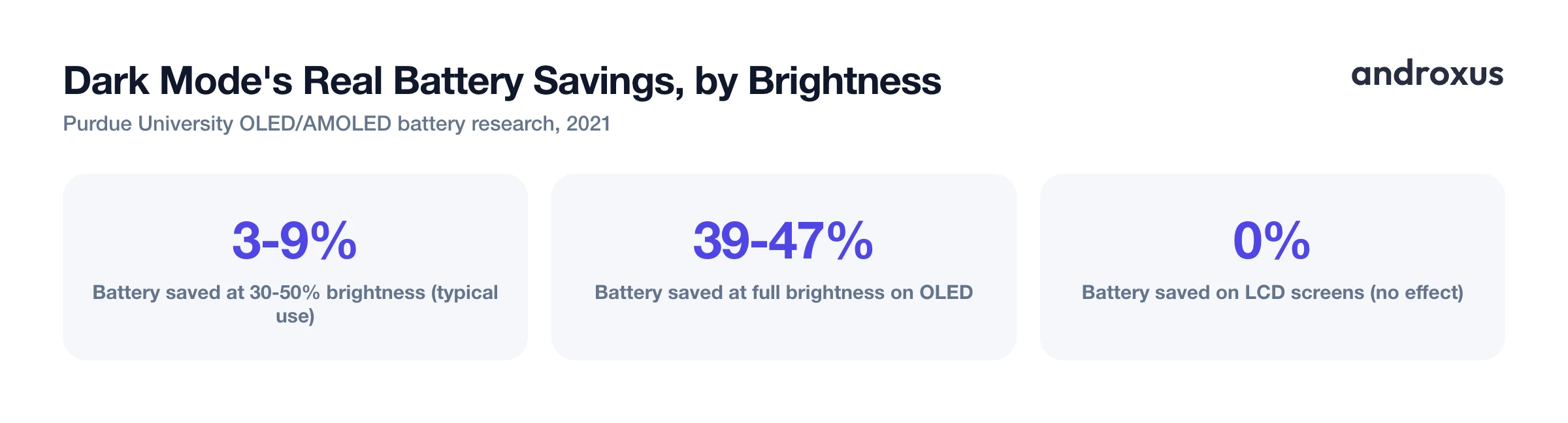
The battery impact of dark mode depends heavily on your screen technology and brightness level. Purdue University research from 2021 found that switching from light mode to dark mode saves only about 3 to 9 percent of battery at typical 30 to 50 percent brightness, but jumps to 39 to 47 percent savings at full brightness on OLED and AMOLED screens. That's because OLED pixels are individually lit, and a pixel displaying true black draws close to no power, while a pixel displaying white draws the most.
Dark mode gives essentially zero battery or dimming benefit on LCD screens, since LCDs use a constant backlight behind the entire panel regardless of what color each pixel shows. App-level support is also inconsistent: some apps don't fully honor the system-wide toggle, so you can still hit patches of bright white with dark theme on everywhere else.
What a Screen Dimmer Actually Does
A screen dimmer, either a built-in OS feature or a third-party app, reduces how bright the screen looks, often going below your phone's normal minimum brightness slider. Unlike dark mode, it doesn't care what colors are on screen; it reduces the light coming off the display itself.
Android 12 and later include a native version of this called Extra Dim, found at Settings, then Accessibility, then Extra Dim, or accessible directly from the Quick Settings brightness slider. The OS uses this to push brightness lower than the standard minimum, useful once the slider is already at its floor and the screen still feels too bright in a dark room.
Third-party dimmer apps, including Night Screen, work a bit differently and need a specific permission to do it. Instead of adjusting the hardware backlight, they request Android's "display over other apps" permission and draw a semi-transparent dark overlay on top of whatever is on screen. This is an important distinction to be honest about: an overlay-based dimmer does not lower the physical backlight below its hardware floor. It visually darkens what's displayed by layering a tint over it, which is why it can look dimmer than the system slider allows without the display hardware itself changing.
Because it works as an overlay, a dimmer affects the entire screen output uniformly, regardless of app, theme, or color scheme. It dims light mode, dark mode, videos, and games alike, something dark mode alone can't do since it only touches apps that support it.
Screen Dimmer vs Dark Mode: The Core Differences
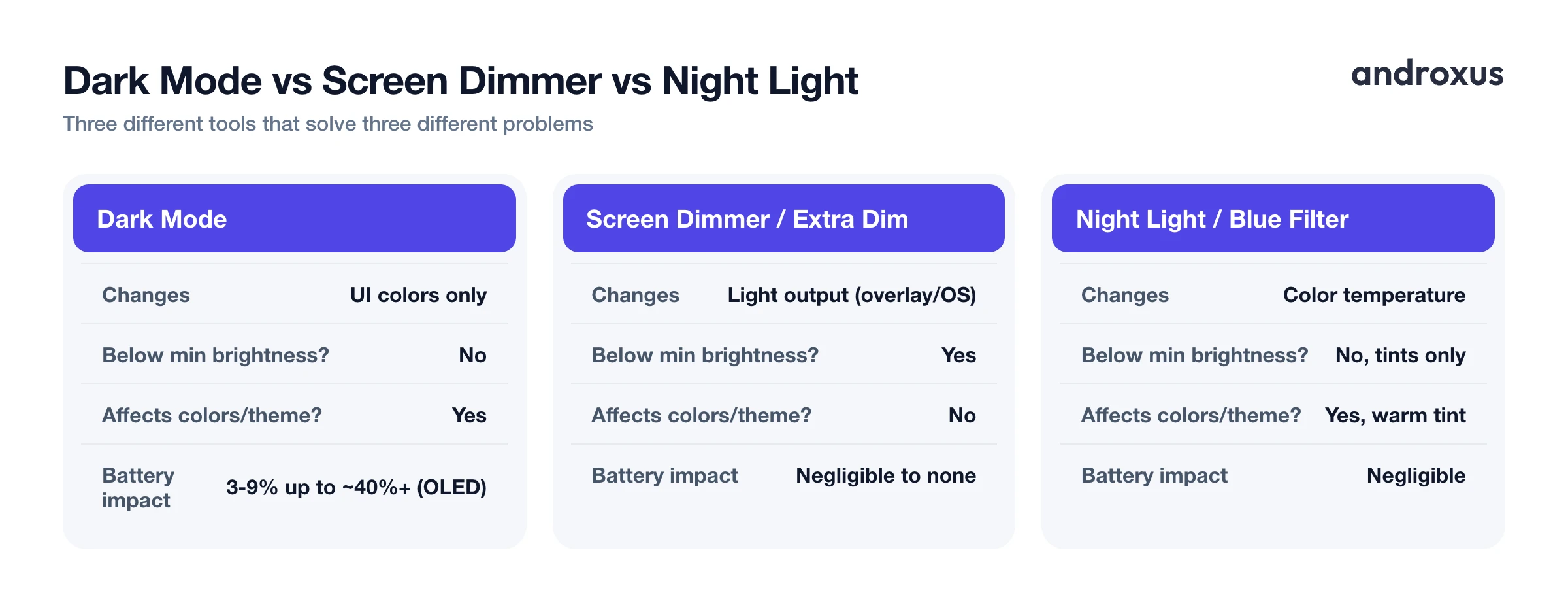
The simplest way to separate them: dark mode changes what color the pixels are, while a dimmer changes how much light reaches your eyes.
| Feature | What it changes | Goes below minimum brightness? | Affects colors/theme? | Typical battery impact | Best for |
|---|---|---|---|---|---|
| Dark Mode | UI colors (app and system backgrounds) | No | Yes | 3 to 9% savings at normal brightness; up to ~40%+ at full brightness on OLED | Everyday glare reduction and OLED battery savings |
| Screen Dimmer / Extra Dim | Light output, via overlay tint or OS-level dimming | Yes | No | Negligible to none | Nighttime or low-light viewing |
| Night Light / Blue Light Filter | Color temperature and warmth | No (tints, doesn't dim) | Yes (warm tint) | Negligible | Evening color warmth, modest sleep comfort |
A few things follow from this. Dark mode only affects apps and system elements that support it, so a photo, video, or unsupported app can still show full-brightness whites with dark theme on. A dimmer overlay, by contrast, sits above everything, so it affects images, video, and camera viewfinders the same way it affects text.
They also solve different problems. Dark mode is about color scheme and OLED efficiency; a dimmer is about reducing light output when the screen is too bright for the environment, like reading in bed. Because they operate on different layers, dark mode and a dimmer overlay aren't mutually exclusive, and you can run both at once for compounded comfort after dark.
Where Blue Light Filters and Night Light Fit In
A third tool often gets lumped in with the first two: Android's built-in Night Light, found at Settings, then Display, then Night Light. This shifts the screen's color temperature warmer, meaning less blue and more amber, and can be scheduled to run automatically from sunset to sunrise. It's a color-temperature shift, not a brightness dimmer, so it doesn't make the screen darker on its own.
Third-party apps like Night Screen offer a similar blue-light filter, sometimes called a reading mode, along with a custom RGB filter for finer control over tint and warmth beyond what the system setting offers.
It's worth being accurate about what the sleep research actually shows, because the evidence is mixed and modest, not a settled guarantee. A 2020 meta-analysis found modest improvements in total sleep time and self-reported sleep quality from blue-light filtering. More recent reviews of randomized controlled trials found that roughly half showed a measurable benefit and half did not.
The underlying mechanism is real: blue light suppresses melatonin production through melanopsin-containing cells in the retina. But most evening phone use already happens in dim rooms, where a software color filter's added effect is smaller than under bright daylight. It's most honest to frame a blue-light filter as a comfort feature that may help some people wind down, not a clinically proven sleep aid.
When to Use Each (and How They Work Together)
Use dark mode for day-to-day OLED battery savings and reduced glare from bright white backgrounds, especially when your brightness is set high.
Use a screen dimmer, whether that's Extra Dim or an overlay app, when the screen is still too bright at the lowest system brightness setting, like reading in bed or using your phone in an otherwise dark room.
Use a night light or blue-light filter schedule for a warmer color tone in the evening, keeping in mind that the sleep benefit is modest rather than dramatic.
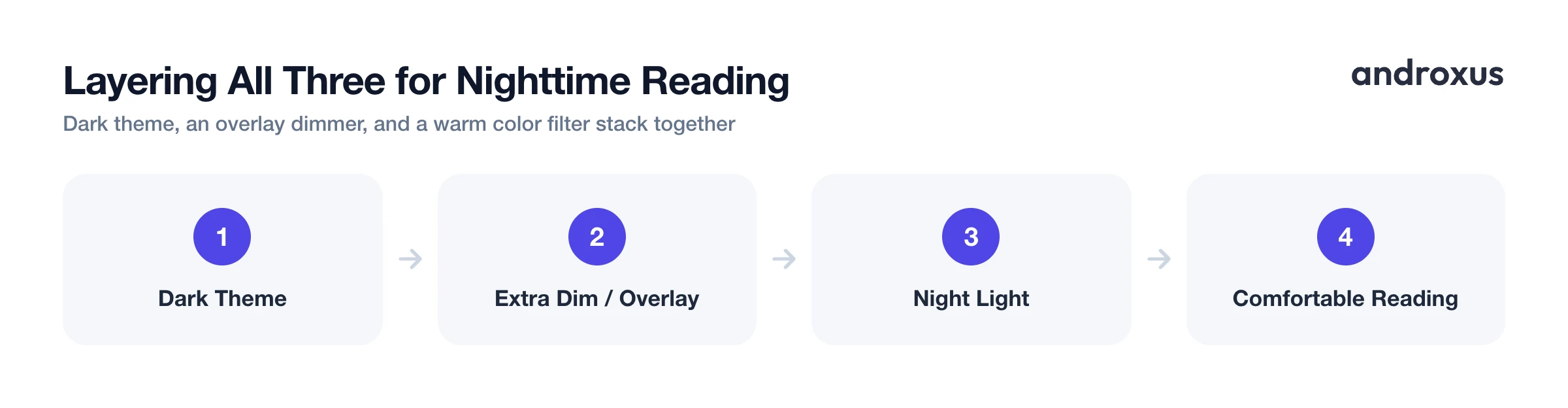
For nighttime reading, the most comfortable result comes from combining dark theme for a less bright background, an overlay dimmer to lower overall light output below the hardware minimum, and a warm color filter for tone. This layered approach is what an app like Night Screen is built around, including an auto-schedule that gradually dims at sunset and lifts again in the morning.
None of these tools change the physical display hardware: they're all software-level adjustments layered on top of whatever brightness the hardware is already set to, not a change to the screen itself.
How to Set Up Dark Mode, Extra Dim, and Night Light Together
- Turn on Dark Theme. Go to Settings, then Display, and toggle Dark theme on (labeled Theme on some devices). This switches supported apps and system menus to dark backgrounds.
- Enable Extra Dim for below-minimum brightness. On Android 12 or later, go to Settings, then Accessibility, then Extra Dim, or swipe down twice from the top of the screen and tap the Extra Dim button near the brightness slider.
- Set up Night Light on a schedule. Go to Settings, then Display, then Night Light, turn it on, and set a schedule, for example sunset to sunrise, so the screen shifts to a warmer color tone automatically in the evening.
- Add an overlay dimmer for finer nighttime control. If your device doesn't have Extra Dim, or you want a blue-light reading mode, a custom RGB tint, or an automatic sunset-to-sunrise schedule with gradual intensity, a dimmer app such as Night Screen can layer a dark filter overlay on the display once you grant its "display over other apps" permission.
- Combine the layers for nighttime reading. For the most comfortable low-light setup, run dark theme system-wide, keep Extra Dim or an overlay dimmer active at night, and let Night Light warm the color temperature on its schedule.
Key takeaways
- Dark mode changes colors and can save meaningful battery on OLED screens at high brightness; it does not reduce overall light output.
- A screen dimmer, whether Extra Dim or an overlay app, reduces light output directly and can go below your phone's normal minimum brightness.
- A night light or blue-light filter shifts color temperature warmer and may offer modest sleep comfort, but the research is mixed, not conclusive.
- These three tools are complementary rather than competing: dark mode, a dimmer, and a warm color filter can all run at once for the most comfortable nighttime screen.
- None of them alter the physical display hardware; they are all software-level color, overlay, or temperature adjustments layered on top of the existing brightness.
Frequently asked questions
Is a screen dimmer the same thing as dark mode?
No. Dark mode changes app and system colors from light to dark; a screen dimmer reduces the actual light output of the screen, often below what the normal brightness slider allows. They solve different problems and can be used together.
Does dark mode actually save battery?
On OLED/AMOLED screens, yes, but the amount depends on brightness. Purdue University research found savings of roughly 3 to 9 percent at typical 30 to 50 percent brightness and up to 39 to 47 percent at full brightness. On LCD screens, dark mode has no meaningful battery effect.
Can I make my Android screen dimmer than the lowest brightness setting?
Yes. Android 12 and later include a built-in Extra Dim feature (Settings, then Accessibility, then Extra Dim) for this. Third-party dimmer apps offer similar or finer control using a dark overlay filter layered on top of the screen.
Does a blue light filter or night mode actually help you sleep?
The evidence is modest and mixed. Some studies show small improvements in sleep time or self-reported quality, while others show no measurable benefit. It's a reasonable comfort feature to try, not a guaranteed fix for sleep problems.
Should I use dark mode and a dimmer at the same time?
Yes, they're complementary. Dark mode reduces how much bright white content you see and can save battery on OLED screens; a dimmer overlay reduces overall light output further, which is especially useful for nighttime reading in bed.
Does an overlay-based screen dimmer actually lower my phone's hardware brightness?
No. Overlay dimmer apps darken the screen by drawing a semi-transparent filter over what's displayed; they don't lower the physical backlight below its built-in minimum. The visual effect is a darker screen, but the underlying hardware brightness floor is unchanged.
