Does Lowering Brightness Save Battery? The Real Numbers
You turn your brightness down to squeeze out a bit more battery before bed, but it is hard to know if it is actually doing much or just placebo. Does lowering brightness save battery in any meaningful way, or is the screen a small player next to the CPU and your apps? The research on this is clear, and the numbers are bigger than most people expect.
Quick answer: Yes, lowering screen brightness saves battery, often more than any other single setting. The display is typically the largest power draw on a phone, and on OLED screens power use scales steeply with brightness, so dropping from maximum to around half brightness cuts display power draw by far more than half, not just a modest fraction. On LCD phones the savings are more linear but still meaningful.
What you'll learn
- How much of your total battery the screen typically accounts for
- Why the first steps down from maximum brightness matter more than the last steps
- Whether dark mode adds anything on top of lowering brightness
- Whether auto-brightness is actually optimizing for battery life
- What a dimming or blue-light filter app can and cannot do for battery and sleep
How much of your battery does the screen actually use?
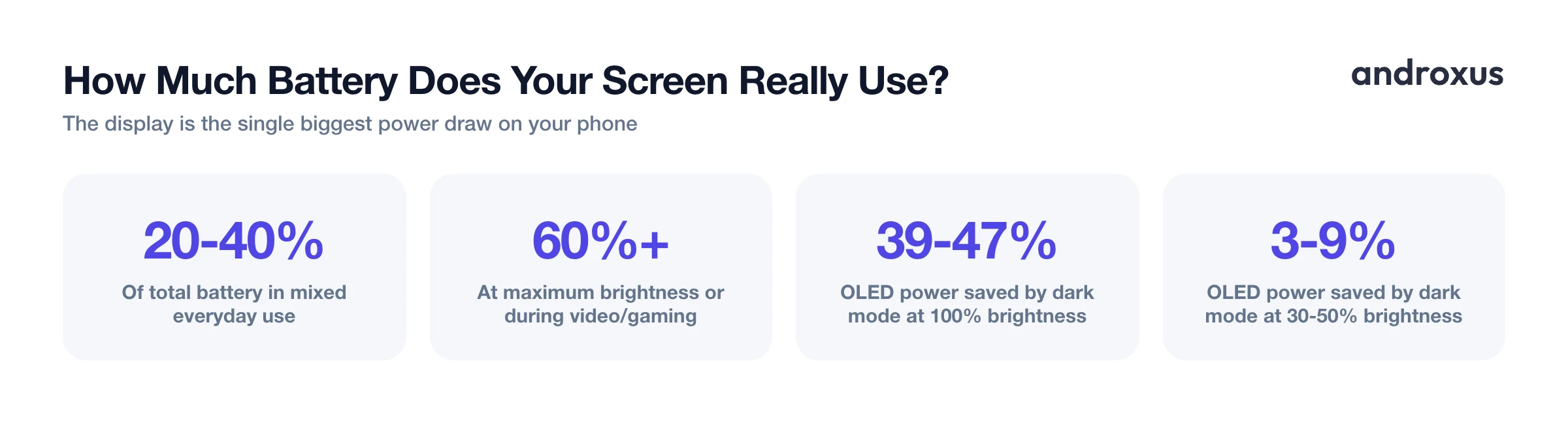
During active use, the display is typically the single largest power draw on a smartphone, ahead of the CPU, the radios, or any individual app running in the background. Commonly cited research, including Carroll and Heiser's classic USENIX smartphone power-consumption study along with later display-power studies, puts the screen at roughly 20 to 40 percent of total battery use in typical mixed usage. That share climbs much higher, often 60 percent or more, at maximum brightness or when the screen stays on for long stretches, like during video playback or gaming.
Because the display's share of the power budget is so large, brightness, the setting that most directly controls how much power the display draws, has an outsized effect on battery life compared to most other settings on the phone.
Why brightness matters more than almost any other setting
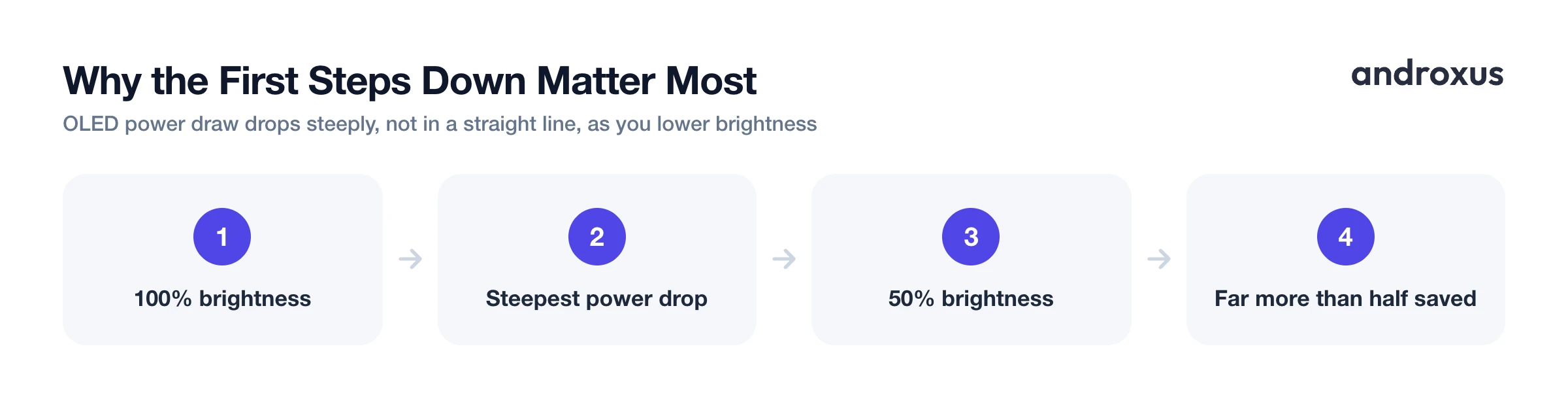
OLED power research, including per-pixel display power modeling work presented at MobiSys 2021, shows that lowering an OLED display's brightness from 100 percent to 50 percent cuts the display's power draw by far more than half. That is a non-linear, steeply curved relationship, not a straight line down.
The practical implication is that the first steps down from maximum brightness matter the most. Going from 100 percent to 80 percent saves more power than going from 40 percent to 20 percent, because the curve is steepest near the top. If your screen is usually near full brightness, even a modest pull-down delivers an outsized return.
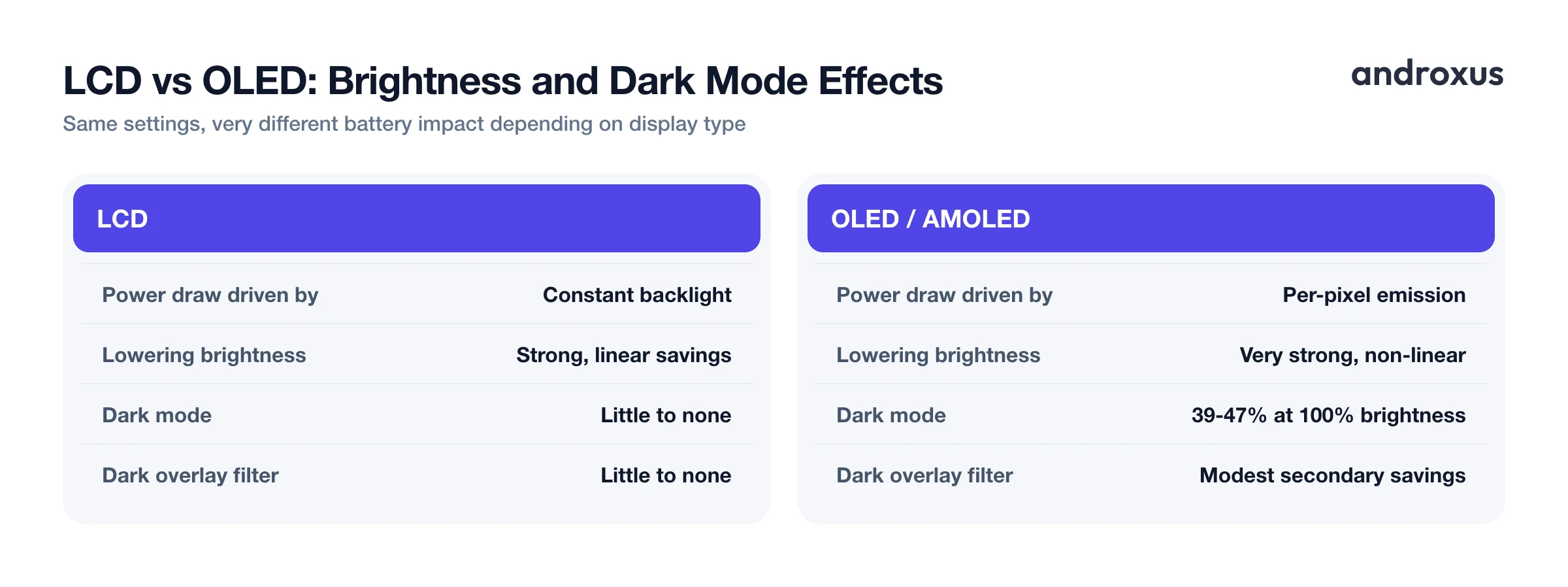
On LCD-based phones, the backlight is the dominant power draw, and its consumption scales roughly in proportion to the brightness level. Cutting brightness in half cuts backlight power by roughly a similar fraction, a more linear but still meaningful relationship compared to OLED's steep curve.
Does dark mode help too, or is brightness all that matters?
OLED and AMOLED pixels emit their own light and can shut off almost entirely for true black, which is why dark mode can meaningfully cut power draw on those screens. LCD screens use a constant backlight regardless of what color is on screen, so dark mode does little to nothing for LCD battery use.
The same Purdue MobiSys 2021 study found that dark mode's benefit is highly dependent on brightness level. At 100 percent brightness, switching from light to dark mode saved an average of 39 to 47 percent of display power on the OLED phones tested. But at 30 to 50 percent brightness, the range where auto-brightness commonly sits indoors, the savings shrank to just 3 to 9 percent.
The takeaway is that brightness is the dominant lever, and dark mode is a secondary, conditional one that only pays off noticeably at high brightness.
Auto-brightness: does it actually save battery?
Android's Adaptive Brightness uses the phone's ambient light sensor plus on-device learning. It records the brightness level you manually choose under given lighting and uses that history to fine-tune future automatic adjustments. You'll find it at Settings, then Display, then Adaptive Brightness on stock Android and Pixel phones, or as a toggle under the brightness slider in the notification shade on Samsung devices.
Adaptive brightness optimizes for visibility, not battery. In bright environments, like outdoors or a sunlit room, it will push brightness up, which increases power draw even though the adjustment is automatic. It is not a battery-saving feature in itself, it is a convenience feature that happens to help battery life when it keeps you from defaulting to peak brightness indoors.
Because the system learns from repeated manual adjustments, deliberately nudging the slider down a few times in a given environment retrains it toward lower, more battery-friendly levels over time.
Why can't I dim my phone further, and does an overlay filter actually save power?
Android and most manufacturer skins enforce a minimum brightness floor for usability, so the screen never gets too dark to read, and to avoid panel artifacts. Some manufacturers, including OnePlus and Oppo on certain devices, raised their floor specifically because very low brightness caused visible color tint or black crush on their panels.
Android 12 and later includes a built-in accessibility feature called Extra Dim, found at Settings, then Accessibility, then Extra Dim, that dims the screen further by rendering pixel color values darker before display rather than lowering the hardware backlight. It can reduce apparent brightness by roughly up to half beyond the standard minimum.
Third-party dimming and filter apps, including Night Screen, work the same general way: they draw a semi-transparent dark overlay on top of the screen content rather than lowering the hardware backlight below its minimum. On LCD phones this overlay has little direct battery effect since the backlight itself is unchanged. On OLED and AMOLED phones it can modestly reduce power draw, because darker rendered pixels draw less current, similar in principle to dark mode, though this is a secondary bonus rather than the overlay's main purpose. Its primary value is visual comfort for reading in the dark, not a guaranteed battery-saving feature.
| Display type | What mainly determines power draw | Effect of lowering brightness | Effect of dark mode | Effect of a dark overlay filter |
|---|---|---|---|---|
| LCD | Constant backlight | Strong, roughly linear savings | Little to none | Little to none, backlight is unchanged |
| OLED / AMOLED | Per-pixel emission | Very strong, non-linear savings, far more than half from 100% to 50% | Strong but brightness-dependent: 39-47% at 100%, 3-9% at 30-50% | Modest secondary savings, since darker rendered pixels draw less current |
Does a blue-light filter or night mode help sleep, and what about battery?
Evening blue light exposure is well established to suppress melatonin and can delay sleep onset. But the evidence that software blue-light filters, like Android's Night Light or a reading-mode filter, meaningfully fix this is mixed and still debated.
Multiple recent studies, including a 2024 observational study and coverage of large-scale Night Shift usage data, found blue-light filtering apps show negligible to modest, inconsistent effects on sleep latency and quality in real-world use. Some researchers argue that overall screen brightness and pre-bed screen time matter more than color temperature specifically.
Android has included a native Night Light feature since Android 7.1.1, found at Settings, then Display, then Night Light. It can be scheduled on a custom time range or sunset to sunrise, and the latter option requires location access to calculate local sunset and sunrise times.
A color or warmth shift by itself has minimal direct effect on battery use. Any battery benefit from a night-mode filter comes mainly from pairing it with lower brightness, not from the color tint itself.
How to get the most battery life out of your screen brightness settings
- Manually lower your brightness slider. Open Settings, then Display, and drag the brightness slider down to the lowest level that's still comfortable in your current lighting. Because screen power draw scales steeply with brightness, especially on OLED, this single change has more impact than almost any other battery setting.
- Turn on and retrain Adaptive Brightness. Enable Settings, Display, Adaptive Brightness, so the ambient light sensor and on-device learning adjust brightness automatically. Manually nudge the slider down a few times in your typical environments so the system learns your lower preference instead of defaulting brighter than needed.
- Shorten screen timeout. Go to Settings, Display, Screen timeout, and reduce it to 15 to 30 seconds. Less time with the screen lit multiplies against whatever brightness level you've set, directly cutting screen-on power use.
- Enable Extra Dim for low-light comfort. If your phone's minimum brightness is still too bright at night, turn on Settings, Accessibility, Extra Dim, on Android 12 and up, for additional software dimming beyond the system floor.
- Pair dark theme with lower brightness on OLED phones. If your phone has an OLED or AMOLED display, enable Settings, Display, Dark theme, alongside a lower brightness setting, since the two effects compound.
- Set a Night Light or evening filter schedule. For evening use, go to Settings, Display, Night Light, Schedule, and choose a custom time range or sunset to sunrise, or use a scheduled dimming app such as Night Screen for evening hours. Treat this mainly as a visual-comfort step, since its sleep and battery effects are secondary and modest, not guaranteed.
Key takeaways
- Yes, lowering brightness saves battery, and it is one of the single biggest levers on the phone since the display is typically the largest power draw during active use.
- On OLED screens the savings curve is steep and non-linear, cutting display power by far more than half between 100 percent and 50 percent brightness, so the first steps down matter the most.
- Dark mode helps, but mainly at high brightness. At the 30 to 50 percent range where auto-brightness commonly sits indoors, its savings shrink to single digits.
- Auto-brightness optimizes for visibility, not battery, so it can push brightness up outdoors even while feeling automatic and hands-off.
- Dimming and blue-light filter apps like Night Screen are primarily comfort tools for low-light reading, with any battery benefit coming as a secondary effect, not a guaranteed savings feature.
Frequently asked questions
Does lowering screen brightness actually save battery?
Yes, it is one of the single biggest battery levers on a phone. Display power draw scales steeply with brightness, and on OLED screens the relationship is roughly exponential, meaning dropping from maximum to around half brightness can cut display power draw by a large margin, not just a small one.
How much of my phone's battery does the screen use?
The display is typically the largest single power draw during active use. Research generally puts it at around 20 to 40 percent of total battery consumption in mixed everyday use, and it can climb well past that at maximum brightness or during long screen-on sessions like video or gaming.
Does dark mode save more battery than lowering brightness?
No, brightness matters more overall. A Purdue University study found dark mode saves a large amount of OLED display power, 39 to 47 percent, but only at 100 percent brightness. At the 30 to 50 percent brightness range where auto-brightness commonly sits indoors, dark mode's savings shrink to just 3 to 9 percent, while brightness itself remains the dominant factor.
Is OLED or LCD more affected by brightness settings?
Both use less power at lower brightness, but for different reasons. LCD power drops because the constant backlight is dimmed, roughly proportional to the brightness level. OLED power drops even more steeply because each pixel emits less light directly, and OLED gets an added boost from dark content since black pixels can be nearly powered off.
Does a blue-light filter or night mode help me sleep, and does it save battery?
Its sleep benefit is modest and still debated. Recent research on blue-light filtering apps and features like Night Shift shows mixed, often negligible effects on sleep onset and quality, suggesting overall screen brightness may matter more than color temperature. A color or tint shift alone has little direct effect on battery use, savings mainly come from pairing it with a lower brightness level.
Can I dim my screen below Android's minimum brightness, and will it save battery?
Android enforces a brightness floor for usability, but you can go dimmer using the built-in Extra Dim accessibility feature (Android 12+) or a dimming or filter app that overlays a dark tint. These work by darkening what's rendered on screen, not by lowering the hardware backlight further. On LCD phones this saves little to no power since the backlight is unchanged; on OLED phones it can modestly reduce power since darker pixels draw less current, though the main benefit is visual comfort in low light, not guaranteed battery savings.
