How to Auto Dim Screen at Sunset on Android
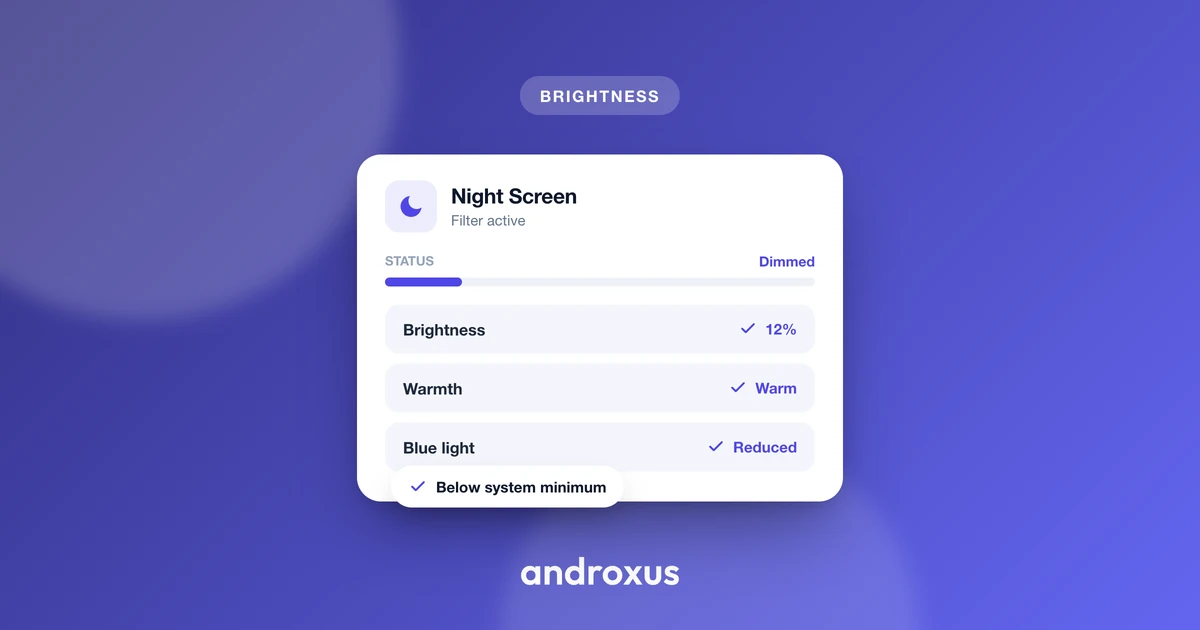
Staring at a phone at full brightness in a dark bedroom is one of the more common small discomforts of modern life, and it's also one of the easiest to fix. If you want your screen to auto dim at sunset without remembering to fumble with settings every night, Android already has most of the pieces built in, and a few gaps worth knowing about.
Quick answer: To auto dim screen at sunset on Android, turn on Night Light (Settings > Display > Night Light) with the "sunset to sunrise" schedule for warmer color temperature, and enable Extra Dim (Settings > Accessibility > Extra Dim) for brightness below the normal floor. Night Light has native sunset scheduling but only changes color, while Extra Dim goes dimmer but must be toggled manually or through an app with its own auto-schedule, such as Night Screen, for a fully automatic dim-at-sunset routine.
What you'll learn
- Why bright screens feel harsh at night and what the science actually supports
- How Android's Night Light and Extra Dim features work, and where each falls short
- What "auto-dimming below minimum brightness" really does on a technical level
- How to combine native settings and apps into one seamless sunset-to-morning routine
- Straightforward, correct answers to the most common questions about night dimming
Why screens feel too bright at night (and why it matters)
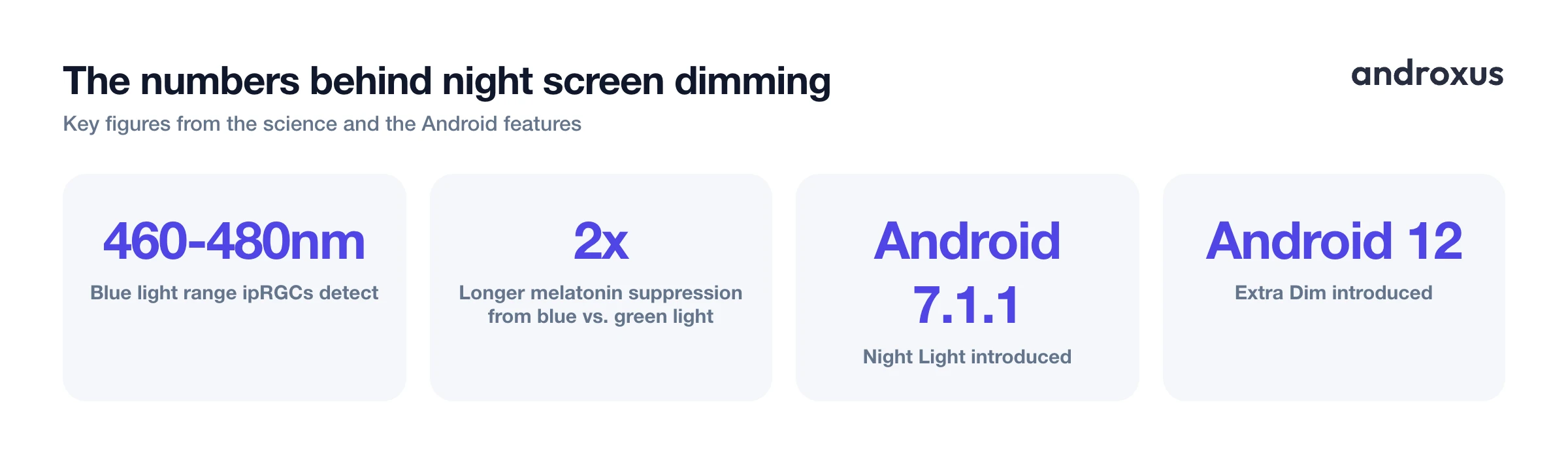
Your eyes contain specialized cells called intrinsically photosensitive retinal ganglion cells, or ipRGCs, that are especially sensitive to blue light in roughly the 460 to 480 nanometer range. These cells feed directly into the suprachiasmatic nucleus, the brain's master clock, and signal it to suppress melatonin release. Harvard sleep researchers found that blue light suppressed melatonin roughly twice as long as comparable-brightness green light and shifted circadian timing more noticeably.
That mechanism, blue light suppressing melatonin, is well established in lab research. But that is a different claim from saying blue-light filter apps or glasses measurably improve real-world sleep. A 2023 Cochrane review and the American Academy of Ophthalmology both found minimal to no solid evidence that blue-light-blocking eyewear improves sleep or reduces eye strain compared to regular lenses. The honest takeaway is that simply reducing overall screen brightness and glare at night is a more straightforward comfort win than color-temperature shifting alone, since less light overall means less pupil and retinal stimulation before bed.
Android's built-in Night Light: true sunset-to-sunrise scheduling
Night Light has shipped in Android since version 7.1.1 and lives at Settings > Display > Night Light. It offers three schedule modes:
- "Turns on from sunset to sunrise," calculated from your device's location and the time of year
- A custom start and end time you set yourself
- Manual on and off
Sunset-to-sunrise scheduling requires location services to be enabled. Android needs your location to calculate local sunset and sunrise times, and the schedule will not auto-trigger correctly with location turned off. Since Android 8.0, an intensity slider lets you control how strongly the display shifts toward amber and red tones.
It's worth being clear about what Night Light actually changes: it shifts the display's color temperature. It does not lower the screen's actual brightness or luminance. If your screen still feels too bright in a dark room even with Night Light on, that's expected, because brightness and color warmth are two separate controls.
Extra Dim: getting below Android's brightness floor
Extra Dim is a built-in Android accessibility feature, introduced in Android 12, found at Settings > Accessibility > Extra Dim (on Samsung devices, it's under Accessibility > Vision enhancements > Extra dimmed). It exists because manufacturers set a minimum brightness floor in software, well above zero, mainly for visibility and panel uniformity, not because the hardware itself is incapable of going dimmer.
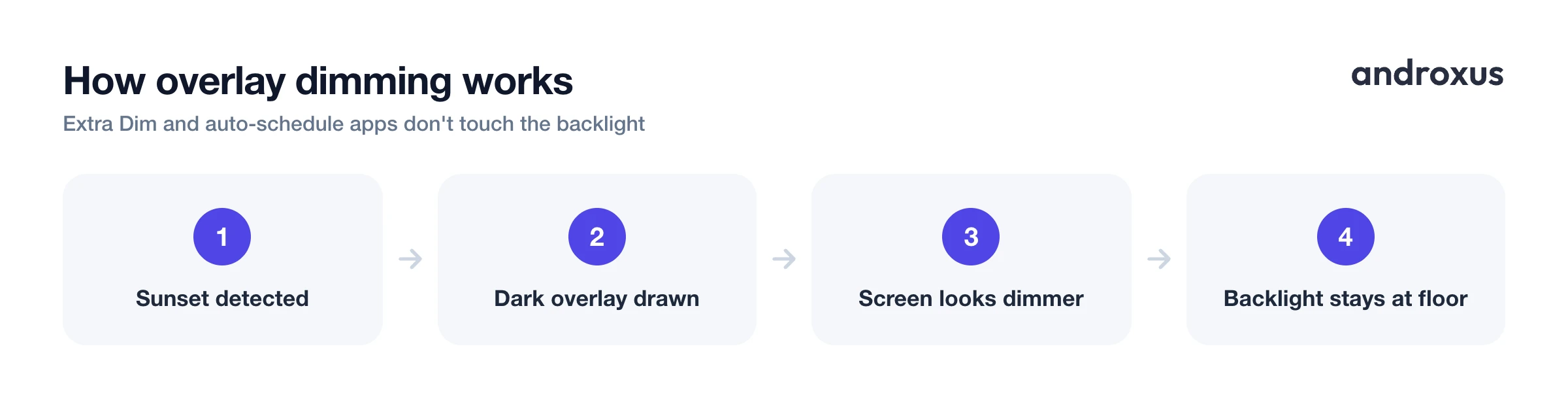
Extra Dim works by layering a darkening overlay over the display rather than lowering the backlight past the manufacturer's floor. It has an adjustable intensity slider and a Quick Settings tile for fast access. On Pixel 10 and later devices, Google changed the behavior so Extra Dim engages automatically once the brightness slider is pulled all the way to its minimum.
The one gap: as a manual accessibility toggle, Extra Dim does not include its own sunset-based automatic schedule the way Night Light does. You either have to turn it on and off yourself, or use the Quick Settings tile as a nightly habit.
What "auto-dimming" actually does under the hood
Any dimming method that goes below the phone's minimum brightness setting, whether that's Android's Extra Dim or a third-party app, works by drawing a semi-transparent dark layer over the screen content rather than reducing the backlight voltage. This is a software overlay technique: the display panel's actual hardware brightness stays at its floor, and the overlay tints or darkens what you see on top of it.
Apps like Night Screen use this same overlay approach, offering a dim light mode for extra-low brightness, a blue-light-filter or reading mode, a custom RGB tint, and an auto-schedule mode that fades the overlay on at sunset and off in the morning. Because it's an overlay rather than a hardware change, this kind of dimming does not physically alter the display panel or its backlight. It changes what light reaches your eyes by adding a filter layer on top of the existing image, not by changing what the screen itself is capable of.
Android's auto-dim and night mode options compared
| Feature | Where to find it | What it changes | Goes below minimum brightness? | Has native sunset/sunrise schedule? |
|---|---|---|---|---|
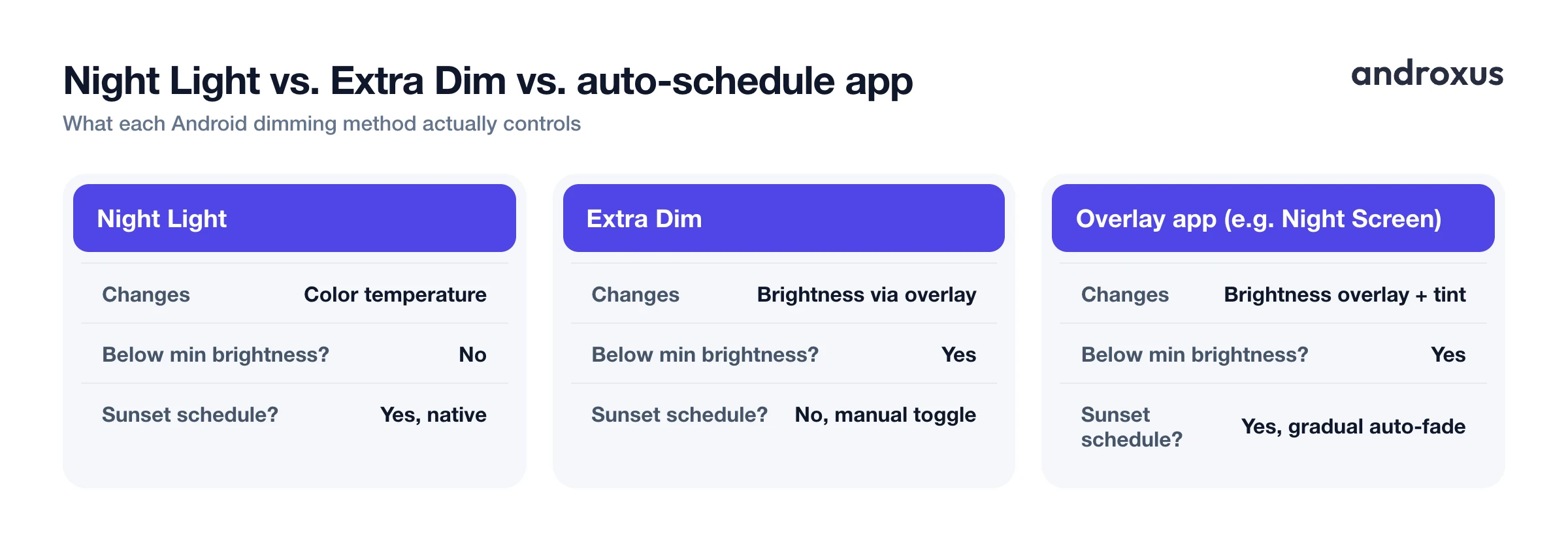
| Night Light | Settings > Display > Night Light | Color temperature / warmth | No | Yes |
| Extra Dim | Settings > Accessibility > Extra Dim | Brightness via overlay | Yes | No, manual or Quick Settings toggle only |
| Adaptive Brightness | Settings > Display > Adaptive brightness | Brightness via sensor and learning | No, stays within normal range | No, reactive rather than scheduled |
| Dark theme | Settings > Display > Dark theme | UI color scheme, not backlight | No | Some OEMs offer a schedule |
| Dedicated overlay app (e.g. Night Screen) | Installed app | Brightness overlay and color tint | Yes | Yes, sunset-to-morning auto-schedule with gradual intensity |
Building a full sunset-to-morning auto-dim schedule
A complete setup layers three things: Night Light for warmer color at night, Extra Dim or an overlay app for lower effective brightness, and Adaptive Brightness for smart adjustment based on ambient light during the day.
Adaptive Brightness, found at Settings > Display > Adaptive brightness, uses the ambient light sensor and on-device learning from your manual adjustments to fine-tune brightness automatically throughout the day, including brightening back up once it's light out. For a schedule that fades on precisely at local sunset and fades off in the morning gradually rather than as an abrupt jump, a dedicated app with a sunset and sunrise-aware auto-schedule is more precise than manually timing Extra Dim every night.
One permission note applies across all of these: location access is required for any feature, whether that's Night Light's sunset-to-sunrise mode or an app's auto-schedule, that calculates real local sunset and sunrise times rather than working off a fixed clock time.
How to auto dim screen at sunset on Android
- Turn on Night Light with a sunset-to-sunrise schedule. Go to Settings > Display > Night Light, tap Schedule, and choose "Turns on from sunset to sunrise." Make sure location services are enabled so Android can calculate accurate local sunset and sunrise times for your area.
- Set your preferred warmth intensity. In the same Night Light menu, use the intensity slider to choose how strongly the display shifts toward amber tones. Lighter warmth is more subtle, while higher warmth is more pronounced for late-night reading.
- Enable Extra Dim for below-minimum brightness at night. Go to Settings > Accessibility > Extra Dim and turn it on. Add the Extra Dim tile to your Quick Settings panel for a fast toggle, and adjust its intensity slider to find a level that's comfortable in a dark room.
- Add a dedicated auto-schedule app for gradual sunset-to-morning transitions. For dimming that fades on automatically at sunset and fades off in the morning without manual toggling each night, use an app with a built-in auto-schedule, such as Night Screen's auto mode, which applies a dark overlay starting at sunset and gradually lightens it toward morning. Apps like this need the "Display over other apps" permission (Settings > Apps > Special app access) to draw that overlay.
- Turn on Adaptive Brightness for the daytime side of the cycle. Go to Settings > Display > Adaptive brightness and enable it. This lets the ambient light sensor and on-device learning bring your screen back to a comfortable brightness once the sun is up, complementing your evening dimming schedule.
- Test for a few nights and fine-tune. Live with the schedule for two or three nights, then revisit the Night Light warmth and Extra Dim (or app) intensity settings to dial in a level that's comfortable for your eyes without making the screen hard to read.
Key takeaways
- Night Light shifts color temperature and has a native sunset-to-sunrise schedule, but it does not lower brightness.
- Extra Dim lowers brightness below the normal floor using a software overlay, not a hardware change, but has no built-in sunset schedule of its own.
- Blue light does measurably suppress melatonin in lab settings, but current research does not prove that filter apps or glasses reliably improve sleep, so treat any sleep benefit as modest, not guaranteed.
- Combining Night Light, Extra Dim, and Adaptive Brightness gets close to a full auto-dim routine, while a dedicated overlay app can automate the gradual sunset-to-morning fade for you.
- None of these methods change the physical display panel or its hardware backlight. They all work by adjusting color or layering a dark filter on top of the existing screen output.
Frequently asked questions
Can dimming my screen below the minimum brightness damage the display?
No. Extra Dim and overlay-based apps work by placing a darkening layer on top of the screen image rather than changing the hardware backlight, so there is no physical strain on the panel from using them.
Does Android have a built-in way to auto-dim at sunset?
Android's Night Light can be scheduled to turn on at sunset and off at sunrise, but it shifts color temperature toward warmer tones, not brightness. Extra Dim lowers brightness below the normal floor but has to be toggled manually or via Quick Settings, since it doesn't have its own sunset scheduler.
Will a blue-light filter actually help me sleep better?
The biological mechanism is real: blue light in the evening suppresses melatonin. But clinical evidence that blue-light filter apps or glasses meaningfully improve sleep is mixed and limited. A 2023 Cochrane review and the American Academy of Ophthalmology both found minimal proven benefit, so treat it as a modest comfort measure rather than a guaranteed sleep fix.
Why won't my phone's brightness slider go any lower?
Manufacturers set a minimum brightness floor in software for visibility and screen uniformity, not because the hardware can't go dimmer. Features like Android's Extra Dim, or an overlay app, bypass that floor with a software filter layered on top of the display.
Do I need to give an app location access for sunset-based dimming to work?
Yes. Calculating your actual local sunset and sunrise times, whether through Android's Night Light sunset-to-sunrise option or an app's auto-schedule, requires location services, since those times shift with your location and the season.
Does turning on a night mode change my screen's actual hardware brightness or color output?
Native features like Night Light adjust color temperature through the display pipeline, and overlay-based dimming tools like Extra Dim or filter apps add a tint or dark layer on top of the image. Neither changes the physical display panel or lowers the hardware backlight below its set minimum.
