How to Reduce Screen Brightness at Night for Your Eyes
Scrolling in bed with the lights off, most phones still feel too bright even at their lowest setting. That gap between what your phone can do and what a dark room actually needs is a real, well known limitation, not something wrong with your eyes. Here's how to reduce screen brightness at night using the tools Android already gives you, plus where a screen filter app can fill in the rest.
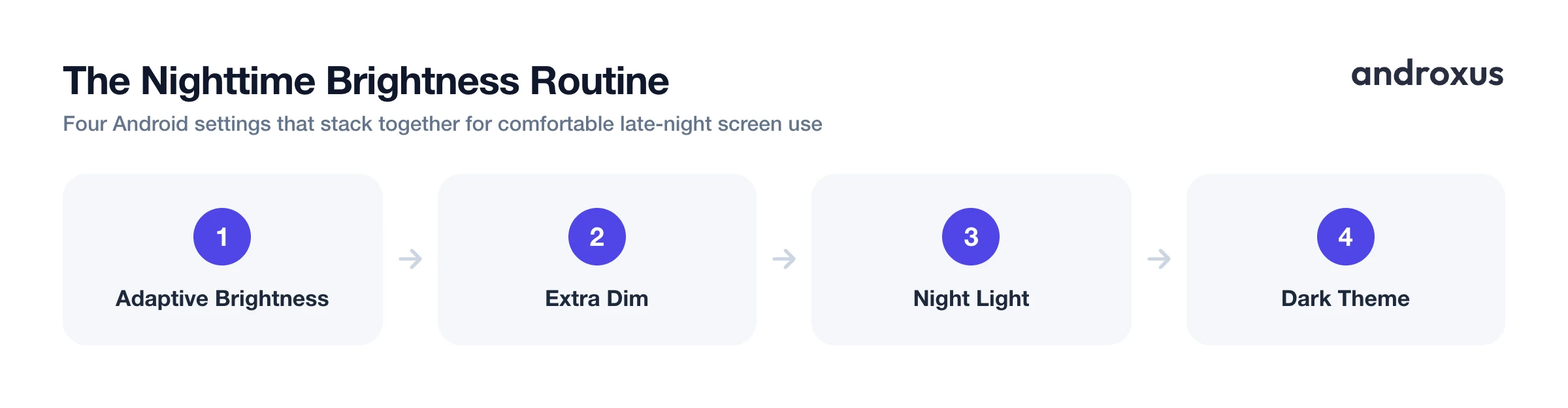
Quick answer: To reduce screen brightness at night on Android, turn on Adaptive Brightness, then enable Extra Dim (Settings, Accessibility, Extra Dim, Android 12+) if the normal minimum still feels harsh in a dark room. Add Night Light on a sunset to sunrise schedule to warm the color temperature, and switch on Dark theme to lower the average light the screen emits. If you want that dimming and warming to happen automatically every evening without manual toggling, a screen filter app such as Night Screen can layer a dark overlay on a set schedule.
What you'll learn
- Why your phone's screen still looks too bright even at its lowest brightness setting
- Which built-in Android settings actually lower brightness and blue light at night
- What a screen filter overlay changes, and what it does not
- Whether blue light filtering really helps you sleep, based on the actual research
- A step-by-step routine for comfortable nighttime screen use
Why Your Phone Still Feels Too Bright at Night
Every Android phone has a hardware minimum backlight level, and on many devices that floor is still uncomfortably bright once the room around you goes dark. This isn't a fluke: it's a known enough problem that Google built a dedicated fix for it. Android 12 introduced the Extra Dim accessibility feature specifically because the standard minimum brightness wasn't low enough for a lot of users.
Part of the issue is perceptual rather than purely technical. In a dark room your pupils dilate to let in more light, so any light source, including a dim screen, reads as harsher and creates more glare and contrast than the same brightness would during the day. Perceived brightness depends heavily on the light level of the room around the screen, not just the screen's absolute output. That's why the same 5 percent brightness setting feels fine in a lit kitchen and glaring in a dark bedroom.
Built-in Android Settings That Lower Brightness at Night
Before reaching for a third-party app, it's worth knowing what's already on the phone. Android has layered several tools over the years that each address a slightly different part of the "too bright at night" problem.
- Adaptive Brightness (Settings, Display, Adaptive brightness), on by default since Android 9 Pie, uses the ambient light sensor combined with on-device machine learning that adapts to your manual adjustments over time.
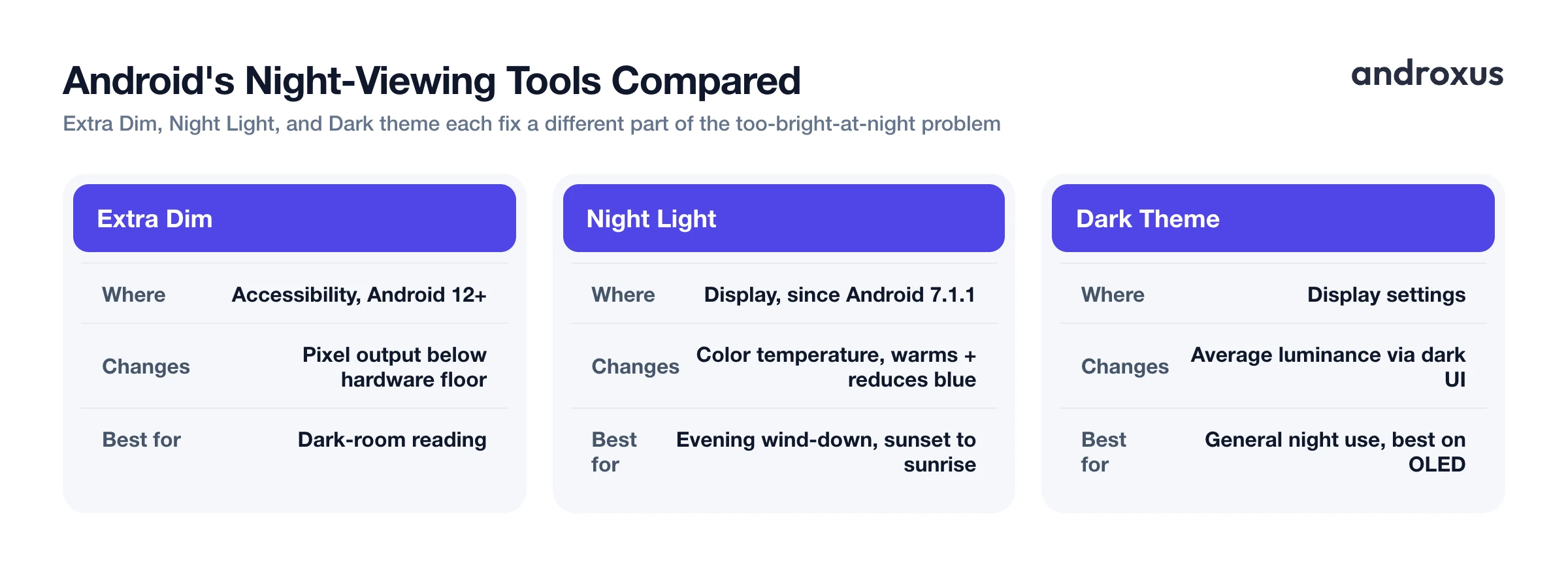
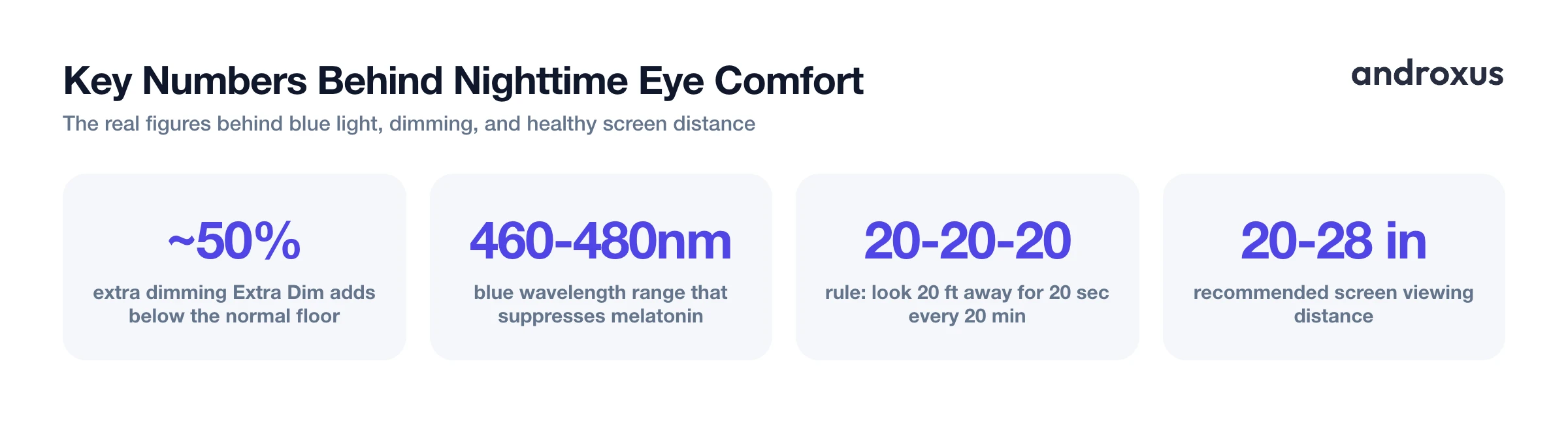
- Extra Dim (Settings, Accessibility, Extra Dim, Android 12+) reduces brightness below the standard hardware floor by adjusting the red, green, and blue pixel output before it's displayed, not by lowering the backlight itself. On stock Android it can cut brightness by up to roughly 50 percent beyond the normal minimum.
- On the Pixel 10 series, Google folded Extra Dim directly into the main brightness slider, so it engages automatically once you drag brightness to its lowest point.
- Night Light (Settings, Display, Night Light), available since Android 7.1.1, shifts the screen's color temperature warmer to reduce blue light output, and can be scheduled from sunset to sunrise (requires location access) or to custom start and end times.
- Dark theme (Settings, Display, Dark theme) reduces the average amount of light the screen emits by turning app backgrounds black or dark gray, which has the biggest effect on OLED and AMOLED panels.
Comparing Android's Night-Viewing Tools
These four tools each change a different part of the display rather than competing with each other, so most people end up using several together.
| Tool | Where to find it | What it actually changes | Best used for |
|---|---|---|---|
| Adaptive Brightness | Settings > Display > Adaptive brightness | Ambient sensor + on-device learning | General auto-adjustment all day |
| Extra Dim | Settings > Accessibility > Extra Dim (Android 12+) | Pixel/color output below the hardware floor | Dark-room reading when minimum brightness is still too bright |
| Night Light | Settings > Display > Night Light | Color temperature, warms and reduces blue | Evening wind-down, schedulable sunset to sunrise |
| Dark theme | Settings > Display > Dark theme | Average luminance via dark UI backgrounds | General nighttime use and OLED comfort |
| Screen filter overlay apps (e.g. Night Screen) | Installed app | Semi-transparent dark or tinted overlay on top of the display | Automatic scheduled dimming and warming, especially on phones without Extra Dim |
What Warming or Dimming the Screen Actually Changes
It helps to be precise about what each fix is doing under the hood. Night Light and similar blue light filters change color temperature, shifting the display toward amber or orange, which is a different adjustment than lowering brightness, though the two are often used together for a stronger nighttime effect.
Overlay-based screen filter apps, including Night Screen, work by drawing a semi-transparent dark or tinted layer on top of everything shown on the display, reducing how bright or how blue-heavy the screen looks. Drawing that layer requires Android's "Display over other apps" permission, granted manually the first time you set the app up. This is conceptually similar to how Android's own Extra Dim feature works: both adjust what's rendered on screen rather than touching the physical hardware. It's worth being clear here: this kind of app does not lower the actual hardware backlight below its built-in minimum and does not alter the physical display. It simply sits a filter on top of what's already there, pushing brightness lower than the system allows, but only within what an overlay can visually achieve.
Does Reducing Blue Light Actually Help You Sleep? An Honest Look
There is a real biological mechanism worth knowing about. Blue wavelengths in roughly the 460 to 480 nanometer range are the primary trigger for light-sensitive cells in the retina that signal the brain's circadian clock to suppress melatonin release. That part is well established.
What's less settled is whether filtering that blue light in practice, through an app or a pair of glasses, meaningfully improves sleep. Research here is mixed. Some randomized trials show modest benefits, like earlier sleep onset, while systematic reviews report no sustained effect on overall sleep quality. One study of blue-light-blocking glasses in schoolchildren found earlier sleep timing and better morning mood, but no measurable change in melatonin levels, which suggests the mechanism at play isn't always straightforward. Benefits also appear more consistent for people who already struggle with sleep timing, such as insomnia or delayed sleep phase, than for people who already sleep well.
It's also worth noting that the American Academy of Ophthalmology states there is no scientific evidence that blue light from digital screens damages the eyes, and does not recommend blue-light-blocking glasses for that reason. Blue light filtering is best treated as one small, low-cost habit to fold into a wind-down routine, not a guaranteed sleep fix.
Eye Comfort Is About More Than Brightness
Brightness gets most of the attention, but it isn't the whole story of nighttime eye strain. According to the American Academy of Ophthalmology, most digital eye strain actually comes from reduced blink rate, glare, and uncorrected vision problems, not from blue light itself. A 2023 Cochrane review of randomized controlled trials similarly found that blue-light-filtering lenses did not reduce digital eye strain symptoms compared with regular lenses in short-term use.
A few habits do more for comfort than brightness alone:
- The 20-20-20 rule: every 20 minutes, look at something 20 feet away for 20 seconds.
- Matching screen brightness to the ambient light of the room, rather than maximizing either brightness or darkness.
- Keeping the screen roughly 20 to 28 inches away and slightly below eye level, especially during nighttime reading or scrolling.
How to Reduce Screen Brightness at Night on Android
- Turn on Adaptive Brightness. Go to Settings, Display, Adaptive brightness, and enable it. It uses the ambient light sensor plus on-device learning to adjust your screen automatically as room lighting changes, including in the evening.
- Enable Extra Dim if the minimum still feels bright. On Android 12 and later, go to Settings, Accessibility, Extra Dim (or add its Quick Settings tile). This pushes brightness below the phone's normal hardware floor by adjusting the displayed colors, useful for late-night reading in a dark room.
- Set Night Light to a sunset to sunrise schedule. Go to Settings, Display, Night Light, then choose Turns on from sunset to sunrise (requires location access) or set a custom start and end time. This warms the screen's color temperature by reducing blue output in the evening.
- Switch on Dark theme. Go to Settings, Display, Dark theme. Dark backgrounds lower the overall amount of light the screen emits, particularly on OLED displays, which complements Night Light and Extra Dim rather than replacing them.
- Add a scheduled screen filter for a gradual, automatic routine. If your phone lacks Extra Dim, or you want the dimming and warming to ramp up gradually and reverse itself each morning without manual toggling, an overlay app such as Night Screen can apply a dark or tinted filter on an automatic sunset to morning schedule.
- Match brightness to your room, not to zero. Rather than chasing the absolute darkest setting, adjust brightness so the screen roughly matches the light level of the room around it. Pair this with the 20-20-20 rule to reduce the eye strain that comes from reduced blink rate and glare, which are bigger contributors than screen brightness alone.
Key takeaways
- The "too bright at night" feeling usually comes from your phone's hardware brightness floor plus dilated pupils in a dark room, not a broken screen.
- Extra Dim (Android 12+), Night Light, and Dark theme each change a different part of the display and work best combined, not as substitutes for each other.
- Screen filter overlay apps darken the displayed image below the system minimum using a visual layer, they do not change the physical backlight or hardware brightness.
- Blue light filtering has a real biological basis but only modest, inconsistent evidence for improving sleep, so treat it as a small habit, not a guaranteed fix.
- Blink rate, glare, and screen distance affect nighttime eye comfort at least as much as brightness itself, so the 20-20-20 rule is worth pairing with any brightness fix.
Frequently asked questions
Does lowering my phone's brightness at night actually protect my eyes?
Not in the sense of preventing damage: the American Academy of Ophthalmology says there is no scientific evidence that blue light from phone screens harms your eyes. What lower brightness does help with is comfort. In a dark room your pupils dilate, so a bright screen creates harsh contrast and glare, and turning brightness down (or using a warmer color) reduces that strain.
What's the lowest I can get my Android screen's brightness at night?
Every Android phone has a hardware minimum backlight level, and on many phones that floor is still too bright in a dark room. Android 12 and later include an Extra Dim accessibility toggle (Settings, Accessibility, Extra Dim) that pushes brightness below the normal floor by adjusting the color output, and screen filter apps use a similar overlay approach to darken things further.
Does a blue light filter actually help me fall asleep faster?
The evidence is mixed. Blue wavelengths can suppress melatonin production through light sensing cells in the retina, which is a real mechanism, but studies on blue light filter apps and glasses show inconsistent real world sleep benefits. Some trials find modest improvements in sleep timing, others find none, so treat it as one small habit among several, not a guaranteed fix.
What's the difference between Night Light and Dark theme on Android?
Night Light (Settings, Display, Night Light) shifts the screen's color temperature warmer, reducing blue emission, while Dark theme (Settings, Display, Dark theme) changes app backgrounds to black or dark gray, which lowers the average amount of light the screen puts out, especially on OLED panels. They solve different problems and work well together.
Why does my phone still look too bright even at 1 percent brightness in a dark room?
That's the hardware minimum brightness floor: the backlight (or OLED panel) can only dim so far before the display driver stops responding. Combined with your pupils being dilated in a dark room, that floor can still feel glaring. Extra Dim, built into Android 12 and newer, and screen filter overlay apps both address this by darkening the displayed image itself rather than lowering the backlight further.
Can an app dim my screen darker than my phone's built-in settings allow?
Yes, within limits. Apps like Night Screen draw a semi-transparent dark filter over the display to reduce how bright the screen looks below the system's minimum, the same general approach Android's own Extra Dim feature uses. This requires you to grant the app Android's 'Display over other apps' permission, which is not enabled automatically. It's a visual overlay, not a change to the physical display or hardware backlight, so it works alongside, not instead of, your normal brightness settings.
