How to Dim Screen Below Minimum Brightness
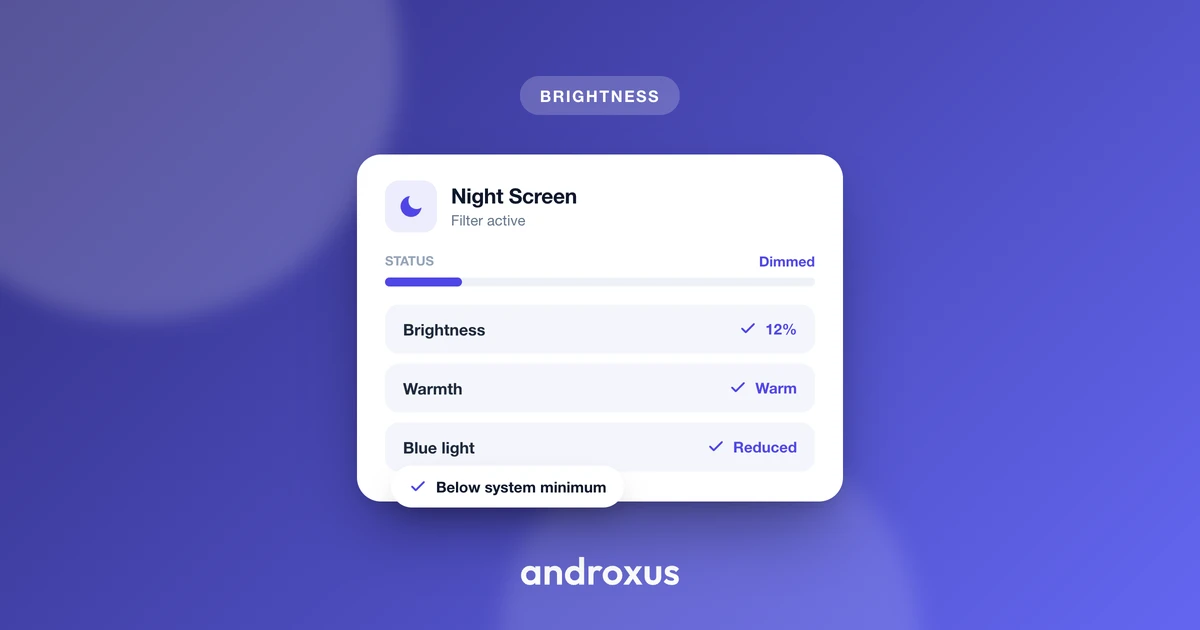
You drag the brightness slider all the way down, and your phone is still too bright for a dark bedroom or a 2 a.m. glance at a notification. That's not a broken screen, it's a limit built into the software, and there are reliable ways around it. Here's how to dim screen below minimum brightness using tools you likely already have, plus what to add if you need to go further.
Quick answer: Your phone's minimum brightness is a software floor set by the manufacturer, commonly around 10% of the display's maximum luminance, not the true lowest the hardware can go. To dim screen below minimum brightness, use Android's built-in Extra Dim (Settings > Accessibility > Extra Dim on Android 12+) first, since it needs no extra permissions. If that's still not dark enough, a screen filter app that draws a dark overlay, like Night Screen, can darken the display further, though it works visually and does not lower the actual backlight below the OEM's minimum.
What you'll learn
- Why the brightness slider stops where it does and what sets that limit
- Which built-in Android tools can dim a screen further, and how to find them
- How screen filter overlay apps get past the system floor
- What the research actually says about blue-light filters and sleep
- A practical, step-by-step way to pick the right method for your situation
Why your screen won't get any dimmer than it already is
The brightness slider's lower limit is a software floor set by the phone maker, not a hardware limit. The backlight itself is usually capable of going lower than the slider allows. Manufacturers commonly cap the visible minimum around 10% of the display's maximum luminance so the screen never gets so dim that a user loses it and can't find it again to raise it back up.
Independent display testers generally consider roughly 1 to 2 nits comfortable for continuous use in a pitch-dark room, but many phones' "minimum" setting still sits well above that. The true minimum also varies a lot by device and panel, which is why some phones feel fine at night while others feel like a flashlight even at 0% brightness.
Because that floor is a deliberate software choice, not a physical ceiling, there are legitimate options for darkening the picture further without touching the backlight hardware.
Built-in Android tools to try first
Before installing anything, check what's already on your phone.
Extra Dim. Introduced in Android 12, this lives at Settings > Accessibility > Extra Dim, though on some OEM skins it's tucked under Accessibility > Display size and text. It adds an intensity slider that darkens the screen further by adjusting the color values the system renders, and it can be added as a Quick Settings tile. The exact wording, menu location, and available intensity range vary by manufacturer skin (Samsung, Xiaomi, and others) and Android version.
Night Light. Found at Settings > Display > Night Light, this shifts the screen's color temperature toward a warmer, amber-toned white to reduce blue light and can be scheduled from sunset to sunrise. The exact range varies by device. It changes color, not brightness, so it won't make a screen physically darker.
Digital Wellbeing's Bedtime mode. At Settings > Digital Wellbeing & parental controls > Bedtime mode, this can automatically switch the display to grayscale, enable dark theme, and mute notifications on a schedule. Removing color can reduce how much a glowing screen pulls at your attention, even though it isn't a brightness feature either.
None of these built-in tools reduce the actual hardware backlight below the OEM's minimum. Extra Dim achieves its effect through a system-level color adjustment rather than the drawn overlay window that third-party filter apps use, but the visual result, a darker-looking screen, is similar.
How a screen filter overlay gets a screen dimmer than "minimum"
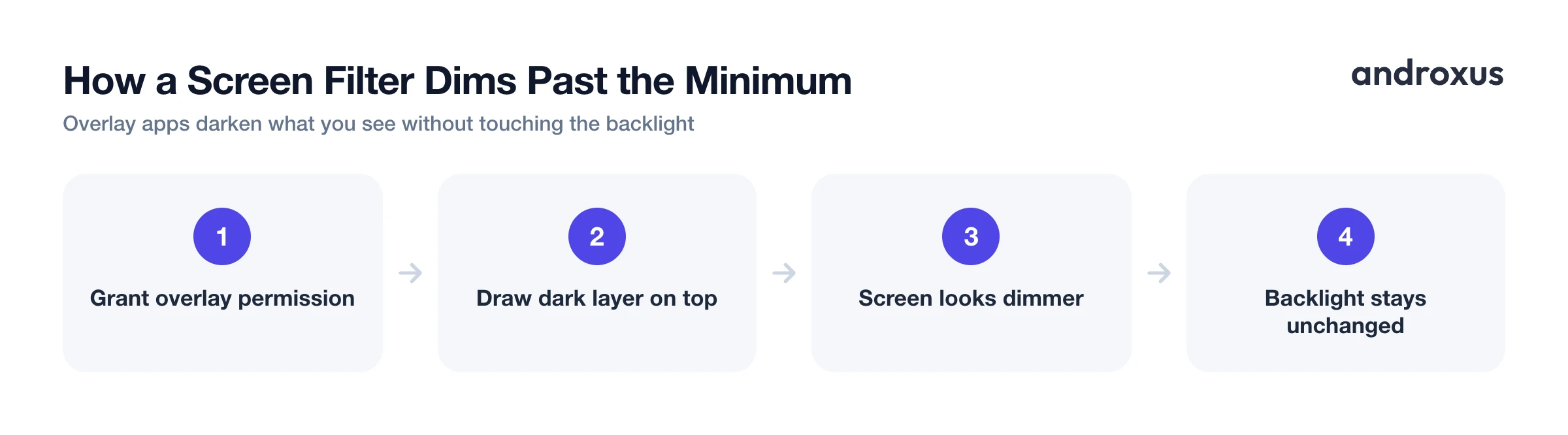
A screen dimmer or filter app works by drawing a semi-transparent dark layer on top of everything on screen, using Android's "display over other apps" permission (SYSTEM_ALERT_WINDOW). This overlay darkens or tints what you see, it does not lower the physical backlight or change the display hardware itself. Brightness sensors and camera-based auto-brightness still read the same underlying panel output underneath the overlay.
Because the dimming happens visually rather than at the hardware level, it can go past whatever floor the OEM built into the brightness slider, which is the whole point for someone reading in a dark bedroom at 2 a.m. Night Screen is one example of this approach: it offers a dim-light mode for extra-low brightness, a blue-light or reading filter, a custom RGB screen tint, and an auto-schedule that ramps the filter on around sunset and off again in the morning.
A heavy overlay does reduce visible contrast and color accuracy, so it's worth turning down or off for photo editing, video calls, or reading fine text in a bright room. A quick toggle or shortcut handles that.
Blue light filters and sleep: what the research actually supports
Blue-enriched light, roughly in the 460 to 480 nanometer range, activates light-sensitive cells in the retina that signal the brain's circadian clock to suppress melatonin release in the evening. That part of the mechanism is well established.
What's less settled is how much a phone-based filter actually helps. Evidence that blue-light filtering meaningfully improves sleep is mixed: some trials and meta-analyses find blue-blocking can reduce sleep-onset delay, while others find inconsistent or modest effects. Only filters with sufficient melanopic (blue-light) filtering density produce a measurable circadian effect, and consumer software filters are generally a weaker intervention than dedicated blue-blocking eyewear.
The honest takeaway is to treat a phone's blue-light or reading filter as a modest, plausible but unproven comfort aid, not a guaranteed sleep fix. Reducing overall screen brightness and cutting evening screen time still matter more for sleep than the color of the light alone.
A related reason rock-bottom brightness can feel uncomfortable: flicker
There's a second factor worth knowing about, separate from raw brightness. Many OLED phone displays control brightness using pulse-width modulation (PWM), rapidly switching pixels on and off rather than smoothly reducing voltage. Some panels lower their PWM frequency as brightness drops, and at very low brightness a subset of people can perceive or feel that flicker as eye strain.
This means pushing hardware brightness all the way to its floor isn't automatically the most comfortable option on every phone. Keeping the backlight at a moderate, stable brightness and letting a dark overlay do the dimming can sidestep that low-brightness flicker zone on panels that have it. This varies by device and isn't something Night Screen or any filter app specifically engineers around, it's simply a side effect worth knowing about.
Matching the method to the situation
| Method | What it changes | Where to find it | Goes below system minimum? | Reduces blue light? | Best for |
|---|---|---|---|---|---|
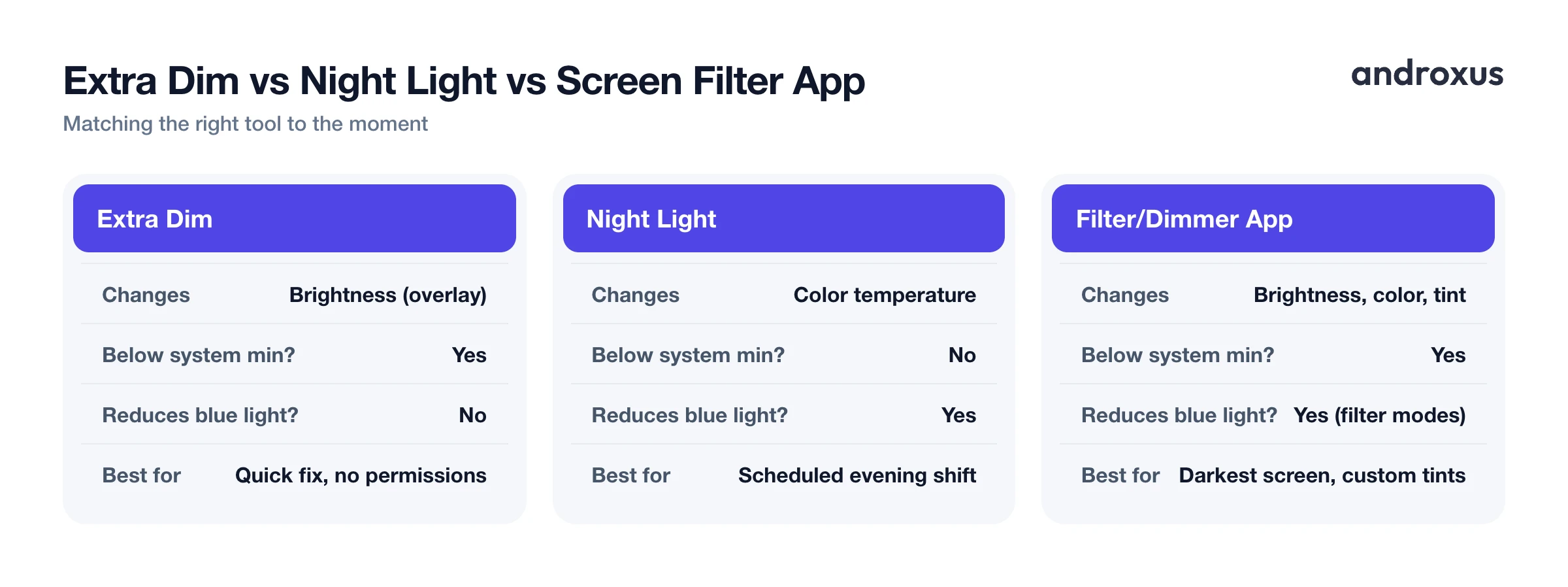
| Extra Dim | Brightness (overlay) | Settings > Accessibility > Extra Dim | Yes | No | Quick nighttime fix, no extra permissions |
| Night Light | Color temperature | Settings > Display > Night Light | No | Yes | Scheduled blue-light reduction |
| Bedtime mode (grayscale) | Color and engagement | Settings > Digital Wellbeing & parental controls | No | No | Winding down before sleep |
| Screen filter/dimmer app | Brightness, color, or custom tint | Installed separately (e.g. Night Screen) | Yes | Yes (in filter modes) | Darkest possible screen, custom tints, sunset schedules |
For a quick nighttime fix on stock Android 12+, Extra Dim is the fastest built-in option since it needs no extra permissions. For long-term blue-light reduction on a schedule, Night Light's sunset-to-sunrise automation is the native option, though it changes color temperature rather than making the screen darker. For winding down before sleep, Bedtime mode's grayscale and dark-theme scheduling target engagement more than brightness. For the darkest possible screen, custom tints, or a sunset-ramping schedule, a dedicated overlay app goes further than the built-in tools because it isn't bound by the same OEM-defined floor.
All of these methods are software-only. None lower the display's actual hardware brightness below what the manufacturer allows, they change what you perceive on screen, not the panel itself.
How to dim your screen below the minimum brightness
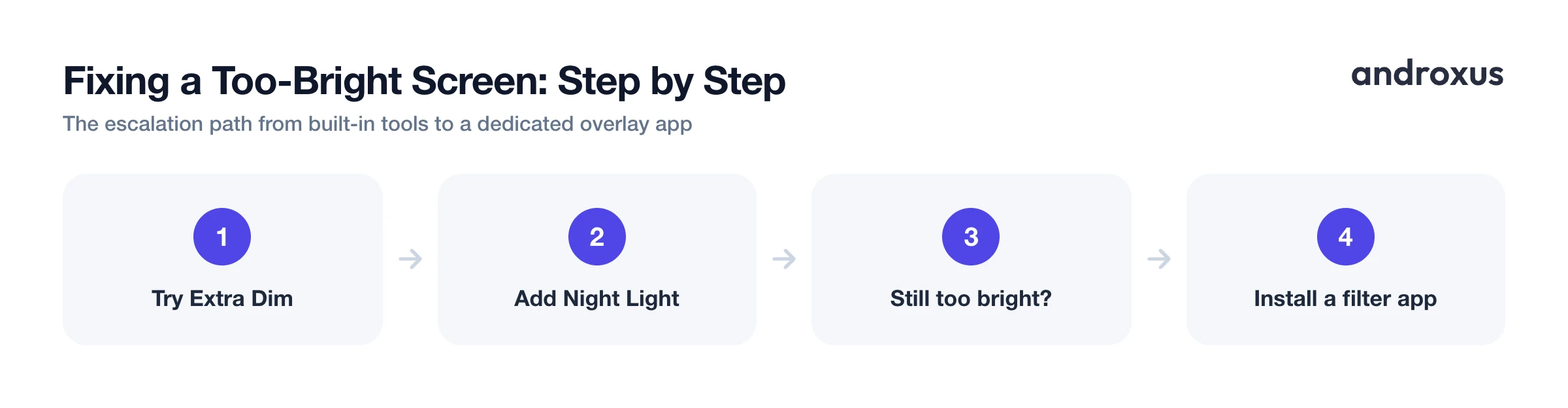
- Try Android's built-in Extra Dim first. On Android 12 or later, go to Settings > Accessibility > Extra Dim, turn it on, and adjust the intensity slider. Enable the option to add it as a Quick Settings tile so you can toggle it from the notification shade.
- Turn on Night Light for evening color shift. Go to Settings > Display > Night Light, enable it, and set a schedule from sunset to sunrise. This reduces blue light by warming the color temperature, it won't make the screen darker on its own.
- Check if Extra Dim is enough for your room. Test the combination of low system brightness plus Extra Dim in the actual dark environment you'll be using the phone in, since comfortable brightness depends heavily on your specific panel and room lighting.
- Install a reputable screen filter or dimmer app if you need to go further. If Extra Dim still isn't dark enough, install a well-reviewed screen dimmer app such as Night Screen and grant the "display over other apps" permission it requests to draw its filter.
- Pick a mode that fits the moment. Choose an extra-low-brightness dim mode for a fully dark room, a blue-light or reading filter for evening reading, or a custom RGB tint if you want a specific color cast, then adjust intensity to taste.
- Set an automatic schedule. Configure the app's auto-schedule to gradually turn the filter on around sunset and off in the morning, so you don't have to remember to toggle it manually each night.
Key takeaways
- The minimum brightness setting is a software floor, usually around 10% of a display's maximum luminance, not the hardware's true lowest output.
- Android's built-in Extra Dim (Settings > Accessibility > Extra Dim) is the simplest way to dim screen below minimum brightness without installing anything new.
- Screen filter apps darken the display by drawing an overlay using the "display over other apps" permission, they do not lower the actual backlight or alter the physical panel.
- Blue-light filters may offer modest sleep benefits, but the research is mixed, so treat them as a comfort feature rather than a guaranteed fix.
- Match the tool to the moment: Extra Dim for a quick fix, Night Light for scheduled color shift, and a dedicated overlay app when you need the darkest possible screen or a custom tint.
Frequently asked questions
Why does my Android screen still look bright at 0% brightness in a dark room?
The 0% setting is a software floor the manufacturer chose, typically around 10% of the display's maximum luminance, not the panel's true lowest output. It's set that high mainly so the screen never gets too dim to find and adjust again. In a fully dark, eye-adapted room that floor can still feel bright.
Does Android have a built-in way to dim the screen below the minimum brightness?
Yes. Android 12 and later include an Extra Dim accessibility feature (Settings > Accessibility > Extra Dim) that darkens the screen further with a system-level color adjustment, not a drawn overlay window. Its exact location and how far it can dim vary by manufacturer and Android version.
How does a screen filter or dimmer app make the display dimmer than the system allows?
It draws a semi-transparent dark layer over everything on screen using Android's 'display over other apps' permission. This changes what you see visually, it does not lower the actual hardware backlight or alter the physical display.
Will a blue-light filter actually help me sleep better?
Possibly, but not guaranteed. Blue light does suppress melatonin release in the evening, and some studies show blue-blocking filters help sleep onset, but the research is mixed and effect sizes are inconsistent, especially for lighter software filters compared to dedicated blue-blocking eyewear. Treat it as a modest comfort aid, not a proven fix.
Is it safe to grant a dimming app the 'display over other apps' permission?
It's a sensitive permission because Android also uses it to warn about overlay-based scams, so only grant it to apps from a reputable developer with a legitimate reason to use it, like a screen filter or dimmer. Check what the app actually does with the permission before enabling it.
Can dimming my screen with an overlay damage the display or change its hardware brightness?
No. An overlay filter is purely a software layer drawn on top of the screen, it doesn't touch the backlight or physical panel, and removing or disabling the app returns the display to its normal behavior immediately.
