How to Record Video Screen Off on Android
Plenty of people want to record video with the screen off, for a hands-free walk home, a delivery pickup, or just to save battery on the display while a long clip runs in a pocket. It sounds like it should be simple, but Android's power management, permission model, and privacy indicators all shape whether it actually works. Here's what's really going on and how to keep a recording running the whole time you need it to.
Quick answer: To record video screen off on Android, the app has to run as a foreground service with the correct camera permissions, since turning off the display doesn't stop a foreground service, it only stops the screen from drawing. You'll still see a persistent notification and, on Android 12 and newer, a green camera or mic dot in the status bar, both of which are enforced by the OS and can't be hidden. Recordings usually stop early not because screen-off recording is impossible, but because battery optimization on the phone kills the app first, so exempting it from battery restrictions is the real fix.
What you'll learn
- How Android actually keeps a camera recording after the display turns off
- Why you can't hide the recording indicator or notification, and why that's by design
- The permissions and battery settings that determine whether a recording survives
- How much storage and battery a long background recording really costs
- The legal basics to check before you record anyone besides yourself
How Background Video Recording Actually Works on Android
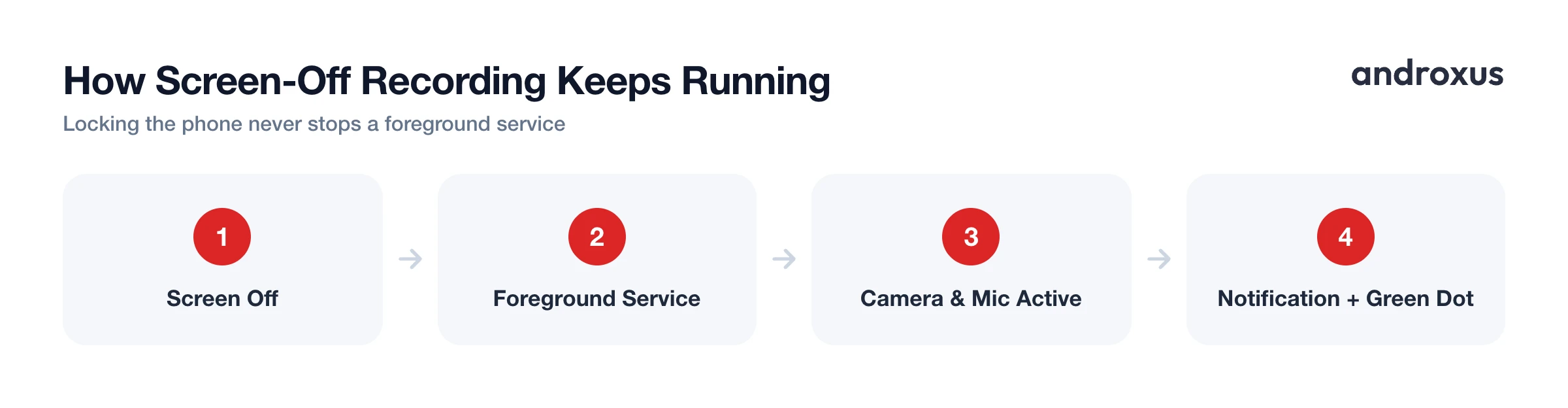
Android apps keep recording after the screen turns off by running as a foreground service, a process type built specifically to keep working while the app isn't visible. That's different from a normal background process, which Android suspends fairly aggressively to save battery and memory.
Since Android 9 (Pie), apps that are fully in the background lose camera and microphone access entirely unless they're running as a foreground service. Android 14 (API 34) tightened this further: every foreground service must declare a matching type, such as camera, in the manifest and request the corresponding FOREGROUND_SERVICE_CAMERA permission, or the system throws a security exception and blocks the recording outright. This isn't optional configuration, it's a hard requirement the OS enforces.
The tradeoff for that access is transparency: Android requires a foreground service to show a persistent, non-dismissible notification the entire time it runs, so anyone who picks up the phone can see that something is actively using system resources. Locking the screen doesn't pause any of this. That's the actual mechanism behind screen-off recording, not a hidden workaround or a bypass of any restriction.
The Recording Indicator Nobody Can Turn Off
Since Android 12 (API 31), the OS shows a green dot or camera icon in the status bar any time an app is actively using the camera or microphone, whether the screen is on, off, or the app is sitting in the background. This indicator lives in the system UI layer, which means no third-party app, including a screen-off recording app, can suppress, disable, or opt out of it.
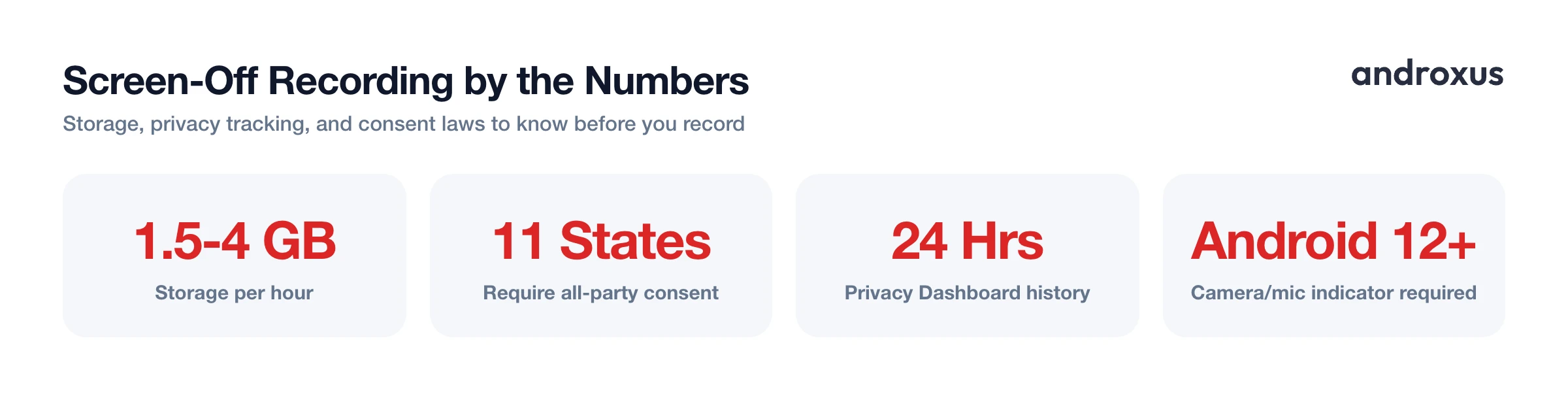
Users can tap the indicator in Quick Settings to see exactly which app is currently using the camera or mic, and Android's Privacy Dashboard keeps a rolling history of camera, mic, and location access going back 24 hours. Any honest recording app works within these indicators rather than around them. SafeCam, for example, is built as a personal-safety recorder, and it keeps the notification and status bar icon visible throughout a recording rather than trying to make the phone look idle.
Permissions and Settings You Need Before You Rely On It
Three things determine whether a screen-off recording actually finishes:
| Requirement | Why it matters | Where to check it |
|---|---|---|
| Camera and microphone permission | Required to start recording at all | App permission prompt on first launch |
| Notification permission (Android 13+) | The foreground-service notification can't display without it, and the service may not be allowed to run | Settings > Apps > [app] > Notifications |
| Battery optimization exemption | Prevents Doze mode and OEM battery managers from killing the app mid-recording | Settings > Apps > [app] > Battery |
| Free local storage | Long recordings need somewhere to auto-save as they go | Settings > Storage |
Missing any one of these tends to produce the same symptom: a recording that starts fine but quietly stops sometime later with no clear error.
Device Limits: Battery, OEM Restrictions, and Storage
Doze mode and App Standby, introduced in Android 6.0, throttle background CPU, network, and wake-lock activity on an idle, unplugged device. That alone can interrupt a long unattended recording if the app isn't exempted from it.
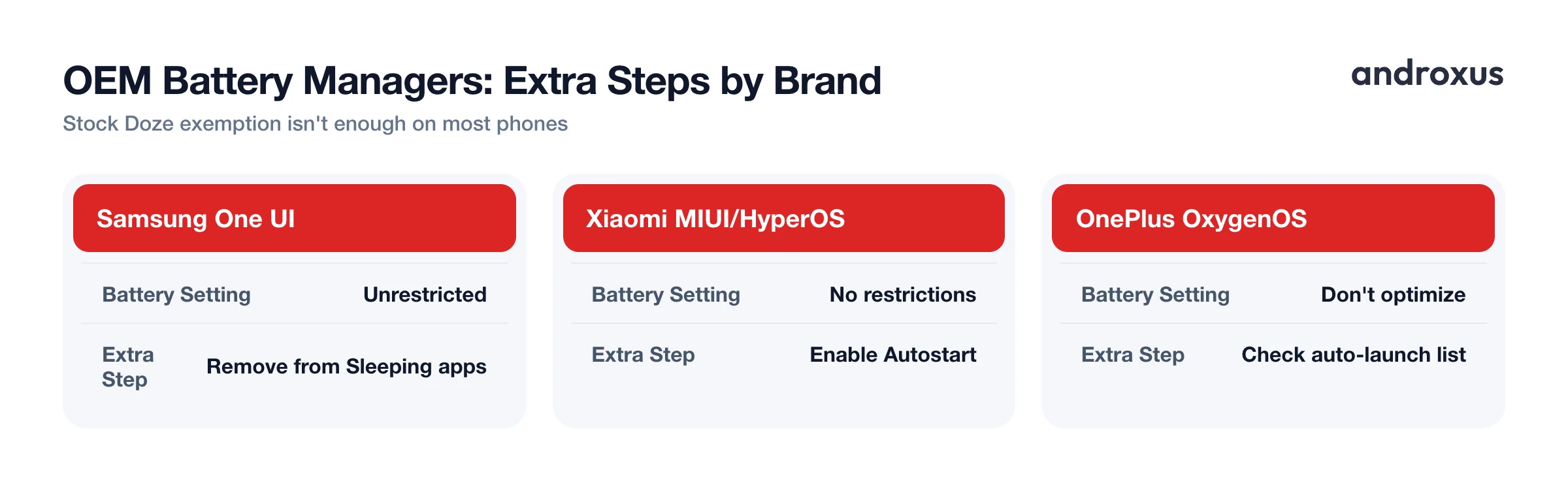
Manufacturer battery managers are usually stricter than stock Android. Samsung's One UI, Xiaomi's MIUI or HyperOS, and OnePlus's OxygenOS all layer additional auto-kill logic on top of Doze, and MIUI in particular is known for killing apps anyway even after they're whitelisted, unless auto-start permission is also enabled separately. Here's where to look on each:
| Manufacturer / OS | Battery optimization setting | Extra step needed |
|---|---|---|
| Stock Android / Pixel | Settings > Apps > [app] > Battery > Unrestricted | None, stock Doze exemption is usually enough |
| Samsung One UI | Settings > Apps > [app] > Battery > Unrestricted | Also remove the app from "Sleeping apps" in Battery and device care |
| Xiaomi MIUI / HyperOS | Settings > Apps > Manage apps > [app] > Battery saver > No restrictions | Also enable Autostart for the app separately |
| OnePlus OxygenOS | Settings > Battery > Battery optimization > [app] > Don't optimize | Also check "Advanced optimization" or the auto-launch list |
Storage adds up fast too. Video runs roughly 1.5 to 4 GB per hour depending on resolution and bitrate, so it's worth checking free space before a long session rather than mid-recording. Extended camera use also generates heat, and some devices throttle or pause camera access during sustained high-temperature recording.
Where Screen-Off Recording Fits Into Personal Safety
The most common reasons people look for screen-off recording aren't cinematic, they're practical: walking alone at night, a rideshare or delivery pickup, documenting a tense interaction, or just wanting hands-free video running while the phone stays in a pocket or bag.
In those moments, how fast you can start recording matters as much as whether the recording survives with the screen off. This is why apps built for personal safety, SafeCam included, offer more than one way to trigger a recording, such as a quick-settings tile, a home screen shortcut, a volume-button long-press, or a shake gesture, so recording can start without unlocking the phone and navigating a menu. It's worth being clear about scope, though: screen-off recording is a documentation tool, not a substitute for calling emergency services when there's an immediate threat.
Recording Laws and Consent: What to Check First
Before recording anyone besides yourself, the method of recording isn't the legal question, consent and location are.
US federal law, via the Electronic Communications Privacy Act, allows one-party consent to audio recording, meaning the person doing the recording can be the only one who consents. But 11 states require all-party consent: California, Delaware, Florida, Illinois, Maryland, Massachusetts, Montana, Nevada, New Hampshire, Pennsylvania, and Washington, and a few others split the rule depending on whether the conversation is in person or over the phone.
Video without audio is generally regulated differently, and often less strictly, than audio. But recording someone in a place where they have a reasonable expectation of privacy, such as a bathroom, locker room, or changing room, is illegal in essentially every US state regardless of consent rules, and none of that changes because the screen happens to be off. Laws vary by country and by state, so confirm your local rules before recording others, and never use screen-off or background recording for harassment, stalking, or surveillance.
How to Record Video in the Background With the Screen Off
- Grant camera, microphone, and notification permissions. Open the recording app and accept the camera and microphone permission prompts. On Android 13 and up, also allow the notification permission, since a visible notification is mandatory for any background recording service.
- Exempt the app from battery optimization. Go to Settings, then Apps, then the app name, then Battery, and set it to Unrestricted or Don't optimize. On Samsung, Xiaomi, OnePlus, and similar phones, also check the manufacturer's own battery manager or auto-start list, since it's the most common reason background recordings get cut off early.
- Pick recording quality based on the storage and duration you need. Choose a lower resolution or bitrate for long sessions to conserve storage, roughly 1.5 to 4 GB per hour at typical settings, or a higher resolution for shorter, detail-critical clips.
- Start the recording and lock your phone normally. The foreground service keeps the camera and microphone active in the background, and you'll see the system camera and mic indicator plus a persistent notification confirming it's still running.
- Check the file after recording. Reopen the app to confirm the clip saved locally with a time-stamped filename, then move it off the device if you need to preserve it for a report or personal record.
Key takeaways
- Screen-off recording works through an Android foreground service, and locking the display never stops it on its own.
- The green camera and mic indicator and the persistent notification are OS-level features that no app can hide, on purpose.
- Battery optimization and OEM auto-kill settings, not the recording mechanism itself, are the usual reason recordings stop early.
- Budget roughly 1.5 to 4 GB of storage per hour of footage before starting a long session.
- Consent and location laws vary by state and country, so check them before recording anyone besides yourself.
Frequently asked questions
Does the video actually keep recording if I turn my screen off?
Yes, as long as the recording is running as an Android foreground service. Turning the screen off or locking the phone puts the display to sleep, but it does not stop a foreground service, which is the mechanism apps use to keep recording, GPS tracking, or music playback running while the screen is dark.
Will people be able to tell my phone is recording even with the screen off?
Yes. On Android 12 and newer, a green camera or microphone icon appears in the status bar any time an app is actively using the camera or mic, and a persistent notification is required for any foreground service. Neither of these can be hidden or disabled by a third-party app, they are enforced by the operating system itself.
Why does my recording stop early even though I didn't touch the phone?
The most common cause is OEM battery management. Samsung, Xiaomi, OnePlus, and other manufacturers layer their own aggressive app-killing logic on top of Android's standard Doze mode, and they will force-stop background apps, including recording apps, unless you manually exempt the app from battery optimization in Settings.
How much phone storage does an hour of background video use?
Roughly 1.5 to 4 GB per hour, depending on resolution and codec. Lower-resolution or heavily compressed footage lands toward the low end, while 1080p at a higher bitrate lands toward the high end. It's worth checking your device's free storage before a long recording session.
Is it legal to record video with the screen off?
The recording method itself isn't the legal issue, consent and location are. US federal law allows one-party consent to audio recording, but 11 states require all parties to consent, and recording anyone in a place where they expect privacy, like a bathroom or changing room, is illegal everywhere regardless of consent rules. Laws also vary outside the US, so check local statutes before recording others.
Does SafeCam hide the camera notification or recording indicator to make recording invisible?
No. SafeCam is built as a personal-safety recorder, not a covert surveillance tool, so it does not suppress or hide Android's required system notifications or camera/microphone indicators. Those system-level privacy signals stay visible exactly as Android designs them to.
