How to Start an Emergency Recording App Fast
When something goes wrong, you do not want to be fumbling to unlock your phone, find an app icon, and tap through menus before a single frame is captured. An emergency recording app is built around removing exactly those steps, so recording starts in one motion instead of five.
Quick answer: The fastest way to start recording in an emergency is to pre-arm a trigger before you ever need it, such as a Quick Settings tile, a home-screen shortcut, or a long-press of the volume button. Each of these skips the step of opening an app and tapping a record button, cutting the time between "I need this recorded" and footage actually being captured down to a single tap or press. Set the trigger up once, in a calm moment, and grant all permissions in advance so nothing blocks the recording when it matters.
What you'll learn
- Why the first few seconds of a tense situation matter so much
- What actually counts as a quick-record or SOS trigger on Android
- How to set up each trigger, step by step
- What happens on your device (notifications, indicators) once a trigger fires
- What the law says about recording people without telling them
- A practical checklist for getting fast recording ready today
Why the First Few Seconds Matter
Unlocking a phone, finding the right app, and locating a record button can take longer than it feels like it should, and in a tense or unsafe moment, those seconds matter. The gap between deciding you need footage and actually having it is where most of the value of a "quick" record feature lives.
A pre-armed trigger removes steps from that sequence. Instead of unlock, find app, open app, tap record, you get down to unlock (or not, depending on the trigger) and one tap or press. That is the entire design goal behind SOS-style recording triggers.
It is worth separating this from Android's own built-in Emergency SOS feature, which is typically triggered by five rapid presses of the power button, though the exact gesture varies by phone manufacturer. That system feature is designed to call emergency services and share your location with your contacts. On some Android 12 and later devices, it can optionally bundle a video recording tool into that flow, but that is not guaranteed across all phones or manufacturer skins. A dedicated recording app's triggers are a separate, complementary layer, aimed specifically at getting a camera or screen recording running fast, whether or not you are also calling for help.
What Counts as a Quick-Record Trigger on Android
Not all "instant" triggers work the same way under the hood. Knowing the mechanism behind each one helps you pick the one that actually fits how you carry your phone.
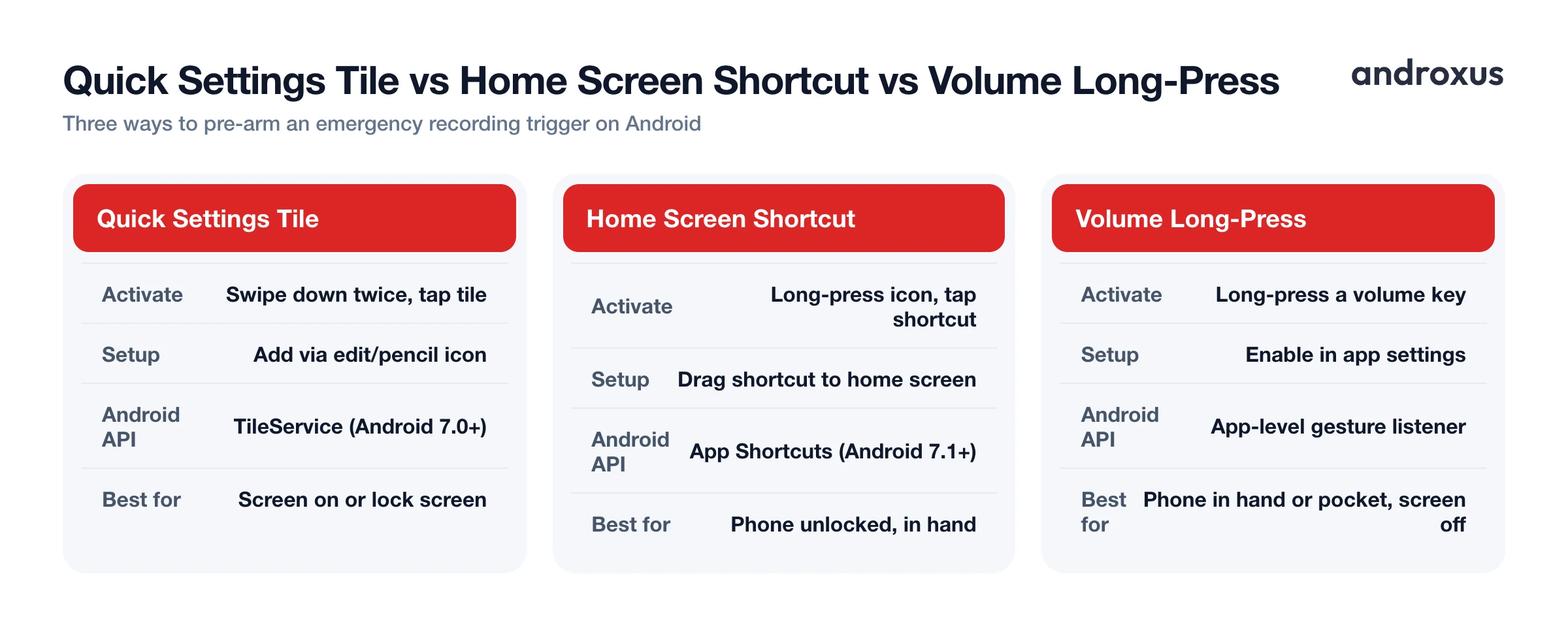
| Trigger | How you activate it | One-time setup needed | Best use case |
|---|---|---|---|
| Quick Settings tile | Swipe down twice, tap the tile | Add the tile once via the edit/pencil icon | Phone in hand, screen on or lock screen |
| Home screen shortcut | Long-press the app icon, tap the shortcut | Drag the shortcut to your home screen | Phone unlocked and in hand |
| Volume button long-press | Long-press a volume key | Enable in app settings | Phone in hand or pocket, screen off |
| Shake | Shake the phone with a distinct motion | Enable in app settings | Backup trigger, best when phone is loose (bag, hand) |
| Floating icon | Tap a small on-screen overlay | Enable overlay permission once | Phone in hand, app already open in background |
| Notch tap | Tap near the notch/camera cutout | Enable in app settings | Phone in hand, quick discreet tap |
Quick Settings tiles rely on Android's TileService API, available since Android 7.0, which lets any app register a tile that appears in the pull-down panel. Once you have added it, one tap fires the action, no app-opening required.
Home screen and app shortcuts arrived with Android 7.1. A long-press on the app icon reveals shortcuts you can drag straight onto your home screen, so the shortcut launches directly into recording rather than the app's main screen. It generally still requires the phone to be unlocked, since it launches through the home screen launcher.
Volume button long-press, shake, floating icon, and notch tap are all app-level gesture listeners rather than a single unified Android system feature. That means their exact reliability and behavior can vary a bit by device and manufacturer skin, which is one more reason to test whichever one you plan to depend on.
Setting Up Instant Recording Triggers
Getting these triggers ready takes a few minutes, and it only works if you do it before an emergency, not during one.
Start with permissions. Camera, microphone, and storage access all need to be granted ahead of time, because a mid-emergency permission prompt defeats the entire purpose of a one-tap trigger. Open the app once, walk through the prompts, and confirm everything is approved.
From there, Quick Settings tiles need to be added manually. Pull down the notification shade twice, tap the edit or pencil icon, and drag the recording tile into your active set. Home screen shortcuts work similarly: long-press the app icon, and drag the shortcut that appears onto your home screen for one-tap access later.
Secondary triggers like volume long-press, shake, floating icon, and notch tap live in the app's own settings menu. Turn on whichever one matches how you actually carry your phone day to day, whether that is in a pocket, a bag, or in hand.
What Happens On-Device When a Trigger Fires
Once a trigger starts a recording, Android's own system behavior takes over in a few predictable ways, and understanding them helps set the right expectations.
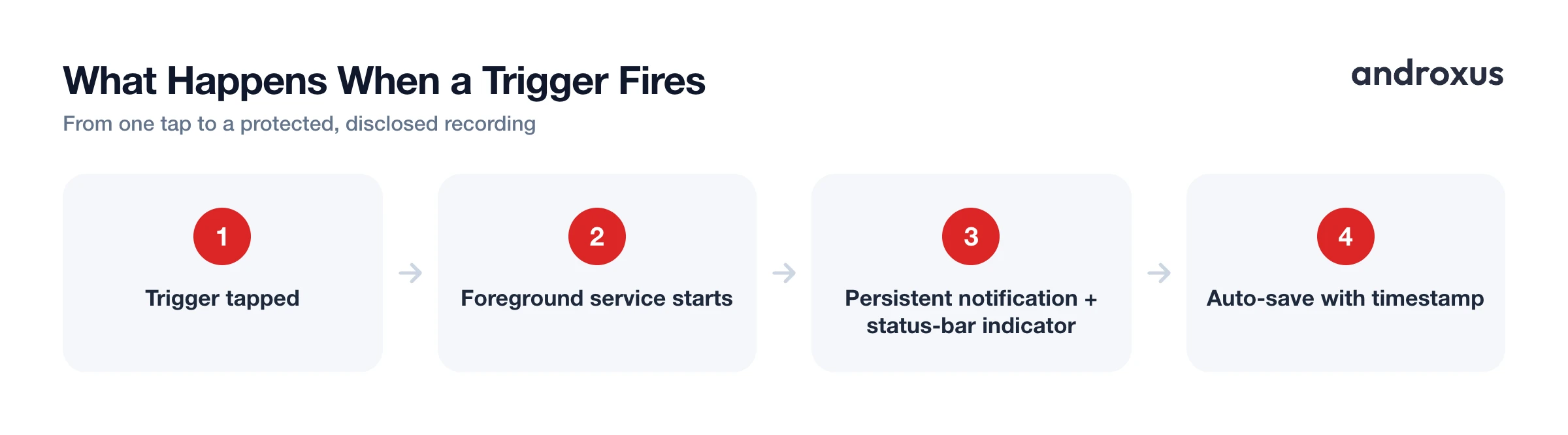
Since Android 10, any app using screen-capture APIs like MediaProjection must run as a foreground service with a visible, persistent notification, or the system blocks it with a security error. That is why screen recording, and background or screen-off recording, always shows an ongoing notification while it runs. This lets recording continue with the screen locked or the app backgrounded, as long as that notification stays visible.
Since Android 12, the system also shows a status-bar indicator any time an app accesses the camera or microphone. This is a privacy feature built into the OS itself, and it is not something a legitimate app tries to hide. SafeCam, for instance, is built around this expectation: it supports screen-off and background recording while still following Android's disclosure requirements, because it is a personal-safety tool, not a way to record covertly.
Time-stamped filenames and auto-save or crash recovery matter here too. In a chaotic moment, the last thing you want is to lose footage because the app got killed by the system or the phone lost power mid-recording, so those features exist specifically to reduce that risk.
Recording Laws to Know Before You Need Them
Having a fast trigger is only useful if the recording itself holds up, and that depends on where you are.
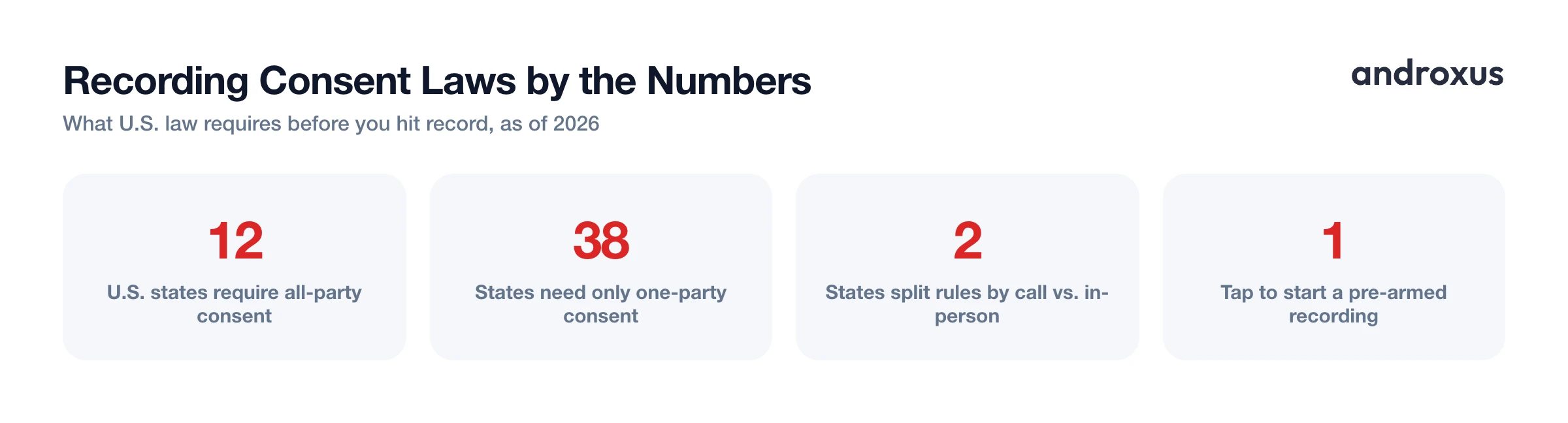
As of 2026, twelve U.S. states require all-party (also called two-party) consent to record a conversation: California, Connecticut, Delaware, Florida, Illinois, Maryland, Massachusetts, Montana, New Hampshire, Oregon, Pennsylvania, and Washington. Most other states only require one party's consent, which can be you. A few states split the rule by context. Connecticut, for example, requires all-party consent for phone calls but only one-party consent for in-person conversations, while Oregon works the other way around for electronic versus oral communications. The specific situation matters, not just which state you are in.
Outside the U.S., rules vary further still, so if you travel or are reading this from another country, check local law rather than assuming American norms apply.
It is also worth knowing that app store policy backs this up: platforms require a persistent notification and visible icon for any app that could be used to track another person, which is exactly why a legitimate personal-safety recorder is built to disclose that it is active rather than conceal it. Recording should always be done where it is legal, with consent when the law requires it, and never as a tool for harassment, stalking, or surveillance.
How to Set Up Fast Emergency Recording Triggers
- Grant permissions before you need them. Open the app once, ahead of any emergency, and grant camera, microphone, and storage permissions. Android will not let a trigger start recording mid-emergency if a permission prompt is still pending.
- Add a Quick Settings tile. Pull down the notification shade twice, tap the edit (pencil) icon, and drag the app's recording tile into your active tiles. This uses Android's TileService API, so one tap from the quick settings panel can start a recording.
- Add a home-screen shortcut. Long-press the app's icon on your home screen or app drawer, select the record shortcut, and drag it to your home screen. It launches straight into recording instead of the main app screen.
- Turn on a physical or gesture trigger. In the app's settings, enable whichever secondary trigger fits how you carry your phone: long-press volume button, shake, a small floating on-screen icon, or a notch tap. Test the one you plan to rely on.
- Test every trigger once, somewhere safe. Run through each enabled trigger in a low-stress moment so the motion becomes muscle memory. This also confirms permissions are actually granted and the trigger fires reliably on your specific device.
- Know where recordings land. Confirm the app is saving to local storage with time-stamped filenames, and check that auto-save or crash recovery is on so a recording is not lost if the app is killed mid-session.
Key takeaways
- The whole point of an emergency recording app is cutting the steps between "I need this" and actual footage down to a single tap or press.
- Quick Settings tiles and home screen shortcuts are built on standard Android APIs (TileService and app shortcuts), while volume, shake, floating icon, and notch triggers are app-level features worth testing on your specific device.
- Android's status-bar camera and microphone indicator, plus the persistent notification required for background or screen recording, are system-level disclosures that a legitimate safety app respects rather than hides.
- Consent laws vary by state and country, so know the rules where you are before you rely on a recording, and never use recording tools for harassment or surveillance.
- Set everything up in a calm moment: grant permissions, add your preferred trigger, and run a real test so it actually works when you need it.
Frequently asked questions
Can I start recording without fully unlocking my phone?
On many Android phones you can pull down Quick Settings from the lock screen and tap a tile without a full unlock, though some manufacturers restrict certain tiles for security. A home-screen shortcut, by contrast, generally requires the phone to be unlocked first since it launches from the launcher.
Will people around me know I'm recording?
Yes, in ways you cannot turn off. Since Android 12, a status-bar indicator appears whenever an app uses the camera or microphone, and since Android 10, any screen recording requires a persistent notification while it runs. A legitimate personal-safety app respects both of these system indicators rather than hiding them.
Is it legal to record someone without telling them?
It depends on where you are. Twelve U.S. states (including California, Florida, Illinois, and Pennsylvania) require all-party consent for recording conversations, while most others only require one party (which can be you) to consent. Rules also differ for phone calls versus in-person conversations in some states, and other countries have their own laws, so check local rules before relying on a recording.
What's the difference between Android's built-in Emergency SOS and an app's SOS recording trigger?
Android's native Emergency SOS (typically 5 rapid presses of the power button, though this varies by manufacturer) is built to call emergency services and share your location with contacts. On Android 12 and later some devices also bundle an optional video recording tool into that flow. A dedicated safety-recording app adds separate triggers, like a quick settings tile, home shortcut, or volume button, aimed specifically at starting a recording fast, independent of whether you also want to call for help.
Does a shake gesture reliably start recording if my phone is in a pocket?
Shake detection relies on the phone's accelerometer recognizing a distinct motion pattern, so it works best as a deliberate, noticeable shake. Motion from walking or a pocket can be inconsistent, so it's worth treating shake as a backup trigger and pairing it with a more deterministic one, like a quick settings tile or volume button press.
Can recording keep going after I lock the screen?
Yes, if the app runs the capture as a foreground service, which Android has required since Android 10 for things like screen recording. That foreground service must keep a notification visible while it runs, which is why screen-off or background recording still shows an ongoing notification even though your display is dark.
