How to Record Screen With Audio on Android
Screen recording without sound is nearly useless when you're trying to capture a tutorial, a gameplay clip, or a bug report that includes an error tone. The good news is that most Android phones can record screen with audio right out of the box, no extra app required, once you know which audio source to pick and why some recordings come out silent or black anyway.
Quick answer: To record screen with audio on Android, swipe down twice to open Quick Settings, tap Screen Record, then choose Device audio, Microphone, or Device audio and microphone before you tap Start. Android 11 and newer have this built in natively, while some Android 10 phones from Samsung and OnePlus added similar audio recording earlier. If the audio or video comes out missing, it's usually because the app on screen blocks capture rather than a setting you got wrong.
What you'll learn
- Which Android versions include a built-in screen recorder with audio, and how to find it
- The real difference between device audio, microphone audio, and both combined
- Why some recordings end up silent even when you picked the right audio source
- Why certain apps produce a black screen instead of a recording
- What indicators Android shows while your screen or microphone is being recorded
- When it's actually legal to record audio alongside your screen
Android's built-in screen recorder and its audio options
Native screen recording with audio arrived in Android 11's Quick Settings panel. Before that, stock Android 10 didn't ship a recorder UI at all, so phones like early Samsung and OnePlus devices added their own internal-audio recording ahead of Google's version.
To use it today, swipe down from the top of the screen with two fingers to open the full Quick Settings panel, then tap the Screen Record tile. If it's missing, tap the pencil or plus icon to add it to your tile list. Before you tap Start, a setup sheet asks you to choose an audio source. The wording varies a bit by manufacturer, Samsung, for instance, labels the same options "Media sounds" and "Media sounds and mic" instead of the stock "Device audio" phrasing, but the underlying choices are the same everywhere:
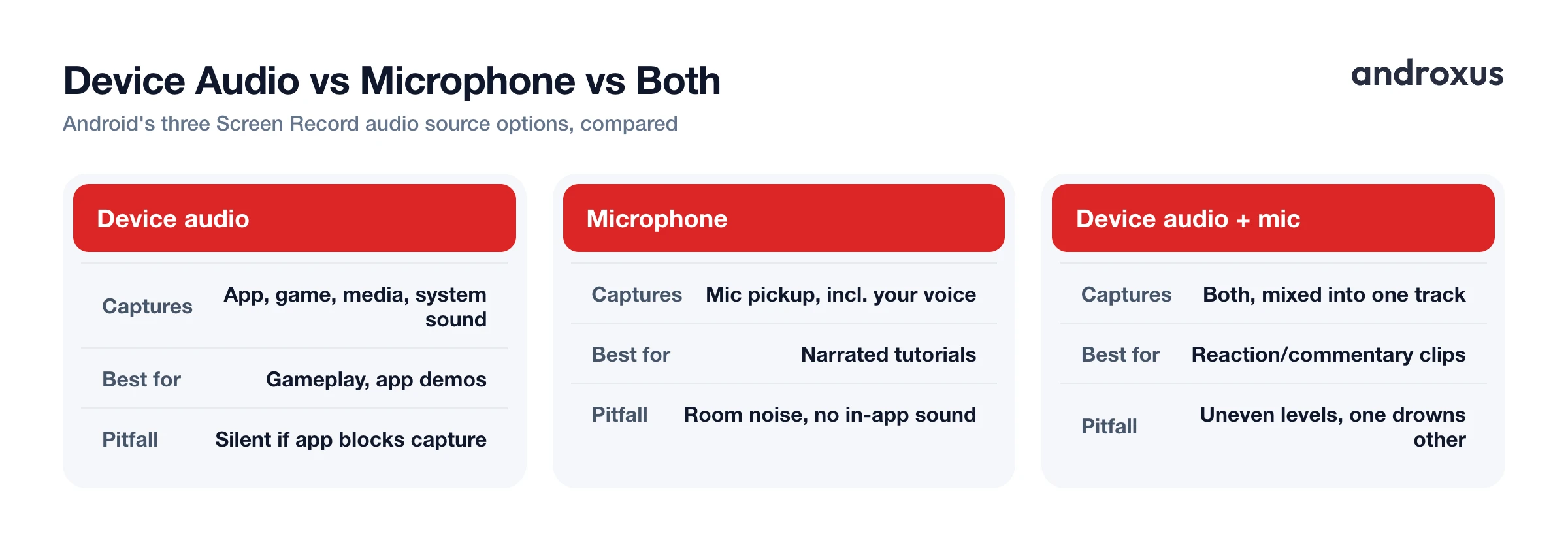
| Audio source | What it captures | Best for | Common pitfall |
|---|---|---|---|
| Device audio | App, game, media, and system sound the phone itself plays | Gameplay clips, app demos, media playback without narration | Registers as silent if the app on screen blocks playback capture |
| Microphone | Whatever the phone's mic picks up nearby, including your voice | Narrated tutorials, voice-over walkthroughs | Picks up room noise and echo, captures no in-app sound at all |
| Device audio and microphone | Both sources mixed into one audio track | Reaction clips, live-commentary tutorials, troubleshooting demos | Levels can be uneven, with one source drowning out the other |
There's also a "Show touches" toggle in the same setup sheet, which displays a small dot wherever you tap, handy if you're recording a step-by-step walkthrough for someone else to follow.
How device audio capture actually works under the hood
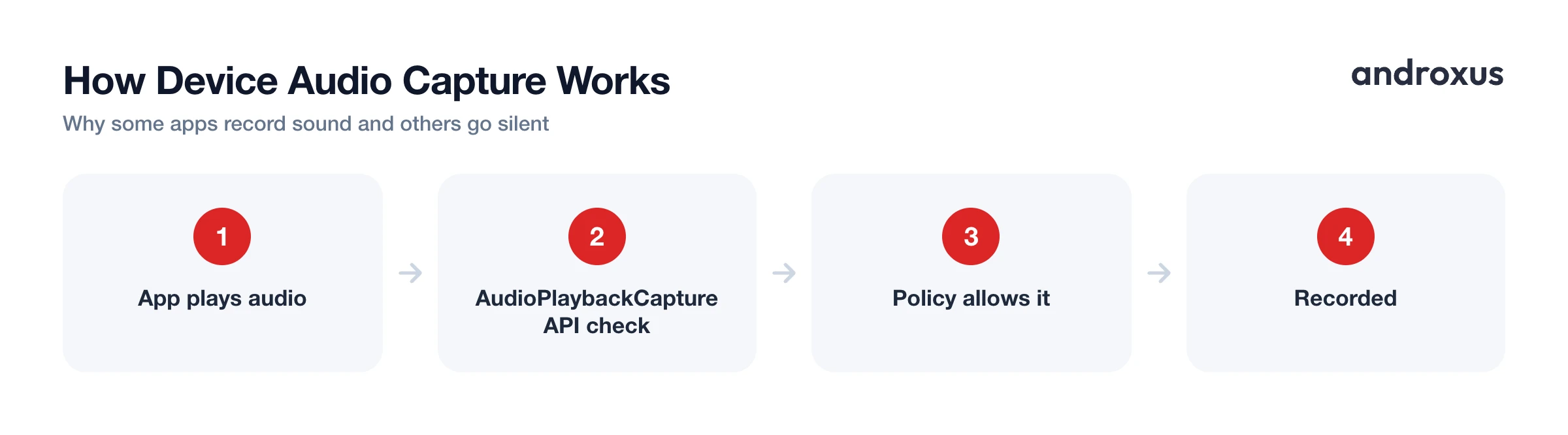
Device audio recording is possible because of the AudioPlaybackCapture API, introduced in Android 10, which lets a recording app legitimately capture the audio another app is playing. It only works if the source app allows it. Every app sets an audio capture policy, and only audio marked as capturable by other apps or the system can actually be picked up by the recorder.
Some apps deliberately turn this off, most often streaming services and DRM-protected players, which is why a perfectly good recording session can come back with dead silence during a video or song even though "Device audio" was selected the whole time. Apps can also exclude specific types of audio from capture, which explains why results are inconsistent across apps, even on the same phone, using the same settings.
Why some recordings come out black or muted
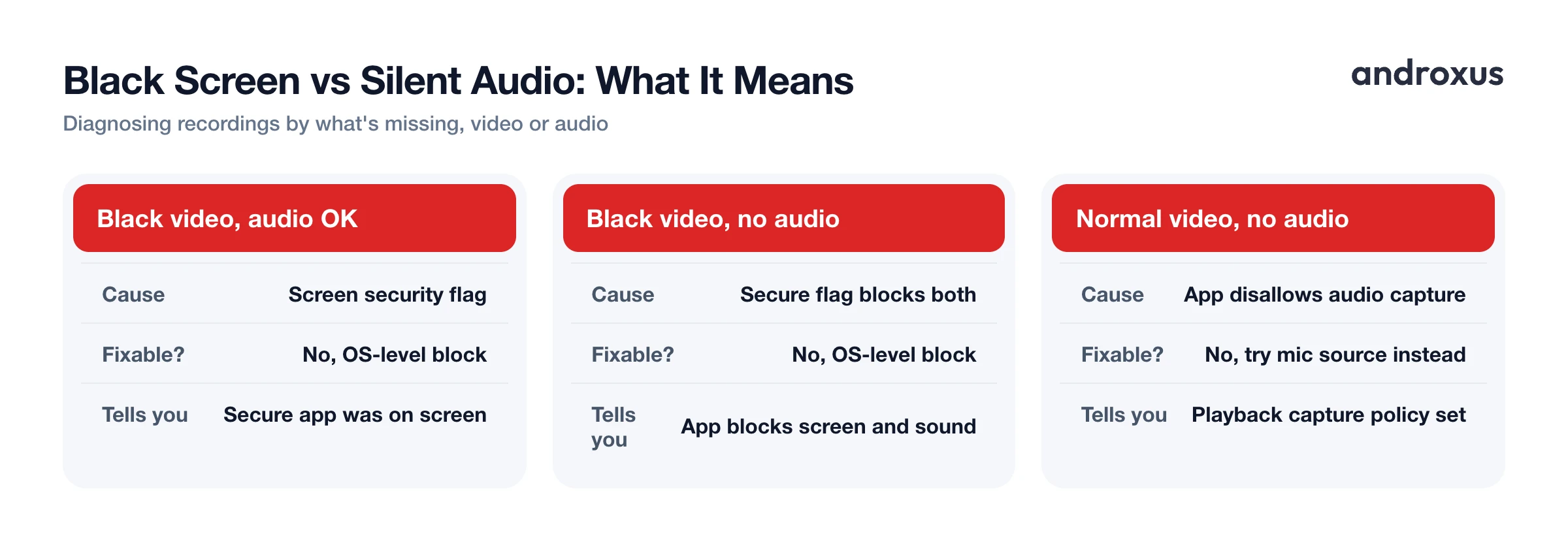
If your audio is fine but the video is a solid black rectangle, that's almost always a security flag, not a bug. Many banking apps, streaming apps, and other apps handling sensitive content set a flag that blocks the screen from being captured entirely. This is a protection the app's developer opts into, and it works at the operating system level, so the OS simply withholds the screen content from any recording surface. No screen recorder, built-in or third-party, can bypass it.
If you see a black recording but the audio track still exists, that's a useful diagnostic on its own: it confirms a secure-flag app was on screen at the time, rather than something wrong with your recorder or your audio settings.
Recording indicators: what Android always shows you
Android is deliberately transparent while a recording is running. A persistent notification and a status bar or Quick Settings timer icon stay visible for the entire session, and no app can hide this because it's enforced by the operating system itself, not by the recorder.
Separately, Android 12 and later added a privacy indicator: a green dot or chip appears in the status bar whenever the microphone or camera is actively in use, shrinking down after a moment but staying visible for a few seconds after use ends. You can tap it to see which app triggered it, and Settings > Privacy includes a dashboard showing a 7-day history of camera and microphone access by app. Any legitimate recording app, including a personal-safety tool like SafeCam, works within these system indicators rather than around them, since Android gives no app a way to suppress the recording notification or the privacy dot.
Legal and appropriate-use considerations
Recording laws vary by country and, in the United States, by state. Some places only require one party's consent to record a conversation (one-party consent), while others require every participant's consent (two-party or all-party consent). Recording your own screen and app audio for personal use, like tutorials, gameplay, or bug reports, is generally uncontroversial. Recording calls, meetings, or other people's voices is a different matter, and you should only do it where it's legal and with consent when required.
Screen and audio recording tools are meant for personal use, documentation, and legitimate safety needs, not for covertly capturing other people without their knowledge. If you're evaluating a dedicated recording app rather than the built-in tool, look for one that's upfront about this, SafeCam, for example, is built as a personal-safety recorder and is explicit that it's not designed for surveillance or tracking anyone else.
How to record your screen with audio on Android
- Open Quick Settings. Swipe down from the top of the screen with two fingers to expand the full Quick Settings panel. If you don't see a Screen Record tile, tap the pencil or plus icon to edit tiles and add it.
- Start the built-in recorder. Tap the Screen Record tile. A setup sheet appears letting you choose an audio source before you start.
- Choose your audio source. Pick Device audio to capture app or game sound, Microphone to capture your voice, or Device audio and microphone to capture both mixed into one track. Names vary slightly by manufacturer, for example Samsung uses Media sounds and Media sounds and mic.
- Set extra options. Toggle on Show touches if you want tap locations visible for tutorials, then tap Start. A 3-second countdown runs before recording begins.
- Record and stop. Use your phone normally. A persistent notification and status bar icon confirm recording is active. Pull down the notification shade or tap the status bar timer and select Stop to end the recording.
- Find and check your file. Recordings save automatically to the Movies/Screen recordings folder, visible in Google Photos or your Files app. Play it back to confirm the audio track you expected is actually present, especially the first time you use a new source, before you rely on it for something important.
Key takeaways
- Android 11 and newer can record screen with audio natively through the Screen Record tile in Quick Settings, no extra app needed for basic use.
- Device audio, microphone, and the combined option each capture something different, so pick the source that matches what you actually want to hear back.
- A black recording almost always means a security flag on the app you were viewing, not a setting you got wrong, and it can't be bypassed.
- Android always shows a persistent notification during screen recording and a green privacy dot when the mic or camera is active, and no app can hide either one.
- Check your local consent laws before recording anyone else's voice, and only record calls or conversations where it's legal and consent is in place when required.
Frequently asked questions
Does Android have a built-in screen recorder with audio?
Yes. Android 11 and newer include a native screen recorder in Quick Settings that offers device audio, microphone audio, or both. On Android 10, some manufacturers such as Samsung and OnePlus added similar internal-audio recording ahead of stock Android.
Why does my screen recording have no sound or only my voice?
If you selected microphone-only, you will only hear ambient sound picked up by the mic, not app audio. Also, some apps block internal audio capture by setting their playback capture policy to disallow it, so device audio may register as silence even if you selected it.
Why is my screen recording black during a video or banking app?
Many banking apps and DRM-protected streaming apps set a security flag that blocks the screen from being captured, so the video comes out as a solid black rectangle no matter which recorder you use. Audio is a separate control: banking apps usually don't block it, so you may still get sound with a black picture, while some streaming apps with protected audio block that too, leaving you with silence as well.
Is it legal to record my screen with audio on Android?
It depends on what you are recording and where you live. Recording your own device activity is generally fine, but if you are capturing a call, meeting, or another person's voice, check your local one-party or two-party consent laws first and get consent when required.
Does Android show any indicator when audio or the screen is being recorded?
Yes. Android 12 and later show a green privacy dot in the status bar when the microphone or camera is active, and screen recording always keeps a persistent notification and a recording icon visible while it runs, by design. This cannot be hidden.
What is the difference between device audio and microphone audio when recording?
Device audio captures sound the phone itself is playing, such as app or game audio, media, and system sounds. Microphone audio captures whatever the phone's mic picks up nearby, including your voice and ambient noise. Selecting both mixes the two into one audio track.
