How to Record Screen With Gesture Shortcuts on Android
Something worth capturing on screen almost never announces itself in advance. A glitch, a crash, a kid's first steps in a video call, a walkthrough you need to send a coworker right now, they all show up while your phone is doing something else, and the standard path to Android's recorder is just slow enough to miss them. Wanting to record screen with gesture shortcuts instead of hunting through menus is a completely reasonable instinct, so here's what Android actually offers and where it falls short.
Quick answer: Android does not ship a true one-gesture trigger for screen recording. The fastest native route is pinning the Screen Record tile to the front of Quick Settings (two swipes down, then one tap), and even that still ends with a mandatory one-time consent dialog every session, a requirement Android 14 made stricter, not looser. For camera recording specifically, gesture-shortcut apps like Action Notch can start front or back camera capture with a single tap, double-tap, or long-press on the camera cutout, which is faster than opening the Camera app, but it doesn't bypass the screen-recording permission prompt.
What you'll learn
- Why the built-in screen recorder is so easy to lose track of when you actually need it
- Which native Android gestures exist today, and which ones do not support recording
- The fastest way to pin Screen Record to Quick Settings so it is one tap away
- Why the consent dialog always appears, and why that's by design, not a flaw
- How a camera-cutout gesture can start camera recording in one tap
- A side-by-side comparison of every method covered here
Why screen recording never happens when you actually need it
Google's screen recorder became a standard, no-app-required feature starting with Android 11, after first appearing as a hidden developer-option row on some Android 10 devices. That was a real improvement: no more sideloading a recording app or granting it broad permissions just to capture a bug report.
The problem is discoverability, not availability. The default path is swipe down twice to open full Quick Settings, then find (or add) the tile among a dozen others. That takes several seconds, and those seconds are exactly the ones you don't have when something worth recording is already happening on screen. By the time most people locate the tile or open a separate recorder app, the moment has passed.
That's the real case for a gesture or one-tap shortcut: not a new recorder, just a faster way to trigger the one Android already has.
The gesture shortcuts Android already gives you, and their limits
A few native Android gestures exist, but none of them map cleanly to screen recording.
Pixel's Quick Tap. Found under Settings > System > Gestures > Quick Tap, available from the Pixel 4a 5G onward, this lets you double-tap the back of the phone to trigger an action: take a screenshot, open Google Assistant, play or pause media, view recent apps or notifications, or open a chosen app. Screen recording is not on that list.
The accessibility button or gesture. Under Settings > Accessibility > Accessibility button, you can set a floating on-screen button, a two-finger swipe up from the bottom, or a volume-key hold to fire a single assigned accessibility shortcut. Stock Android does not include screen or camera recording among the shortcuts you can assign there.
Net result: out of the box, there is no universal gesture on stock Android that directly starts screen recording. The fastest native option remains the Quick Settings tile, so it's worth setting that up properly.
Fastest native route: pin the screen recorder to Quick Settings
This is a one-time setup that turns the recorder into something closer to a gesture: two swipes and a tap, every time, from any screen.
- Swipe down twice from the top of the screen to open full Quick Settings.
- Tap the pencil or edit icon to enter tile editing mode.
- Find Screen Record (labeled Screen Recorder on some skins) in the tile list and drag it up into the active tiles area.
- Position it near the top row so it's reachable with the fewest swipes and taps, then save.
Once it's pinned, tapping the tile opens a Start screen with audio choices: no sound, microphone only, or device audio, meaning app and game sound, together with the microphone. That dual-audio option has been available since Android 11, so you can capture what's playing on screen along with your own narration in a single recording.
What happens the instant you trigger it: the permission prompt you can't skip
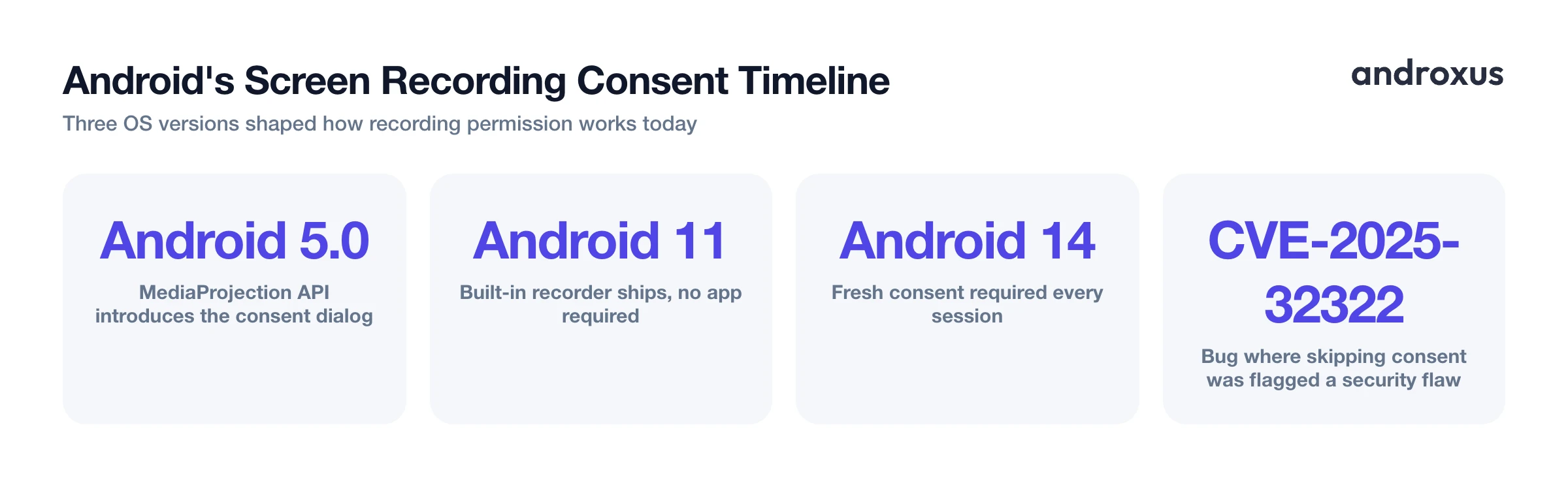
Here's the part that no shortcut, gesture, or app can remove. Since Android 5.0, when Google introduced the MediaProjection API that any screen-capture tool relies on, starting a screen recording through any app shows a one-time system consent dialog warning that everything on screen will be captured. This is a deliberate privacy safeguard, not a bug or an oversight.
Android 14 tightened this further: apps are now required to request fresh consent for every capture session, and reusing a previously granted MediaProjection token throws a SecurityException instead of silently succeeding. Even a perfectly instant gesture trigger still ends with one unavoidable tap on the system dialog.
This matters because any app that claims to skip that dialog should raise a flag. A 2025 framework bug, CVE-2025-32322, was specifically about this consent dialog being improperly skippable, and it was treated as a security vulnerability, not a convenience feature. A gesture can get you to the recorder faster; it should never claim to remove the consent step.
Using the camera cutout as a one-tap shortcut for camera capture
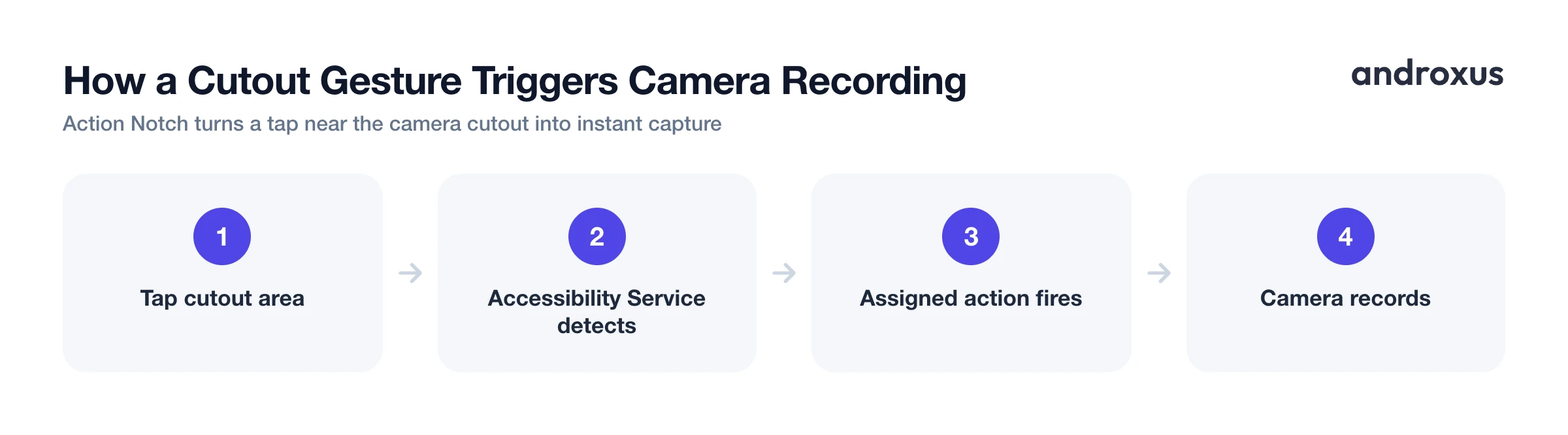
Camera recording is a different story, since it doesn't route through the same MediaProjection consent flow that screen recording does, and it's where a gesture-based shortcut can genuinely close the speed gap.
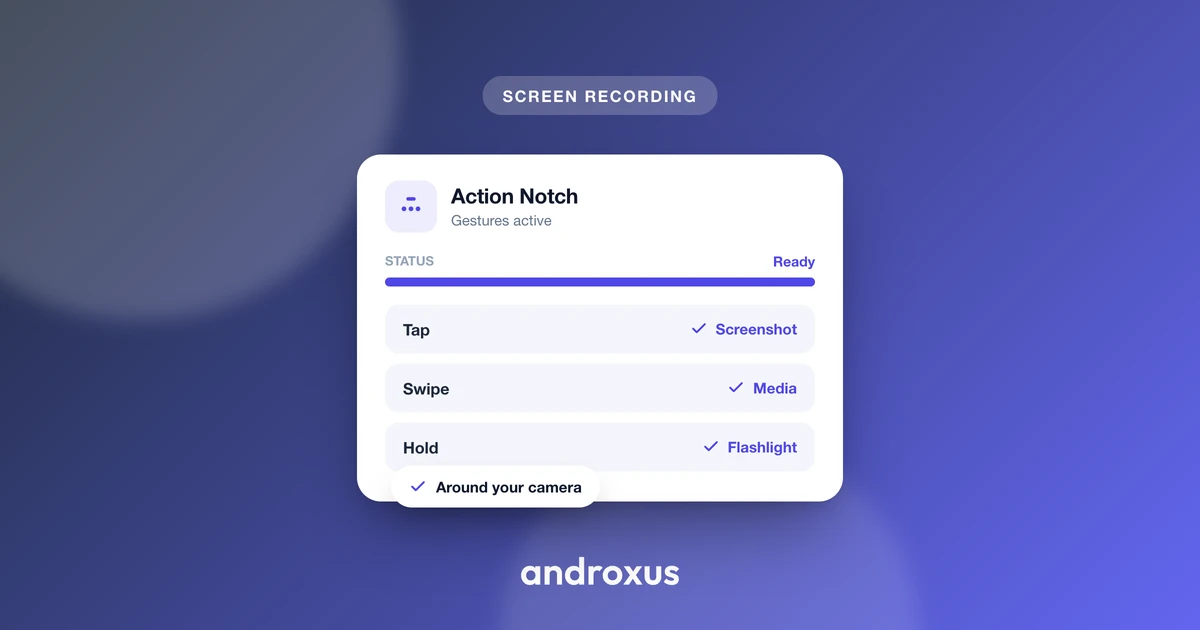
Action Notch turns the area around the front camera cutout into an invisible overlay button, and tap, double-tap, long-press, and swipe can each be assigned a different action, in the style of Dynamic Island or Assistive Touch shortcuts. Among the actions available are recording the front or back camera, recording audio, and taking a screenshot, so a single gesture on the cutout can start camera capture directly without opening the Camera app or digging through its modes.
It works through Android's Accessibility Service, which is what lets it place and detect touches on the overlay around the cutout. It's worth being precise about what that means: it does not add a real hardware Dynamic Island or change the physical screen or notch, it's a touch shortcut zone layered on top of the display, and the service itself does not collect data.
For continuous screen video, as opposed to camera video, Android's own consent-gated recorder is still the mechanism doing the actual work. A cutout gesture can be pointed at a favorite-app shortcut to jump into the recorder faster, but it doesn't and shouldn't claim to bypass the system permission dialog described above.
Comparing gesture and shortcut methods
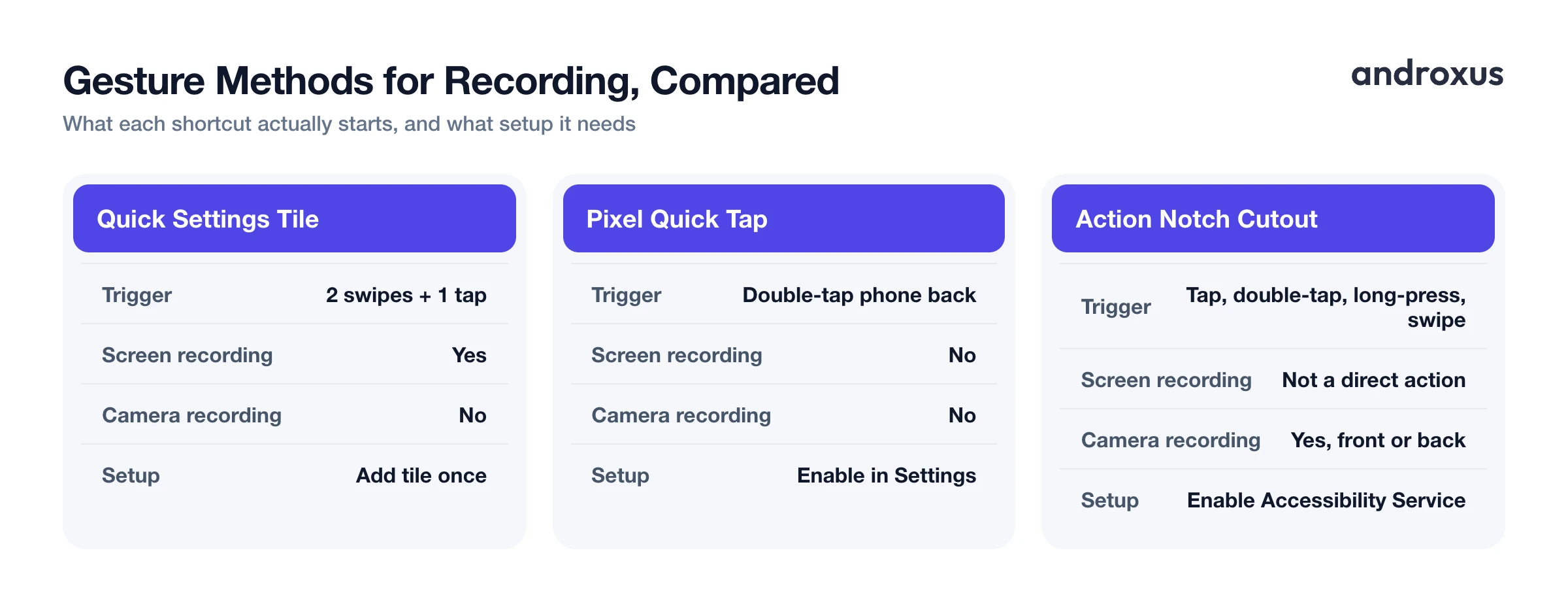
| Method | How you trigger it | Starts screen recording? | Starts camera recording? | Setup required |
|---|---|---|---|---|
| Quick Settings tile | Two swipes down, then a tap | Yes | No | Add the tile once |
| Pixel Quick Tap (back-tap) | Double-tap the phone's back | No | No | Enable in Settings > System > Gestures |
| Accessibility button/gesture | Floating button or two-finger swipe up | Not natively mapped | Not natively mapped | Enable in Settings > Accessibility |
| Action Notch cutout gesture | Tap, double-tap, long-press, or swipe near the camera cutout | Not a direct action | Yes, front or back camera | Enable Accessibility Service |
How to pin the screen recorder to Quick Settings for fast, gesture-like access
- Open full Quick Settings. Swipe down from the top of the screen twice to expand the full Quick Settings panel.
- Enter edit mode. Tap the pencil or edit icon at the bottom of the panel to reveal all available tiles.
- Find the Screen Record tile. Scroll through the tile list for Screen Record (or Screen Recorder) and drag it into the active tiles area at the top.
- Position it for speed. Drag the tile as close to the front of the row as possible so it's reachable in the fewest swipes, then tap Done or Save.
- Trigger and confirm. Tap the tile, choose an audio option, none, microphone, or device audio plus microphone, tap Start, then confirm the one-time system consent dialog that appears.
- Optional: add a camera gesture. For instant camera capture instead of screen capture, assign a tap, double-tap, long-press, or swipe on a cutout-shortcut app like Action Notch to the record front or back camera action so it fires with one gesture, no menus involved.
Key takeaways
- Stock Android has no true one-gesture trigger for screen recording; the fastest native path is pinning the Screen Record tile to the front of Quick Settings.
- Pixel's Quick Tap and the accessibility button gesture both exist, but neither one supports starting a screen recording out of the box.
- The system consent dialog for screen recording is unavoidable by design, and Android 14 made it require fresh confirmation every session, not less frequently.
- Camera recording is a separate case: a cutout-shortcut app like Action Notch can start front or back camera capture with a single gesture, since it doesn't route through the same consent flow as screen recording.
- Treat any tool that claims to skip the screen-recording consent dialog with suspicion, since that behavior has previously been classified as a security flaw, not a legitimate feature.
Frequently asked questions
Does Android have a built-in gesture to start screen recording?
Not a dedicated one. The closest native options are the Quick Settings tile, which takes two swipes plus one tap, and, on some devices, an accessibility button or gesture. Stock Android does not ship a direct gesture-to-recording binding.
Will a permission popup still show up if I use a gesture or shortcut to start recording?
Yes. Every screen recording session shows a one-time system consent dialog, a safeguard built into the MediaProjection API since Android 5.0, and Android 14 made fresh consent mandatory for every session instead of letting apps reuse an old approval. No gesture or app can legitimately skip it.
Can I capture internal audio, like app or game sound, when screen recording?
Yes. Since Android 11, the built-in recorder's Start screen lets you choose no sound, microphone only, or device audio, meaning app and game sound, together with the microphone.
Does Google Pixel's Quick Tap gesture support screen recording?
No. Quick Tap's available actions are things like taking a screenshot, opening Assistant, play/pause media, viewing recent apps or notifications, or opening a chosen app, not starting a screen recording.
What does Action Notch actually do for recording?
It turns the area around the camera cutout into an invisible overlay button you can tap, double-tap, long-press, or swipe to instantly start recording the front or back camera, take a screenshot, or record audio, without opening the camera app. It does not add a physical Dynamic Island or record the screen on its own.
Do gesture-shortcut apps for the camera cutout need special permissions?
Yes, they rely on Android's Accessibility Service, which is what lets them place an overlay around the cutout and detect touches on it; because that overlay uses the accessibility grant itself, most of these apps don't also need a separate display-over-other-apps permission for the button. That access is standard for this category of assistive-touch tool, and a trustworthy app will state plainly that the service does not collect data.
