PDF Dark Mode: How to Read PDFs Comfortably at Night
Reading a PDF in bed usually means one thing: a bright white page lighting up a dark room like a small flashlight aimed at your face. It's uncomfortable, and it's avoidable once you understand which display setting actually does what.
Quick answer: For comfortable night reading, use your PDF app's night mode or invert colors to turn the page dark, lower your screen brightness to match the room, and turn on Android's Night Light for a warmer color temperature in the evening. Invert colors flips the page's tones directly (white becomes dark, black text becomes light), while night mode applies a dedicated dark reading theme. Neither one "protects" your eyes from damage, but together with lower brightness they cut the glare that makes late-night reading uncomfortable.
What you'll learn
- Why a standard white PDF page feels harsh in a dark room
- The real difference between dark theme, invert colors, night mode, and Night Light
- A side-by-side comparison of all four options
- Habits that make night reading more comfortable beyond color settings
- Step-by-step setup for PDF dark mode on Android
Why a Bright White PDF Page Feels Harsh at Night
Most PDFs are designed to be printed or read in daylight, so they render as a bright white page with black text. That's fine at a desk under normal light, but in a dark bedroom it creates a stark contrast between the glowing screen and everything around it, which is what makes late-night reading feel uncomfortable.
It's worth being precise about what that discomfort actually is. According to the American Academy of Ophthalmology and peer-reviewed research summaries, the main drivers of digital eye strain are a reduced blink rate and prolonged close-up focus during screen use, not the color of the screen itself. Blue light in particular doesn't have strong evidence behind it as a cause of eye strain or eye damage in normal phone and tablet use. Its more credible effect is on sleep: blue light can suppress melatonin and shift your body clock if you're on a screen late at night.
So dark backgrounds, dimmer screens, and warmer color temperatures aren't fixing eye damage, they're reducing glare and contrast, and in the case of Night Light, cutting down on the kind of light exposure that can interfere with falling asleep. That distinction matters for setting expectations, but it doesn't make the comfort benefit any less real for most readers.
Dark Mode, Night Mode, and Invert Colors: Three Different Tools
These terms get used loosely, but they do different things, and a PDF reader with more than one of them gives you more control over how a specific document looks.
Dark theme (system-wide) restyles an app's own interface, menus, and background as dark. On Android it lives at Settings, Display, Dark theme, and many apps pick it up automatically. It generally changes the chrome around your content, not necessarily the PDF page itself.
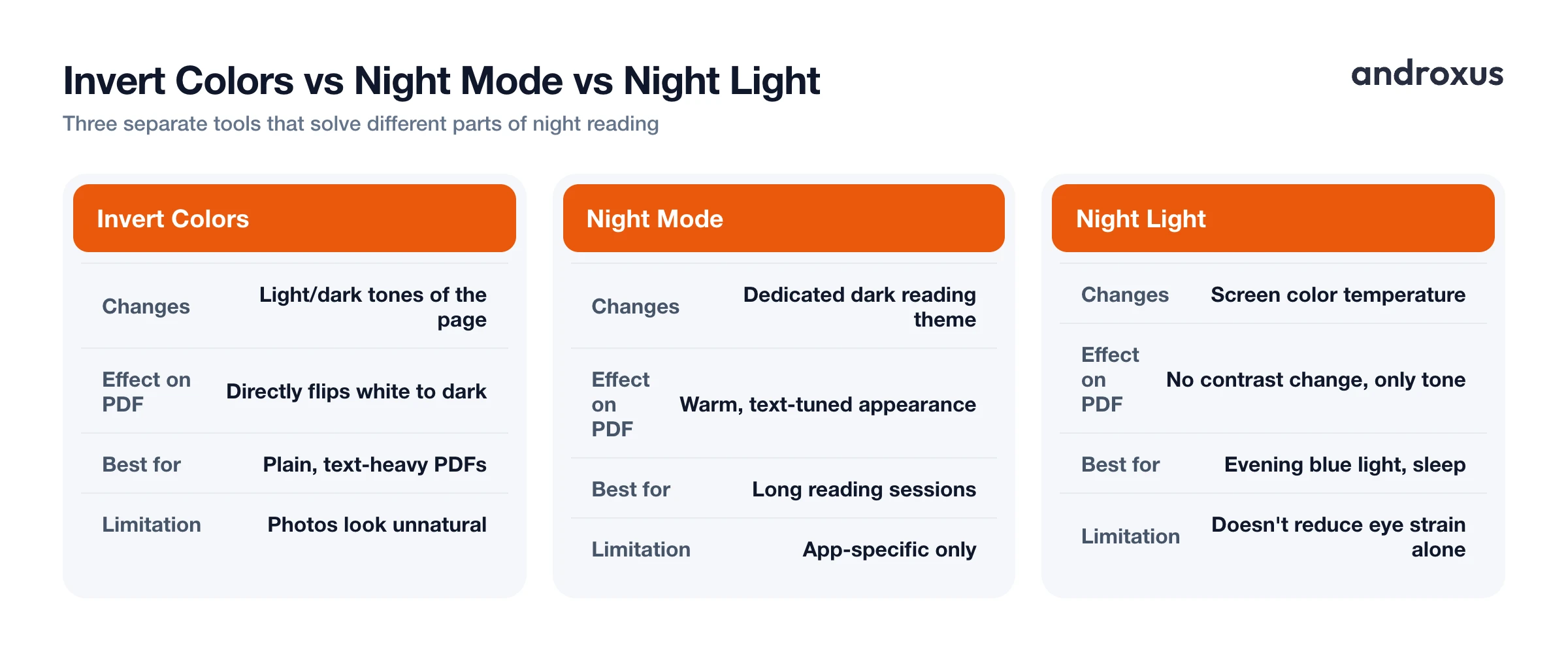
Invert colors flips the light and dark tones of what's actually rendered on screen. A white page with black text becomes a dark page with light text. Because it inverts everything, not just the background, photos and colored highlights inside the PDF can look unusual, so it tends to work best on plain, text-heavy documents.
Night mode, as offered inside a reading app, is typically a dedicated dark or warm-toned reading theme built specifically for text comfort, rather than a blanket color inversion. It's designed to look right on a page of text rather than to mirror every pixel.
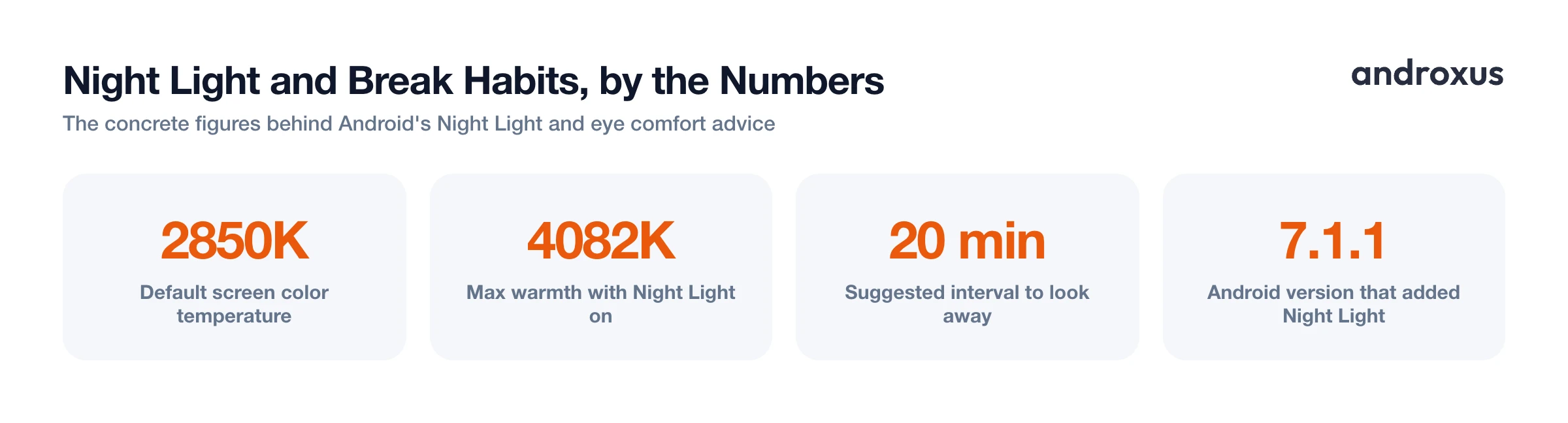
Android's Night Light (introduced in Android 7.1.1, found at Settings, Display, Night Light) is different again. It warms the screen's overall color temperature, from a default around 2850K up to about 4082K, rather than darkening the background. It runs independently of any in-app dark or invert setting and can follow a custom or sunset-to-sunrise schedule.
Android also has a developer-only "Force Dark" option that tries to auto-generate a dark theme for apps that don't natively support one. It's not meant as a primary reading tool since it can misrender colors in apps it wasn't built for. A dedicated toggle inside your reading app is a more reliable choice. PDF Reader includes both invert colors and a separate night mode, so you can pick whichever suits a given document, inverting a plain text scan, for example, or using the softer night theme for something with mixed images and text.
Comparing the Options at a Glance
| Feature | What It Changes | Effect on the PDF Page | Best For | Limitation |
|---|---|---|---|---|
| Android system dark theme | App UI, menus, and system surfaces | Usually doesn't alter the PDF page itself | Reducing glare from surrounding screen elements | Inconsistent support across apps |
| Invert colors | Light/dark tones of the rendered page | Directly changes how the PDF looks | Plain, text-heavy PDFs | Photos and colored highlights can look unnatural |
| In-app night mode | A dedicated dark or warm reading theme | Changes the PDF's on-screen appearance for reading | Long reading sessions | App-specific, not system-wide |
| Android Night Light | Screen color temperature (warmer) | Doesn't change contrast or background, only color tone | Evening blue light reduction and sleep | Limited evidence it reduces eye strain on its own |
Other Habits That Make Night Reading More Comfortable
Color settings help, but they're only part of the picture. A few habits make a bigger difference than people expect.
- Match brightness to the room, not a fixed number. A brightness level that looks fine in daylight can feel glaring in a dark bedroom even if it's technically "low." Adjust by eye rather than by habit.
- Use a keep-screen-on setting for long reads. It's frustrating to lose your spot because the screen dimmed or locked mid-page during a long PDF. PDF Reader includes a keep-screen-on option along with automatically remembering your last page, so you don't need to max out your screen timeout just to avoid losing your place.
- Try full-screen mode. Removing status bars and navigation UI cuts down on extra bright elements competing with the page for your attention in a dark room.
- Take breaks from the screen. Since reduced blink rate is the more evidence-backed cause of screen-reading discomfort, looking away periodically, for example every 20 minutes, matters more for comfort than any single display setting.
- Avoid screens close to bedtime when you can. If you're reading right before sleep, leaning on a warmer color temperature via Night Light in that last hour is the more evidence-supported step for sleep quality specifically, separate from eye strain itself.
How to Set Up PDF Dark Mode for Comfortable Night Reading
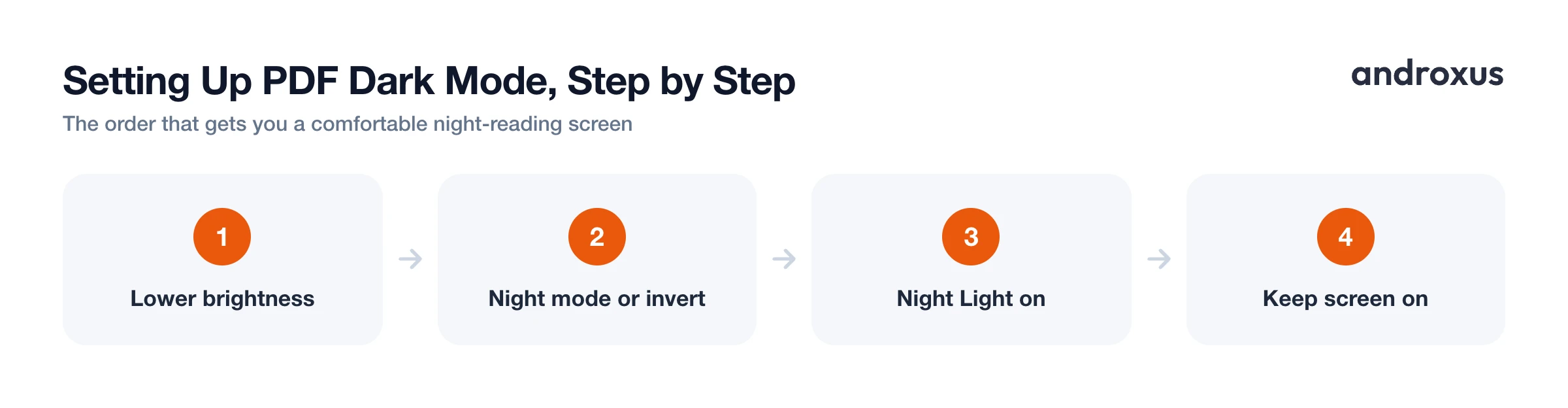
- Match your screen brightness to the room. Before touching any color settings, lower your phone's brightness so the screen doesn't feel like a flashlight in a dark room. Aim for a level where a white area on screen feels close to the room's ambient light rather than glaring.
- Turn on your PDF app's night mode or invert colors. Look for a night mode or invert colors toggle in the app's viewing or display settings. Night mode applies a dark reading theme built for text; invert colors flips the page's tones directly, which works well for plain text-heavy PDFs.
- Turn on Android's Night Light for evening reading. Go to Settings, Display, Night Light, then turn it on manually, set a custom schedule, or choose sunset to sunrise. This warms the screen's color temperature in the evening, separate from any in-app dark or invert mode.
- Optionally enable Android's system-wide dark theme. Go to Settings, Display, Dark theme (naming varies by device) to darken system menus and supported apps around your reading app.
- Keep the screen from dimming or locking mid-page. Turn on a keep-screen-on option in your PDF reader if it has one, and enable autosave or bookmarking so you don't lose your spot if you do stop reading.
- Take short breaks from the screen. Look away every so often, roughly every 20 minutes, to reduce the eye dryness that comes from a lower blink rate during screen reading.
Key takeaways
- A bright white PDF page creates harsh contrast in a dark room, but the discomfort mostly comes from glare and contrast, not screen "damage."
- Invert colors flips the page's tones directly and suits plain text PDFs, while night mode is a dedicated reading theme, and both are separate from Android's system dark theme or Night Light.
- Night Light warms color temperature for evening blue light reduction, but current evidence doesn't show it meaningfully cuts eye strain on its own.
- Lower screen brightness to match the room, use a keep-screen-on setting for long documents, and take periodic breaks. These habits matter as much as any single color toggle.
- Combining a dark or inverted page with lower brightness and a warmer evening color temperature gives the most comfortable setup for reading PDFs at night.
Frequently asked questions
Does dark mode actually reduce eye strain when reading PDFs?
Not directly. Research from groups like the American Academy of Ophthalmology finds eye strain mainly comes from reduced blinking and prolonged close-up focus, not screen color. Dark mode helps indirectly by lowering overall screen luminance and glare in a dark room, which many readers find more comfortable, especially compared to a bright white page.
What's the difference between invert colors and night mode in a PDF reader?
Invert colors flips the tones of the rendered page itself, so a white page with black text becomes a dark page with light text, and photos or highlighted colors can look unusual. Night mode is typically a reading-specific dark theme built for text comfort. Either can be turned on independent of your phone's system-wide theme.
Does Android's Night Light or blue light filter protect my eyes?
It warms the screen's color temperature (Android's Night Light, added in Android 7.1.1, tops out around 4082K from a default 2850K). It's mainly aimed at reducing blue light exposure before bed since blue light can suppress melatonin and disrupt sleep. Current evidence does not show it meaningfully reduces eye strain on its own.
Will reading PDFs in dark mode save battery?
On OLED and AMOLED screens, individual pixels dim or switch off entirely to show black, so darker PDF pages can use less power than a bright white page. The exact savings depend on the device, screen brightness, and how much of the page is dark, so it varies rather than being a fixed percentage.
How do I turn on invert colors for reading PDFs on Android?
You can use a reading app's built-in invert colors or night mode toggle, which affects only that app's page view. Alternatively, Android's own Settings, Accessibility, Color inversion inverts the entire device screen, which is more aggressive since it affects every app, not just your PDF.
Should I use dark mode instead of lowering my screen brightness at night?
Use both together rather than one instead of the other. Lowering brightness to roughly match the room's ambient light reduces the harsh contrast of a lit screen in a dark space, and a dark or inverted background lowers the amount of bright white area on screen, so the two changes reinforce each other.
