How Do You Protect Phone Buttons From Wearing Out?
Every phone check, screenshot, and volume tweak puts a little more wear on a tiny mechanical switch that was never built to last forever. If your power or volume button already feels stiff, mushy, or sticky, it is worth learning how to protect phone buttons before one of them fails completely.
Quick answer: To protect phone buttons, cut down on unnecessary presses by turning on screen-wake gestures, using Android's built-in Accessibility Menu for on-screen power and volume controls, and routing everyday actions like screenshots or flashlight through an on-screen shortcut instead of the side keys. Keep the button seams clean and address a loose or stiff feel early, since power and volume buttons are mechanical switches with a finite lifespan.
What you'll learn
- Why physical buttons wear out and which habits accelerate it
- How many daily presses actually happen without you noticing
- The free, built-in Android tools that already reduce button use
- How on-screen shortcuts work as an added layer of protection
- What to do if a button already shows signs of failing
Why Physical Buttons Wear Out in the First Place
Power and volume keys are mechanical switches with a finite press-cycle rating. Consumer-grade phone switches are built for far fewer cycles than heavy-duty industrial switches, so years of daily use gradually wears down the contacts underneath. Wear is not only about click count, either: dust and lint from pockets and bags, sweat, and moisture work into the seam around the button and corrode or gum up the contacts over time.
Repair sources such as iFixit and uBreakiFix also point to drops as a leading nonmechanical cause of button failure, since an impact can crack the button housing or loosen the ribbon cable and flex connector sitting just beneath it. Add to that the fact that the power button carries more daily load than any other physical key: it wakes the screen, locks the phone, force-restarts it, opens the power menu, and, paired with volume-down, triggers screenshots. That layers several distinct jobs onto one small switch, which is exactly why it tends to be the first button to go.
The Everyday Habits That Add Up
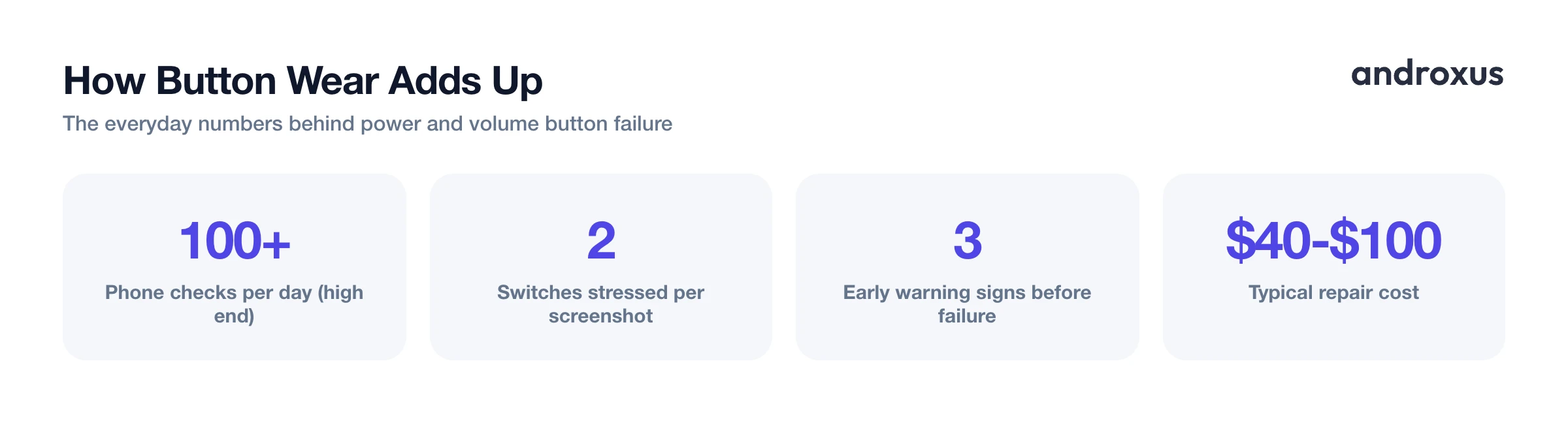
It is easy to underestimate how often a phone actually gets touched. Industry surveys from firms such as Reviews.org and RescueTime have estimated that people check their phones anywhere from several dozen to well over a hundred times a day, and each check that starts with a physical press is another mechanical cycle on the power button.
A few habits in particular pile on extra wear:
- The screenshot shortcut. Holding power and volume-down together stresses two switches at once, and it is one of the most repeated combos for anyone who screenshots receipts, chats, or web pages often.
- Volume rocker as a camera shutter. Using the volume buttons to snap photos or skip music tracks while the phone sits in a pocket or bag adds blind, repeated presses that are easy to overdo without noticing.
- Long-press for the assistant or power menu. On many phones, long-pressing power also triggers a voice assistant or the power menu, meaning one small switch absorbs multiple distinct functions rather than just one.
None of these habits are unusual, which is exactly why button wear sneaks up on so many people.
Built-in Android Tools That Already Cut Down Button Use
Before reaching for a third-party app, it is worth knowing that Android already ships with a few free ways to protect phone buttons from unnecessary presses.
Tap to Wake or Double Tap to Wake, found under Settings > Display > Lock screen or Settings > Gestures depending on the brand, lets a tap on the screen wake the display instead of the power button. This alone removes one of the most repeated presses of the day.
Stock Android also includes an Accessibility Menu (Settings > Accessibility > Accessibility Menu) that adds a floating on-screen panel with power, volume, screenshot, and recent-apps controls. It was originally built for users with limited mobility, but anyone can use it to take presses off the side keys. Samsung devices ship an equivalent called Assistant menu (Settings > Accessibility > Interaction and dexterity > Assistant menu), with similar power, volume, and screenshot controls plus some app-aware shortcuts.
These built-in tools are free and need no extra install, but their panels look generic and sit as a separate floating icon rather than blending into the phone's existing design, which is where on-screen shortcut apps can fill a gap.
On-Screen Shortcuts as an Everyday Layer of Protection
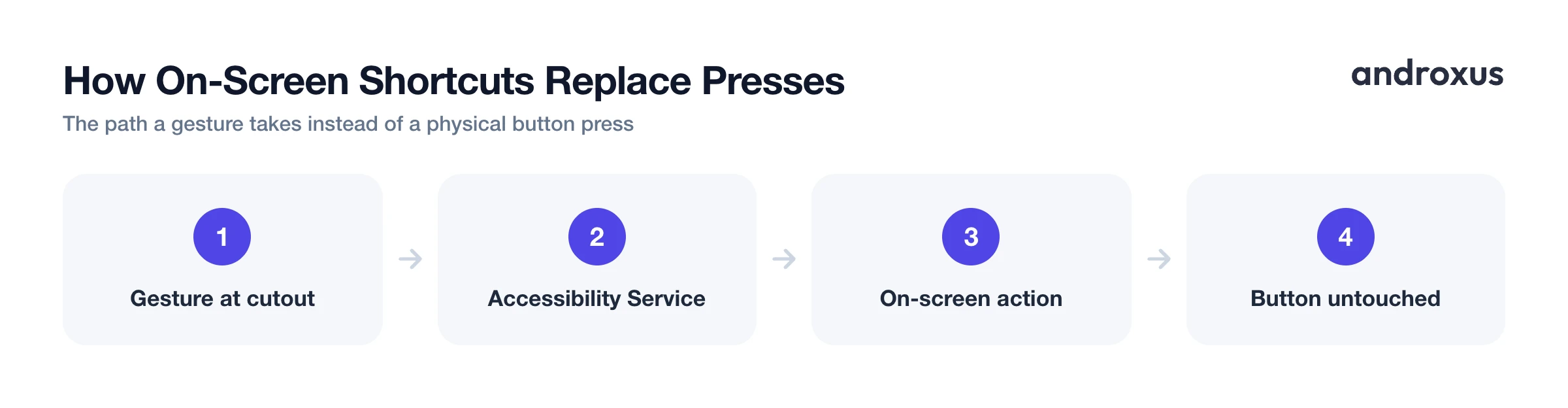
Third-party utilities can use Android's Accessibility Service framework to draw a persistent overlay control that floats above other apps and triggers software-level actions without touching a physical switch. This is the same underlying mechanism Google's own Accessibility Menu relies on, just applied differently.
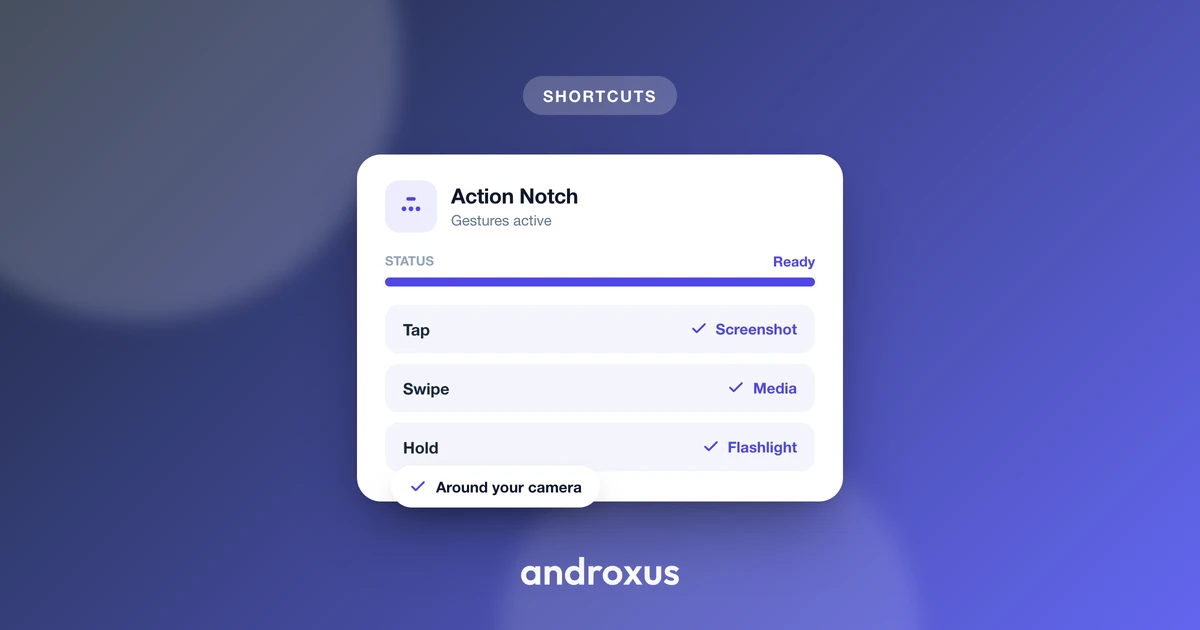
Action Notch is one example of this approach. It uses the Accessibility Service to turn the area around the phone's camera cutout into a tappable shortcut zone, responding to tap, double-tap, long-press, and swipe gestures for actions including screenshot, flashlight, screen off, power menu, and ringer or volume controls. That means routine presses can happen from the screen instead of the side keys. It is worth being clear about what this actually is: a software shortcut layer, not a hardware modification. It does not add a physical Dynamic Island or change the screen or notch itself, and by its own description the accessibility service collects no data. Because it is gesture-based and anchored at the cutout rather than a separate floating icon elsewhere on screen, one reachable spot can stand in for several different physical-button actions.
Physical Button Actions vs. On-Screen Alternatives
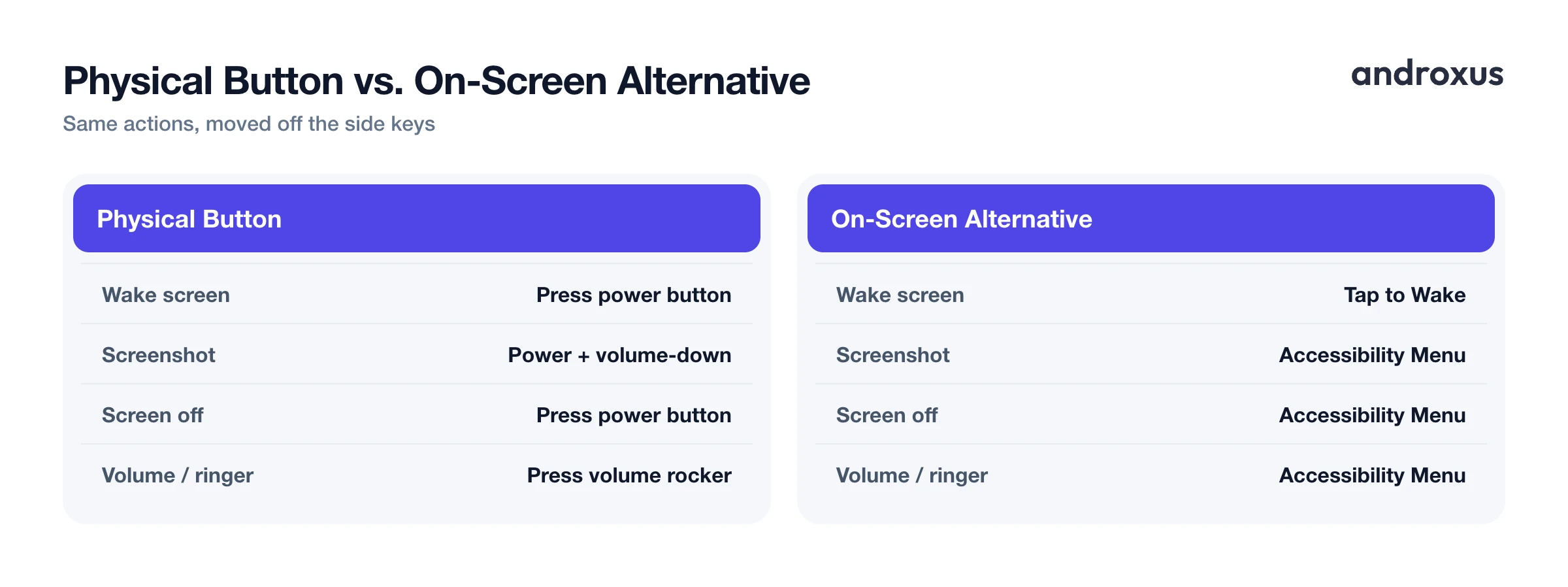
| Action | Physical Button Method | Built-in Android On-Screen Alternative |
|---|---|---|
| Wake screen | Press power button | Tap to Wake or Double Tap to Wake |
| Take a screenshot | Hold power + volume-down | Accessibility Menu screenshot control |
| Turn off the screen | Press power button | Accessibility Menu power control |
| Open the power menu | Long-press power button | Accessibility Menu power control |
| Adjust volume or ringer mode | Press volume rocker | Accessibility Menu volume control |
| Force restart | Hold power + volume buttons | Not available on-screen (hardware-only on most phones) |
| Launch flashlight or camera | No dedicated button on most phones | Accessibility Menu or quick-settings tile |
If a Button Has Already Started to Fail
Some warning signs are worth catching early, before a switch fails outright. A loose or mushy feel, needing to press harder or repeatedly, or a button that sticks in a pressed position are all common early indicators.
If you notice any of these, a couple of quick, low-risk steps can help before assuming the worst:
- Clean the seam. Compressed air around the button and a cotton swab lightly dampened with isopropyl alcohol can clear out dust or sticky residue, a common first troubleshooting step.
- Restart the phone. This rules out a software glitch, such as a buggy update or an app capturing volume keys, before concluding the switch itself is worn.
If the problem persists after cleaning and a restart, professional replacement of a power or volume button at an independent repair shop commonly runs somewhere between $40 and $100, on top of any diagnosis fee, with the exact cost depending on phone model, shop, and region.
How to Protect Phone Buttons From Everyday Wear
- Turn on Tap to Wake or Double Tap to Wake. Open Settings > Display > Lock screen (the exact path varies by brand, some use Settings > Gestures), and enable Tap to Wake or Double Tap to Wake so a touch on the screen wakes the phone instead of the power button.
- Enable Android's built-in Accessibility Menu. Go to Settings > Accessibility > Accessibility Menu (on Samsung: Settings > Accessibility > Interaction and dexterity > Assistant menu), turn it on, and confirm the floating icon appears. Tap it anytime for on-screen power, volume, and screenshot controls.
- Add an on-screen shortcut for everyday actions. Install a shortcut app such as Action Notch, grant the Accessibility Service permission it requests, and map gestures (tap, double-tap, long-press, swipe) to the actions you use most, like screenshot, flashlight, or screen off, so those presses move off the side keys.
- Clean around buttons that already feel stiff. Use a can of compressed air around the button seam and a cotton swab lightly dampened with isopropyl alcohol to clear out dust or residue, then test the button before assuming it needs replacement.
Key takeaways
- Power and volume buttons are mechanical switches with a finite lifespan, and dust, moisture, and drops accelerate wear alongside sheer press count.
- Built-in Android tools, Tap to Wake and the Accessibility Menu (or Assistant menu on Samsung), already cut down on unnecessary presses for free.
- On-screen shortcut apps like Action Notch add a gesture-based layer around the camera cutout for everyday actions, though they are a software overlay, not a hardware replacement.
- A loose, mushy, or sticky button is worth cleaning and testing right away rather than waiting for it to fail completely.
- Replacing a worn power or volume button at an independent repair shop commonly costs somewhere between $40 and $100, depending on phone model and region.
Frequently asked questions
Does pressing the power button really wear it out over time?
Yes. It is a mechanical switch rated for a finite number of press cycles, and years of daily presses combined with dust and moisture exposure are a well documented cause of button failure reported by phone repair shops.
What is the fastest built-in way to stop using the power button just to wake my phone?
Turn on Tap to Wake or Double Tap to Wake in your phone's display or gesture settings. It lets a tap on the screen wake the device instead of the side button.
Is there a stock Android feature that puts button controls on screen?
Yes. Android's built-in Accessibility Menu, found under Settings > Accessibility, adds a floating panel with power, volume, and screenshot controls. Samsung's equivalent is called Assistant menu.
Can an app like Action Notch actually replace my power or volume button?
It can handle many everyday actions, such as screenshot, screen off, flashlight, and volume or ringer changes, as an on-screen gesture around the camera cutout, since it works as a software overlay through Android's Accessibility Service. It does not modify the hardware, so it is a shortcut layer, not a physical button replacement.
How much does it cost to fix a broken power or volume button?
It varies widely by phone model and region, but independent repair shops commonly quote somewhere between $40 and $100 for parts and labor.
Are there warning signs before a button fails completely?
Yes. A loose or mushy feel, needing extra force to register a press, or a button that sticks in place are common early signs worth addressing before the switch fails outright.
