How to Open Multiple PDFs at Once on Android
Comparing an invoice against last month's, cross-referencing a manual while filling out a form, or studying from three chapters at once all mean juggling more than one PDF on a phone. Doing that by closing one file and reopening another every time gets old fast, and it means constantly losing your place.
Quick answer: To open multiple PDFs at once on Android, use a PDF reader with tabbed browsing rather than opening files one at a time. Each PDF gets its own tab, keeping its own scroll position, zoom, and page number, so you can switch between documents instantly. This is different from Android's split-screen mode, which only shows two apps at once and splits the screen between them.
What you'll learn
- Why you'd want more than one PDF open at a time
- The difference between in-app tabs and Android's split-screen mode
- How tabbed PDF reading keeps each document's place intact
- How to set a tabbed reader as your default so PDFs open into it automatically
- How to keep a multi-tab workflow from getting cluttered
Why you'd want multiple PDFs open at once
There are a handful of everyday situations where a single open PDF isn't enough. Comparing two invoices or two versions of a contract, cross-referencing an instruction manual while filling out a related form, studying from several textbook chapters or research papers side by side, and lining up a resume against a job posting are all common examples.
The friction shows up when your PDF app only lets you view one document at a time. Closing a file to open the next one means you lose your scroll position and zoom level, so every time you switch back, you're hunting for the page you were just on. That gets tedious quickly if you're bouncing between documents more than once or twice.
A tabbed workflow solves this the same way it does on a desktop browser: each document gets its own tab, and switching between them is instant, adapted here to a phone or tablet screen instead of a laptop.
Two ways Android lets you view multiple PDFs: tabs vs. split-screen
Android actually offers two different approaches to viewing more than one document, and they solve different problems.
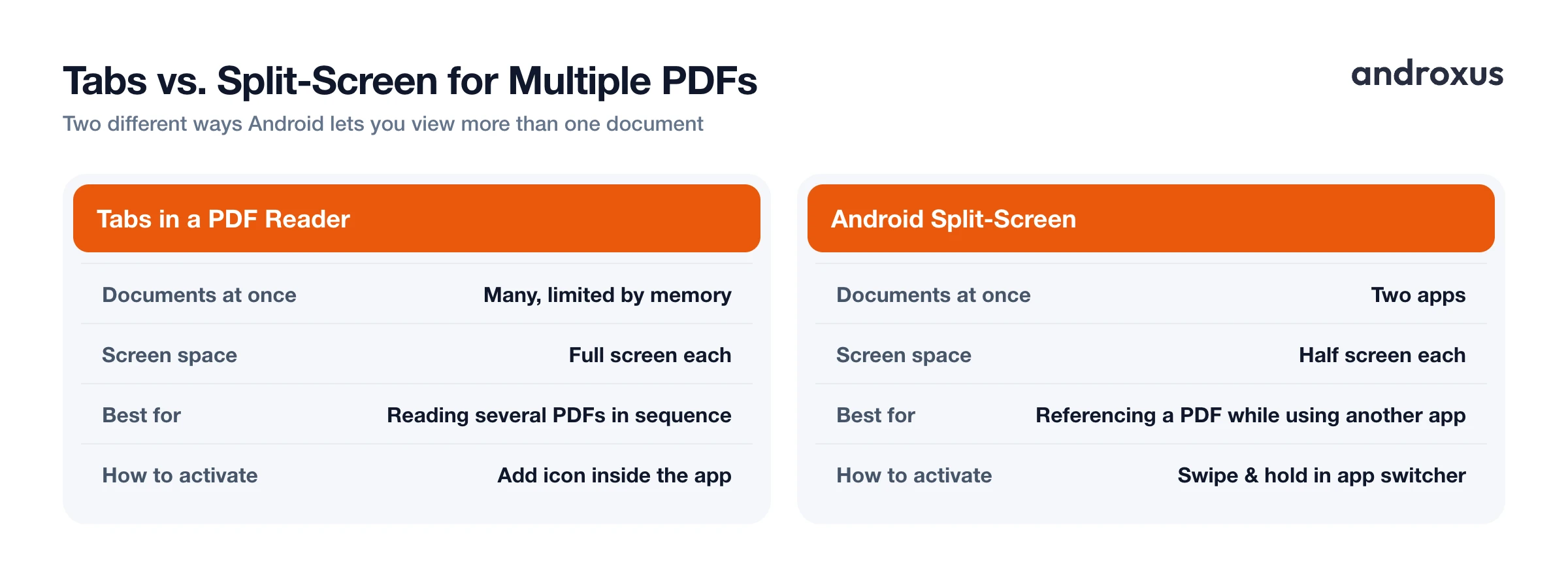
In-app tabs keep multiple PDFs open inside a single reader app, and you switch between full-screen tabs. Because the documents live inside one app, there's no hard cap of two, you can open as many as your phone's memory can comfortably handle.
Android's built-in split-screen, or multi-window mode, has been part of the OS since Android 7.0 (Nougat). To use it, swipe up and hold from the app switcher (or long-press the recent-apps button if you're on three-button navigation), select an app, choose split screen, then pick a second app to fill the other half of the display. This shows two apps side by side at the same time, but it's limited to two windows on most phones and shrinks each app to half the screen. Newer large-screen and foldable Android versions add extras like saved app pairs and multi-instance windows, but on a standard phone, multi-window is still effectively a two-app split.
The two methods are suited to different tasks. Tabs work best when you want to read several PDFs full-screen, one at a time, switching frequently. Split-screen works best when you need to reference a PDF while actively doing something in a different app, like copying details into an email or a form.
| Method | Documents at once | Screen space per document | Best for | How to activate |
|---|---|---|---|---|
| Tabs in a PDF reader | Many, limited by memory | Full screen each | Reading or comparing several PDFs in sequence | Open a PDF, then use the add/open icon to add another as a tab |
| Android split-screen (multi-window) | Two apps | Half screen each | Referencing a PDF while working in another app | Swipe up and hold in the app switcher, choose split screen, pick a second app |
How tabbed PDF reading actually works
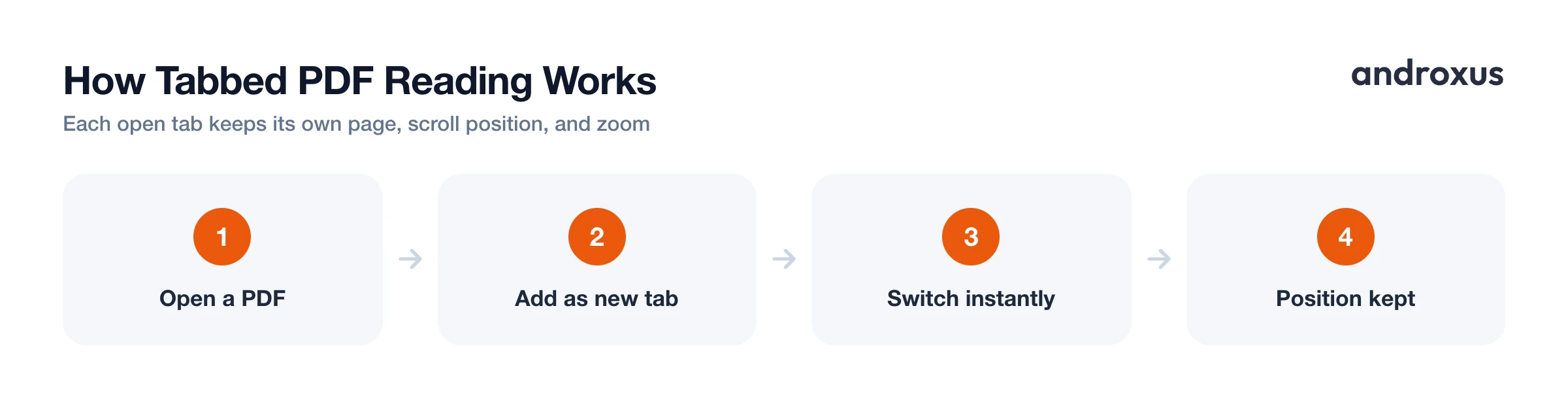
Inside a tab-capable reader, each open tab tracks its own state independently: current page, scroll position, and zoom level. Switching from one tab to another doesn't reset any of that, so you land exactly where you left off, not back at page one.
Most tabbed readers show either a tab strip along the top or a "recent tabs" view listing every document you currently have open, so you can see and pick between them at a glance. Because all the open tabs live inside a single app process, switching is noticeably faster than fully closing one PDF and relaunching another from a file manager.
Closing a tab doesn't touch the underlying file, it just removes that document from your open-tabs list. The PDF itself stays exactly where it was stored. Features like autosave, bookmarks, and favorites are typically kept separate from the tab list, so a document you want to find again later doesn't need to stay open as a tab to remain easy to locate. PDF Reader, for example, remembers your last page per document and lets you mark favorites, which is useful for exactly this: you can close a tab without losing your place or misplacing the file.
Setting a tabbed reader as your default so it all stays organized
Tabs are most useful when PDFs consistently land in the same app, rather than opening in whatever viewer happens to grab the file that day. Android lets you set a default app per file type.
Go to Settings > Apps > Default apps on your phone, or, the next time you open a PDF, choose "Open with" and tap "Always" instead of "Just once." Once a reader is set as your default, PDFs tapped from a file manager, a browser download, or an email attachment all open into that same app, where a tab-capable reader can add each new file as another tab instead of replacing what you already had open.
If you ever want to change the default later, go to Settings > Apps > [app name] > Open by default > Clear defaults, and you'll be prompted to choose again the next time you open a PDF. PDF Reader supports being set as your default PDF viewer, so documents opened from anywhere on the phone consistently land in the same tabbed session instead of scattering across whatever app last handled a PDF.
Keeping a multi-tab workflow manageable
Open tabs use your device's memory (RAM) to hold each document's rendering state, not extra storage space, since the files themselves aren't duplicated anywhere. Closing tabs you're finished with frees that memory back up immediately.
On older or lower-RAM phones, keeping many heavy documents open simultaneously can slow down switching, since Android's background process limits start to kick in. Closing tabs for PDFs you're no longer actively comparing or referencing helps keep things responsive.
If there are PDFs you return to often but don't need open all the time, marking them as favorites keeps them a tap away without requiring you to leave every one of them open as a tab. And features like vertical or horizontal scroll and 2-page view help each individual document stay comfortable to read on its own screen, regardless of how many other tabs you're juggling alongside it.
How to open multiple PDFs at once with tabs
- Open your first PDF. Launch a tab-capable PDF reader and open the first document, either from the app's file browser or by tapping a PDF in a file manager, email, or download notification.
- Add a second PDF as a new tab. From inside the app, use the add or open icon to browse for another PDF. Instead of replacing the first file, it opens alongside it as a separate tab.
- Repeat for additional documents. Keep adding PDFs the same way. Each one gets its own tab while the app keeps every previous tab's scroll position, zoom, and page number intact.
- Switch between open PDFs. Tap the tab bar or recent-tabs view to jump between documents instantly, without re-opening or re-scrolling through files you already positioned.
- Set the app as your default PDF viewer (optional). In Android, go to Settings > Apps > Default apps and choose the tabbed reader for PDFs, or pick "Always" the next time you open a PDF with it. This way, PDFs opened from anywhere on your phone land in the same tabbed session.
- Close tabs you no longer need. Close individual tabs once you're done comparing or referencing a document to keep the tab bar manageable and free up memory, while favorited PDFs stay easy to find for later.
Key takeaways
- Tabbed PDF reading lets you open multiple PDFs at once, each keeping its own page, scroll position, and zoom, so switching between them doesn't cost you your place.
- Split-screen is different from tabs: it shows two apps side by side but is capped at two windows, while tabs can hold as many documents as your memory allows.
- Setting a tab-capable reader as your Android default means PDFs from a file manager, browser, or email all land in the same tabbed session automatically.
- Open tabs mostly cost RAM, not storage, so closing ones you're finished with keeps switching fast without touching the files themselves.
- Favorites and autosave features let you keep track of important PDFs without needing to leave every one of them open as a tab.
Frequently asked questions
Can I open more than two PDFs at the same time on Android?
Yes, if you use in-app tabs. A tabbed PDF reader can hold as many open documents as tabs, limited only by your phone's memory, whereas Android's built-in split-screen mode is capped at two apps on screen at once.
Will I lose my place in a PDF when I switch to another tab?
No. In a tabbed reader, each tab keeps its own scroll position, zoom level, and page number, so returning to a tab puts you back exactly where you left off. PDF Reader remembers your page per document for this reason.
What's the difference between split-screen and tabbed PDF reading?
Split-screen (Android's multi-window mode) shows two separate apps side by side on one screen, useful for comparing a PDF against another app like email. Tabbed reading keeps multiple PDFs inside one app, switching between full-screen views, which gives each document more room.
Do open PDF tabs use a lot of storage or battery?
Open tabs mainly use RAM to hold rendering state, not extra storage, since the files themselves aren't duplicated. Closing tabs you're finished with frees that memory back up; the PDFs stay wherever they're stored either way.
Can I make PDFs always open into the same tabbed reader?
Yes. Setting a PDF app as your default viewer in Android's Settings > Apps > Default apps (or via 'Open with > Always') means PDFs opened from a file manager, browser, or email consistently launch into that app, where a tab-capable reader can add each one as a new tab.
Is there a limit to how many PDF tabs I can keep open?
There's no fixed number set by the app; the practical limit is your device's available memory. Closing tabs for documents you're no longer actively using keeps things running smoothly, especially on older or lower-RAM phones.
