How to Bookmark PDF Android Files and Favorite Them
If you've ever lost your place in a long contract or spent five minutes hunting for the one PDF you actually needed, you already know why bookmarking and favoriting matter. Both features solve the same basic problem, getting back to something quickly, just at different scales: one page versus one document.
Quick answer: To bookmark a PDF on Android, open the file, go to the page you want to save, and tap the bookmark control on that page. To favorite an entire document, tap the favorite or star control from the file list or while the file is open. Bookmarks mark a spot inside one document, favorites mark a whole file for quick access, and autosave separately remembers the last page you viewed without any tapping at all.
What you'll learn
- Why PDFs sometimes have built-in bookmarks and sometimes don't
- The real difference between a page bookmark, a favorite, and autosave
- How to bookmark a specific page and favorite a whole document
- Where PDFs actually get stored on Android, and how to organize them
- Practical habits for keeping a large PDF library findable long-term
Why Bookmarking and Favoriting Actually Matters
The PDF format has a native bookmark feature, technically called the Document Outline, part of the PDF specification (ISO 32000) since its early versions. When it's present, it shows up as a clickable, hierarchical list in a navigation pane, similar to a table of contents you can tap through.
The catch is that not every PDF ships with one. Scanned documents, receipts, forms, and a lot of web-downloaded PDFs have zero embedded bookmarks. Accessibility guidance for tagged PDFs generally recommends adding a document outline once a file runs past a handful of pages, which is part of why long official documents such as manuals, contracts, and textbooks are more likely to arrive with built-in bookmarks than a short one-page form is. When a PDF has none, the reader app has to supply its own way to bookmark PDF Android files so you can still mark a spot.
It also helps to separate two problems that often get lumped together: "where was I in this one document" and "where is that one document among the 200 PDFs on my phone." The first is solved by page bookmarks or autosave. The second is solved by favoriting and general file organization. Treating them as the same problem is the most common source of frustration when a PDF library grows past a handful of files.
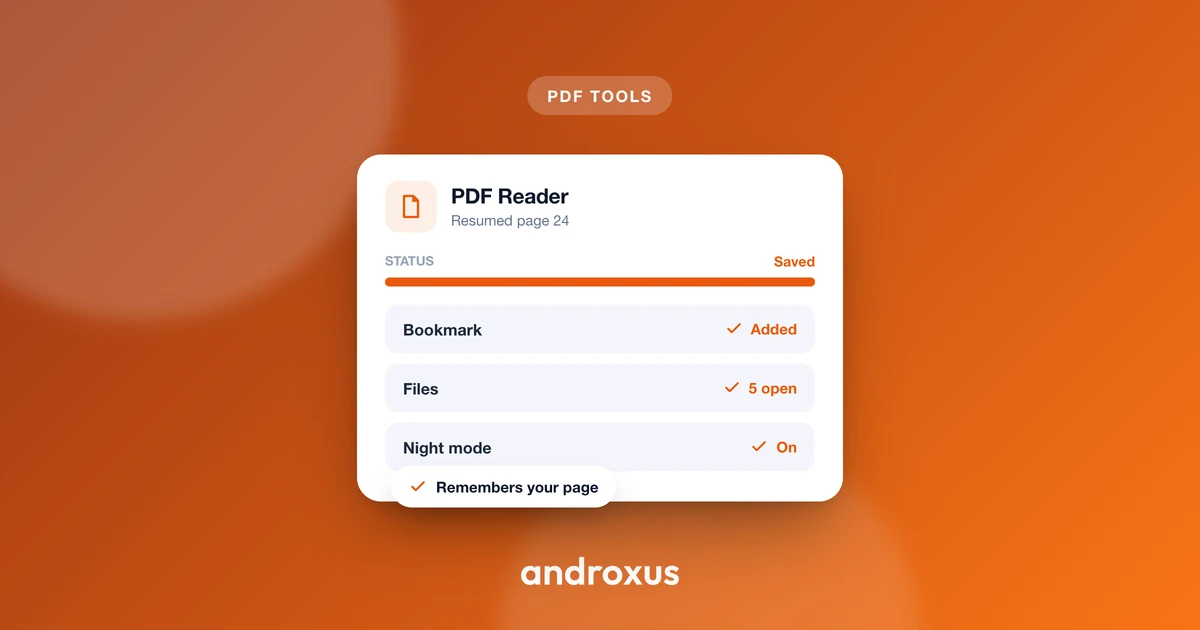
PDF Reader addresses both sides of this. It remembers your last page automatically through autosave, lets you bookmark a specific page inside a document, and lets you mark whole files as favorites so they surface quickly from your library.
Page Bookmarks vs. Whole-File Favorites: Know the Difference
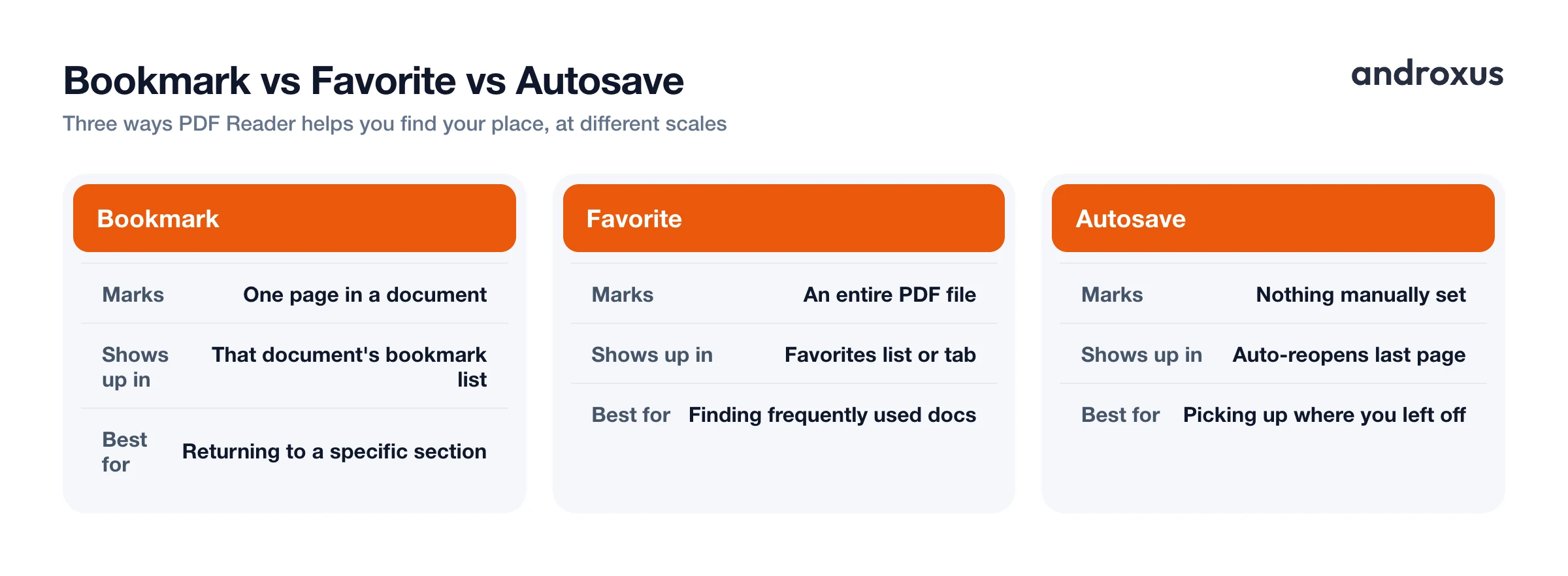
These two features look similar but serve different purposes, and mixing them up is where most people get stuck. A page bookmark saves your place inside one document, letting you jump back to that exact page later even after you've scrolled hundreds of pages away. A favorite, by contrast, marks an entire file, not a page, so it surfaces at the top of your library or in a dedicated favorites list instead of getting buried in a long listing sorted by date or name.
There's a third mechanism worth knowing about too: autosave, or remember-last-page. This one is passive. The app quietly reopens a PDF to the page you were last on without you tapping anything, which covers the everyday case of simply wanting to pick up where you stopped reading.
In most lightweight PDF viewers, including PDF Reader, bookmarks and favorites are stored as app data tied to that specific file rather than written into the PDF's internal outline structure. Editing a file's actual bookmark or outline data is a document-editing operation, not a viewing one, so a reader app keeps that information on its own side instead. Because of that, bookmarks and favorites set in a viewer app typically won't carry over if you open the same file in a different app or on a different device, unlike bookmarks embedded by the document's original author.
| Feature | What It Marks | Where It Shows Up | Best For |
|---|---|---|---|
| Bookmark | A page inside one document | That document's bookmark list | Returning to a specific section |
| Favorite | An entire PDF file | A favorites list or tab in the library | Quickly finding frequently used documents |
| Autosave | Nothing manually set | Automatically reopens to your last-viewed page | Picking up where you left off without tapping |
How to Bookmark a Specific Page for Quick Return
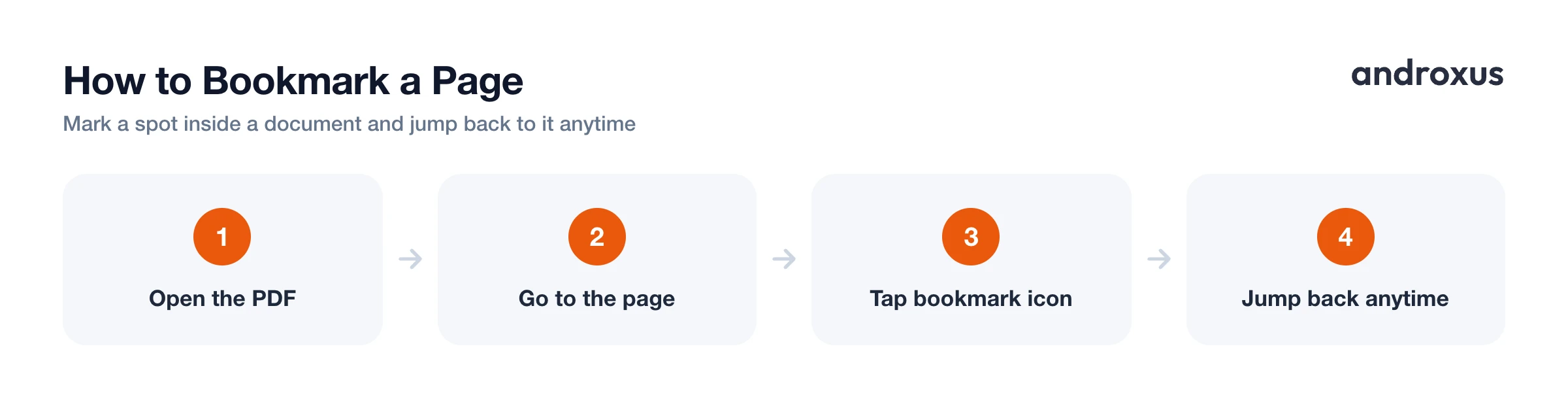
Bookmarking works best when you already know which page you'll want to come back to, a reference table, a signature page, a section you're studying. Open the PDF and navigate to the page worth saving, either by scrolling (vertically or horizontally, depending on your preferred layout) or by using a jump-to-page control to go straight to a page number.
Once you're on the right page, tap the bookmark control to save it. A saved bookmark typically shows a filled or highlighted icon, so you can see at a glance which pages have already been marked as you keep browsing.
Bookmarks stack per document, so a single PDF, a textbook chapter or a long contract, can hold multiple saved pages. That's useful for referencing several sections without re-searching each time you need them. Reopening the bookmarks list inside a document lets you jump directly to any saved page instead of scrolling manually through dozens or hundreds of pages.
It's worth keeping this distinct from autosave in your head: autosave remembers only the single last page you viewed, while a bookmark is a deliberate, permanent marker you choose and can keep even after you've moved on to reading other pages.
How to Favorite a Whole PDF for Faster Access
Favoriting a document flags the whole file, not a page, so it's meant for documents you reread often or need handy, not for saving your spot inside one. In PDF Reader, marking a document as a favorite makes it easy to find again from the app's file list without scrolling or searching through every PDF on the device.
Because PDF Reader supports opening multiple PDFs in tabs, you can have several favorited documents open side by side in one session instead of closing one to open the next. That's handy when you're cross-referencing two files at once.
Favoriting doesn't move, copy, rename, or alter the underlying file in storage. It only changes how the app displays it, so the PDF stays exactly where it was originally saved on the device. It's a good idea to treat favorites as a short list of your most-used documents rather than a catch-all. For a large archive of PDFs, pairing favorites with sensible folder names in a file manager keeps things findable over the long run, well after the favorites list itself starts to feel crowded.
Organizing the Rest of Your PDF Library on Android
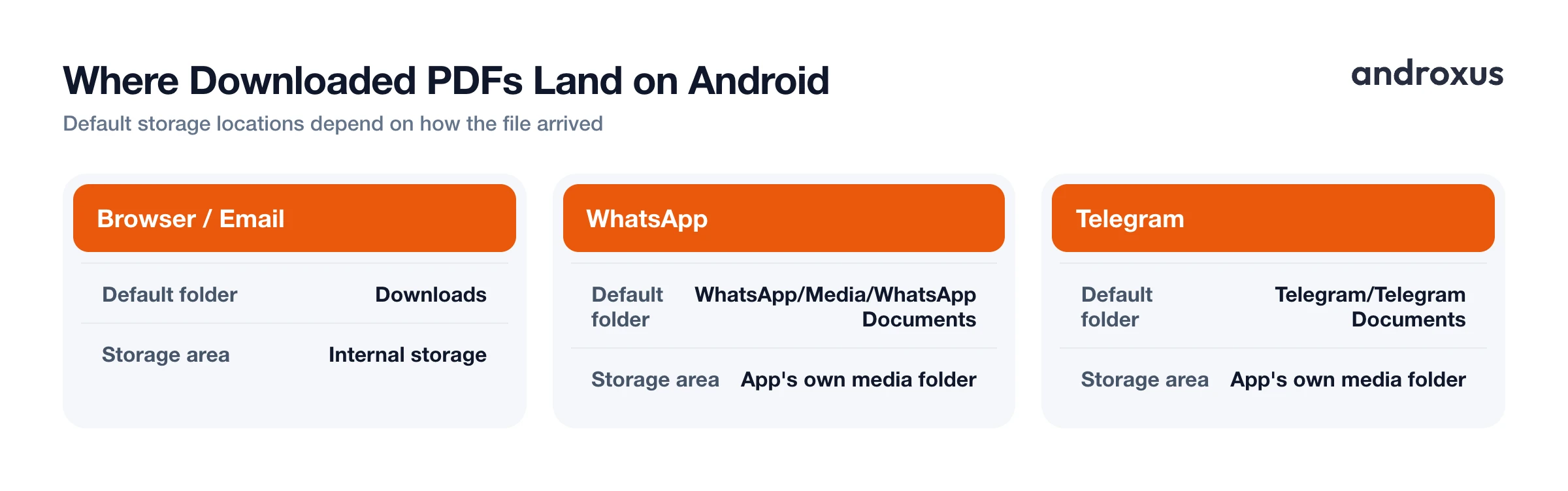
Bookmarks and favorites only help once a PDF is somewhere you can find it. By default, PDFs downloaded from a browser, email, or most apps land in the Downloads folder under internal storage on Android. PDFs saved from messaging apps often land elsewhere automatically. WhatsApp documents, for example, typically go to a WhatsApp/Media/WhatsApp Documents folder, and Telegram files typically go to a Telegram/Telegram Documents folder, rather than the general Downloads folder. The exact path can shift depending on your Android version, since newer versions restrict apps to their own storage areas.
Every Android phone ships with a built-in file manager for browsing storage, creating folders, and moving or renaming PDFs, usually called "My Files" on Samsung and "Files" or "File Manager" on other brands. That's the right tool for restructuring where files physically live, separate from how a reader app displays them.
A simple, durable habit works well alongside in-app favorites: use one folder per topic or source, for example Bills, Manuals, and Reading, and let the app's favorites and bookmarks handle the "which page, which few documents matter right now" layer on top of that folder structure. The two systems complement each other instead of competing.
Setting PDF Reader as the default PDF viewer also helps here. Once it's set, tapping any PDF from a file manager, browser, or email attachment opens it straight into the same app where your bookmarks and favorites already live, instead of prompting an app picker every time.
How to Bookmark and Favorite PDFs for Quick Access
- Open the PDF you want to mark. Launch PDF Reader and open the document, either from your recent files list or by browsing to it. If it's your first time opening it, the app will start tracking your position for autosave.
- Go to the page worth saving. Scroll to the page (vertically or horizontally, depending on your layout preference) or use the jump-to-page control to enter a page number directly instead of scrolling manually.
- Tap the bookmark icon to save that page. The icon typically fills in or highlights to confirm it's saved, and you can repeat this on other pages in the same document.
- Mark the whole document as a favorite. From the file list or while the document is open, tap the favorite or star control to flag the entire PDF, separate from any page-level bookmarks inside it.
- Return to a bookmarked page anytime. Open the document's bookmarks list to see every saved page and tap one to jump straight there, instead of scrolling back through the file.
- Find favorited documents fast. Check the app's favorites list or tab to quickly pull up documents you've marked, without scrolling through every PDF on your device.
Key takeaways
- A bookmark saves your place on a single page inside one document; a favorite marks the entire file for quick access from your library.
- Autosave is separate from both: it passively remembers your last-viewed page without any manual tapping, but only tracks one spot at a time.
- Bookmarks and favorites set in a viewer app are usually stored as app data, not written into the PDF itself, so they generally don't carry over to other apps or devices.
- Pairing app-level favorites with clear folder organization in Android's file manager keeps a large PDF collection findable as it grows.
- Setting PDF Reader as your default PDF viewer keeps every PDF you open, from a browser, email, or file manager, landing in the same place your bookmarks and favorites already live.
Frequently asked questions
What's the difference between a PDF bookmark and a favorite?
A bookmark saves a specific page inside one document so you can jump back to it. A favorite marks the entire file so it's easy to find again in your list of PDFs. Use bookmarks for a spot inside a document and favorites for documents you reopen often.
Do bookmarks or favorites I add in an app get saved inside the PDF file itself?
Usually not. Most lightweight PDF viewers, including PDF Reader, store bookmarks and favorites as app data linked to that file rather than editing the PDF's internal outline structure, since rewriting a file's built-in bookmarks is a document-editing task rather than a viewing one. That means these markers typically stay tied to the app you set them in.
Where are downloaded PDFs actually stored on my Android phone?
By default, PDFs downloaded through a browser, email, or most apps go into the Downloads folder under internal storage. Files saved from apps like WhatsApp or Telegram often land in that app's own media subfolder instead.
Can I bookmark more than one page in the same PDF?
Yes. Bookmarks stack per document, so a single PDF can hold several saved pages, which is useful for referencing multiple sections of a long document, like different chapters or clauses, without re-searching each time.
Will my bookmarks and favorites survive if I move or rename the PDF file?
Moving or renaming a file outside the app can break the link between the app's saved bookmark or favorite and the file, since that marker is tied to the file the app originally indexed. Keeping PDFs in a stable folder avoids losing bookmarks unexpectedly.
Does the app remember where I left off even if I never manually bookmark a page?
Yes. Autosave keeps track of the last page you were viewing and reopens the PDF there automatically, separate from any manual bookmarks you set. It only remembers the single most recent page, though, not multiple saved spots.
