How to Make Your PDF Reader Remember Page Automatically
You close a long PDF halfway through, come back the next day, and the reader drops you right back where you left off. Or it doesn't, and you're stuck scrubbing through fifty pages trying to find your spot again. Whether you get a PDF reader remember page setup that just works comes down to which app you're using and a few settings worth knowing about.
Quick answer: A PDF reader remembers your page by saving your last-viewed page number in its own local app data, linked to that specific file, since the PDF format itself has no field for personal reading position. To make this work reliably on Android, use a dedicated reader with autosave, set it as your default PDF app, open files from a stable location like Downloads or Files rather than a chat attachment, and avoid moving or renaming the PDF once you start reading it.
What you'll learn
- Why PDFs can't remember your page on their own
- How viewers actually track your reading position behind the scenes
- The difference between autosave, bookmarks, and favorites
- Practical steps to make sure your reader keeps your place every time
- How to set a PDF app as your default so autosave has something consistent to work with
Why PDFs don't remember your page on their own
The PDF format is a static document specification. It has no built-in field that stores "this specific reader's last page." Any per-reader position tracking has to happen outside the file, inside the viewer app that opens it.
A PDF can carry something called an /OpenAction with a GoTo destination, which forces the file to open on a chosen page. But that's a setting baked in by whoever created the PDF, and it fires the same way for every single person who opens the file. It has nothing to do with tracking where any individual reader stopped.
"Remember my page" and "autosave my position" are viewer features, not PDF features. Two different apps opening the exact same file can leave you on two completely different pages, because each app tracks its own state separately and has no way of seeing what another app recorded. This is why the same PDF can behave differently depending on whether you open it in a browser tab, a chat app's built-in preview, or a dedicated PDF reader.
How viewers actually track your spot
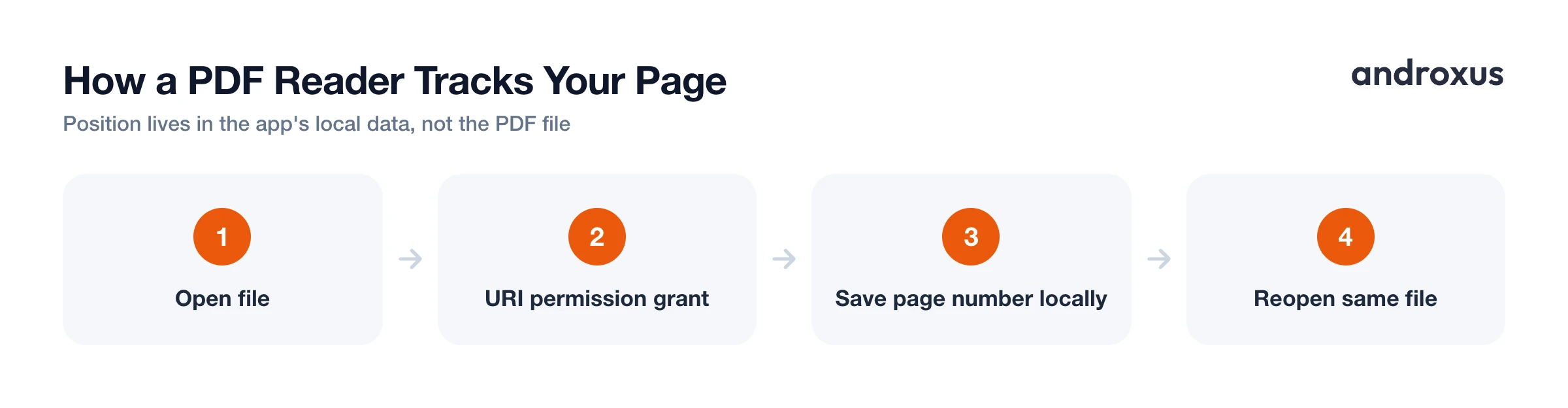
A PDF reader that remembers your page is storing the page number, and sometimes the zoom level or scroll offset, in its own local app data. That record is linked to that specific file, not written into the PDF's bytes.
On Android, when you open a file through the system file picker, the app receives a URI permission grant. By default, that grant only lasts until the device reboots. To keep recognizing the same file well after that, an app has to explicitly request a persistable permission for it. Even with that in place, if you move, rename, or delete the PDF afterward, the app can no longer match its saved position back to the file, and it has to ask for access again.
On desktop, Adobe Acrobat and Acrobat Reader have a "Restore last view settings when reopening documents" preference under Edit, Preferences, Documents. That setting is stored outside the PDF file, in the Windows registry, for example, which is why it doesn't travel with the file when you email it or copy it to another computer.
Full sync across devices, where your page position follows you from phone to tablet to computer, is a separate cloud feature some apps layer on top of local autosave. Google Play Books, for instance, syncs page position, bookmarks, and notes when you're signed into the same Google account with auto sync enabled. A lightweight local PDF viewer without an account or cloud layer won't carry your page across devices this way. It remembers your page on the device where you were actually reading.
Autosave vs bookmarks vs favorites
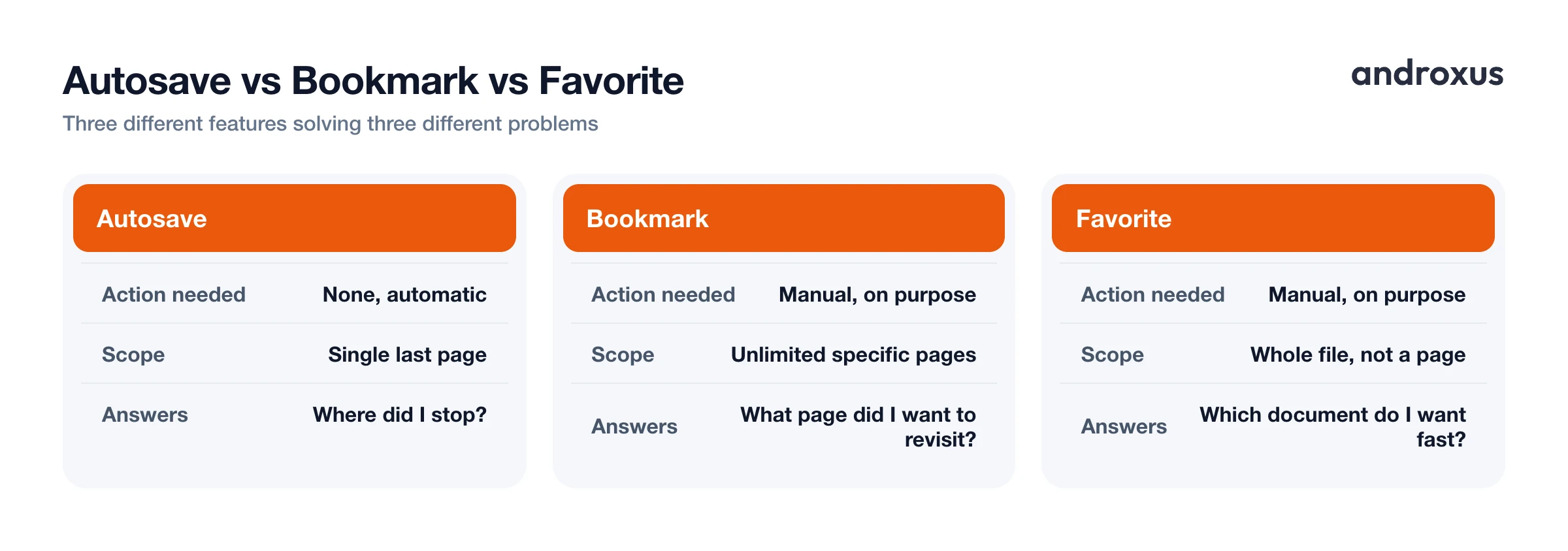
These three features get lumped together a lot, but they solve different problems.
| Feature | How it works | What it answers |
|---|---|---|
| Autosave / remember last page | Automatic, no action needed; the app quietly records the single page you were last on | "Where did I stop?" |
| Bookmark | Manual, you can add as many as you want; marks a specific page on purpose | "What page did I want to revisit?" |
| Favorite | Manual, applies to the whole file rather than a page | "Which document do I want to find fast?" |
Autosave is the passive one. It just holds your one most recent position, so reopening the file drops you back there without you doing anything. A bookmark is deliberate: you mark a page on purpose so you can jump straight back to it later, even after you've read further and moved past it. A favorite works at the file level, not the page level, letting you pin an entire document for quick access in a crowded file list.
Setting your PDF app as the default
On stock Android, the path is Settings, Apps, Default apps, then locating the PDF or "Opening links" section to choose which app handles PDF files. An alternative route on most Android versions is Settings, Apps, your PDF app, Open by default, where you can set it as default or clear existing defaults for that app.
On Samsung and One UI devices, the equivalent is Settings, Apps, select the app, Set as default, with a "Clear defaults" option available if another app is currently claiming PDFs.
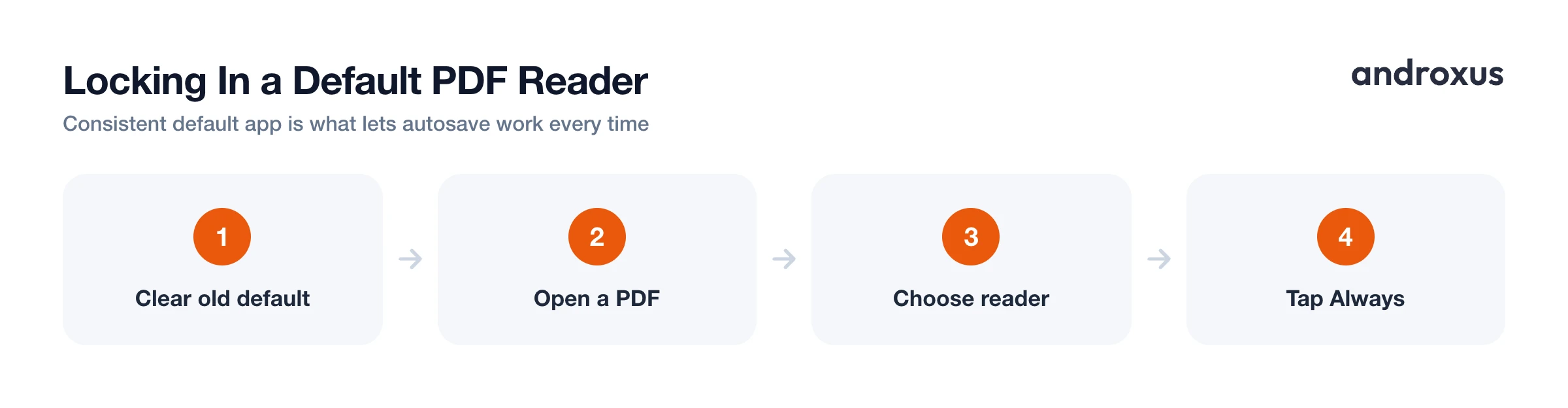
After clearing an old default, opening a PDF will prompt an app chooser. Picking your reader and selecting "Always," rather than "Just once," locks it back in as the default, so autosave has a consistent app to work with every time you open a file instead of landing wherever the system decided that day.
How to make sure your reader actually keeps your place
- Choose a reader built for it. Use a dedicated PDF reader that explicitly offers autosave or remember last page, rather than a browser tab, quick-look preview, or a chat app's built-in viewer, which often discard reading state entirely.
- Make it your default PDF app. Go to Settings, Apps, Default apps on stock Android, or Settings, Apps, your app, Open by default, or Set as default on Samsung devices, and choose your reader, so PDFs consistently reopen in the same app that's tracking your position.
- Open files from a stable location. Open PDFs from Downloads, Files, or cloud storage rather than repeatedly from a chat or email attachment, since some attachment previews use a fresh temporary copy each time instead of a persistent file.
- Leave the file where it is. Avoid moving, renaming, or deleting the PDF once you've started reading it. Saved position is tied to that file's location and permission grant, so relocating it can break the link.
- Bookmark pages you'll want again. Since autosave generally holds only your single last position, add a manual bookmark for any specific page you want to jump back to later, independent of where you currently are in the file.
- Free up space with cache, not storage. When clearing space on your phone, clear the app's cache rather than its storage or data. Cache clears temporary files only; clearing storage or data resets the app and erases saved pages and bookmarks.
A lightweight reader like PDF Reader, which remembers your page automatically and lets you add manual bookmarks and favorites on top, is a practical example of this layered approach: automatic memory for where you stopped, manual markers for what you want to revisit on purpose.
Key takeaways
- The PDF format has no built-in memory of your reading position; autosave is entirely a viewer feature, stored locally by the app rather than inside the file.
- Moving, renaming, or deleting a PDF can break the link between the app's saved position and the file, since Android ties that permission to the file's location.
- Autosave, bookmarks, and favorites solve three different problems: last position, specific pages to revisit, and quick access to a whole document.
- A PDF reader without cloud sync remembers your page on the device you were reading on, not automatically across your other devices.
- Setting a dedicated reader as your default PDF app, and clearing cache instead of storage when tidying up space, keeps your saved pages and bookmarks intact.
Frequently asked questions
Is my last-read page saved inside the PDF file itself?
No. The PDF format doesn't store a personal last-page-read for you specifically. That information lives in the viewer app's local data, tied to that file, not in the PDF's own bytes.
Why did my saved page disappear after I moved or renamed the file?
On Android, apps track a file through a permission grant tied to its location. Moving, renaming, or deleting the PDF breaks that link, so the app can no longer match its saved position back to the file and may need permission again.
Does clearing storage on my phone erase my reading position?
Clearing an app's storage or data resets it to a freshly installed state and wipes saved preferences, including saved pages and bookmarks. Clearing only the cache removes temporary files and leaves that saved data intact.
Can a PDF reader remember more than one place in a document?
Autosave typically tracks just one spot, your last position. If you want to return to several specific pages later, use manual bookmarks instead, since you can usually add as many as you need.
Will my saved page follow me if I open the same PDF on another device?
Only if the app has an account based cloud sync layer, the way Google Play Books syncs reading position across devices when you're signed in with auto sync on. A local, lightweight PDF viewer without that layer remembers your page on the device you were reading on.
Why doesn't opening a PDF from a chat app or email remember my page?
Many chat and email previews open a temporary cached copy of the attachment each time rather than a persistent reference to a saved file, so there's nothing stable for a viewer to attach saved state to. Saving the PDF to your files first, then opening it in your reader, avoids this.
