How to Make Screen Darker for Reading in Bed
You settle in to read one more chapter, dim the phone as low as it goes, and the screen still lights up the whole room. That's not you doing something wrong, it's how phone displays are built, and there are several reliable layers you can stack to fix it. Here's how to make screen darker for reading in bed using settings you probably already have, plus what to add if you need to go further.
Quick answer: To make screen darker for reading in bed, turn off auto-brightness and drag the manual slider to its true minimum first, since the ambient light sensor can override a low setting. Then turn on Night Light for a warm tint and, on Android 12 or later, enable Extra Dim (Settings > Accessibility > Extra Dim) to cut brightness by up to another 50%. Switch your reading app to a dark background to reduce total light output further. If your room still feels too bright, a screen filter app such as Night Screen can layer additional darkness on top of the display using an overlay.
What you'll learn
- Why your phone's lowest brightness setting still feels too bright in a dark bedroom
- Which built-in Android settings actually make the screen darker, and which only change color
- How overlay filter apps go past the built-in brightness floor
- What sleep research actually says about blue light filters
- A step-by-step routine for a comfortable nighttime reading screen
Why your phone still feels too bright in bed
A phone's minimum brightness is calibrated by the manufacturer for normal daytime and indoor use, not for a dark bedroom. Even the lowest setting on the slider can feel harsh once the room lights are off and your eyes have adjusted. This is often called a brightness floor: a hardware and firmware limit on how low the backlight can go, and it varies by device and panel type.
Android historically has had no single, universal control that lowers brightness past this floor on every device. That gap is exactly why features like Extra Dim exist, and why third-party dimming apps have a real use case beyond novelty. Using a screen that's too bright at night can also cause pupil constriction, glare discomfort, and eye strain, and it can make it harder to wind down before sleep.
Built-in Android settings to try first
Before installing anything, check what your phone already offers. These settings live in slightly different spots depending on the manufacturer, but the core features are consistent from Android 12 through Android 14.
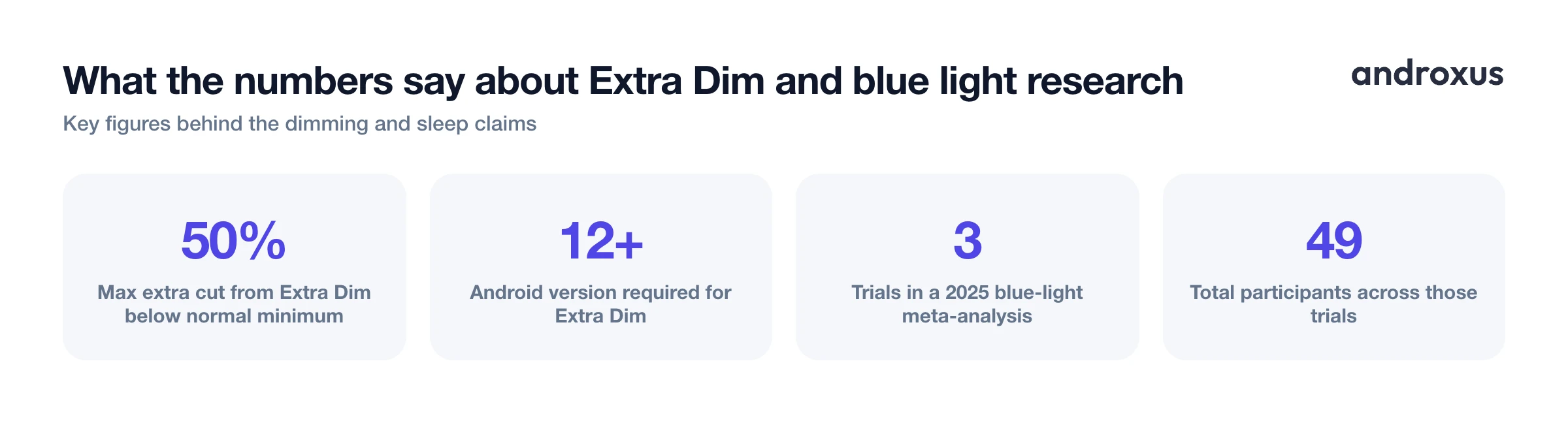
Night Light. Found at Settings > Display > Night Light, this adds a warm amber or red tint that reduces blue light output. It has an intensity slider and a sunset-to-sunrise schedule option. It's worth being clear about what it does and doesn't do: it changes color temperature only, not overall brightness, so it won't make a bright screen physically darker on its own.
Extra Dim. This is the setting that actually reduces brightness beyond the standard minimum. Go to Settings > Accessibility > Extra Dim (on Samsung phones, it's under Accessibility > Vision enhancements > Extra dim). It's an Android 12+ feature with its own intensity slider that can cut brightness by up to roughly 50% past the phone's normal floor. You can also add an Extra Dim tile to Quick Settings for a one-tap toggle from the notification shade.
Digital Wellbeing's Bedtime mode. At Settings > Digital Wellbeing & parental controls > Bedtime mode, you can customize screen options to turn the display grayscale and dim the wallpaper on a schedule. This targets engagement and color more than raw brightness, but some people find it helps signal that it's time to wind down.
Menu wording and exact location differ a bit by OEM (Pixel, Samsung, Motorola, and others), so if a setting isn't where described here, a quick search in your phone's Settings app usually finds it.
When built-in settings still aren't dark enough
Because Android doesn't guarantee a true below-zero brightness control on every device, some phones simply won't get dark enough for a pitch-black bedroom even with Extra Dim maxed out. This is where overlay dimmer apps fill the gap: they draw a semi-transparent dark layer on top of everything on screen, which visually reduces perceived brightness beyond the hardware minimum.
These apps typically need the "Display over other apps" permission to draw that overlay layer, the same permission used by things like chat bubbles and screen recorders. Night Screen is one app built around this approach. It offers a dim light mode for extra-low brightness, a blue-light filter or reading mode, a custom RGB screen filter, and an auto-schedule that turns on at sunset and off in the morning with a gradual transition rather than an abrupt jump.
It's worth being precise about the mechanism here: an overlay filter tints or darkens what you see on screen, it does not lower the phone's actual hardware backlight below its built-in minimum. It's a visual dimming layer, not a hardware brightness change, and the display itself is not being altered. Because the filter sits on top of everything else, only grant the overlay permission to apps you trust, the same caution that applies to any app requesting "display over other apps."
Building a comfortable nighttime reading screen
The most reliable approach layers several tools rather than relying on just one.
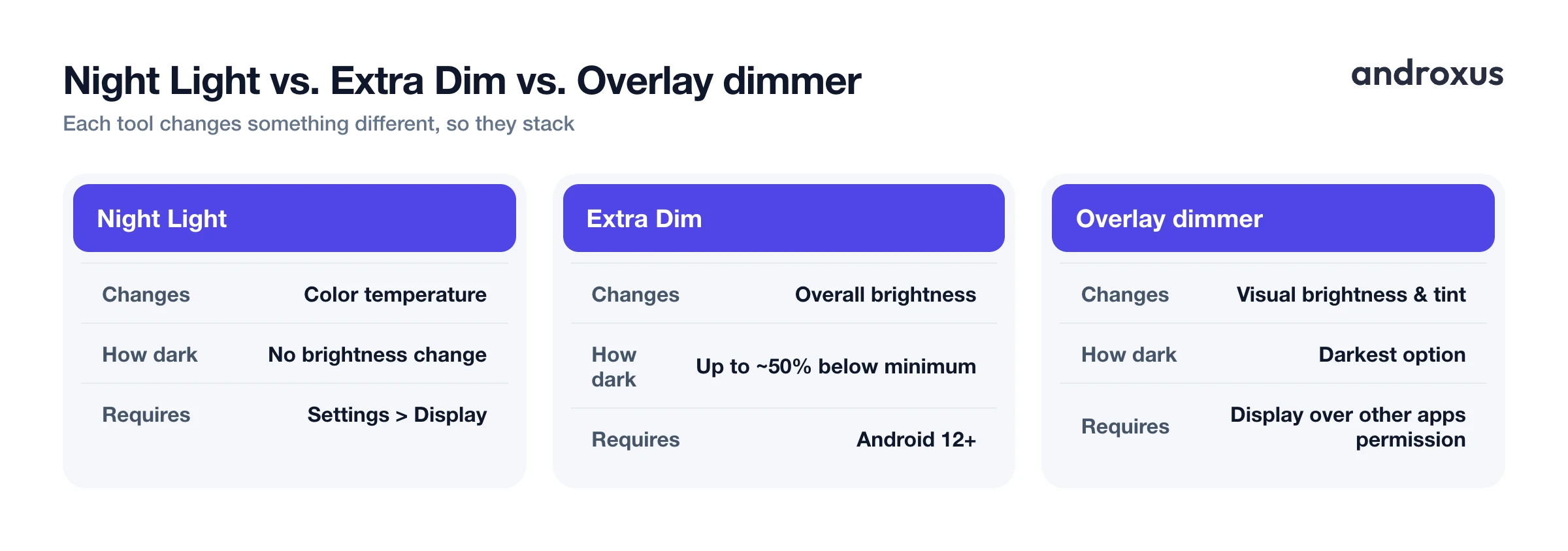
Start with true-minimum manual brightness, which means turning off auto-brightness before you dim manually. Auto-brightness uses the ambient light sensor, and it can override a carefully set low brightness the moment it detects a lamp or hallway light. Add Night Light for the color-temperature shift, then layer Extra Dim, or an overlay app if you need more, for additional darkness on top.
Switching your reading app or browser to a dark or black background also reduces total light output directly. A bright white page emits far more light than a dark background with light text, particularly on OLED panels where black pixels use very little power and emit almost no light. This one change can make a bigger visible difference than another notch on the brightness slider.
Scheduling removes the need to remember any of this every night. Night Light's sunset-to-sunrise option, Bedtime mode's routine, or an overlay app's auto-schedule all handle the timing automatically once you set them up.
What the research actually says about blue light and sleep
Evening exposure to blue-wavelength light is linked in research to melatonin suppression and delayed sleep onset, and that's the basic rationale behind night mode and blue-light-filter features across every major platform.
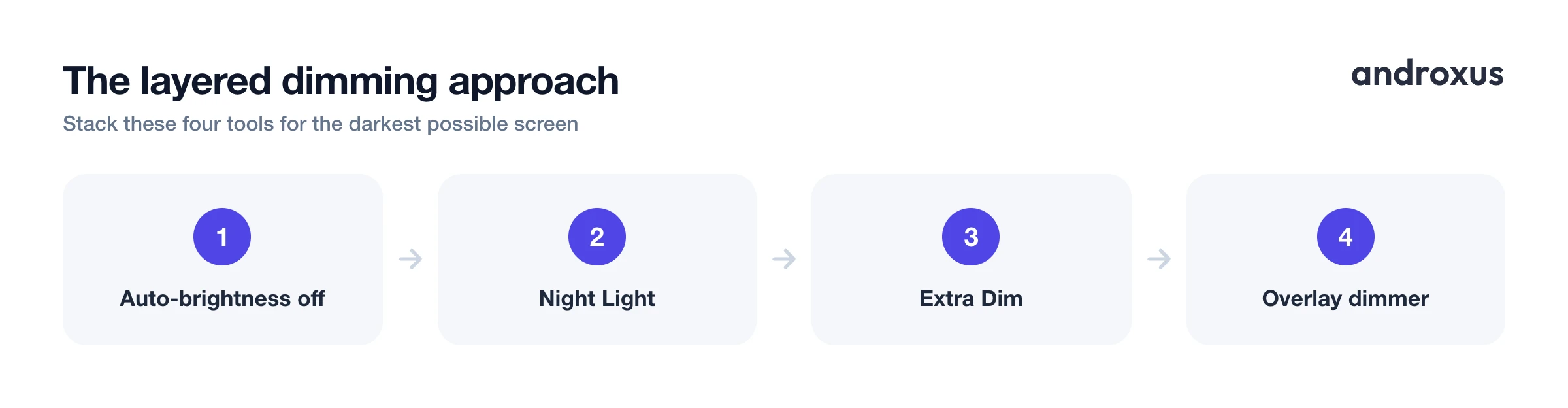
However, the evidence for how much a phone filter actually helps is more modest than the marketing around it suggests. Recent systematic reviews of blue-light-blocking glasses and filters show inconsistent results, often based on small studies. One 2025 meta-analysis, for example, included only three double-blind crossover trials totaling 49 participants, which is a thin evidence base to draw strong conclusions from.
The honest takeaway is that blue-light filtering is a reasonable, low-effort comfort measure with a plausible but not firmly proven sleep benefit. It's best treated as one part of a broader wind-down routine, not a guaranteed fix on its own. Reducing overall screen brightness and total light output has a more straightforward, immediate comfort benefit for reading in the dark than color tint alone.
Comparing your dimming options
| Method | What it changes | How dark it gets | Where to find it | Best for |
|---|---|---|---|---|
| Night Light | Color temperature | No change to brightness | Settings > Display > Night Light | Reducing blue light on a schedule |
| Extra Dim | Overall brightness | Up to ~50% below normal minimum | Settings > Accessibility > Extra Dim | Quick built-in fix, no extra permissions |
| Bedtime mode (grayscale) | Color and engagement | No change to brightness | Settings > Digital Wellbeing & parental controls | Winding down before sleep |
| Overlay dimmer app (e.g. Night Screen) | Visual brightness and tint | Darkest option, custom filters | Installed separately | A room that's still too bright after the above |
These four options are complementary rather than competing. Most people get the best result from combining two or three of them rather than expecting any single setting to do everything.
How to make your phone darker for reading in bed
- Turn off auto-brightness and set the manual slider to its lowest point. Go to Settings > Display and disable Adaptive or Auto brightness, then drag the slider all the way down, so the ambient light sensor can't override your low setting.
- Turn on Night Light and schedule it. Go to Settings > Display > Night Light, turn it on, adjust the tint intensity, and set the schedule to sunset-to-sunrise so it runs automatically.
- Enable Extra Dim and tune the intensity slider. On Android 12+, go to Settings > Accessibility > Extra Dim (Samsung: Accessibility > Vision enhancements > Extra dim), turn it on, and adjust the slider. Add its Quick Settings tile for fast access.
- Switch your reading app to a dark background. In your e-reader or browser, choose a dark or black theme to cut total light output, especially useful on OLED screens.
- Add an overlay dimmer app if it's still too bright. Install a screen-dimming app such as Night Screen and use its dim light or custom filter mode for extra darkness, with an auto-schedule so it turns on and off without manual effort.
Key takeaways
- Your phone's minimum brightness is a software and firmware floor set for normal use, not for a dark bedroom, which is why it can still feel bright at night.
- Turn off auto-brightness before dimming manually, since the ambient light sensor can push the screen brighter than you want.
- Extra Dim (Android 12+) is the fastest built-in way to cut brightness further, while Night Light only changes color, not brightness.
- Overlay filter apps like Night Screen can darken the screen further with a visual dark layer, but they don't lower the actual hardware backlight below its minimum.
- Blue-light filters offer a modest, not guaranteed, sleep benefit, so pair them with lower overall brightness and a dark reading theme for the best results.
Frequently asked questions
Why is my phone still too bright even on the lowest brightness setting?
Manufacturers calibrate a phone's minimum brightness for daytime and normal indoor use, not for a pitch-dark bedroom. That built-in brightness floor is a hardware and firmware limit, so even 0% on the slider can feel harsh once the lights are off. Software tools such as Extra Dim or night mode apps work around this floor rather than lowering it.
What's the difference between Night Light and Extra Dim on Android?
Night Light (Settings > Display > Night Light) shifts the screen's color temperature toward amber and red and cuts blue light output, but it does not change how bright the screen is. Extra Dim (Settings > Accessibility > Extra Dim, Android 12+) reduces overall screen brightness further, on top of your normal minimum. They solve different problems and work well combined.
Can I make my Android screen darker than the lowest brightness setting?
Yes. Android 12 and later include Extra Dim, which can cut brightness by up to another 50% past the standard minimum. If that's still not enough, or your device doesn't have Extra Dim, apps that draw a dark overlay on top of the screen, such as Night Screen, can dim things further using a semi-transparent filter layered over your display.
Does a blue light filter actually help me sleep better?
The evidence is real but modest. Studies link evening blue light exposure to melatonin suppression, and warm-tint filters can reduce that exposure. But recent reviews of blue-light-blocking tools show mixed, inconsistent results, often from small trials. Treat a blue light filter as one comfort measure among several, not a guaranteed sleep fix.
Is it safe to use a screen-dimming overlay app?
These apps need the 'Display over other apps' permission to draw their dark filter, which is the same permission used for things like screen recorders and chat bubbles. A dimmer overlay only adds a visual tint on top of the display. It does not read your screen content, lower your actual hardware backlight, or change battery draw from the panel itself.
What's the best overall setup for reading in bed on a phone?
Lower brightness to its true minimum with auto-brightness off so ambient light doesn't override it, turn on Night Light with a sunset-to-sunrise schedule, enable Extra Dim if available, switch your reading app to a dark background, and add an overlay dimmer only if you still need more darkness than those combined settings give you.
