How to Listen to Video Screen Off on Android
You lock your phone to save battery or slip it in your pocket, and the video or podcast you were watching just stops. It is one of the more annoying quirks of mobile video, and it is not random: there is a specific reason it happens and a specific set of fixes for it.
Quick answer: To listen to video with the screen off, use an app that keeps a background media session running, such as a native "background play" setting or a dedicated background player like Playback. Locking the screen normally pauses video because most apps only render to a visible display and stop as soon as the app is backgrounded. Turning off Android's battery optimization for that app and using an app built for screen-off audio are the two changes that fix it in almost every case.
What you'll learn
- Why video pauses the instant you lock your phone
- The single most common cause of background audio randomly cutting out, and how to fix it
- Why picture-in-picture is not the same thing as screen-off audio
- How individual apps like YouTube handle (and restrict) background play
- A practical, step-by-step way to listen to video with the screen off on almost any Android phone
Why Video Actually Stops When the Screen Locks
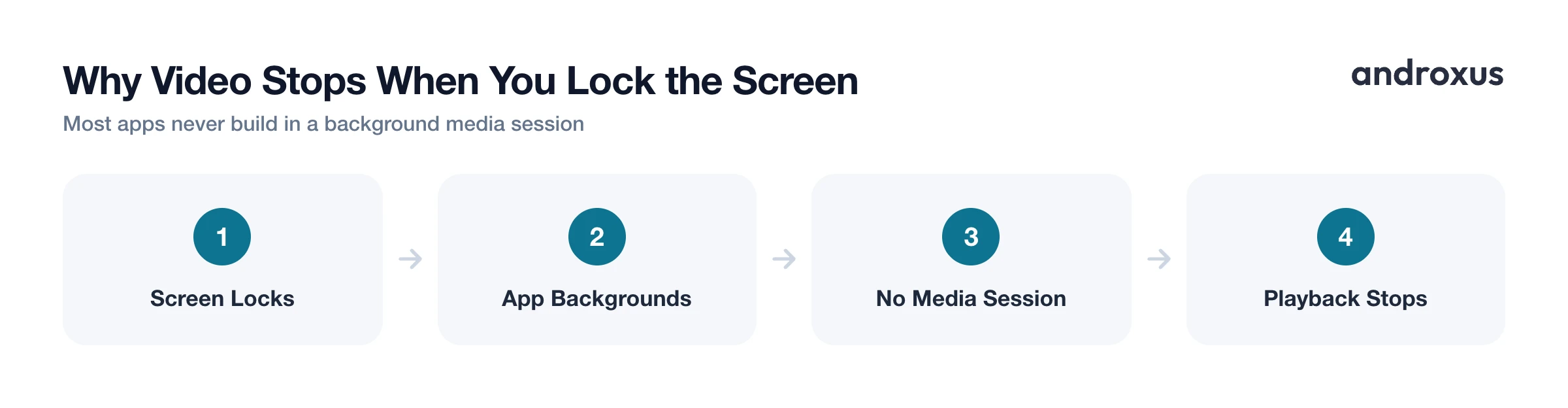
Locking the screen tells Android that the app's on-screen activity is no longer in the foreground. Most video apps and mobile browsers are built to render video only to a visible screen, so once that screen goes away, playback stops with it.
Keeping playback going with the screen off is not something Android does automatically. It requires the app's developer to deliberately use Android's MediaSession and foreground-service APIs, which let a media session keep running even after the visible app is backgrounded. If a developer has not built that in, the video simply halts the moment you lock the phone.
Audio and video are also treated differently at the OS level. Android has long supported audio continuing through a foreground media service (music apps have worked this way for years), but video apps have to opt in separately to keep anything, audio or video, running once the screen is off.
It is worth noting this is often a deliberate product decision too, not just a technical limitation. Some services happily let video play in the foreground for free but reserve screen-off or background audio for a paid subscription tier.
Fixing the Most Common Cause: Battery Optimization
If background audio works for a few minutes and then mysteriously stops, the culprit is usually Android's battery management, not the app itself. Doze and App Standby are Android features that suspend background network activity and processing for apps the system does not consider exempt, and background audio is exactly the kind of activity they can interrupt.
The fix is applied per app:
- Open Settings, then Apps
- Select the app you use for video or audio
- Tap Battery
- Choose Unrestricted instead of the default Optimized, or the stricter Restricted option
The exact menu wording varies a little by manufacturer, Samsung, Pixel, OnePlus, and Xiaomi all phrase it slightly differently, but the Unrestricted, Optimized, Restricted structure is consistent across devices. This setting is separate from Do Not Disturb and from your screen timeout length; it specifically controls whether the operating system lets an app keep running once it is no longer on screen.
Picture-in-Picture: A Different Feature, Not a Screen-Off Fix
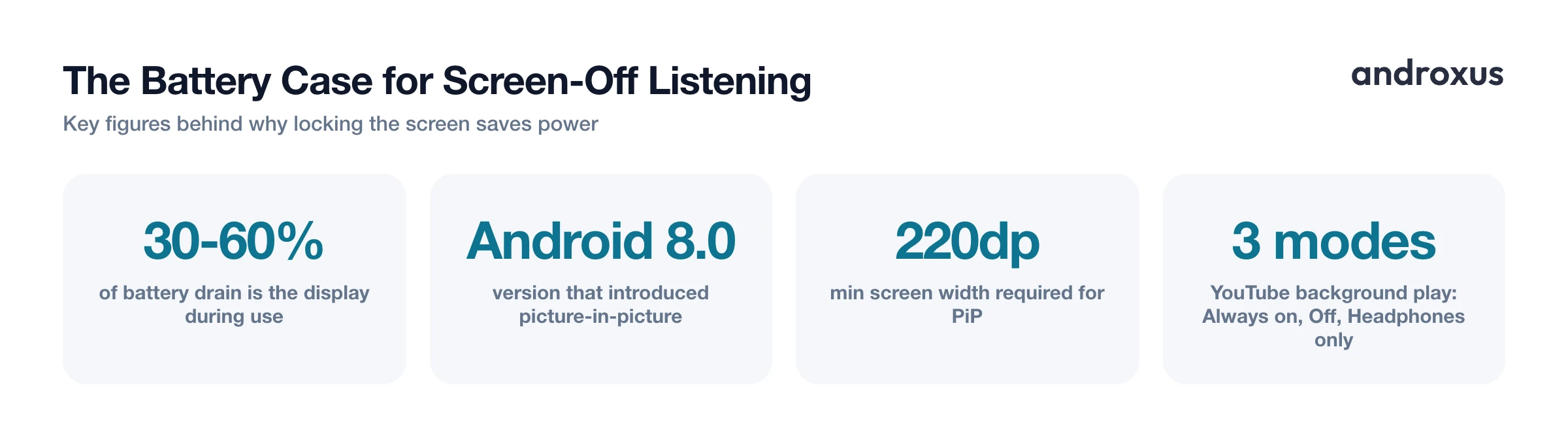
Picture-in-picture (PiP) is often confused with background audio, but it solves a different problem. PiP has been part of Android since Android 8.0 (API level 26), and it requires a device with a screen larger than 220dp at its smallest width, along with enough processing power to support it.
PiP floats a small, resizable video window on top of other apps so you can keep watching while you check messages or browse elsewhere. Since Android 12, some apps can even auto-enter PiP the moment you leave them. But in every case, the display has to stay on for you to see that floating window. PiP is a multitasking feature, not a battery-saving or screen-off feature, and it will not keep anything playing once the screen locks.
How Individual Apps Handle Screen-Off Listening
Because background play is something each developer has to build, support for it varies widely from one app to the next.
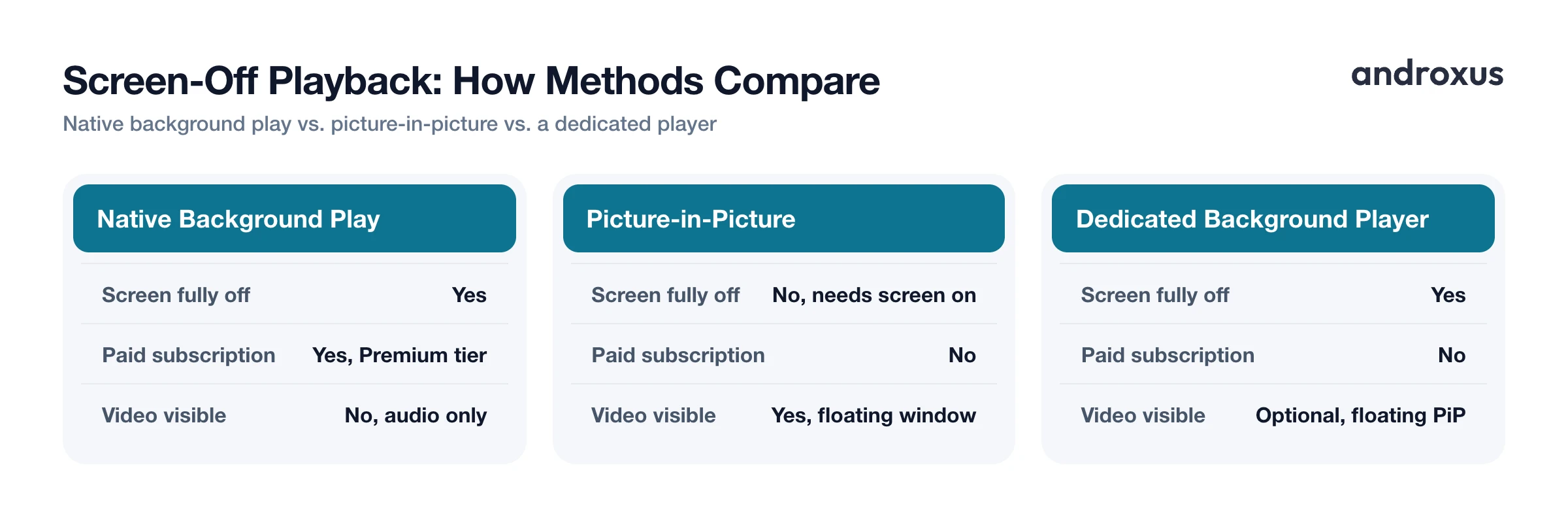
| Method | Works With Screen Fully Off | Requires Paid Subscription | Video Stays Visible |
|---|---|---|---|
| Default browser tab or social app | No | No | No, screen must stay on |
| Native background play (YouTube-style) | Yes | Yes, Premium tier | No, audio only |
| Android picture-in-picture | No, needs screen on | No | Yes, floating window |
| Dedicated background player like Playback | Yes | No | Optional, via floating PiP window |
YouTube is a useful example of how restricted this can be. Its background play setting lets a video keep playing with the screen off or the app backgrounded, across YouTube, YouTube Music, and YouTube Kids, but only for signed-in Premium or Premium Lite members. The setting itself offers three modes: Always on, Off, and Headphones or speakers only, and it is not available on the Shorts player or on certain licensed music content.
The takeaway is that screen-off or background playback is a feature an app has to build, and sometimes chooses to restrict to a subscription. It is not a universal Android behavior. Browser tabs and social apps that were never built with this in mind will keep pausing on lock no matter what device settings you change.
Getting Screen-Off Playback From Any Site or Video
For content that does not come with its own background-play toggle, a dedicated player is the more reliable route. Playback is a floating browser and player that plays audio and video in the background with the screen off or locked, and in a floating picture-in-picture window, without depending on a source site's own background-play toggle or subscription tier. It works by keeping a background media session running the same way native background-audio apps do, rather than being tied to one platform's rules.
It is worth being clear about what this does and does not mean: Playback streams content you already have access to. It is not a downloader, and it does not save or store media files, strip out ads, or unlock content that is otherwise paywalled. It is most useful for the everyday case of a browser tab or clip that simply never had a background-play option built in, not as a way around a service's actual access requirements.
Battery and Practical Tradeoffs
Beyond convenience, listening with the screen off genuinely saves power. Studies of smartphone power draw generally put the display at roughly 30 to 60 percent of a phone's total battery consumption during active use, and that share climbs further at high brightness outdoors. Removing that display cost is why screen-off listening is noticeably lighter on battery than leaving a video playing on screen for the same amount of time.
A couple of settings are easy to mix up here. Screen timeout, found under Settings, then Display, then Screen timeout, only controls how long the display stays awake before it locks on its own; it does not make audio survive that lock by itself. Whether audio keeps playing depends entirely on the app's background-playback support. Similarly, lock-screen media controls (play, pause, skip) only show up if the app is using a proper media session and if media notifications have not been disabled under Settings, then Notifications.
How to Listen to Video Screen Off
- Check the source app for a native background-play setting. Open the app you are watching in and look for a background or offline play option in its settings. On YouTube, Premium and Premium Lite members can set Background play to Always on, Off, or Headphones and speakers only under app Settings, then Background and downloads, then Playback.
- Exempt the app from Android's battery optimization. Go to Settings, then Apps, select the app, tap Battery, and choose Unrestricted instead of Optimized or Restricted, so the system does not kill the background connection partway through.
- Use picture-in-picture only for multitasking, not screen-off listening. Start playback in a PiP-capable app and swipe to your home screen if you want a floating video window while you do something else, but keep in mind the screen must stay on for that window to work.
- Open the video in a player built for background audio. For sites and clips without their own background-play toggle, open the page inside a player designed to keep streaming with the screen off, such as Playback's built-in floating browser, then lock the phone or switch apps and audio continues from the lock screen.
- Confirm lock-screen media controls are visible. Check Settings, then Notifications, to make sure media notifications are not hidden, so you have play, pause, and skip controls available while the screen is off.
Key takeaways
- Video normally stops on lock because most apps only render to a visible screen and never build in a background media session.
- Battery optimization (Doze and App Standby) is the most common reason background audio that worked briefly suddenly cuts out; setting the app to Unrestricted usually fixes it.
- Picture-in-picture keeps a video floating on top of other apps but still requires the screen to stay on, it is not a screen-off solution.
- Native background play, like YouTube's, is often limited to certain content or a paid subscription tier, since it is a feature each app chooses to build.
- A dedicated background player such as Playback can keep audio and video streaming with the screen off for content that never had its own background-play option, without downloading or unlocking anything.
Frequently asked questions
Why does my video pause the moment I lock my phone?
Most video apps and mobile browsers only render video to the visible screen and never register a foreground media session with Android. When the screen locks, the system treats the app as backgrounded and stops it. Apps that keep audio going use Android's MediaSession and foreground-service APIs on purpose; apps that do not simply cut out.
Does picture-in-picture (PiP) keep playing when the screen is off?
No. PiP shrinks video into a small floating window that stays on top of other apps, but the screen has to stay on for you to see it. It solves multitasking, not screen-off listening. For that you need an app with true background audio support.
Will listening with the screen off use less battery than watching normally?
Generally yes. Independent power-consumption research puts the display at roughly 30 to 60 percent of a phone's total battery draw during use, and higher outdoors at full brightness. Keeping the screen off while audio keeps playing removes that cost.
Why did background audio that used to work suddenly stop?
Android's battery optimization (Doze and App Standby) can suspend background network and audio activity for apps it does not consider exempt. Check Settings, then Apps, then the app name, then Battery, and set it to Unrestricted instead of Optimized or Restricted.
Is background play the same in every app?
No, it depends entirely on what the developer built. Some services gate it behind a paid tier: YouTube Premium and Premium Lite offer a Background play setting with Always on, Off, or Headphones-only options, and it does not work on Shorts. Other apps enable screen-off audio for free by design.
Does Playback download videos so I can play them without a connection?
No. Playback is a streaming player and floating browser, not a downloader. It plays audio and video the user already has access to and does not download, save, or store media files, remove ads, or unlock paid content.
