How to Listen to Podcasts With the Screen Locked
You hit play on an episode, lock your phone to save the screen, and drop it in your pocket, only for the audio to cut out five minutes later. It's a common problem, and it usually traces back to a handful of Android settings rather than anything wrong with the podcast app itself. Here's how to listen to podcasts with the screen locked reliably, and why locking the screen is worth doing in the first place.
Quick answer: To listen to podcasts with the screen locked without interruptions, turn on notifications for your podcast app, set your lock screen to show notification content, set the app's battery setting to Unrestricted, and check for a manufacturer-specific battery manager on phones like Samsung, Xiaomi, or OnePlus. These four settings cover nearly every case of playback silently stopping in the background.
What you'll learn
- Why locking the screen while audio plays actually saves meaningful battery
- How Android keeps audio running and shows lock screen controls after you lock the phone
- Which battery optimization and Battery Saver settings can silently cut off playback
- How Data Saver affects streamed audio differently from battery settings
- A step-by-step fix for uninterrupted, controllable playback with the screen off
Why locking the screen actually saves battery
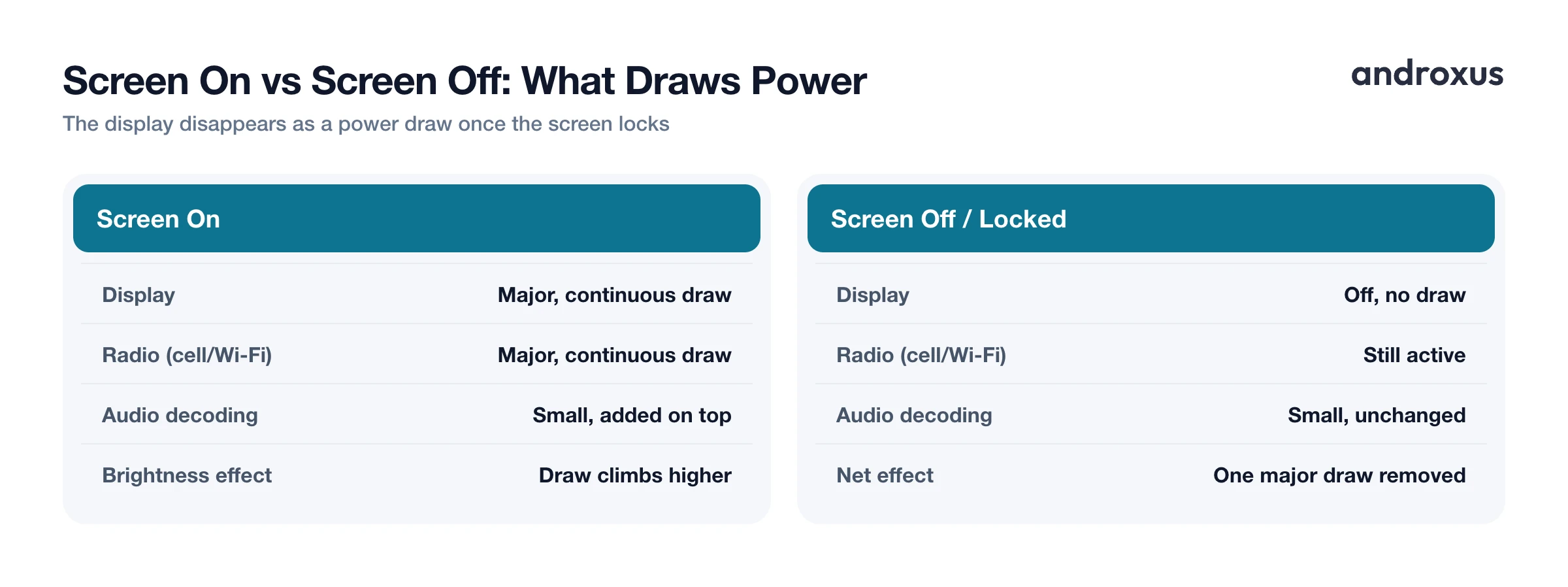
The display is consistently one of the two largest ongoing power draws on a phone, alongside the cellular or Wi-Fi radio. A 2024 University of California San Diego study that measured a Google Pixel 7A with on-device power sensors found that across common tasks like video playback, video calls, and social apps, the screen and the network radio stood out as the two biggest power consumers, with display draw climbing further at higher brightness or during long screen-on sessions. Leaving the display lit just to watch a podcast waveform or album art adds a real, avoidable draw on top of whatever the streaming connection itself is already using.
Audio decoding itself is comparatively cheap. It adds a small slice of CPU work on top of the decoder and the speaker or Bluetooth radio, well below what a lit screen adds. That's why locking the screen while audio keeps playing in the background is one of the simplest levers for stretching listening time on a charge, alongside choosing Wi-Fi over mobile data or closing other apps that are also active in the background.
How Android keeps audio playing after you lock the screen
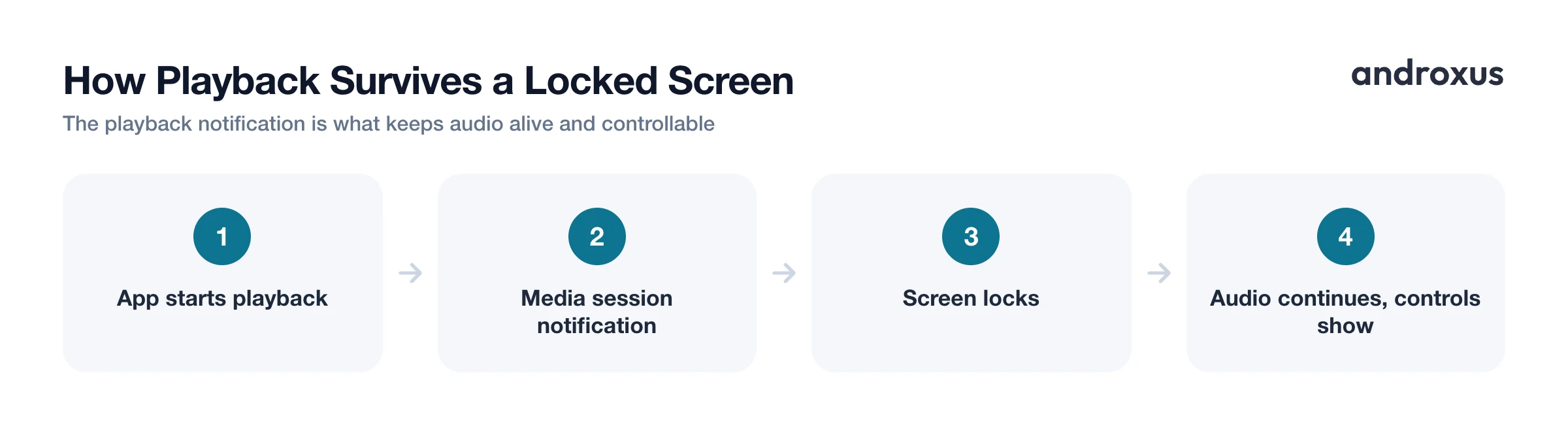
Apps that support background playback run what's called a media session, built on Android's media session framework, tied to a persistent playback notification. That notification is what lets audio keep playing, and stay controllable, after the screen turns off or locks. Without it, playback would effectively need the screen on and the app in the foreground.
That same notification also powers the play, pause, skip, and seek controls you see on the lock screen and in quick settings. For those controls to actually appear, two things need to be true: notifications must be enabled for the app (Settings, Apps, the app, Notifications), and your lock screen must be set to show notification content (Settings, Display, Lock Screen, Notifications or Privacy, Show all notification content). A stricter privacy setting can hide the controls even while the audio itself keeps playing fine.
Screen lock state has no effect on a Bluetooth or wired headphone connection either. Once audio is routed to headphones or a car stereo, it keeps flowing normally regardless of whether the screen is on, off, or locked.
The battery optimization settings that can silently pause playback
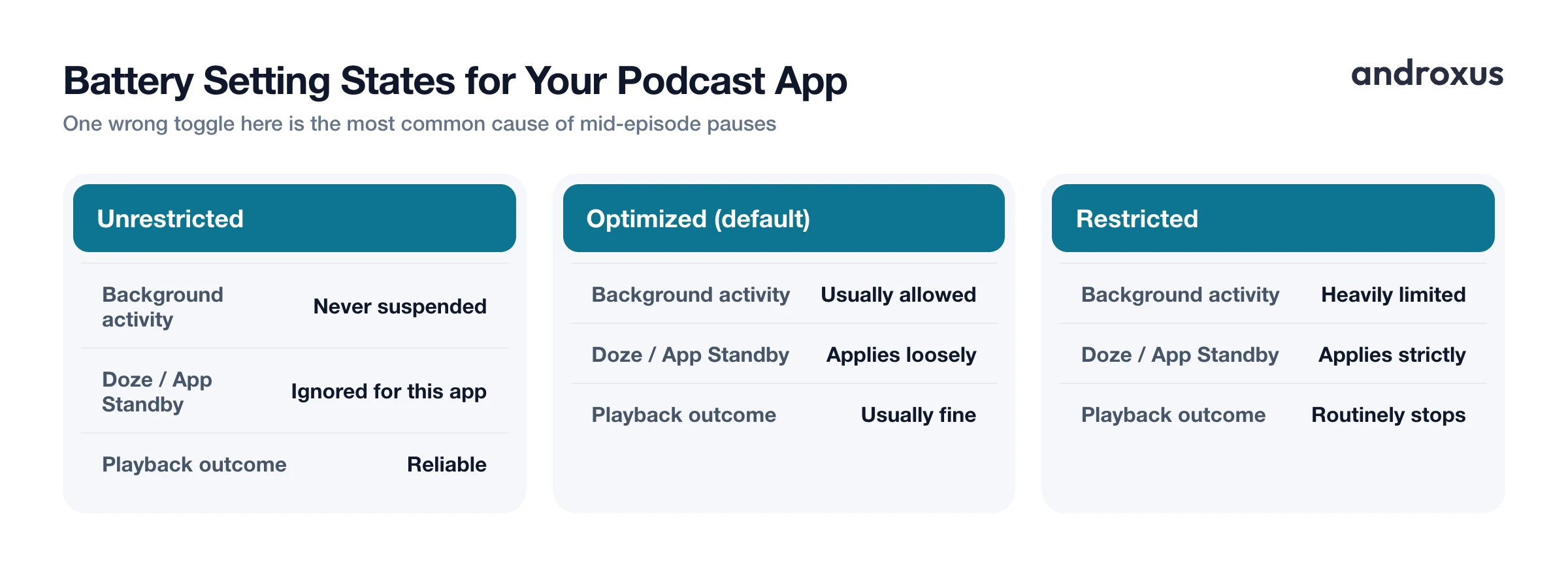
This is where most interrupted-playback complaints actually come from. Android's Doze mode and App Standby are designed to suspend a backgrounded app's network access and CPU work to save battery, and apps set to Restricted under Settings, Apps, the app, Battery are the ones most likely to get cut off mid-episode.
The battery page for most apps offers three states: Unrestricted, Optimized (the default), and Restricted. Optimized is usually fine for playback, but Restricted routinely causes audio to stop.
Turning on Battery Saver can ironically cause the same problem. On Pixel devices, Standard Battery Saver stops apps from running in the background unless that app's battery optimization has been turned off, and Extreme Battery Saver pauses most apps outright unless you've added them to an essential apps allow list.
Phone makers layer their own battery managers on top of stock Android, and these are often stricter than Google's defaults. Samsung, Xiaomi, OnePlus, and Huawei all ship additional background app controls that can kill audio playback even when the standard Android battery setting looks correct. None of this is specific to any one podcast app, it's how Android's power management is designed to work across the board, which is why the fix is a settings change rather than something an app can fully control on its own. The community-run site dontkillmyapp.com maintains manufacturer-specific instructions if you want the exact menu path for your phone.
| Setting | What it controls | Where to find it | Recommended state for uninterrupted podcasts |
|---|---|---|---|
| Battery optimization (Doze) | Whether the OS suspends the app's background activity | Settings, Apps, [app], Battery | Unrestricted (or Optimized) |
| Battery Saver / Extreme Battery Saver | Whether background apps run at all when battery is low | Settings, Battery, Battery Saver | Add the app to the essential/allowed list |
| Manufacturer battery manager | A stricter, phone-maker-specific background app control | Varies by brand (Samsung, Xiaomi, OnePlus, Huawei, etc.) | Exclude the app / mark it as not managed |
| Data Saver | Whether background data is throttled | Settings, Network & internet, Data Saver | Add the app to the allowed/unrestricted list |
| Lock screen notification privacy | Whether media controls display on the lock screen | Settings, Display, Lock Screen, Notifications | Show all notification content |
Data Saver and mobile data while the screen is off
Android's Data Saver feature, under Settings, Network and internet, Data Saver, restricts background data for most apps. If you're streaming a podcast over mobile data and the app isn't in the foreground, Data Saver can interrupt playback even when battery settings are configured correctly.
The fix is the same pattern as battery: exempt the app individually, using its Unrestricted data or Allowed to use data while Data Saver is on setting, so streaming keeps flowing in the background. It's worth noting this is a completely separate control from battery optimization. An app can be fully unrestricted on battery and still get throttled on data if Data Saver is on and the app hasn't been whitelisted. Wi-Fi playback isn't affected by Data Saver at all, since it only governs mobile data.
Where an app like Playback fits in
Playback is a floating browser and player built around keeping streaming audio and video going with the screen off or locked, or in a small floating window, which is exactly the behavior this whole setup is aimed at getting from any player. It streams content you already have access to; it isn't a downloader and doesn't save episodes for offline listening, strip ads, or unlock paid content.
Worth being clear about: pointing to a background-play app doesn't bypass any of the Android settings covered above. Whatever app you use, background playback still depends on notifications being enabled, battery restrictions being lifted, and (if you're on mobile data) Data Saver being configured correctly.
How to listen to podcasts with the screen locked without interruptions
- Enable notifications for your podcast app. Go to Settings, Apps, your podcast app, Notifications, and make sure notifications are turned on. The playback notification is what carries the lock screen media controls.
- Set your lock screen to show notification content. Go to Settings, Display, Lock Screen, Notifications (or Privacy), and choose Show all notification content so the play, pause, and skip controls actually appear on the lock screen.
- Remove battery restrictions for the app. Go to Settings, Apps, your podcast app, Battery, and set it to Unrestricted, or at least not Restricted, so Android's Doze and App Standby don't suspend background playback.
- Check your phone maker's battery manager. On Samsung, Xiaomi, OnePlus, Huawei, and similar phones, look for a separate battery manager or sleeping apps list outside the stock Android battery menu and exclude your podcast app from it.
- Exempt the app if Battery Saver is on. If you use Battery Saver, add the podcast app to the essential or allowed apps list so it isn't paused in the background. On Extreme Battery Saver this list is required, not optional.
- Whitelist the app in Data Saver if you're on mobile data. Go to Settings, Network and internet, Data Saver, and add the app to the allowed list so background streaming isn't throttled when off Wi-Fi.
- Lock the screen and start listening. Start playback, lock your phone, and confirm the episode keeps playing and that the lock screen shows working play, pause, and skip controls.
Key takeaways
- The display is one of the two largest ongoing power draws on a phone, so locking the screen during playback is one of the simplest ways to stretch listening time for podcasts.
- Lock screen media controls depend on notifications being enabled and your privacy setting allowing full notification content, not just on audio continuing to play.
- Interrupted playback is almost always a battery optimization, Battery Saver, or manufacturer battery manager setting, not a flaw in the podcast app itself.
- Data Saver is a separate control from battery settings and needs its own whitelist entry if you listen over mobile data.
- Bluetooth and wired headphone connections are unaffected by screen lock state, so playback and audio routing continue as normal.
Frequently asked questions
Does listening to podcasts with the screen locked actually save meaningful battery?
Yes. The display is consistently one of the two largest ongoing power draws on a phone, alongside the cellular or Wi-Fi radio, so turning it off during playback removes a major, continuous source of drain. Audio decoding itself uses comparatively little power on top of that.
Why does my podcast keep pausing when I lock my screen?
The most common causes are Android's battery optimization (Doze) restricting the app in the background, a manufacturer battery manager (common on Samsung, Xiaomi, OnePlus, and Huawei phones) being stricter than stock Android, or Battery Saver pausing background apps that aren't marked as essential.
How do I get play, pause, and skip controls on my lock screen?
Make sure notifications are turned on for the app and that your lock screen privacy setting is set to show all notification content, under Settings, Display, Lock Screen, Notifications. The media controls ride on the app's playback notification.
Will turning on Battery Saver stop my podcast from playing?
It can. Standard Battery Saver on Pixel devices stops background apps unless you've turned off battery optimization for that app, and Extreme Battery Saver pauses most apps outright unless you add them to the essential apps list.
Does the screen being off change how much mobile data a podcast uses?
No, screen state doesn't affect data usage. But Android's Data Saver feature can restrict background data separately, so if you're on mobile data, whitelist your podcast app under Data Saver to avoid interruptions.
Can I still use Bluetooth headphones or a car stereo with the screen locked?
Yes, locking the screen has no effect on an existing Bluetooth or wired audio connection. Playback and the connection continue normally.
