Does Background Play Save Battery on Android?
You lock your phone to save battery, but the podcast or playlist keeps going and the battery percentage barely seems to move faster than usual. Does background play save battery, or does it just feel that way? It comes down to what part of the phone is actually doing the work once the screen goes dark.
Quick answer: Background play does save battery, mainly because it lets the screen turn off while audio or video keeps going. The display is typically the single biggest power draw on a phone, so removing it leaves only the comparatively small cost of decoding media and keeping the network connection alive. Picture-in-picture saves less than screen-off audio, since it keeps a small portion of the screen lit, but it still uses less power than full-screen video.
What you'll learn
- Why the screen, not the media itself, is the main thing draining your battery
- How Android keeps playback running once the screen is off or the phone is locked
- Whether Doze mode or aggressive battery managers can interrupt background play
- How screen-off audio, picture-in-picture, and full-screen video compare on power use
- The settings that get you the most battery-efficient background playback
Why the screen is the real battery hog, not the media itself
Academic power-measurement research on smartphones, notably a widely cited USENIX study on where phone power actually goes, found the display and CPU are consistently among the largest power consumers on a phone, and that reducing backlight brightness is one of the single most effective power-saving levers available.
On OLED and AMOLED screens, which power most modern Android phones, each pixel lights itself individually, so a fully black pixel draws close to zero power while a lit pixel at high brightness draws meaningfully more. LCD screens instead use a constant backlight regardless of what's on screen.
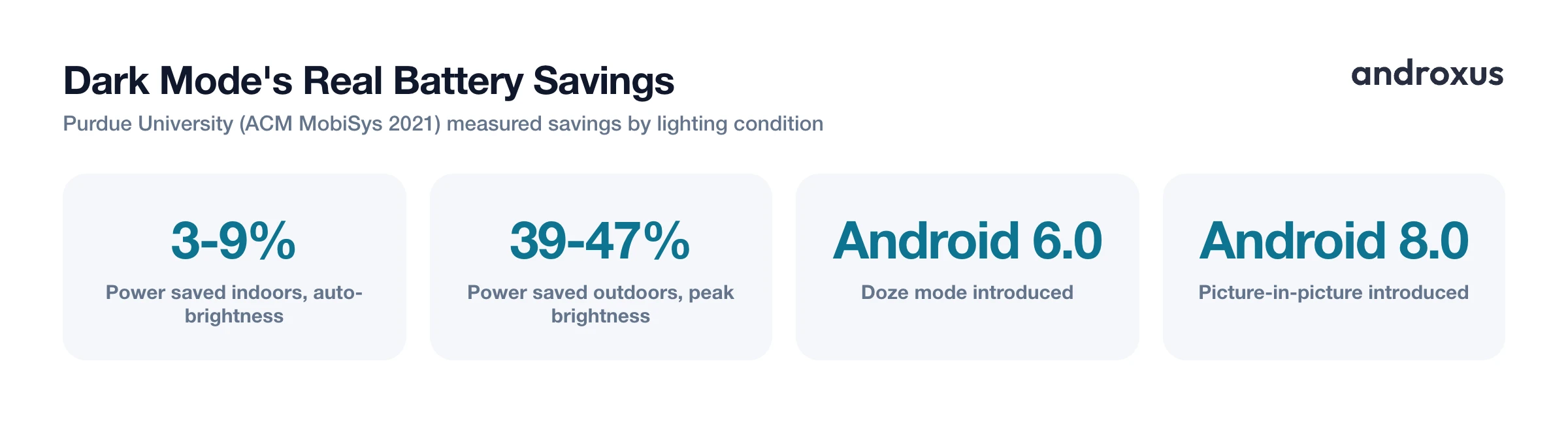
A Purdue University study published at ACM MobiSys 2021 measured that switching from light to dark mode saved roughly 3 to 9 percent of total phone power under normal indoor, auto-brightness conditions, but jumped to roughly 39 to 47 percent at maximum outdoor brightness. That gap shows brightness level matters more than color theme alone.
Decoding a compressed audio stream, by comparison, is cheap. It uses a small, steady amount of CPU work, nowhere near what continuously redrawing and backlighting a screen requires. Turning the screen off removes the single biggest line item in a phone's power budget, which is the core reason screen-off audio playback stretches listening time noticeably compared to watching the same content with the screen on.
What Android actually does when you background playback
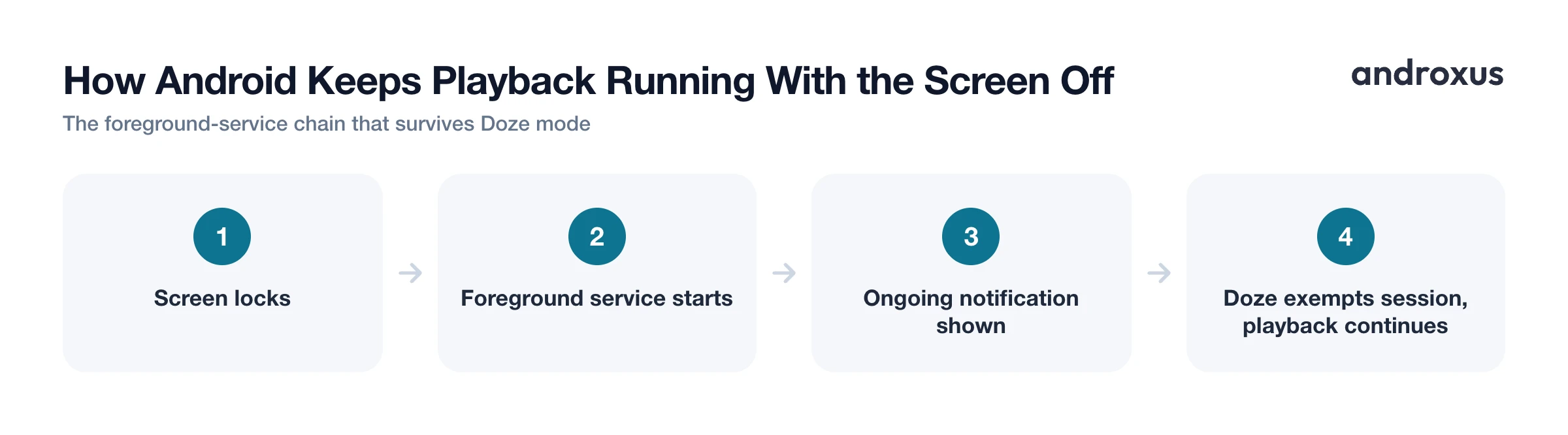
Since Android 10, apps that continue playing media must declare a foreground service type of mediaPlayback. Apps targeting Android 14 or higher also need the FOREGROUND_SERVICE_MEDIA_PLAYBACK permission. This is a platform requirement, not an implementation choice any individual app can skip.
Background playback runs inside a foreground service, commonly built on Android's media session tooling, which is required to show a persistent, low-priority notification with playback controls. That is why a notification with play, pause, and skip controls always appears while something plays in the background. It is the system's way of keeping playback visible and controllable, not a bug or an ad.
Android's wake lock accounting, the same system used to flag battery-draining apps in Play Console vitals, explicitly exempts wake locks created by audio playback APIs, because keeping the CPU minimally awake to decode audio is considered legitimate, necessary work rather than something to penalize.
This foreground-service and notification model is exactly what lets playback continue reliably once the screen turns off or the phone is locked. The system treats it as active, user-requested work, not idle background activity that should be shut down.
Does Doze mode interrupt background playback?
Doze mode, introduced in Android 6.0, defers background CPU and network activity for apps once a device has been stationary and unused for a while, in order to save battery. It is designed to target idle, non-interactive background work, like syncing an inbox at 3 a.m.
An active foreground media session with an ongoing notification is not the kind of activity Doze suspends. Music, podcasts, or the audio of a background video keep playing through Doze cycles, because the system already recognizes the session as something you asked for and are actively using.
Android's per-app Battery settings offer three modes, and it's worth knowing what each one does:
| Battery mode | What it does | When it matters for playback |
|---|---|---|
| Unrestricted | No background limits at all | Rarely needed just for basic screen-off playback |
| Optimized (default) | Adapts limits based on usage patterns | Already allows an active foreground service to run |
| Restricted | Blocks most background work | Can prevent playback from continuing reliably |
On stock Android this setting is found at Settings, then Apps, then the app name, then Battery. Most media apps do not need Unrestricted for basic screen-off playback to keep working, since an active foreground service is already permitted under the default Optimized mode.
Background audio vs. picture-in-picture vs. full-screen video
These three modes are not equal on battery, and the difference comes down entirely to how much of the screen stays lit.
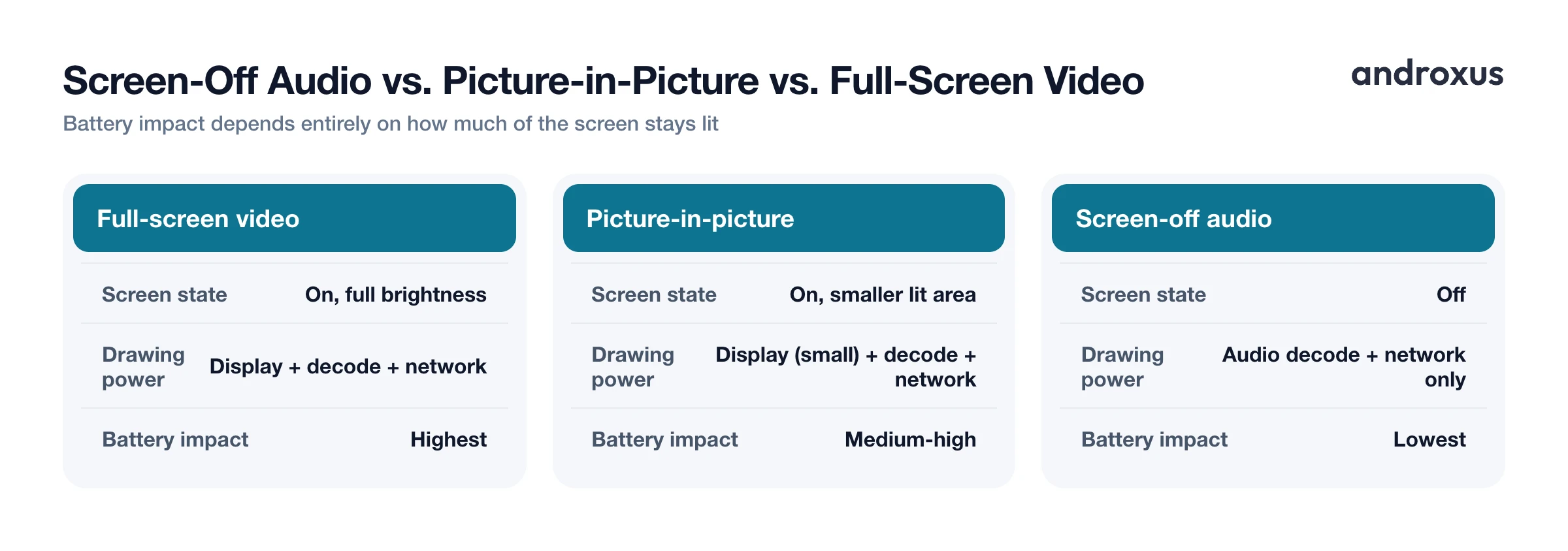
Full-screen video keeps the display fully lit at whatever brightness is set, making it the most power-hungry of the three modes. Picture-in-picture, available since Android 8.0, keeps a small floating video window active, meaning the screen is still on and still rendering and backlit even though the window is smaller. PiP saves less battery than turning the screen off entirely, even though it still lets you multitask while watching.
Screen-off background audio, whether it's music, a podcast, or just the audio track of a video, is the most battery-efficient of the three because it eliminates display power draw altogether, leaving only audio decoding and network activity running.
| Playback mode | Screen state | What's drawing power | Relative battery impact |
|---|---|---|---|
| Full-screen video | On, full brightness | Display + decode + network | Highest |
| Picture-in-picture window | On, smaller lit area | Display (smaller area) + decode + network | Medium-high |
| Background audio, screen on | On (using another app) | Display + audio decode + network | Medium |
| Background audio, screen off or locked | Off | Audio decode + network only | Lowest |
Apps like Playback that support true screen-off background playback alongside a floating picture-in-picture window let you choose the right mode for the moment: screen off to save the most battery when you're only listening, or PiP when you actually need to keep an eye on the video. Playback streams from the web, it does not download files, so it's worth pairing screen-off listening with a stable connection for the smoothest session.
Other settings that affect background playback battery life
A few settings beyond the screen itself change how much battery a long playback session costs.
Adaptive, or auto, brightness prevents the screen from defaulting to peak brightness the next time you check it, indirectly reducing average display power draw over a full day of use. Android's system-wide Battery Saver mode reduces background activity and some performance headroom, and it can safely run alongside background audio or video playback for long trips.
Streaming over a weak or distant cellular signal generally uses more radio power than streaming over Wi-Fi, so connecting to Wi-Fi when it's available compounds the savings you already get from keeping the screen off.
If background playback unexpectedly stops on some phones, it is usually caused by an aggressive manufacturer-specific battery manager layered on top of stock Android, rather than by Doze or App Standby. The fix is to confirm the app's Battery setting is not set to Restricted, as described above.
How to get the most battery-efficient background playback on Android
- Lower your screen brightness before you lock the phone. Brightness affects display power draw more than almost any other setting, so turn on auto-brightness or lower it manually before backgrounding playback or locking the screen.
- Turn the screen off or lock the phone once playback starts. For music, podcasts, or anything you're only listening to, let the screen time out or lock it rather than leaving the app or a floating window open.
- Check the app isn't set to Restricted in Battery settings. Go to Settings, then Apps, then the app name, then Battery, and confirm it's on Optimized or Unrestricted rather than Restricted.
- Use audio-only background play instead of picture-in-picture when you're not watching. Switch to screen-off background audio when you only need the sound, since a lit PiP window still draws more display power than audio alone.
- Turn on Battery Saver for long sessions. For long trips or flights, Android's system-wide Battery Saver mode can run alongside background playback to stretch total playback time further.
- Prefer Wi-Fi over cellular for long streaming sessions when possible. A weak or distant cellular connection generally draws more radio power than Wi-Fi.
Key takeaways
- Background play saves battery mainly because it lets the screen turn off, and the screen is typically the single biggest power draw on a phone.
- Android runs background playback as a foreground service with a required, visible notification, and treats it as legitimate activity that Doze mode does not interrupt.
- Screen-off audio is the most battery-efficient playback mode, followed by picture-in-picture, with full-screen video using the most power.
- Checking that an app's Battery setting is Optimized or Unrestricted, not Restricted, resolves most cases where background playback stops unexpectedly.
- Lowering brightness, preferring Wi-Fi, and using Battery Saver on long sessions all add to the savings you get simply from turning the screen off.
Frequently asked questions
Does playing audio in the background with the screen off actually save battery?
Yes. The display is typically the single biggest power draw on a phone, especially at higher brightness, so turning the screen off while audio keeps playing removes that cost and leaves only the comparatively small amount of power needed to decode audio and maintain the network connection.
Why does a notification stay on screen while something plays in the background?
Android requires apps that continue media playback in the background to run as a foreground service with an ongoing, low-priority notification showing playback controls. This is a system requirement, a mediaPlayback foreground service type since Android 10, plus the FOREGROUND_SERVICE_MEDIA_PLAYBACK permission on Android 14 and up, not something an app can hide.
Will Android's Doze mode pause my music or podcast when the screen is off?
No. Doze defers idle background work like syncing or network jobs on a stationary, unused device, but an active foreground media session with an ongoing notification is treated as legitimate, user-requested activity and keeps running through Doze cycles.
Is picture-in-picture as battery-efficient as screen-off audio?
Not quite. Picture-in-picture keeps a small video window on an active, lit screen, so it still draws more power than audio-only playback with the screen fully off, even though it uses less power than watching the same video full-screen.
Does dark mode help save battery while something plays in the background?
It can, but mainly on OLED and AMOLED screens and mainly at higher brightness. A Purdue University study found the effect is modest indoors at typical auto-brightness levels, roughly a few percent, but much larger outdoors at peak brightness, up to around 40 percent. Lowering brightness itself has a bigger, more reliable impact than switching color themes.
Should I set my playback app's battery permission to Unrestricted?
Usually not necessary. Android's default Optimized setting already allows an active foreground playback service to keep running. Unrestricted is mainly worth trying if playback stops unexpectedly on a phone with an aggressive manufacturer battery manager.
